How to fix
VSS Timeout Error 0x80042313
on Windows
Resolve the VSS Timeout Error 0x80042313 on Windows 10 and 11 effortlessly. Get expert-tested solutions that work for you in minutes!

What causes How to fix VSS Timeout Error 0x80042313 in Windows?
- High disk activity
- Minimal disk space
- Resource limitations
- Interference from other processes
Repairs Windows system files, removes malware, and restores a clean OS state — without reinstalling.
Hello. I tried creating a backup copy on Windows but I got the "The shadow copy provider timed out while flushing data to the volume being shadow copied. This is probably due to excessive activity on the volume. Try again later when the volume is not being used heavily. (0x80042313)" error message. Is there a way to fix this?
Volume Shadow Copy, often referred to as VSS, is a technology developed by Microsoft for creating consistent and point-in-time copies (snapshots) of volumes on Windows operating systems. Even if the files and data are being used or locked by other processes, these snapshots record their current state. VSS is a dependable solution for data protection and system recovery for Windows systems, allowing users to make backups and restore points without interfering with current operations.
Windows users frequently run into the Volume Shadow Copy Service (VSS) Timeout Error 0x80042313 when trying to make a backup copy or snapshot. This error occurs when the system is unable to effectively finish the backup procedure in the allotted period, which prevents the intended backup from being created.
This specific issue is more common on systems with minimal disk space or resources, and it typically appears in high disk activity scenarios. The VSS timeout problem could be caused by the high disk activity interfering with the backup process's timely execution.
This problem affects a lot of users, particularly those who depend on frequent backups for system recovery and data security. In the event of unplanned system failures, unsuccessful backup attempts can expose users to data loss, so it's critical to solve the underlying issue in order to guarantee the dependability of backup procedures.
Users who are facing the VSS Timeout Error 0x80042313 could feel anxious and frustrated since they might lose important data. The problem makes it more difficult for users to keep safe and current copies of their critical files and system configurations, interfering with the backup processes' smooth performance.
Because of its complexity, there isn't a single, universally applicable solution to this problem; instead, users can attempt a number of different troubleshooting techniques to lessen the problem. These could include changing the system configuration, giving the backup procedure greater resources, or discovering and resolving any possible conflicts with other services or apps.
In this guide, you will find 3 steps that should help you fix VSS Timeout Error 0x80042313 in Windows. You can also run a system repair tool like [d1] that can fix most system errors, BSODs,[ref en-1] corrupted files, and registry[ref en-2] issues. Otherwise, follow the step-by-step instructions below.
Solution 1. Check Volume Shadow Copy Service
- Press the Windows key + R to open the Run box.
- Type services.msc and press Enter to launch Services.
- Scroll down to find Volume Shadow Copy and right-click on it to select Properties.
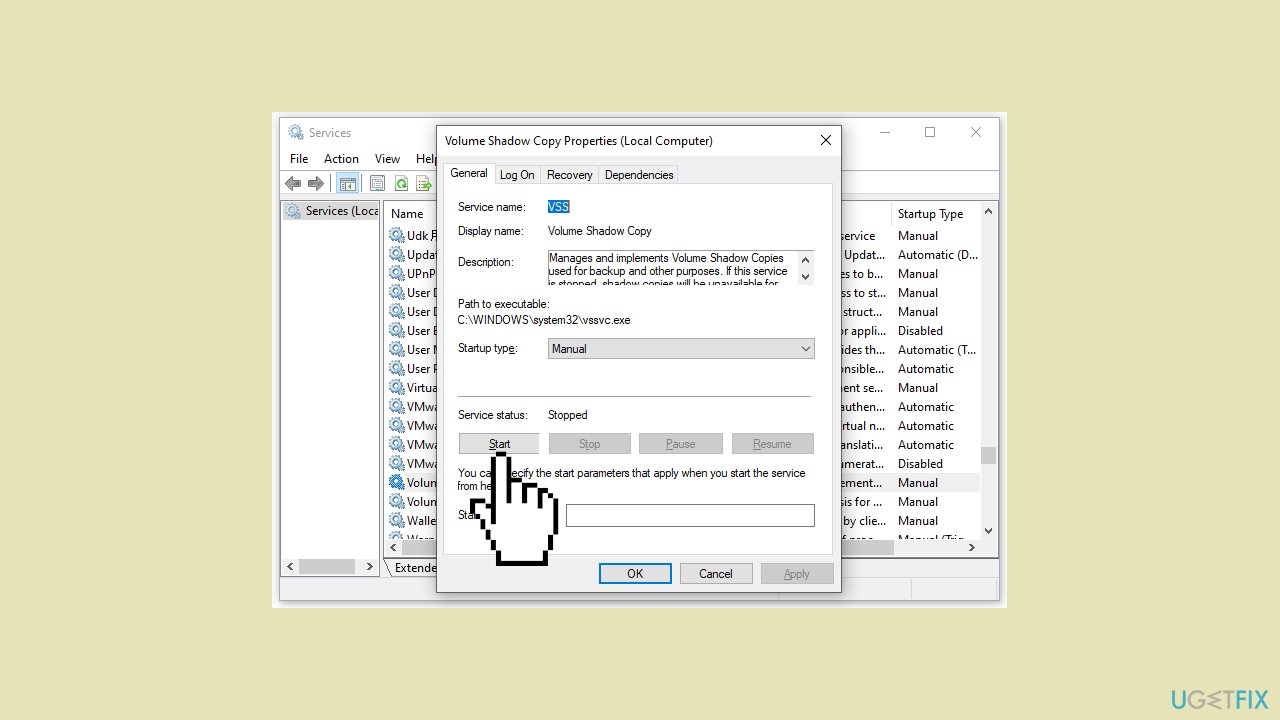
- If the service status is not running, click on Start.
- Save the changes.
- Recreate the snapshot to check if VSS error 0x80042313 disappears.
Solution 2. Increase VSS Timeout Period
- Press the Windows key + R to open the Run box.
- Type regedit.exe and click OK to launch Registry Editor.
- Navigate to the following path: HKEY_LOCAL_MACHINE\Software\Microsoft\Windows NT\CurrentVersion\SPP
- In the right pane, right-click on the empty space, select New, choose DWORD (32-bit) Value, and name it CreateTimeout.
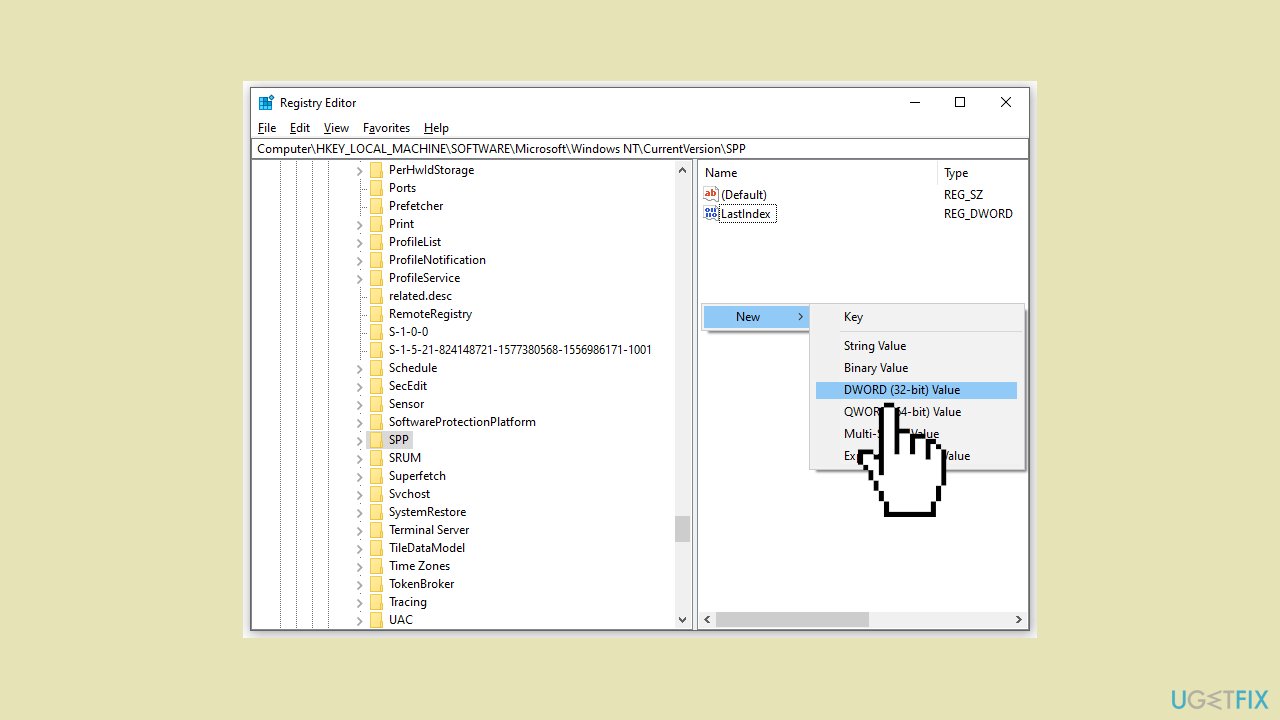
- Right-click on CreateTimeout, enter 12000000 in the Value data, set Decimal as Base, and click OK to save the changes. This increases the Volume Shadow Copy timeout to 20 minutes.
- Reboot your computer.
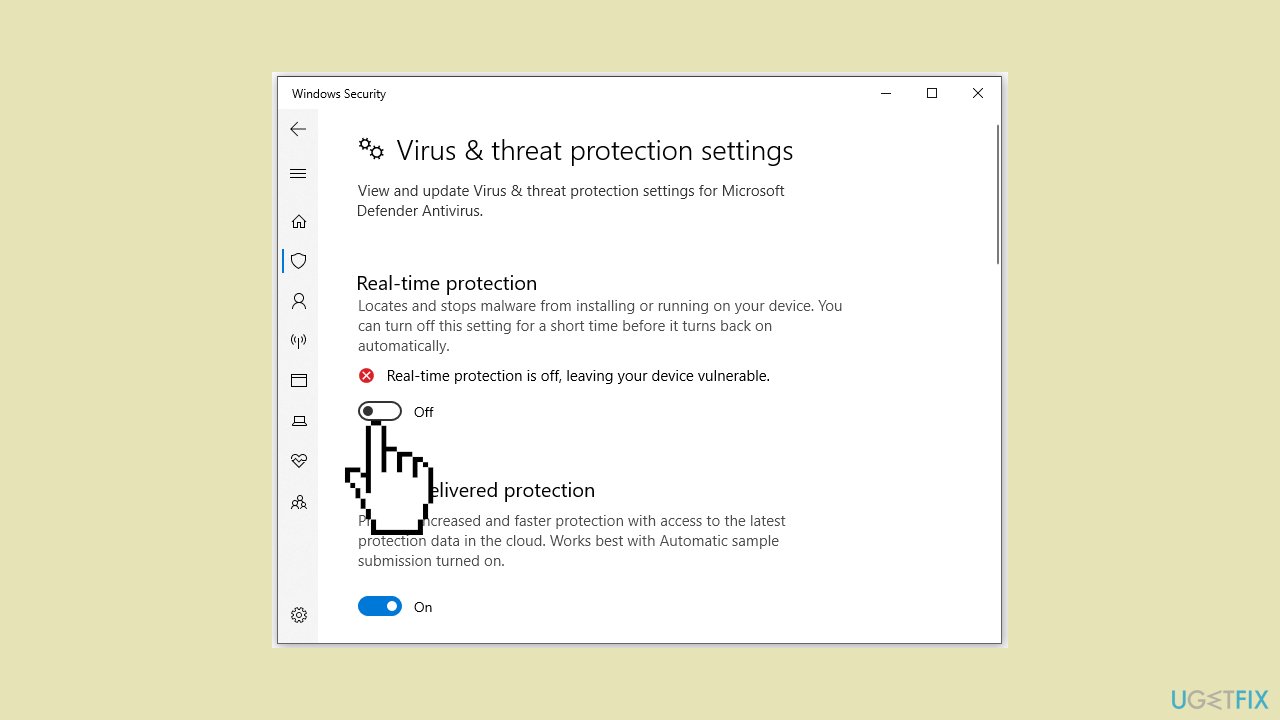
Solution 3. Disable Windows Security
- Press the Windows key + I to open Windows Settings.
- Navigate to Update & Security > Windows Update > Virus & threat protection.
- Click on Manage settings.
- Toggle off Real-time protection.
Bottom line
To fix the VSS Timeout Error 0x80042313, users can try reducing disk activity, freeing up disk space, and ensuring that there are sufficient system resources available. If these solutions do not resolve the issue, further troubleshooting techniques may be necessary.
Frequently asked questions
The VSS Timeout Error 0x80042313 in Windows 10 typically occurs due to issues with the Volume Shadow Copy Service, often linked to insufficient disk space or corrupted system files.
To troubleshoot this error in Windows 11, you can try restarting the Volume Shadow Copy service and ensuring your system is updated, as well as running the System File Checker tool.
Yes, you can use the Command Prompt to execute commands such as 'vssadmin list writers' to check the status of VSS writers, and 'chkdsk' to repair any disk issues that may be causing the error.




Report an issue
What's wrong with this guide? We review every report and update or remove content.
Report received — thank you. We'll review and fix it.
You need a free account to submit a report.
Be the first to comment