How to fix
MACHINE CHECK EXCEPTION BSOD
on Windows
Resolve the MACHINE CHECK EXCEPTION BSOD in Windows 10 or 11 effortlessly with our expert-tested solutions. Fix the issue in minutes, guaranteed!

What causes How to fix MACHINE CHECK EXCEPTION BSOD in Windows?
- Hardware failure
- Overheating of components
- Power supply problem
- Outdated drivers
- Faulty drivers
- System overclocking
Repairs Windows system files, removes malware, and restores a clean OS state — without reinstalling.
Hello, I keep randomly getting a MACHINE CHECK EXCEPTION Blue Screen error, which always crashes my PC. I don't even know what causes it, so it is hard for me to know to even start.
Blue Screen of Death (BSOD) errors are a significant concern for Windows users, manifesting as a full-screen error display that halts all operations on a computer. Typically occurring due to serious issues with the system's hardware or software, BSODs are a critical signal that something has gone fundamentally wrong with the machine.
These errors vary in severity, ranging from temporary glitches to indicators of profound system failures. Crucially, each BSOD provides an error code, offering a valuable clue to diagnosing the underlying problem.
Among these error codes, the MACHINE CHECK EXCEPTION is a notable example. This specific error is indicative of a critical hardware error within your system. It points towards a failure in the computer's hardware, suggesting that a vital component of your machine is malfunctioning or has become incompatible with the rest of the system.
This crash often surfaces due to issues like hardware failure, overheating of components, or even due to a power supply problem. However, it's essential to understand that while hardware issues are a common cause, they are not the only possibility.
MACHINE CHECK EXCEPTION BSOD can also arise from non-hardware-related issues. For instance, outdated or faulty drivers can trigger this error, as drivers are crucial in facilitating communication between your system's hardware and software. Another potential cause could be system overclocking, where the hardware is pushed beyond its standard operational limits, leading to instability and errors like MACHINE CHECK EXCEPTION. In such cases, addressing the driver issues or resetting the overclocking parameters could help resolve the problem.
While the MACHINE CHECK EXCEPTION BSOD is often a sign of hardware trouble, it's vital to consider all possibilities, including software and driver issues. For those who are not comfortable delving into hardware diagnostics or driver updates, utilizing a [d1] PC repair tool can be a practical solution.
Fix 1. Check for corrupted system files
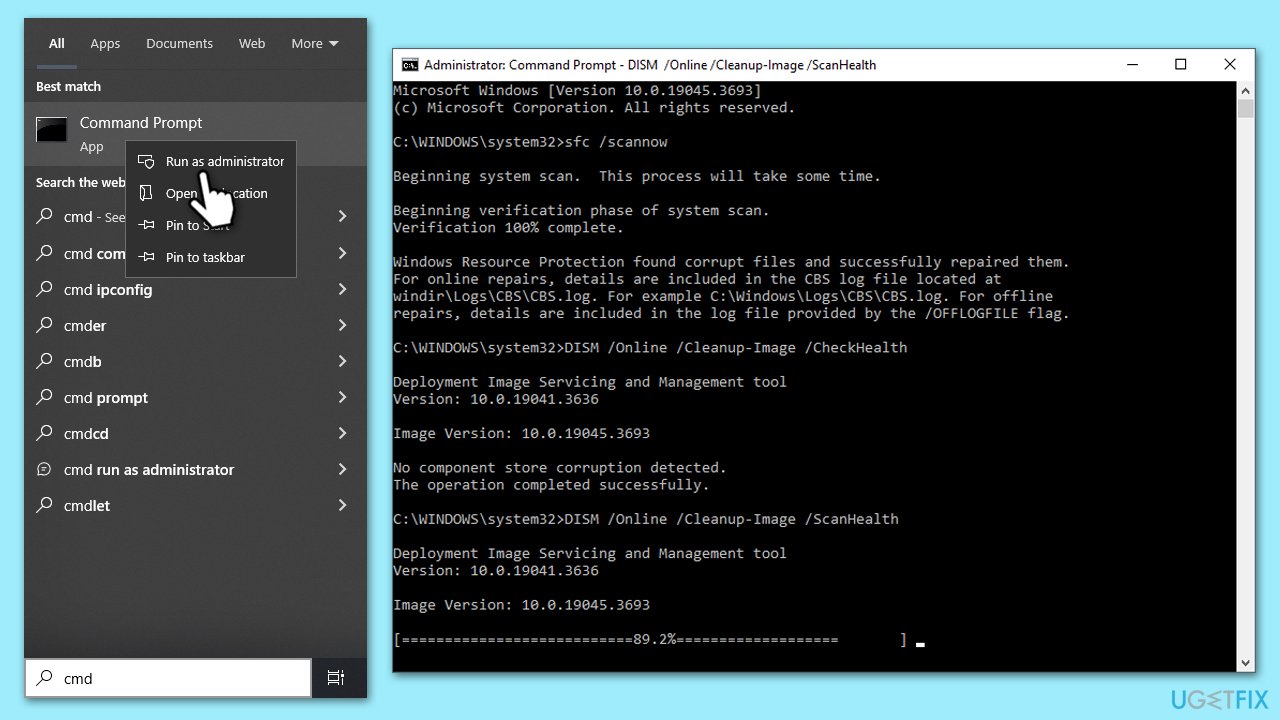
The System File Checker (SFC) and Deployment Image Servicing and Management (DISM) scans are Windows utilities that check for and repair corrupted system files. These tools are useful when dealing with BSOD errors like MACHINE CHECK EXCEPTION, as they can fix corrupted files that might be causing system instability.
- Type cmd in Windows search.
- Right-click on Command Prompt and pick Run as administrator.
- User Account Control window will show up - click Yes when prompted.
- Then, copy and paste the following command, pressing Enter after:
sfc /scannow - Wait till the scan is finished. If Windows finds system file integrity violations, it will attempt to fix them. After this, use the set of the following commands, pressing Enter each time:
DISM /Online /Cleanup-Image /CheckHealth
DISM /Online /Cleanup-Image /ScanHealth
DISM /Online /Cleanup-Image /RestoreHealth - (Note: if you get an error executing this last command, add /Source:C:\RepairSource\Windows /LimitAccess to it and try again).
- Close down the Command Prompt and restart your system.
Fix 2. Update chipset drivers
Updating the chipset drivers can resolve compatibility issues and improve the stability of your system. The chipset controls communication between the processor, memory, and other components, so keeping its drivers updated is crucial.
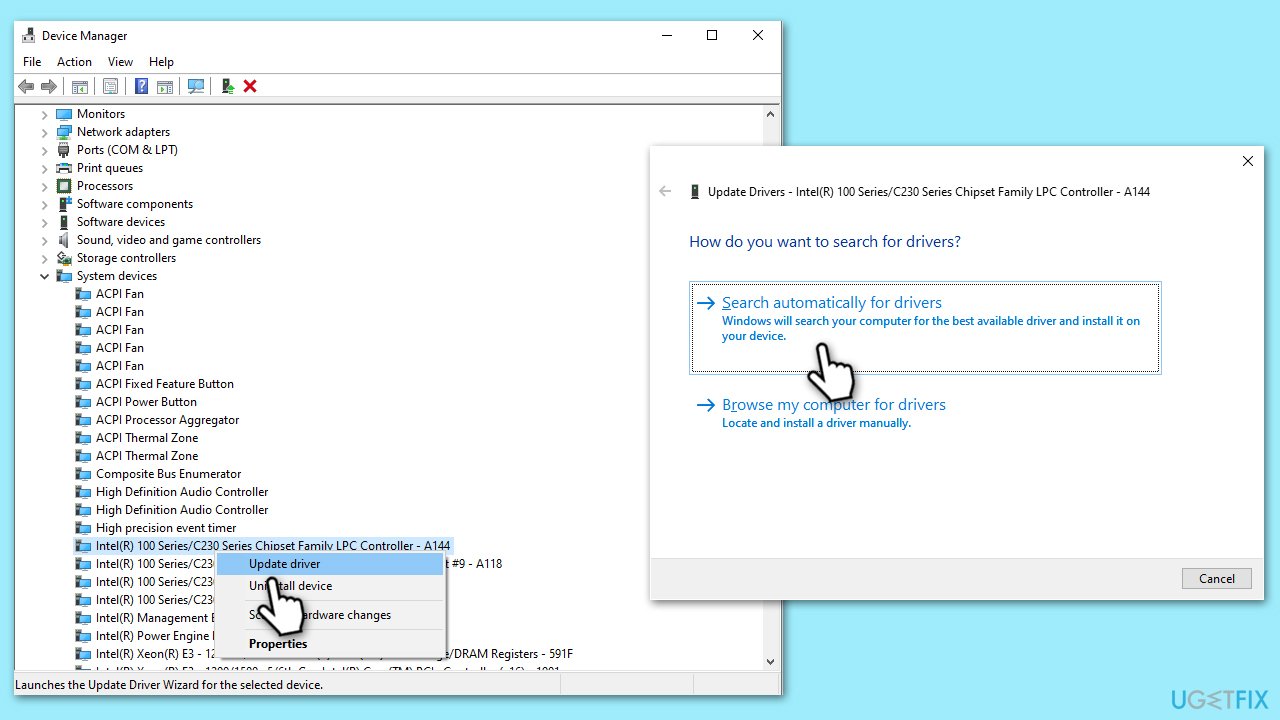
- Right-click on Start and pick Device Manager.
- Expand the System Devices section.
- Right-click on each chipset device listed and select Update driver.
- Choose Search automatically for drivers.
- Follow the on-screen instructions to complete the updates.
- Restart your computer after updating the drivers.
Note that Windows is not the best when it comes to updating various drivers to the latest version. Therefore, you should either visit your motherboard's (or laptop's) official website and download the latest drivers from there or use an automatic driver updater such as [rev id="DriverFix"].
Fix 3. Stop overclocking
Overclocking pushes hardware beyond factory settings, which can cause instability and crashes. Returning to standard settings can resolve these issues.
- Restart your computer and enter the BIOS setup (usually by pressing F2, F10, F8, or Del key during startup).
- Locate the overclocking settings (often under Advanced, Performance, or a similar section).
- Reset these settings to their default values.
- Save the changes and exit the BIOS.
Fix 4. Update BIOS
An outdated BIOS can lead to compatibility issues, causing BSOD errors. Updating the BIOS is a critical step for maintaining system stability.
- Before proceeding, backup your data as a precaution.
- Visit the manufacturer's website and download your specific model's latest BIOS update file (you can check which BIOS you are using by typing System information in Windows search and checking the BIOS Version/Date and BaseBoard Product entries there).
- Extract the BIOS update files and read any provided instructions or documentation.
- Create a bootable USB drive with the BIOS update files, if required.
- Update the BIOS using the manufacturer's recommended method, which may be through a built-in utility or booting from a USB drive.
- Restart your system to complete the process.

Fix 5. Perform Check Disk
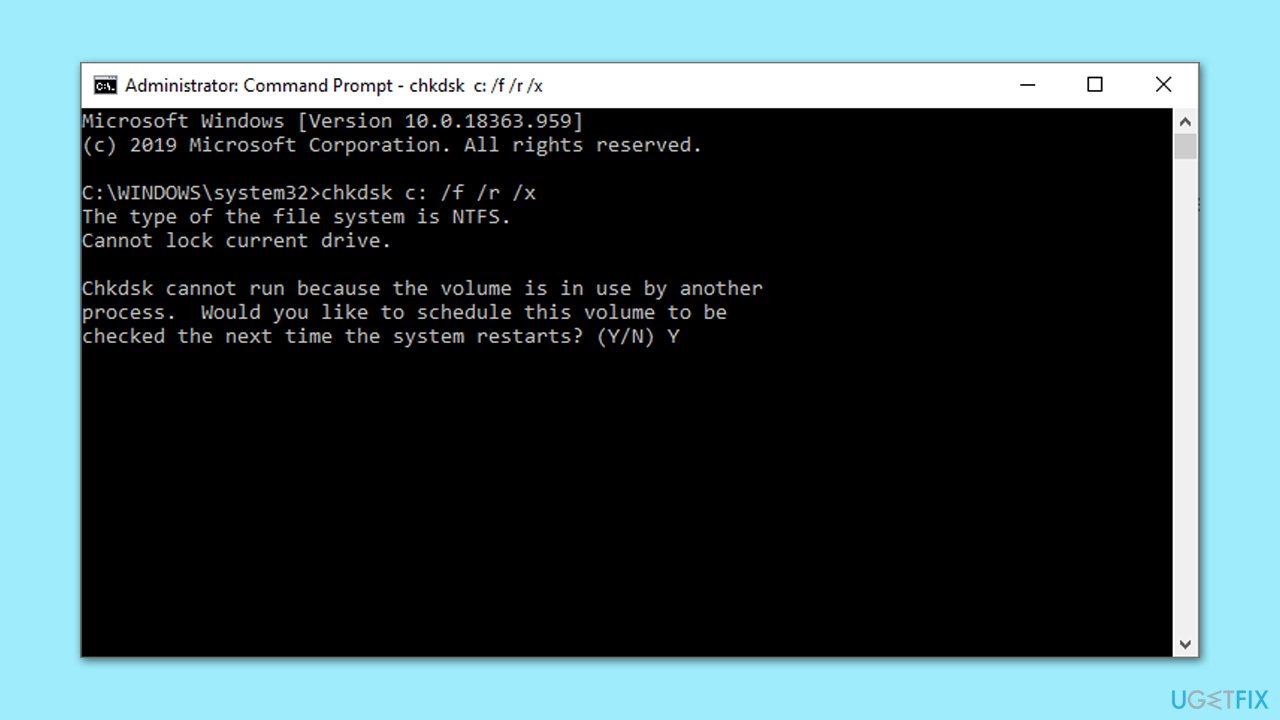
Check Disk utility scans and repair hard drive errors, it is useful for fixing issues causing the BSOD due to hard drive corruption or bad sectors.
- Open Command Prompt as administrator.
- In the new window, type in the following command and press Enter after:
chkdsk c: /f
(Note: use chkdsk c: /f /r /x command if you are using SSD as your primary partition) - If you receive an error, type in Y, close down Command Prompt and restart your system.
- Wait until the scan is finished - you can find the results in the Event Viewer.
Fix 6. Reset Windows
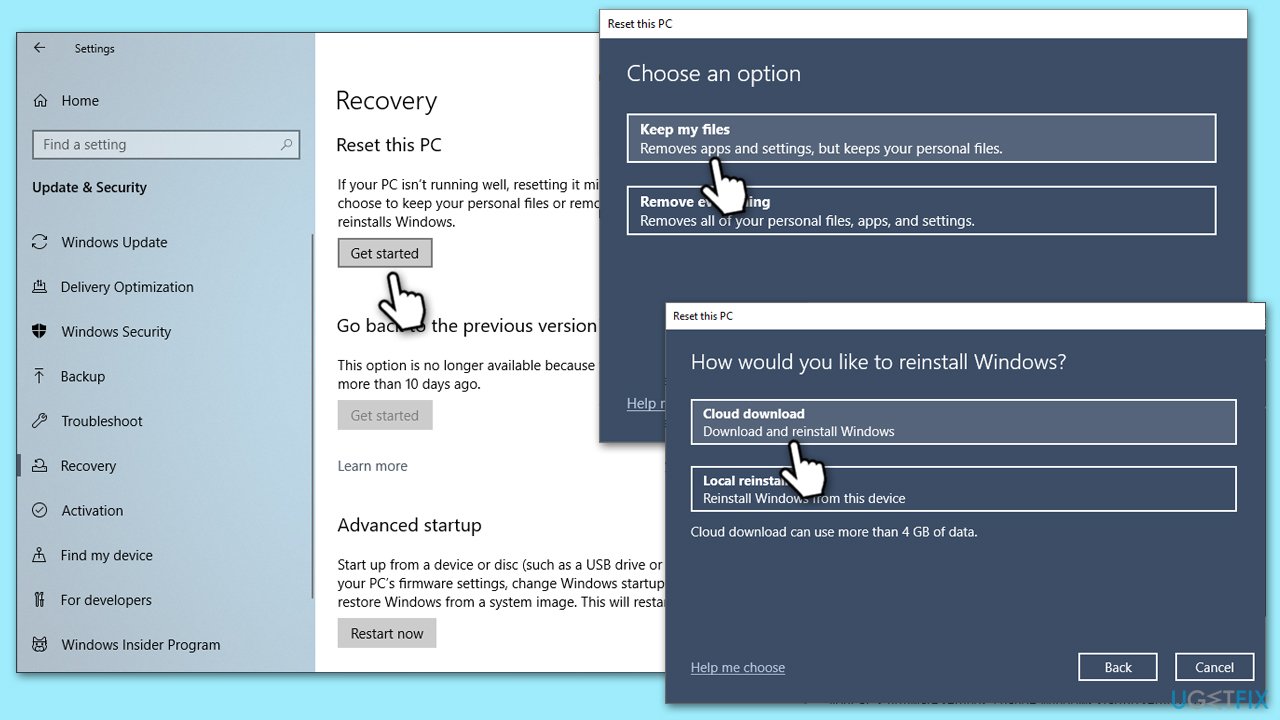
Resetting Windows can iron out various software-related issues - this method also allows you to keep all personal files on the system.
- Right-click on Start and pick Settings.
- Go to Update & Security and select Recovery.
- Under Reset this PC, pick Get started.
- Next, pick Keep my files (if you want to keep them) and then Cloud download.
- Choose Keep my files to reinstall Windows without losing personal data.
- Follow the on-screen instructions to complete the reset process.
- After the process, reinstall the necessary applications and drivers.
Fix 7. Check for overheating
Overheating can cause your system to become unstable, leading to BSOD errors. Ensuring your system is not overheating can help resolve these issues.
- Check the temperature of your CPU and GPU using a system monitoring tool (such as Core Temp or Open Hardware Monitor).
- Ensure your computer's vents are not blocked and that it's in a well-ventilated area.
- Clean the inside of your computer to remove dust, focusing on the fans and heat sinks.
- Consider adding additional cooling or replacing old thermal paste if temperatures are consistently high.
Bottom line
To fix the MACHINE CHECK EXCEPTION BSOD, consider checking for corrupted drivers, addressing hardware issues, or resetting overclocking parameters. If you're not comfortable with these steps, using a PC repair tool can be a practical solution. If none of these fixes work, further diagnostics may be necessary.
Frequently asked questions
The MACHINE CHECK EXCEPTION BSOD typically occurs due to hardware issues, such as failing RAM, overheating CPU, or problems with other components. It can also be triggered by driver conflicts or outdated firmware.
To troubleshoot this error in Windows 11, start by updating your drivers and running hardware diagnostics to check for faults. You can also use the Windows Memory Diagnostic tool to test your RAM.
Yes, you can often resolve the MACHINE CHECK EXCEPTION BSOD by performing system restore, uninstalling recent updates or software, and checking hardware connections, without the need to reinstall Windows 10.




Report an issue
What's wrong with this guide? We review every report and update or remove content.
Report received — thank you. We'll review and fix it.
You need a free account to submit a report.
Be the first to comment