How to fix
Lock screen slideshow not working
on Windows
Resolve your lock screen slideshow issues on Windows 10 and 11 effortlessly. Get expert-tested solutions and enjoy a seamless experience in minutes.


What causes How to fix lock screen slideshow not working in Windows?
- General bugs in the Windows operating system
- Corrupted files affecting image loading
- Disk errors or improper file handling
- Aggressive power-saving settings
- Incorrect screen saver settings
Repairs Windows system files, removes malware, and restores a clean OS state — without reinstalling.
My lock screen slideshow is not working. Instead, it simply shows one image that I have previously set on the "picture" option. Why is this the case? I have the lock screen set to Slideshow, by the way.
The lock screen in Windows, which is the first interface users encounter upon starting or waking up their computers, serves a dual purpose. It not only provides a crucial layer of security by requiring authentication for access, but also conveniently displays essential information such as time, date, and notifications, all without the need to unlock the device.
A key feature of this lock screen is its ability to be personalized, allowing users to infuse their own style into their computer’s initial interface. Among these customization options, the lock screen slideshow is particularly notable, offering the ability to display a rotating selection of images, thereby transforming an otherwise static screen into a dynamic and personal display.
Despite its appeal, some users face challenges with the lock screen slideshow feature in Windows, where it fails to function as intended. This issue diminishes the personalized experience that Windows strives to offer. The causes of this malfunction can vary: it might be attributed to general bugs in the Windows operating system that intermittently affect functionalities, including the lock screen slideshow. Alternatively, the issue could stem from corrupted files, particularly if the images intended for the slideshow aren’t loading correctly, which might be due to disk errors or improper file handling.
Moreover, the settings for power options in Windows could inadvertently interfere with the slideshow feature. For example, aggressive power-saving settings might prevent the slideshow from playing in an effort to conserve energy. Similarly, incorrect screen saver settings could override the lock screen preferences, leading to malfunction.
If the lock screen is not working for you, you might need to look into system updates to resolve general bugs or undertake steps to restore corrupted files. Additionally, tweaking the power options to more lenient settings, or adjusting the screen saver settings could be necessary.
For a more comprehensive solution, especially when manual troubleshooting proves ineffective, employing a PC repair tool [d1] can be useful. This tool is designed to automatically diagnose and rectify underlying issues within the Windows operating system, potentially resolving the lock screen slideshow problem in a streamlined and efficient manner.
Fix 1. Ensure the Slideshow settings are correct
Before proceeding to more complex solutions, we recommend you first make sure that all the settings relating to Slideshow are correct. Follow these steps:
- Open the Start menu and select Settings.
- Go to Personalization.
- Select the Lock screen from the sidebar.
- In the Background dropdown menu, choose Slideshow.
- Make sure the folders selected contain the images for your slideshow.
- Next, click Advanced slideshow settings.
- Disable Only use pictures that fit my screen.
- Enable When my PC is inactive, show lock screen instead of turning off.

Fix 2. Change Power Options for Slideshow
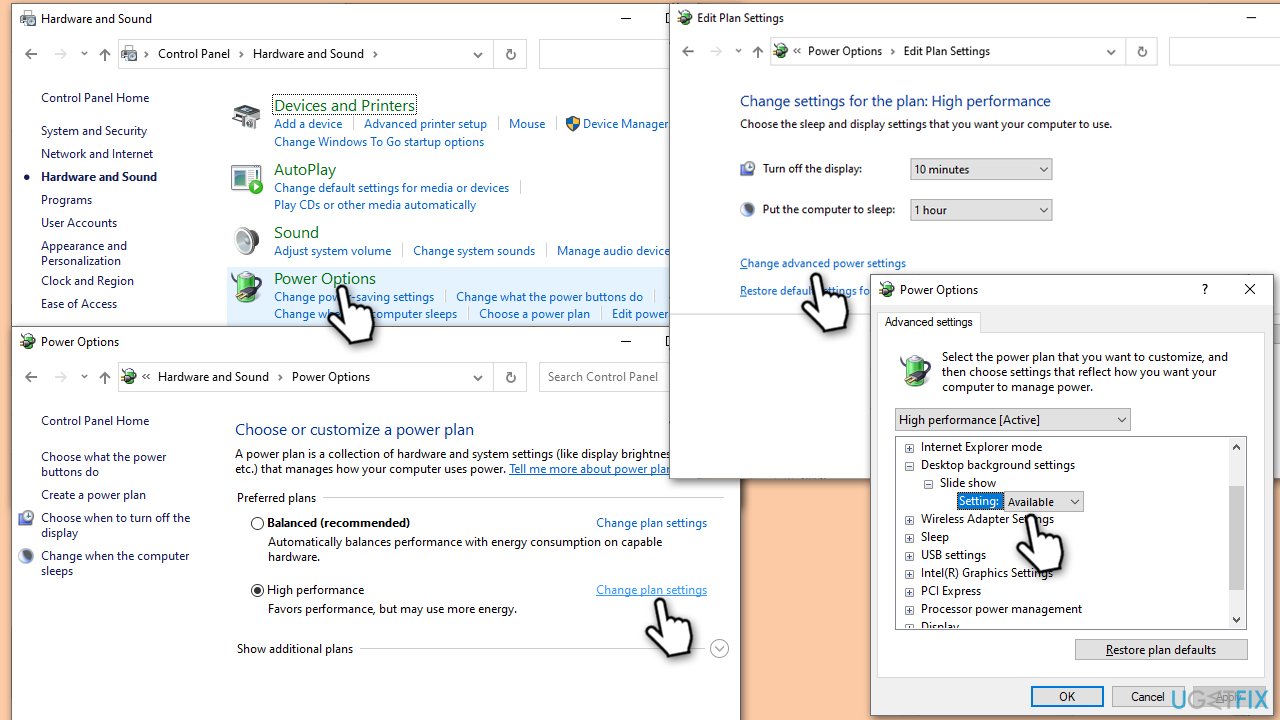
Modifying the power settings can help if the slideshow stops working due to power-saving measures, especially on laptops. This fix involves changing the power plan settings to ensure the slideshow isn't disabled for energy conservation.
- Open Control Panel.
- Go to Hardware and Sound.
- Click on Power Options.
- Select your current power plan and click Change plan settings.
- Click on Change advanced power settings.
- Expand Desktop background settings.
- Under Slide show, set to Available for both On battery and Plugged in modes.
- Click Apply, then OK to save changes.
Fix 3. Check for corrupted system files
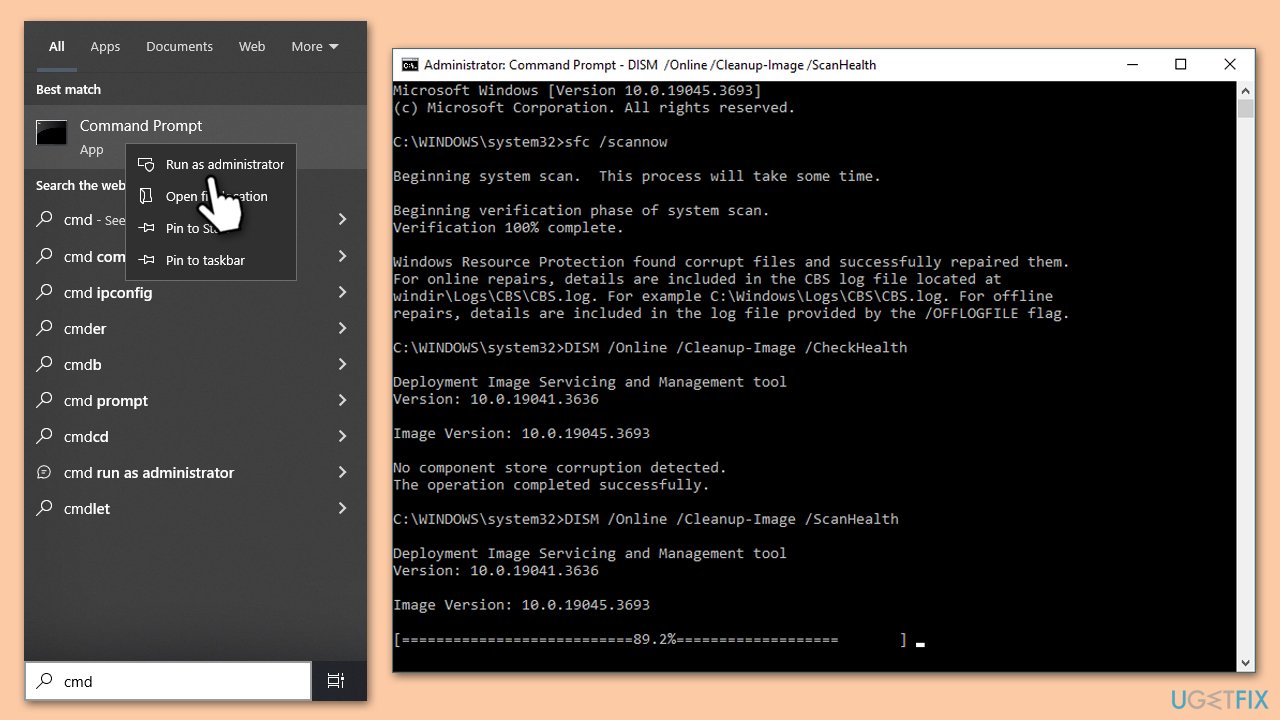
System File Checker (SFC) and Deployment Image Servicing and Management (DISM) tools help fix corrupted system files that might cause the slideshow to malfunction. These tools scan and repair system file issues.
- Type in cmd in Windows search.
- Right-click on Command Prompt and select Run as administrator.
- In the User Account Control window, click Yes.
- In the Command Prompt window, paste the following command and hit Enter:
sfc /scannow - Next, use the following commands, pressing Enter each time:
Dism /Online /Cleanup-Image /CheckHealth
Dism /Online /Cleanup-Image /ScanHealth
Dism /Online /Cleanup-Image /RestoreHealth
(Note: if you get an error executing this last command, add /Source:C:\RepairSource\Windows /LimitAccess to it and try again). - Reboot your system.
Fix 4. Update Windows
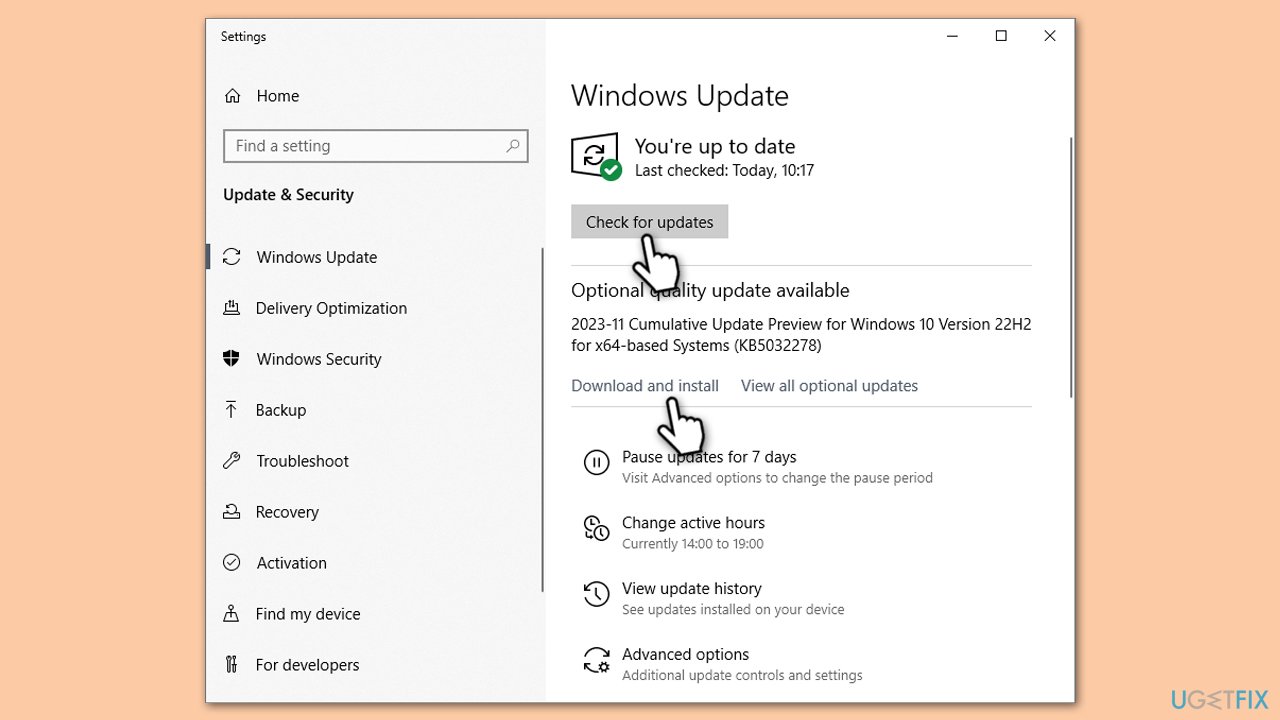
Ensuring your Windows is up to date can resolve many problems, including slideshow issues. Updates often contain fixes for known bugs and improvements.
- Open Settings.
- Click on Update & Security.
- Select Windows Update.
- Click Check for updates.
- Install any available updates
- Restart your computer after updating.
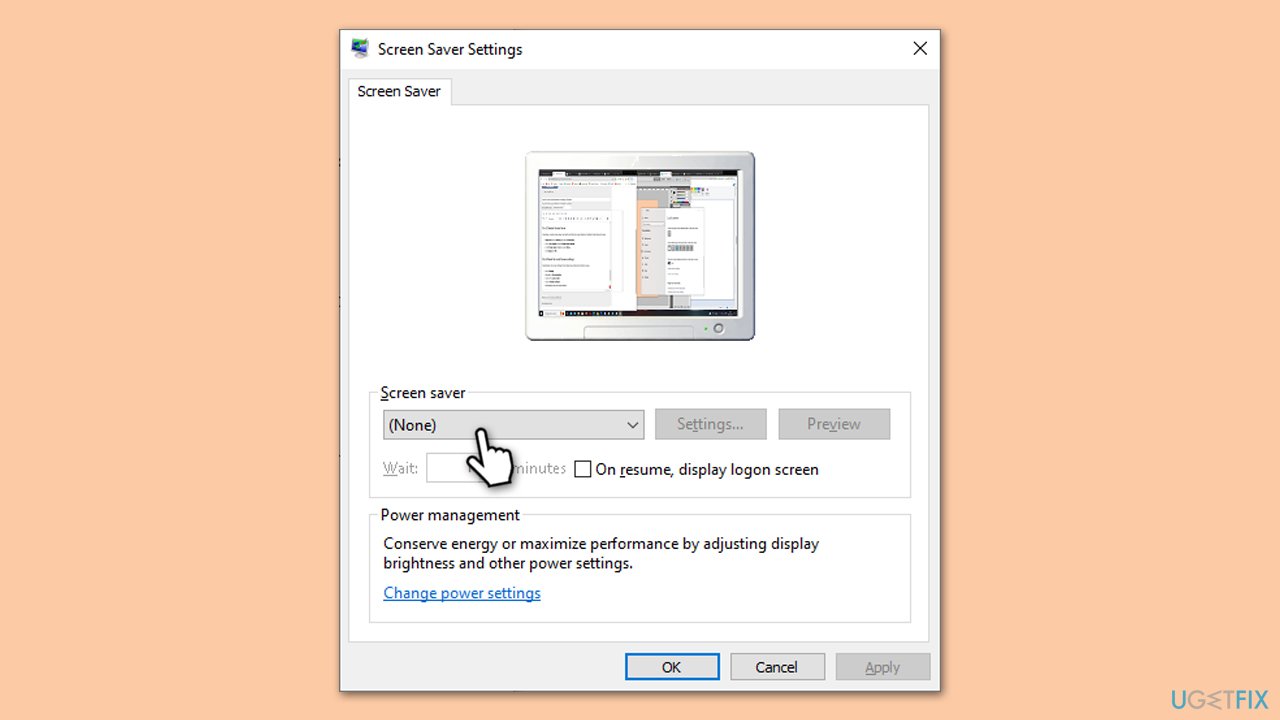
Fix 5. Disable Screen Saver
Sometimes, an active screen saver can interfere with the lock screen slideshow. Disabling it might resolve the issue.
- Right-click on the Desktop and select Personalize.
- Go to Lock screen and then Screen saver settings.
- In the Screen saver dropdown, select None.
- Click Apply and OK.
Fix 6. Check for corrupted images
Corrupted images in the slideshow folder can cause the slideshow to stop. Ensure all images in the folder are in good condition.
- Open the folder used for the slideshow (by default, it is C:\Windows\Web\Screen but it is likely to be different depending on which folder you are using to show the pictures from).
- Check each image file to ensure it opens correctly.
- Remove or replace any corrupted files.
Bottom line
To fix the lock screen slideshow issue, check for system updates to resolve bugs, restore corrupted files, and adjust power options to more lenient settings. Additionally, review screen saver settings to ensure they do not override lock screen preferences. If these steps do not resolve the problem, further troubleshooting may be necessary.
Frequently asked questions
The lock screen slideshow may not work due to incorrect settings or a corrupted image file. Ensure that the slideshow feature is enabled in Settings and that the images are in a supported format.
To reset the lock screen settings in Windows 11, go to Settings > Personalization > Lock screen, toggle the slideshow option off and on again, and select the correct folder for your images.
If the slideshow still doesn't work, try updating your Windows 10 system or checking for any third-party apps that might be conflicting with the lock screen settings.




Report an issue
What's wrong with this guide? We review every report and update or remove content.
Report received — thank you. We'll review and fix it.
You need a free account to submit a report.
Be the first to comment