How to fix
Friends Network Unreachable Steam error
on Windows
Resolve the Friends Network Unreachable error on Steam for Windows 10 and Windows 11 with our expert-tested solutions. Get back to gaming in minutes!

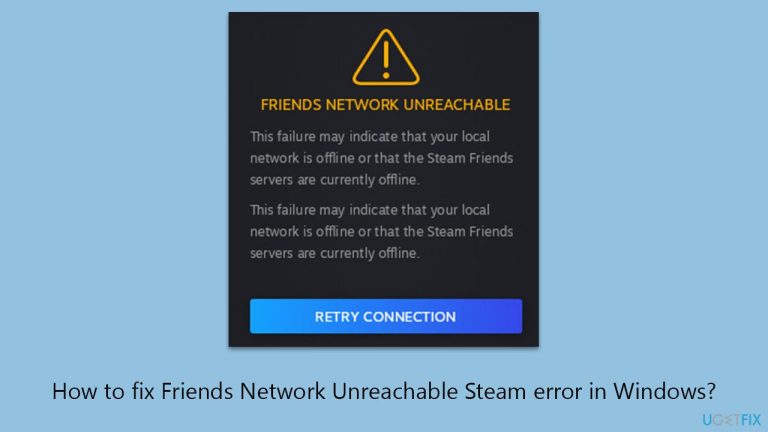
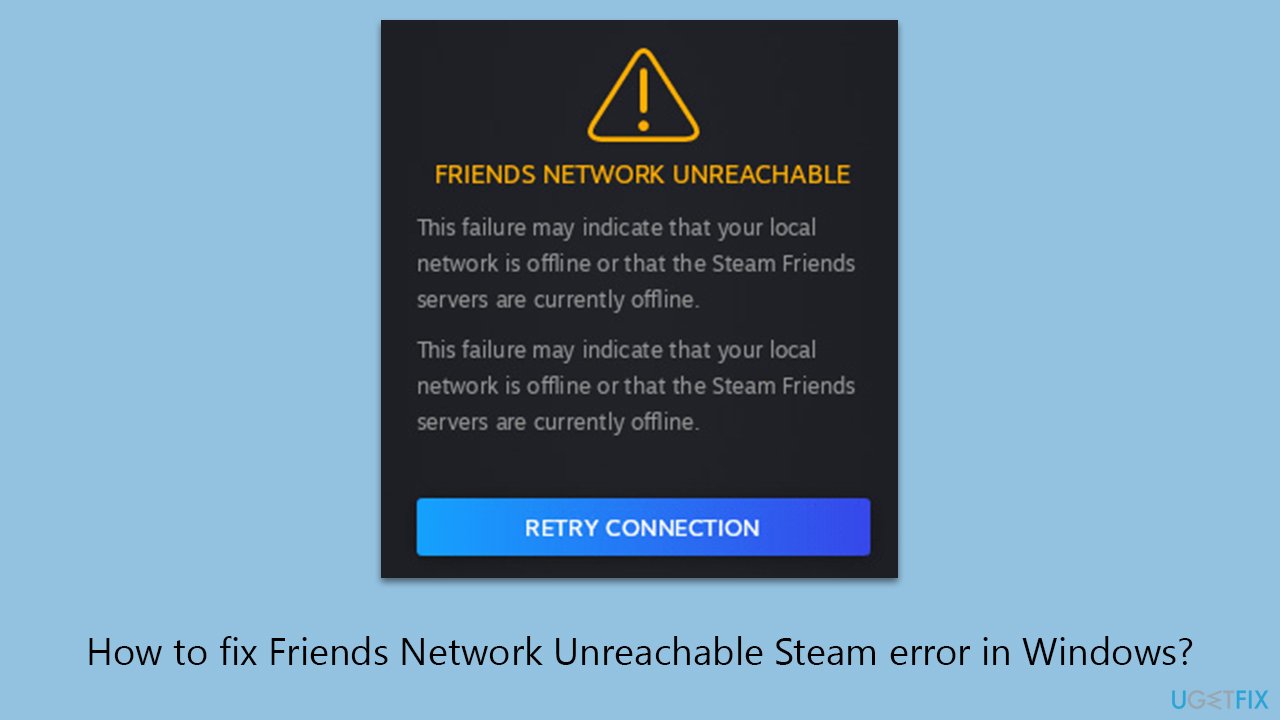
What causes How to fix Friends Network Unreachable Steam error in Windows?
- Network Problems
- Corrupted Cache
- General Bugs in the Steam Client
- Unstable Internet Connection
- Router Malfunctions
Repairs Windows system files, removes malware, and restores a clean OS state — without reinstalling.
I can use Steam with no problems, apart from one - it won't connect to my Friends network. It says "Friends Network Unreachable." Retrying the connection does not yield any results. I've also tried restarting the PC.
Steam, a leading digital distribution platform, is renowned for its comprehensive services, with the Friends List feature being one of the key components. This feature is crucial for users to connect with friends, join gaming sessions, and participate in community activities. However, the "Friends Network Unreachable" error occasionally impedes this social connectivity, presenting challenges in fully utilizing Steam's social capabilities.
The "Friends Network Unreachable" error, indicated by an inability to access the Friends List, can stem from various sources, including network problems, corrupted cache, or general bugs in the Steam client. Network issues might involve unstable internet connections or router malfunctions, hindering the connection to Steam's Friends Network. A corrupted cache, where temporary files used by Steam are damaged, is another common culprit for this error.
To fix the "Friends Network Unreachable" error, you should consider the nature of the problem. For network issues, checking the internet connection or restarting the router may prove beneficial. If the problem lies with a corrupted cache, clearing Steam's cache could be a viable solution. Sometimes, the issue might be resolved by waiting for a Steam update or switching networks.
If these measures do not resolve the issue, it could suggest deeper problems with the Windows operating system. In such cases, using a PC repair tool [d1], designed to diagnose and fix Windows issues automatically, can be an effective approach. This tool can help rectify underlying system problems, potentially resolving the Steam error and ensuring a smoother experience.
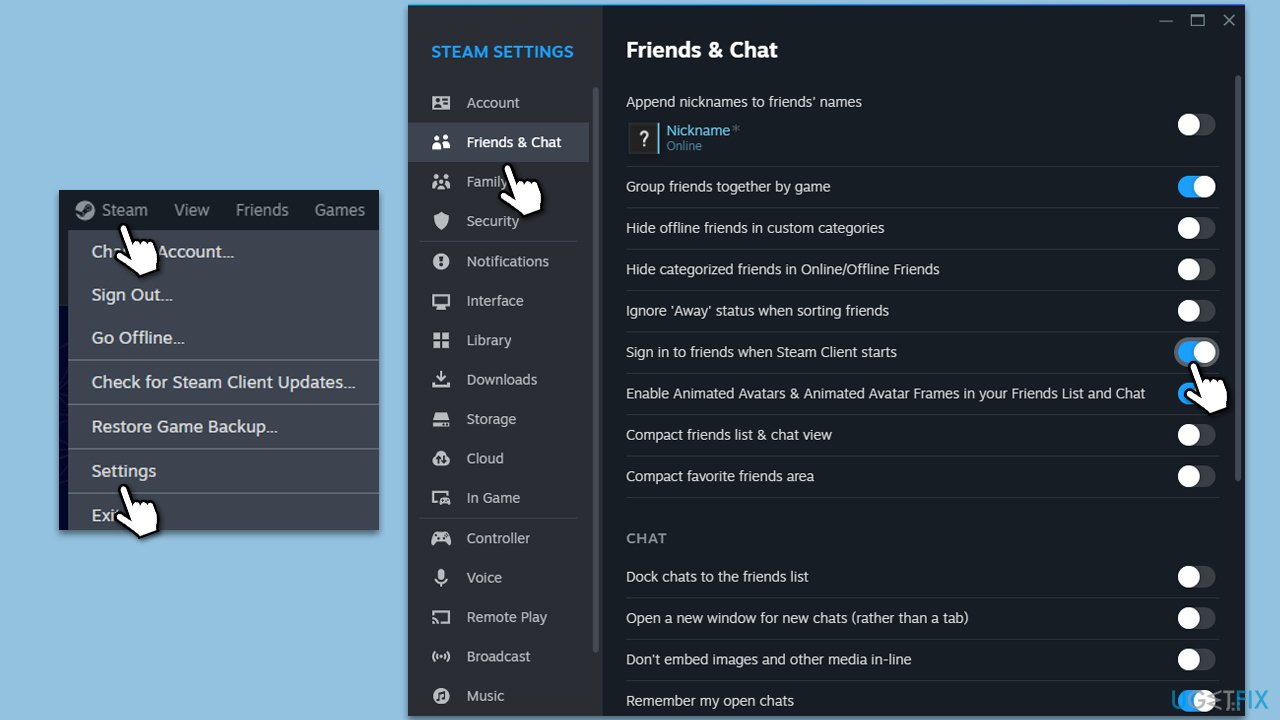
Fix 1. Enable the Sign in to friends when Steam Client starts option
This solution involves adjusting the Steam settings to automatically connect to the Friends Network when the client starts. This can be particularly helpful in resolving connectivity issues that may arise from manual sign-in errors or occasional glitches within the Steam client.
- Open Steam on your PC.
- Click on Steam in the upper left corner, then select Settings.
- In the Settings menu, navigate to the Friends & Chat tab.
- Look for the option labeled Sign in to Friends Steam Client starts and toggle it to Enabled.
- Restart Steam to see if the issue is resolved.
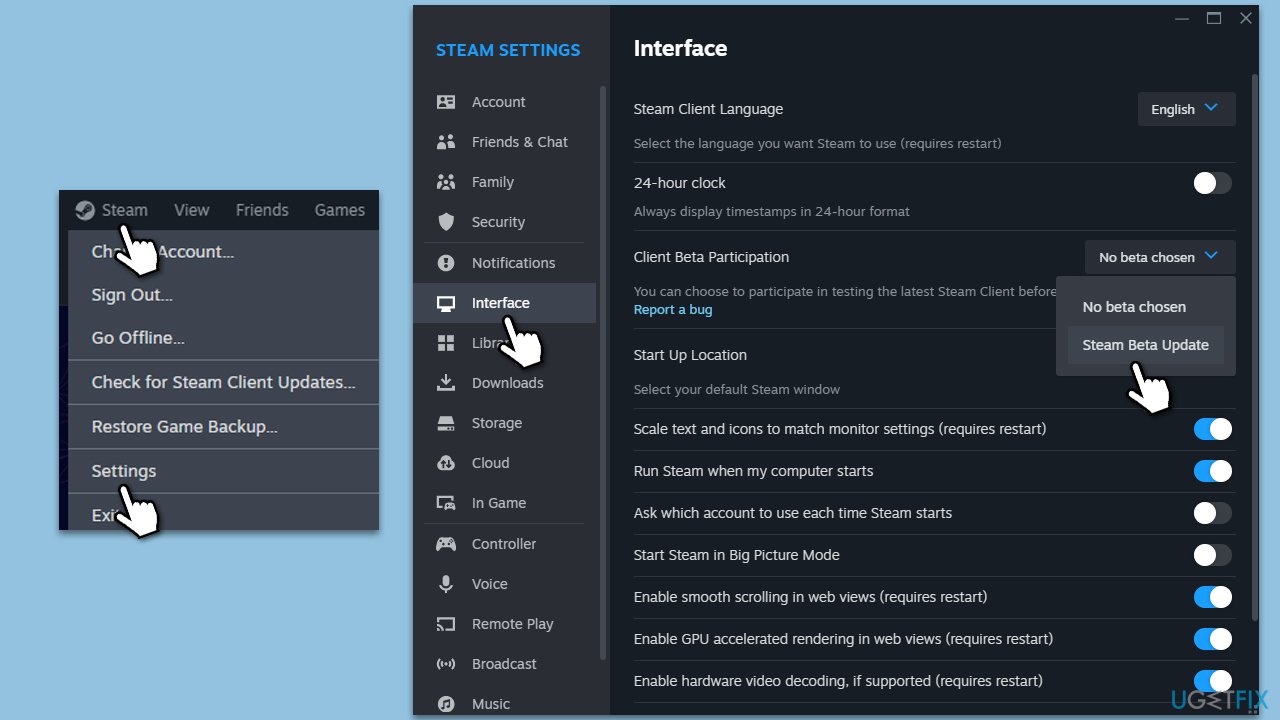
Fix 2. Update to Steam Beta
Joining the Steam Beta program can provide access to the latest updates and bug fixes that might not yet be available in the standard version. This can be an effective way to resolve the Friends Network Unreachable error if it's caused by a bug that's already been addressed in a beta update.
- Launch Steam.
- Click on Steam and pick Settings.
- Go to the Interface tab.
- Under Client Beta participation, click on the drop-down menu.
- Select Steam Beta Update.
- Restart the Steam client for the changes to take effect.
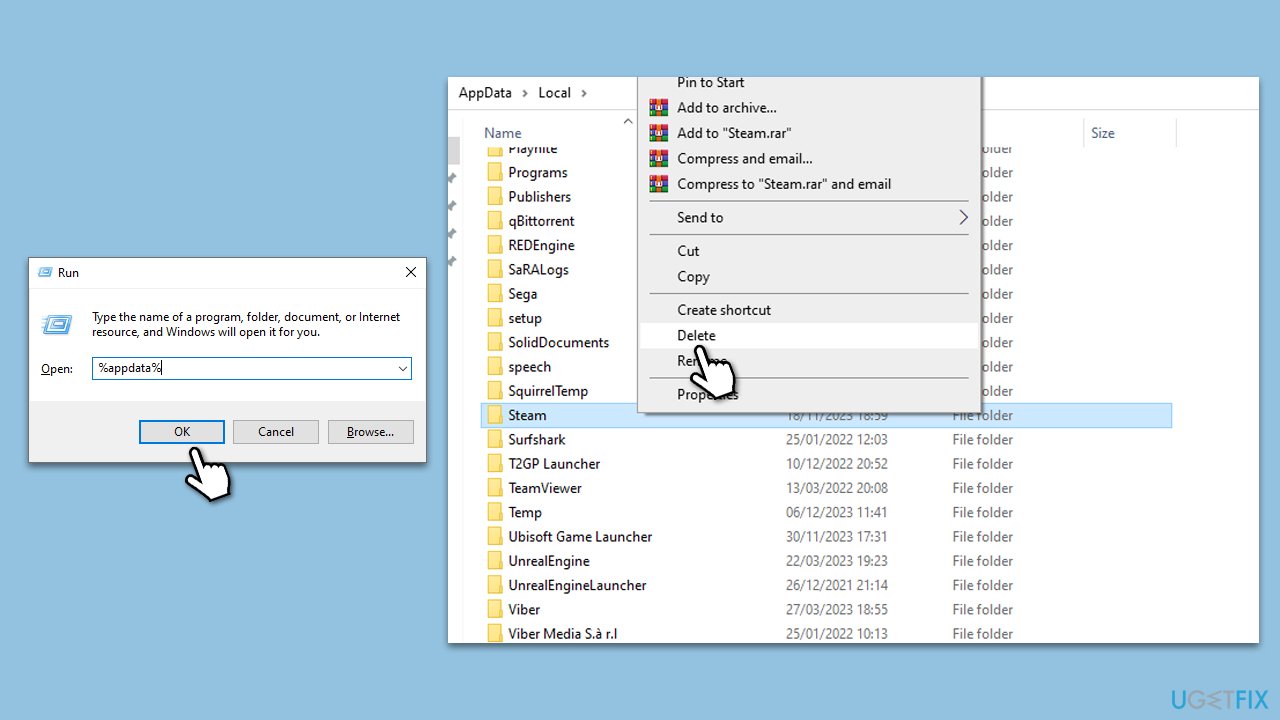
Fix 3. Delete the Steam folder in Local and Roaming directories
This fix involves deleting Steam's Local and Roaming data folders. These folders contain temporary files and settings that can become corrupted. Deleting them can reset Steam's configuration and potentially fix issues related to corrupted files.
- Press Win + R on your keyboard to open the Run dialog box.
- Type %appdata% and press Enter.
- In the opened window, navigate to the Roaming folder and find the Steam folder.
- Delete the Steam folder.
- Go back to the AppData folder and open the Local folder.
- Locate and delete the Steam folder here as well.
- Restart your PC and open Steam, which will recreate these folders with default settings.
Fix 4. Clean Steam web browser cache
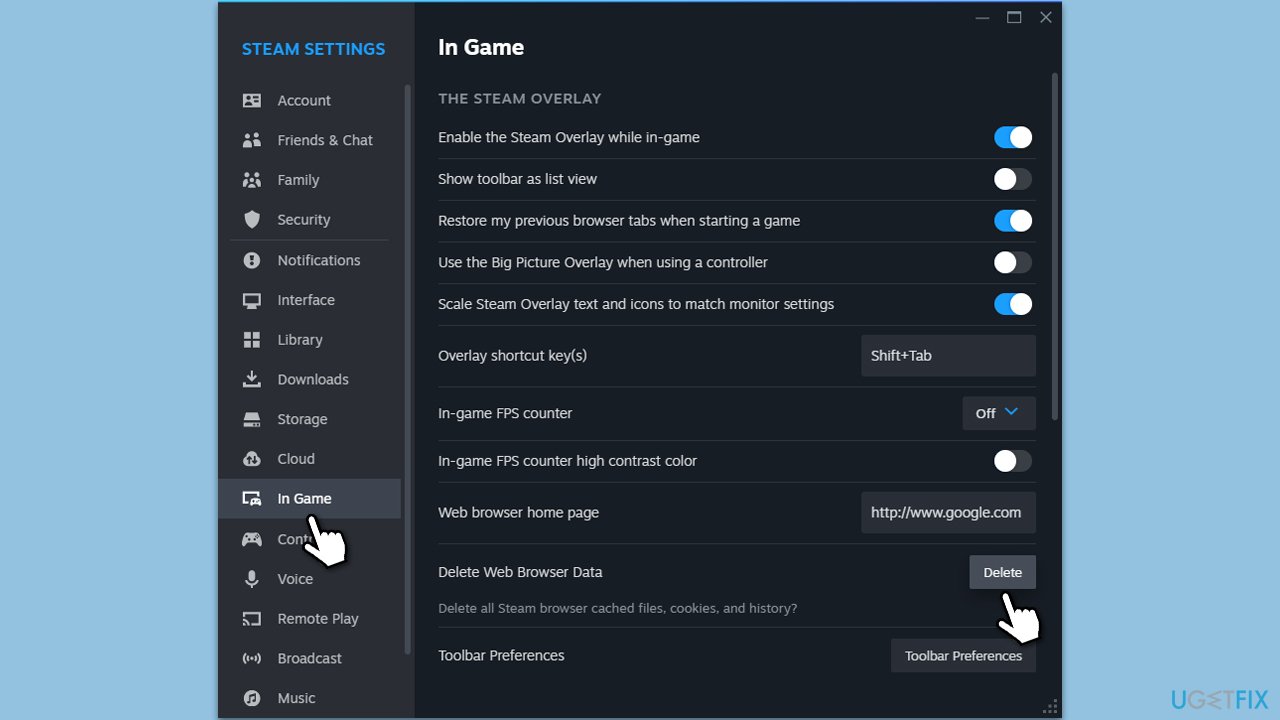
The Steam client includes a built-in web browser, which can accumulate cache over time. Clearing this cache can resolve issues stemming from corrupted browser data, potentially fixing the Friends Network Unreachable error.
- Open the Steam app.
- Go to Steam > Settings.
- Select the In Game tab on the left.
- Under Delete web browser data, click on Delete.
- Restart Steam.
Fix 5. Stop participating in Steam Beta
If you're already participating in the Steam Beta and encountering issues, opting out of the Beta program can revert your Steam client to the more stable standard version, potentially resolving any beta-related issues.
- Go to Steam > Settings.
- Go to the Interface tab on the left.
- Locate the Client Beta participation section.
- From the drop-down menu, pick Opt out of all beta programs.
Fix 6. Run Network troubleshooter
Windows includes a built-in Network troubleshooter that can automatically detect and fix common network-related issues. Running this troubleshooter can help resolve connectivity problems that may be causing the Friends Network Unreachable error.
- Right-click on Start and pick Settings.
- Go to the Network & Internet section.
- On the right side, find the Advanced network settings section.
- Click Network troubleshooter and wait.
- The fixes will be automatically applied.

Bottom line
To fix the 'Friends Network Unreachable' error, consider checking your internet connection, restarting your router, or clearing Steam's cache. Additionally, enabling the 'Sign in to friends when Steam Client starts' option may help. If these solutions do not resolve the issue, using a PC repair tool could be beneficial.
Frequently asked questions
This error is often caused by network connectivity issues, firewall settings blocking Steam, or outdated network drivers on your Windows system.
You can reset your network settings by going to Settings > Network & Internet > Status, then scrolling down and selecting 'Network reset'.
While it's not always necessary, temporarily disabling your antivirus can help identify if it's causing the issue by blocking Steam's connection.




Report an issue
What's wrong with this guide? We review every report and update or remove content.
Report received — thank you. We'll review and fix it.
You need a free account to submit a report.
Be the first to comment