How to fix
“Google Maps does not have permission to use your location” error
on Windows
Resolve the "Google Maps does not have permission to use your location" error on Windows 10 or 11 effortlessly. Expert-tested solutions await!

What causes How to fix “Google Maps does not have permission to use your location” error in Windows?
- Location services are disabled in Windows settings
- Location services are disabled in the web browser
- Browser compatibility issues
- Network connectivity issues
- Specific Windows services necessary for location sharing are disabled
Repairs Windows system files, removes malware, and restores a clean OS state — without reinstalling.
I wanted to check local traffic on Google Maps and I noticed Google is not tracking my location. I went to turn the location on and I received a "Google Maps does not have permission to use your location" error. How can I fix this?
Google Maps, a staple in modern navigation, is prized for its practical features like real-time traffic updates and route planning. To fully utilize its capabilities, Google Maps requires access to the user's location. However, Windows users may sometimes face a challenge: encountering the "Google Maps does not have permission to use your location" error. This issue hampers the application's functionality, as location access is vital for providing personalized services.
The root of the "Google Maps does not have permission to use your location" error often lies in the location services settings within the Windows operating system or the user's web browser. When these services are disabled, Google Maps cannot access the necessary location data. To mitigate this issue, you should ensure that location services are enabled in both Windows settings and your web browser. Additionally, keeping your browser updated can address potential compatibility issues and bugs.
Other troubleshooting steps to fix the "Google Maps does not have permission to use your location" error include running the network troubleshooter on your Windows device, which can identify connectivity issues, and enabling specific Windows services necessary for location sharing. The steps for these and other solutions can be found below.
For a more hands-off approach, a PC repair tool like [d1] can be used. The app automatically diagnoses and fixes various Windows-related issues that might be causing the Google Maps error, simplifying the process for users who prefer an automated solution.
Fix 1. Enable Location Services in Windows Settings
Enabling location services in Windows is essential for applications like Google Maps to access your geographic data. This is necessary for apps that require location information to provide their full functionality.
- Right-click on Start and pick Settings.
- Navigate to the Privacy section.
- Select Location from the menu on the left.
- Under Allow access to location on this device, click on Change.
- Toggle the switch to On to enable location services.
- Make sure that Allow apps to access your location is also tuned on.

Fix 2. Update web browser
An outdated web browser can lead to compatibility issues with Google Maps, including location permission errors. Keeping your browser updated ensures it works smoothly with all websites.
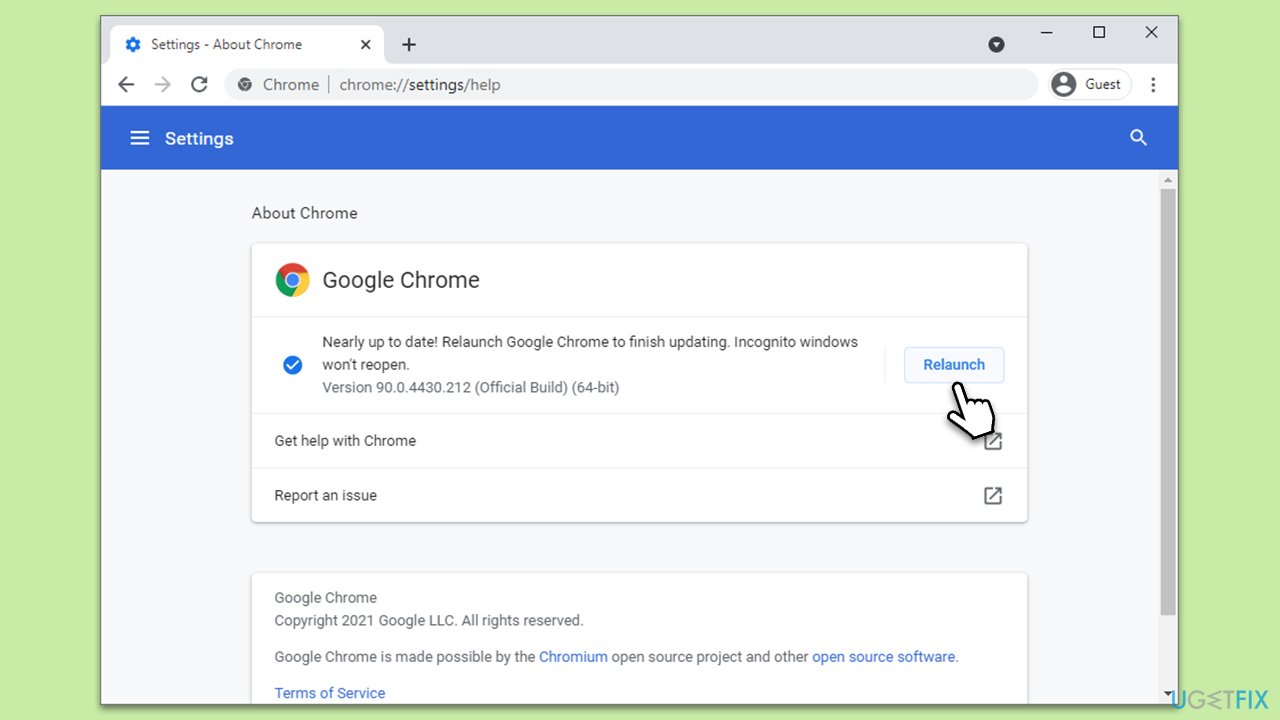
Google Chrome
- Click on Menu (⋮) and pick Settings.
- Select Help > About Google Chrome.
- Wait till the browser is updated and click Relaunch.
Mozilla Firefox
- Click on Menu and click Help.
- Select About Firefox.
- All the updates should download automatically.
- When done, click Restart to update Firefox.
Microsoft Edge
- Click on (…) (Settings and more)
- Select Help and feedback > About Microsoft Edge.
- Your browser should be updated, then restart it.
Fix 3. Clear Browser cache and cookies
Clearing your browser's cache and cookies can resolve issues stemming from corrupted or outdated data, which can affect how websites like Google Maps function.
Google Chrome
- Click on Menu (⋮) and pick Settings.
- Under Privacy and security, select Clear browsing data.
- Under time range, pick All time.
- Select Browsing history, Cookies and other site data, and Cached images and files.
- Click Clear data.
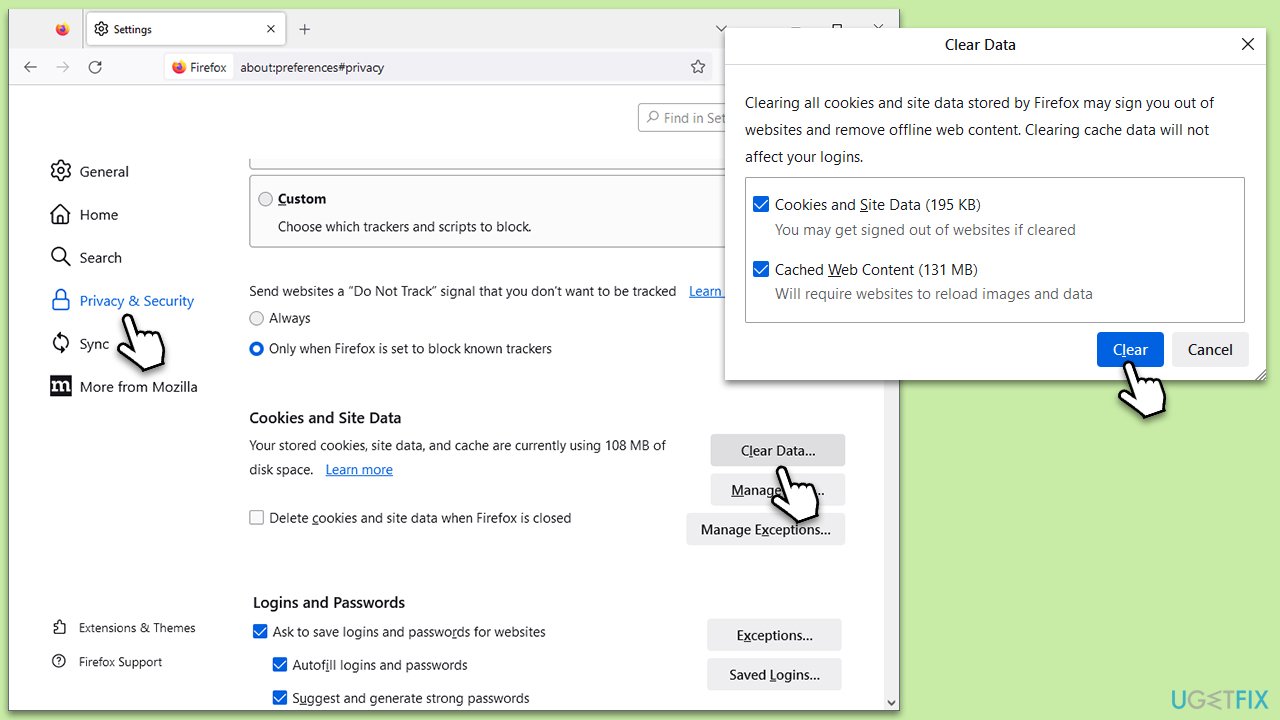
Mozilla Firefox
- Open Mozilla Firefox, click (≡) to open the menu and pick Settings.
- Click on Settings from the dropdown menu.
- In the left-hand menu, click on Privacy & Security.
- Scroll down to locate the Cookies and Site Data section.
- Click Clear data...
- Mark the Cookies and Site Data, as well as Cached Web Content checkmarks, and click Clear.
Microsoft Edge
- Open Edge and click on three horizontal dots (…) (Settings and more).
- Pick Settings.
- Click Privacy, search, and services on the left.
- On the right side of the window, scroll down to find the Clear browsing data section.
- Click Choose what to clear.
- Select All time.
- Pick all the sections and click Clear now.
Fix 4. Check Location permissions in browser settings
Your browser must have permission to share your location with Google Maps. Adjusting these settings can resolve the location error.
Google Chrome
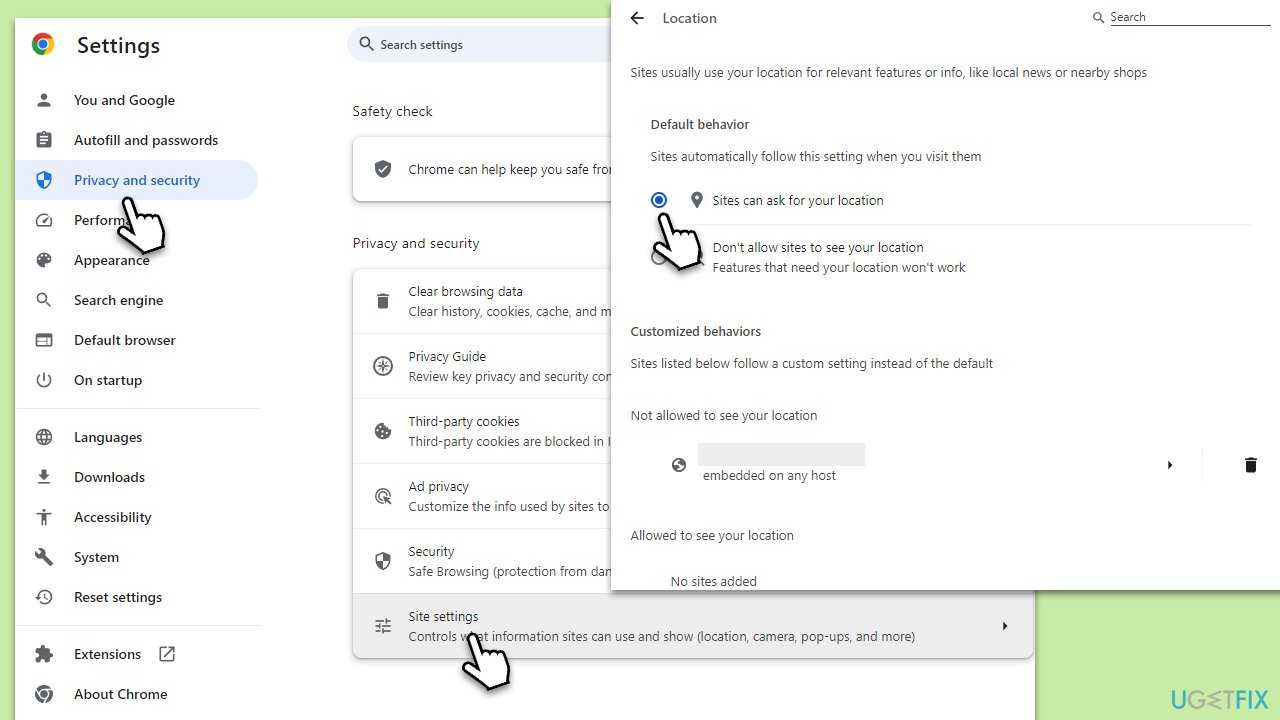
- Click on Menu (⋮) and pick Settings.
- Go to the Privacy and Security section.
- Select Site settings.
- Under Permissions, click Location.
- Pick Sites can ask for your location under Default behavior.
- Under customized behavior, make sure Google is not listed.
- If it is, delete the entry.
Mozilla Firefox
- In Mozilla Firefox click (≡) to open the menu and pick Settings.
- Go to Privacy and security.
- Scroll down to the Permissions section and, under Location, click Settings.
- Ensure Block new requests asking to access your location box is not ticked.
- If Google is present on the list and is being blocked, remove it by clicking Remove website.
- Click Save Changes.
Microsoft Edge
- In Microsoft Edge, click (…) Settings and more, and then select Settings.
- Go to the Cookies and site permissions section on the left.
- Under All permissions, select Location.
- Ensure the Ask before accessing (recommended) setting is Enabled.
- Remove Google from the Blocked websites, if available.
Fix 5. Disable VPN or proxy services
VPN or proxy services can interfere with location services, causing errors in Google Maps. Temporarily disabling these services can help identify if they are the cause of the issue.
- Close any VPN or proxy application you might be running.
- If you have a browser extension for VPN or proxy services, disable it through the extensions or add-ons menu in your web browser.
- Restart your web browser and try accessing Google Maps again.
Fix 6. Run Windows Network Troubleshooter
The Windows Network Troubleshooter can identify and resolve issues with your internet connection that might be affecting Google Maps.
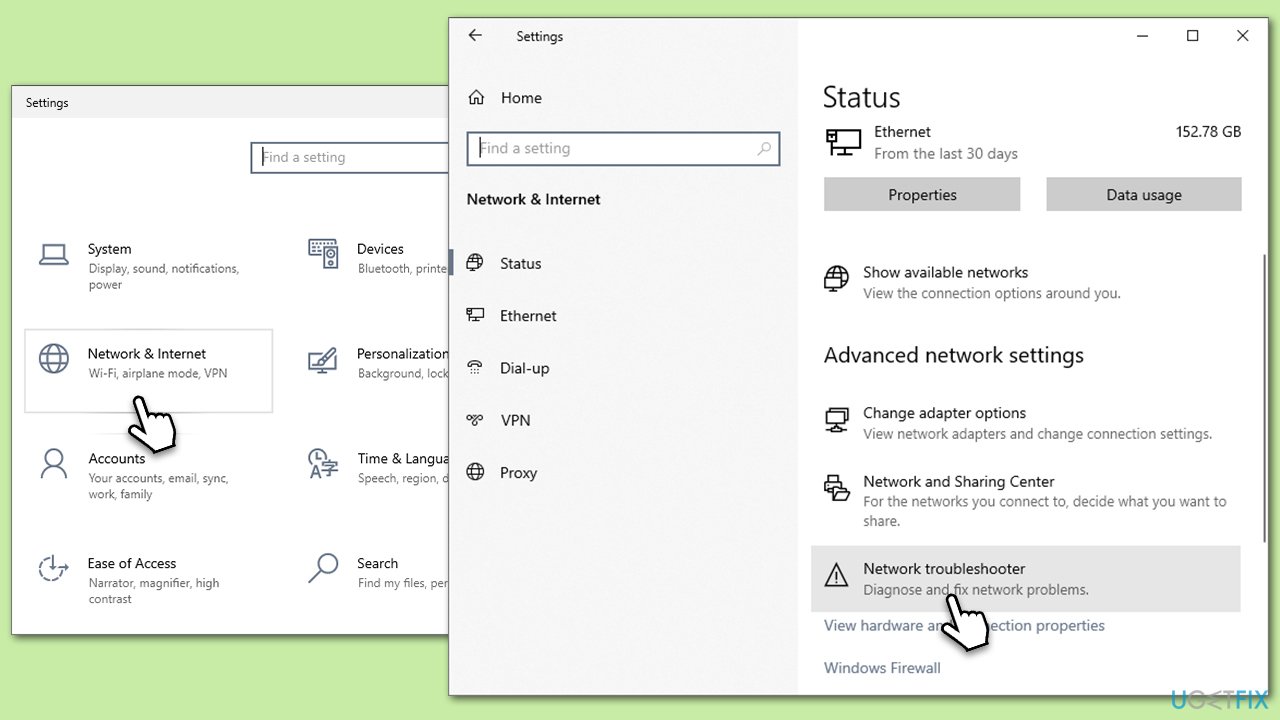
- Right-click on Start button and select Settings.
- Go to Network & Internet section.
- Here, locate the Advanced network settings section.
- Click the Network troubleshooter to run it.
- Wait for the results to show up and apply the suggested fixes.
Fix 7. Enable necessary Windows Services
Certain Windows services, like Geolocation Service, need to be running for location-based applications to work correctly.
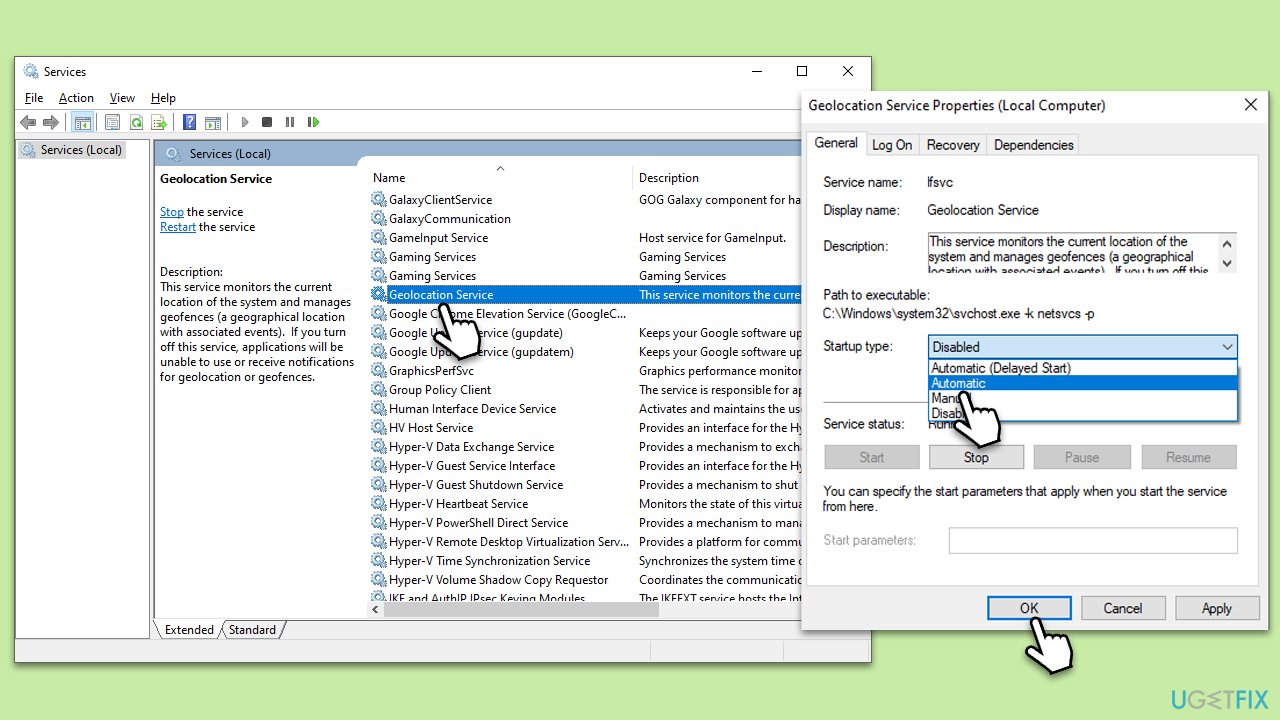
- Type Services in Windows search and press Enter.
- Open the Services application.
- Scroll down and find the Geolocation Service.
- Right-click on it and select Properties.
- In the Startup type dropdown, select Automatic.
- If the service is not running, click on Start.
- Click Apply and then OK.
Bottom line
To fix the 'Google Maps does not have permission to use your location' error, ensure that location services are enabled in both Windows settings and your web browser. Additionally, run the network troubleshooter and enable necessary Windows services. If these steps do not resolve the issue, consider using a PC repair tool for automated diagnosis and fixes.
Frequently asked questions
To enable location services, go to Settings > Privacy > Location, and ensure that 'Location service' is turned on. Then, scroll down to 'Choose which apps can access your precise location' and toggle Google Maps to 'On.'
If the error persists, try resetting the Microsoft Edge or Chrome browser settings, as Google Maps runs through these browsers on Windows. Additionally, clearing the browser cache can help resolve location access issues.
Yes, you can check your location settings by going to Settings > Privacy > Location and using the 'Test your location' feature, which will indicate if Windows can accurately determine your location.




Report an issue
What's wrong with this guide? We review every report and update or remove content.
Report received — thank you. We'll review and fix it.
You need a free account to submit a report.
Be the first to comment