How to fix
“No supported DirectX version found” in Avatar: Frontiers of Pandora
on Windows
Resolve the "No supported DirectX version found" error in Avatar: Frontiers of Pandora on Windows 10 and 11 effortlessly. Fix it in minutes, with expert…

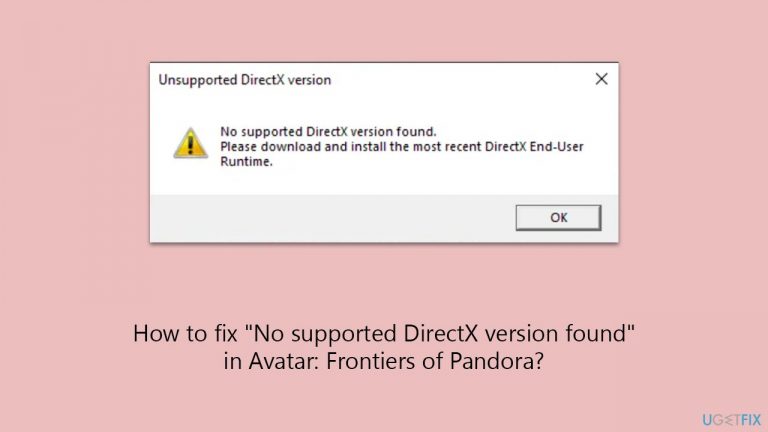
What causes How to fix “No supported DirectX version found” in Avatar: Frontiers of Pandora?
- Mismatch between the game's requirements and the DirectX version installed
- Issue with the DirectX installation itself
- Graphics driver problems
- Underlying system incompatibilities
- Outdated Windows updates
Repairs Windows system files, removes malware, and restores a clean OS state — without reinstalling.
Right upon Avatar: Frontiers of Pandora release, I purchased it immediately and was looking forward to playing it. Unfortunately, I can't. Whenever I attempt to launch the game, I receive a "No supported DirectX version found" error. Is there anything that could be done for me to be able to play it?
"Avatar: Frontiers of Pandora," a highly anticipated open-world action-adventure game, was released on December 7 by Ubisoft. Available exclusively on Ubisoft Connect and Epic Games platforms (as well as PS5/Xbox Series X/S), the game invites players to immerse themselves in the visually stunning world of Pandora.
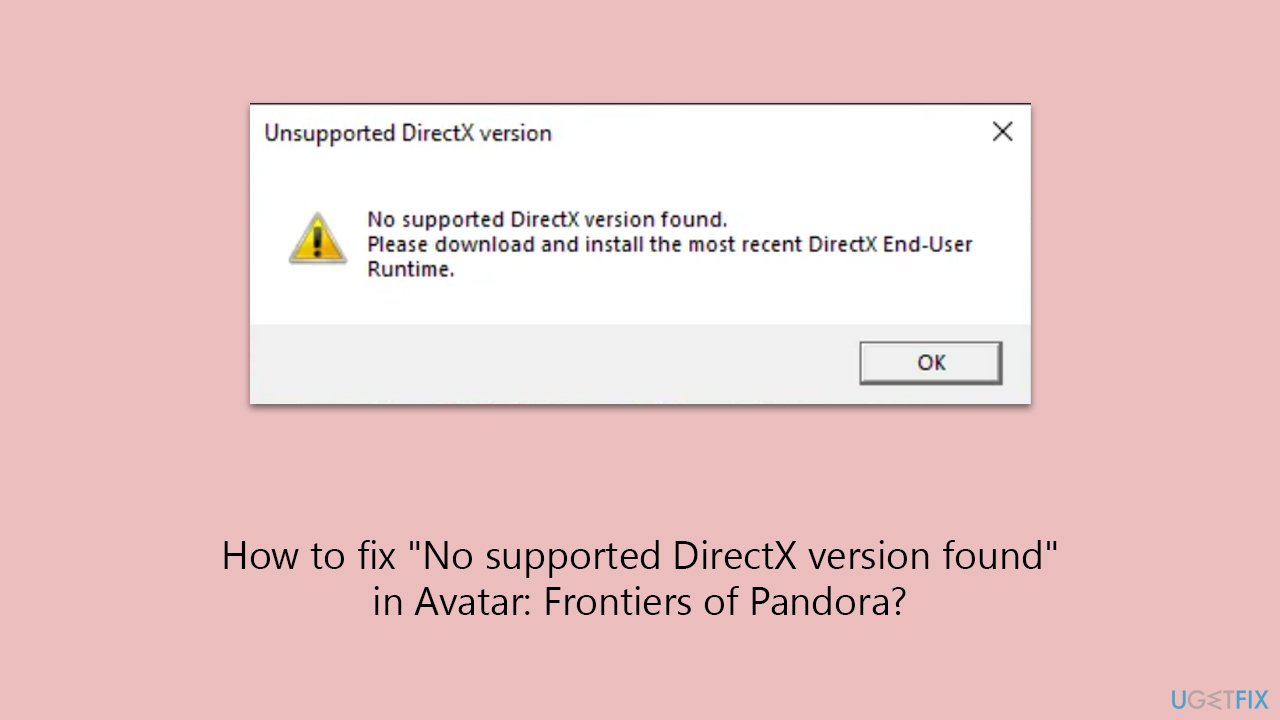
However, this excitement has been tempered for some players by a technical issue: the "No supported DirectX version found" error, which arises whenever they attempt to launch the game. Many players said that they have the latest DirectX installed on their systems, and still receiving launch crashes.
DirectX, a collection of APIs developed by Microsoft, is crucial for handling tasks related to multimedia, especially game programming and video, on Microsoft platforms. It essentially serves as an intermediary between the game and the hardware of the computer, particularly the graphics card. The version of DirectX installed on a system can significantly impact a game's performance and its ability to run smoothly.
The "No supported DirectX version found" error in "Avatar: Frontiers of Pandora" can stem from various causes. It could be due to a mismatch between the game's requirements and the DirectX version installed on your system, or it might indicate an issue with the DirectX installation itself. In some cases, the problem could be related to the graphics driver or other underlying system incompatibilities.
To address this issue, there are several steps you can take. You might start by verifying the game files through the game launcher, which can often resolve discrepancies in the game's data. Running the game on a different DirectX version, if available, can also be a viable solution. Ensuring that all Windows updates are installed is another essential step, as these updates can include critical fixes and enhancements for DirectX. Additionally, updating your GPU drivers is advisable, as outdated drivers can often lead to such issues.
While these approaches can help alleviate the problem, sometimes the issue might be more deeply rooted in your Windows system. In such cases, using a professional PC repair tool [d1] is recommended.
Fix 1. Start the game with the -dx12 parameter
Starting the game with the -dx12 parameter forces it to use DirectX 12, which can sometimes bypass compatibility issues. It's important to note that this might trigger another error: "The requested render type is not available." If this occurs, proceed to the next fix for a solution.
Ubisoft Connect
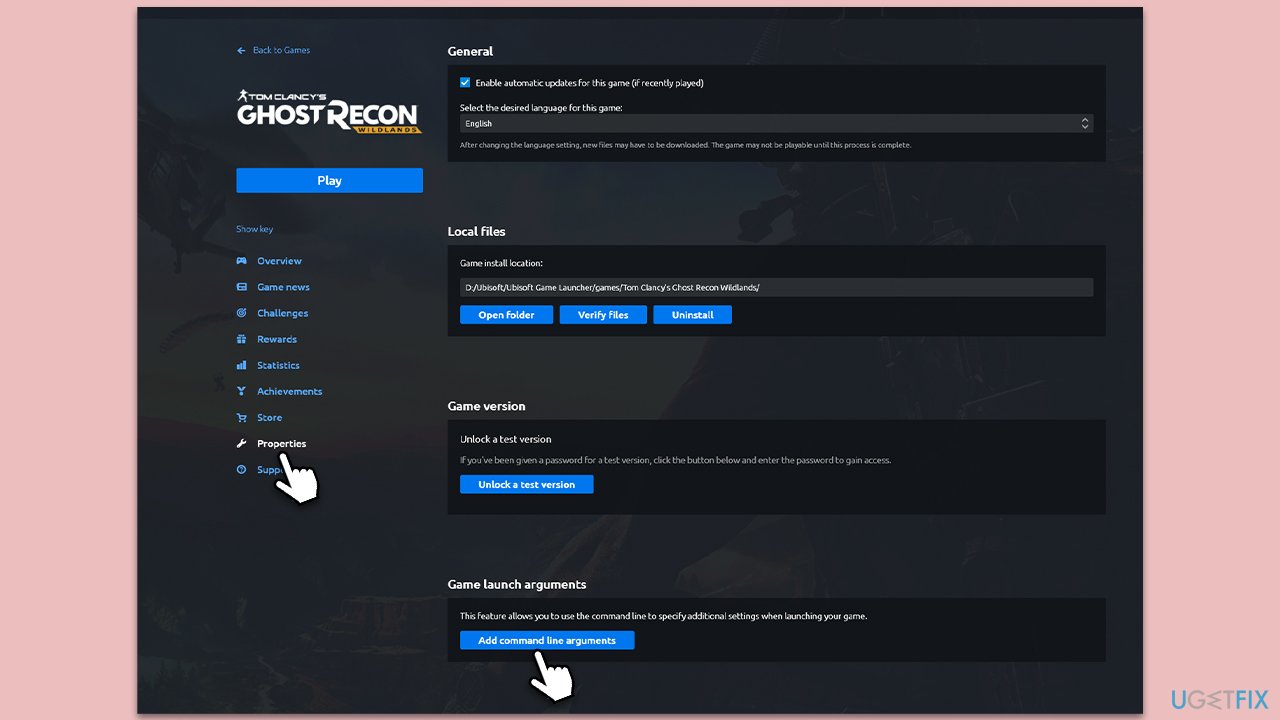
- Open Ubisoft Connect and go to Avatar: Frontiers of Pandora.
- Click on Properties.
- On the right, under Game launch arguments, click Add command line arguments.
- In the field, type -dx12.
- Launch the game.
Epic Games
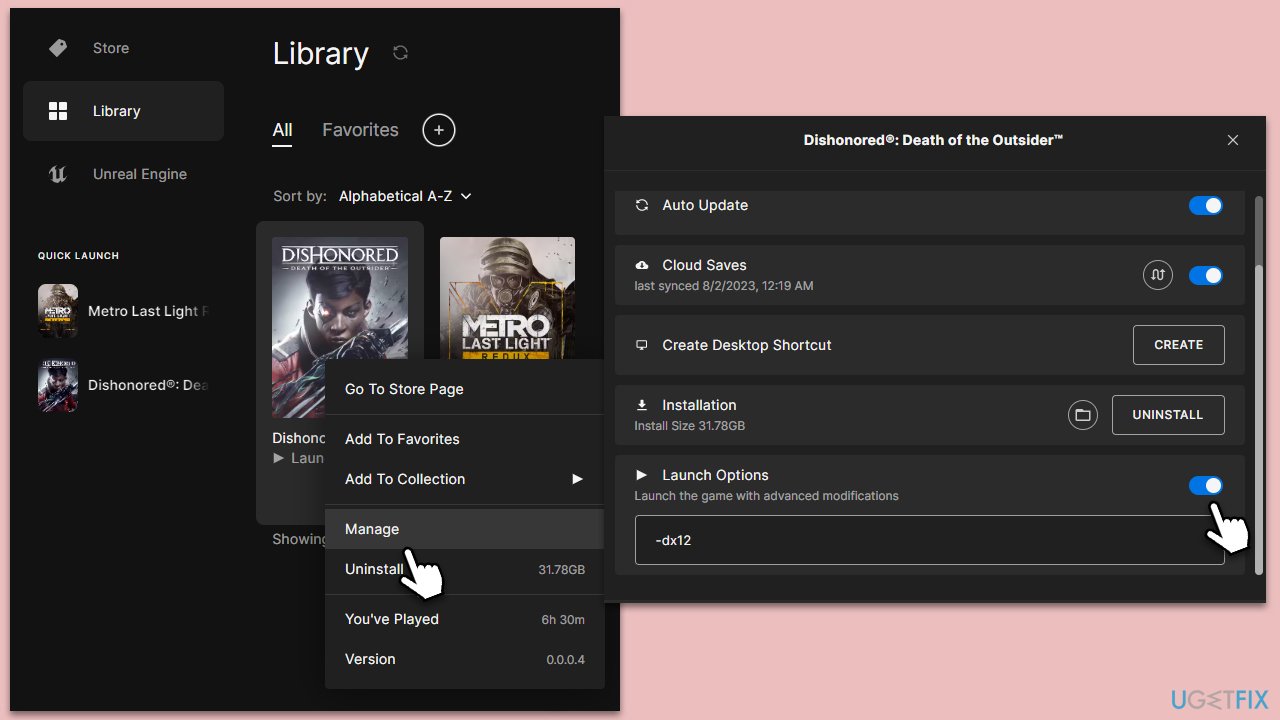
- Launch Epic Games Store and go to Library.
- Locate Avatar: Frontiers of Pandora, right-click, and select Manage.
- Click on Launch Options at the bottom.
- In the revealed field, type in -dx12.
- Launch the game.
Fix 2. Disable Compatibility mode
Compatibility mode is a feature in Windows that allows you to run programs in a setting that is similar to an older version of Windows. Disabling it can resolve conflicts between the game and the operating system.
- Close down Ubisoft Connect or Epic Games Store.
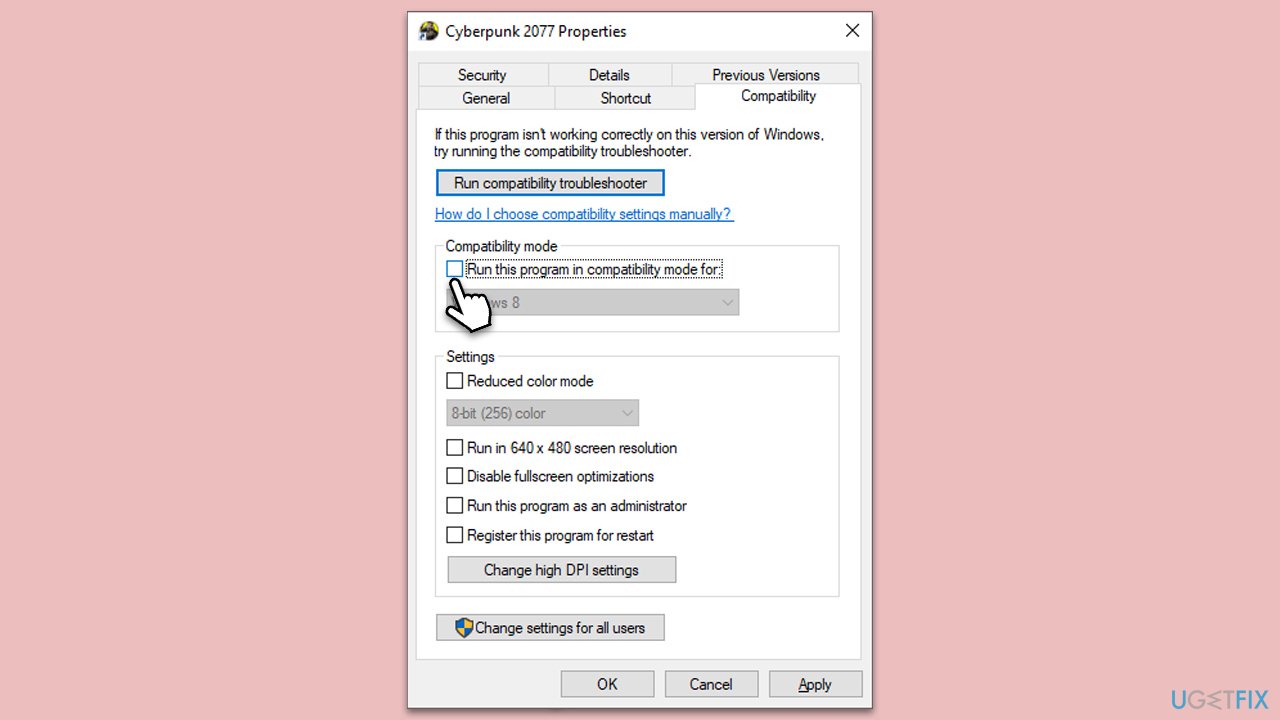
- Right-click on the game shortcut and select Properties.
- Go to the Compatibility tab.
- Uncheck the box that says Run this program in compatibility mode for.
- Click Apply and then OK.
- It is also recommended to do the same with ubisoftconnect.exe, ubisoftextension.exe, ubisoftgamelauncher.exe, and ubisoftgamelauncher64.exe.
Fix 3. Install the DirectX SDK package
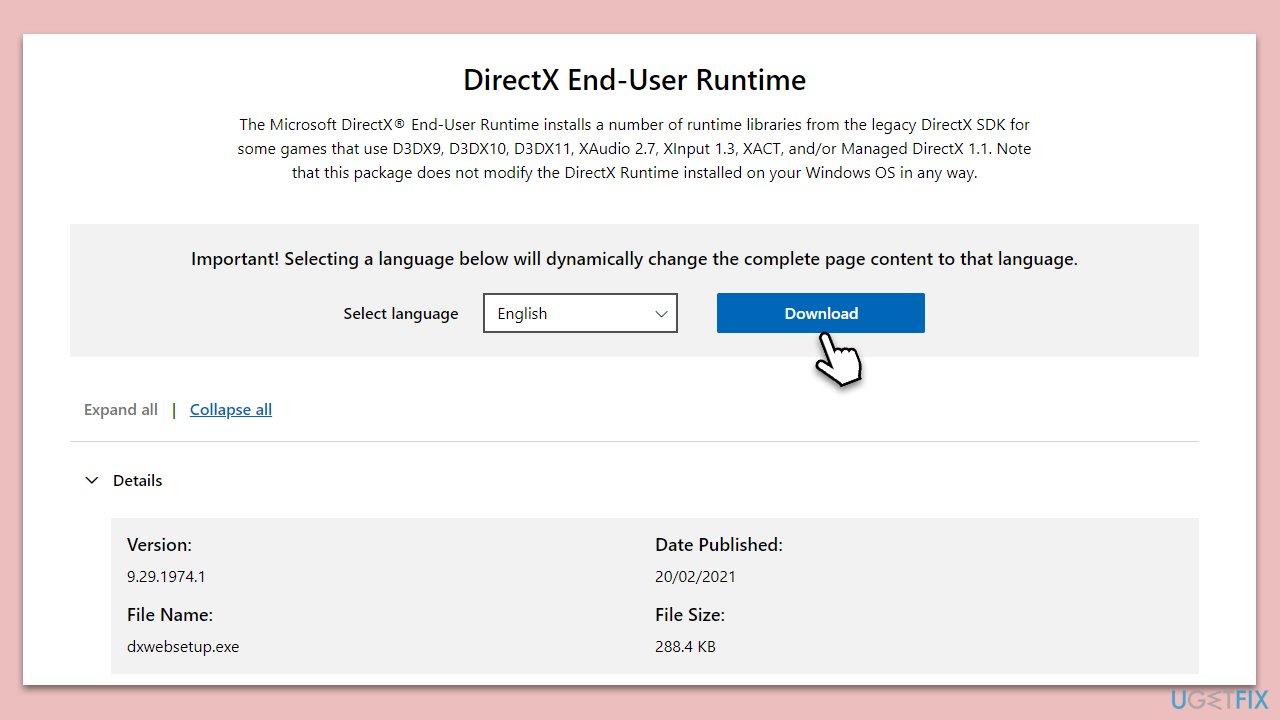
The DirectX SDK (Software Development Kit) provides updates to DirectX that might not be available in the standard version installed with Windows. Installing the SDK package can update and fix components of DirectX that the game relies on.
- Visit the official Microsoft DirectX SDK webpage.
- Download the DirectX SDK installer.
- Run the installer and follow the on-screen instructions.
- Restart your computer after installation.
- Try launching the game again.
Fix 4. Update GPU drivers
Outdated GPU drivers can cause compatibility issues with DirectX and the game. Updating them ensures that your graphics card can effectively communicate with the system and the game.
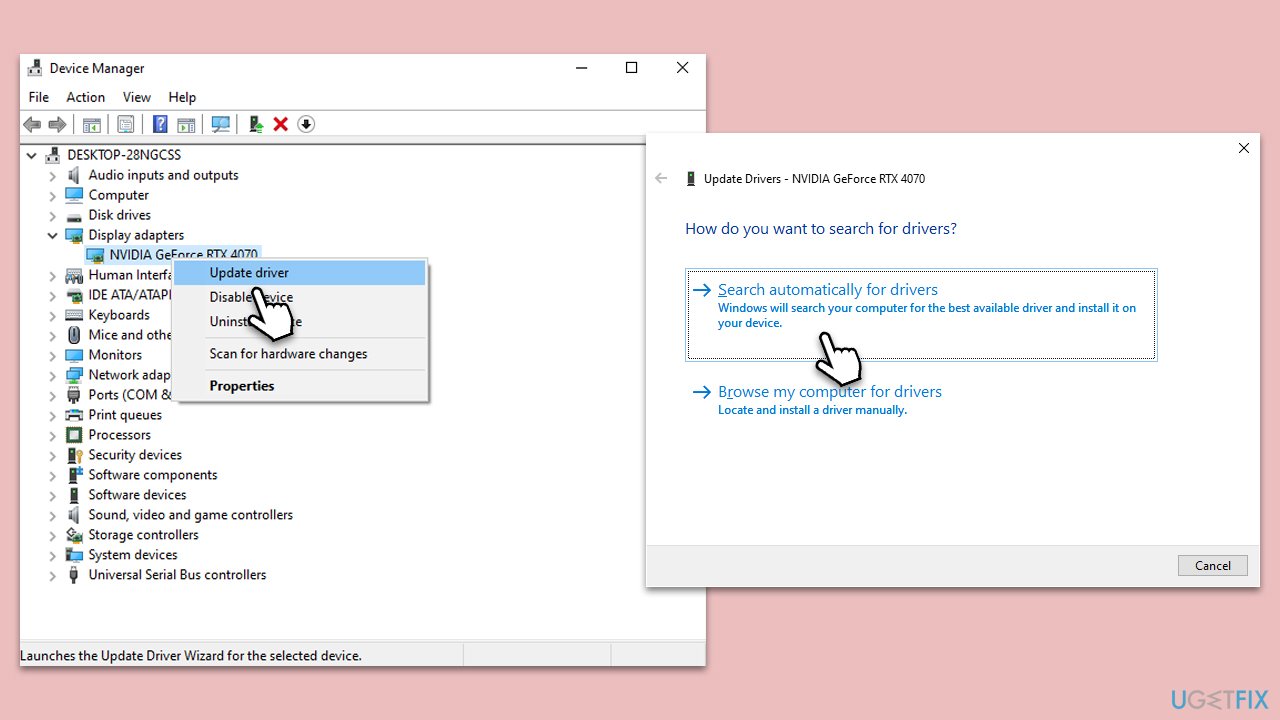
- Right-click on the Windows Start button and select Device Manager.
- Expand the Display adapters section.
- Right-click on your graphics card and select Update driver.
- Choose Search automatically for drivers.
- If a newer driver is found, Windows will download and install it. Once complete, restart your computer.
It is worth noting that Windows is unreliable when it comes to the latest GPU driver updates. For a hassle-free approach, you can always run an automatic tool such as [rev id="DriverFix"]. Alternatively, you can download the latest driver from your GPU manufacturer page.
Fix 5. Verify game files
This process will check the game files for integrity and replace any corrupted or missing files. It's a common solution for addressing various game-related issues.
Ubisoft Connect
- Open Ubisoft Connect and go to Avatar: Frontiers of Pandora.
- Click on Properties.
- Under Local Files, click Verify files.
- Wait till the process is finished.
Epic Games
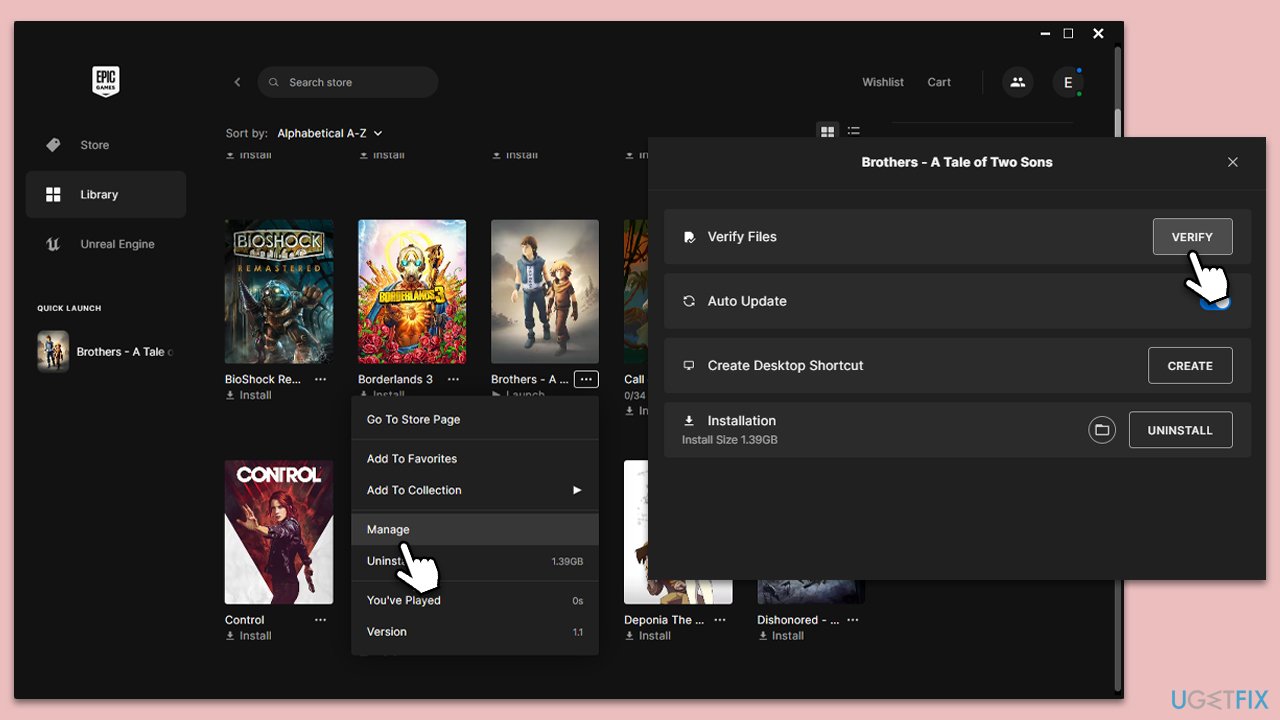
- Open the Epic Games Store and go to your Library.
- Locate Avatar: Frontiers of Pandora, right-click and select Manage.
- Under Verify Files, click Verify.
- Wait for the process to finish.
Fix 6. Reinstall the game
If all else fails, reinstalling the game can ensure that all components are correctly installed and configured. This is often a last resort but can resolve persistent issues.
- Uninstall Avatar: Frontiers of Pandora through the Control Panel or game launcher.
- Restart your computer.
- Reinstall the game from Ubisoft Connect or Epic Games.
- After installation, try running the game again.
Bottom line
To fix the "No supported DirectX version found" error, you can verify the game files through the launcher, try running the game on a different DirectX version, and ensure all Windows updates are installed. If these steps do not resolve the issue, consider checking for graphics driver updates or reinstalling DirectX.
Frequently asked questions
Make sure you have the latest DirectX version installed by visiting the Microsoft website and updating your Windows 10 system. Additionally, check your graphics drivers and update them to the latest version from the manufacturer's website.
Yes, ensure that your Windows 11 is fully updated and that you have the latest DirectX version installed by running Windows Update. Also, verify that your graphics card meets the game's system requirements.
Press Windows + R, type 'dxdiag' and hit Enter to open the DirectX Diagnostic Tool, where you can see your DirectX version on the System tab. If it's not the latest version, consider downloading the latest updates for Windows 10 or Windows 11.




Report an issue
What's wrong with this guide? We review every report and update or remove content.
Report received — thank you. We'll review and fix it.
You need a free account to submit a report.
Be the first to comment