How to fix
Missing or Blurry Fonts
on Windows
Resolve missing or blurry fonts on Windows 10 quickly and effectively. Discover easy fixes to enhance your display clarity, expert-tested for reliability!

What causes How to Fix Missing or Blurry Fonts on Windows 10?
- Fonts may disappear after Windows 10 Creators Update installation
- Default and third-party fonts may not be supported
- Font cache database could be corrupted
- DPI settings may affect font display
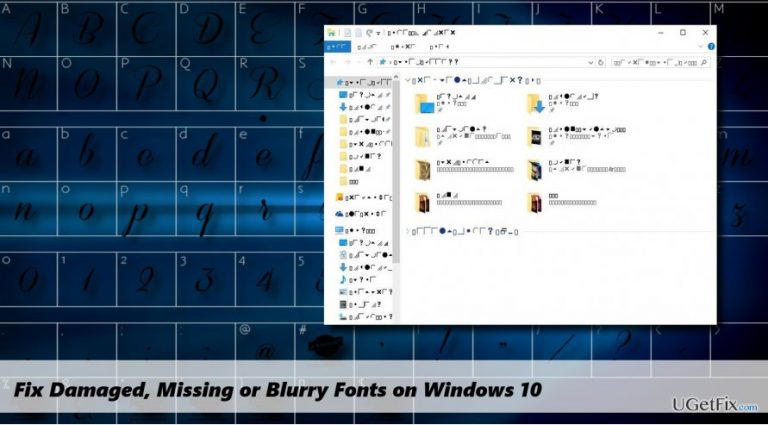
- Fonts may show up as hieroglyphs
Repairs Windows system files, removes malware, and restores a clean OS state — without reinstalling.
Yesterday the system finished installing Windows 10 Creators Update at Version 1703, OS Build 15063.138. After that, I found out that many fonts are gone. How can I fix that?
Creators Update brought many bugs alongside. Luckily, most of them have fixes and don’t require the consultation of a professional IT expert. Our team has noticed that many Windows users who have upgraded to Windows 10 Creators Update from Anniversary Update or earlier Windows versions experienced problems related to Windows fonts. Both default and third-party fonts often disappear or get blank.
Some people reported that a part of default fonts were removed in the Creators Update and some of the third-party fonts are no longer supported by Microsoft. However, such speculations haven’t been confirmed by Microsoft and there’s no official information proving that. If you want to check which fonts are installed on your system (this may help if you lost a particular type of fonts), open Control Panel, type fonts in the top-right search box, and select View installed fonts.
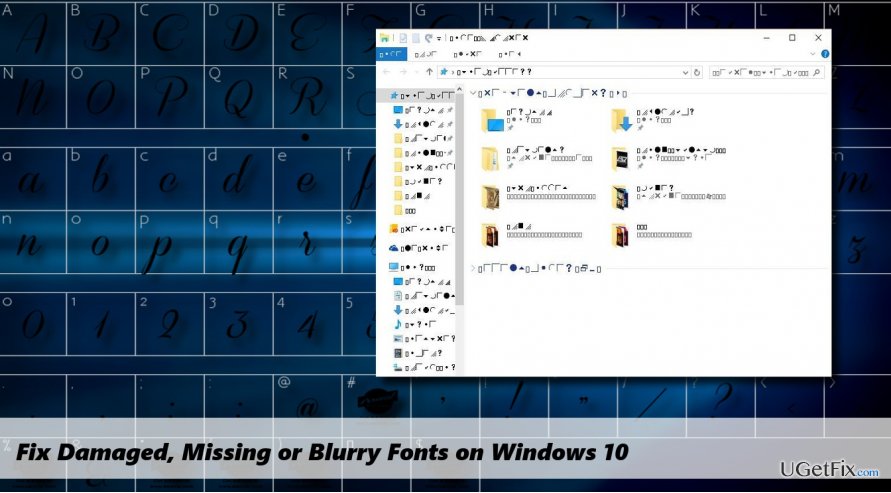
If the font does not show up on the list or it shows up, but is displayed in hieroglyphs, there might be some problems with the font cache database of DPI settings. Before resetting cache or disable scaling on high DPI settings, try to reboot your PC at first and run a scan with a PC optimization tool like [d1]. This utility has an in-built pack of Windows system files, so it may fix missing fonts. If that did not help, please try the following fixes:
Rebuild Font Cache
- Press Windows key + R, type services.msc, and press Enter.
- Select the Windows Presentation Foundation Font Cache 3.0.0.0 service and click Stop. If it’s not running, then skip this step.
- Now press Windows key + R, type %WinDir%\\ServiceProfiles\\LocalService\\AppData, and press Enter.
- Click Continue to gain permission and double-click on Local sub-folder.
- In this folder, find the files starting with the ~FontCache- suffix and remove them. NOTE: do not remove any folders even if they are empty.
- After that, reboot your PC. Windows should automatically reinstall font cache.
Disable Scaling on High DPI Settings
- Right-click on the executable file that has blank or missing font.
- Select Properties and open Compatibility tab.
- Disable Display scaling on high DPI settings.
- Click OK to save the changes and reboot the system.
Reinstall the Missing Font
Some fonts may be incorrectly installed during the upgrade process. Therefore, to fix missing fonts on Windows 10 you’ll have to reinstall the corrupted fonts manually:
- If you did a clean install of Windows 10, navigate to the C:\\Windows\\Fonts.
- If you have upgraded from earlier Windows versions, navigate to the C:\\Windows.old\\Windows\\Fonts.
- Locate the missing/corrupted font (usually Arial or Mingliu) and open the font file.
- On the top-right corner of the screen, click Install.
Bottom line
To fix missing or blurry fonts, you can rebuild the font cache by stopping the Windows Presentation Foundation Font Cache service and removing specific files. Additionally, check your DPI settings and consider rebooting your PC or using a PC optimization tool. If these solutions do not resolve the issue, further troubleshooting may be necessary.
Frequently asked questions
You can adjust the ClearType settings by searching for 'Adjust ClearType text' in the Start menu and following the prompts to improve font clarity.
You can reinstall missing fonts by going to the Settings app, selecting 'Personalization', then 'Fonts', and downloading the desired fonts from the Microsoft Store.
Yes, try running the 'Font Validator' tool or resetting your display settings to default to resolve any font-related issues caused by the update.




Report an issue
What's wrong with this guide? We review every report and update or remove content.
Report received — thank you. We'll review and fix it.
You need a free account to submit a report.
Be the first to comment