How to fix
Microsoft Store error 0x80073CF9
on Windows
Resolve Microsoft Store error 0x80073CF9 on Windows 10 and 11 with easy solutions. Get back to downloading apps—expert-tested fixes await!


What causes How to fix Microsoft Store error 0x80073CF9?
- Glitches within the Store app
- Corrupt files or outdated software
- Problems in Windows Update components
- Insufficient storage capacity
- Poor or unstable internet connection
Repairs Windows system files, removes malware, and restores a clean OS state — without reinstalling.
I can't update any of my Windows apps. I sometimes receive an error code 0x80073CF9, while other times, the "loading" button simply never stops loading. Anything I can do to fix this?
Microsoft Store, as a cornerstone of the Windows experience, offers a secure platform for downloading a vast array of applications. Despite its efficiency, users occasionally encounter issues, such as the Microsoft Store error 0x80073CF9. This error typically emerges when trying to update or install new apps, leading to an interruption in the seamless user experience that Microsoft strives to provide.
Understanding the Microsoft Store error 0x80073CF9 requires delving into several potential causes. One prominent factor could be glitches within the Store app itself. These malfunctions, possibly stemming from corrupt files or outdated software, can impede the app’s operation, triggering these issues.
Furthermore, the error may be linked to problems in Windows Update components. These components are integral to the Store’s functionality; thus, any issues within them can manifest as the error 0x80073CF9.
Another aspect to consider is storage capacity. The Microsoft Store error 0x80073CF9 can also occur if there's insufficient space on your device for app installations. This highlights the importance of regularly monitoring and managing device storage. Additionally, network connectivity plays a crucial role. A poor or unstable internet connection can disrupt the Store’s ability to communicate with Microsoft servers, potentially resulting in an error.
To fix the Microsoft Store error 0x80073CF9, you might check for any updates to the Store app and ensure your Windows system is current. Confirming your device has enough storage and a stable internet connection can also be beneficial steps. Addressing issues with Windows Update components may further aid in resolving the issue.
For a thorough resolution, consider employing PC repair software [d1]. This app is adept at automatically detecting and fixing underlying issues in the Windows OS, offering a streamlined solution to the error 0x80073CF9.
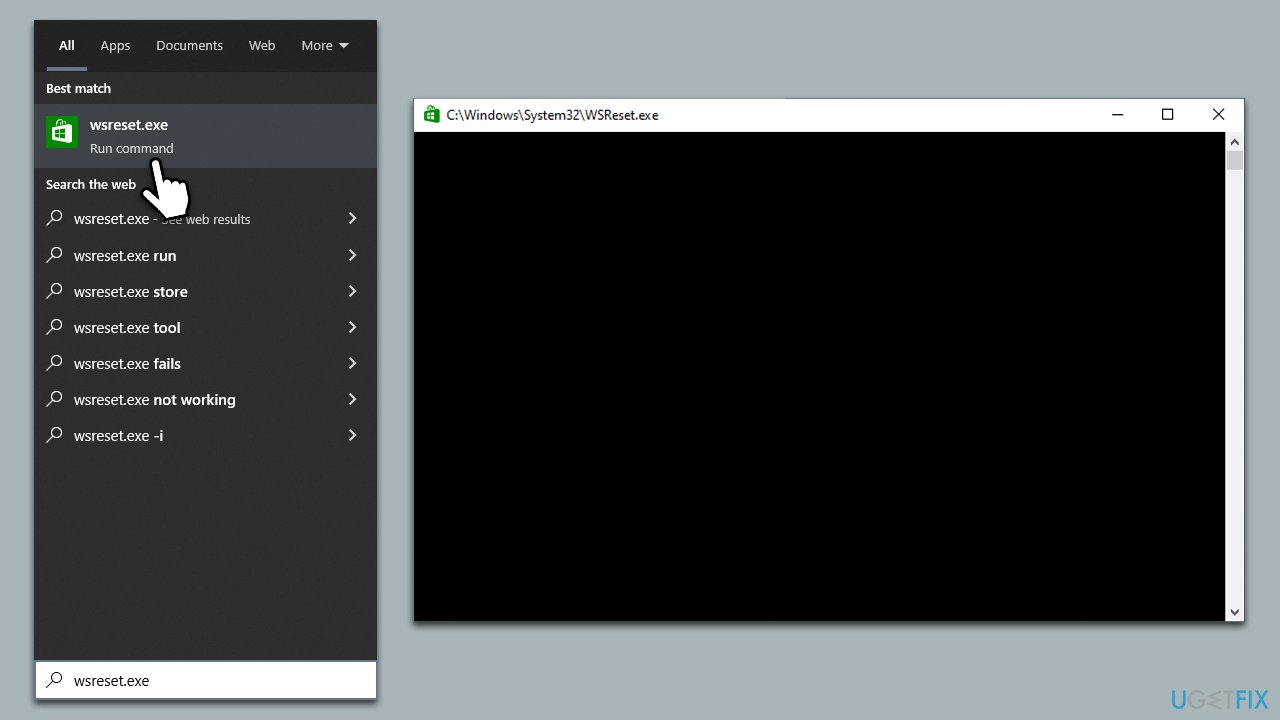
Fix 1. Reset Microsoft Store cache
Resetting the Microsoft Store cache can resolve issues related to corrupt or outdated cache data that might be causing the error. This process refreshes the Store's cache, potentially eliminating any glitches or errors.
- Type wsreset.exe in Windows search and press Enter.
- Wait until a pop-up window shows up - do not close it.
- As soon as it closes automatically, the store cache should be reset and will reopen.
- Try updating or downloading apps again.
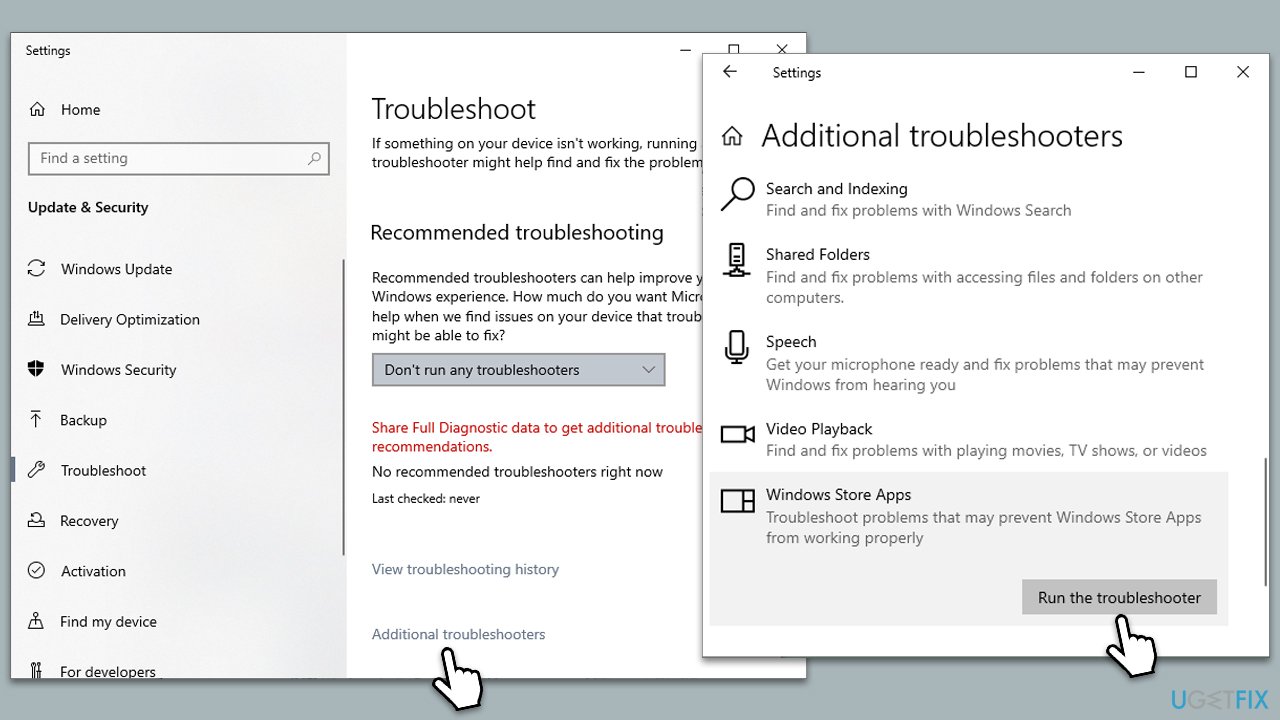
Fix 2. Run Windows Store Apps troubleshooter
The Windows Store Apps troubleshooter is a built-in tool designed to automatically detect and fix common issues with the Microsoft Store and its apps.
- Type Troubleshoot in Windows search and press Enter.
- Select Additional troubleshooters/Other troubleshooters.
- Find Windows Store Apps from the list and select Run the troubleshooter/Run.
- Wait till the process is finished and apply the offered fixes.
Fix 3. Repair corrupted system files
System File Checker and Deployment Image Servicing and Management scans can repair corrupted system files that might be causing the Microsoft Store error.
- Type in cmd in Windows search.
- Right-click the Command Prompt result and pick Run as administrator.
- User Account Control will ask whether you want to allow changes - click Yes.
- Type this command and press Enter:
sfc /scannow - Wait for the scan to finish.
- Then, use the following commands, pressing Enter after each:
Dism /Online /Cleanup-Image /CheckHealth
Dism /Online /Cleanup-Image /ScanHealth
Dism /Online /Cleanup-Image /RestoreHealth - Restart your PC.

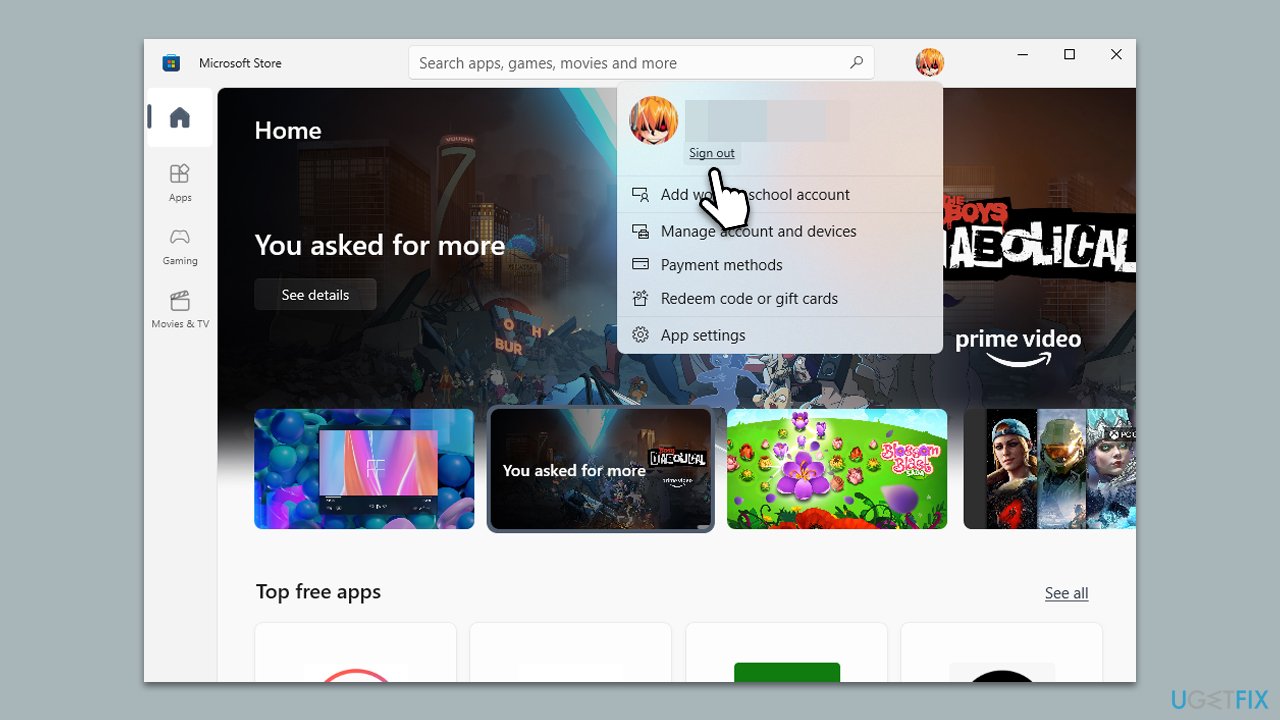
Fix 4. Log out and back in
Logging out of your Microsoft account and logging back in can refresh your account settings and resolve issues related to account synchronization.
- Launch Microsoft Store.
- Click on your Profile picture and click Sign out.
- Restart your computer.
- Once back, open the Store again.
- Click on the user icon and select Sign in.
- Enter your username and password and see if that solves the problem.
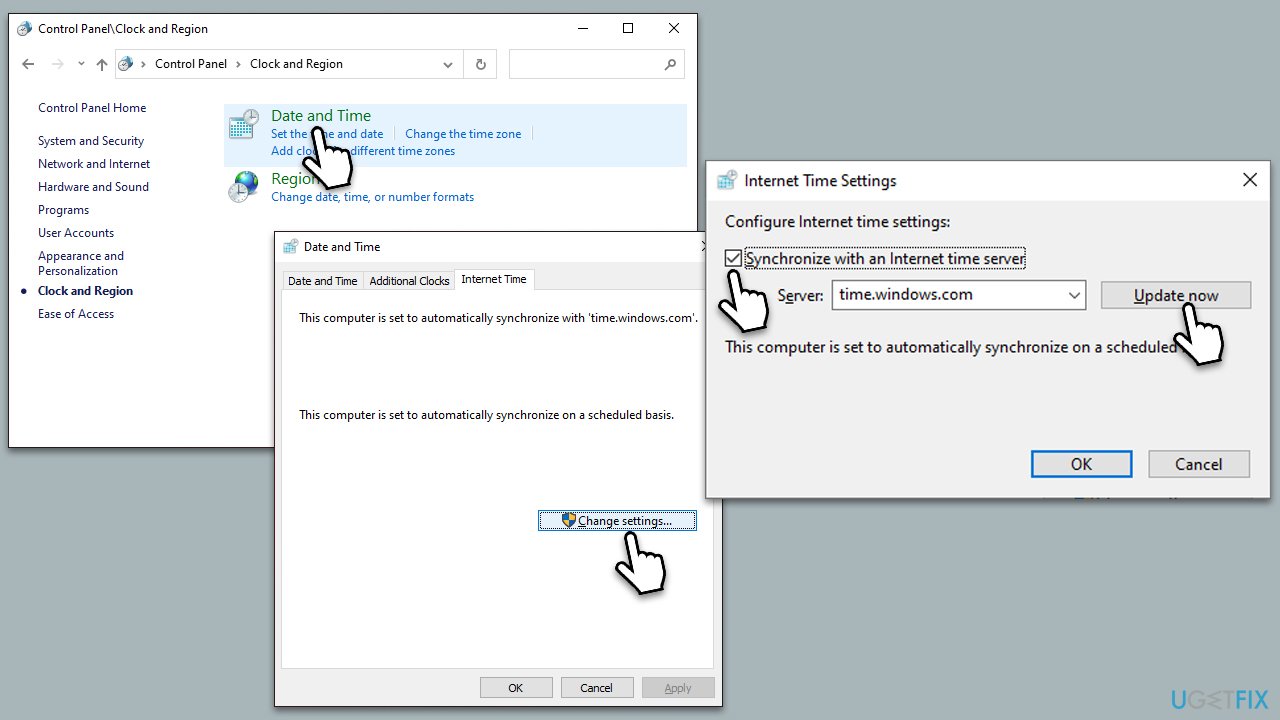
Fix 5. Check time and date/region
Incorrect time, date, or region settings can lead to synchronization issues with the Microsoft Store, resulting in error 0x80073CF9.
- Type in Control Panel in Windows search and press Enter.
- Go to Clock and Region and click on Date and Time.
- Pick the Internet Time tab and select Change Settings.
- Make sure that Synchronize with an Internet time server box is ticked.
- Click Update now and OK.
Fix 6. Repair or reset the Microsoft Store
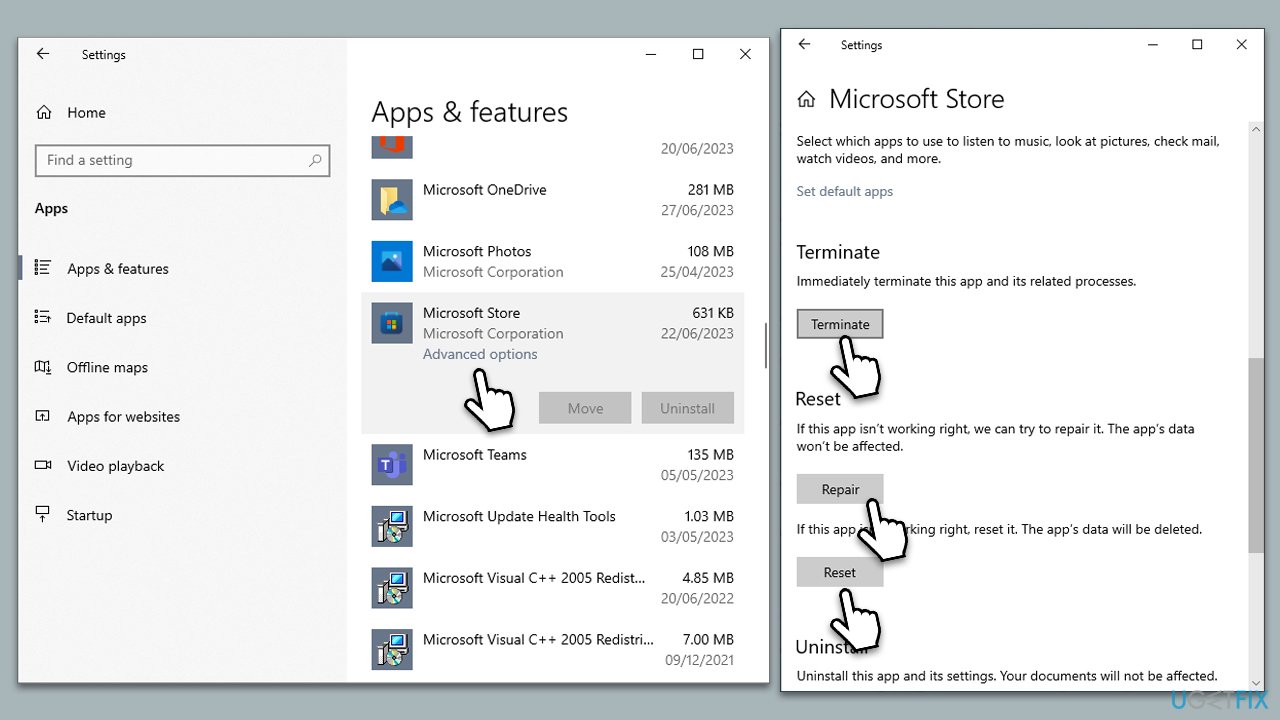
Repairing or resetting the Microsoft Store can resolve issues by restoring the app to its default state.
- Right-click on Start and select Apps & Features.
- Scroll down to find Microsoft Store and click Advanced options.
- Scroll down again and click Terminate and Repair.
- If that did not work, try using Reset.
Fix 7. Enable Microsoft Store Install Service
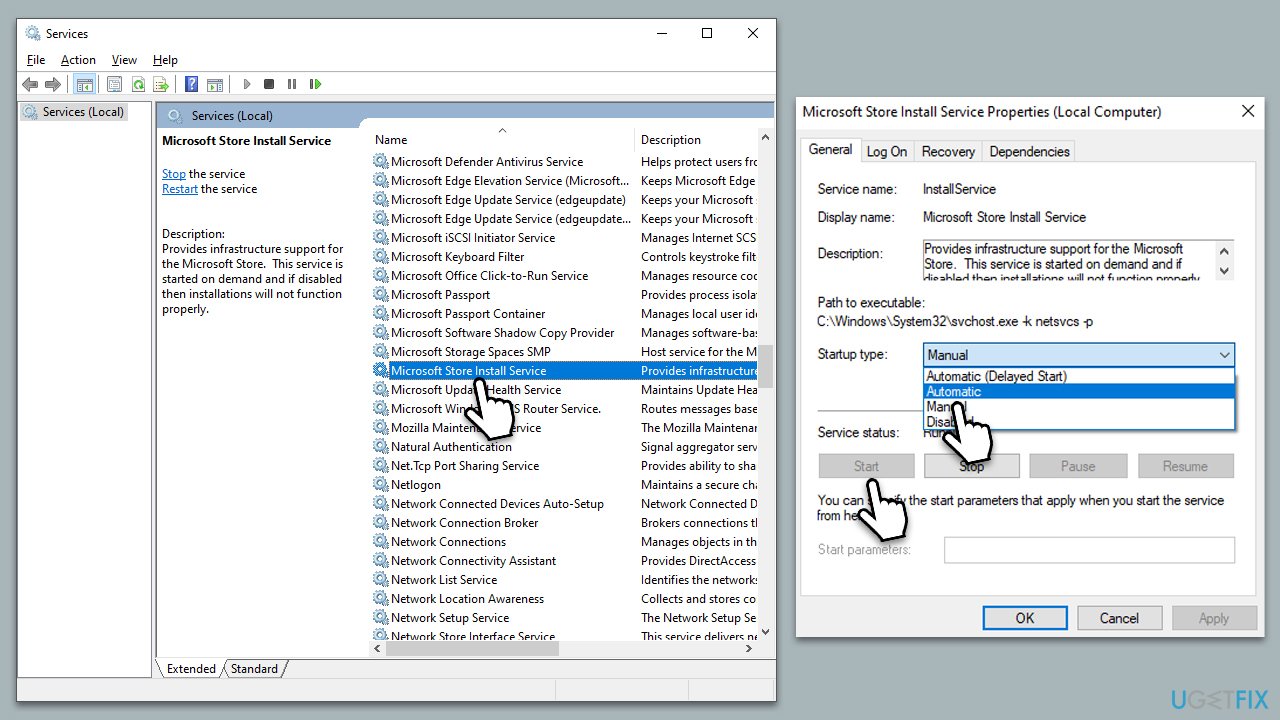
- Type Services in Windows search and press Enter.
- Locate Microsoft Store Install Service.
- If it is already running, right-click and select Restart.
- if the service is not running, double-click it, and pick Automatic under the Startup type from the drop-down menu.
- Click Start, Apply, and OK.
Fix 8. Reinstall the Store via PowerShell
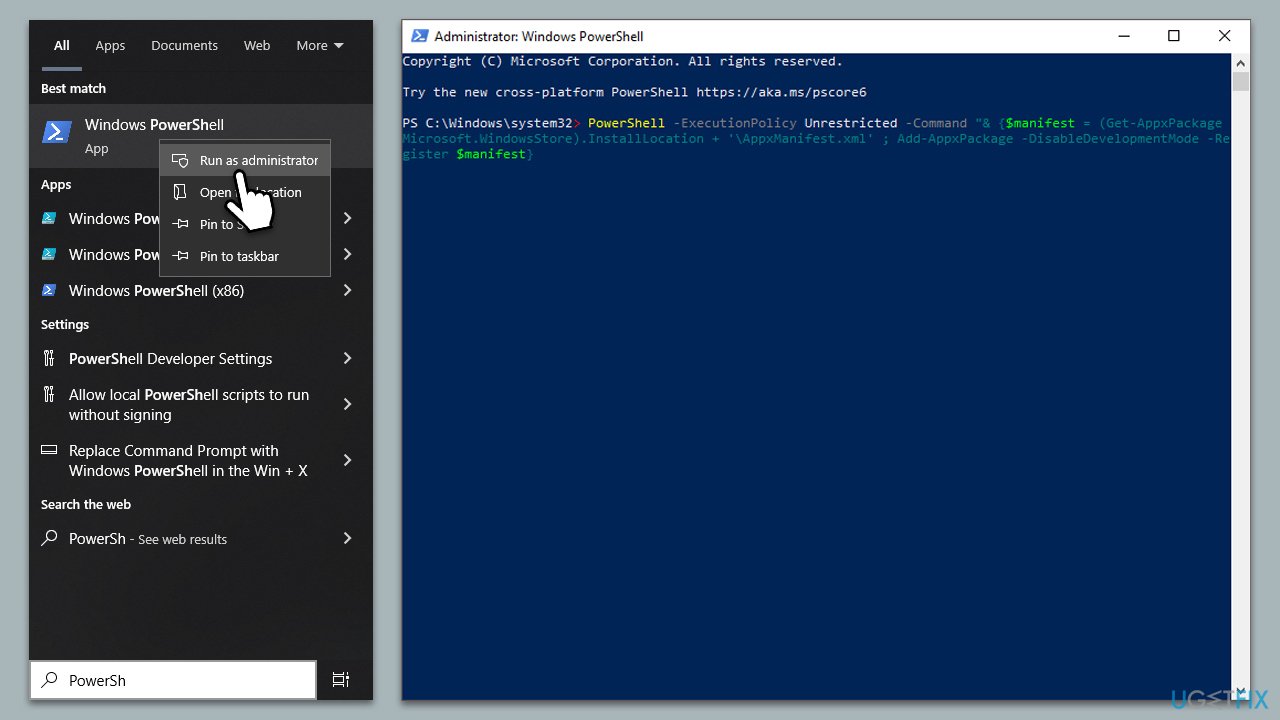
Reinstalling the Microsoft Store can help fix deeper issues by completely refreshing the app.
- Type Powershell in Windows search.
- Right-click on Powershell and select Run as administrator.
- In the new window, copy and paste the following command, pressing Enter after:
Get-AppxPackage Microsoft.WindowsStore | Remove-AppxPackage - With the next command, you can install the Store:
Add-AppxPackage -register "C:\Program Files\WindowsApps\Microsoft.WindowsStore*\AppxManifest.xml" -DisableDevelopmentMode - Press Enter and close down PowerShell.
Bottom line
To fix the Microsoft Store error 0x80073CF9, you can reset the Microsoft Store cache, check for updates to the Store app, ensure your Windows system is current, and confirm sufficient storage and stable internet connection. If these steps do not resolve the issue, consider addressing problems with Windows Update components or using PC repair software.
Frequently asked questions
The error 0x80073CF9 typically occurs due to corrupted app files, issues with Windows updates, or problems with the Microsoft Store itself.
To reset the Microsoft Store, open the Run dialog by pressing Windows + R, then type 'wsreset.exe' and hit Enter; this will clear the cache and may resolve the error.
Yes, you can repair Windows apps by going to Settings > Apps > Apps & features, locating the problematic app, clicking on it, and selecting 'Repair' to fix the issue.




Report an issue
What's wrong with this guide? We review every report and update or remove content.
Report received — thank you. We'll review and fix it.
You need a free account to submit a report.
Be the first to comment