How to fix
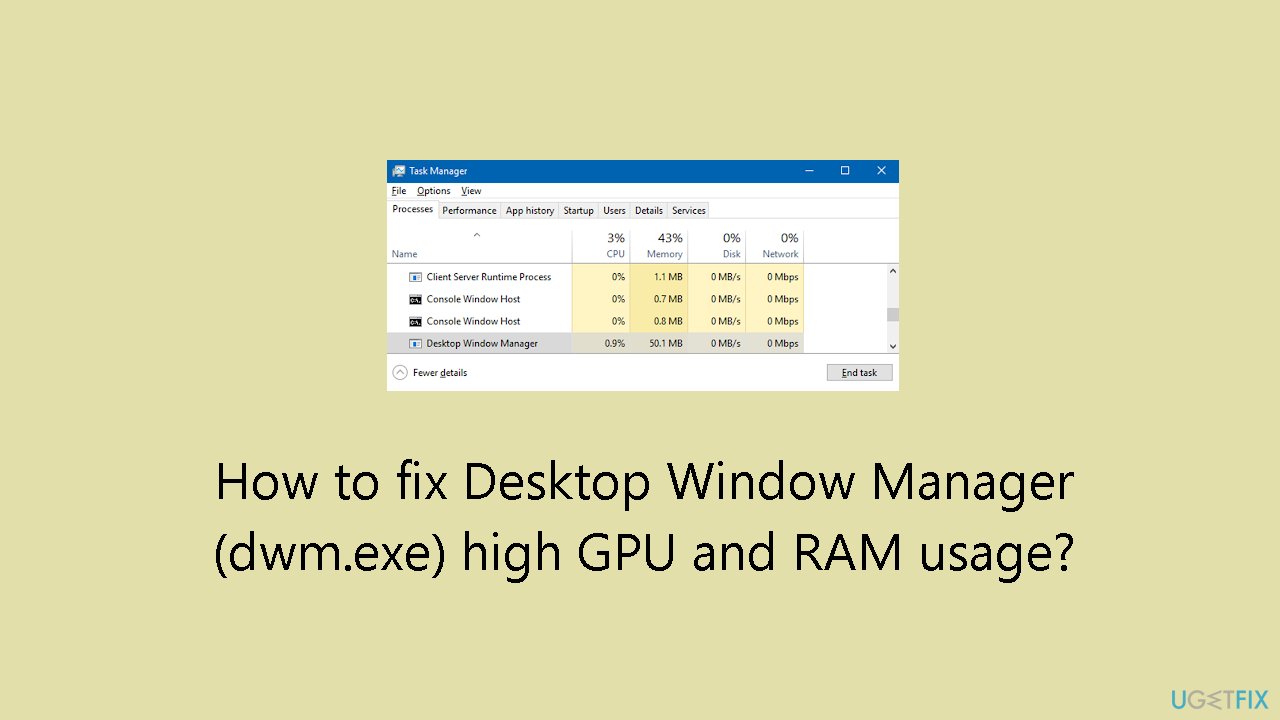
Desktop Window Manager (dwm.exe) high GPU and RAM usage
on Windows
Discover effective solutions for fixing high GPU and RAM usage by Desktop Window Manager in Windows 10 and Windows 11. Expert-tested fixes await!


What causes How to fix Desktop Window Manager (dwm.exe) high GPU and RAM usage?
- High GPU usage by Desktop Window Manager
- High RAM usage by Desktop Window Manager
- Driver problems
- Visual settings configurations
- Excessive resource usage from DWM features
Repairs Windows system files, removes malware, and restores a clean OS state — without reinstalling.
Hello. I noticed that my Windows PC started to become slow and I noticed that the Desktop Window Manager (dwm.exe) is using high amounts of GPU and RAM. What should I do?
The Windows operating system's Desktop Window Manager (DWM), which is represented by the dwm.exe process, is an essential component that manages the desktop interface's visual elements. Its tasks include the control of visual animations, transparency effects, taskbar functionality, and thumbnail previews. Although the DWM is essential for improving the overall user experience since it provides a visually beautiful desktop environment, users may have problems because of the process's high GPU and RAM utilization.
A large GPU usage by the Desktop Window Manager may harm system performance as a whole. Excessive GPU utilization can cause lag, slow response times, and an overall less responsive user experience. Moreover, higher RAM usage might impact multitasking effectiveness and add to system slowdowns, making apps operate less smoothly.
Because it affects users' regular computer interactions, this problem might be especially annoying for them. Tasks that would normally be completed quickly and smoothly could become slower and less effective, which would reduce user satisfaction and productivity.
Investigating alternative fixes is necessary to address the issue of the Desktop Window Manager using a lot of RAM and GPU. To maximize DWM performance, users might need to upgrade graphics drivers,[ref en-1] look into driver problems, or adjust system preferences. Furthermore, modifying the visual settings or turning off specific DWM features could help relieve the burden of excessive resource usage. To overcome this issue, though, a careful balance between maintaining aesthetic improvements and guaranteeing system performance must be set.
In this guide, you will find 7 steps that should help you fix Desktop Window Manager (dwm.exe) high GPU and RAM usage. You can also try to run a maintenance tool like [d1] that can fix most system errors, BSODs,[ref en-2] corrupted files, and registry[ref en-3] issues. Otherwise, follow the step-by-step instructions below.
Method 1. Install Windows Updates
- Press the Windows key + R to open the Run box.
- Type ms-settings:windowsupdate in the text box and press Enter.
- Click the Check for updates button.
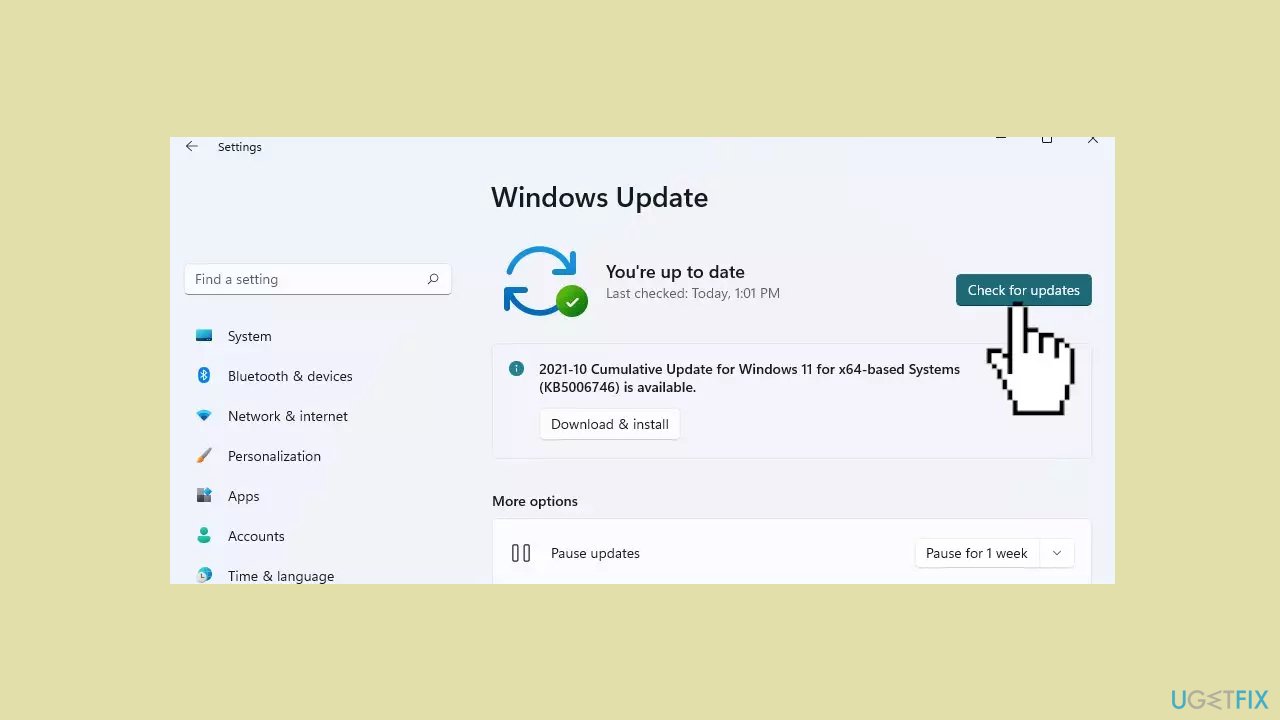
- If a new update is available, click the Download & Install all button.
- Restart your computer after the process is finished and check to see if the problem is fixed.
Method 2. Fix Corrupted System Files
Use Command Prompt commands to repair system file corruption:
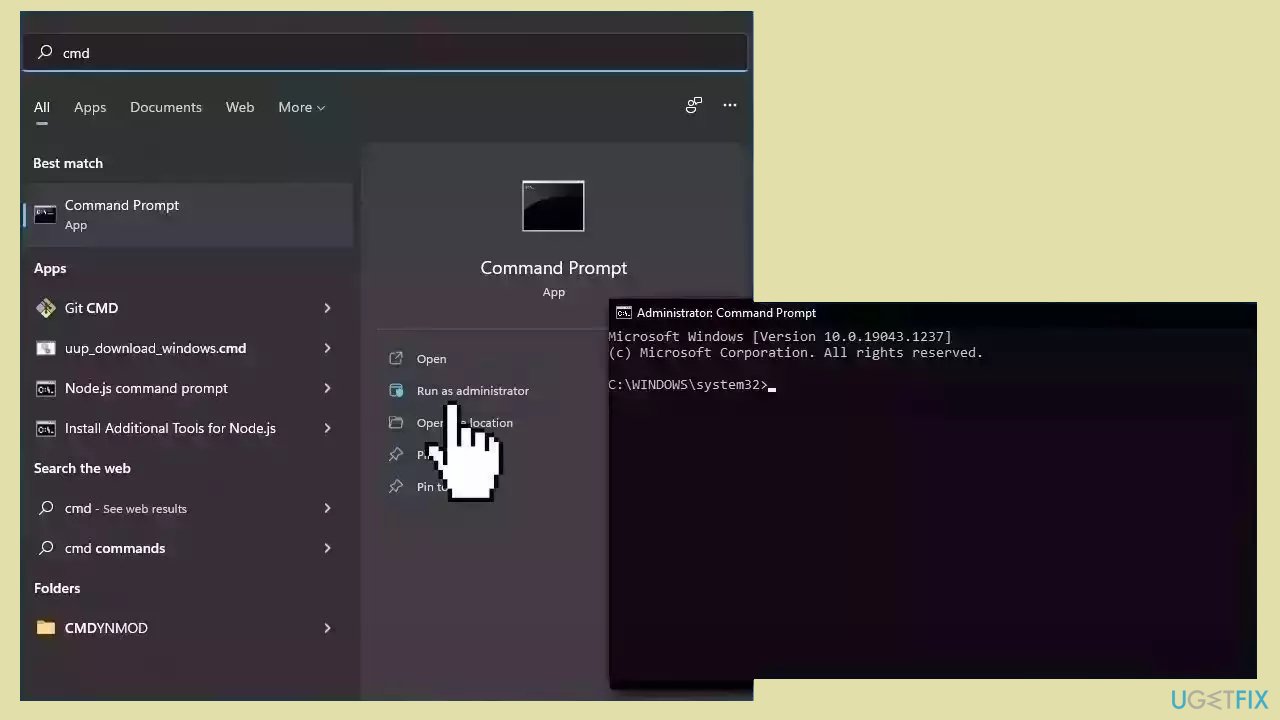
- Open Command Prompt as administrator
- Use the following command and press Enter:
sfc /scannow
- Reboot your system
- If SFC returned an error, then use the following command lines, pressing Enter after each:
DISM /Online /Cleanup-Image /CheckHealth
DISM /Online /Cleanup-Image /ScanHealth
DISM /Online /Cleanup-Image /RestoreHealth
Method 3. Turn Off Hardware-Accelerated GPU Scheduling
- Go to Settings and select System.
- Choose Display and navigate to Graphics.
- Click on Change Default Graphics Settings.
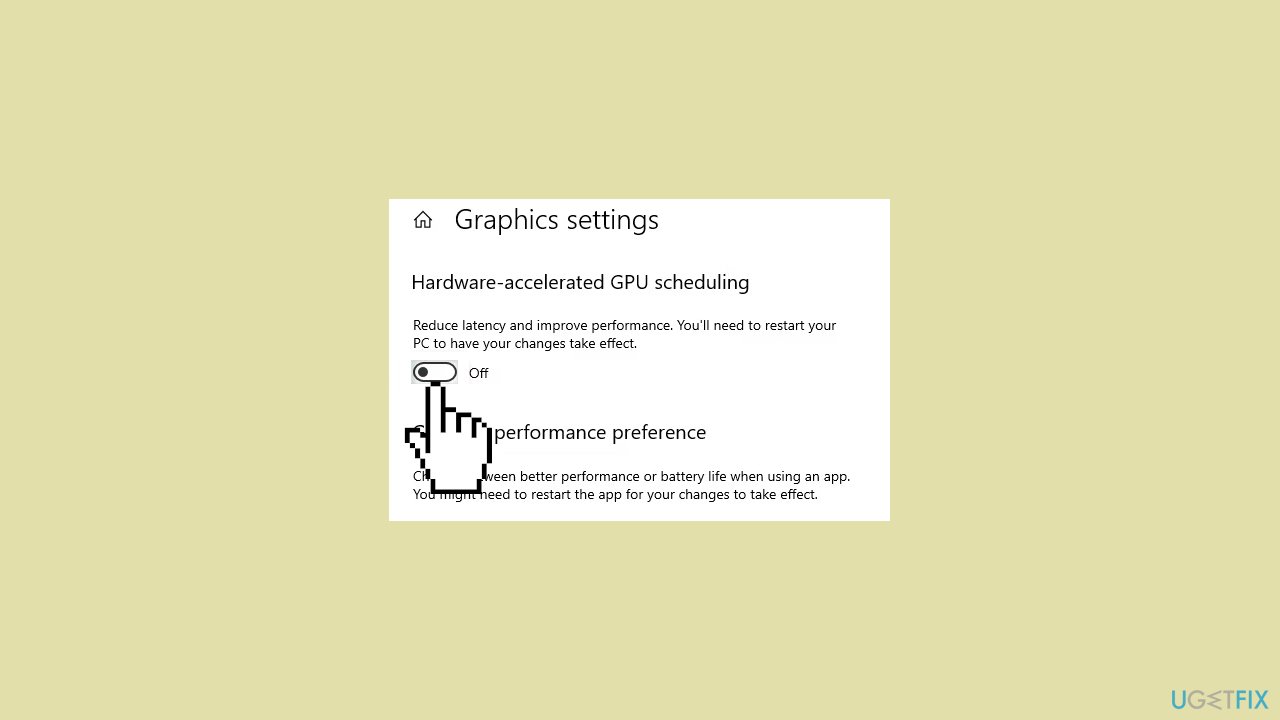
- Locate the Hardware-Accelerated GPU Scheduling option.
- Turn off the Hardware-Accelerated GPU Scheduling option.
Method 4. Roll Back Graphics Driver
- Right-click on the Start menu icon to open the context menu.
- Choose Device Manager from the menu.
- In Device Manager, locate and expand the Display Adapters category.
- Right-click on your graphics card within the expanded category.
- Select Properties from the context menu.
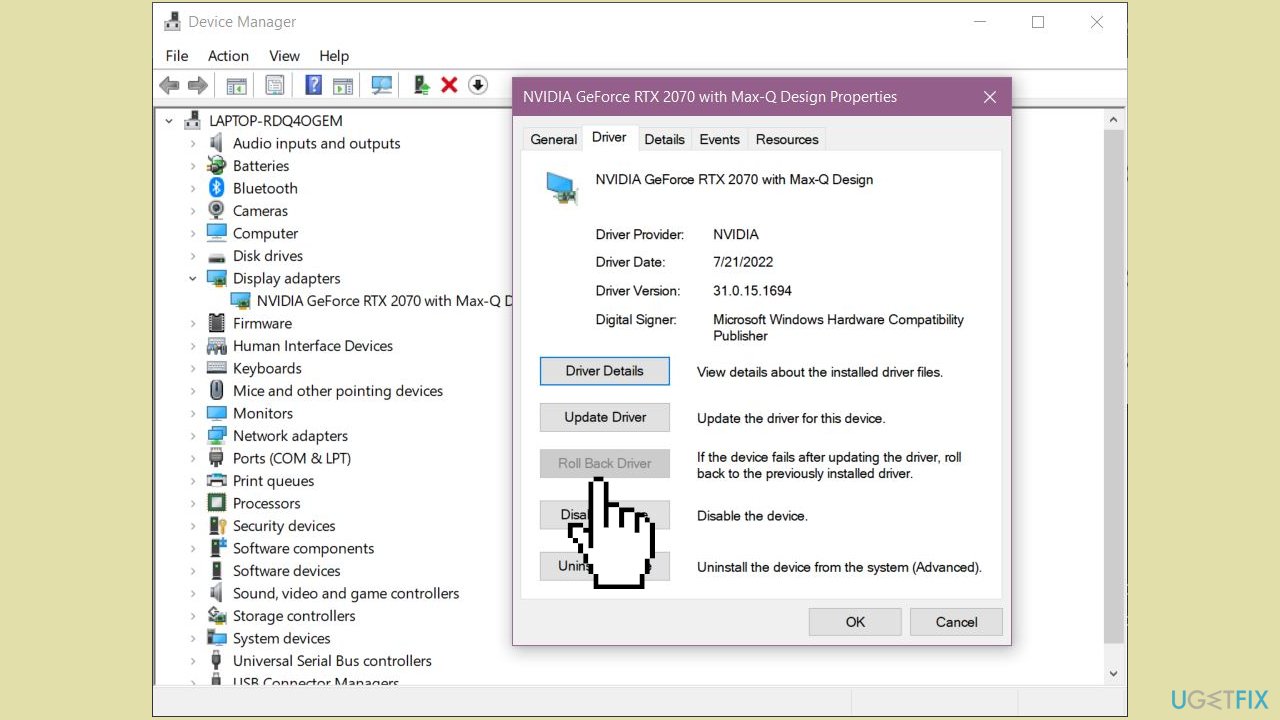
- In the Properties window, navigate to the Driver tab.
- Click on Roll Back Driver to uninstall the recent driver update.
- Restart your PC to apply the changes.
Method 5. Configure the NVIDIA Control Panel Settings
- Press the Windows key to open the Start Menu.
- Type NVIDIA Control Panel in the search bar and press Enter.
- Select Manage 3D settings from the left sidebar.
- In the Preferred graphics processor drop-down menu, choose High-performance NVIDIA processor.
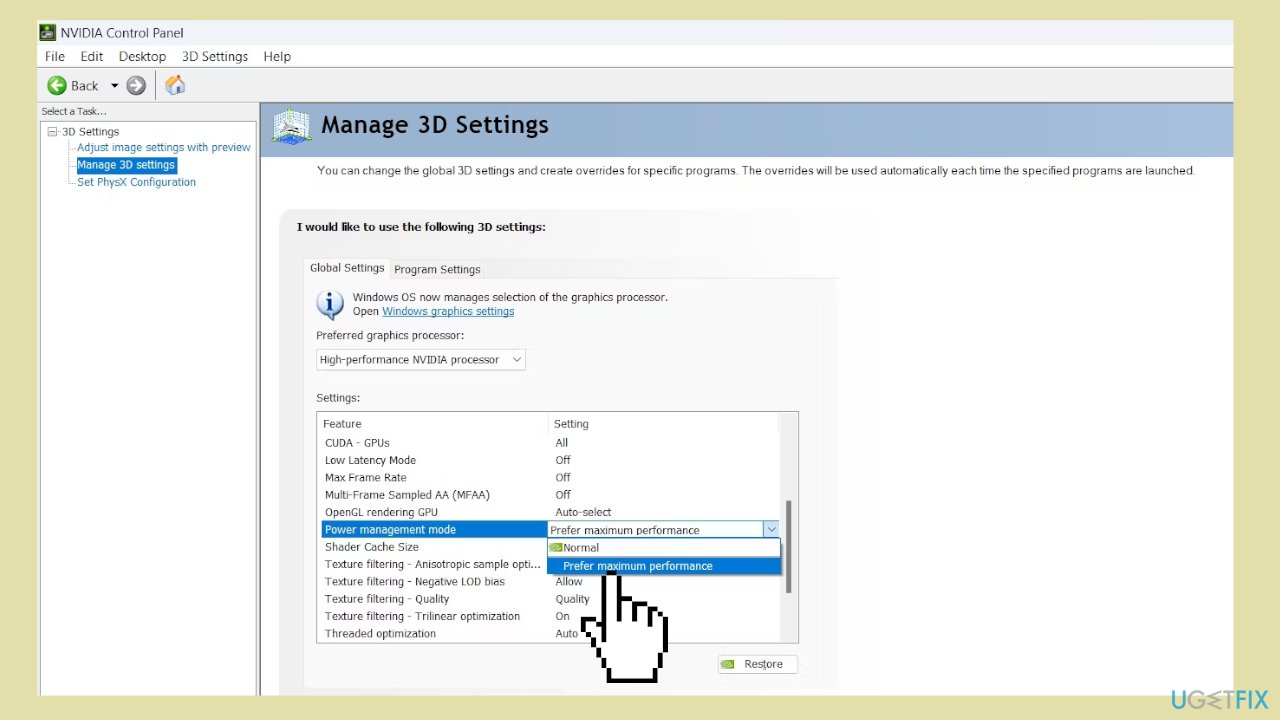
- Click the drop-down icon next to Power management mode and select Prefer maximum performance.
- Click on Apply to save the changes.
- Restart your computer for the modifications to take effect.
Method 6. Modify the Resolution and Scaling Settings
- Open Settings.
- Select System from the left sidebar.
- Choose Display from the right pane.
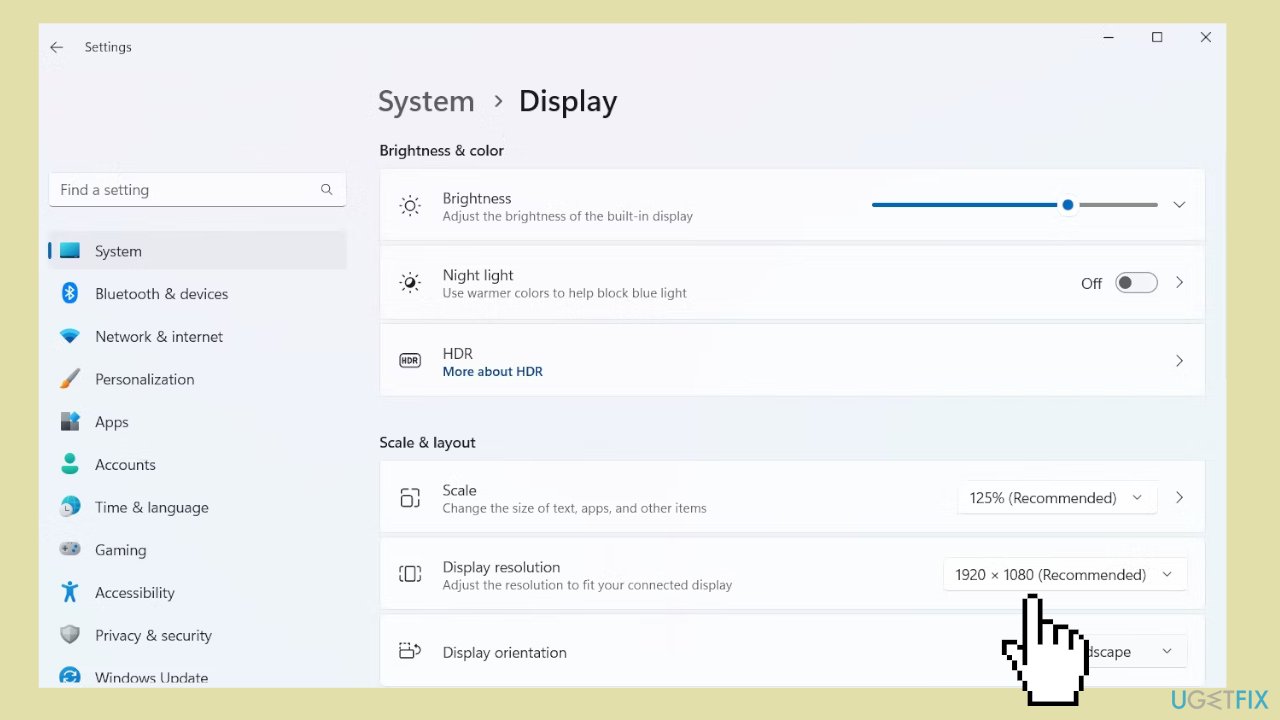
- Click the drop-down icon next to Scale.
- Choose the recommended value from the options provided.
- Additionally, select the recommended value from the Display resolution drop-down menu.
Method 7. Use System Restore
System Restore is a feature in Microsoft Windows that allows users to revert their computer's state to a previous point in time. This can be helpful if you have made changes to your system that are causing problems.
- Press the Windows key + R on your keyboard to open the Run box.
- Type SystemPropertiesProtection and press Enter.
- Go to the System Protection tab.
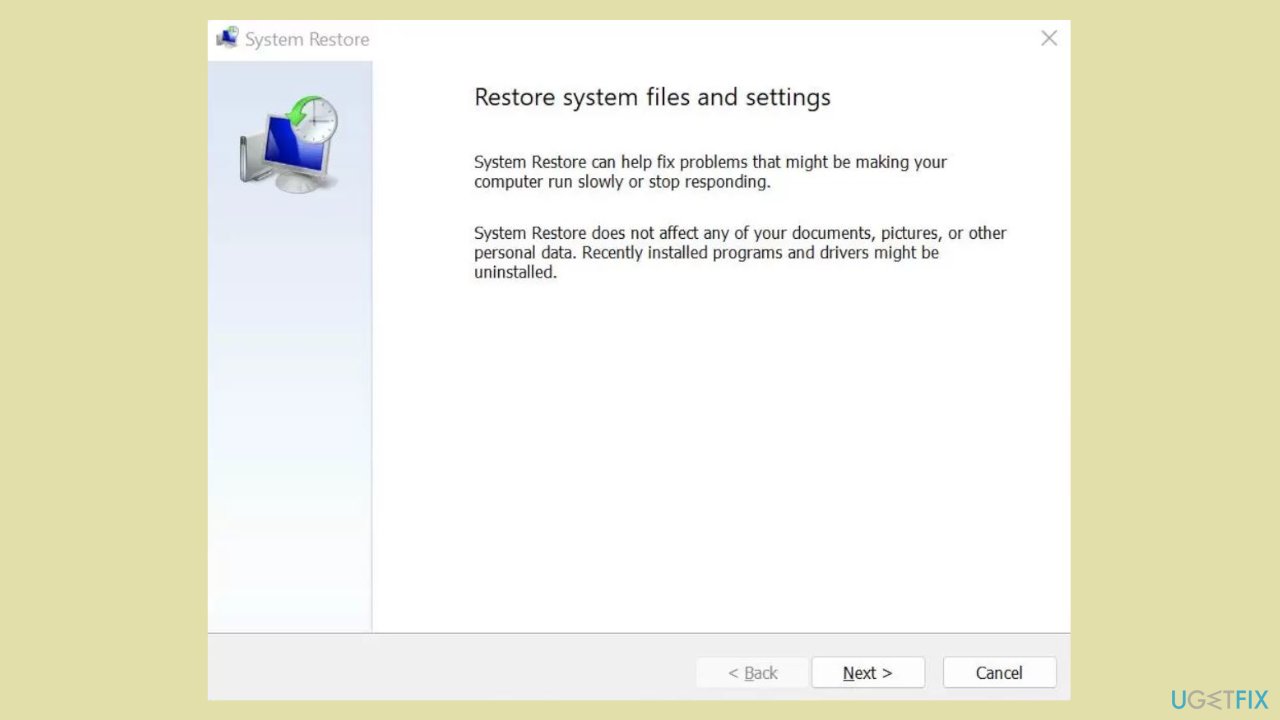
- You will see the System Restore… button. Click it to run System Restore.
- Follow the prompts until you can select a restore point.
- Select the one you want (ideally before the issue started occurring) and go ahead with the process.
Bottom line
To fix high GPU and RAM usage by the Desktop Window Manager, users can install Windows updates, upgrade graphics drivers, adjust system preferences, or modify visual settings. If these methods do not resolve the issue, consider running a maintenance tool to address system errors.
Frequently asked questions
High GPU and RAM usage by dwm.exe can be caused by outdated graphics drivers, excessive visual effects, or third-party applications that interfere with Windows' desktop rendering.
To reduce memory usage, you can disable unnecessary visual effects by going to System Properties > Advanced system settings > Performance Settings and selecting 'Adjust for best performance'.
Disabling Desktop Window Manager is not recommended as it may lead to a degraded visual experience and affect the stability of your system's graphical interface.




Report an issue
What's wrong with this guide? We review every report and update or remove content.
Report received — thank you. We'll review and fix it.
You need a free account to submit a report.
Be the first to comment