How to fix
Can’t disable palmcheck
on Windows
Resolve palmcheck issues in Windows 11 effortlessly. Follow our expert-tested solutions to regain full control of your touchpad settings. Fixed in minutes!

![[Fix] Can’t disable palmcheck in Windows 11](https://ugetfix.com/wp-content/uploads/articles/askit/fix-cant-disable-palmcheck-in-windows-11_en-768x432.jpg)
What causes [Fix] Can’t disable palmcheck in Windows 11?
- Default settings are overly restrictive
- Palmcheck feature is overly sensitive
- Lack of clear options in system settings
- Difficulty accessing touchpad driver configurations
- Complexity of altering system registries
Repairs Windows system files, removes malware, and restores a clean OS state — without reinstalling.
Hello. I tried to turn off the palmcheck feature in Windows 11, but it is not working. What should I do?
Many Windows 11 users encounter difficulties disabling the Palmcheck feature, a functionality designed to prevent inadvertent mouse clicks or taps, particularly when operating in tablet mode. Although the feature is useful, users who would rather have more control over their touchpad sensitivity may find it annoying because of its persistence. The problem stems from the fact that some people find the default settings on their devices to be overly restrictive, which affects how their devices naturally navigate and interact.
Users who want a more fluid touchpad experience are the main group impacted by this issue, as Palmcheck tends to be extremely sensitive, which can cause annoying hiccups when used frequently. For example, users can see delays in reacting to touchpad inputs or be unable to do specific tasks. This can be an obstruction to productivity, particularly for individuals who depend significantly on touch-based interfaces or constantly transition between tablet and laptop modes.
Although the precise procedures for disabling Palmcheck could differ depending on the manufacturer of the device and the driver version, users usually encounter a deficiency of clear choices in the system settings for disabling this functionality. The process can be difficult and force users to look for other alternatives if there isn't an obvious toggle switch or readily available control panel options.
Possible fixes for the Palmcheck problem frequently entail gaining access to particular touchpad driver configurations or exploring the system's registry settings. However, less tech-savvy individuals could be discouraged from attempting these solutions due to the complexity of the methods and the inherent risks involved with altering system registries. As such, an easy-to-use way to turn off Palmcheck in the system settings would be very helpful for a more convenient and less annoying user experience.
In this guide, you will find 4 steps that should help you fix not being able to disable the palmcheck feature. You can also run a maintenance tool like [d1] that can fix most system errors, BSODs,[ref en-1] corrupted files, and registry[ref en-2] issues. Otherwise, follow the step-by-step instructions below.
Solution 1. Adjust the Touchpad Sensitivity
- Press the Windows key to open the Start menu.
- Click on Settings from the menu.
- On the left side, choose Bluetooth and devices.
- On the right side, locate and select Touchpad.
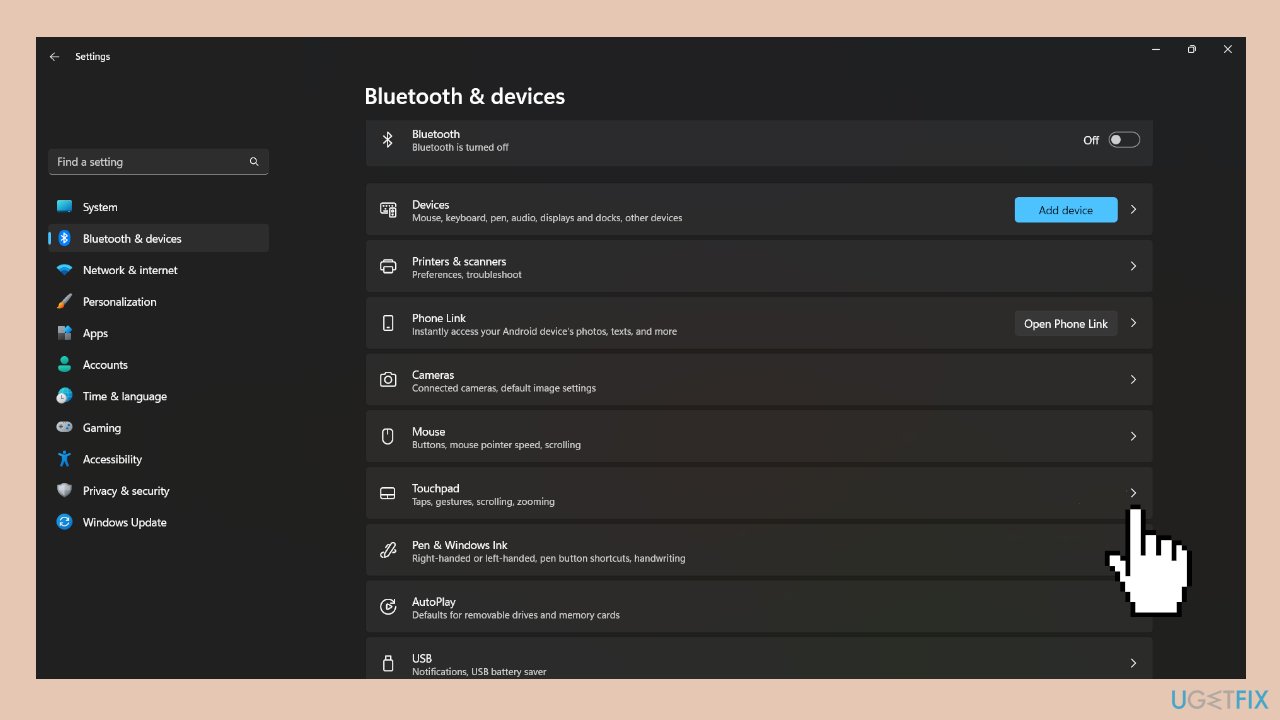
- Click on Taps in the Touchpad settings.
- From the drop-down menu, choose either High sensitivity or Most sensitive.
Solution 2. Update Touchpad Drivers
- Press the Windows key + R to open the Run dialog.
- In the text field, type devmgmt.msc and press Enter.
- Double-click on Mice and other pointing devices in the Device Manager.
- Right-click on the touchpad device.
- Select Update driver from the context menu.
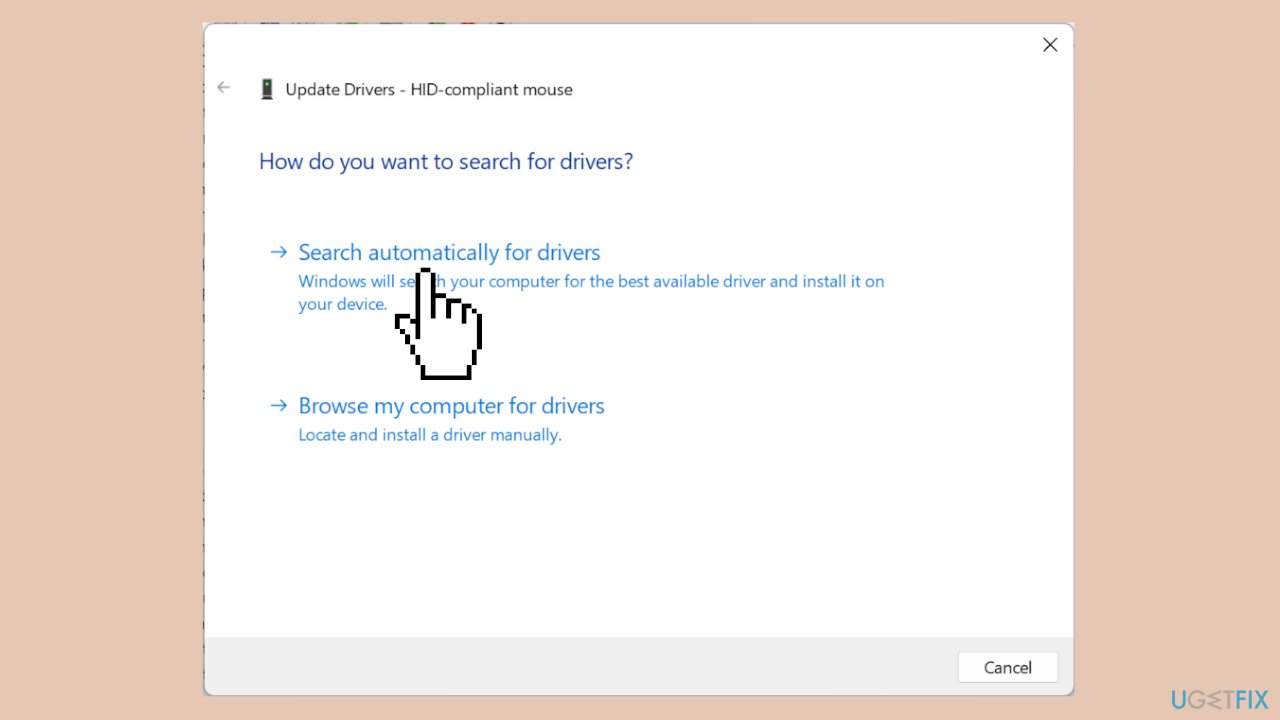
- Choose Search automatically for drivers and allow Windows to install the best locally available drivers.
- Restart the computer to apply the changes.
Solution 3. Reinstall Touchpad Drivers
- Press the Windows key and type Device Manager, then click on Open.
- Expand the entry for Mice and other pointing devices.
- Right-click on the touchpad and choose Uninstall device.
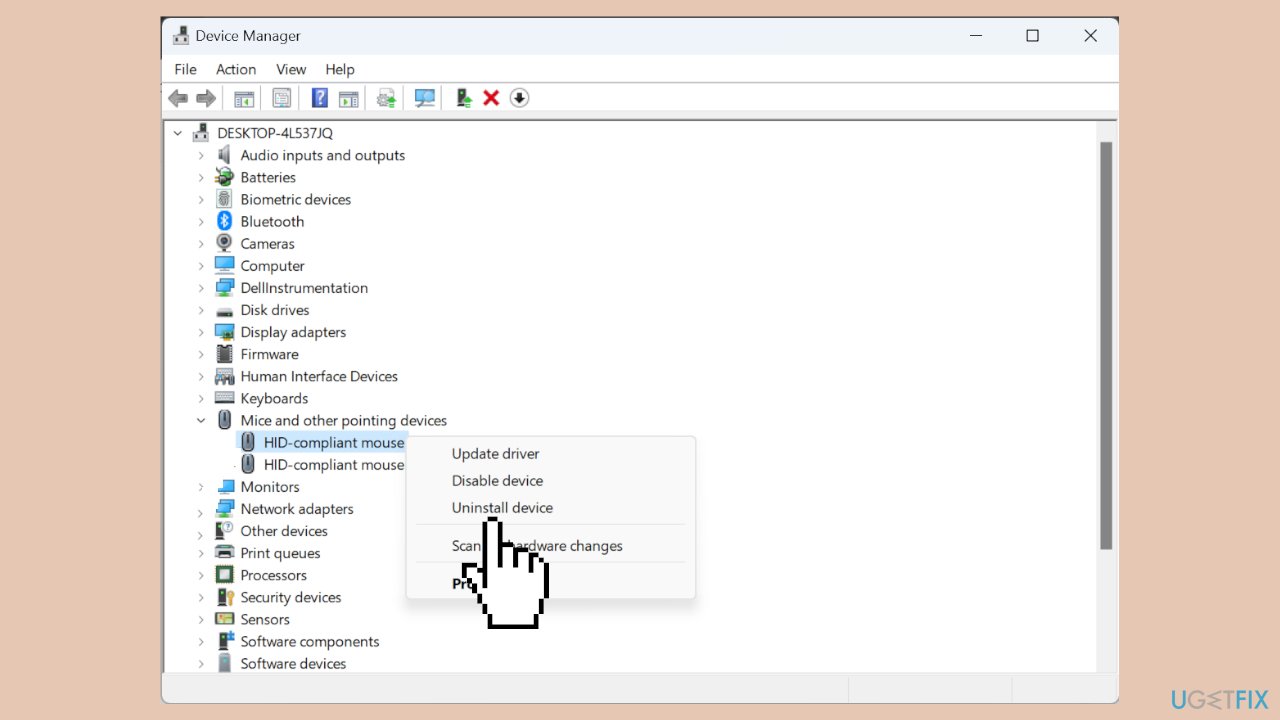
- Tick the checkbox for Attempt to remove the driver for this device if available.
- Click Uninstall to confirm the removal.
- Restart the computer.
- Windows will automatically install a fresh copy of the touchpad driver.
Solution 4. Disable the Registry Keys
- Open the Run command by pressing the Windows key + R.
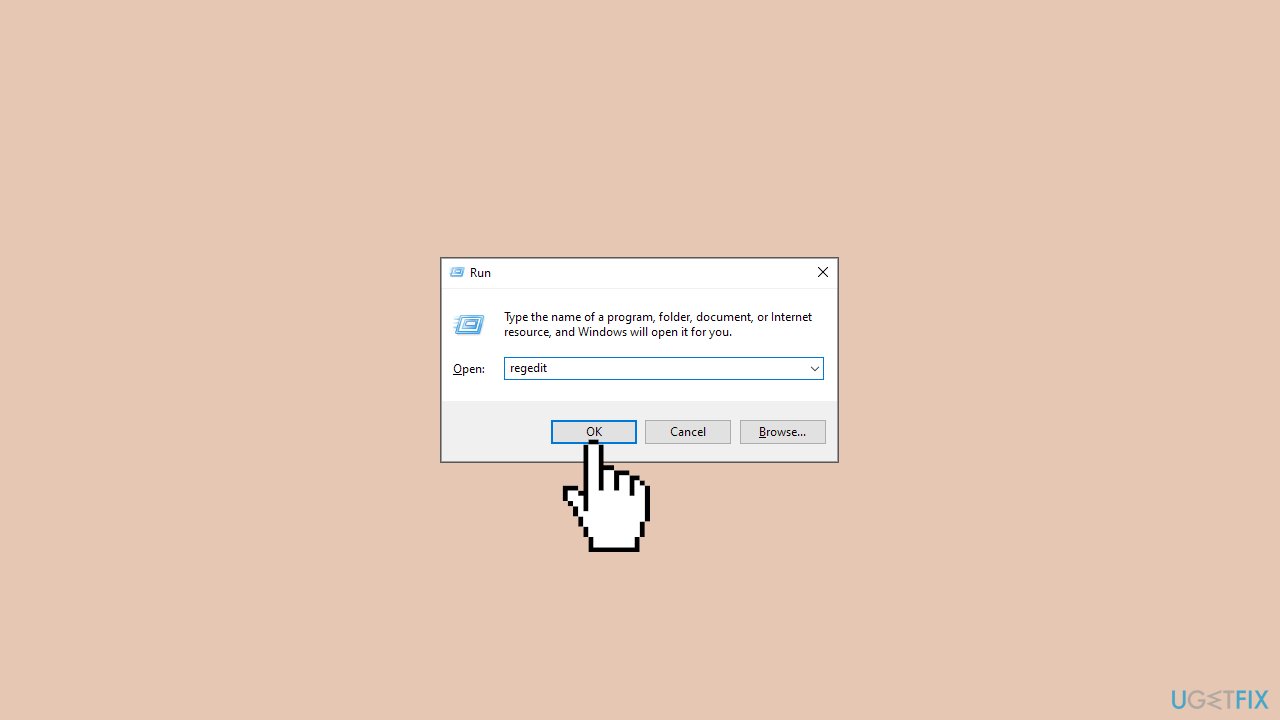
- In the dialog box, type regedit and press Enter to open the Registry Editor.
- Navigate to the following location: (The path may differ based on your device’s manufacturer)
Computer\HKEY_CURRENT_USER\Software\Elantech\OtherSetting
- In the right-hand pane, locate DisableWhenType_Enable, double-click on it, and set the Value data to 1.
- Restart your PC to check if Palmcheck has been disabled.
- If not, disable the AAPThreshold key.
- Open the Run command again by pressing the Windows key + R.
- Type regedit in the dialog box and press Enter to open the Registry Editor.
- Navigate to the following location:
HKEY_LOCAL_MACHINE\Software\Microsoft\Windows\CurrentVersion\PrecisionTouchPad
- In the right-hand pane, find AAPThreshold, double-click on it, and set the Value data to 0.
- Restart your PC after making this change.
Bottom line
To resolve the issue of not being able to disable Palmcheck, users can explore specific touchpad driver configurations or adjust system registry settings. If these methods seem too complex or risky, consider using a maintenance tool that can fix system errors. If none of these solutions work, further assistance may be needed.
Frequently asked questions
You can access palmcheck settings by opening the Settings app, navigating to Devices, then selecting Touchpad, and looking for palm rejection options.
If the palmcheck option is missing, ensure that your touchpad drivers are up to date by checking the Device Manager for any available updates.
Yes, you can disable palmcheck by editing the Registry Editor; navigate to HKEY_CURRENT_USER\Software\Microsoft\Windows\CurrentVersion\PrecisionTouchPad and modify the relevant settings.




Report an issue
What's wrong with this guide? We review every report and update or remove content.
Report received — thank you. We'll review and fix it.
You need a free account to submit a report.
Be the first to comment