How to fix
Dropbox deleting files automatically
on Windows
Resolve the issue of Dropbox deleting files automatically on Windows 10 or 11 with our expert-tested solutions. Fix the problem in minutes!

What causes How to fix Dropbox deleting files automatically?
- Insufficient file synchronization
- Disabled file or folder sharing settings
- Inadvertent file deletion
- Sporadic network connectivity problems
- Transient Dropbox server difficulties
- Virus infections
Repairs Windows system files, removes malware, and restores a clean OS state — without reinstalling.
Hello. I noticed that Dropbox keeps deleting files by itself. This is very concerning. What should I do?
Users of Dropbox have frequently complained about files being automatically deleted from their accounts. Dropbox is a popular file-hosting service that provides easy-to-use cloud storage and cross-platform file synchronization. Users have, however, experienced situations where files are erased without their knowledge or consent, which causes worry and difficulty.
Many variables, such as insufficient file synchronization, disabled file or folder sharing settings, inadvertent file deletion, sporadic network connectivity problems, transient Dropbox server difficulties, or even virus infections, are frequently associated with this issue. Users might discover that their files abruptly vanish, which would interfere with the smooth experience Dropbox is supposed to offer.
There are important ramifications for users who experience automatic file deletion. Important data loss, possible setbacks in team efforts, and difficulties getting to vital files when needed can all arise from it. Users frequently depend on Dropbox for effective file management and synchronization, which makes the annoyance much worse. Moreover, unexpected file deletions jeopardize the service's dependability.
Users must find and fix the root causes to resolve this issue. This could entail checking and modifying the settings for file synchronization, making sure that file and folder sharing is enabled when necessary, exercising caution to prevent inadvertent deletions, and keeping a steady network connection. Furthermore, monitoring the Dropbox server's health and making sure you have strong antivirus software will help reduce the chance of losing files.
In this guide, you will find 4 steps that should help you fix Dropbox deleting files automatically. If you experience any Windows OS issues, you can run a maintenance tool like [d1] that can fix most system errors, BSODs, corrupted files, and registry issues. Otherwise, follow the step-by-step instructions below.

Solution 1. Check if you are removed from a Shared Folder
Should you discover any absence of files in your Dropbox, it's essential to assess whether those files or folders were shared with you by another user. In the instance of Dropbox shared folders, should the owner revoke your access rights, you'll no longer be able to view or access the files within. To resolve this issue, kindly reach out to the owner and request re-authorization for access.
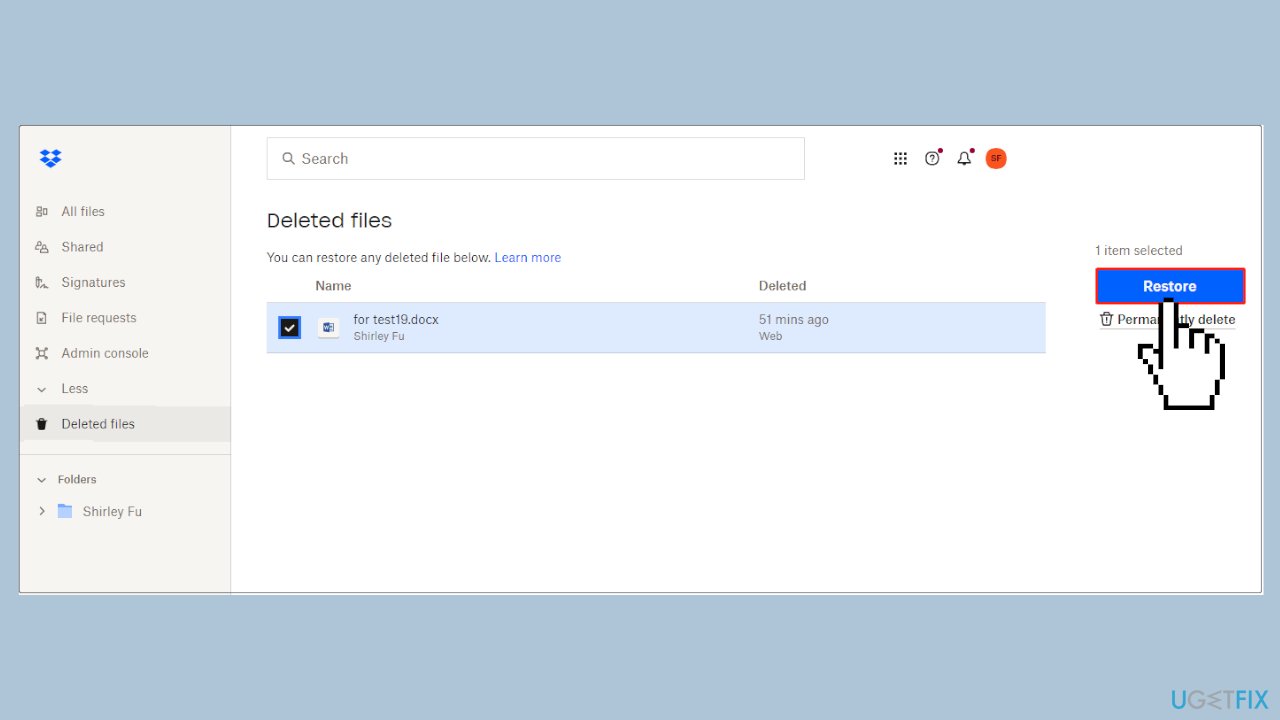
Solution 2. Recover Deleted Dropbox Files
- Log in to your Dropbox account.
- Navigate to the left sidebar and click on Deleted files.
- Identify and select the deleted file or folder you wish to recover.
- Click on the Restore button to initiate the recovery process.
Solution 3. Use the Show Deleted Files Feature
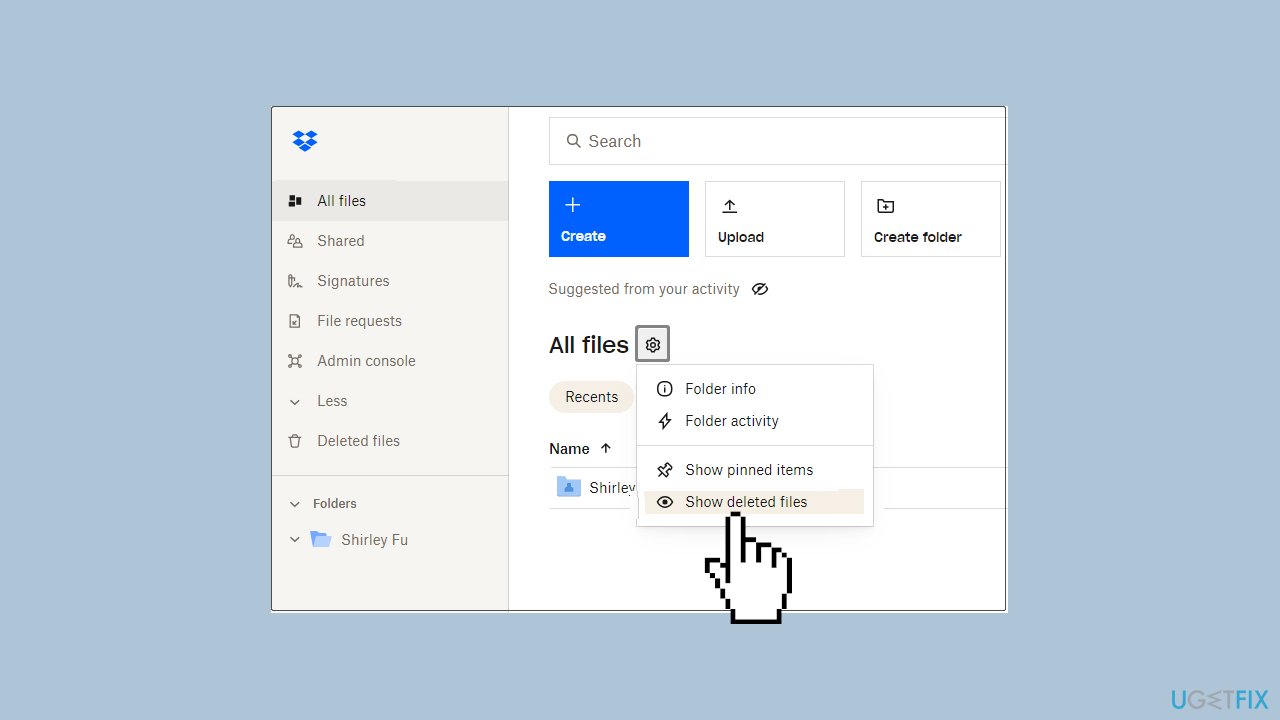
- Access the Show deleted files option to recover deleted Dropbox files.
- In Dropbox, navigate to All files.
- Click on the Settings icon.
- Select Show deleted files.
- Review the list of deleted files, check the ones you want to recover.
- Click the Restore button to initiate the recovery process.
Solution 4. Check for Deleted Files on other Devices
If you've deleted files from your Dropbox account and cannot restore them, verify their existence on your devices, such as your computer or phone. If the files are still present locally, you have the option to re-upload or sync them from your device to Dropbox.
Bottom line
To resolve the issue of Dropbox deleting files automatically, users should check and modify their file synchronization settings, ensure that file and folder sharing is enabled, and exercise caution to prevent accidental deletions. Additionally, maintaining a steady network connection and monitoring the Dropbox server's health can help. If these solutions do not work, consider running a maintenance tool to fix potential Windows OS issues.
Frequently asked questions
This could be due to Dropbox's selective sync feature being enabled, which may remove files from your device while keeping them in the cloud. Check your sync settings in the Dropbox app to ensure all necessary files are selected.
You can adjust the Dropbox preferences to disable automatic file deletion by ensuring that the 'Smart Sync' feature is set to 'Local' for the files you want to keep. Additionally, regularly check your Dropbox settings to manage file retention and sync options.
If Dropbox is clearing your deleted files without your consent, check the 'Deleted Files' section in your account to recover them, and review your account settings for any syncing or backup options that might be misconfigured.




Report an issue
What's wrong with this guide? We review every report and update or remove content.
Report received — thank you. We'll review and fix it.
You need a free account to submit a report.
Be the first to comment