How to fix
“An unexpected I/O error has occurred” error
on Windows
Resolve the "An unexpected I/O error has occurred" on Windows 10 and 11 effortlessly. Get expert-tested solutions and fix it in minutes!


What causes How to fix “An unexpected I/O error has occurred” error in Windows?
- Corrupted system files
- Hardware malfunctions
- Misconfigurations in BIOS
- Hardware conflicts from new devices
- Issues with the boot directory
Repairs Windows system files, removes malware, and restores a clean OS state — without reinstalling.
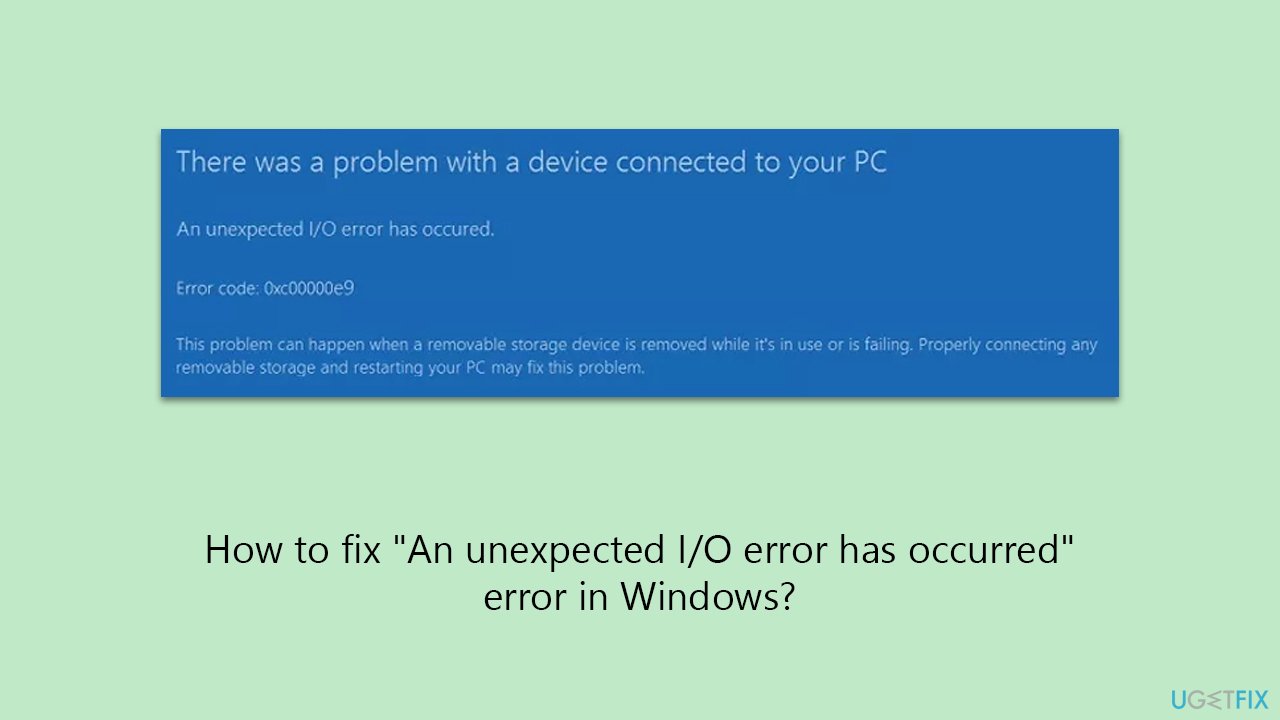
Hi. I have encountered a sudden freeze on Windows, where I couldn't open or close any of the applications - I couldn't even move my mouse. I then restarted my PC and it came up with a blue screen message saying "There was a problem with a device connected to your PC. An unexpected I/O error has occurred." I now can't access Windows, as all I see is this BSOD.
The "An unexpected I/O error has occurred" error in Windows systems typically signifies a serious malfunction, often beginning with a sudden freeze where applications become unresponsive and even basic functions like moving the mouse cursor are hindered.
This state of unresponsiveness usually leads to a system crash or necessitates a manual restart, culminating in the display of the daunting message "An unexpected I/O error has occurred. File:\Boot\BCD. Error code: 0xc00000e9." Such an occurrence not only disrupts your workflow but also raises immediate concerns about the well-being of your PC.
At the core of this issue lies a disruption in hardware communication, particularly involving the system's Basic Input/Output System (BIOS). The BIOS plays a pivotal role in ensuring smooth communication between the operating system and the computer's hardware components, such as the hard drive, solid-state drive, or DVD-ROM.
When you encounter "An unexpected I/O error has occurred" crash, it signifies a breakdown in this crucial communication channel, potentially caused by a spectrum of factors including corrupted system files or hardware malfunctions.
Addressing this problem can involve several nuanced steps. Resetting the BIOS to its default settings is often a starting point, potentially resolving any misconfigurations causing the communication breakdown. If the issue arose following the connection of a new device, disabling this device may alleviate the problem by eliminating any hardware conflicts.
Rebuilding the boot directory is another viable approach, targeting issues that impede the system's startup process. Additionally, employing the Media Creation Tool to repair Windows can be beneficial, especially for repairing installation-related errors and rectifying deep-seated system issues.
While the "An unexpected I/O error has occurred" presents a complex challenge, it is typically addressable through careful troubleshooting. To address inconsistencies in your Windows operating system and ensure these issues are caught before severe issues arise, we recommend using [d1] repair software.
Fix 1. Disable the connected device [if applicable]
Disabling a recently connected device can help if the I/O error is caused by a hardware conflict. New hardware can sometimes interfere with the system’s ability to boot properly, so removing it can identify if it's the source of the problem.
- Shut down your computer.
- Disconnect any recently added hardware devices, such as external hard drives or USB devices.
- Restart your computer and check if the error persists.
- If the error does not appear, reconnect the devices one at a time to identify the problematic hardware.
Fix 2. Perform Safe Mode Disk Check
Performing a disk check in Safe Mode allows you to identify and fix hard drive issues, which might be causing the I/O error. Safe Mode starts Windows with a minimal set of drivers and can often be accessed even when the regular mode is not working.
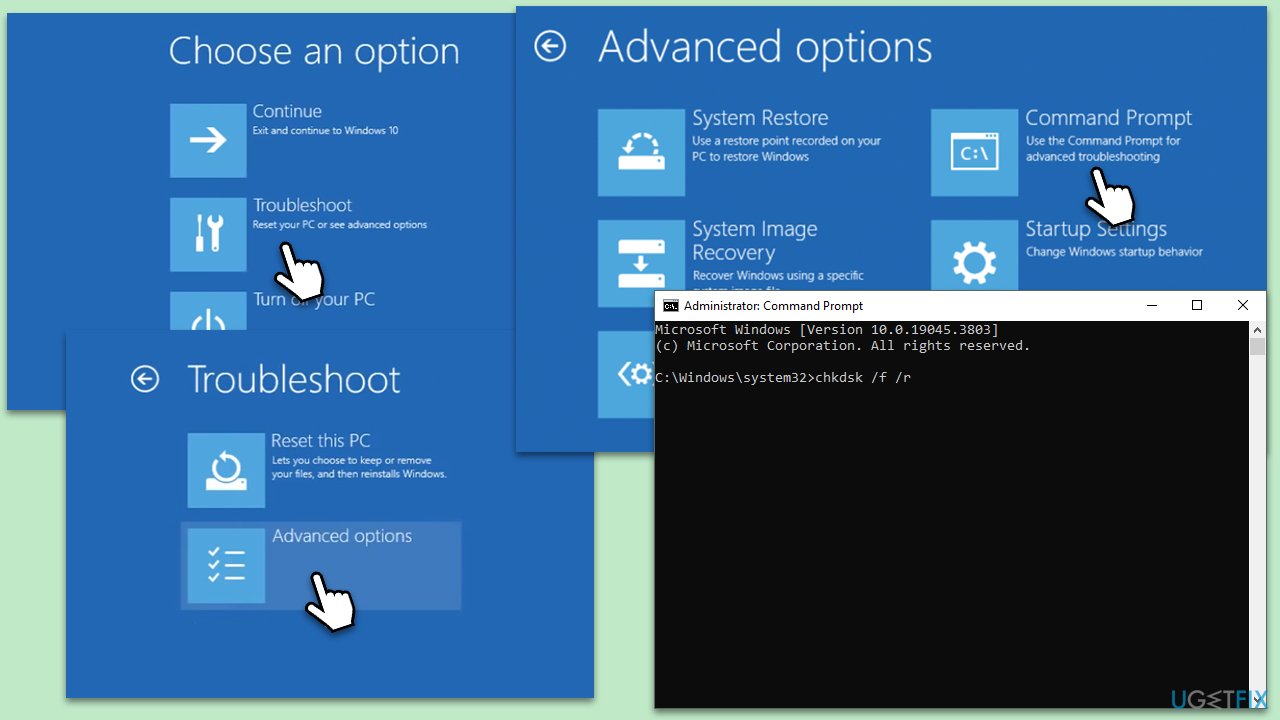
- Restart your computer and press F8, F12, Del, or other button repeatedly until the Advanced Options menu appears.
- Select Troubleshoot > Advanced options > Command Prompt.
- Then, type in the following command and then press Enter:
chkdsk /f /r - Follow the on-screen instructions to complete the disk check.
- Restart your computer normally and check if the error is resolved.
Fix 3. Rebuild the boot directory
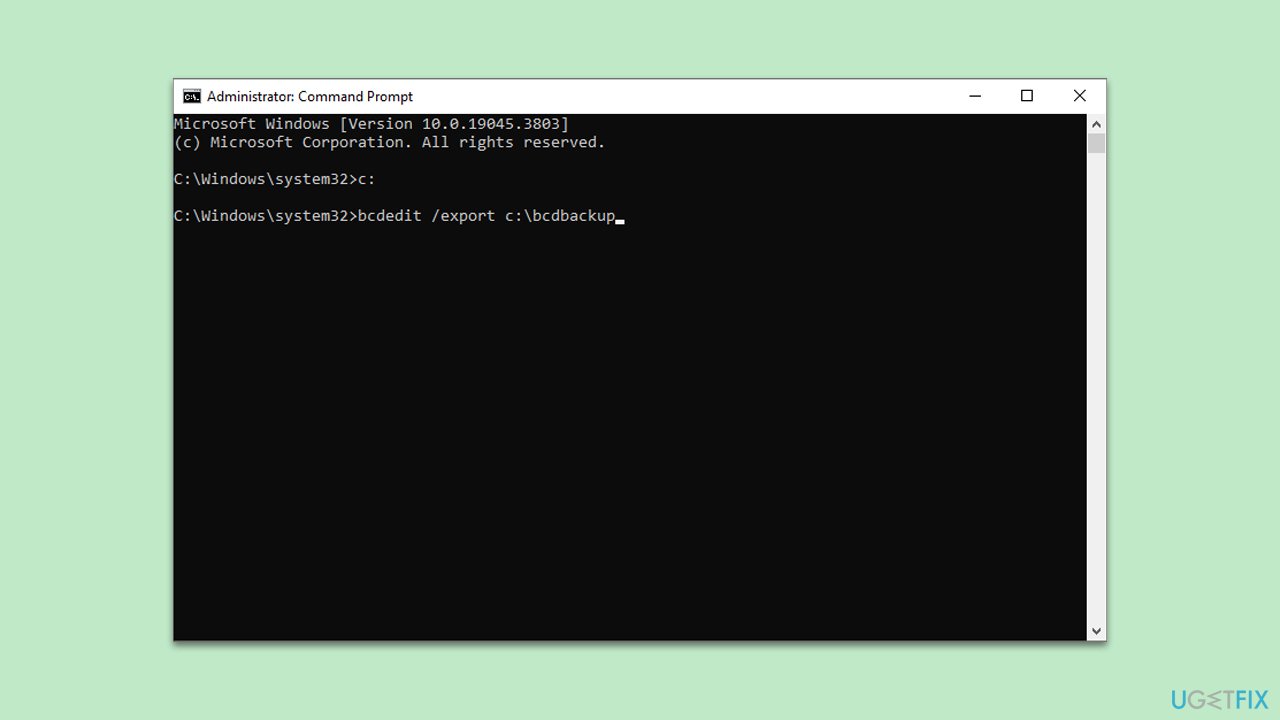
This solution involves refreshing the files that your computer uses to start up, which can often resolve issues related to system boot errors. This process is particularly useful when the boot configuration data (BCD) is corrupted or missing, as indicated by the I/O error message. For this, you will need to create a Windows Installation Media on a working computer. To do this, perform the following steps:
- Download Windows 11 Installation media from the official Microsoft website. [Windows 10 version]
- Double-click the MediaCreationTool.exe file to launch it.
- When UAC shows up, click Yes.
- Accept license terms.
- Select Language and Edition (make sure it matches the one you have currently installed) or simply mark the Use the recommended options for this PC and click Next).
- Select the ISO file and click Next.
- Pick the location for your ISO file and wait till all the needed files are downloaded, then click Finish.
Next, follow these instructions:
- Insert your Windows installation media (USB or DVD) and restart your PC.
- Boot from the installation media by pressing the key that opens the boot device menu (often F12, F9, or Del, etc.) and selecting the correct device.
- Select Troubleshoot > Advanced options > Command Prompt.
- Type in the following commands and press Enter after each:
c:
bcdedit /export c:\bcdbackup
attrib c:\boot\bcd -h -r -s
ren c:\boot\bcd bcd.old
bootrec /rebuildbcd - You should be presented with the question "Add installation to boot list?" - enter A and press Enter.
- Restart your device into normal mode.
Fix 4. Reset BIOS to default
The BIOS controls key functions of your computer, and incorrect settings can lead to boot problems.
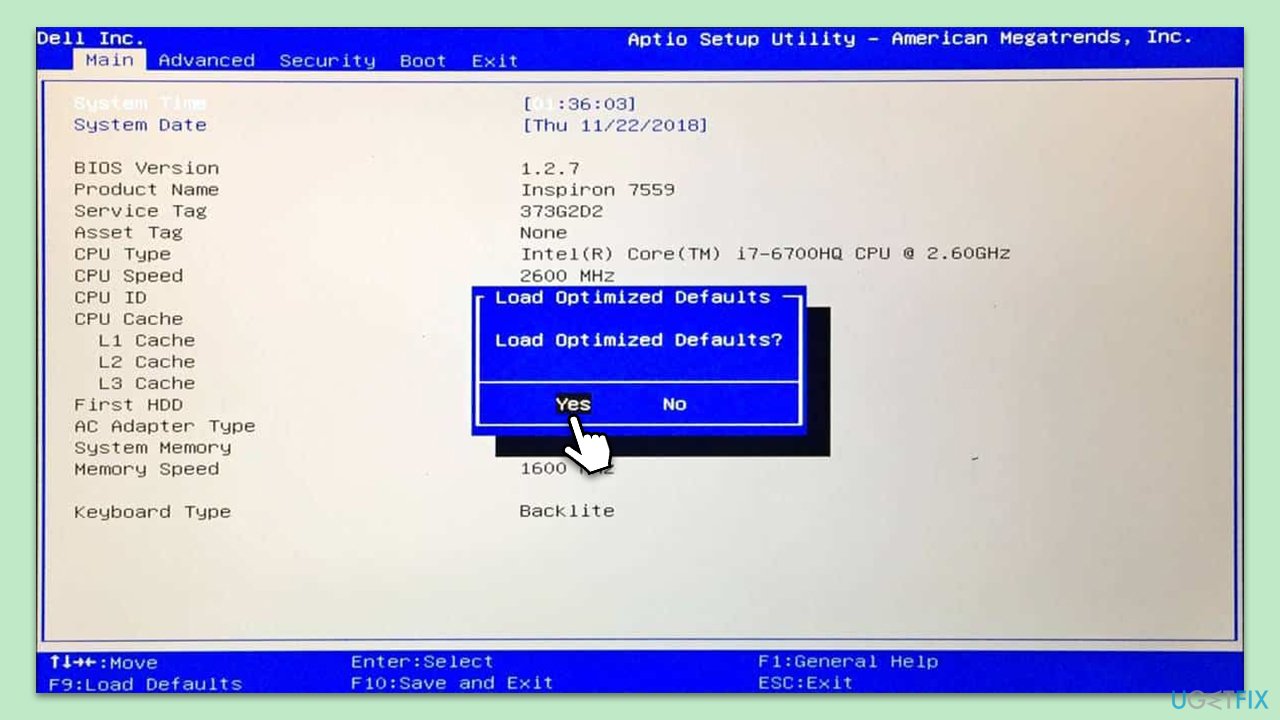
- Restart your computer and press the key to enter BIOS setup.
- Navigate to the Reset to Default option, which might be listed as Load Optimal Defaults, Load Setup Defaults, or something similar.
- Select this option and confirm to reset the BIOS.
- Save the changes and exit the BIOS setup.
- Your computer will restart with the default BIOS settings.
Fix 5. Use Media Creation Tool
Media Creation Tool allows you to perform a repair install or clean install of Windows. This can resolve deeper system issues related to the I/O error.
- Insert your Windows installation media (USB or DVD) and restart your PC.
- Press the F12, F9, or Del buttons to access BIOS.
- Location Boot section and change the boot priority to USB.
- Restart your PC.
- You will be asked whether you want to update Windows to the latest version - pick Not right now and click Next.
- Accept Terms and Windows will make several checks to ensure everything is fine.
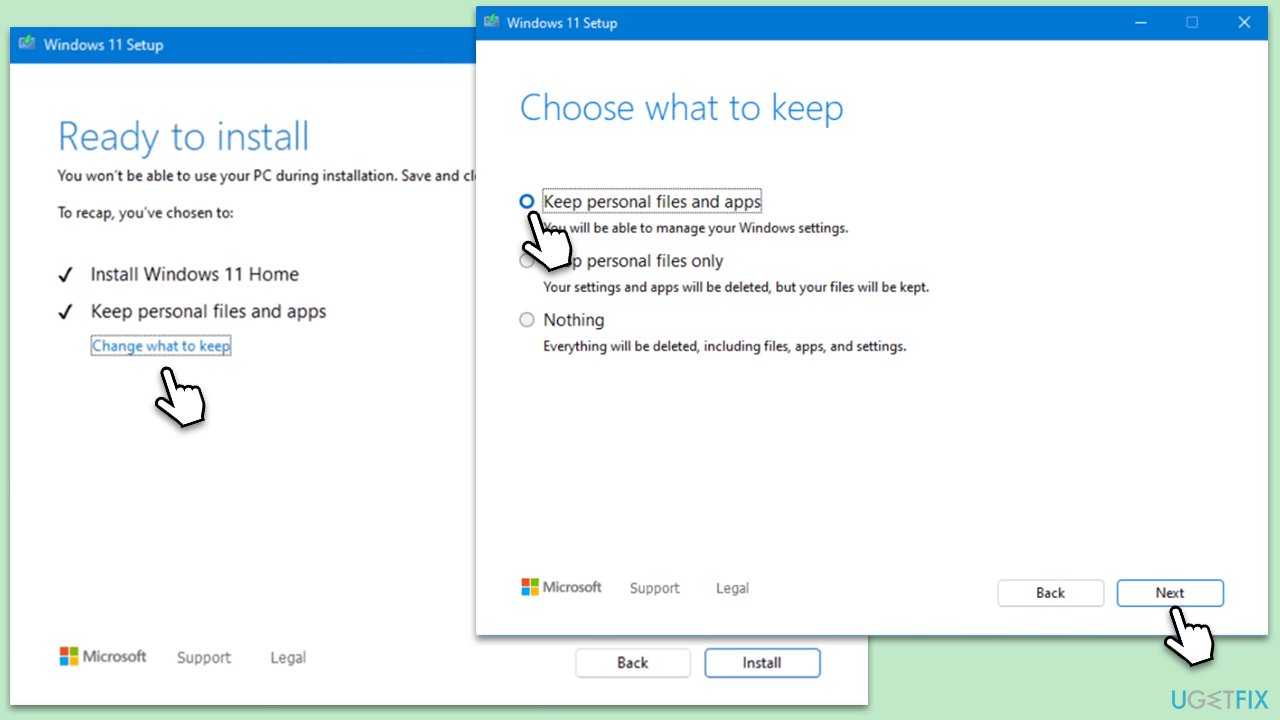
- Click Change what to keep.
- Here, you have several options: Keep your files and apps, Keep files only, or Keep nothing - choose what suits you the best. Click Next.
- Finally, click Install to begin the installation process.
Bottom line
To address the "An unexpected I/O error has occurred" error, you can reset the BIOS to its default settings, disable any newly connected devices, rebuild the boot directory, or use the Media Creation Tool to repair Windows. If these steps do not resolve the issue, further troubleshooting may be necessary.
Frequently asked questions
This error typically arises due to issues with the hard drive, such as corruption or bad sectors, or problems with file system integrity. Running a disk check can help identify and resolve these issues.
You can fix the I/O error by using the built-in Troubleshooter, checking your disk for errors with the CHKDSK command, or updating your device drivers. Ensure your Windows 11 is up to date for the best compatibility.
To prevent this error in the future, regularly back up your data and perform disk maintenance, such as defragmentation and checking for disk errors. Additionally, keeping your Windows 10 or Windows 11 system updated can help avoid such issues.




Report an issue
What's wrong with this guide? We review every report and update or remove content.
Report received — thank you. We'll review and fix it.
You need a free account to submit a report.
Be the first to comment