How to fix
“Windows cannot find MicrosoftSecurityApp.exe” error
on Windows
Resolve the "Windows cannot find MicrosoftSecurityApp.exe" error quickly on Windows 10 and 11. Expert-tested solutions to get you back up and running in…


What causes How to fix “Windows cannot find MicrosoftSecurityApp.exe” error?
- Accidental deletion of MicrosoftSecurityApp.exe
- Corruption of the MicrosoftSecurityApp.exe file
- Software conflict
- Incomplete system update
- Malicious software tampering with system files
- Issues with system paths or registry settings
Repairs Windows system files, removes malware, and restores a clean OS state — without reinstalling.
Windows can't find MicrosoftSecurityApp.exe on my computer. This happens every time I boot my PC, and I am worried that there's something really wrong with it. How do I fix this?
MicrosoftSecurityApp.exe is an integral component of the Windows operating system, particularly for Windows 10 and 11 users. This executable file is a part of the Windows Security application, which plays a crucial role in maintaining the security and integrity of the system. It is responsible for various security functions, including virus and threat protection, account protection, firewall and network protection, and more. Its operation is vital for safeguarding the PC against malware, unauthorized access, and other security threats.
When encountering the "Windows cannot find MicrosoftSecurityApp.exe" error, it indicates a problem with accessing or executing this crucial security file. This issue can arise due to several reasons, including accidental deletion or corruption of the MicrosoftSecurityApp.exe file. Such a scenario might occur due to a software conflict, a system update that didn't complete properly, or even due to malicious software that might have tampered with system files.
Another reason for the "Windows cannot find MicrosoftSecurityApp.exe" error could be issues with system paths or registry settings, where the operating system is unable to locate the executable file despite it being present on the system.
This discrepancy can lead to Windows displaying the error message, as it fails to execute the necessary security processes. Additionally, a disabled or malfunctioning Windows Security application might also trigger this error, as the system struggles to access the features that MicrosoftSecurityApp.exe provides.

To address this issue, you can consider reinstalling the Windows Security application through PowerShell, a powerful scripting tool in Windows. However, depending on the root cause of the problem, additional solutions might be necessary. These could include running a system file checker, restoring the system to a previous state, or manually downloading and replacing the specific file.
In cases where these steps seem complex or if the problem persists, utilizing a professional PC repair tool might be advisable. Tools like [d1] can automatically diagnose and fix underlying Windows issues, simplifying the process of resolving complex system errors.
Fix 1. Repair corrupted system files
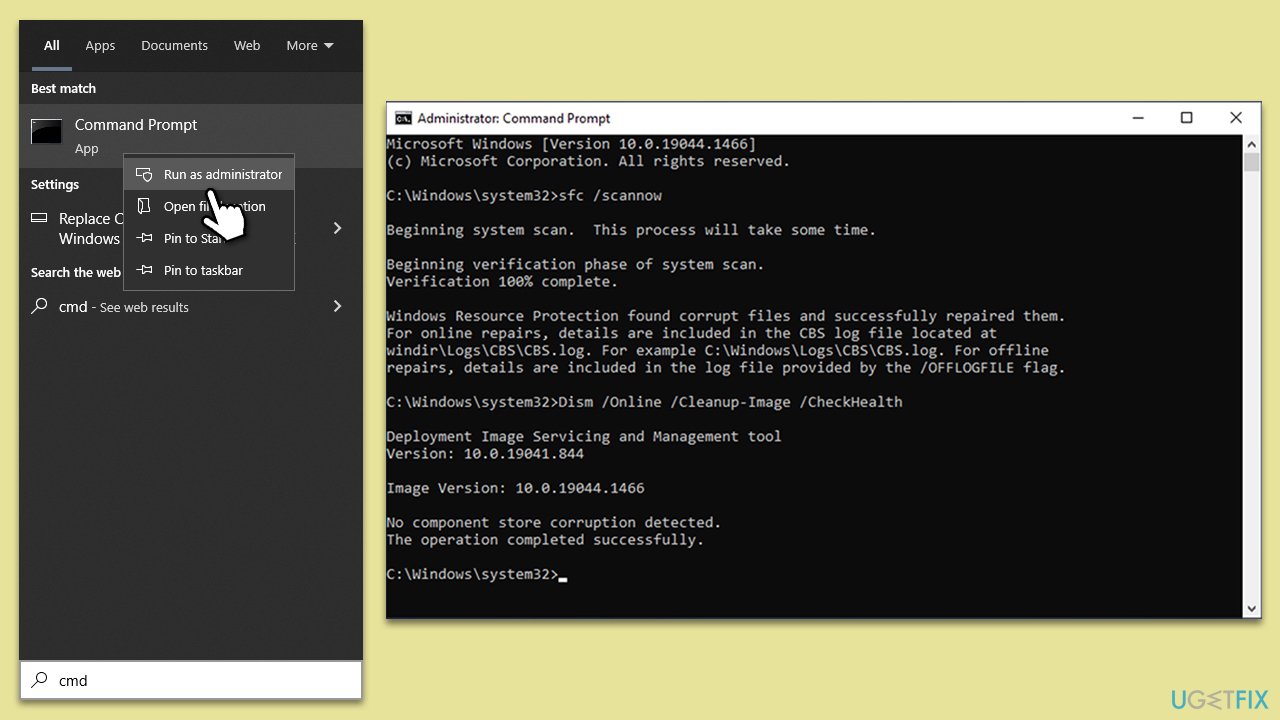
System File Checker (SFC) and Deployment Image Servicing and Management (DISM) are utilities in Windows designed to repair corrupted files and restore system health. SFC scans for corrupted system files and replaces them with a cached copy. DISM repairs the Windows system image, resolving issues that prevent SFC from functioning properly. Using these tools can resolve errors related to MicrosoftSecurityApp.exe by fixing any corrupted system files.
- Type in cmd in Windows search.
- Right-click on Command Prompt and select Run as administrator.
- User Account Control will ask you whether you want to allow t changes to the system - click Yes.
- In the Command Prompt window, paste the following command and hit Enter:
sfc /scannow - Next, use these commands (don't forget to press Enter every time):
Dism /Online /Cleanup-Image /CheckHealth
Dism /Online /Cleanup-Image /ScanHealth
Dism /Online /Cleanup-Image /RestoreHealth - Restart your system.
Fix 2. Check services
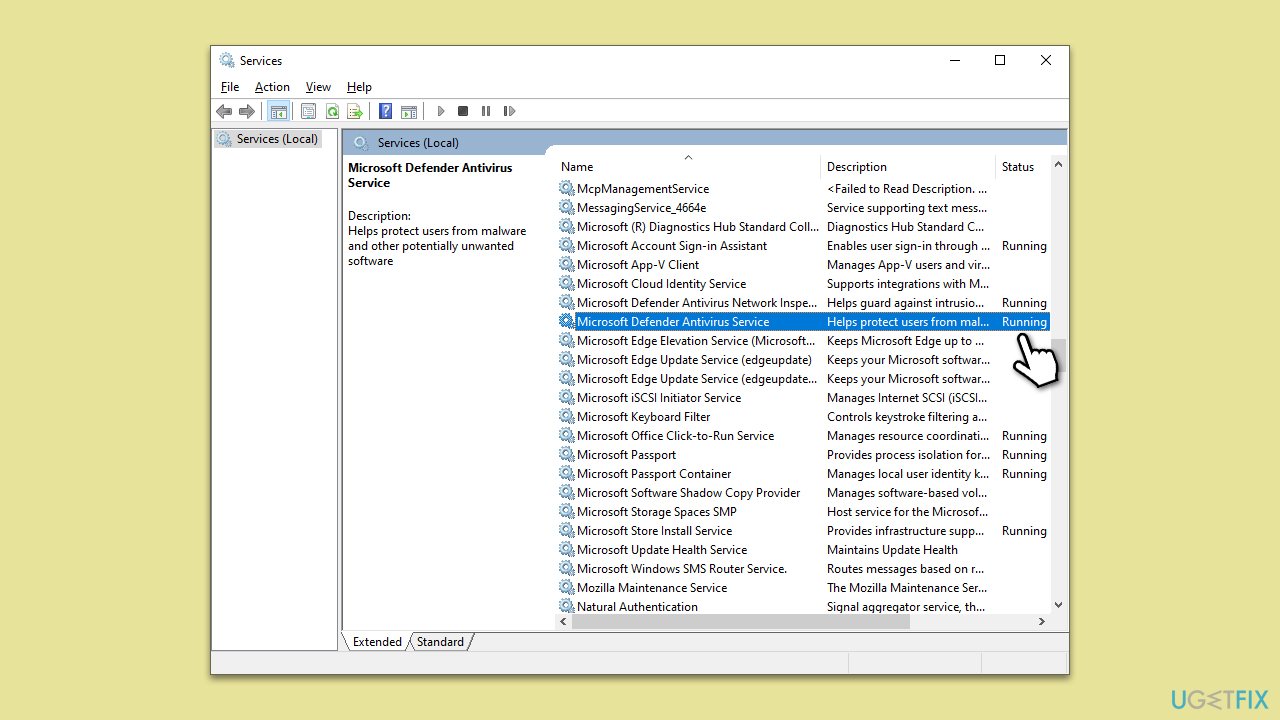
For the Defender to function properly, several services need to be running.
- Type Services in Windows search and press Enter.
- In the new window, find the following services:
Security Center
Microsoft Defender Antivirus Service
Windows Security Service - Check if all of these services are running. If not, right-click and select Start.
- Also, make sure the following settings are adhered to:
- Double-click Security Center. Under Startup type, select Automatic (Delayed) start from the drop-down menu, and click OK.
- Set Microsoft Defender Antivirus Service to Automatic start.
- Set Windows Security Service to Manual start.
Fix 3. Reinstall Microsoft Security via PowerShell
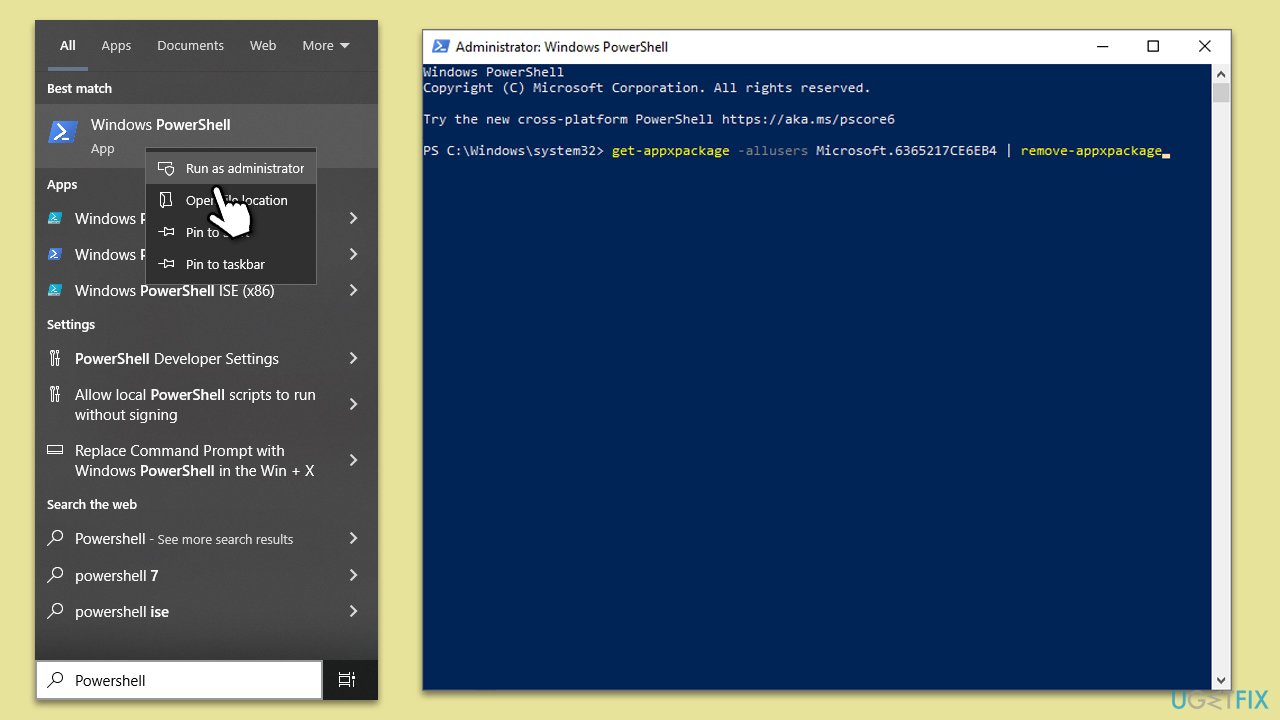
Reinstalling Microsoft Security through PowerShell can resolve issues by completely removing and then freshly installing the application. This approach is helpful when other methods fail, ensuring a clean installation of MicrosoftSecurityApp.exe.
- Type Powershell in Windows search.
- Right-click on it and select Run as administrator.
- When UAC shows up, click Yes.
- Type in the following command and press Enter:
get-appxpackage -allusers Microsoft.6365217CE6EB4 | remove-appxpackage - Close down everything and restart your PC.
- Download and install Microsoft Defender from the official Microsoft website.
Fix 4. Restore Windows to a previous state
Windows Restore can revert your computer's state to a previous point in time where the error did not exist. This method is effective if the issue starts after a specific event, like a software installation or system update.
- Type in Create a Restore point in Windows search and press Enter.
- In the System Protection tab, pick System restore.
- Click Next.
- Click Show more restore points (if available).
- Pick the time before the problem occurred and click Next.
- Your computer will reboot.
Fix 5. Repair-install Windows
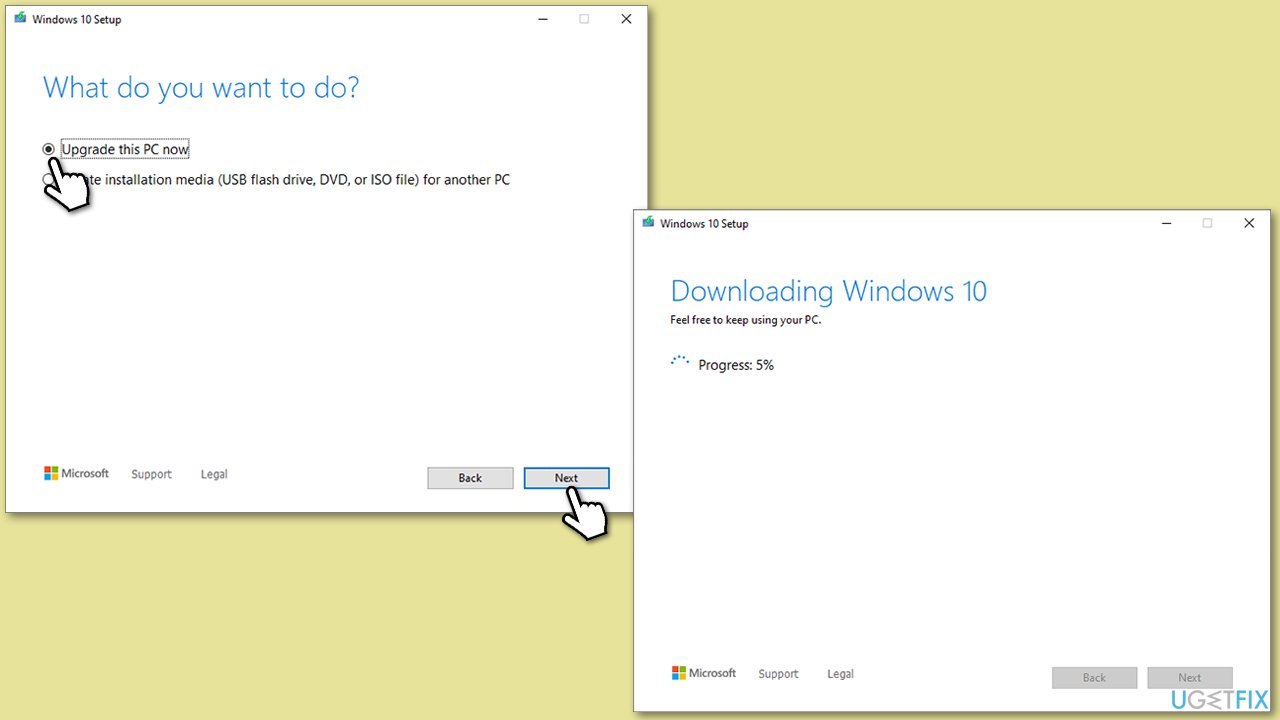
Windows Using the Media Creation Tool to perform a repair install of Windows can resolve deeper system issues without affecting your personal files. This method reinstalls Windows while keeping your files, settings, and applications intact.
- Visit the official Microsoft website and download Windows 10 installation media (Windows 11 version).
- Double-click the installer, select Yes when UAC shows up, and agree to the terms.
- Select Upgrade this PC now and click Next.
- Windows will start downloading the needed files.
- Agree to the terms once again and click Next.
- Before installing, ensure you are happy with your choices (otherwise, you can click the Change what to keep option).
- Finally, click Install to begin the upgrade process.
Bottom line
To fix the 'Windows cannot find MicrosoftSecurityApp.exe' error, you can try reinstalling the Windows Security application through PowerShell, running a system file checker, or restoring the system to a previous state. If these solutions do not resolve the issue, consider using a professional PC repair tool.
Frequently asked questions
First, ensure that your Windows Security app is up to date. You can also try running the System File Checker tool to repair any corrupted files.
You can fix this error by resetting the Windows Security app through the Settings menu or by reinstalling the app via PowerShell.
Yes, you can use the 'sfc /scannow' command in Command Prompt to check for missing or corrupted system files related to MicrosoftSecurityApp.exe.




Report an issue
What's wrong with this guide? We review every report and update or remove content.
Report received — thank you. We'll review and fix it.
You need a free account to submit a report.
Be the first to comment