How to fix
Zoom error code 3003
on Windows
Resolve Zoom error code 3003 efficiently on Windows 10 or Windows 11. Get expert-tested solutions to get back to your virtual meetings in minutes.


What causes How to fix Zoom error code 3003 in Windows?
- Modification of scheduling privileges
- Compatibility issues
- Errors in the format of the meeting link
- Use of an incorrect link by participants
- Confusion caused by co-host links
Repairs Windows system files, removes malware, and restores a clean OS state — without reinstalling.
I am unable to delete a meeting on Zoom because of the 3003 error code. Could you provide some advice here, please?
Zoom, a popular platform for conducting online meetings, is integral for professionals and organizations reliant on virtual communication. Despite its widespread use, users may encounter specific issues, such as the Zoom error code 3003.
This particular error arises during attempts to edit, cancel, or join a meeting, and is attributed to several potential causes. One common cause is the modification of scheduling privileges within the platform.
In a collaborative environment, where multiple individuals hold the authority to schedule meetings, any changes to these privileges can lead to conflicts within Zoom's scheduling system. Additionally, compatibility issues or errors in the format of the meeting link can also trigger Zoom error code 3003.
The structure of hosting in Zoom plays a significant role in understanding the issue. A host in Zoom has the option to appoint co-hosts, which facilitates smoother meeting management. When a co-host is assigned, Zoom generates a distinct link for them, different from the one used by the primary host.
This feature, while useful, can cause confusion. If a regular participant mistakenly uses the co-host's link, they are likely to encounter error code 3003, indicating the use of an incorrect link not associated with the primary host of the meeting.
Resolving this error often requires understanding its root cause. In some cases, checking the validity of the meeting link or updating Zoom can help. Additional solutions, which we provide below, can also be used.
For those facing persistent issues, using a specialized PC repair tool like [d1] might offer a convenient solution. This app is designed to diagnose and rectify underlying problems in the Windows operating system automatically, potentially resolving Zoom error code 3003 without requiring in-depth technical know-how.

Fix 1. Correct the meeting link format
Ensuring the link is correctly formatted is essential for successful access to Zoom meetings. An incorrect link often leads to error code 3003. It's important that the link used is from the meeting's primary host. The standard link format typically begins with http://iu.zoom.us/meeting/ followed by the meeting ID.
- Open the invitation email or message with the Zoom link.
- Copy the link to another document, such as Notepad.
- Now, replace the /meeting/ part with /j/, so it should look like this:
http://iu.zoom.us/j/[MeetingID] - Copy this link and use it - join the meeting using the corrected link.
Fix 2. Check schedule privilege settings
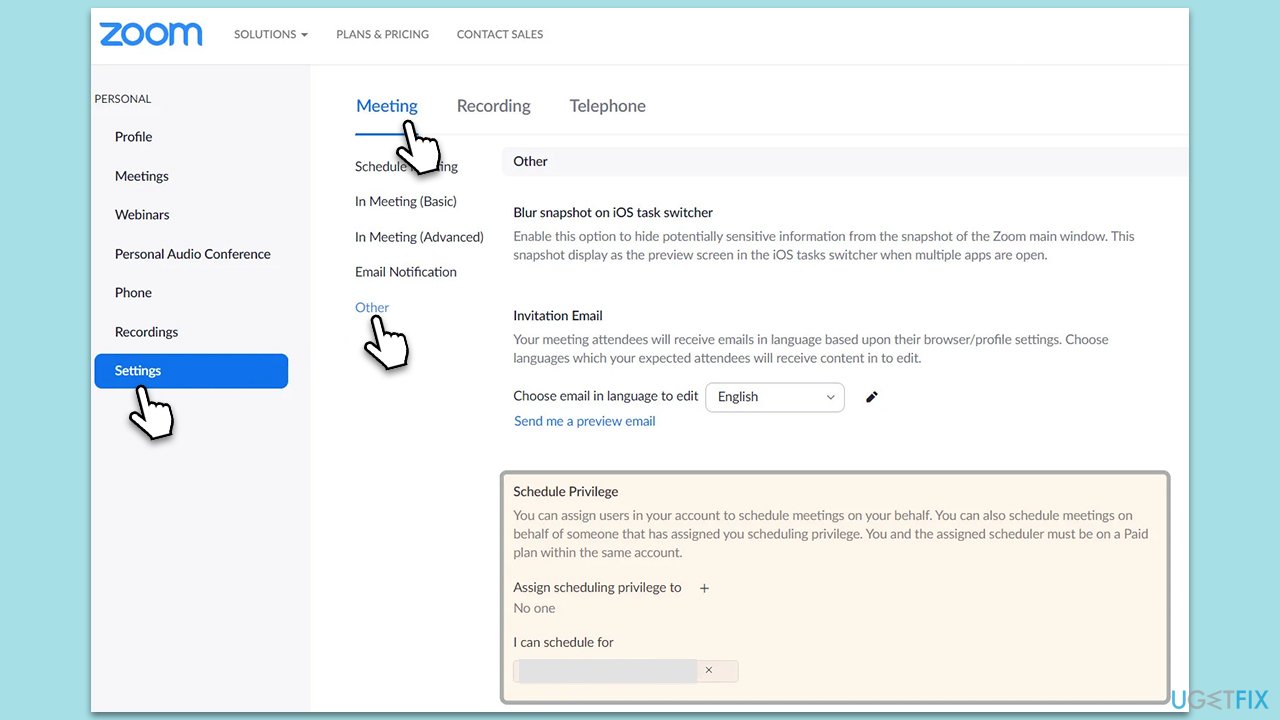
Issues with schedule privileges in Zoom can trigger error code 3003, especially in environments where multiple users can schedule meetings. Reviewing and modifying these settings might resolve the issue.
- Open your browser.
- Go to Zoom Web Portal and Log in with your credentials.
- Now go to Settings and pick the Meeting tab at the top.
- Select Other.
- Look for Schedule Privilege section - if any of the settings were altered recently, reverse those changes.
Fix 3. Update Zoom
Outdated Zoom software can lead to various issues, including error code 3003. Updating Zoom ensures you have the latest features and bug fixes.
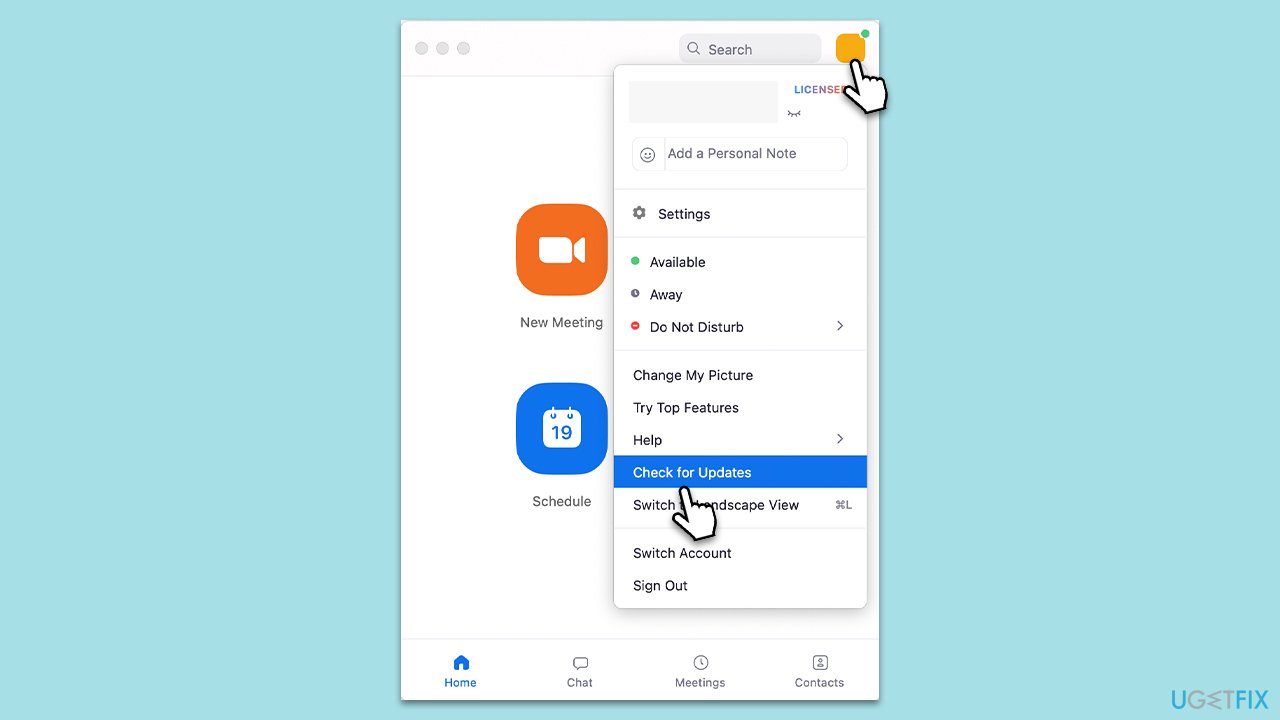
- Open the Zoom application on your device.
- Click on your profile icon and select Check for Updates.
- If an update is available, install it as necessary.
- Restart Zoom after the update and try accessing the meeting again
Fix 4. Create a Zoom Co-host
Designating a co-host in Zoom can help manage meetings more efficiently and can also resolve certain link-related issues.
- Go to Zoom Web Portal again.
- Select Settings and then pick the Meeting tab.
- Pick In meeting (Basic) section.
- Find the Co-host section and enable it.
- To make somebody a co-host, hover over their profile and pick More, then select Make Co-Host.
Fix 5. Reinstall Zoom
If all else fails, reinstalling Zoom can often resolve persistent issues, including error code 3003, by refreshing the application's files and settings.
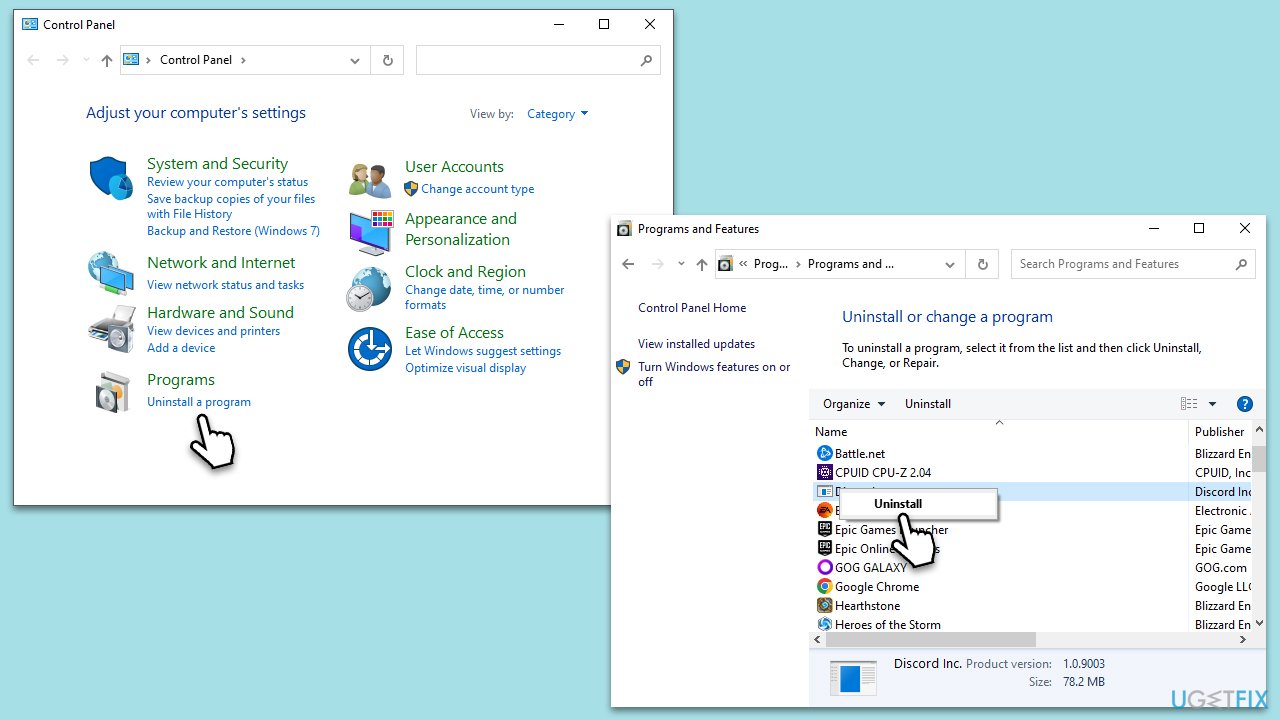
- Go to the Control Panel on your Windows device.
- Click on Uninstall a program under Programs.
- Scroll through the list to find Zoom, click it, then select Uninstall.
- Follow the prompts to uninstall the application.
- After uninstallation, restart your device.
- Go to the Zoom website to download the latest version of the application.
- Follow the prompts to install the new version of Zoom.
Bottom line
To fix Zoom error code 3003, ensure the meeting link is correctly formatted, check for compatibility issues, and verify that participants are using the correct link. Additionally, updating Zoom may help resolve the error. If these solutions do not work, consider using a specialized PC repair tool to diagnose and fix underlying issues.
Frequently asked questions
Zoom error code 3003 typically indicates a problem with your internet connection or firewall settings that is preventing Zoom from functioning properly.
To fix Zoom error code 3003 on Windows 10, check your network connection, disable any VPNs, and ensure that Zoom is allowed through your firewall.
Yes, on Windows 11, make sure that the 'Private' network setting is enabled for Zoom in the Windows Firewall settings, and that the app is not being blocked.




Report an issue
What's wrong with this guide? We review every report and update or remove content.
Report received — thank you. We'll review and fix it.
You need a free account to submit a report.
Be the first to comment