How to fix
Valorant not working
on Windows
Resolve Valorant issues on Windows 10 and 11 with our expert-tested solutions. Get back to gaming quickly—fixed in minutes!

What causes How to fix Valorant not working in Windows?
- Windows 11 updates may interfere with Valorant's compatibility features
- Changes in essential system components and dependencies
- Graphics drivers may be outdated or incompatible
- Valorant may require reinstallation to align with new OS specifications
- System settings may need adjustment for optimal performance
Repairs Windows system files, removes malware, and restores a clean OS state — without reinstalling.
Hello. I upgraded my PC to Windows 11 and Valorant stopped working. Is there a way to fix this?
Riot Games is the developer and publisher of the well-liked online tactical first-person shooter game Valorant. Since its release, the game has attracted a sizable player community thanks to its strategic gameplay and distinctive character skills. On the other hand, some people have trouble running Valorant on their machines, particularly after updating to the most recent version of Windows.
The problem arises from the intrinsic modifications made to the updated Windows version, which could interfere with several of Valorant's compatibility features. As Windows evolves, essential system components and dependencies undergo changes that can impact the seamless operation of third-party applications, including games.
A detailed grasp of the unique compatibility problems between Valorant and the updated Windows version is necessary to solve the issue. To make sure the game is in line with the most recent OS specs, possible fixes could include changing the graphics drivers, reinstalling the game, or modifying the system settings. These broad methods, while specifics may differ, are meant to fix compatibility issues and let customers play Valorant on their Windows updates without interruption.
The issue stems from the inherent differences introduced in the upgraded Windows version, which may conflict with certain aspects of Valorant's compatibility. As Windows evolves, essential system components and dependencies undergo changes that can impact the seamless operation of third-party applications, including games.
For users experiencing difficulties, the inability to play Valorant can be frustrating and limits their access to an enjoyable gaming experience. The issue may manifest in various ways, such as the game failing to launch, crashes during gameplay, or other performance-related issues. These disruptions can significantly impact the overall gaming experience and may prompt users to seek solutions to restore normal functionality.
Addressing the problem requires a nuanced understanding of the specific compatibility issues between Valorant and the upgraded Windows version. Potential solutions may involve adjusting system settings, updating graphics drivers, or reinstalling the game to ensure alignment with the latest OS specifications. While the exact steps may vary, these general approaches aim to resolve compatibility conflicts and enable users to enjoy Valorant seamlessly on their updated Windows systems.
In this guide, you will find 5 steps that should help you fix Valorant not working in Windows. You can also run a maintenance tool like [d1] that can fix most system errors, BSODs,[ref en-1] corrupted files, and registry[ref en-2] issues. Otherwise, follow the step-by-step instructions below.
Solution 1. Check TPM and Secure Boot
- Press the Windows key + R keys to open the Run dialog box.
- In the Run dialog box, type tpm.msc and press Enter to access the TPM Management tool.
- Check the status of the TPM. If it shows Disabled or Compatible TPM cannot be found, enable it from the BIOS settings.
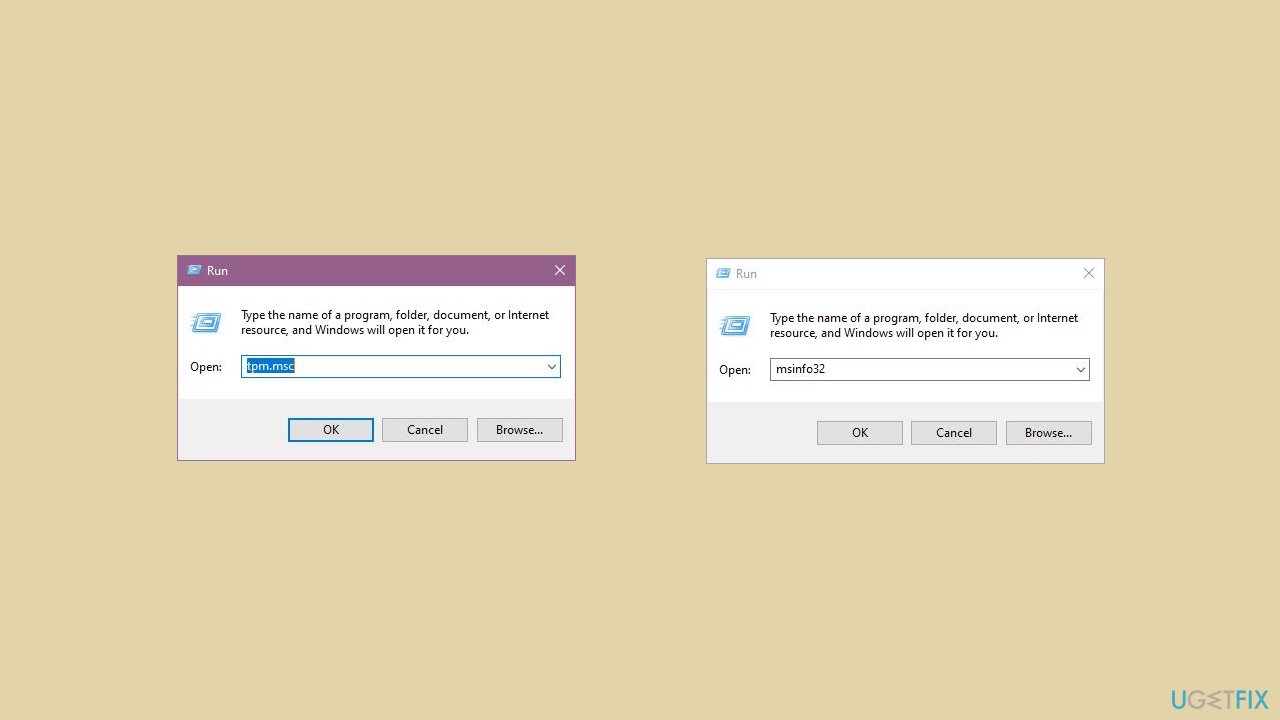
- To check the Secure Boot status, open the Run box again, type msinfo32, and press Enter.
- In the System Information window, select System Summary.
- Check the Secure Boot State. If it indicates Disabled or Unsupported, manually enable Secure Boot.
Solution 2. Run Valorant in Compatibility Mode
- Search for Valorant in your computer's search bar.
- Right-click on the search result for Valorant and select Open file location.
- In the file location, right-click on the Valorant entry again and choose Open file location.
- Right-click on RiotClientServices and select Properties.
- Navigate to the Compatibility tab in the Properties window.
- Check the box next to Run this program in compatibility mode for: and choose Windows 7 from the dropdown menu.
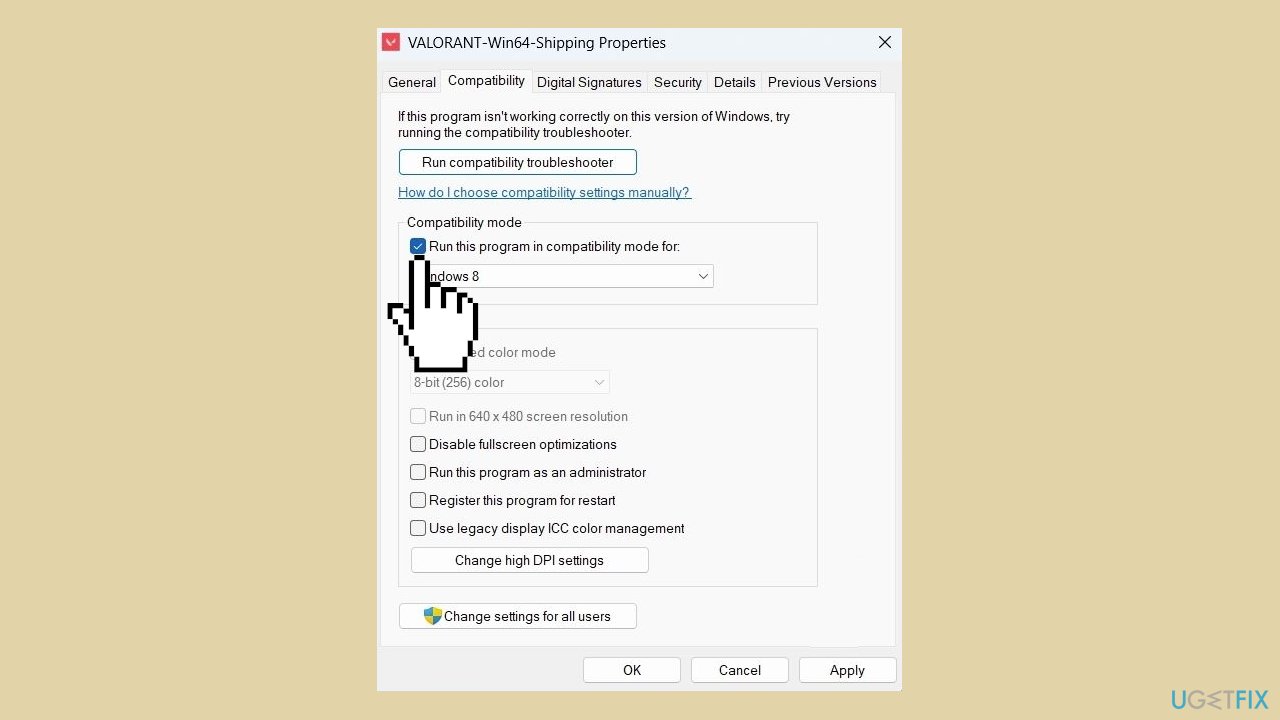
- Click Apply and then OK to save the changes.
- Close all windows and launch Valorant as an administrator to test the modifications.
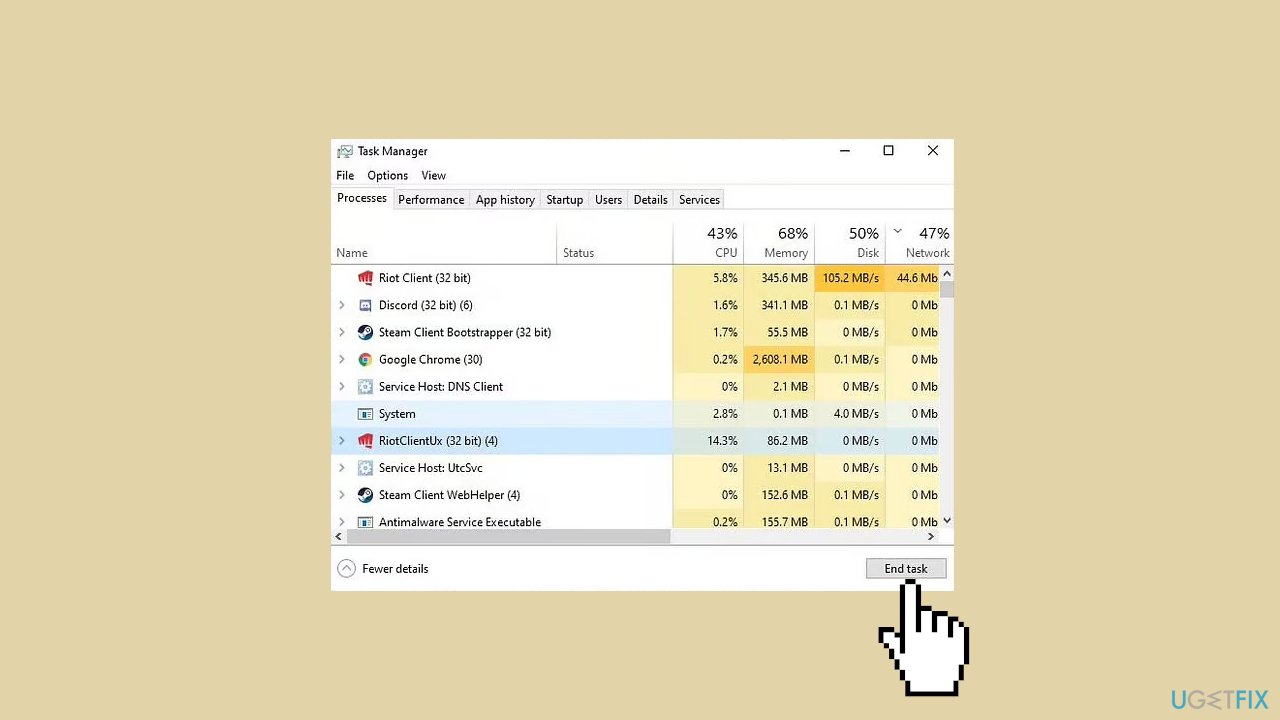
Solution 3. Close all Riot Processes
- Right-click on the Windows icon and select Task Manager.
- Scroll through the list of processes in Task Manager.
- Look for any processes related to Riot Games or Bootstrap package.
- If you find any such processes, right-click on them.
- Choose End task from the context menu to terminate those processes.
Solution 4. Launch the Game from Taskbar
- Launch Valorant and allow the game a minute to initialize.
- If the game doesn't start, click the Taskbar corner overflow button.
- Right-click on the small M logo and select Riot Games to open the launcher.
- In the launcher, click on Valorant within the My Games section.
- Click Play to promptly launch Valorant.
Solution 5. Reinstall Valorant
- Open your system Settings by pressing the Windows key + I.
- Click on Apps in the Settings menu.
- Tap on Installed apps on the subsequent screen.
- Enter Valorant in the search box.
- Click the three-dot button next to the search results and select Uninstall.
- The Riot Games uninstaller page will open. Follow the instructions to uninstall the game.
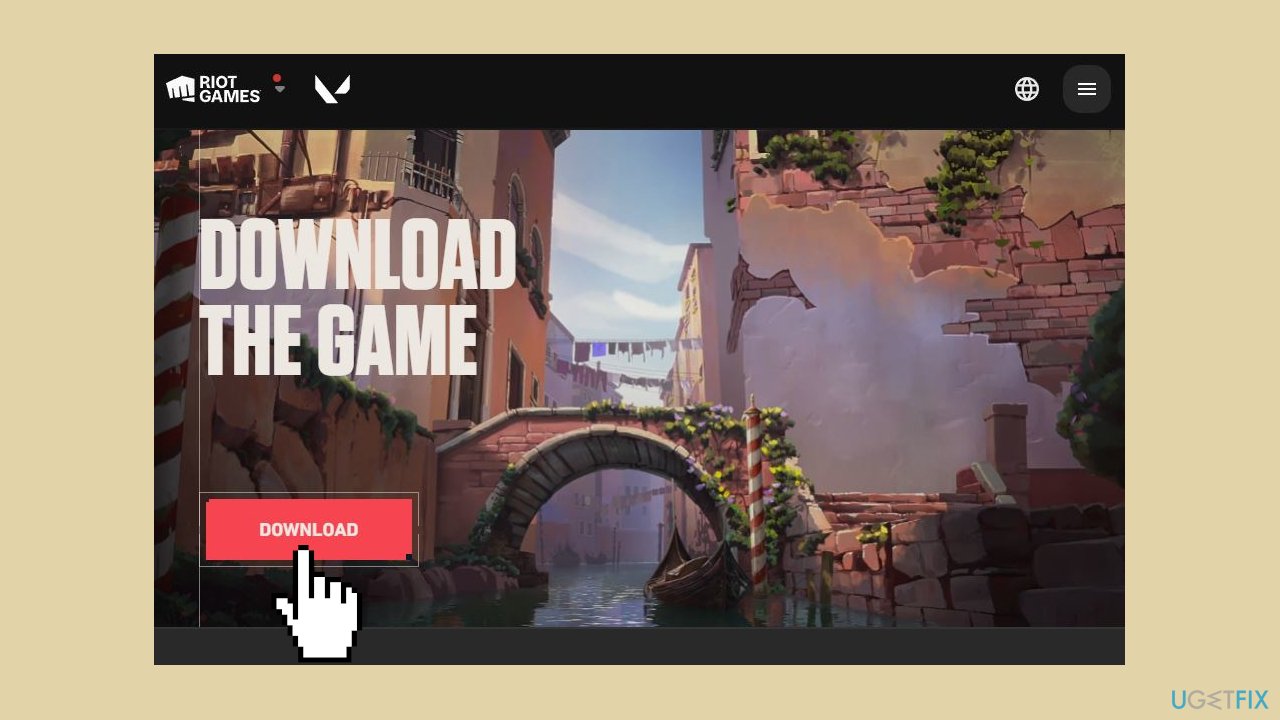
- Visit the Valorant Download page and click Download to obtain the setup file.
- Run the InstallValorant program and complete the installation process.
- Wait for the download to finish, and the game will be ready to play.
Bottom line
To fix Valorant not working on Windows 11, consider updating your graphics drivers, reinstalling the game, or modifying system settings. If these solutions do not resolve the issue, further investigation into specific compatibility problems may be necessary.
Frequently asked questions
Valorant may not launch on Windows 10 due to outdated graphics drivers or background applications conflicting with the game. Ensure your graphics drivers are up-to-date and close any unnecessary programs before launching Valorant.
To fix Valorant error codes on Windows 11, try verifying the game files through the Riot client and restarting your PC. Additionally, check for any Windows updates that might improve compatibility.
If Valorant keeps crashing on Windows, ensure that your system meets the game's requirements and consider running the game as an administrator. Sometimes, disabling fullscreen optimizations in the game's properties can also help stabilize performance.




Report an issue
What's wrong with this guide? We review every report and update or remove content.
Report received — thank you. We'll review and fix it.
You need a free account to submit a report.
Be the first to comment