How to fix
Ryzen Master Driver not Installed properly
on Windows
Resolve the Ryzen Master driver installation issue on Windows 10 or 11 effortlessly. Get expert-tested solutions to fix it in minutes!

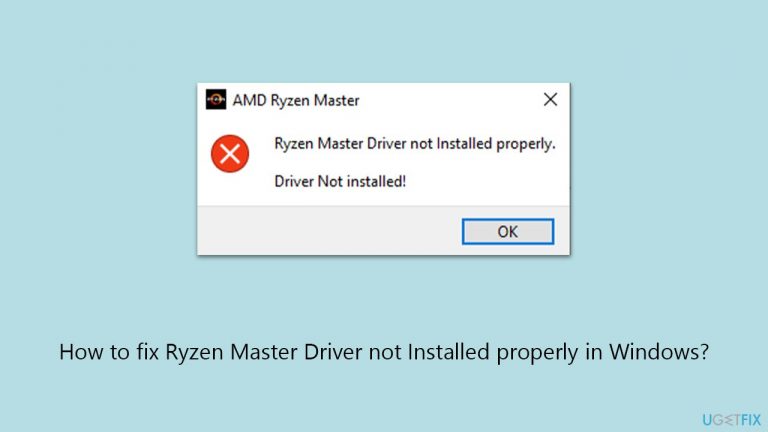
What causes How to fix Ryzen Master Driver not Installed properly in Windows?
- Incompatible version of the Ryzen Master Driver installed
- Outdated drivers
- Software conflicts
- Errors during the installation process
- Overclock settings causing conflicts
Repairs Windows system files, removes malware, and restores a clean OS state — without reinstalling.
I am having trouble with AMD's drivers. The error message reads: "Ryzen Master Driver not Installed properly. Driver Not installed!" How should I proceed?
Developed by Advanced Micro Devices, AMD Ryzen processors are well-known in the computing industry, and often used by regular computer users and high-end corporate environments for professional tasks. AMD Ryzen Master utility tool often comes alongside these processors, allowing users to configure and adjust various Ryzen CPU settings, including overclocking, temperature, and more.
A common issue that some users encounter is the "Ryzen Master Driver not Installed properly" error in Windows, which disrupts the utility's functionality, affecting the ability to adjust and monitor their processor's settings. Typically, this problem arises due to compatibility issues, often when an incompatible version of the Ryzen Master Driver is installed. Such compatibility issues can be due to outdated drivers, software conflicts, or errors during the installation process.
To resolve this issue, several approaches can be considered. Updating the Ryzen Master Driver to the latest version is essential, ensuring compatibility with the current processor and Windows version. Reinstalling the driver can also help, addressing any errors or corrupted files from the initial installation.
Another important troubleshooting method is updating the chipset drivers for the motherboard. These drivers allow communication between the operating system and the hardware, and keeping them updated can help resolve conflicts with the Ryzen Master utility, resolving the "Ryzen Master Driver not Installed properly" error.
For users who utilize AMD's Adrenaline software for overclocking, resetting any overclock settings to their default may also be beneficial. Overclocking can lead to software conflicts, including with the Ryzen Master utility, and resetting these settings can aid in troubleshooting.
Registry Editor can also sometimes be used to fix the "Ryzen Master Driver not Installed properly" error. To be more specific, modifying the value data of a particular registry key related to the Ryzen Master utility might be required. This should be done carefully, as incorrect modification can sometimes lead to Windows instability - ensure to make a database backup before proceeding with this step.
Finally, a PC repair tool like [d1] can be effective for comprehensive troubleshooting of potential underlying Windows issues. These tools are designed to diagnose and fix various Windows-related problems automatically.
Fix 1. Update drivers
Updating drivers ensures that the Ryzen Master utility is compatible with your system's hardware and the Windows operating system. An outdated driver can cause compatibility issues, leading to errors. Using an automatic updater like [rev id="DriverFix"] simplifies this process, but manual updates are also an option.
- Right-click on the Start button and select Device Manager from the menu.
- Expand the Processors section.
- Right-click on your device and select Update driver.
- Pick Search automatically for drivers.
- If updates are found, allow them to install.
- Restart your computer after updating all necessary drivers.

If you choose to manually update drivers, go to the official AMD website, download and the chipset drivers as well.
Fix 2. Reinstall the Ryzen Master utility
Reinstalling the Ryzen Master utility can resolve issues caused by a corrupt or incomplete initial installation. This process removes the current installation and replaces it with a fresh copy.
- Type Control Panel in Windows search and press Enter.
- Select Programs and then Programs and Features.
- Find AMD Ryzen Master in the list and uninstall it.
- Restart your computer.
- Download the latest version of the Ryzen Master utility from the AMD website.
- Install the utility following the on-screen instructions.
- Restart your computer again after the installation.

Fix 3. Reset overclocking settings in Adrenaline software
Resetting overclocking settings can resolve conflicts between the Adrenaline software and the Ryzen Master utility. Overclocking can cause system instability and software errors.
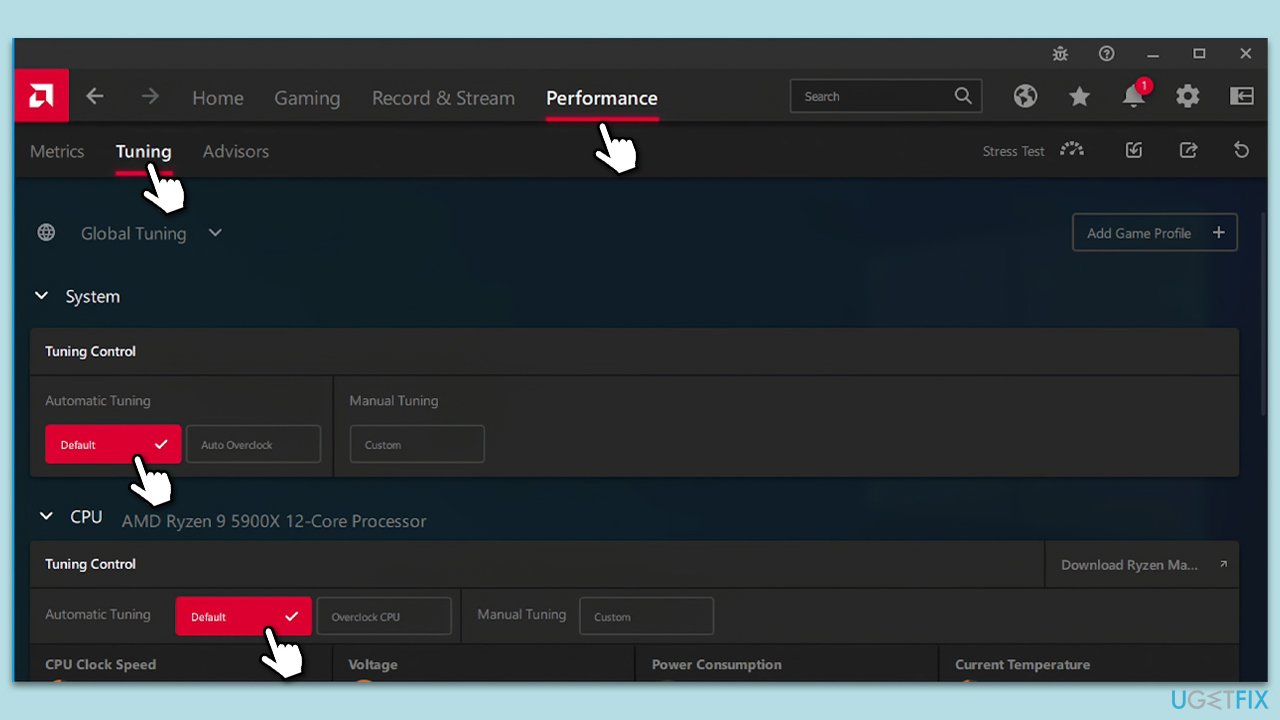
- Open the AMD Radeon Adrenaline software.
- Navigate to the Performance tab.
- Select Tuning.
- Reset the settings to their default by selecting the Reset option.
- Confirm the action and close the software.
- Restart your computer.
Fix 4. Perform a Clean Boot
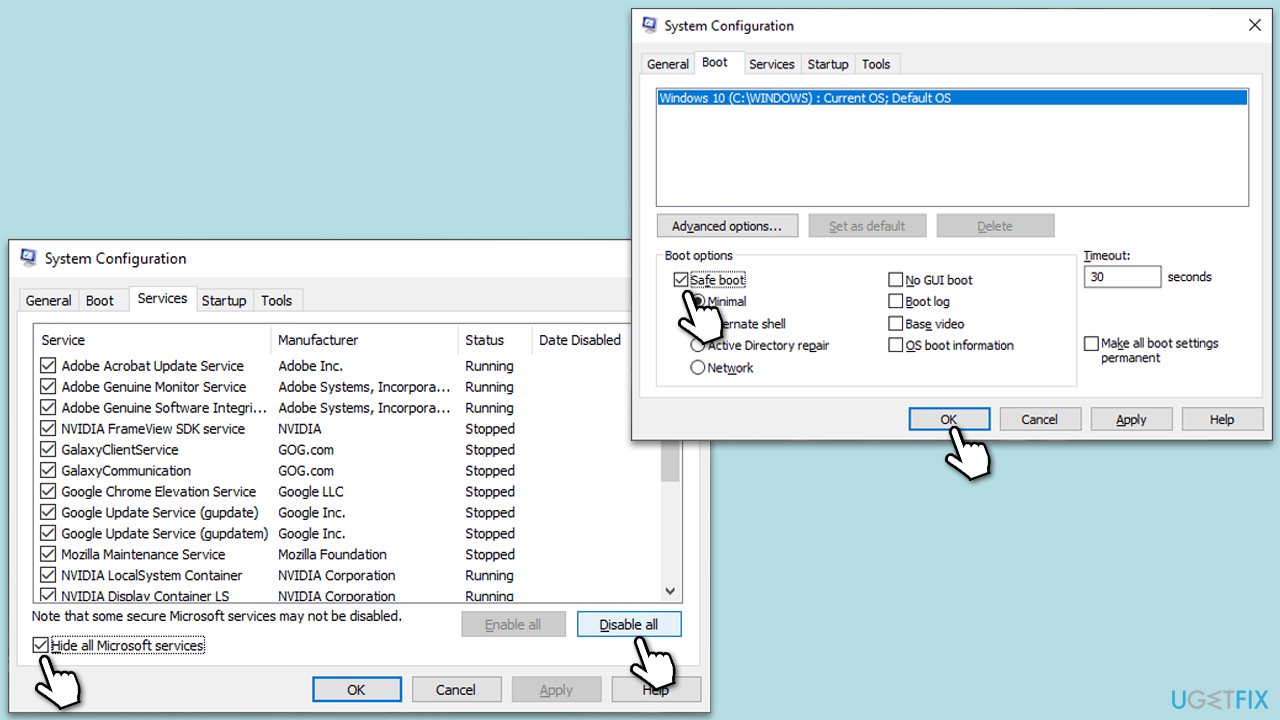
Performing a clean boot starts Windows with a minimal set of drivers and startup programs. This can help identify if background programs are causing conflicts with the Ryzen Master utility.
- Type msconfig in Windows search and press Enter.
- Go to the Services tab.
- Mark Hide all Microsoft services and select Disable all.
- Go to the Startup tab and click Open Task Manager.
- In the Task Manager, right-click on each of the items and select Disable, then close the Task Manager.
- Go to the Boot tab, tick Safe Boot, then click Apply and OK.
- If the problem is gone, re-enable services and startup items one by one to identify the problematic software. Typically, third-party security software might be the culprit.
Fix 5. Use a Registry Editor
Using a Registry Editor to modify specific entries related to Ryzen Master can resolve installation errors. Caution is advised as incorrect changes can affect system stability (make sure you back up the registry).
- In Windows search, type regedit and press Enter.
- When User Account Control shows up, click Yes.
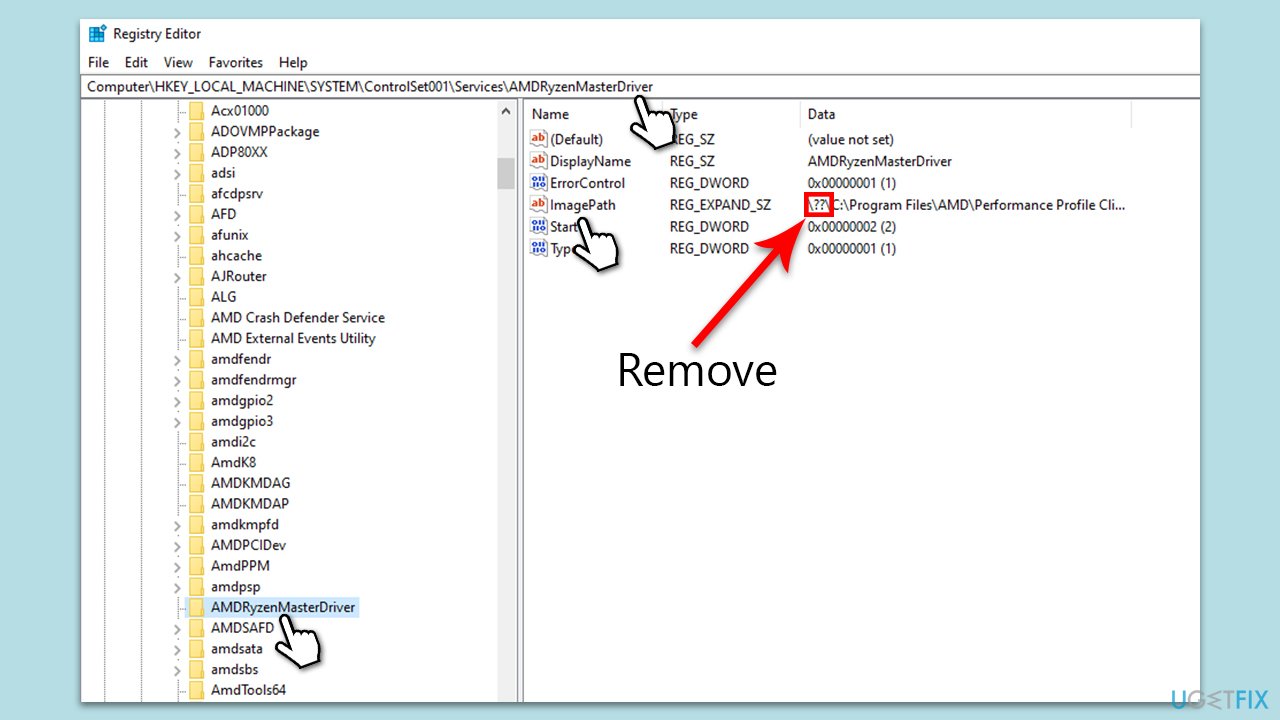
- In the Registry Editor, navigate to the following location:
Computer\HKEY_LOCAL_MACHINE\SYSTEM\ControlSet001\Services\AMDRyzenMasterDriver - On the right side of the window, double-click the ImagePath key.
- In the Value Data, remove the "??" value before C:Program Files.
- Click OK and close down Registry Editor.
- Restart your device.
Bottom line
To resolve the 'Ryzen Master Driver not Installed properly' error, consider updating the Ryzen Master Driver, reinstalling it, and updating the chipset drivers for the motherboard. Additionally, resetting any overclock settings to default and modifying the registry may help. If none of these solutions work, further investigation into system compatibility may be necessary.
Frequently asked questions
You can try reinstalling the Ryzen Master application and ensure that you have the latest version compatible with Windows 10. Additionally, check for any Windows updates that may affect driver installations.
You can check the Device Manager for any warning signs next to the Ryzen Master Driver, and run the application to see if it responds correctly. If there are issues, consider uninstalling and reinstalling the driver.
Yes, ensure that your Windows 11 security settings are not blocking the installation, and temporarily disable any antivirus software that could interfere with the driver setup.




Report an issue
What's wrong with this guide? We review every report and update or remove content.
Report received — thank you. We'll review and fix it.
You need a free account to submit a report.
Be the first to comment