How to fix
Steam error code e8
on Windows
Resolve Steam error code e8 on Windows 10 and 11 effortlessly with our expert tips. Get back to gaming fast, with zero traces left!

What causes How to fix Steam error code e8 in Windows?
- Connectivity problems after Steam or operating system updates
- Issues with internet connection stability
- Restrictions from running Steam without administrator privileges
- Browser cookies and site data causing connection issues
- Account security or verification concerns
- Interference from third-party security software
Repairs Windows system files, removes malware, and restores a clean OS state — without reinstalling.
I can't access Steam at all. Every time I try, I receive an error "Something went wrong while attempting to sign you in. Please try again later. Error Code e8." This happens whenever I attempt to log in on the browser and Steam Client. Any advice?
Steam, a leading digital distribution platform for video games, is celebrated for its extensive library and user-friendly interface. However, users occasionally encounter Steam error code e8, particularly when trying to log in via the web version or the Steam client. This issue often arises due to connectivity problems, especially after Steam or operating system updates, which can change how the platform interacts with network settings.
To fix the Steam error code e8, start by checking your internet connection for stability. Running Steam as an administrator can also be effective, as it allows the program to operate without certain system restrictions. If using the web version of Steam, clearing your browser's cookies and site data might resolve the issue by refreshing the connection to Steam's servers.
In some cases, resetting your Steam password can help, especially if there are account security or verification concerns. Additionally, third-party security software, while essential for protection, can interfere with Steam. Temporarily disabling such software may solve the error, but ensure to reactivate it for ongoing security.
For a more comprehensive solution, consider using a PC repair tool [d1], which is designed to automatically identify and fix underlying issues within Windows that could be impacting Steam's functionality, offering a broader approach to resolving the error code e8 and enhancing your overall experience on the platform.
Fix 1. Check internet connection
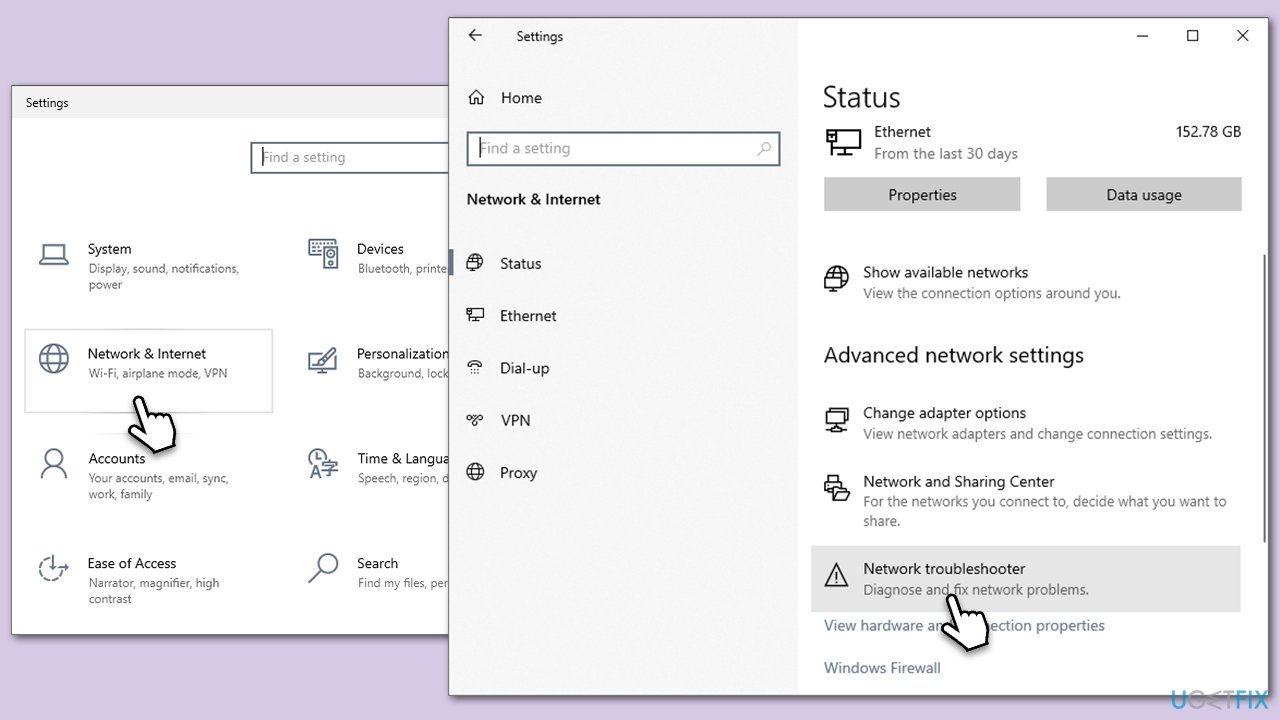
A stable internet connection is crucial for accessing Steam's online services. Running a network troubleshooter can provide information on whether there are issues with your local network.
- Right-click on Start and pick Settings.
- Go to the Network & Internet section.
- On the right side, find the Advanced network settings section.
- Click Network troubleshooter and wait.
- The fixes will be automatically applied.
Fix 2. Run Steam as an administrator
Running Steam with administrative privileges allows it to bypass certain system restrictions that might cause connectivity issues.
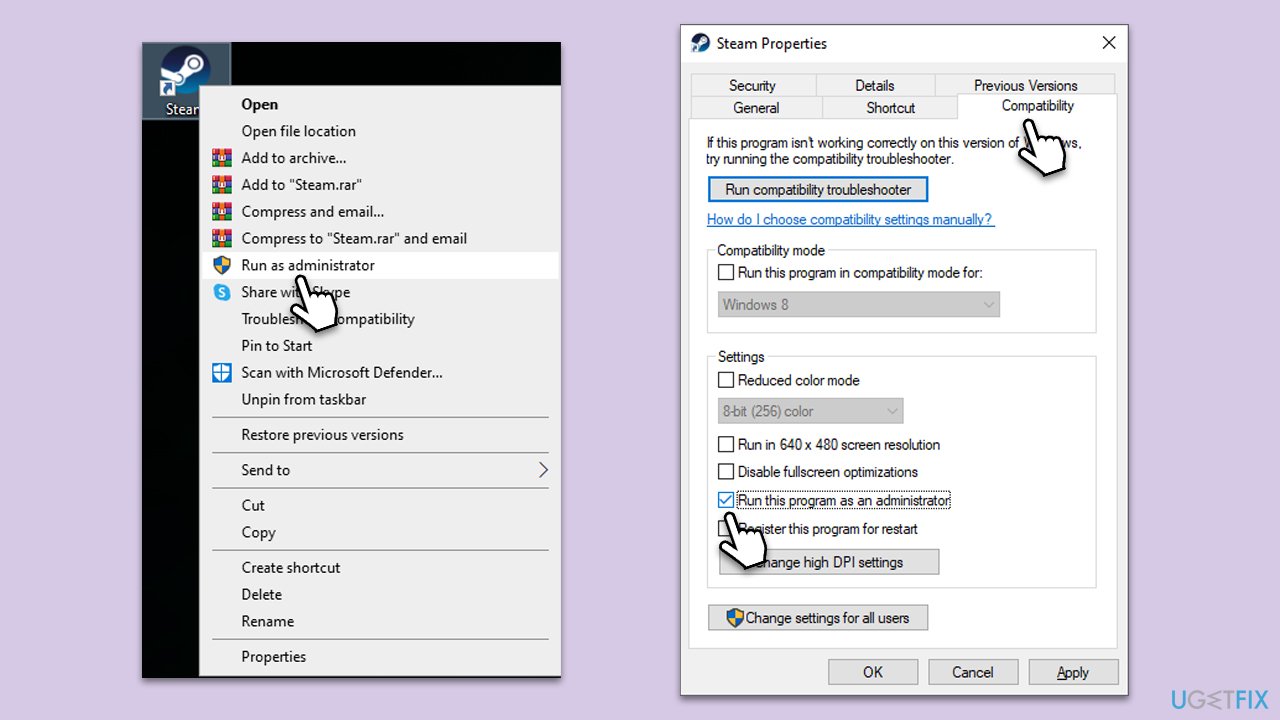
- Right-click on the Steam shortcut or executable file.
- Select Run as administrator from the context menu.
- Log in to your Steam account and check if the error is resolved.
If the issue is fixed, you can set Steam to always run as admin as follows:
- Right-click on the Steam shortcut or executable file and select Properties.
- Go to the Compatibility tab.
- Check the box next to Run this program as an administrator.
- Click Apply and then OK.
- launch the game as normal.
Fix 3. Clear browser cookies and site data
Clearing cookies and site data can refresh your connection to Steam, especially when using the web version.
Google Chrome
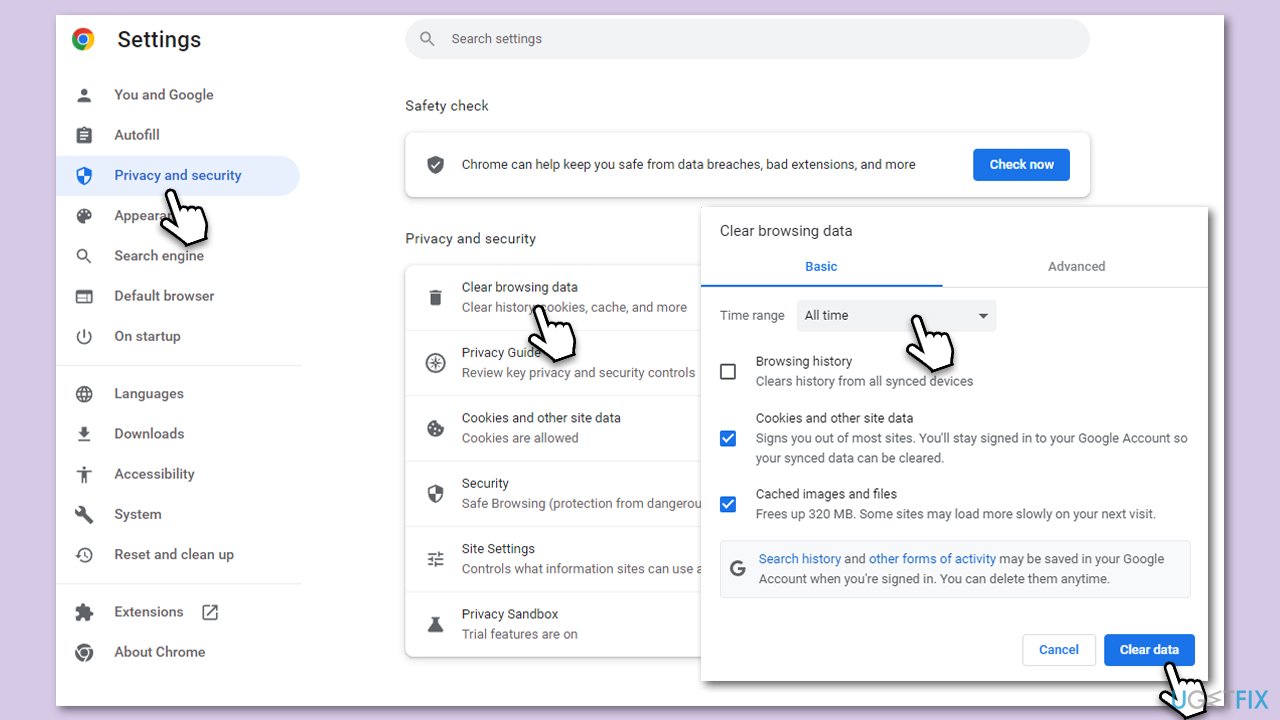
- Click on Menu (⋮) and pick Settings.
- Under Privacy and security, select Clear browsing data.
- Under time range, pick All time.
- Select Browsing history, Cookies and other site data, and Cached images and files.
- Click Clear data.
Mozilla Firefox
- Open Mozilla Firefox.
- Click the three lines icon (≡) located at the top-right corner of the window.
- Click on Settings from the dropdown menu.
- In the left-hand menu, click on Privacy & Security.
- Scroll down to locate the Cookies and Site Data section.
- Click Clear data...
- Mark the Cookies and Site Data, as well as Cached Web Content checkmarks, and click Clear.
Microsoft Edge
- Open Edge and click on three horizontal dots (…) (Settings and more).
- Pick Settings.
- Click Privacy, search, and services on the left.
- On the right side of the window, scroll down to find the Clear browsing data section.
- Click Choose what to clear.
- Select All time.
- Pick all the sections and click Clear now.
Fix 4. Reset Steam password
Resetting your password can resolve issues related to account security or identity verification.
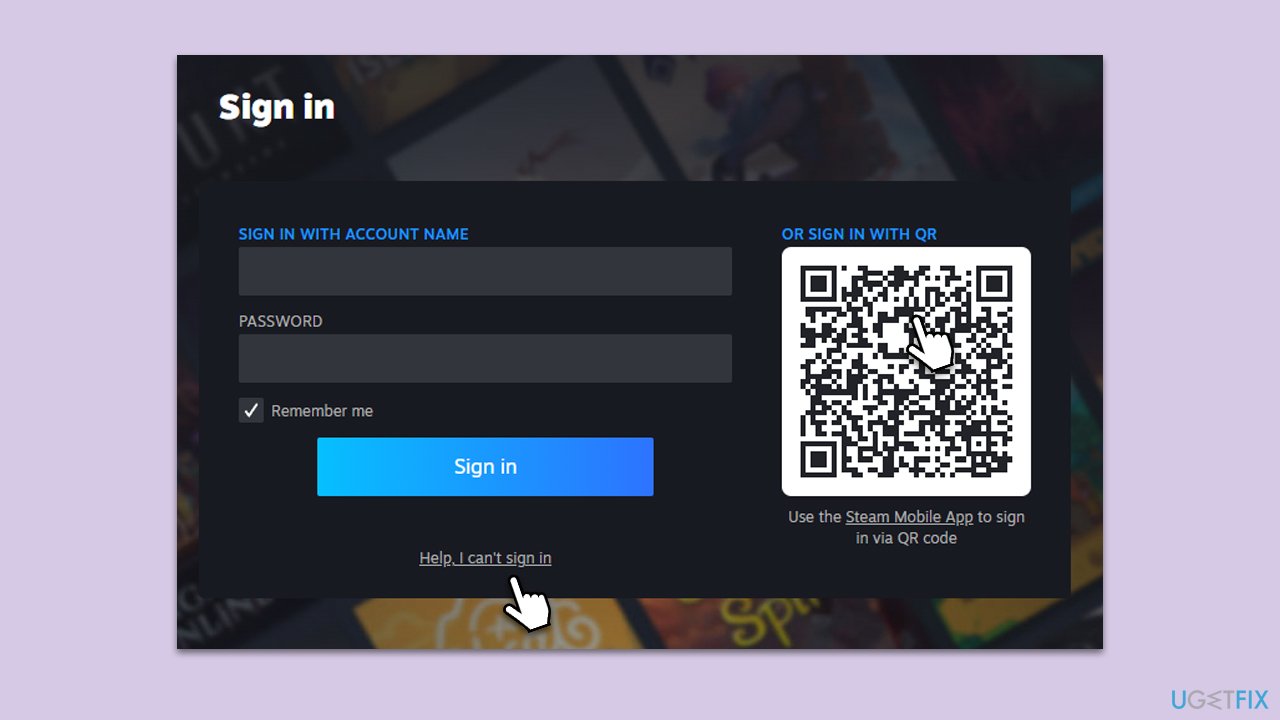
- Go to the Steam login page.
- Click on Help, I can't sign in.
- Follow the instructions to reset your password via email.
- Log in to Steam with the new password.
Fix 5. Temporarily disable third-party security software
Sometimes, security software can interfere with Steam's operation. Temporarily disabling it may fix the error.
- Locate the antivirus or firewall icon in your system tray.
- Right-click and select the option to disable it.
- Specify the duration for which you want it disabled.
- Try accessing Steam again and re-enable the software afterward.
Fix 6. Update network drivers
Outdated network drivers can cause connectivity issues with Steam.
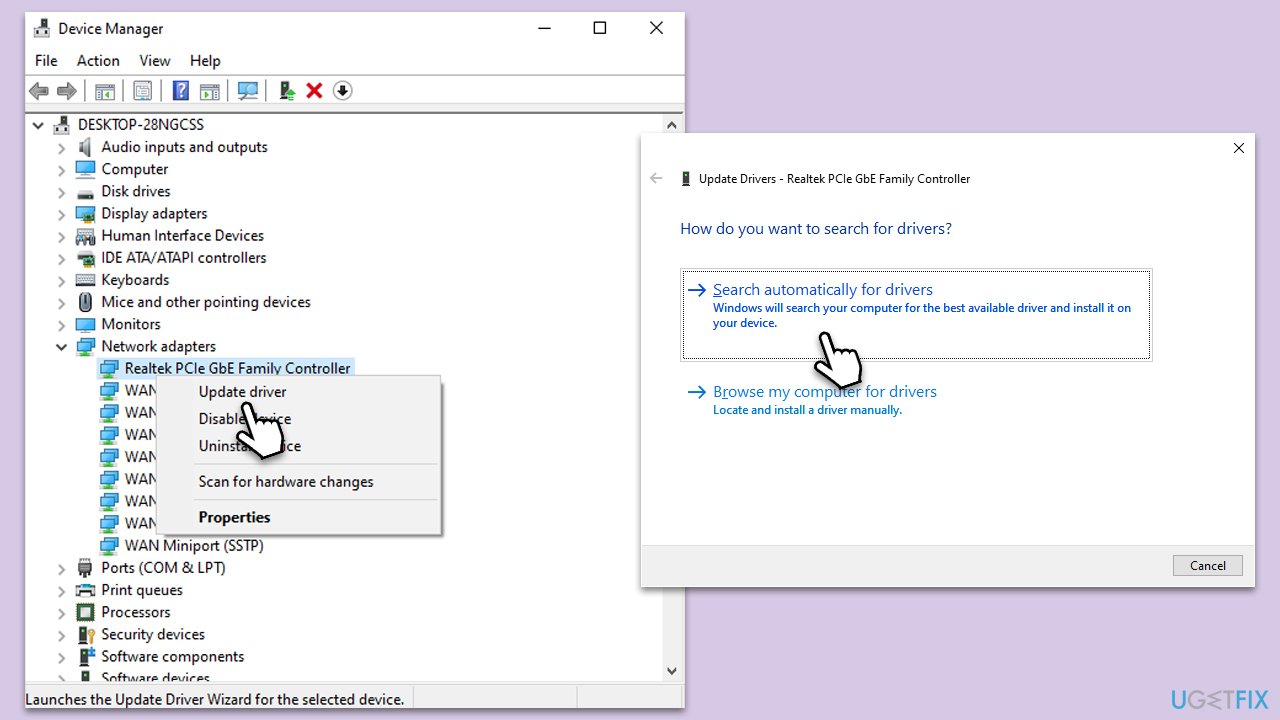
- Right-click on the Start button and select Device Manager from the menu.
- Expand the Network adapters section.
- Right-click on your device and select Update driver.
- Pick Search automatically for drivers.
- If updates are found, allow them to install.
- Restart your computer after updating all necessary drivers.
For a quicker solution related to all your driver issues, we recommend using [rev id="DriverFix"].
Fix 7. Reset your internet connection
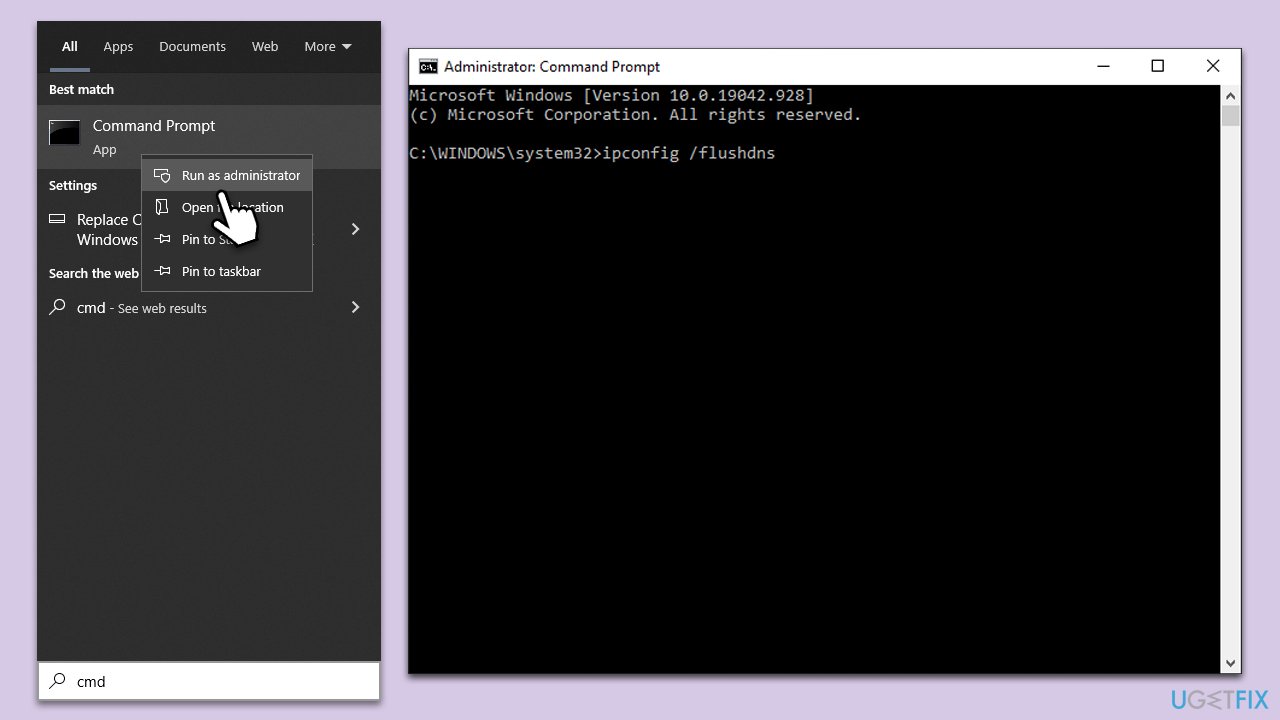
- Type cmd in Windows search, right-click on Command Prompt, and select Run as administrator
- When the new window opens, copy and paste the following commands, pressing Enter after each:
ipconfig /flushdns
ipconfig /registerdns
ipconfig /release
ipconfig /renew
netsh winsock reset - Close down the Command Prompt and check if the problem is resolved.
Fix 8. Reinstall Steam
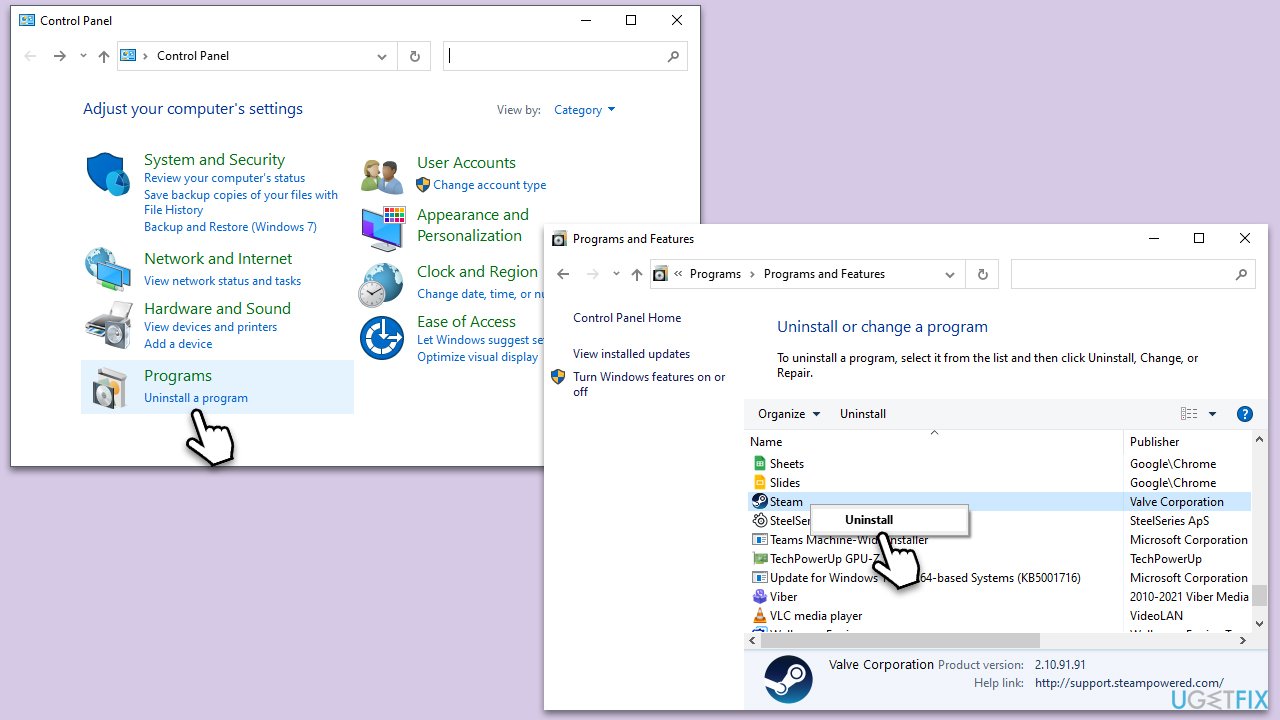
A fresh installation of Steam can resolve error code e8 by replacing any corrupted files.
- Go to the Control Panel.
- Select Programs > Uninstall a program.
- Find Steam in the list and select Uninstall.
- Follow the prompts to remove Steam from your system.
- After uninstallation, restart your computer.
- Download the latest version of Steam from the official website.
- Run the installer and follow the instructions to install Steam.
Bottom line
To fix Steam error code e8, check your internet connection, run Steam as an administrator, clear your browser's cookies and site data, and consider resetting your Steam password. If the issue persists, temporarily disable any third-party security software or use a PC repair tool to identify and fix underlying issues.
Frequently asked questions
Steam error code e8 typically occurs due to issues with file permissions, corrupted game files, or network connectivity problems. Ensuring that Steam is running with administrative privileges can often resolve the issue.
To verify the integrity of game files in Steam on Windows 10 or Windows 11, right-click the game in your Library, select 'Properties', go to the 'Local Files' tab, and click 'Verify Integrity of Game Files'.
Yes, ensure that your firewall or antivirus software is not blocking Steam, and consider resetting your network settings in Windows 10 or Windows 11 to ensure a stable connection.




Report an issue
What's wrong with this guide? We review every report and update or remove content.
Report received — thank you. We'll review and fix it.
You need a free account to submit a report.
Be the first to comment