How to fix
Google Chrome “Failed to load extension” error
on Windows
Resolve the "Failed to load extension" error in Google Chrome on Windows 10 or 11 with effective solutions. Expert-tested for quick fixes!

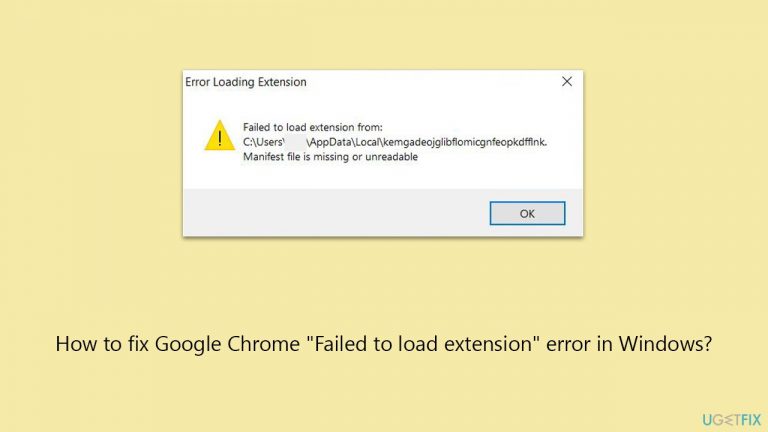
What causes How to fix Google Chrome “Failed to load extension” error in Windows?
- Bugged cache files
- Outdated version of Chrome
- Extension itself may be bugged
- Corrupted or outdated cookies
- Underlying Windows issues
Repairs Windows system files, removes malware, and restores a clean OS state — without reinstalling.
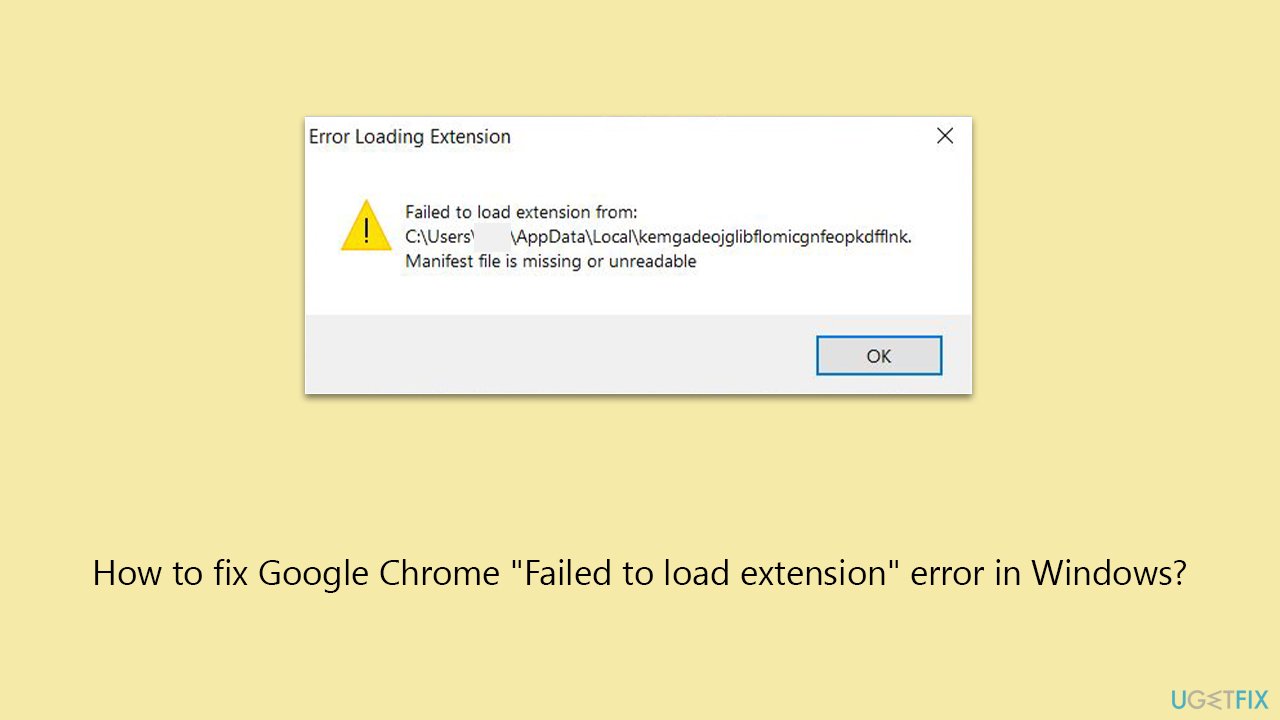
Every time I launch Google Chrome, I receive a pop-up that says "Failed to load extension." I press OK and nothing happens but the pop-up just keeps bugging me. Is there a way to fix this somehow?
Launched in 2008, Google Chrome reached immense popularity over the years, with more than half of all internet users employing it every day to browse the web. It is known for its efficiency and the ability to incorporate various extensions.
These extensions enhance the browsing experience by offering functionalities like ad-blocking and password management. However, users occasionally might face a "Failed to load extension" error, which prevents them from using particular extensions.
"Failed to load extension" error, which can come up in Chrome at any time (usually on browser launch), typically arises due to bugged cache files, where stored data meant to speed up processes becomes problematic. An outdated version of the browser can also lead to this error, as ongoing updates are crucial for maintaining compatibility and security. Finally, the extension itself bought be bugged and not load properly.
To mitigate the "Failed to load extension" error, you should first clean cache files and then update Chrome to the latest version. You should also check whether the extension has updates. In other cases, reinstalling it might just work. In any case, we provide several ways to get rid of this error below.
In instances where the problem stems from underlying Windows issues, a PC repair tool like [d1] could be useful. It is designed to automatically identify and resolve common Windows problems, which might be causing the Chrome extension error.
Fix 1. Clear cached files and cookies
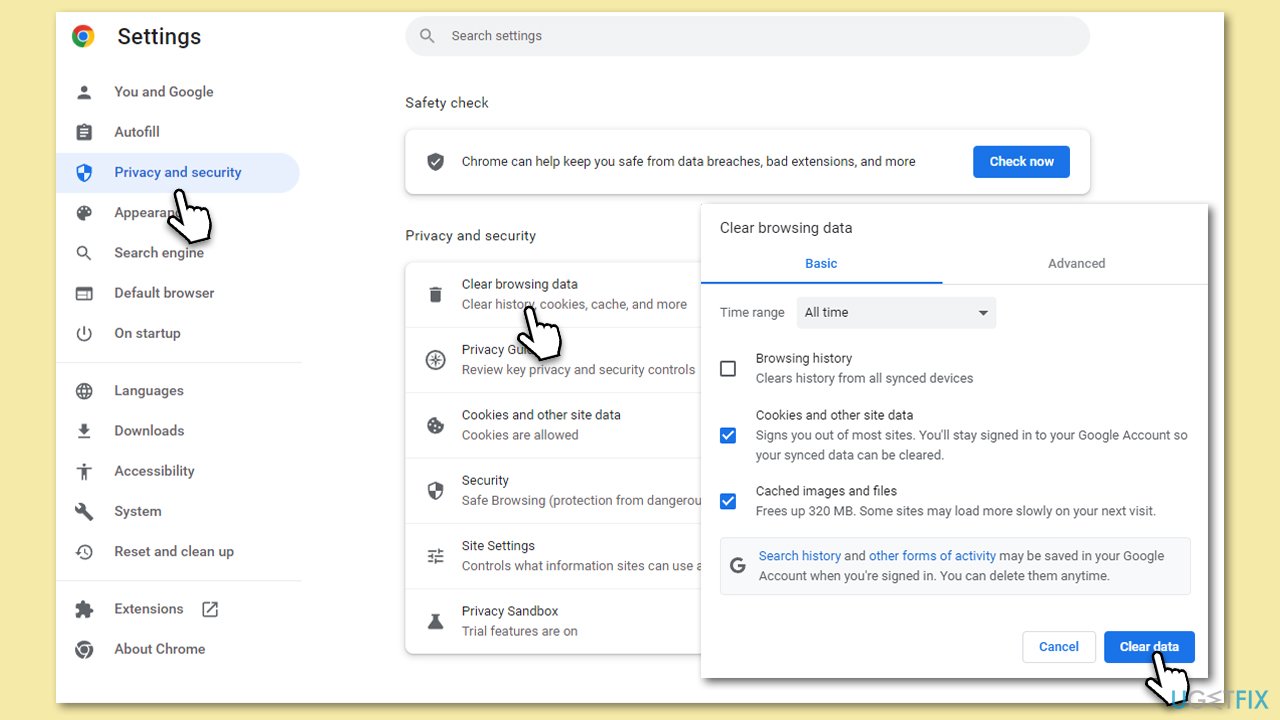
Clearing cached files and cookies removes temporary data stored by Chrome, which can resolve issues caused by corrupted or outdated cache and cookie files. This process can refresh the browser's state and potentially fix the extension loading error.
- Open Chrome.
- Click on Menu and select Settings.
- Under Privacy and security, pick Clear browsing data.
- Select All time under the time range.
- Select Browsing history, Cookies and other site data, as well as Cached images and files.
- Click Clear data.
Fix 2. Update Chrome browser
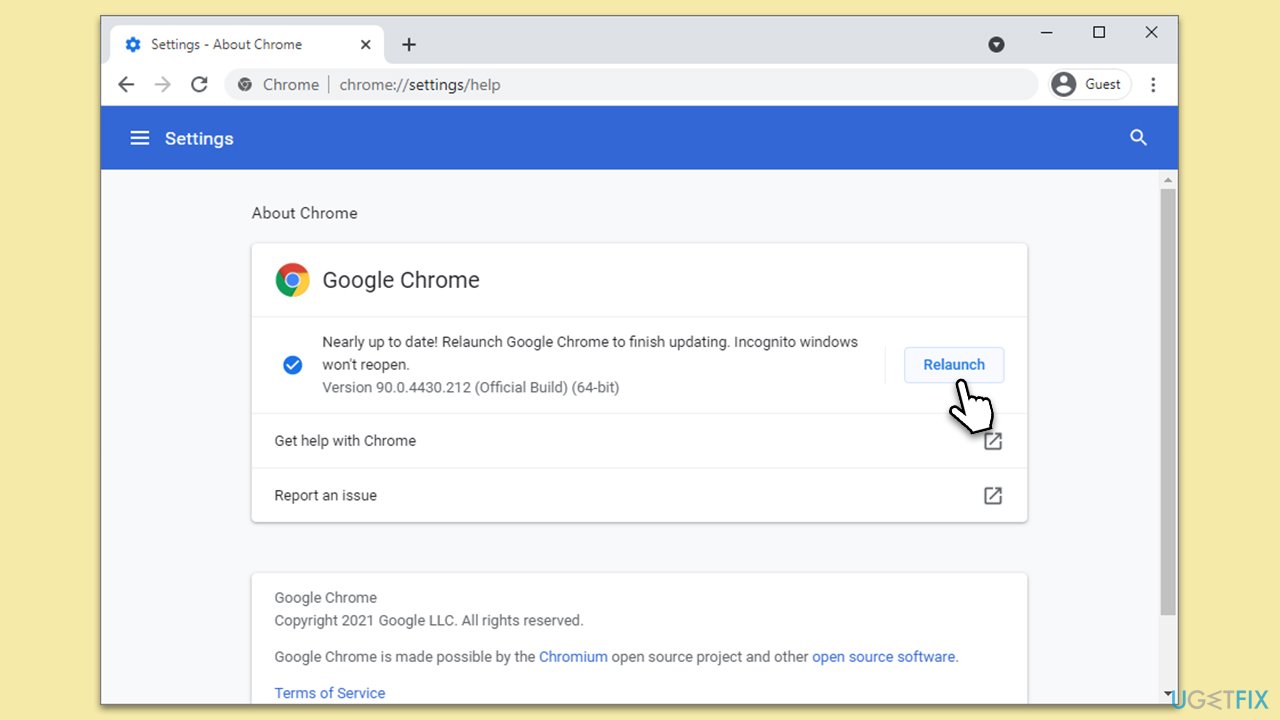
Updating the Chrome browser ensures you are running the latest version with all the security patches and compatibility updates. This can often resolve issues with extensions not loading due to outdated software.
- Click on the three vertical dots in the top-right corner of the browser.
- Select Help > About Google Chrome.
- Wait till the browser is updated and click Relaunch.
Fix 3. Reinstall the extension
Sometimes, extensions can become corrupted or improperly installed. Reinstalling the extension can resolve these issues by providing a fresh installation.
- Open Google Chrome.
- Click on the three dots in the upper-right corner.
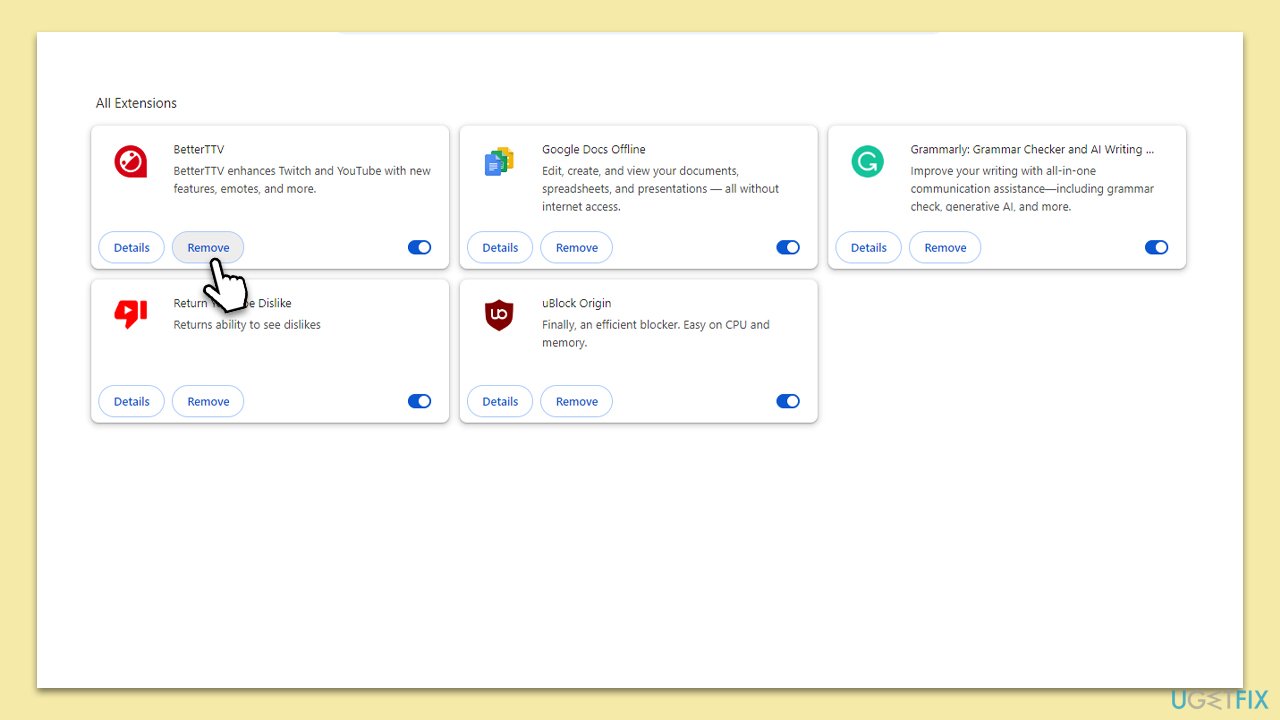
- Pick Extensions > Manage Extensions.
- Find the problematic extension and click Remove.
- Confirm by clicking Remove again.
- Visit the Chrome Web Store and search for the extension.
- Click Add to Chrome to reinstall it.
Fix 4. Reinstall the browser
Reinstalling Chrome can resolve deeper issues with the browser itself that might be causing the extension to fail. This process involves removing the current installation of Chrome and installing a fresh copy.
- Close Chrome.
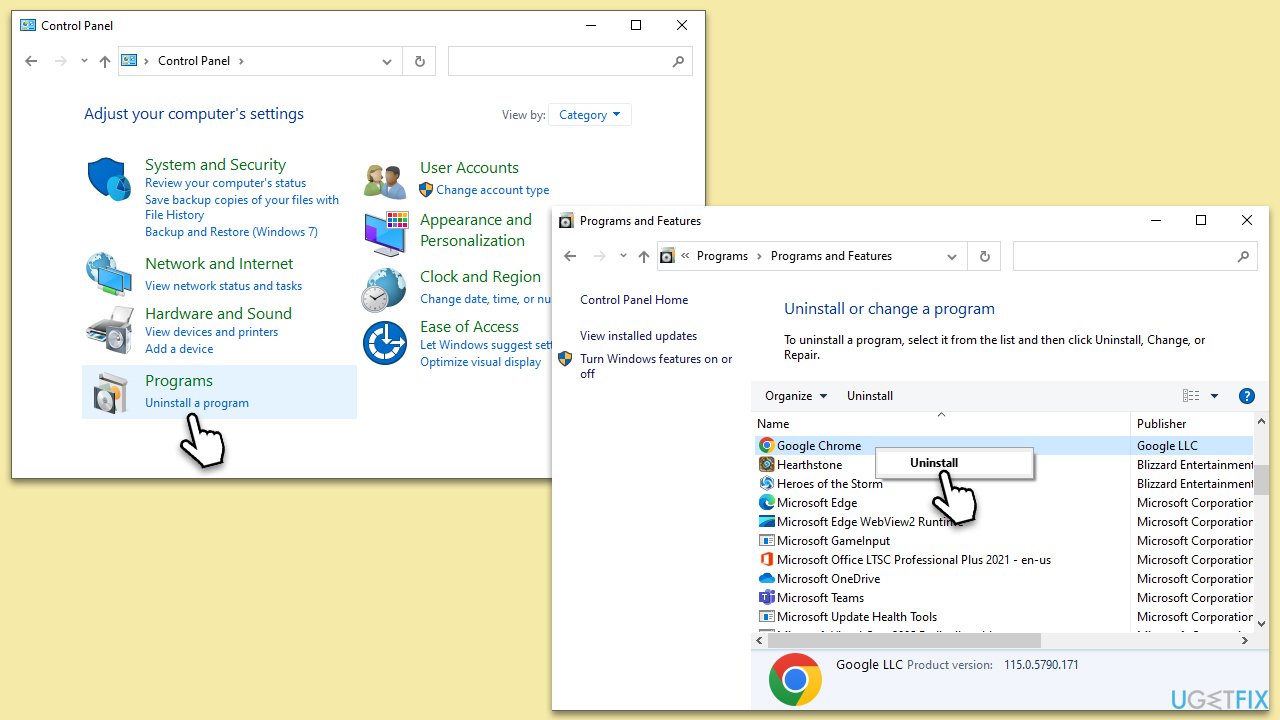
- Type Control Panel in Windows search and press Enter.
- Click on Uninstall a program under Programs.
- Find Google Chrome in the list of installed programs, click on it, and then click Uninstall.
- Follow the prompts to complete the uninstallation
- Restart your computer and reinstall Chrome.
Fix 5. Disable other extensions
Other installed extensions might conflict with the one you're trying to use. Disabling other extensions can help identify if there's an incompatibility issue.
- Go to the Extensions section again.
- Disable other extensions by clicking the toggle switch next to each.
- Try loading the problematic extension again.
Fix 6. Reset Chrome settings
Resetting Chrome settings to their default can fix problems caused by changes in settings or extensions. This will not delete your bookmarks, history, and saved passwords.
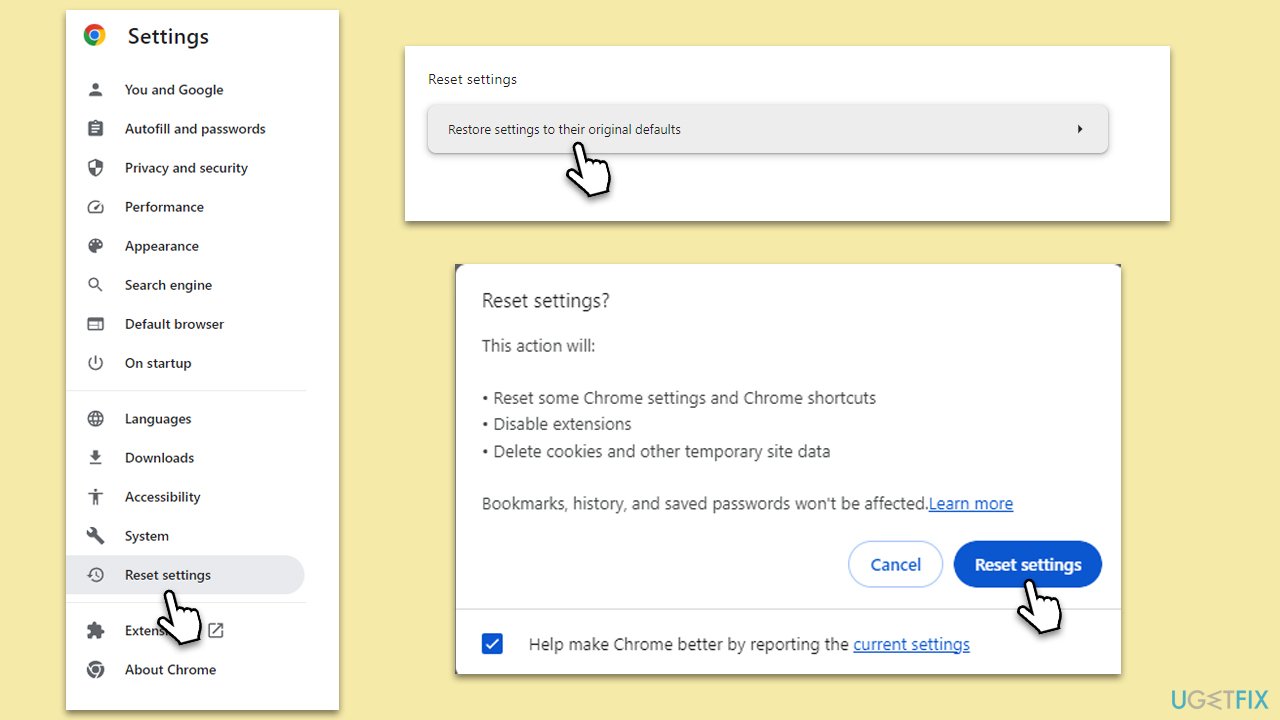
- Click on Menu and go to Settings.
- On the left side, click Reset settings.
- Under Reset settings, click Restore settings to their original defaults.
- Confirm by clicking Reset settings.
Fix 7. Check for software conflicts
Sometimes, other software on your computer can interfere with Chrome. Running Chrome's built-in conflict checker can identify and resolve these issues.
- Open Google Chrome.
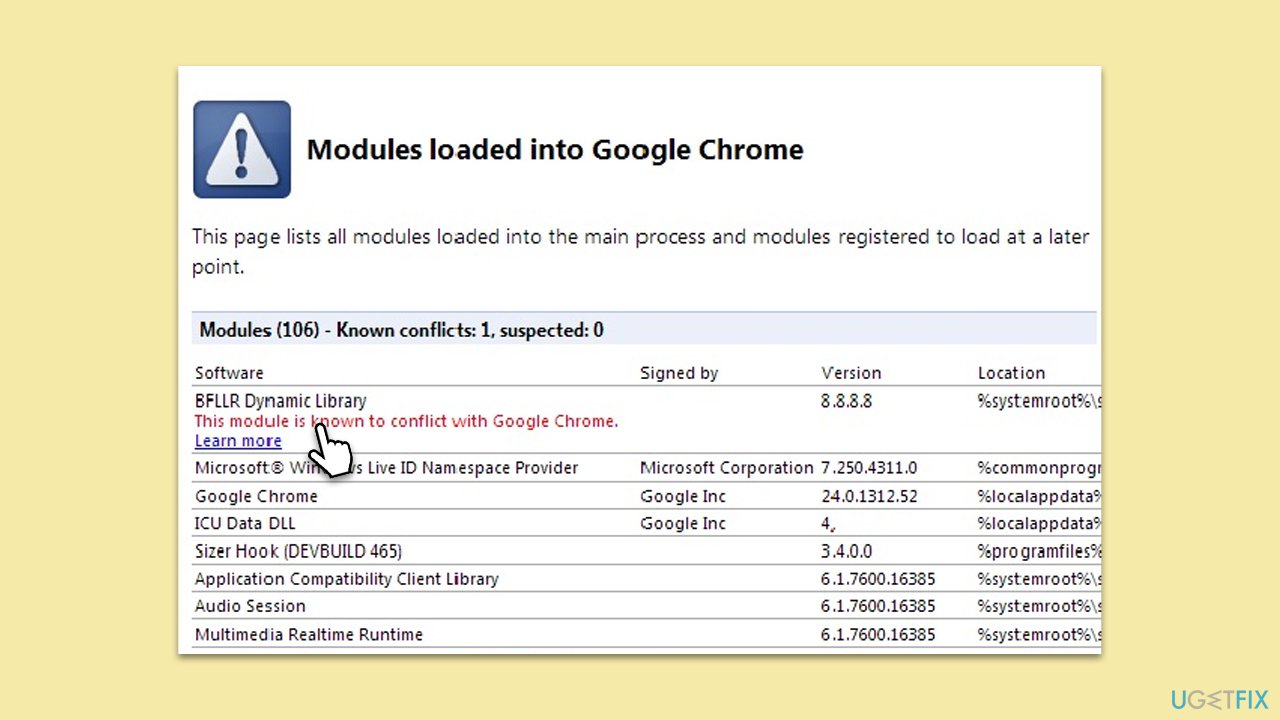
- Type chrome://conflicts into the address bar and press Enter.
- Review the list for any reported conflicts.
- Update or uninstall conflicting software as necessary.
Bottom line
To fix the 'Failed to load extension' error in Google Chrome, you can clear cached files and cookies, update Chrome to the latest version, check for extension updates, or reinstall the extension. If these solutions do not resolve the issue, consider using a PC repair tool to address potential underlying Windows problems.
Frequently asked questions
This error can occur due to corrupted extension files, conflicts with other software, or insufficient permissions on Windows 10. Ensuring that your Chrome and Windows are updated can also help resolve the issue.
To fix this error on Windows 11, try disabling and re-enabling the affected extension or reinstalling Chrome. Additionally, check your system's antivirus settings as they may be blocking the extension.
Yes, you can clear the cache by navigating to Chrome settings, selecting 'Privacy and security', and then 'Clear browsing data'. Make sure to select 'Cached images and files' to potentially resolve the error.




Report an issue
What's wrong with this guide? We review every report and update or remove content.
Report received — thank you. We'll review and fix it.
You need a free account to submit a report.
Be the first to comment