How to fix
“UE4 Game has crashed and will close” error
on Windows
Resolve the "UE4 Game has crashed" error in Windows 10 and Windows 11 effortlessly. Follow our expert-tested solutions for quick fixes!

What causes How to fix “UE4 Game has crashed and will close” error in Windows?
- Outdated graphics drivers
- Corrupted game files
- Incomplete installation processes
- Interruptions during game updates
- Software conflicts
Repairs Windows system files, removes malware, and restores a clean OS state — without reinstalling.
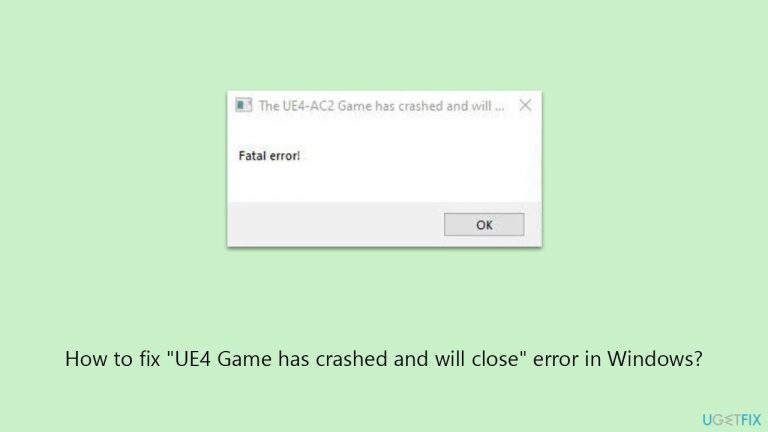
After a recent Windows update, all games created on Unreal Engine are crashing. The error always reads: "UE4 game has crashed and will be closed! Fatal error!" Anything I can do to address this?
Unreal Engine is one of the most popular game development platforms, widely used for video game creation. Its latest iteration, Unreal Engine 5, was released in April 2022, with incredible improvements in technology such as Lumen and Nanite. Due to its ease of use and easy implementation, hundreds of popular games like Fortnite, Bioshock, Gears of War, Lost Ark, and many more, are created with it.
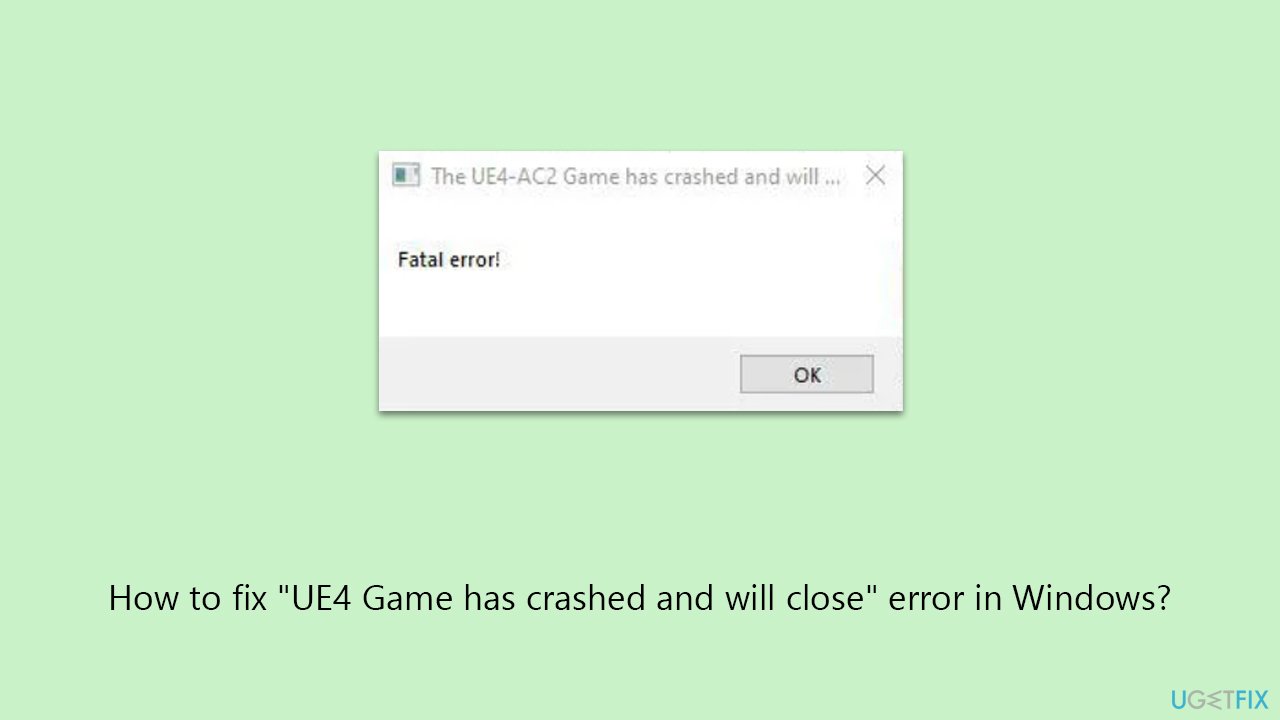
However, some Windows users have reported that whenever they attempt to launch a game developed with Unreal Engine 4 (UE4), they receive an error "UE4 Game has crashed and will close". This can be particularly troubling as it affects any UE4 game, potentially impacting a user's entire game library developed with it.
The "UE4 Game has crashed and will close" error usually indicates a problem that prevents the game from running properly. One of the most common reasons is issues with graphics drivers - outdated or corrupted drivers can lead to games failing to launch. Therefore, ensuring that you have the latest drivers for your graphics card can be a crucial step in fixing the "UE4 Game has crashed and will close" error.
Another potential cause could be corrupt game files. This can happen due to incomplete installation processes, interruptions during game updates, or other software conflicts. Corrupt game files mean that the game lacks essential data to run properly, leading to crashes.
In some cases, the problem might be more deeply rooted in the Windows operating system itself, stemming from various system-level errors or conflicts. To address this, you can try using PC repair software [d1], which is designed to automatically identify and fix underlying Windows issues that might be causing game crashes or other system-related problems.
Fix 1. Update GPU driver
Drivers are software components that allow your operating system and applications to use your PC's hardware effectively. Outdated drivers might not support the latest features and optimizations required by newer games, leading to crashes. An automatic tool like [rev id="DriverFix"] can be used for all your driver issues - it scans for outdated drivers and offers easy updates. However, if you prefer to update drivers manually, follow these steps:
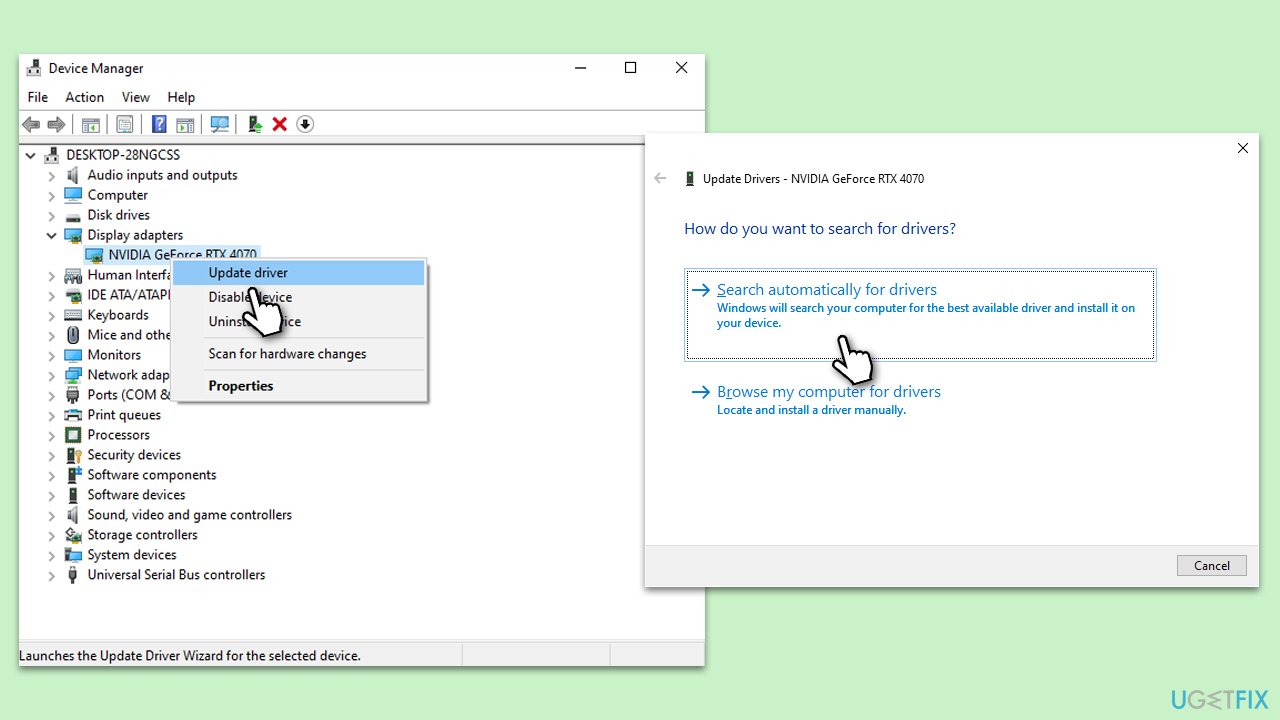
- Open Device Manager by right-clicking the Start button and selecting it from the menu.
- Expand the Display adapters section.
- Right-click on your graphics card and choose Update driver.
- Select Search automatically for drivers.
- Follow the on-screen instructions to complete the process.
- Restart your computer after the update.
Fix 2. Reinstall GPU driver
Reinstalling the GPU driver can fix issues caused by corrupt or improperly installed drivers. This process involves removing the current driver and installing a fresh copy, ensuring that all components are correctly set up:
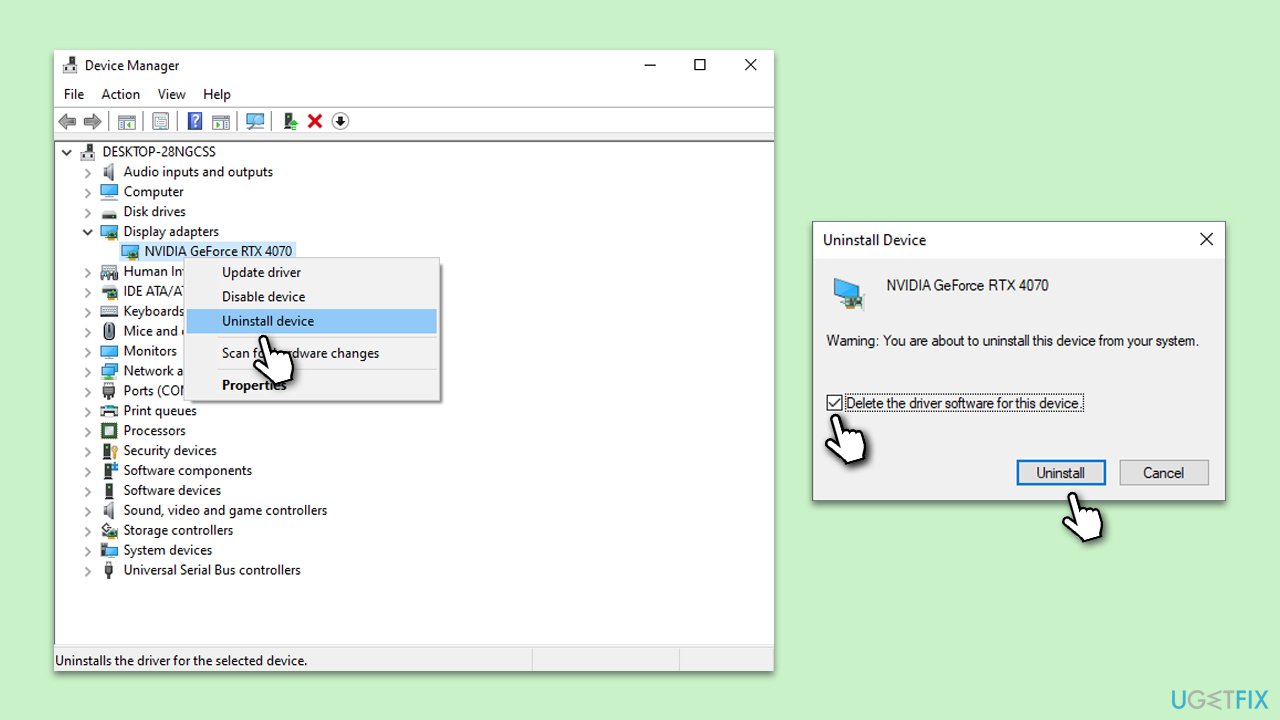
- Right-click on Start and pick Device Manager.
- Expand Display adapters.
- Right-click on your GPU and select Uninstall device.
- Mark the Delete the driver software for this device tickbox.
- Click Uninstall and follow the instructions to finish the process.
- Restart your device and use one of the methods above to install the latest drivers.
Fix 3. Verify the integrity of game files
This process checks the game files on your PC against the files stored on the game server, ensuring that all necessary files are present and undamaged. It's particularly useful if the game crashes, won't start, or is behaving unusually:
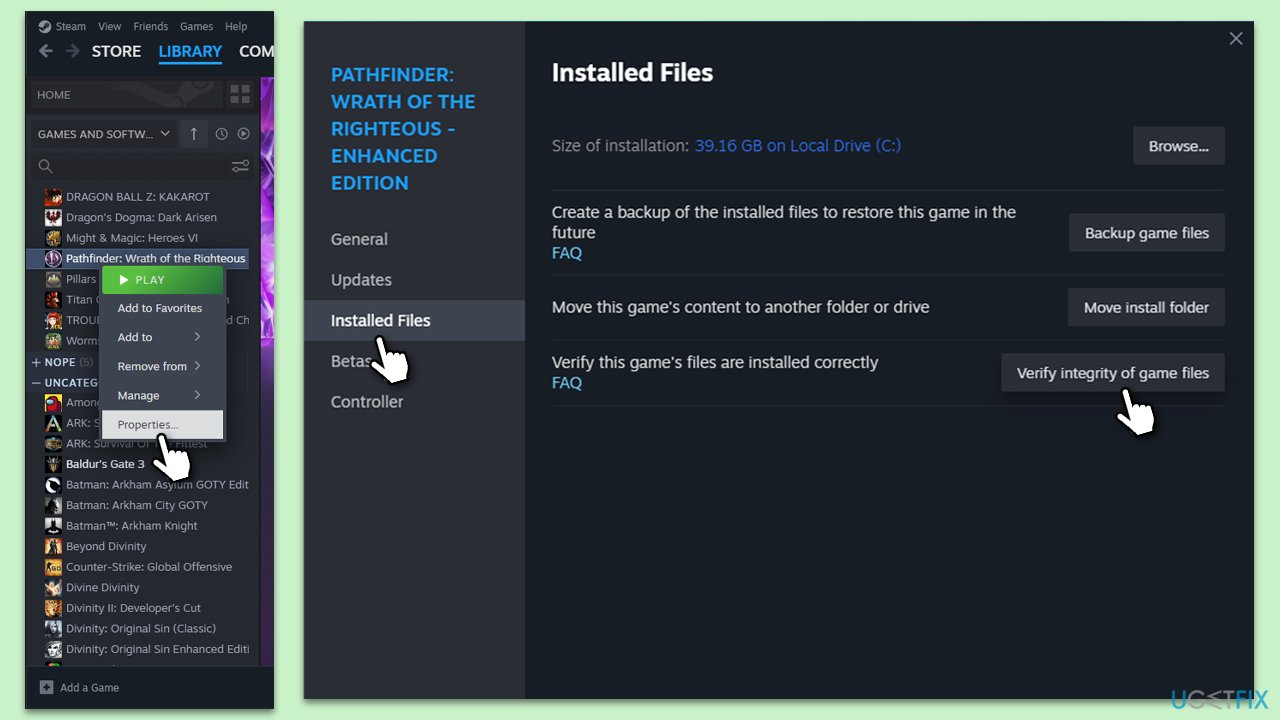
- Open Steam and go to your Library.
- Right-click on a problematic game and select Properties.
- Go to the Installed Files section.
- Click Verify integrity of game files and wait till the process is complete.
- Launch the game as normal.
Fix 4. Modify your hosts file
Modifying the hosts file can solve network-related issues that might cause the game to crash. This file allows you to override domain name resolution for specific domains:
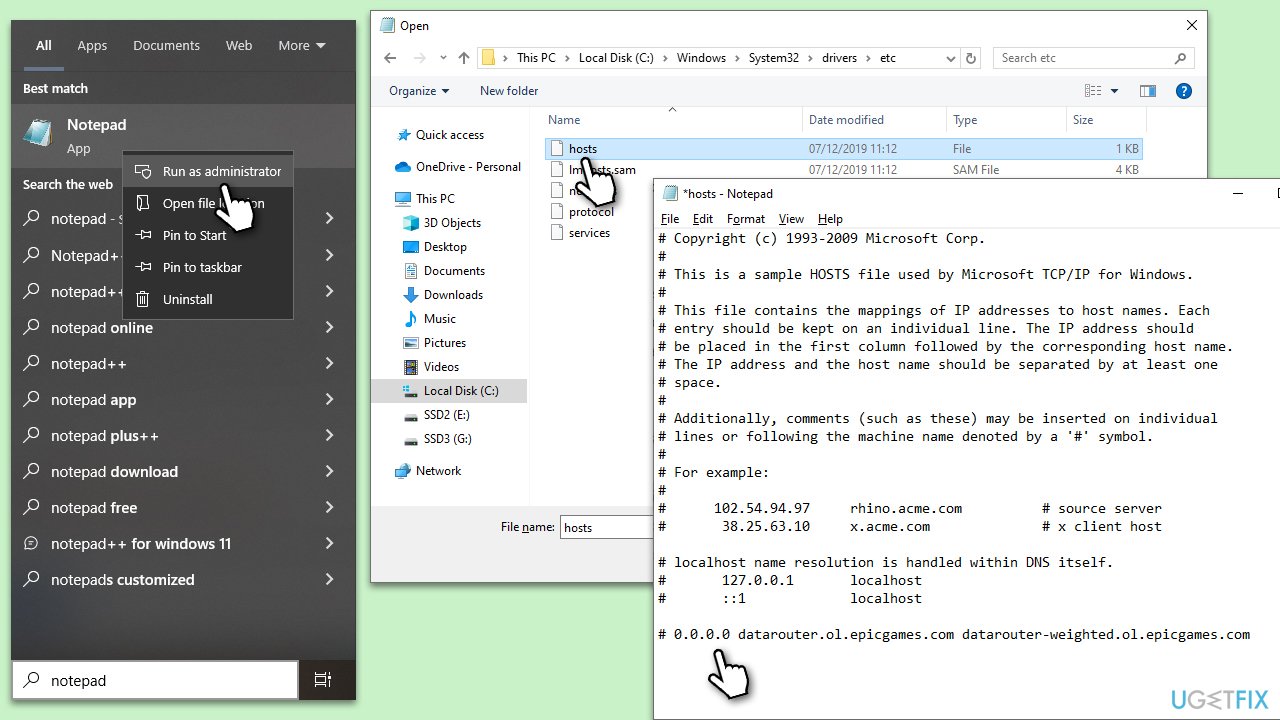
- Type Notepad in Windows search.
- Right-click on the result and select Run as administrator.
- In Notepad, go to File > Open, navigate to C:\Windows\System32\drivers\etc, and open the hosts file (make sure All files are selected for file types to be shown)
- Add the following line at the end:
0.0.0.0 datarouter.ol.epicgames.com datarouter-weighted.ol.epicgames.com - Press File > Save and close down the file.
- Try launching UE games aagain.
Fix 5. Install the latest Windows update
If you haven't installed the latest Windows updates, it is necessary to do so.
- Type Updates in Windows search and press Enter.
- In the new window, click Check for updates.
- Wait till all the necessary files are downloaded and installed.
- If optional updates are available, install them as well.
- When done, reboot your system to apply updates.
Fix 6. Uninstall the latest Windows update
If you already had the latest updates installed, uninstalling them might be an option, as many users said that the "UE4 Game has crashed and will close" error started showing up after installing them.
- Type Updates in Windows search and press Enter.
- Open Settings and go to Windows Update.
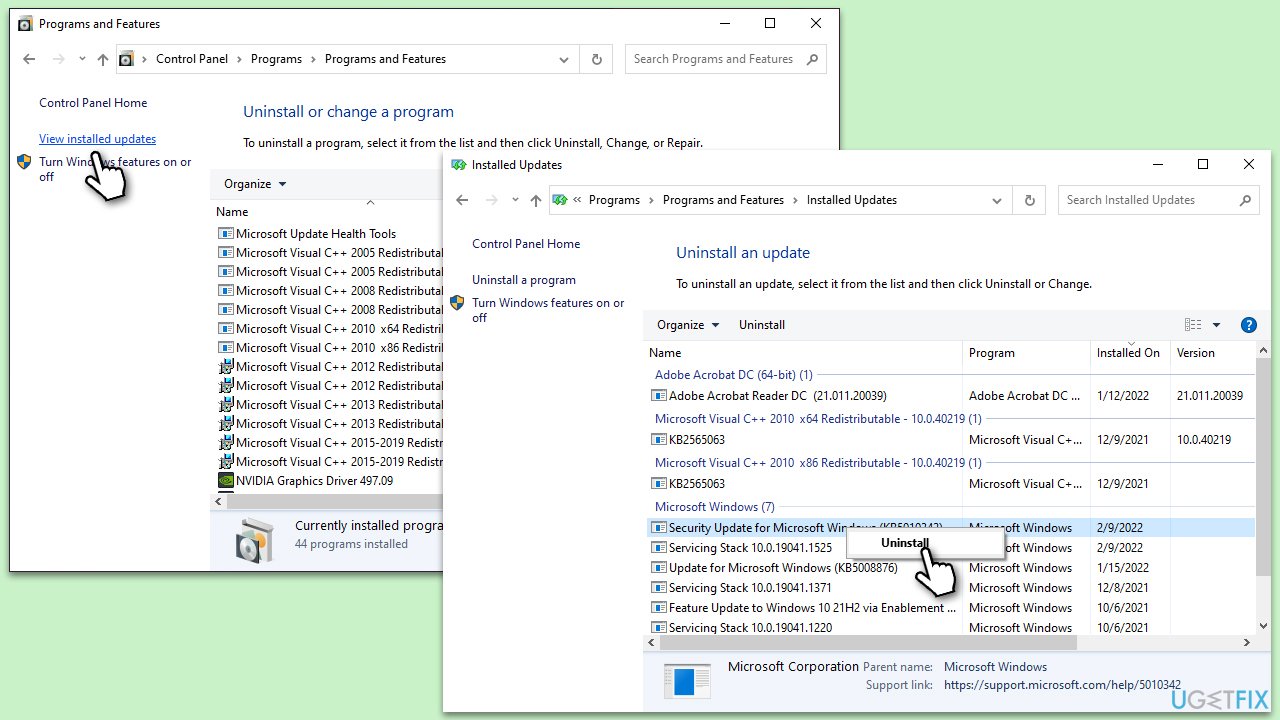
- Select Update history and pick Uninstall updates.
- When the Control Panel opens, sort it by the date.
- Select the most recent update and click Uninstall at the top.
- Proceed with on-screen instructions to finish the process.
- Go to the Windows update page once again and click Pause updates.
- Reboot your system.
Fix 7. Update BIOS
Updating the BIOS (Basic Input/Output System) can improve hardware compatibility and system stability. However, this is an advanced procedure and should be done with caution:
- Before proceeding, backup your data as a precaution.
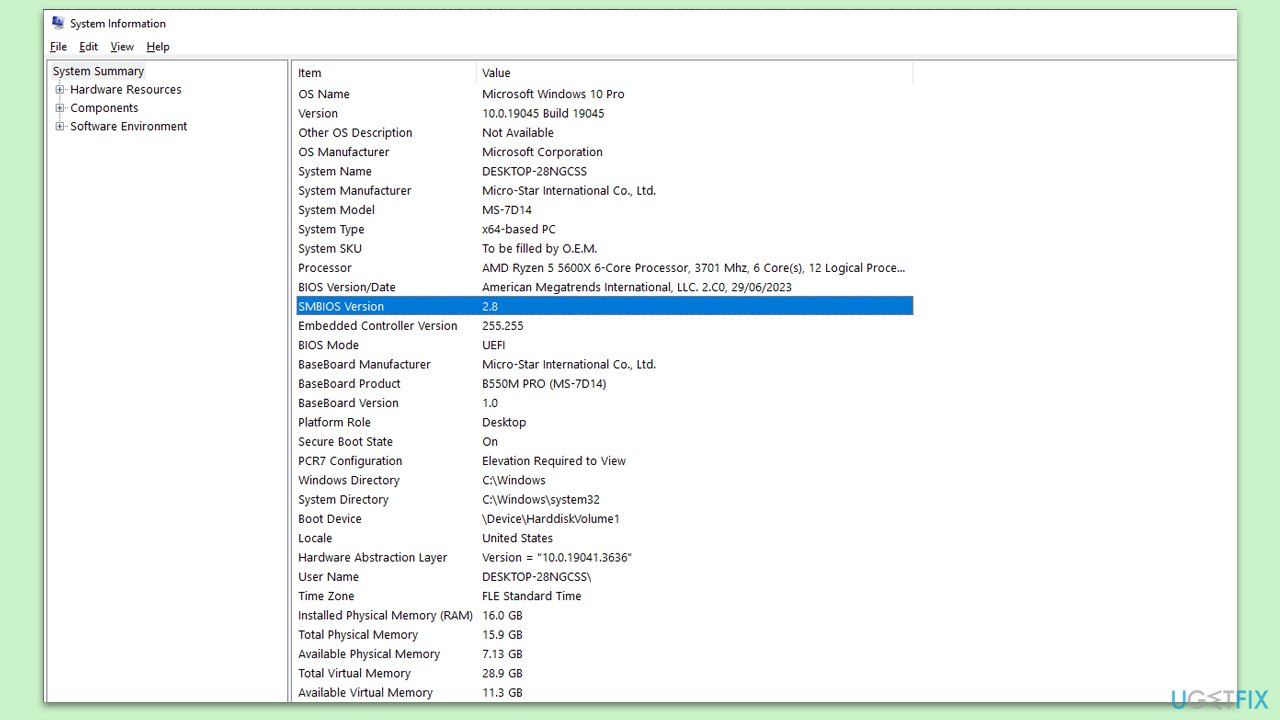
- Visit the manufacturer's website and download your specific model's latest BIOS update file (you can check which BIOS you are using by typing System information in Windows search and checking the BIOS Version/Date and BaseBoard Product entries there).
- Extract the BIOS update files and read any provided instructions or documentation.
- Create a bootable USB drive with the BIOS update files, if required.
- Update the BIOS using the manufacturer's recommended method, which may be through a built-in utility or booting from a USB drive.
- Restart your PC to complete the process.
Bottom line
To fix the "UE4 Game has crashed and will close" error, ensure that your graphics drivers are updated and check for any corrupt game files. If the issue persists, consider using PC repair software to identify and resolve deeper Windows issues. If none of these solutions work, further troubleshooting may be necessary.
Frequently asked questions
This error often occurs due to outdated graphics drivers, corrupted game files, or insufficient system resources. Ensuring your Windows 10 is up to date and verifying game files can help resolve these issues.
To update your graphics drivers in Windows 11, go to Device Manager, expand the Display adapters section, right-click your graphics card, and select 'Update driver'. You can also visit the manufacturer's website for the latest drivers.
Yes, you can increase performance by adjusting your graphics settings within the game, closing background applications, and ensuring your Windows 10 system has enough RAM and storage space available.




Report an issue
What's wrong with this guide? We review every report and update or remove content.
Report received — thank you. We'll review and fix it.
You need a free account to submit a report.
Be the first to comment