How to fix
Windows Server system state backup fails
on Windows
Resolve Windows Server system state backup failures with our expert-tested solutions. Get your backup running smoothly in minutes, no traces left.

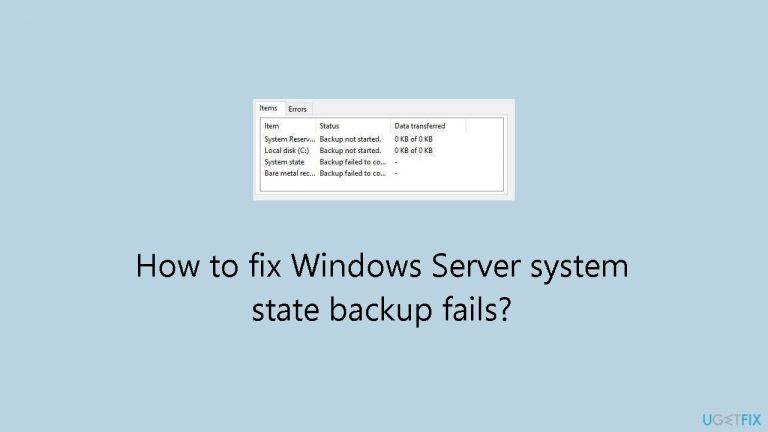
What causes How to fix Windows Server system state backup fails?
- System writer is not found in the backup
- Incomplete or faulty backups due to system writer issues
- Problems with filename syntax
- Issues with directory name syntax
- Volume label syntax errors
Repairs Windows system files, removes malware, and restores a clean OS state — without reinstalling.
Hello. I tried using Windows Server Backup but I got the "Backup failed to complete. The system writer is not found in the backup." error message. Is there a way to fix this?
The issue of system state backup failure on Windows Server, accompanied by error messages such as "Backup failed to complete. The system writer is not found in the backup." and "The filename, directory name, or volume label syntax is incorrect," can pose significant challenges for users relying on Windows Server Backup for data protection.
An issue with the system writer, which is essential to maintaining the integrity of the system state backup, is indicated by the first error message. Incomplete or faulty backups may result from the system writer's absence, which could compromise the system's capacity to be restored to a working condition in the case of data loss or system failure.
The second error message indicates that there may be an issue with the identification and processing of data items during the backup process. It mentions problems with filename, directory name, or volume label syntax. The user's ability to depend on partial or corrupted backups for recovery may be hindered by this type of issue.
These problems may cause users to lose faith in the dependability of their backup solution. In the event of data corruption, system failures, or other unanticipated problems, a failing system state backup could delay the restoration process, increasing downtime and possibly leading to data loss.
Troubleshooting may entail several steps to resolve these issues. It might be necessary for users to check and fix problems with the system writer to make sure it runs correctly and is included in the backup. Furthermore, troubleshooting filename, directory name, or volume label syntax issues need a detailed examination of the file system and related configurations.
In this guide, you will find 3 steps that should help you fix Windows Server system state backup fails. You can also run a maintenance tool like [d1] that can fix most system errors, BSODs,[ref en-1] corrupted files, and registry[ref en-2] issues. Otherwise, follow the step-by-step instructions below.
Solution 1. Restart Related Services
- Press the Windows key + R to open the Run dialog box.
- Type services.msc in the box and click OK.
- In the Services window, locate the following services one by one:
COM+ Event System
COM+ System Application
Distributed Transactions Coordinator
Microsoft Software Shadow Copy Provider
Volume Shadow Copy service
Networker remote exec service
Cryptographic Service
- Right-click on each of the above services individually.
- Choose the Restart option from the context menu for each service.
Solution 2. Clear the Shadow Storage
- Type cmd in the Search box and select Run as administrator.
- To verify the existence of multiple snapshots exceeding the range of your Backup Chain Set, use the following command:
vssadmin list shadows
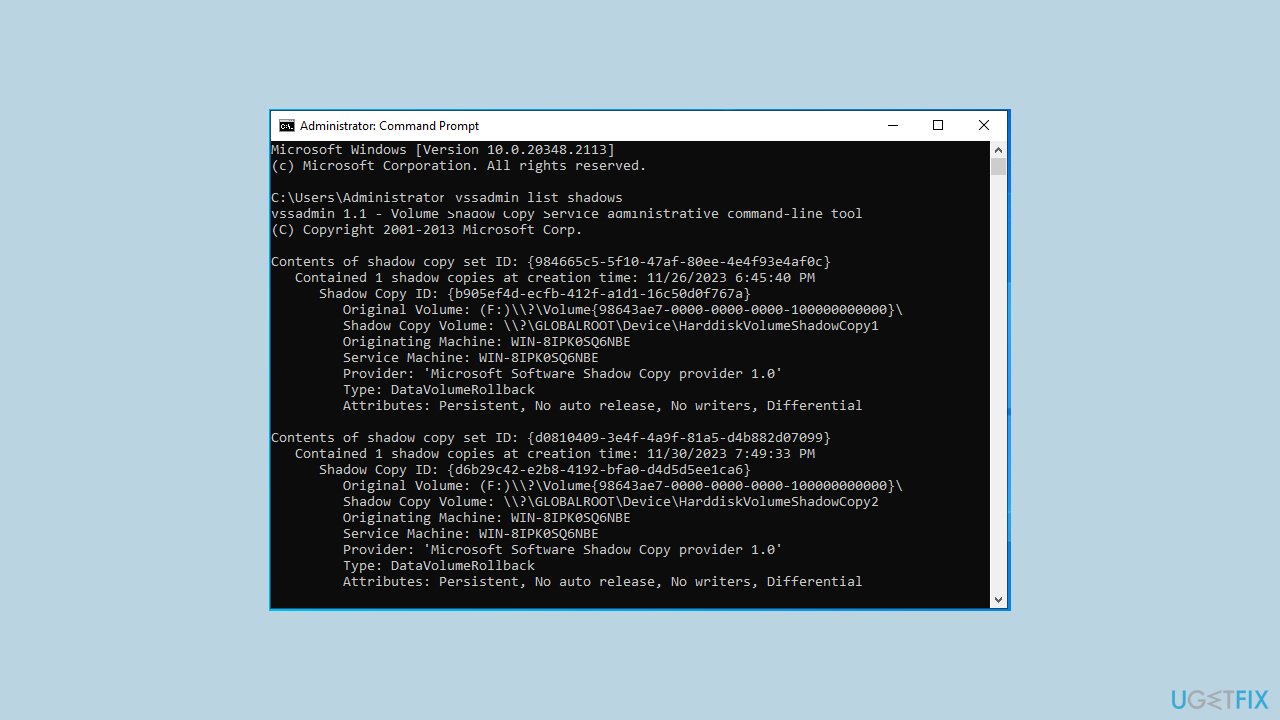
Execute the following command to delete snapshots:
- To delete the oldest snapshot only:
vssadmin delete shadows /For=C: /oldest
- To delete all snapshots:
vssadmin delete shadows /all
Solution 3. Fix the Driver Location in Windows Registry
- Type cmd in the Search box and select Run as administrator.
- Enter the following command and press Enter:
DiskShadow /L writers.txt
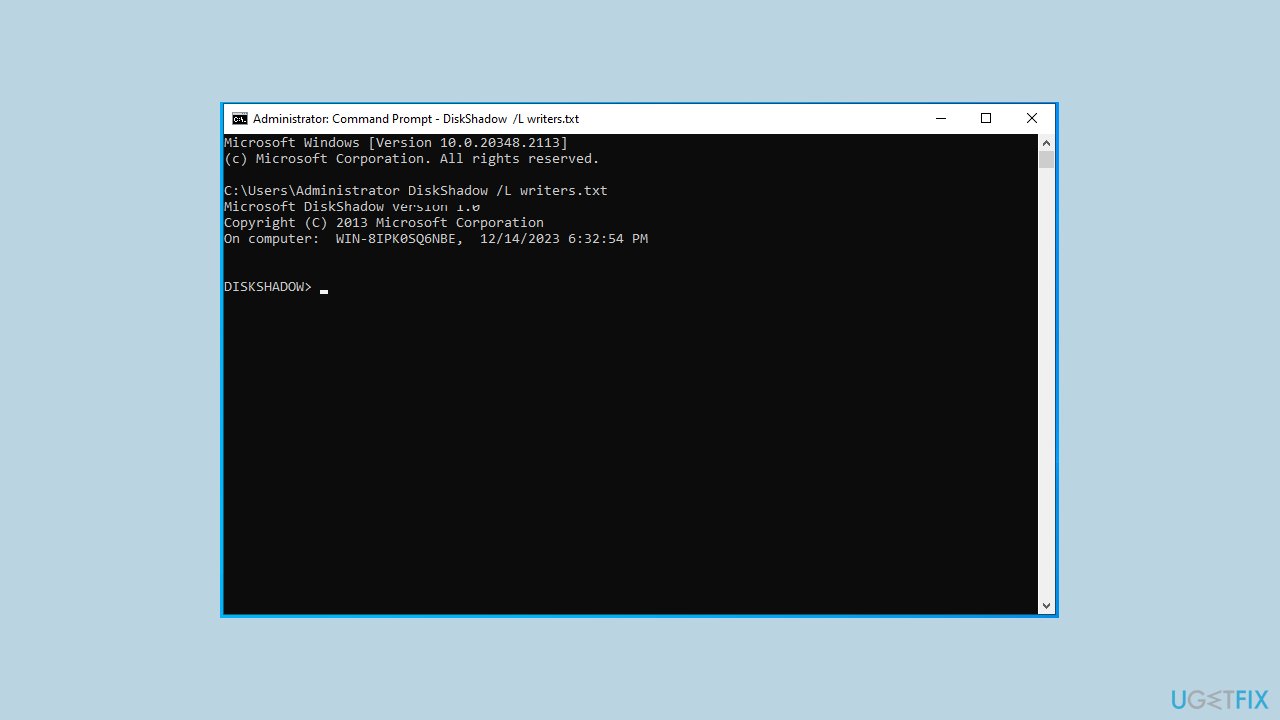
- Type list writers detailed and press Enter. After a moment, this will display a list of all writers and affected volumes.
- Open the writers.txt file in Notepad and search for windows\ text. You will find information similar to:
File List: Path = C:\Windows\SystemRoot\system32\drivers, Filespec = vsock.sys
- Identify the culprit as VSOCK.SYS.
- To resolve the issue, use the Registry Editor.
- Type regedit in the Run dialog and press Enter to open the Registry Editor.
- Navigate to the following key:
HKLM\SYSTEM\CurrentControlSet\Services\vsock
- Change the value of the ImagePath string data to System32\DRIVERS\vsock.sys.
Bottom line
To fix Windows Server system state backup failures, check and repair the system writer, and examine filename, directory name, or volume label syntax issues. If these steps do not resolve the problem, consider using a maintenance tool that can address system errors and corrupted files.
Frequently asked questions
This error often indicates issues with the Volume Shadow Copy Service (VSS). Ensure that the VSS service is running and try restarting it, then attempt the backup again.
Make sure there is enough free space on the drive where the backup is being stored. You can free up space by deleting unnecessary files or moving existing backups to another drive.
You may need to perform a registry repair or restore from a previous backup if the registry is corrupted. Additionally, running the System File Checker tool can help fix any underlying file issues.




Report an issue
What's wrong with this guide? We review every report and update or remove content.
Report received — thank you. We'll review and fix it.
You need a free account to submit a report.
Be the first to comment