How to fix
Windows Spotlight using wrong language
on Windows
Resolve Windows Spotlight language issues effortlessly on Windows 10 or 11. Get back to stunning wallpapers with expert-tested solutions.

What causes How to fix Windows Spotlight using wrong language?
- Windows Spotlight language settings do not match system language
- User preferences not synchronized with Windows Spotlight
- Corrupted Windows Spotlight files
- Improper configuration of lock screen settings
Repairs Windows system files, removes malware, and restores a clean OS state — without reinstalling.
Hello. Windows Spotlight suddenly decided to use a different language instead of my system setting (US English). How do I fix this?
With Windows, you may use a feature called Windows Spotlight to dynamically replace the lock screen background with carefully chosen photos. To keep users engaged, this feature also offers extra information, including interesting facts, advice, or advertisements, when they unlock their laptops. One aspect of Windows Spotlight is the ability to adapt and personalize the user experience by displaying content relevant to their preferences and interests.
Users may experience a problem, nevertheless, in which content appears in a language other than their preferred language choice while using Windows Spotlight. Users who are not fluent in the displayed language may find this linguistic disparity to be both uncomfortable and possibly perplexing. The problem ruins Windows Spotlight's intended smooth and customized experience.
The misalignment of language in Windows Spotlight might irritate users by making it difficult for them to comprehend the text that is presented. Because of the language barrier, people who depend on Windows Spotlight's dynamic and informative features may lose out on important information or interesting content.
The fix for the Windows Spotlight language problem is to change the language settings so that the system language matches the language that Windows Spotlight is intended to use. For language preferences to synchronize and update, users might also need to remove and reset several Windows Spotlight files.
in this guide, you will find 4 steps that should help you fix Windows Spotlight using wrong language. You can also run a maintenance tool like [d1] that can fix most system errors, BSODs,[ref en-1] corrupted files, and registry[ref en-2] issues. Otherwise, follow the step-by-step instructions below.
Solution 1. Disable and Enable Spotlight
- Click the Search button.
- Type Settings and select the most relevant result.
- In the Settings menu, choose Personalisation from the left panel.
- Click on Lock screen on the right side.

- Select Picture from the Personalize your lock screen menu.
- Click on the menu again, and this time, choose Windows spotlight.
Solution 2. Re-register Windows Spotlight
- Click the Search icon.
- Type powershell and right-click on the relevant result.
- Select Run as administrator and click Yes in the UAC prompt.
- In the PowerShell window, type or paste the following command:
Get-AppxPackage -Name Microsoft.Windows.ContentDeliveryManager | Foreach {Add-AppxPackage -DisableDevelopmentMode -Register "$($_.InstallLocation)\AppXManifest.xml" -Verbose}
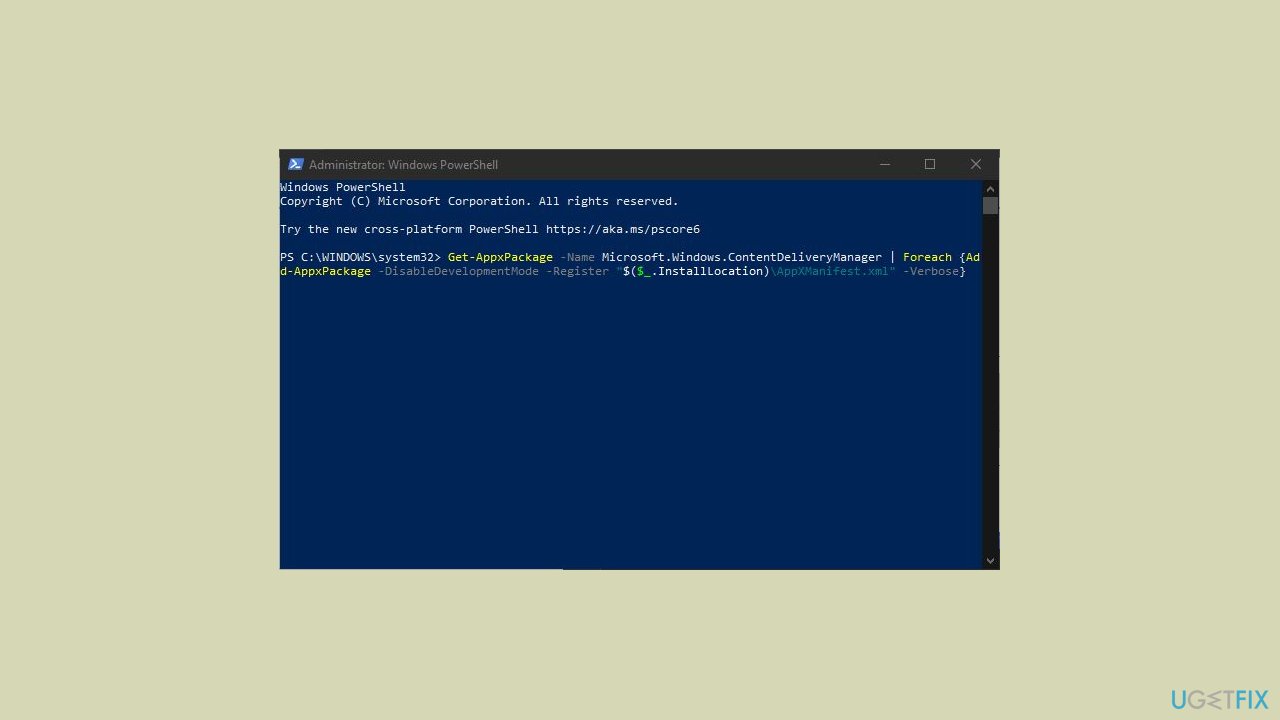
- Press Enter.
- Restart your computer.
Solution 3. Reset Windows Spotlight
- Press the Windows key + I to open Settings.
- Select Personalization from the navigation pane.
- Click on Lock screen on the right.
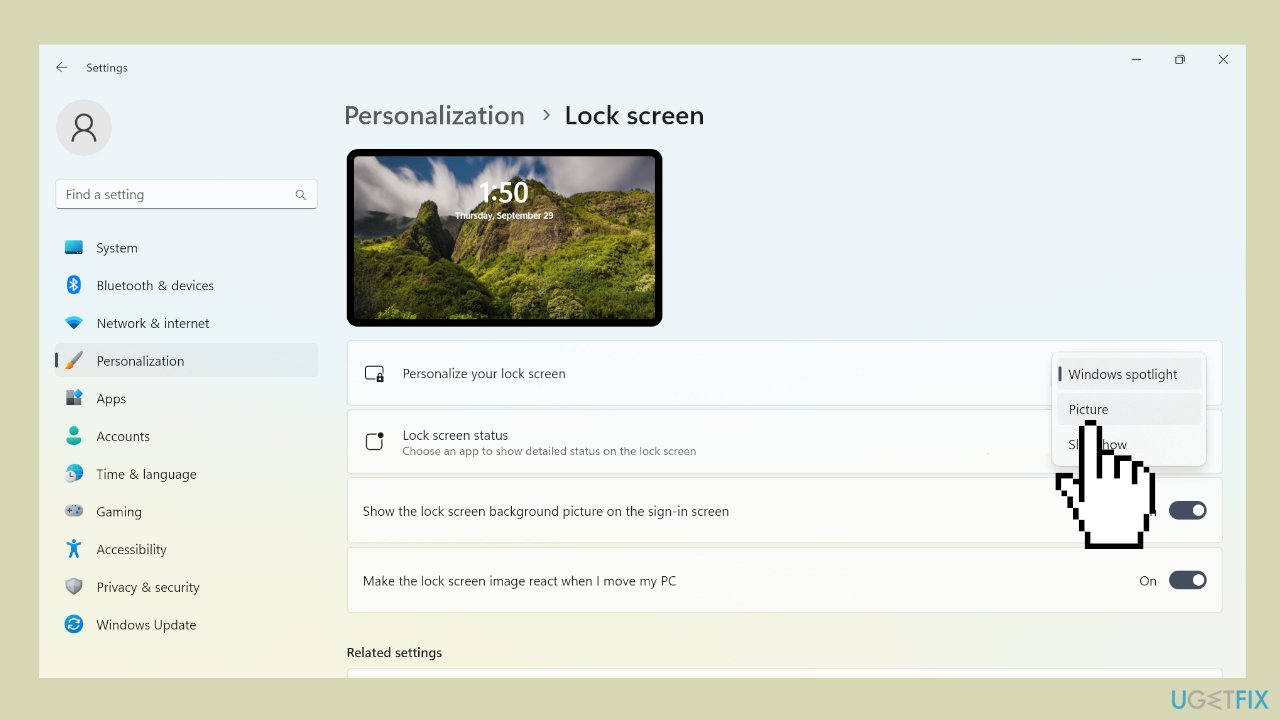
- Choose Picture from the Personalize your lock screen menu.
- Press the Windows key + R to open Run.
- Paste the following path in the text field and click OK:
%LocalAppData%\Packages\Microsoft.Windows.ContentDeliveryManager_cw5n1h2txyewy\Settings
- Rename the roaming.lock file to roaming.dat.back and the settings.dat file to settings.dat.back.
- Restart the computer.
- Go back to the Lock screen settings.
- Select Windows spotlight from the Personalize your lock screen menu.
Solution 4. Override Windows Display Language
- Open Control Panel.
- Navigate to Clock, Language, and Region.
- Click on Language preferences.
- In the left panel, select Advanced settings.
- Under Override for Windows display language, choose the desired language (e.g., Thai).
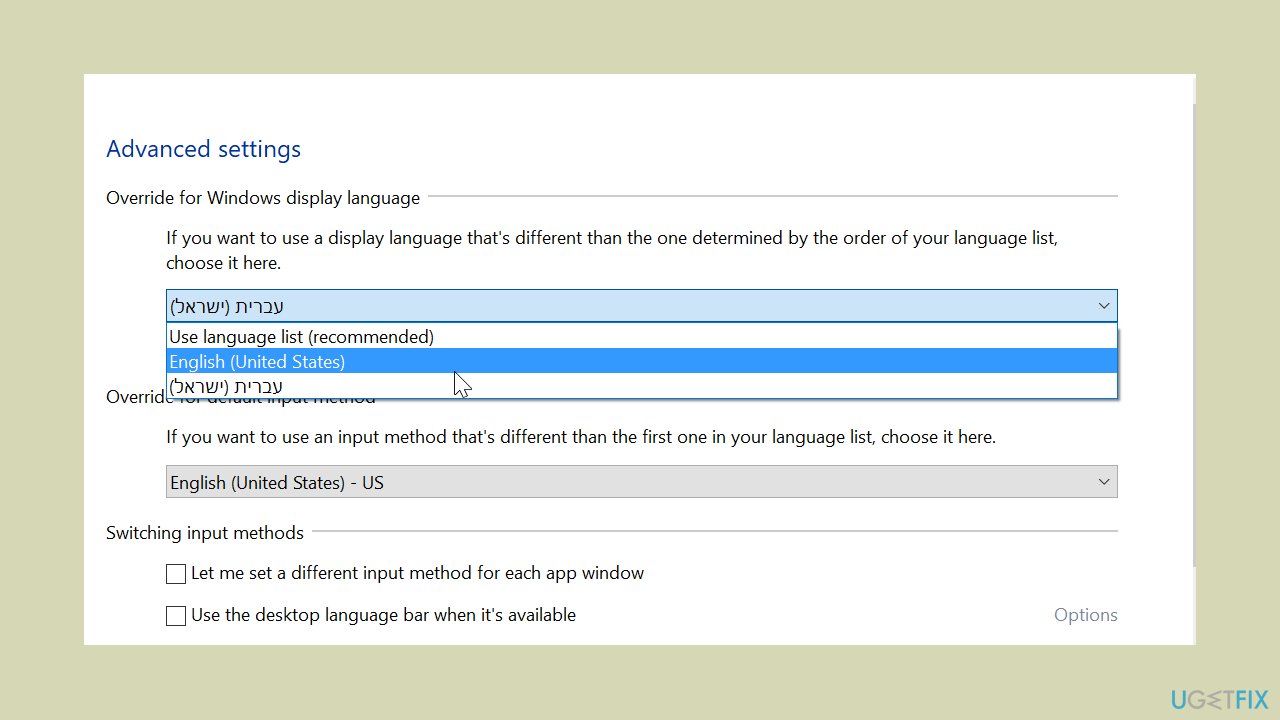
- Click Save, but do not log off or restart your computer yet.
- Go back to Clock, Language, and Region settings.
- Click on Region preferences.
- Select the Administrative tab.
- Click on Copy Settings.
- Check the box next to Welcome screen and click OK to save the changes.
- Restart your computer.
- After logging back into Windows, return to Control Panel > Clock, Language, and Region > Advanced settings.
- In the Override section, change the display language to English.
- Click Save and reboot your PC.
Bottom line
To fix the Windows Spotlight language issue, you can disable and enable Spotlight, and re-register the feature. If these steps do not resolve the problem, consider using a maintenance tool to fix system errors or corrupted files.
Frequently asked questions
To change the Windows Spotlight language in Windows 10, go to Settings > Time & Language > Language and set your preferred language as the default. Then, restart your computer to apply the changes.
If Windows Spotlight is stuck in the wrong language on Windows 11, try resetting the Spotlight feature by turning it off and on again in Settings > Personalization > Lock screen.
Yes, you can reinstall Windows Spotlight by running the command 'Get-AppxPackage *Microsoft.Windows.Spotlight* | Remove-AppxPackage' in PowerShell and then reinstalling it from the Microsoft Store.




Report an issue
What's wrong with this guide? We review every report and update or remove content.
Report received — thank you. We'll review and fix it.
You need a free account to submit a report.
Be the first to comment