How to fix
Windows update error 0x8024ce16
on Windows
Resolve Windows update error 0x8024ce16 quickly and effortlessly with proven methods. Trust our expert-tested solutions for Windows 10 and 11. Fixed in …

What causes How to fix Windows update error 0x8024ce16?
- Corrupted drivers
- General software glitches
- Inactive essential services
- Corruption in system files
Repairs Windows system files, removes malware, and restores a clean OS state — without reinstalling.
Yesterday, I was unable to install Windows updates. I have tried several times but it always came up with the 0x8024ce16 error. I left it and tried to install updates today again but it just wouldn't install, resulting in the same error code. Any tips?
Windows updates are important to ensure your device has the latest security patches and features. These updates are released periodically by Microsoft and are typically available for download through the Windows Update service, although users have an option to install them manually.
However, there are instances where the installation of Windows updates may fail, resulting in errors like 0x8024ce16. This specific error tends to occur when the update process is initiated but gets interrupted before completion, leading to a notification that the update failed.
In such cases, Windows often suggests waiting before retrying the update or indicates that the update will be attempted again later. Unfortunately, the cause of the 0x8024ce16 error is not always clear, and in many instances, the issue does not resolve itself, leaving users unable to complete the update.
The reasons behind update failures can be varied, ranging from corrupted drivers and general software glitches to inactive essential services or corruption in system files. To fix the 0x8024ce16 error, various manual solutions are available.
Understanding that each update failure can stem from different underlying issues is crucial. Successfully identifying the specific cause of an update problem is a critical step in implementing the appropriate fix.
For those seeking assistance, tools like [d1] can be extremely beneficial. Such tools are designed to automatically detect and repair corrupted system files in Windows, simplifying the troubleshooting process.
Quick solutions
- Restart your PC if it hasn't been rebooted recently.
- Ensure your computer's date and time settings are accurate.
- Perform a thorough scan of your computer for any malware.
- Briefly turn off any non-Microsoft antivirus software and attempt the update once more.
Fix 1. Repair system file corruption
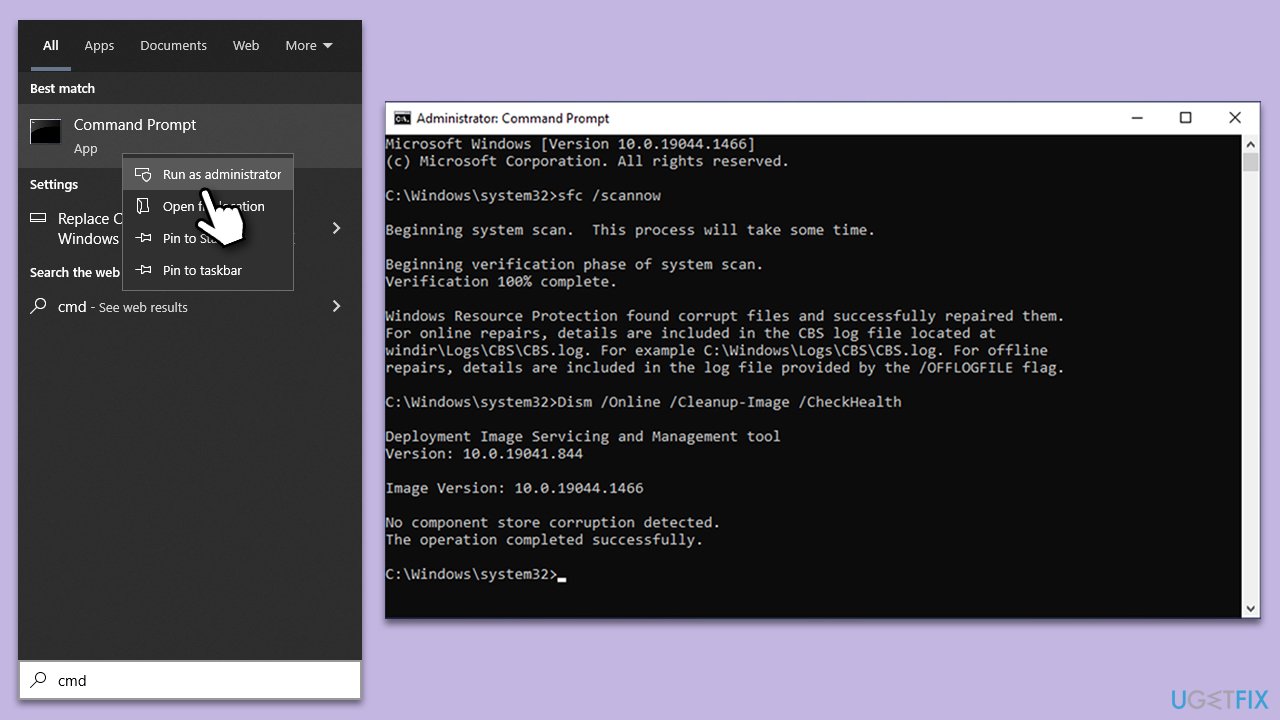
System repair can be performed with particular commands run via Command Prompt - they are often effective in resolving various system issues, including update errors like 0x8024ce16.
- Type in cmd in Windows search.
- Right-click on Command Prompt and select Run as administrator.
- In the User Account Control window, click Yes.
- In the Command Prompt window, paste the following command and hit Enter:
sfc /scannow - Next, use the following commands, pressing Enter each time:
Dism /Online /Cleanup-Image /CheckHealth
Dism /Online /Cleanup-Image /ScanHealth
Dism /Online /Cleanup-Image /RestoreHealth
(Note: if you get an error executing this last command, add /Source:C:\RepairSource\Windows /LimitAccess to it and try again). - Reboot your computer.
Fix 2. Run Windows update troubleshooter
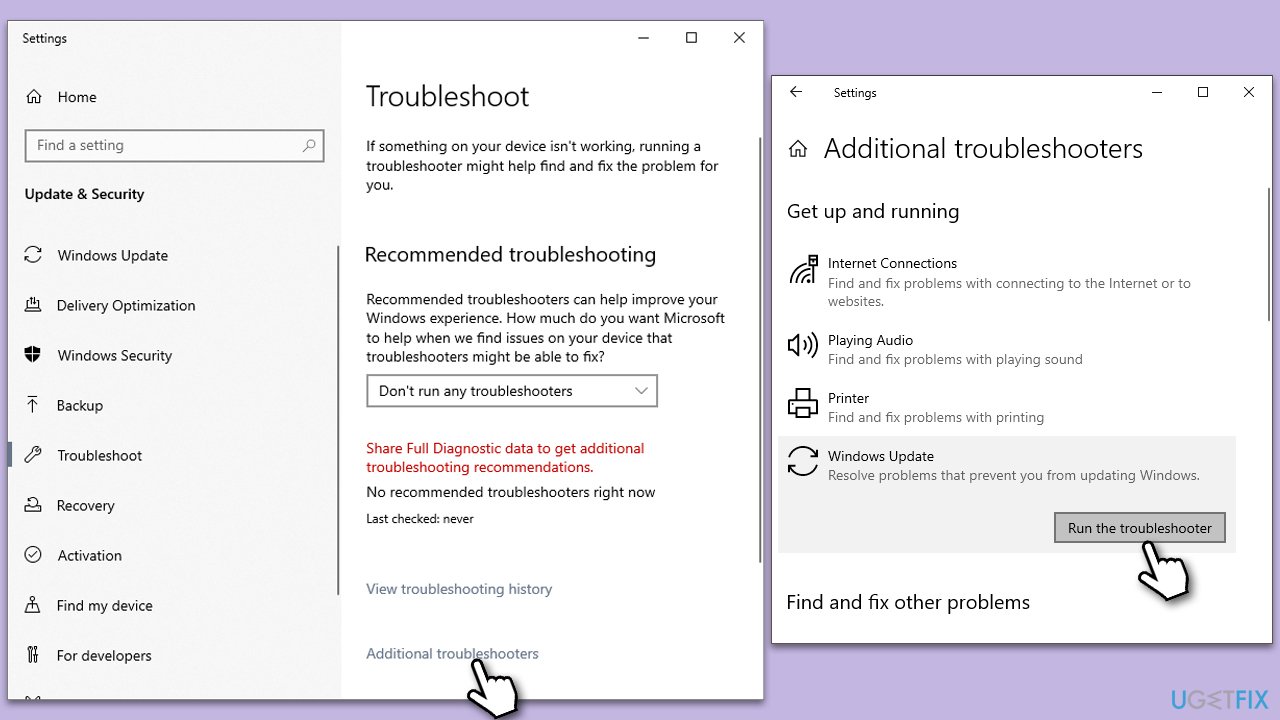
Windows Update Troubleshooter is a built-in tool that can identify and fix problems with Windows Update.
- Type Troubleshoot in Windows search and press Enter.
- Select Additional troubleshooters/Other troubleshooters.
- Find Windows Update from the list.
- Click it and select Run the troubleshooter/Run.
- Restart your computer when the update process is finished.
Fix 3. Update all drivers
Outdated or faulty drivers can cause issues with Windows updates, so make sure they are all up to date. The easiest one-click solution would be to use automatic tools such as [rev id="DriverFix"]. If you prefer the manual method, you can always download drivers from official websites or use the Windows update feature:
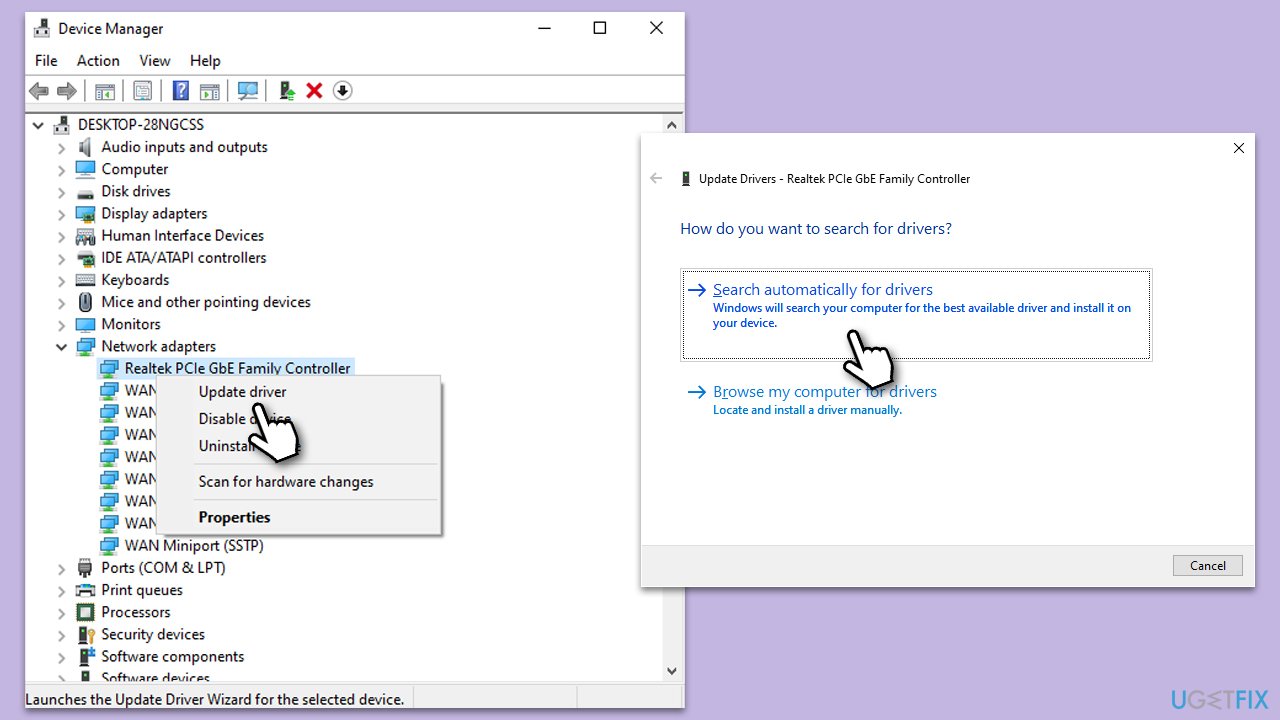
- Right-click on the Start menu and select Device Manager.
- Expand the section you want to update, for example, Network adapters.
- Right-click on the device and select Update driver.
- Choose Search automatically for drivers and follow the prompts.
- Restart your system as necessary.
Fix 4. Reset Windows update components
Resetting Windows Update components can resolve issues by refreshing the update process.
- Open Command Prompt as administrator.
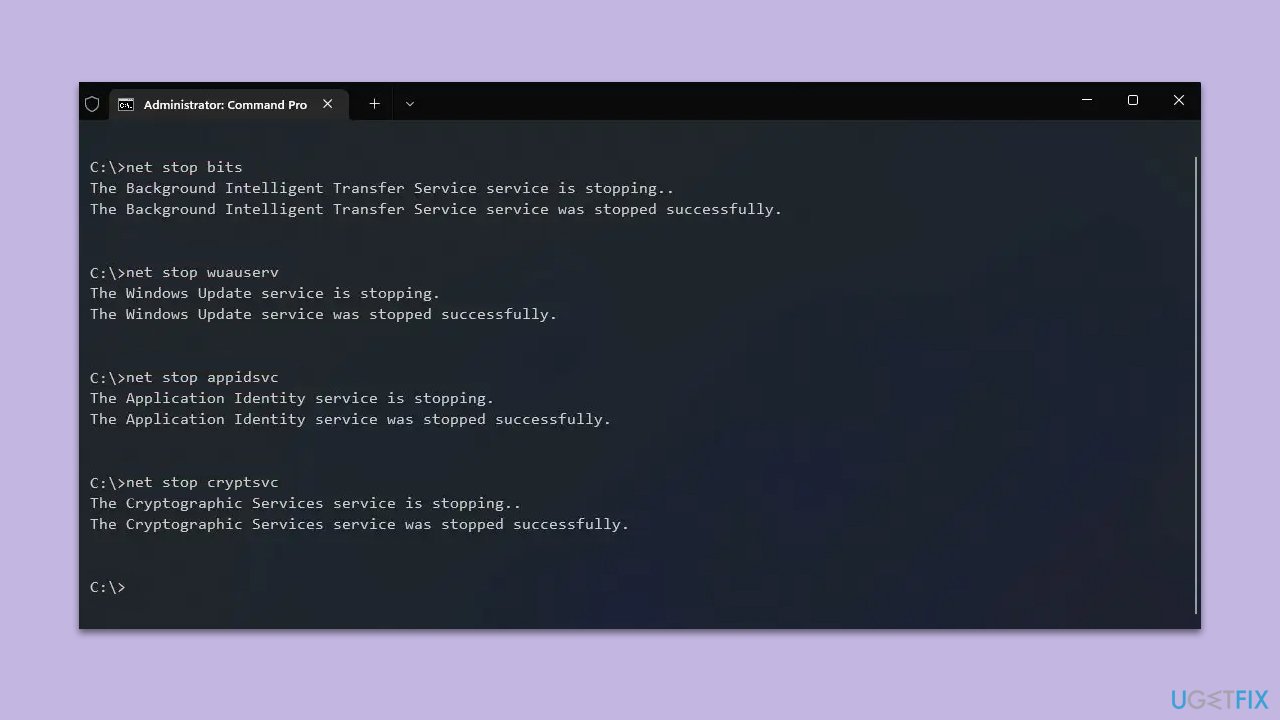
- Stop the Windows Update-related services by running the following commands one at a time, pressing Enter after each one:
net stop wuauserv
net stop cryptSvc
net stop bits
net stop msiserver - Rename the SoftwareDistribution and Catroot2 folders by running the following commands:
ren C:\Windows\SoftwareDistribution SoftwareDistribution.old
ren C:\Windows\System32\catroot2 Catroot2.old
Note: If your Windows installation is not on the C drive, replace "C" with the appropriate drive letter. - Restart the Windows Update-related services by running the following commands:
net start wuauserv
net start cryptSvc
net start bits
net start msiserver - Restart your PC.
Fix 5. Perform Disk Cleanup
Disk Cleanup can free up space on your hard drive and remove temporary files that might interfere with the update process.
- Open the Windows search bar and type Disk Cleanup. Press Enter to open the Disk Cleanup utility.
- In the Disk Cleanup window, click Clean up system files.
- Select the drive again and click OK.
- In the list of files that can be cleaned up, select the largest portions of data, such as Temporary Internet Files, Windows Update, Temporary Files, and others.
- Click OK to begin the cleanup process.

Fix 6. Install the update manually
If automatic updates fail, manually downloading and installing the update can be a solution.
- Type in Updates in Windows search and press Enter.
- Select View update history.
- Find the update that failed with the 0x8024ce16 error and copy its KB number.
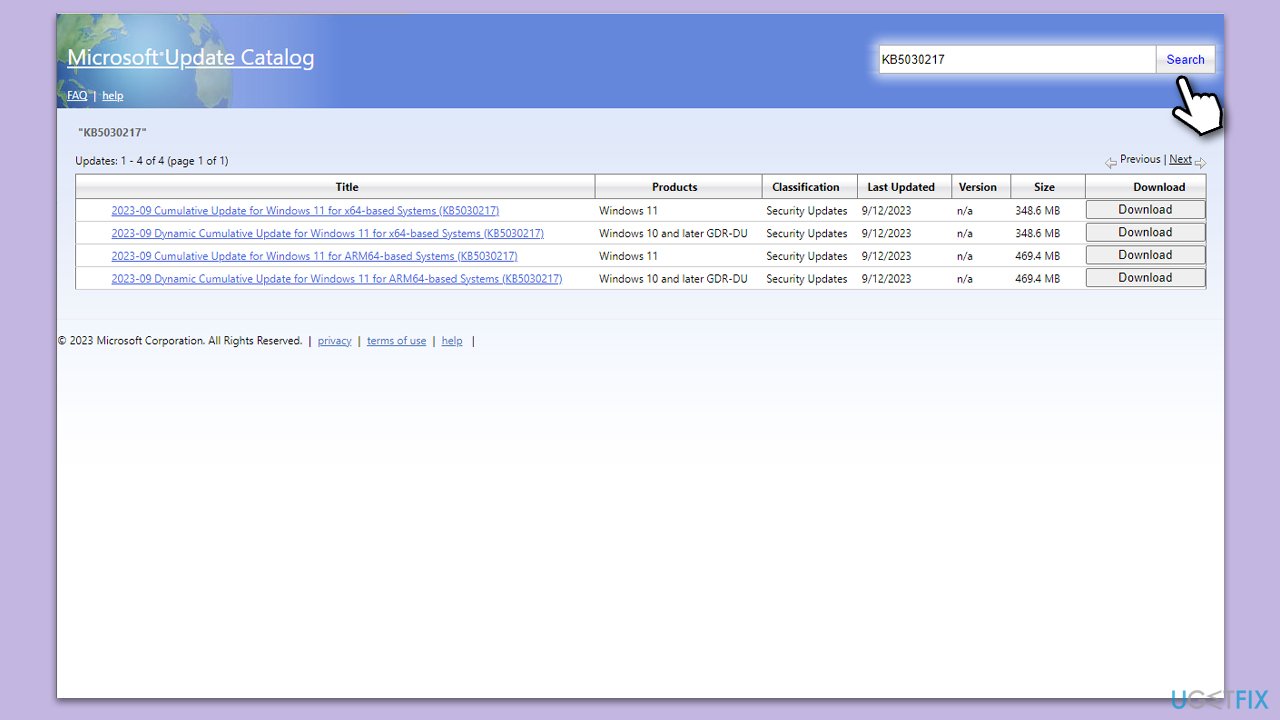
- Open your browser and go to Microsoft Update Catalog
- Within the search bar, type in the KB number and click Search
- Find the correct version of the update for your operating system (to check this, right-click on Start and pick System. Under Device specifications, check the System type and check for Windows version too) and click Download.
- Use on-screen instructions to finish the installation process and restart your device.
Fix 7. Use Media Creation Tool
Media Creation Tool can upgrade your system to the latest version of Windows, potentially resolving update issues.
- Visit the official Microsoft website and download Windows 10 installation media (Windows 11 version).
- Double-click the installer and select Yes when UAC shows up.
- Agree to terms.
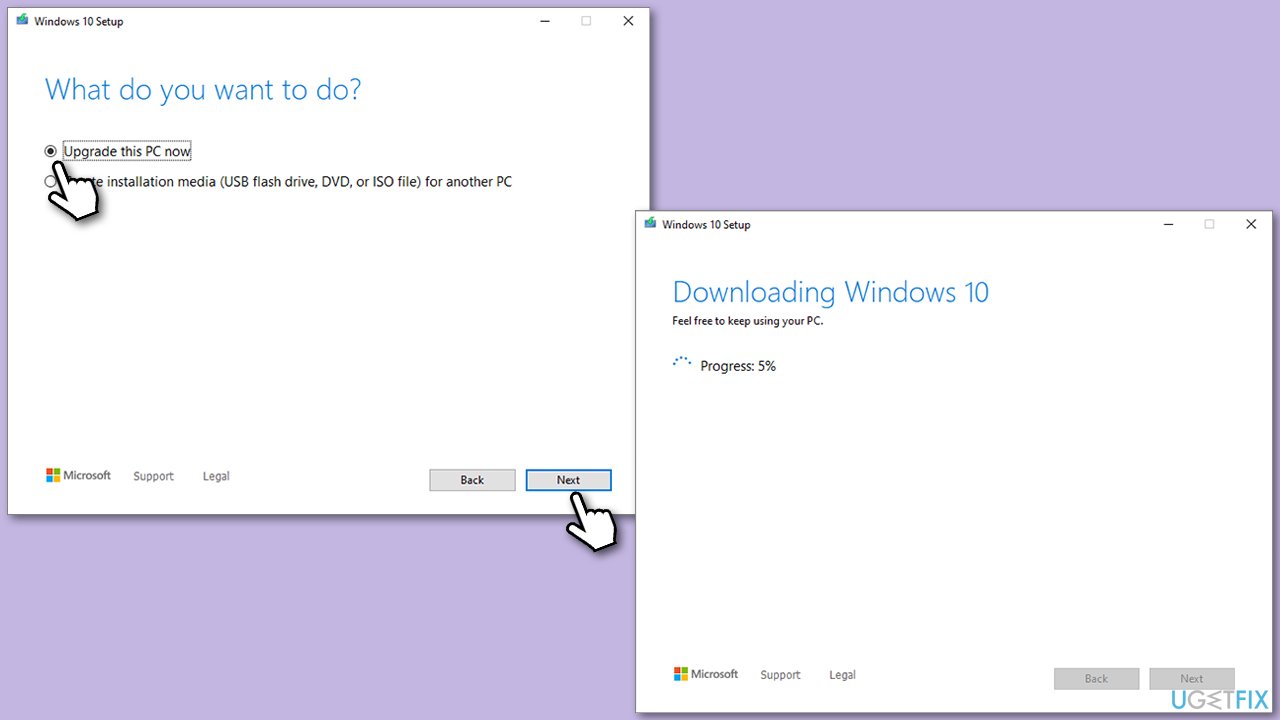
- Select Upgrade this PC now and select Next.
- Windows will now download all the necessary files – it might take a while.
- Agree to the terms once again and click Next.
- Before installing, ensure you are happy with your choices (otherwise, you can click the Change what to keep option).
- Click Install to begin the upgrade process.
Bottom line
To fix the 0x8024ce16 error, you can restart your PC, ensure accurate date and time settings, scan for malware, and temporarily disable non-Microsoft antivirus software. If these quick solutions do not resolve the issue, consider repairing system file corruption using specific commands in Command Prompt.
Frequently asked questions
The error code 0x8024ce16 typically indicates a problem with the Windows Update service or its components, preventing you from downloading or installing updates.
To fix the 0x8024ce16 error in Windows 10, you can run the Windows Update Troubleshooter and reset the Windows Update components using Command Prompt.
Yes, Windows 11 users can utilize the built-in Windows Update Troubleshooter, which can automatically detect and resolve issues related to the 0x8024ce16 error.




Report an issue
What's wrong with this guide? We review every report and update or remove content.
Report received — thank you. We'll review and fix it.
You need a free account to submit a report.
Be the first to comment