How to fix
“We couldn’t install Windows in the location you chose” 0x80300024 error
on Windows
Resolve the "We couldn’t install Windows in the location you chose" 0x80300024 error effortlessly. Get expert-tested solutions for Windows 10 and 11. Fi…

What causes How to fix “We couldn’t install Windows in the location you chose” 0x80300024 error?
- External drives connected to the device
- Errors or issues with the hard drive
- Incorrect boot order in BIOS settings
- Malfunctioning USB slot
- Physically damaged or broken hard drive
Repairs Windows system files, removes malware, and restores a clean OS state — without reinstalling.
I was trying to reinstall Windows and received the error "We couldn’t install Windows in the location you chose. Please check your media drive, Error 0x80300024." I don't know how to proceed next, so it would be nice if you could provide some tips.
Whether you are reinstalling Windows or installing it fresh on a new device, this process needs to go smoothly - and it usually does. Unfortunately, that is not always the case, as some users might receive errors, such as "We couldn’t install Windows in the location you chose," code 0x80300024. This error is an indication of issues related to the target disk, partition, or volume where Windows is intended to be installed.
Windows installation process typically requires a certain set of conditions to be met for successful completion, such as sufficient space on the chosen partition. If these conditions are not met, the installation might fail, and there could be numerous reasons for that.
For instance, if external drives are connected to your device, they can sometimes interfere with the installation process. The hard drive itself may have errors or issues that prevent Windows from being installed in the desired location.
Also, an incorrect boot order in the BIOS settings can lead to the system attempting to install Windows from the wrong source. In other cases, the USB slot on your computer might not be functioning correctly; in more severe cases, the hard drive where you are attempting to install Windows could be physically damaged or broken.
Each of these scenarios should be approached in a particular manner. To address these issues, we provide several solutions that could be able to fix the 0x80300024 error.
If you're looking for a more straightforward approach to resolving underlying Windows issues, the use of a PC repair tool like [d1] can be an effective method. This tool is designed to automatically diagnose and fix common Windows problems, potentially saving you time and effort in troubleshooting the error 0x80300024.
Fix 1. Disconnect external drives
External drives can interfere with the Windows installation process, as the setup might mistakenly try to install on these drives. Disconnecting them ensures the installation targets the primary internal drive.
- Shut down your computer.
- Disconnect any external hard drives or USB drives.
- Restart your computer and initiate the Windows installation process.
- Once Windows is successfully installed, you can reconnect the external drives.
Fix 2. Check the hard drive connection
A loose or improper connection of the hard drive can lead to recognition issues during the installation. Ensuring a secure connection can resolve this.
- Turn off your computer and unplug it from the power source.
- Open the computer's case following the manufacturer’s guidelines.
- Check the hard drive's data and power cables for secure connections.
- Reconnect any loose cables and close the case.
- Restart your computer and try reinstalling Windows.
Fix 3. Try another USB port
Sometimes, the issue might be with the USB port itself. Trying a different USB port for the installation media can resolve connectivity or compatibility issues.
- Turn off your computer.
- Remove the USB containing the Windows installation media from its current port.
- Plug the USB into a different USB port on your computer. If you were using a USB 3.0 port, try a USB 2.0 port, or vice versa.
- Power on your computer and attempt to boot from the USB drive to install Windows.
- If the installation proceeds without error, the original port may have a hardware issue or driver problem.
Fix 4. Change BIOS boot order
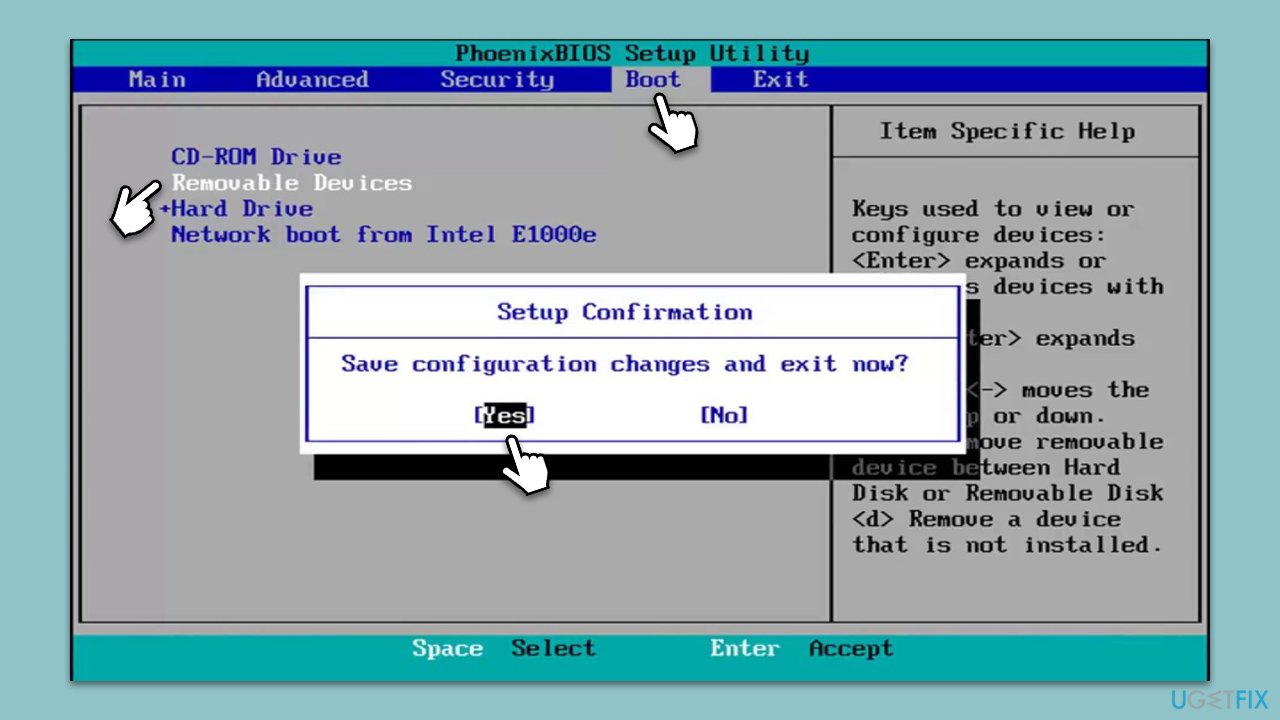
An incorrect BIOS boot order can cause the installer to select the wrong drive. Adjusting the boot order ensures the system boots from the correct device.
- Restart your computer and enter BIOS setup (commonly by pressing F2, F10, Del, or Esc during boot).
- Navigate to the Boot tab.
- Set the USB drive or DVD (whichever has the Windows installation media) as the first boot option.
- Save changes and exit BIOS.
- Attempt the Windows installation again.
Fix 5. Format the target partition
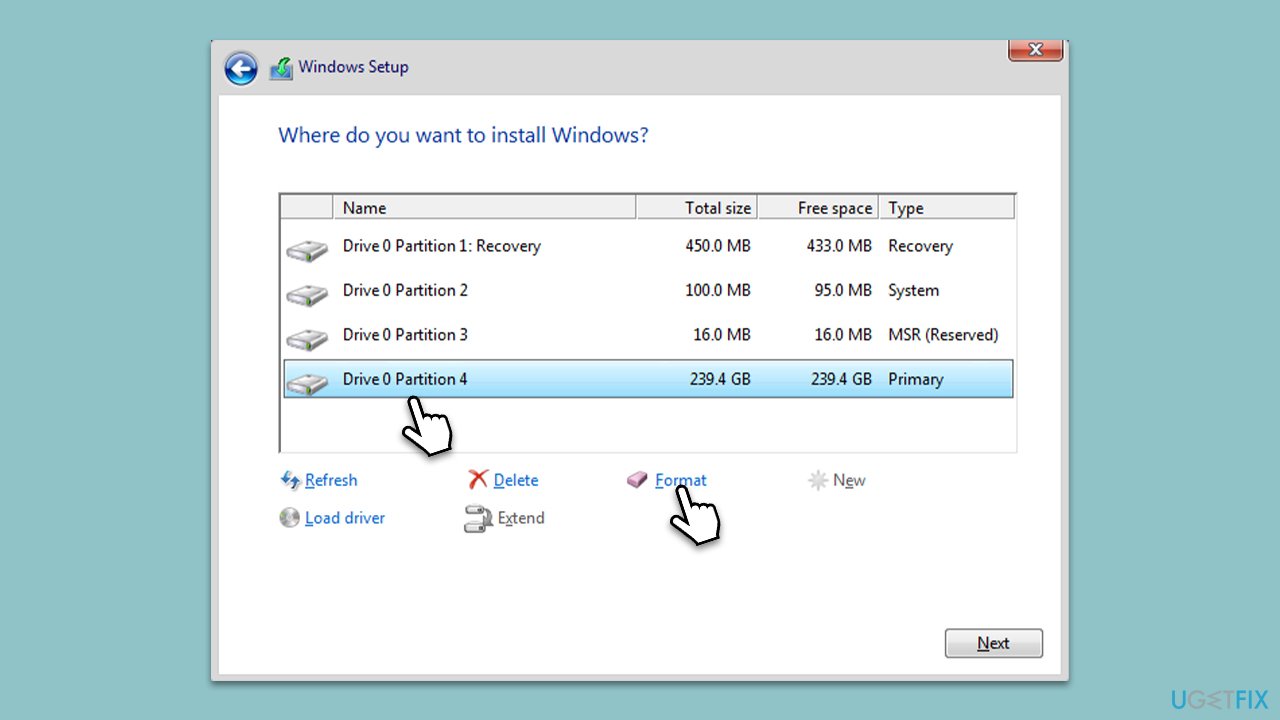
Formatting the target partition can resolve issues related to file system errors or corruption.
- Boot your computer using the Windows installation media.
- Proceed to the partition selection screen during installation.
- Select the partition where you want to install Windows.
- Click on Format (this will erase all data on the partition).
- Proceed with the Windows installation on the newly formatted partition.
Fix 6. Recreate primary partition and format it
Using the Command Prompt during the Windows installation process allows for detailed management of disk partitions. This method involves deleting the existing primary partition and creating a new one, which is then formatted for a fresh installation.
- Boot your computer using the Windows installation media.
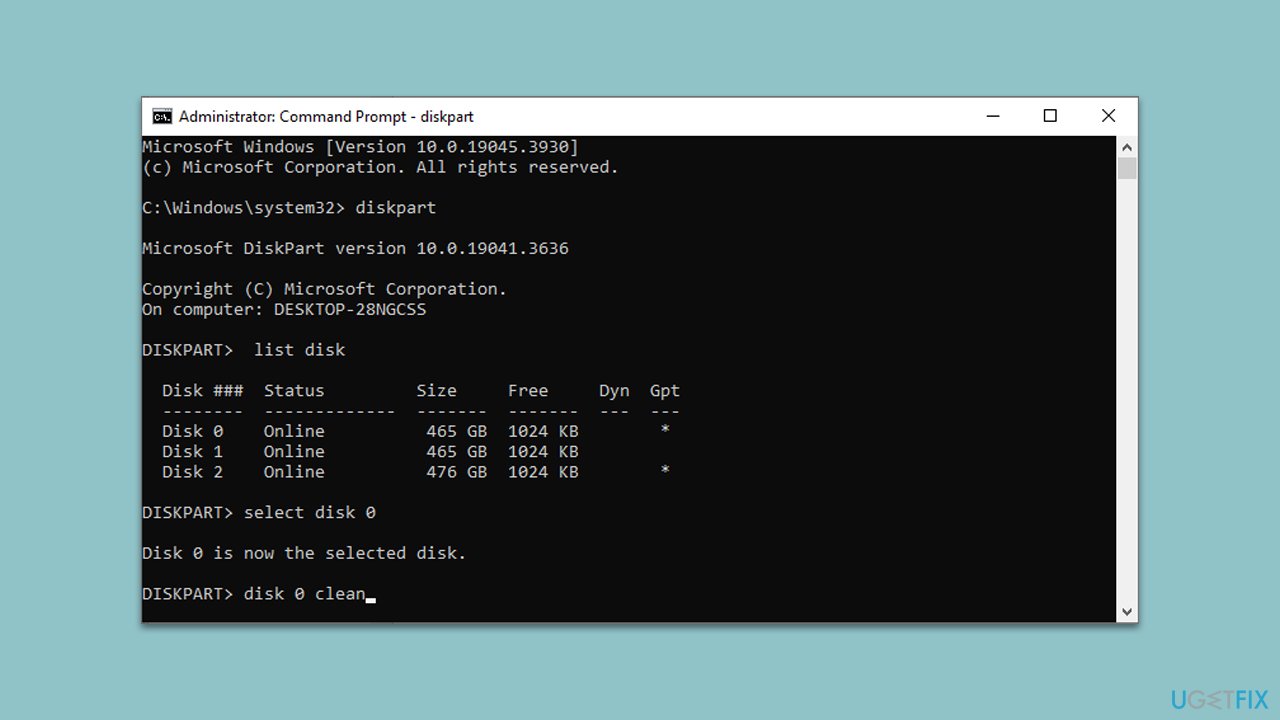
- When you reach the initial setup screen, open Command Prompt by pressing Shift + F10 on your keyboard.
- Enter diskpart to start the DiskPart utility.
- Input list disk to display all the disks available.
- Identify the disk where you want to install Windows, usually listed as Disk 0, and enter select disk followed by the disk number.
- Next, use the following commands, pressing Enter after each:
disk 0 clean
disk 0 create partition primary
disk 0 active
disk 0 format fs=ntfs quick
disk 0 assign
exit - Proceed with the Windows installation, choosing the newly created and formatted partition as the destination for the installation.
Fix 7. Check for hardware issues
Hardware issues, especially with the hard drive, can prevent Windows from installing. Running a diagnostic can identify if there's a hardware problem.
- Use a hard drive diagnostic tool from another computer to create a bootable USB.
- Boot your computer using this diagnostic tool.
- Run the tool to check for any hardware issues, especially with the hard drive.
- If issues are found, consider replacing or repairing the hard drive before attempting to install Windows again.
Bottom line
To fix the 0x80300024 error, you can try disconnecting external drives, checking the hard drive for errors, adjusting the boot order in the BIOS, and testing the USB slots. If these solutions do not resolve the issue, consider using a PC repair tool to diagnose and fix common Windows problems.
Frequently asked questions
The error code 0x80300024 indicates that there is a problem with the selected disk partition during the installation process, often due to incorrect formatting or drive configuration.
To fix the 0x80300024 error, ensure that the target drive is properly formatted in NTFS and that no other partitions are interfering with the installation.
You can use Windows Disk Management or third-party partitioning tools to delete, format, or create a new partition to resolve the 0x80300024 error during Windows 10 installation.




Report an issue
What's wrong with this guide? We review every report and update or remove content.
Report received — thank you. We'll review and fix it.
You need a free account to submit a report.
Be the first to comment