How to fix
“The specified module could not be found” error
on Windows
Resolve "The specified module could not be found" error on Windows 10 and 11 quickly and effectively. Expert-tested solutions for hassle-free troublesho…


What causes How to fix “The specified module could not be found” error on Windows?
- Virus attack
- Corrupted system files
- Missing or corrupted DLL files
- Damaged Windows registry entries
- Incorrect installation of programs
- Outdated Windows drivers
Repairs Windows system files, removes malware, and restores a clean OS state — without reinstalling.
Lately, I’ve been dealing with an error on startup that states "The specified module could not be found." What is it and what should do I do about it?
"The specified module could not be found" error usually shows on Windows startup and warm-up, but it may also pop up when working with various programs or trying to connect to the Internet. Just like the majority of Windows errors,[ref en-1], this one might be caused by a bunch of reasons, including a virus attack[ref en-2] as well as corrupted system files.
The reason for "The specified module could not be found" error to arise is very simple: RunDLL is a legitimate Windows component that is used to launch .dll files (it is very similar to an .exe file). Windows displays the error when a scheduled task or a Windows registry entry, which is set up to be run at startup, is deleted. The component might be related to a legitimate program, as well as malware. Many users face this problem when dealing with the browser hijacker Conduit infection.
Apart from malware infections, other triggers for "The specified module could not be found" include:
- missing or corrupted DLL files;
- damaged Windows registry[ref en-4] entries;
- incorrect installation of programs;
- outdated Windows drivers.
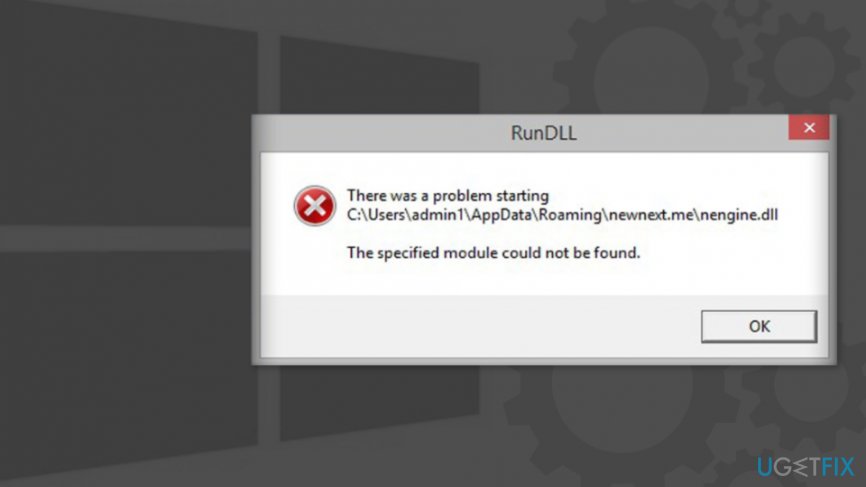
To fix "The specified module could not be found" error, you'll have to analyze the background of the error and isolate its culprit. Usually, the alert provides quite explicit information about the problem, so it's not difficult to understand which part of the system is malfunctioning:
RunDLL
There was a problem starting C:\\Program
The specified module could not be found.
Normally, the error provides a full path to the DLL file[ref en-3] or program that was unable to start. Therefore, write this name down and follow the instructions provided below to fix the "The specified module could not be found" error completely.
This video contains all the information required to solve this problem:
[youtube 3OhQGEylDyw]
Fix 1. Scan your computer for malware
There have been several instances of people experiencing the "The specified module could not be found" error due to Conduit or other malware infection. In some cases, malicious files might nit be deleted appropriately, and the remainants might cause various issues, including the The specified module could not be found" error. For that, you should employ reputable anti-malware software and perform a full system scan.
There are plenty of free security tools available, as well as the built-in Windows Defender. So choose appropriately and then scan your system by choosing "Full scan" option:
- Type in Security into Windows search and select Windows Security
- Pick Virus & Threat protection
- Go for Scan options
- Select Full scan and then choose Scan now
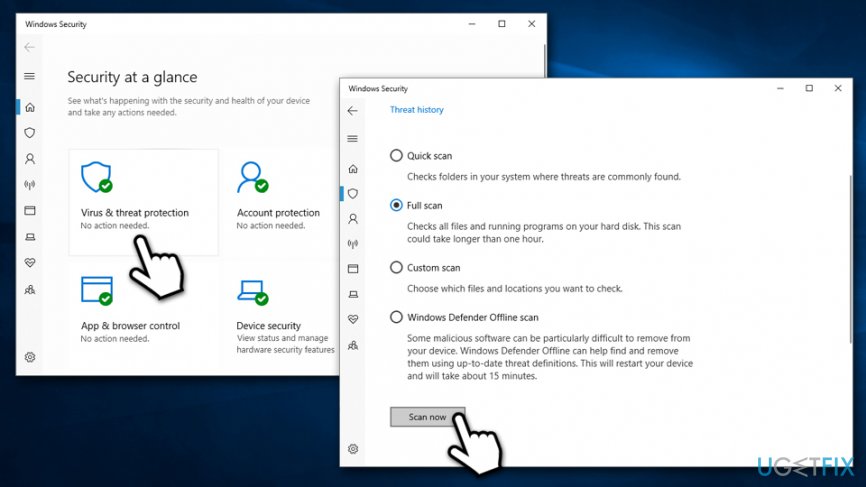
How to fix the specified module could not be found scan cumputer for malware
Fix 2. Delete BackgroundContainer task
- Press Win + R on your keyboard
- Type in taskschd.msc and press Enter
- In the Task Scheduler click on Task Scheduler Library once
- Right-click on the BackgroundContainer task and select Delete
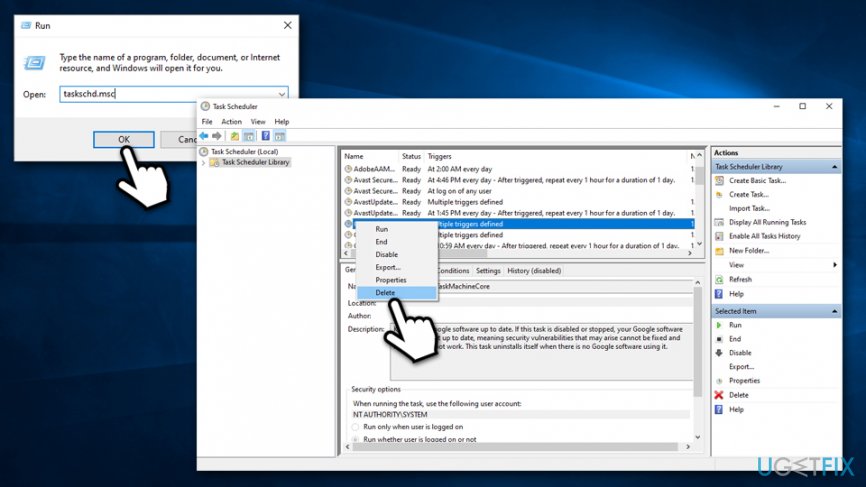
How to fix the specified module could not be found delete backgroundcontainer task
Fix 3. Stop the process of the related .dll
If the "The specified module could not be found" error pinpoints which .dll file is causing the problem you can find it and stop its process by following steps below. It should work as "The specified module could not be found" error fix for most users:
- Press Win + E to open File Explorer
- When in Folder Options, go to View tab.
- Under Hidden files and folders option, find and tick Show hidden files and folders.
- Then find and untick Hide protected operating system files (Recommended) option.
- Click OK.
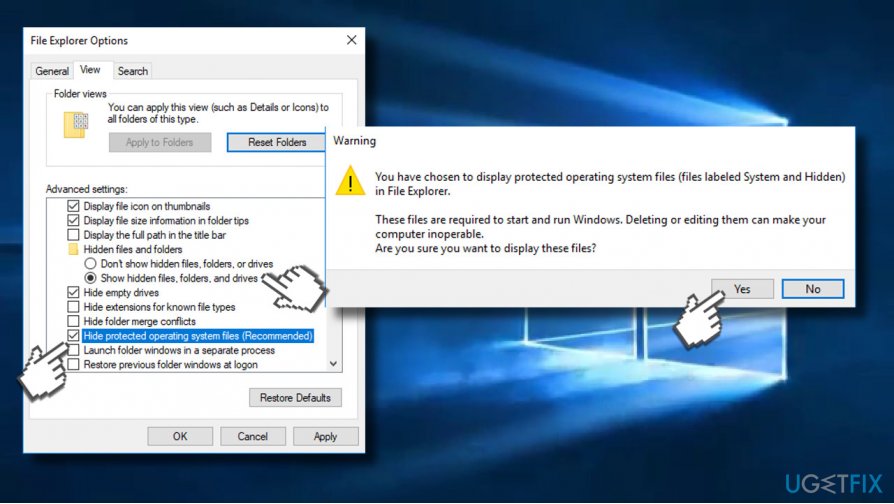
Show hidden files and folders - Right-click on Start and pick Settings
- Go to Update & Security and select Recovery
- Under Advanced startup section click Restart now
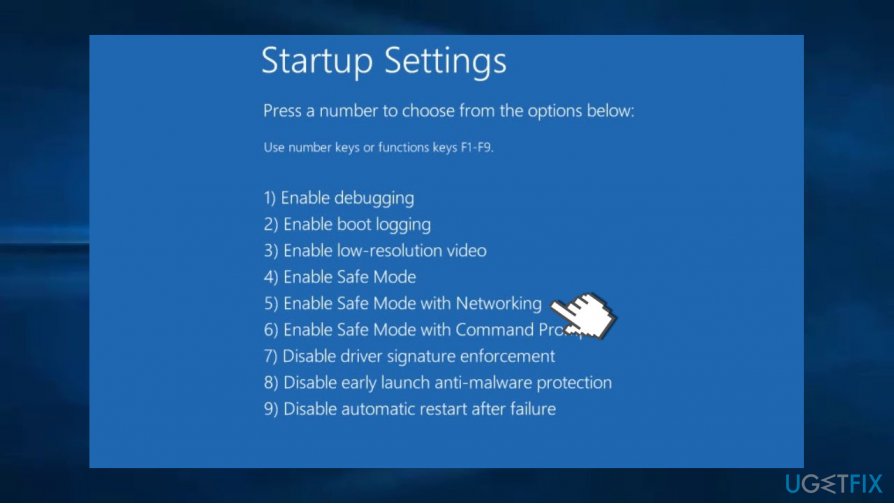
- In the Choose an option screen, select Troubleshoot > Advanced options > Startup Settings and Restart
- Once Windows restarts, press F5 or 5 to to enter Safe Mode with Networking
- Log into your PC as an administrator
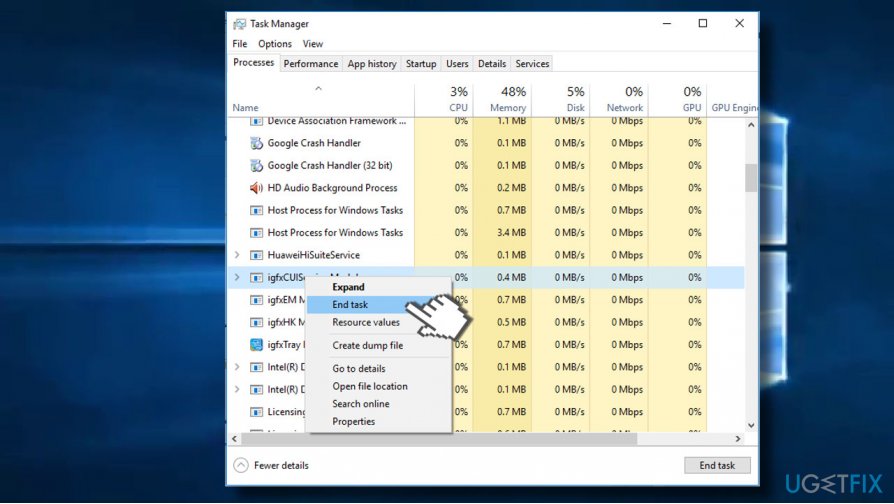
Safe mode with networking - Open Windows Task Manager by pressing Ctrl+Alt+Delete (Ctrl+Shift+Esc) keys together.
- Go to Process tab.
- In the list of processes, find entries that are associated with "The specified module could not be found" error and click End task.
Disable related processes
Fix 4. Use SFC feature via Command Prompt
Corrupted system files might be another reason for the issue to arise, and System File Checker and find and repair them. Thus, access Command Prompt to run the scan:
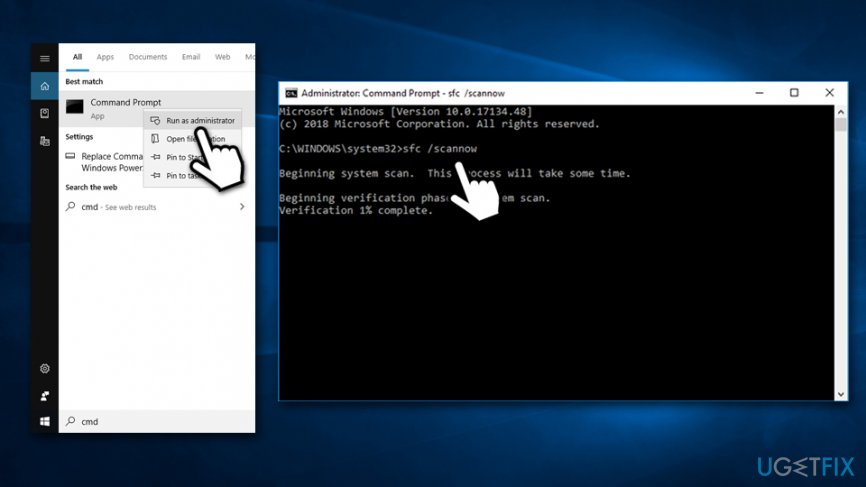
- Type in Command Prompt or cmd into Windows search box
- Right-click on Command Prompt and pick Run as administrator
- When the new window opens, type in the following command and hit Enter:
sfc /scannow
- Wait till Windows finishes the scan and reports results
How to fix the specified module could not be found run sfc scan
Fix 5. Delete Windows registry files
WARNING: tampering with Windows registry might result in permanent system damage, if modifications are not applied correctly. Therefore, please proceed with the next step with caution and at your own risk. If you want to avoid possible OS corruption, you can employ [d1] and fix all the invalid registry entries left by malware, consequently fixing the "The specified module could not be found" error.
Before you proceed, you should backup your Registry. Once it’s done, follow these steps:
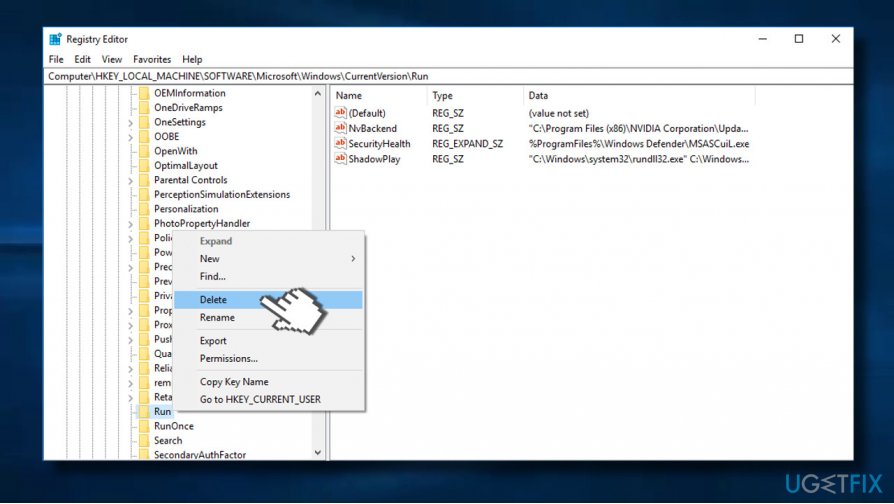
- Click Windows + R keys and type regedit in the Run box.
- Open Registry Editor.
- Find and delete these registry entries:
HKEY_LOCAL_MACHINE\\Software\\Microsoft\\Windows\\CurrentVersion\\Run
HKEY_CURRENT_USER\\Software\\Microsoft\\Windows\\CurrentVersion\\Run
HKEY_LOCAL_MACHINE\\Software\\Microsoft\\Windows\\CurrentVersion\\RunOnce
HKEY_CURRENT_USER\\Software\\Microsoft\\Windows\\CurrentVersion\\RunOnce - Restart the computer
If you have followed these instructions carefully and attentively, they should have helped to solve the problem that caused "The specified module could not be found" error message.
Bottom line
To fix the 'The specified module could not be found' error, you should scan your computer for malware, check for missing or corrupted DLL files, and ensure that your Windows drivers are up to date. If these solutions do not resolve the issue, further investigation into the specific program or task causing the error may be necessary.
Frequently asked questions
Try reinstalling the application to ensure all necessary files are present, or check for any missing DLL files that the application may require.
Run the System File Checker tool by executing 'sfc /scannow' in the Command Prompt as an administrator to repair any corrupted system files.
Yes, outdated or incompatible drivers can lead to this error; make sure to update your drivers through Device Manager or the manufacturer's website.




Report an issue
What's wrong with this guide? We review every report and update or remove content.
Report received — thank you. We'll review and fix it.
You need a free account to submit a report.
Be the first to comment