How to fix
“The network path was not found” with an Error Code 0x80070035
on Windows
Resolve the "The network path was not found" error 0x80070035 on Windows 10/11 quickly and effectively with expert-tested solutions. Fixed in minutes!


What causes How to fix “The network path was not found” with an Error Code 0x80070035 on Windows?
- Disabled network discovery
- Firewall restrictions
- Incorrect credentials
- Improperly configured sharing settings
- Outdated network drivers
Repairs Windows system files, removes malware, and restores a clean OS state — without reinstalling.
Hello. I've been getting “The network path was not found” Error Code 0x80070035 whenever I attempt to access network shared path in our company. This has been happening for
Network Attached Storage (NAS)[ref en-1] is a storage server which allows people to share the same network and transmit data across devices in a localized environment. The service is especially useful as it enables network and data sharing without physical connections. To connect devices both on Homegroup[ref en-2] and Workgroup, NAS uses specific protocols, such as SMB (Server Message Block) and NFS (Network File System).
Unfortunately, when connecting to a network resource on another PC running Microsoft Windows (any version), many people received a pop-up “The network path was not found” error code 0x80070035. It states the following:
Network Error
Windows cannot access \\
Check the spelling of the name. Otherwise, there might be a problem with your network. To try to identify and resolve network problems, click Diagnose.
Error code: 0x80070035
The network path was no found.
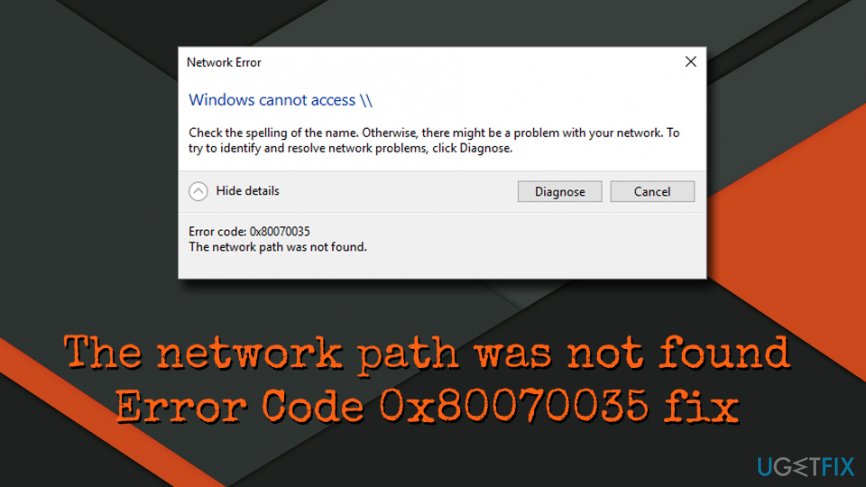
"The network path was not found" error has been prevalent for many years now, and it resurges frequently, usually after major Windows updates, such as Windows 11 version 24H2. It has been noticed that the NetBIOS[ref en-3] over TCP/IP service is not enabled on most of the affected machines.
The 0x80070035 error typically occurs when Windows cannot access a shared network resource. Common causes include disabled network discovery, firewall restrictions, incorrect credentials, or improperly configured sharing settings.
It can also result from outdated network drivers, DNS or IP issues, disabled SMB protocol, or insufficient permissions for the shared folder. In some cases, the error may arise from incorrect network paths or connectivity problems like poor Wi-Fi or disconnected cables.
We compiled a few solutions that might be able to help you fix error 0x80070035, although we recommend employing [d1] to ensure that no other issues, such as those related to system file corruptions, could hinder a proper network connection to NAS devices.
Fix 1. Ensure that your drive is shared
- Right-click on the drive located on the target computer that you attempt visiting, for example, C: drive, and select Properties.
- Click on Sharing tab and check if the network path says Not Shared.
- If it’s not Shared, click Advanced Sharing tab.
- Mark the Share this folder check box and make sure that the Share name is typed correctly.
- Click Apply and OK to save the changes.
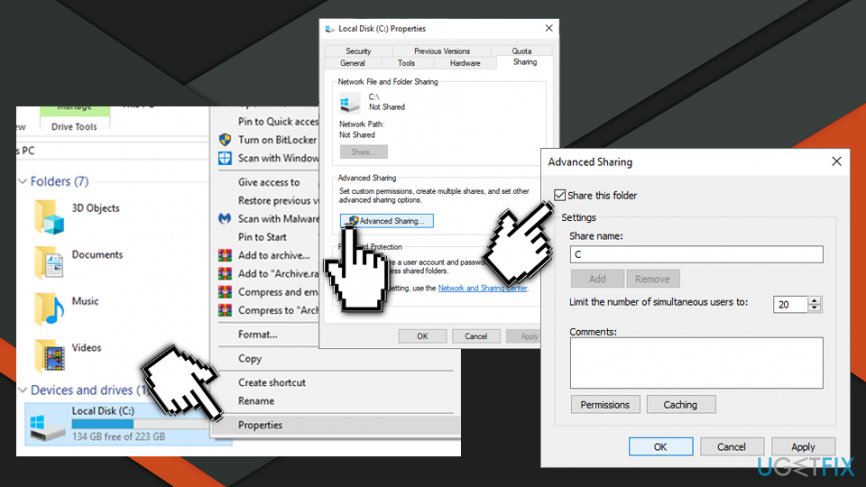
The network path was not found error code 0x80070035 fix share the drive - Finally, press Windows key + R, type the name of the shared folder, and press Enter.
Fix 2. Use the IP address of the targeted computer
- Type in cmd into the search box.
- Right-click on the search result and pick Run as administrator.
- Copy and paste the ipconfig /all command and press Enter.
- Scroll down and find the IPv4 Address category.
- Mark the needed address, for example, (192.168.43.157) on the list.
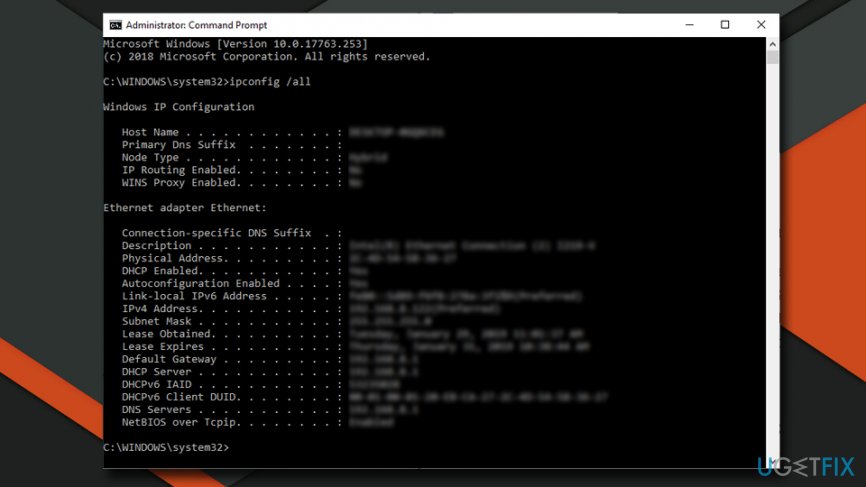
The network path was not found error code 0x80070035 fix use command prompt - Then press Windows key + R, type the \\IPv4 Address\The name of a drive, and press Enter. IMPORTANT: make sure to change “The name of a drive” with the drive you want to access.
Fix 3. Modify Network Security Settings
- Press Windows key, type secpol.msc, and press Enter.
- Navigate to the Local Policies > Security Options > Network security: LAN Manager Authentication level.
- Double-click on the Network security: LAN Manager Authentication level.
- When the drop-down menu shows up, select the Send LM & NTLM-use NTLMv2 session security if negotiated.
- Click Apply and OK to save the changes.
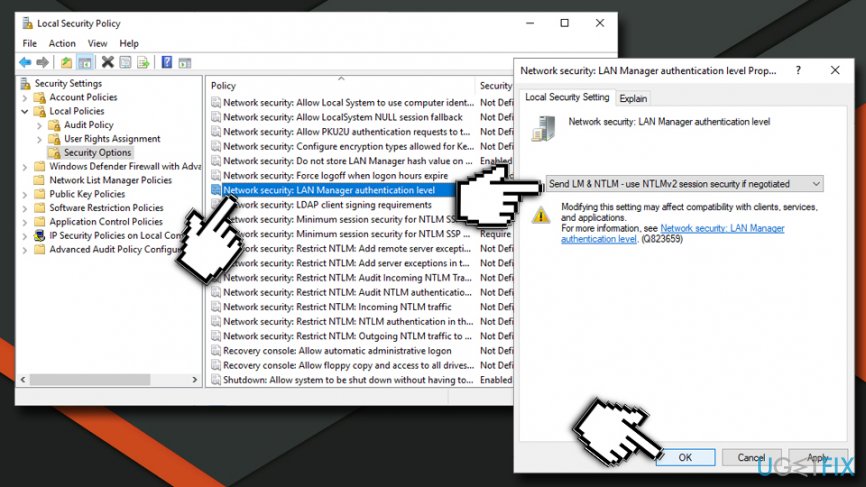
The network path was not found error code 0x80070035 fix modify network security settings
Fix 4. Enable NetBios
- Right-click on Start button and select Settings.
- Go to Network & Internet and click on Status on the left pane.
- Scroll down and click on Change adapter options.
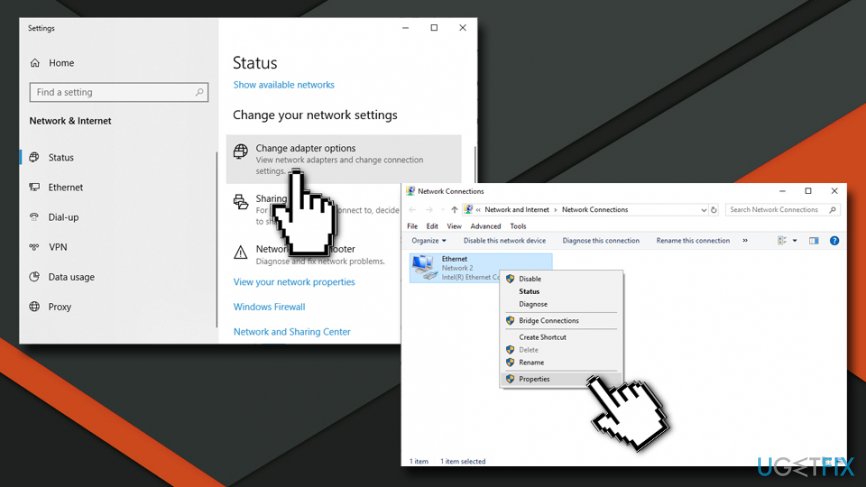
The network path was not found error code 0x80070035 fix go to network properties - Right click on your connection (WiFi or Ethernet) and pick Properties.
- Click on Internet Protocol Version 4 (TCP/IPv4) and choose Properties.
- Click Advanced.
- Go to WINS tab and pick Enable NetBIOS over TCP.
- Confirm with OK.
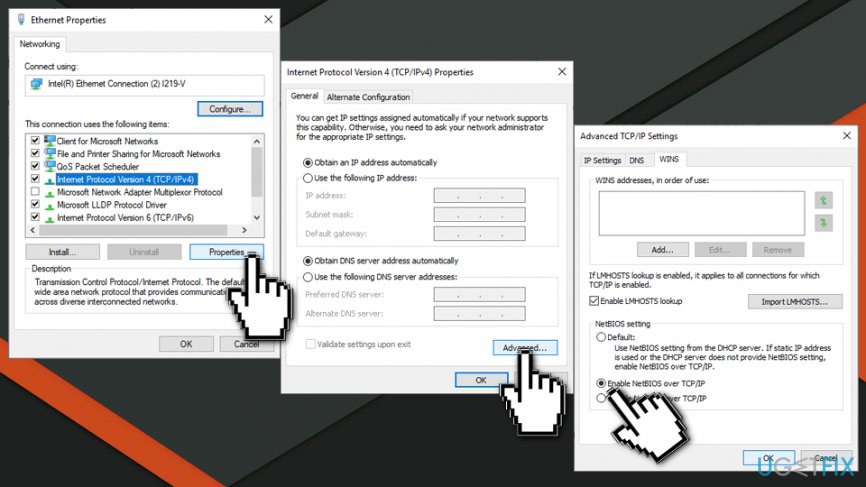
The network path was not found error code 0x80070035 fix enable netbios
Fix 5. Reset TCP/IP
If none of the steps above helped to fix “The network path was not found” (0x80070035) error on Windows, the last thing you can try yourself is to reset TCP/IP. For this purpose, please follow these steps:
- Right-click on the network connection icon placed on the taskbar and select Open Network and Sharing Center.
- Select Change adapter settings and right-click on the network adapter.
- Select Properties.
- If you are using Wi-Fi connection, click on your network adapter and select Install.
- Click on Protocol and select Add.
- Finally, click on the Reliable Multicast Protocol option and then click OK to install the protocol.
Fix 6. Enable SMB
- Type Control Panel in Windows search and select Programs > Programs and Features.
- Select Turn Windows features on or off.
- Scroll down and locate SMB 1.0/CIFS file sharing support - make sure it's checked.
- Click OK.

Fix 7. Use PowerShell commands
- Type PowerShell in Windows search.
- Right-click on PowerShell result and select Run as administrator.
- When UAC shows up, click Yes.
- Type in the following commands, pressing Enter after each:
Set-SmbClientConfiguration -EnableInsecureGuestLogons $true -Force
Set-SmbClientConfiguration -RequireSecuritySignature $false -Force
Set-SmbServerConfiguration -RequireSecuritySignature $false -Force - Close down PowerShell and reboot your computer.

Fix 8. Modify the Registry
- Open Command Prompt as administrator.
- When Command Prompt opens, type in the following commands and press Enter after each to allow them execute:
reg add HKLM\SYSTEM\CurrentControlSet\Services\LanmanWorkstation\Parameters /f /v RequireSecuritySignature /t REG_DWORD /d 0
reg add HKLM\SOFTWARE\Policies\Microsoft\Windows\LanmanWorkstation /f /v AllowInsecureGuestAuth /t REG_DWORD /d 1
reg add HKLM\SOFTWARE\WOW6432Node\Policies\Microsoft\Windows\LanmanWorkstation /f /v AllowInsecureGuestAuth /t REG_DWORD /d 1 - Close down Command Prompt and restart your system.

Fix 9. Uninstall the most recent Windows update
- Type Control Panel in Windows search and press Enter.
- Select Programs > Uninstall a program.
- Click on View installed updates on the left side of the window.
- Sort all the updates by date.
- Right-click on the most recent update and select Uninstall.
- Proceed with on-screen instructions.
- Then, type Updates in Windows search and press Enter.
- Click Pause the updates for 7 days (in Windows 11, you can pick a different time period).

Bottom line
To fix the "The network path was not found" error code 0x80070035, ensure that your drive is shared, check network discovery settings, and verify firewall configurations. If these solutions do not resolve the issue, consider checking for system file corruptions or consulting additional resources.
Frequently asked questions
This error often occurs due to issues with network connectivity, incorrect sharing settings, or firewall restrictions on Windows 10.
To troubleshoot this error on Windows 11, check your network settings, ensure that the computer you are trying to access is powered on, and verify that both devices are connected to the same network.
Disabling the firewall temporarily can help identify if it's causing the issue; however, it's recommended to adjust the firewall settings instead of disabling it completely on Windows.




Report an issue
What's wrong with this guide? We review every report and update or remove content.
Report received — thank you. We'll review and fix it.
You need a free account to submit a report.
Be the first to comment