How to fix
Microsoft Store error 0x80048504
on Windows
Resolve Microsoft Store error 0x80048504 on Windows 10/11 effortlessly with our expert-tested solutions. Get back to downloading apps in minutes!

What causes How to fix Microsoft Store error 0x80048504?
- Malfunctioning store caches
- Unstable internet connections
- Corrupted system files
- Recent Windows update
- Installation of a new application
Repairs Windows system files, removes malware, and restores a clean OS state — without reinstalling.
Hello. For the past few months, I've encountered difficulty using the Microsoft Store. Each time I attempt to either click "get" or proceed to checkout after adding an item to my basket, I consistently encounter error 0x80048504, despite being able to access the store.
Experiencing difficulties updating or installing new apps through the Microsoft Store can be quite frustrating. This not only results in missing out on new features for apps and games but may also expose your devices to potential cyberattacks due to software vulnerabilities. If you've been encountering the 0x80048504 error while attempting to download or update apps, you've landed on the right guide, as we'll assist you in resolving this issue.
Many users who encountered the error said that the Store itself is operational and they can use it. However, the error 0x80048504 shows as soon as they attempt to get new (free) apps or purchase them. In other cases, it might also occur when updating already installed Windows apps.
The appearance of this issue can vary under different circumstances. Some individuals reported that the problem seemingly arose without any specific trigger, while others mentioned encountering the error following a specific event, such as a Windows update or the installation of a new application on their system.
Several factors could contribute to the appearance of the 0x80048504 error. Commonly, problems such as malfunctioning store caches, unstable internet connections, or corrupted system files are the primary culprits preventing users from downloading or updating Windows apps. Fortunately, these components can be reset, and additional troubleshooting methods can be implemented.
If you would like to fix the 0x80048504 error, follow the instructions below. For a more hands-off approach, we recommend trying a powerful PC repair tool [d1], which can clean caches and repair damaged system files automatically.
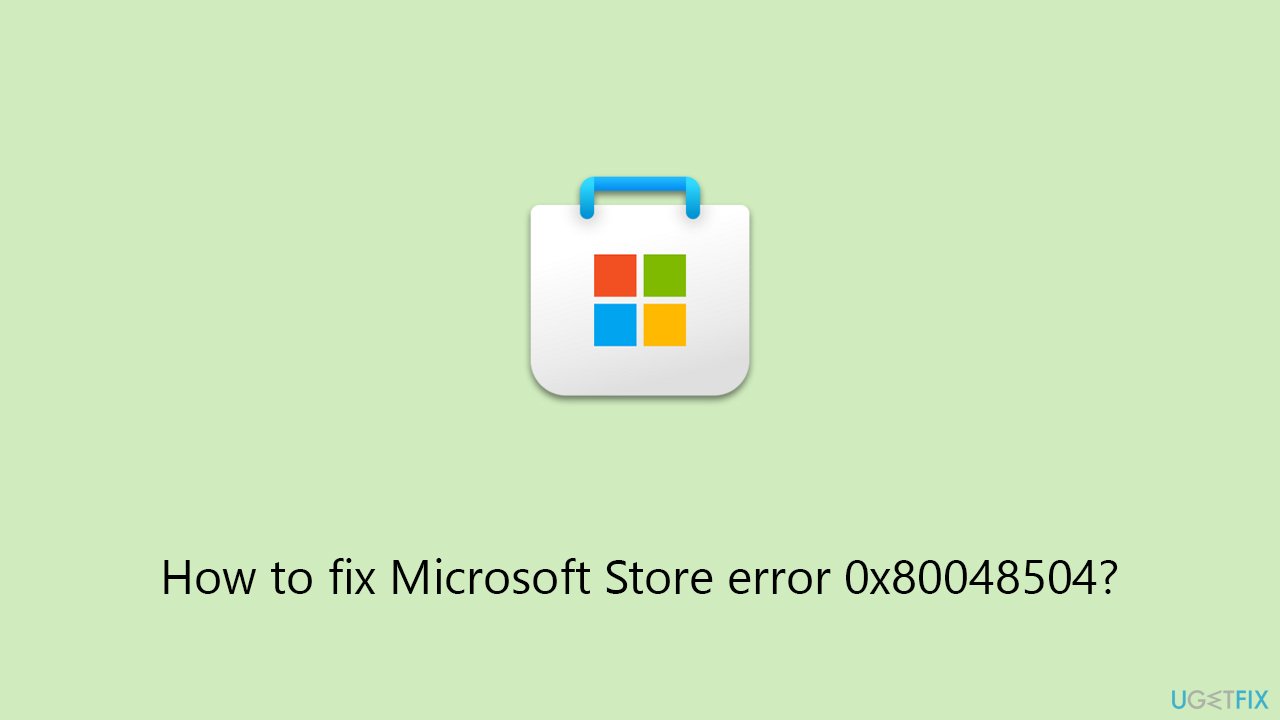
Fix 1. Run Windows Store apps troubleshooter
This tool is particularly useful for addressing error 0x80048504, as it can resolve issues without the need for extensive technical knowledge.
- Type Troubleshoot in Windows search and hit Enter.
- Click Additional troubleshooters/Other troubleshooters.
- Scroll down to find Windows store apps and select it.
- Click Run the troubleshooter/Run.
- Wait till the process is finished and apply the fixes.
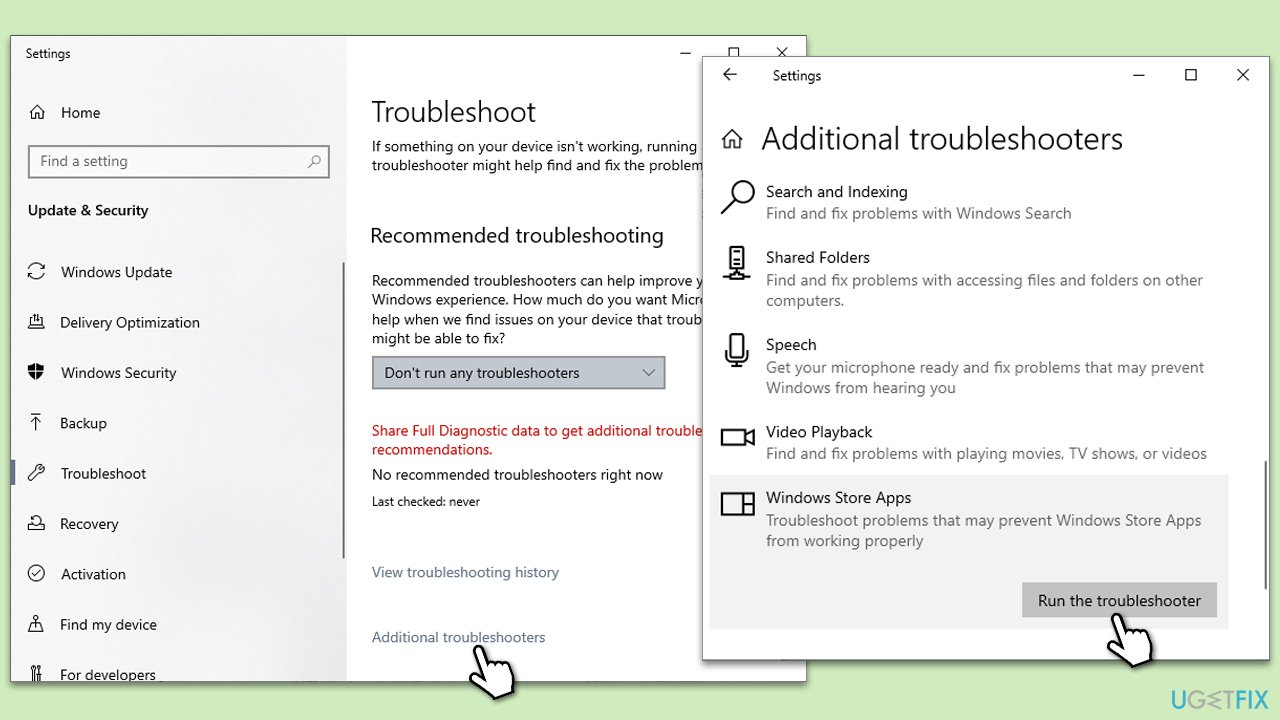
Fix 2. Reset Windows Store cache
This process removes temporary files and other cache data that might be outdated or corrupted, which can lead to errors. Resetting the cache does not affect your installed apps or their data.
- In Windows search, type wsreset.exe and press Enter.
- Wait till a black window shows up – do not close it.
- Once it's gone, Microsoft Store should restart
- Try using the Store again.
Fix 3. Install all Windows updates
Keeping Windows updated can prevent many common issues with the system and its applications.
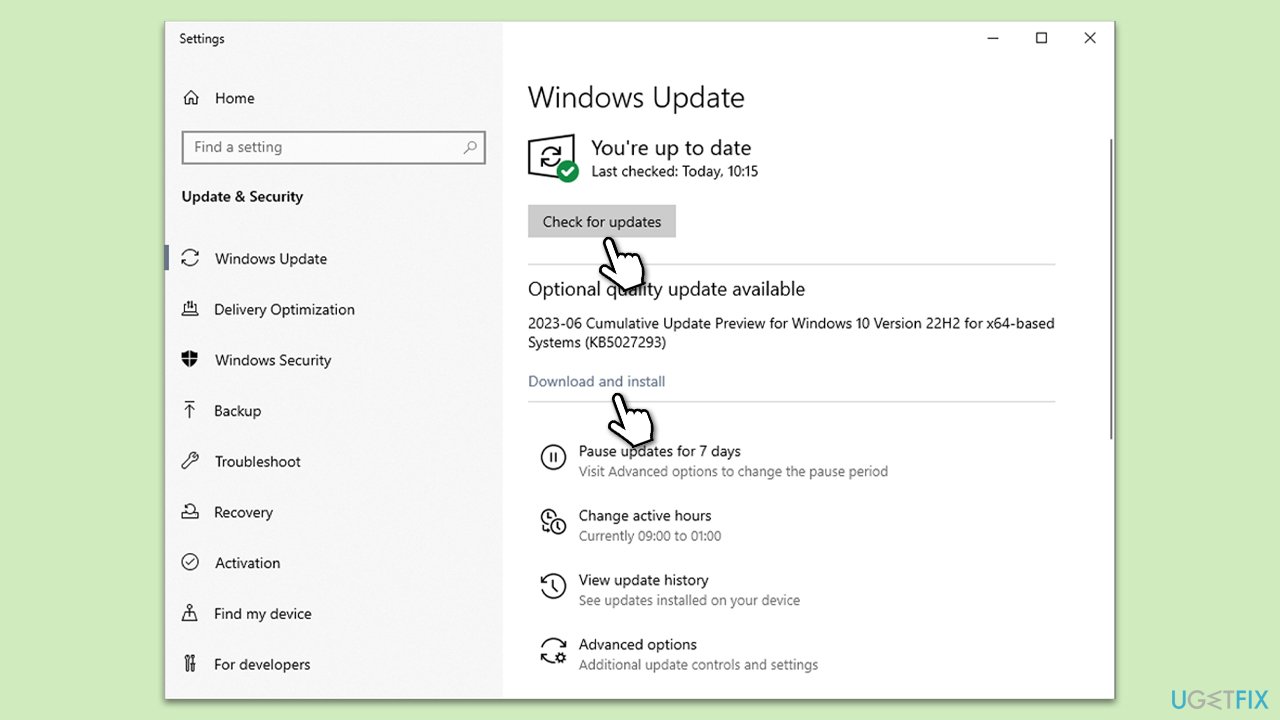
- Type Updates in Windows search and press Enter.
- In this window, click Check for updates.
- If optional updates are available, install them too.
- When everything is installed, restart your system.
Fix 4. Run SFC and DISM
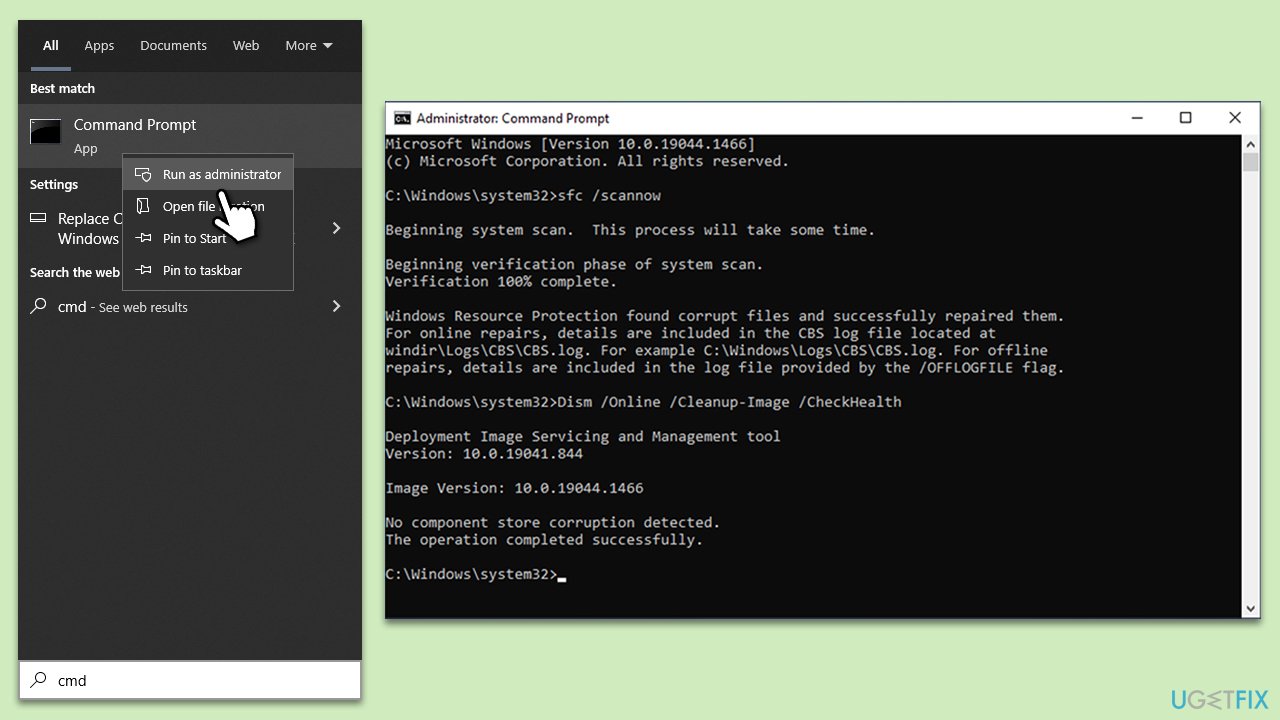
Corrupted system files can cause various issues, including errors with the Microsoft Store. Running these tools can help fix these corruptions and improve system stability.
- Type in cmd in Windows search.
- Right-click the Command Prompt result and pick Run as administrator.
- User Account Control will ask whether you want to allow changes - click Yes.
- Type this command and press Enter:
sfc /scannow - Wait for the scan to finish.
- Then, use the following commands, pressing Enter after each:
Dism /Online /Cleanup-Image /CheckHealth
Dism /Online /Cleanup-Image /ScanHealth
Dism /Online /Cleanup-Image /RestoreHealth - Restart your computer.
Fix 5. (Re)Start Microsoft Store Install Service
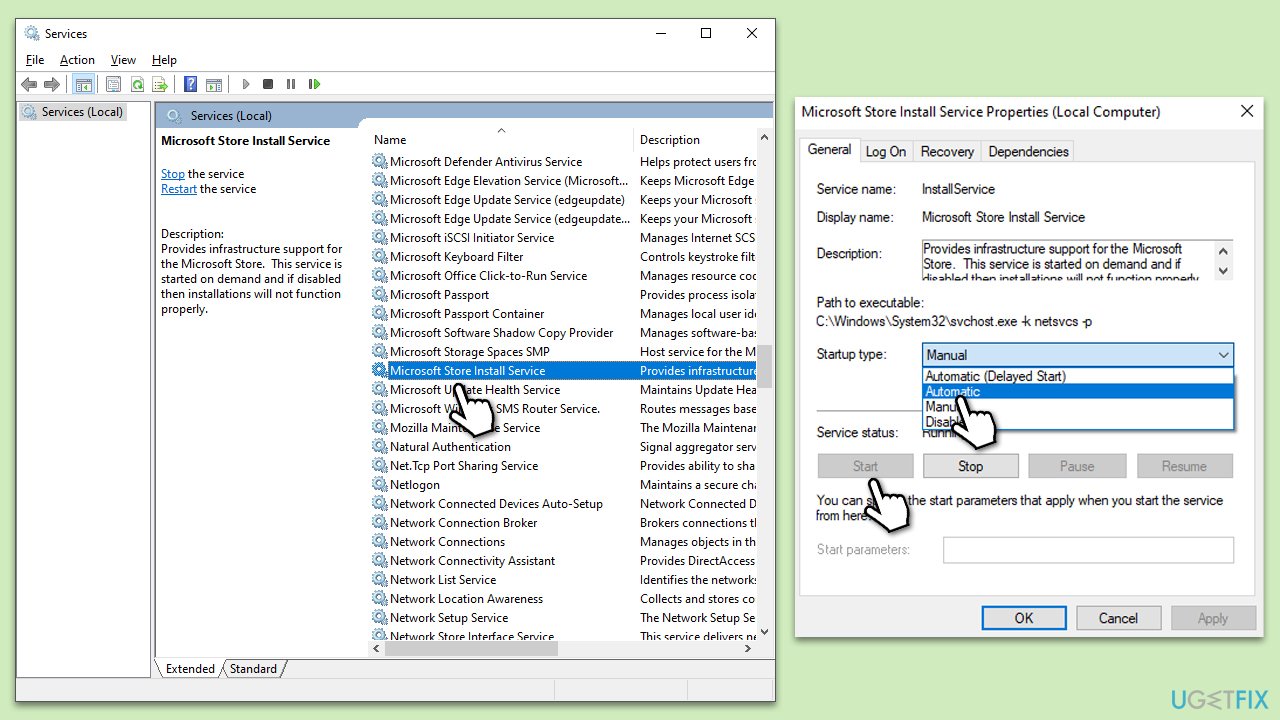
The Microsoft Store Install Service is crucial for the installation and updating of Store apps. If this service is not running or is experiencing issues, it could lead to errors. Restarting or starting this service can resolve these issues.
- Type Services in Windows search and press Enter.
- Locate Microsoft Store Install Service.
- If it is already running, right-click and select Restart.
- if the service is not running, double-click it, select Automatic under the Startup type from the drop-down menu.
- Click Start, Apply, and OK.
Fix 6. Temporarily disable third-party security software
Third-party security software can sometimes interfere with Microsoft Store operations. Temporarily disabling this software can help determine if it is the cause of the 0x80048504 error.
- Locate your third-party antivirus or security software icon on the taskbar.
- Right-click on the icon and look for an option to disable protection.
- Try using the Microsoft Store again.
- Remember to re-enable your security software after testing.
Fix 7. Repair or reset the Microsoft Store
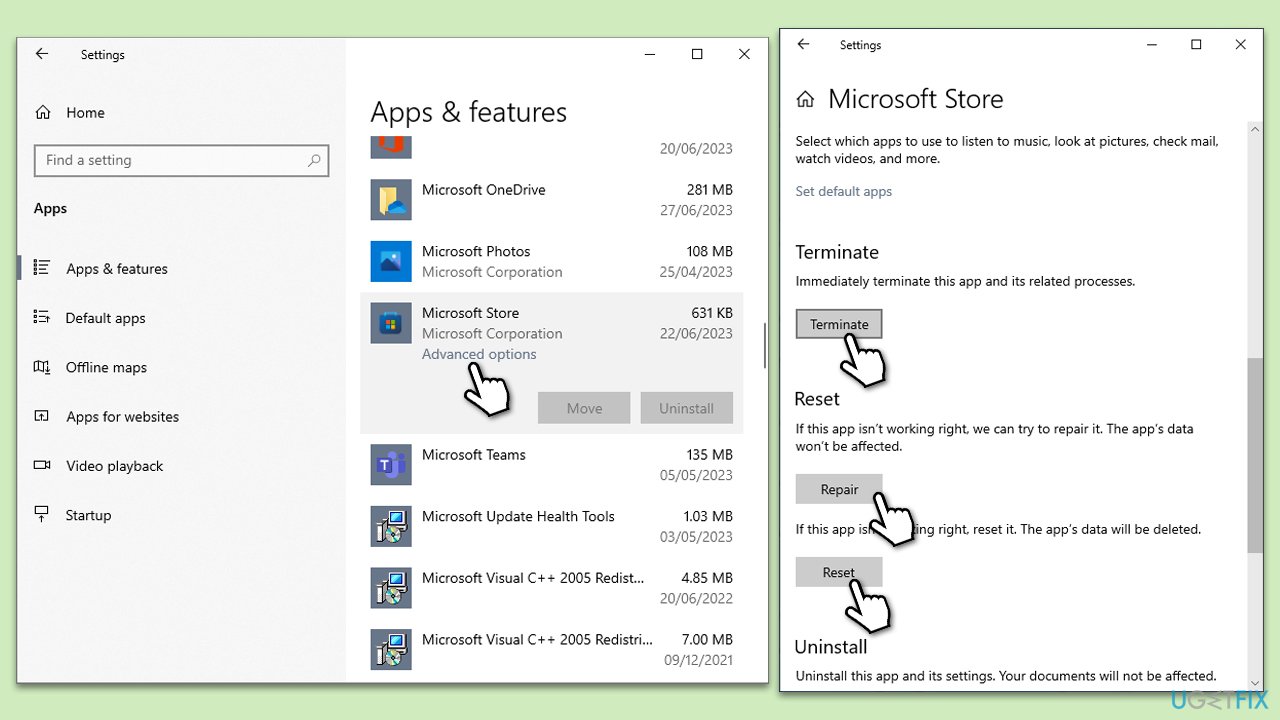
Repairing or resetting the Microsoft Store can resolve issues by restoring the app to its default state. This process fixes the app without affecting your installed apps or their data.
- Right-click on Start and select Apps & Features.
- Scroll down to find Microsoft Store and click Advanced options.
- Scroll down again and click Terminate and Repair.
- If that does not work, try using Reset.
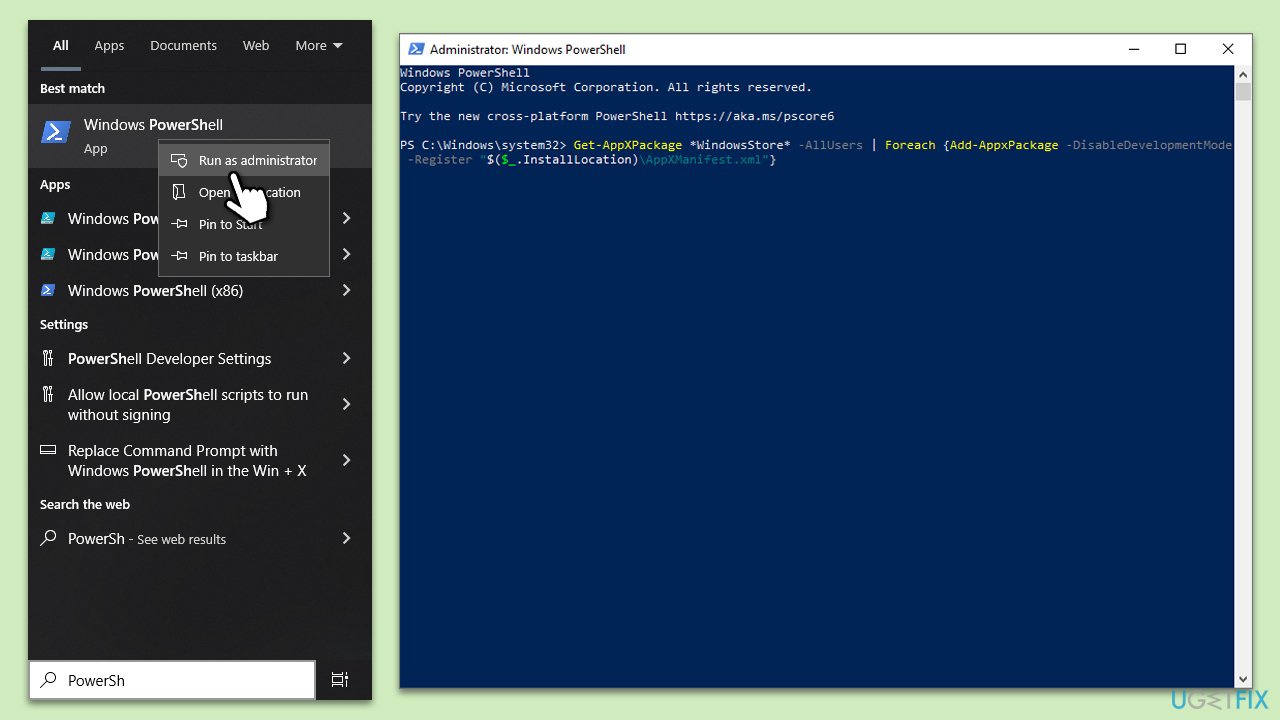
Fix 8. Reinstall Microsoft Store via PowerShell
Reinstalling the Microsoft Store via PowerShell is a more advanced solution that completely reinstalls the application. This can be effective if other solutions fail, but it should be done cautiously.
- Type PowerShell in Windows search.
- Right-click on the result and select Run as administrator.
- When UAC shows up, click Yes.
- Use the following command and press Enter:
Get-AppXPackage *WindowsStore* -AllUsers | Foreach {Add-AppxPackage -DisableDevelopmentMode -Register "$($_.InstallLocation)\AppXManifest.xml"} - Restart your system.
Bottom line
To fix the 0x80048504 error, you can run the Windows Store apps troubleshooter, reset store caches, and check your internet connection. If these solutions do not resolve the issue, consider using a powerful PC repair tool to clean caches and repair damaged system files.
Frequently asked questions
This error typically occurs due to issues with the Microsoft Store cache or corrupted system files. Ensuring your Windows 10 is updated and resetting the Store can often resolve the problem.
You can reset the Microsoft Store by navigating to Settings > Apps > Apps & features, selecting Microsoft Store, and then clicking on 'Advanced options' to find the 'Reset' button.
Yes, you can run the 'wsreset.exe' command in the Run dialog to clear the Microsoft Store cache, which may help fix error 0x80048504.




Report an issue
What's wrong with this guide? We review every report and update or remove content.
Report received — thank you. We'll review and fix it.
You need a free account to submit a report.
Be the first to comment