How to fix
“Photos can’t open this file because the format is currently unsupported” error
on Windows
Resolve the "Photos can't open this file" error on Windows 10 and 11 effortlessly with proven solutions. Expert-tested methods for quick fixes!

What causes How to fix “Photos can’t open this file because the format is currently unsupported” error in Windows?
- File format not recognized or supported
- File is corrupted
- Photos app malfunction
- Need for an update to add compatibility
- Using a newer or less common file format
Repairs Windows system files, removes malware, and restores a clean OS state — without reinstalling.
I keep getting "Photos can't open this file because the format is currently unsupported" whenever I attempt to open some photos using the Photos app in Windows. First, it was just some of them and now it's the majority that result in an error. These photos used to work fine and I know that I could open them before. Any tips?
The Photos program in Windows is an excellent example of convenience and efficiency, as it is smoothly incorporated into the OS. As a built-in program, it provides users with simple capabilities for viewing and organizing their photographs.
This level of integration means that it is commonly used for photo viewing and simple editing operations. However, like all software, it is susceptible to problems. One typical issue reported by many is the error message: "Photos can't open this file because the format is currently unsupported."
This issue usually occurs when the Photos app encounters a file format that it does not recognize or support. Given the variety of image formats accessible, some may fall outside the app's capabilities. This might happen for a variety of reasons, including attempting to open a file in a newer or less common format, or when the file is corrupted.
In certain circumstances, the problem may be caused by the Photos app itself, such as a malfunction or the requirement for an update that adds compatibility with more file types.
To address this issue, you need to make sure that your Photos app and Windows operating system are up to date, as updates frequently bring additions and patches that can remedy compatibility difficulties. Repairing damaged system files can also result in the "Photos can't open this file because the format is currently unsupported" error fix.
For individuals looking for a more thorough remedy, the [d1] PC repair program can be useful, as it provides automatic repairs for a variety of underlying Windows issues.
Fix 1. Run Windows Store apps troubleshooter
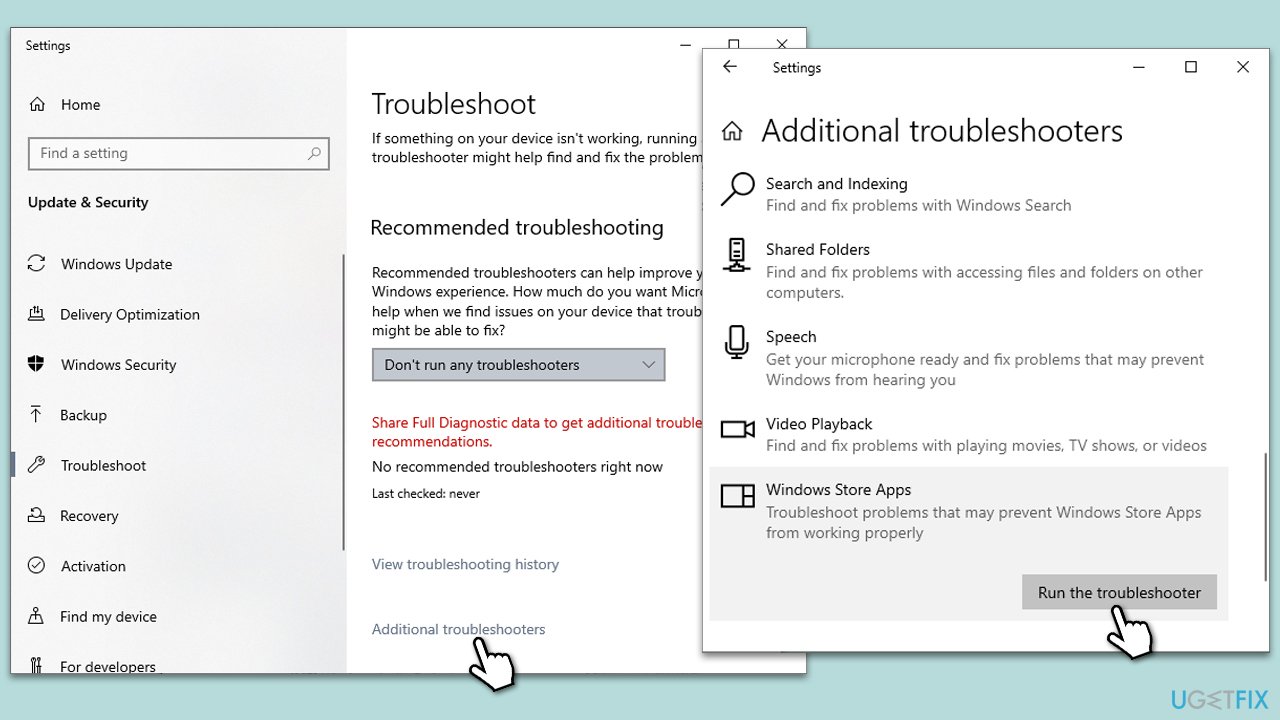
A troubleshooter works by scanning the app for any problems and attempting automatic repairs. This solution is effective for resolving a range of common issues that might prevent the app from functioning properly.
- Type Troubleshoot in Windows search and hit Enter.
- Click Additional troubleshooters/Other troubleshooters.
- Scroll down to find the Windows Store Apps troubleshooter.
- Select it and click Run the troubleshooter/Run.
- Wait till the scan finishes and apply the suggested fixes, then reboot your device.
Fix 2. Run SFC and DISM scans
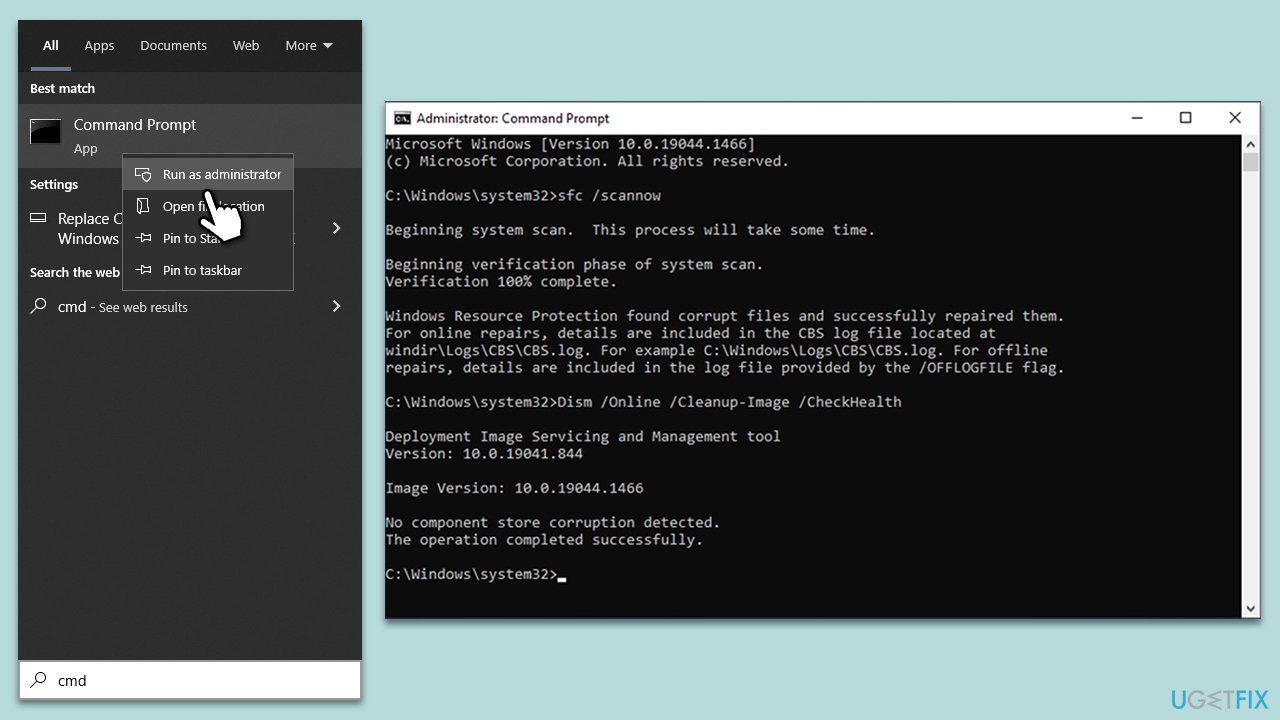
Running these scans can help fix underlying issues with the Windows system that might be causing the "Photos can't open this file because the format is currently unsupported" error.
- Type cmd in Windows search.
- Right-click on Command Prompt and pick Run as administrator.
- When UAC asks you whether you want to make changes, agree by pressing Yes.
- Next, copy and paste the following commands, pressing Enter each time:
sfc /scannow
DISM /Online /Cleanup-Image /CheckHealth
DISM /Online /Cleanup-Image /ScanHealth
DISM /Online /Cleanup-Image /RestoreHealth
(Note: if you get an error executing the last command, add /Source:C:\RepairSource\Windows /LimitAccess to it and try again.) - Restart your system.
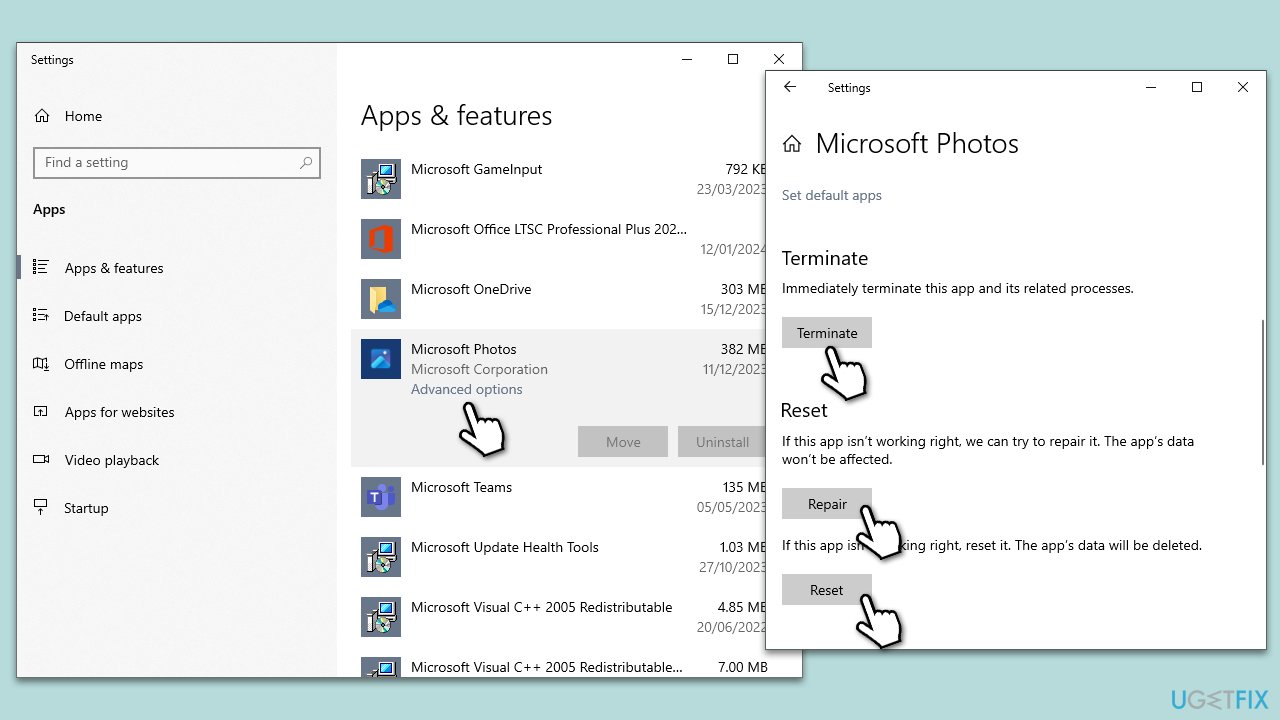
Fix 3. Repair or reset the Photos app
Repairing the app keeps your data intact while resetting it may remove the app's data.
- Right-click on Start and pick Apps and Features.
- Scroll down to Microsoft Photos and click on it.
- Click Advanced options.
- To repair, click on the Repair button.
- If the issue persists, return to this menu and click on the Reset button.
- Restart your device.
Fix 4. Install Windows updates
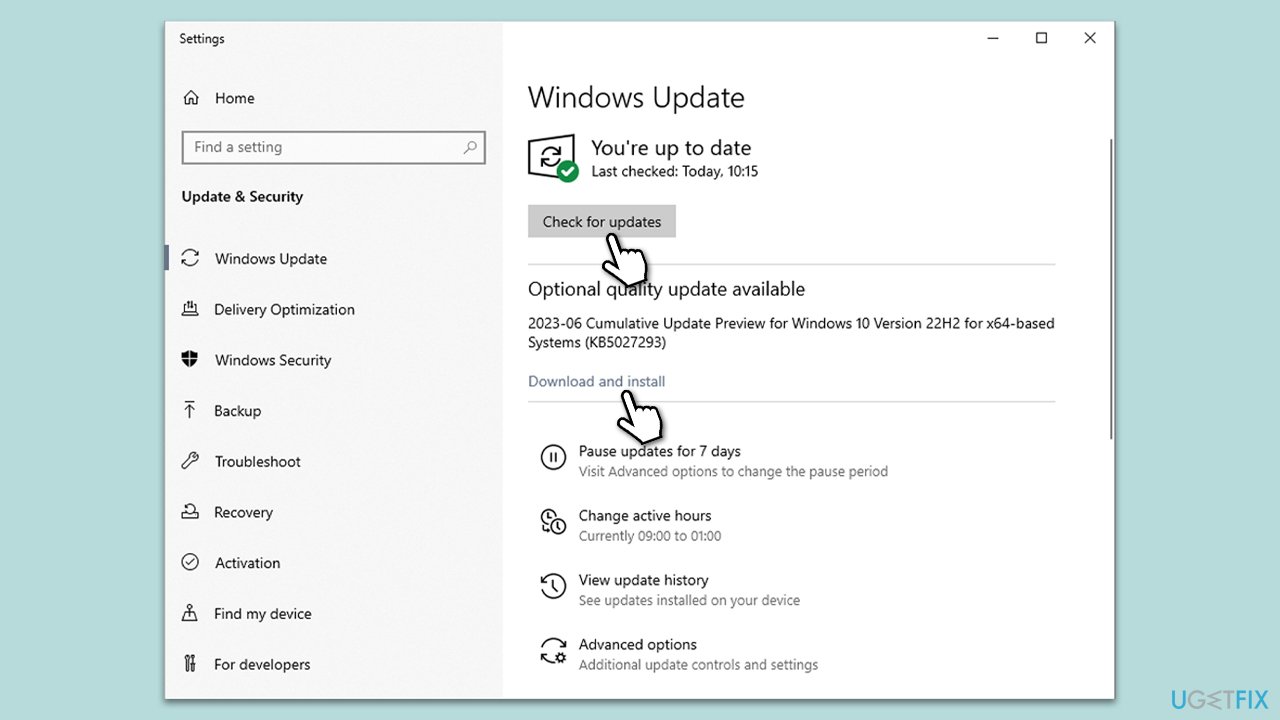
To update the Photos app and ensure that all Windows bugs are resolved, initiate the Windows update process.
- Type Updates in Windows search and hit Enter.
- Click Check for updates and wait.
- If there are any optional updates, install them too.
- Wait till the process is finished and restart your computer.
Fix 5. Reinstall the Photos app via PowerShell
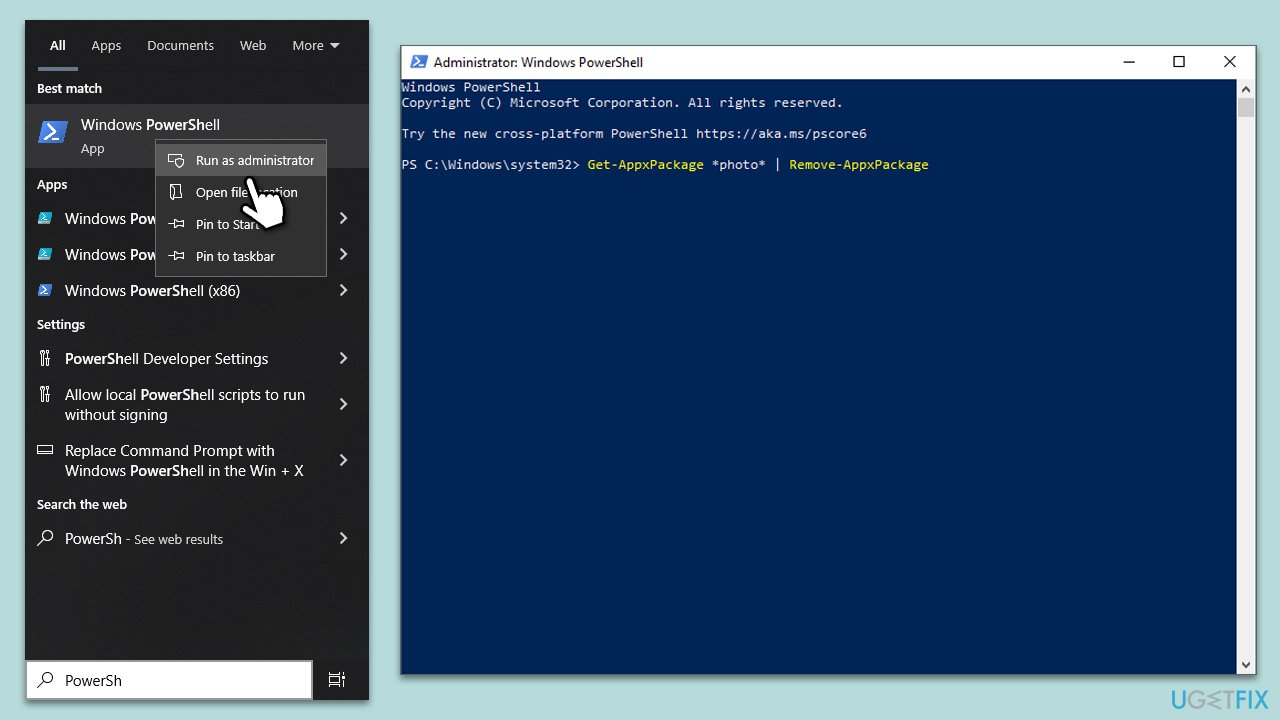
Reinstalling the Photos app can help resolve any issues caused by corrupted app files or incomplete installations.
- Type PowerShell in the Windows search bar.
- Right-click on the result and select Run as administrator.
- When User Account Control shows up, click Yes.
- In the window, copy and paste the following command:
Get-AppxPackage *photo* | Remove-AppxPackage - Press Enter.
- Download and install the Photos app from the Microsoft Store.
Fix 6. Try System Restore
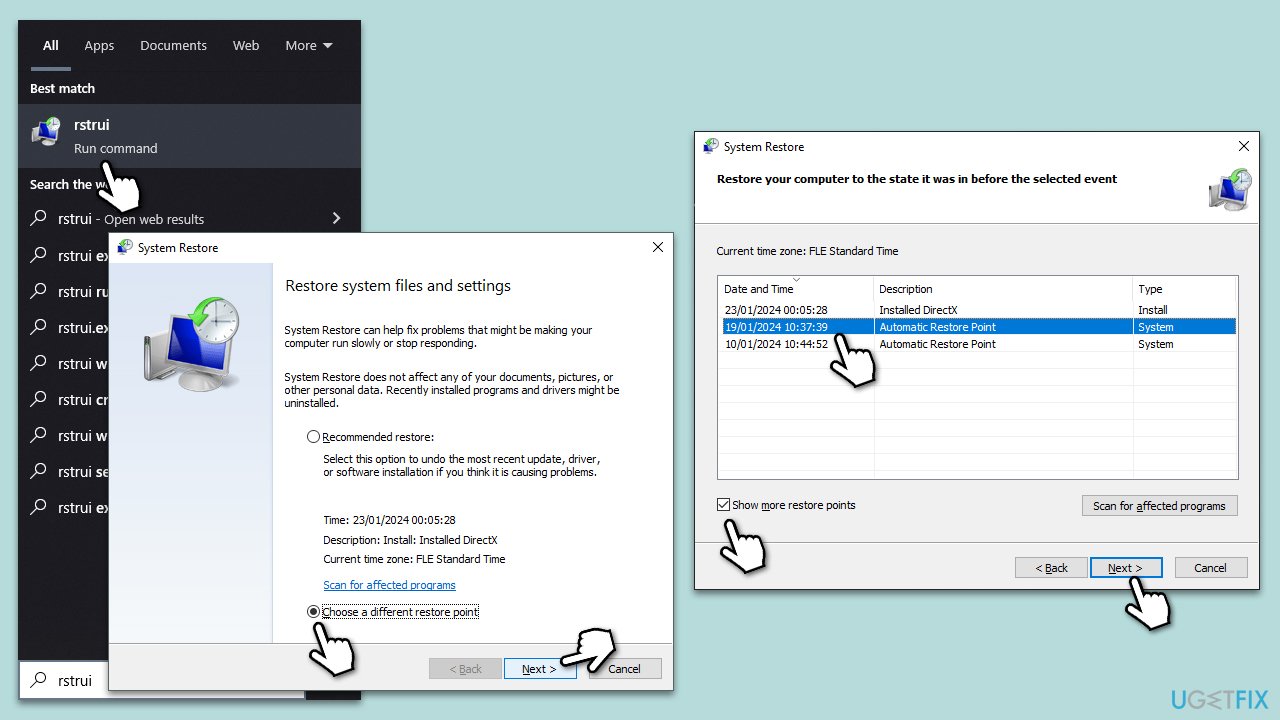
System Restore can revert your system back to an earlier point in time when the Photos app was working correctly. This is useful if the issue started after a recent system change.
- Type rstrui command in the Windows search box and press Enter.
- If available, pick Choose a different restore point and click Next.
- Mark Show more restore points checkbox.
- Select an appropriate point and click Next.
- The changes should take effect after a restart.
Bottom line
To fix the 'Photos can't open this file because the format is currently unsupported' error, ensure that your Photos app and Windows operating system are up to date. Additionally, running the Windows Store apps troubleshooter and repairing damaged system files may help. If none of these solutions work, consider using a PC repair program for automatic repairs.
Frequently asked questions
First, check if the image format is supported by the Photos app; if not, consider converting the file to a compatible format like JPEG or PNG. You can also try updating the Photos app from the Microsoft Store to ensure it supports the latest formats.
You can try resetting the Photos app by going to Settings > Apps > Apps & features, selecting Photos, and clicking on 'Advanced options' followed by 'Reset'. Additionally, ensure your Windows 11 is updated to the latest version to prevent compatibility issues.
Yes, you can use third-party applications like IrfanView or GIMP that support a wider range of image formats. Alternatively, you can try opening the file in a web browser, which often handles various image formats better.




Report an issue
What's wrong with this guide? We review every report and update or remove content.
Report received — thank you. We'll review and fix it.
You need a free account to submit a report.
Be the first to comment