How to fix
System Restore error 0x8007045b
on Windows
Resolve System Restore error 0x8007045b in Windows 10 and 11 effortlessly. Follow our expert-tested tips for a quick fix, guaranteed to work!

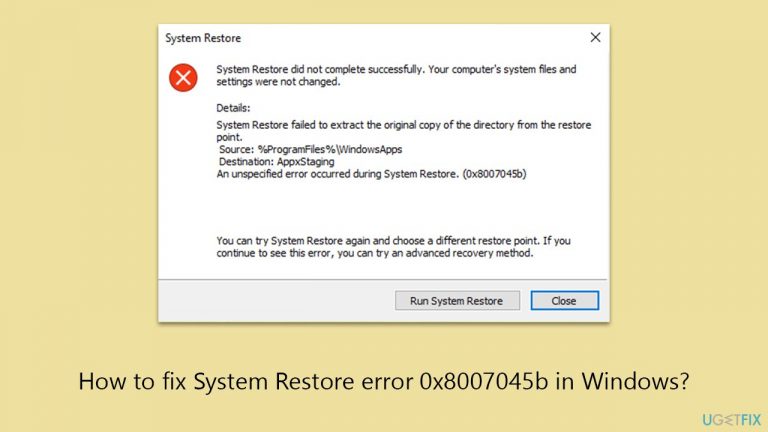
What causes How to fix System Restore error 0x8007045b in Windows?
- Difficulties with the Volume Shadow Copy Service (VSS)
- Corrupted system files
- Corrupted restore point
- Encrypted content of a restore point
Repairs Windows system files, removes malware, and restores a clean OS state — without reinstalling.
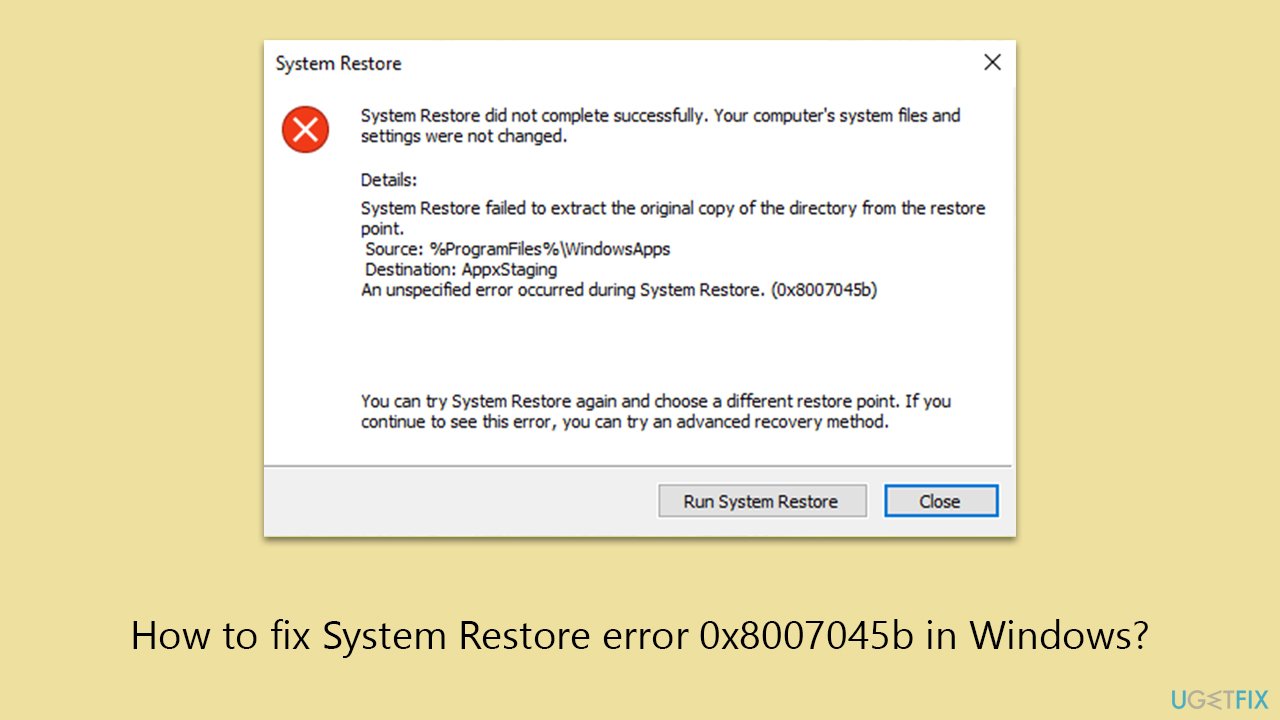
Recently, I had to uninstall a program, and I wasn't aware that it would delete important data. Fortunately, there was an automatic restore point created two days before this happened. However, when I tried to restore the system, it got stuck at "System Restore Is Initializing..." The process failed, showing an error code 0x8007045b, stating a problem with extracting the original copy during restoration. How do I proceed?
System Restore is an essential function of Windows operating systems, serving as a vital safety net for users. It enables the operating system to revert to a prior state by utilizing restore points established either automatically or manually.
It is particularly useful in situations where fresh installations or updates cause system instability, or other unexpected issues. System Restore allows users to effectively undo recent modifications and recover the system image of how it was operating when it was still functional. It does not restore or delete any personal files in the process.
Despite this, during the System Restore process, certain users may experience an issue with the error code 0x8007045b. The phenomenon, which can also occur in other situations, such as during Windows updates, is a substantial impediment. The underlying causes of this error are usually complicated.
One of the more common causes for the 0x8007045b error during System Restore is difficulties with the Volume Shadow Copy Service (VSS), which is required for creating and managing restore points. Likewise, corrupted system files or the restore point itself can also be responsible. In a handful of instances, the error occurs because the content of a restore point is encrypted, making it inaccessible.
To remedy this issue, make sure your system files are intact and free of corruption. This can be accomplished using utilities designed to check and fix system files. You should also evaluate the operating state and appropriate configuration of the VSS service, as any errors here can hamper the System Restore procedure. In cases where a certain restore point is corrupted, picking an earlier restore point may fix the 0x8007045b error.
It is also known that this error arises when data on a restore point is encrypted, in which case accessing Windows Recovery Environment would bypass this issue. If you think that your system files might be corrupted, you can employ [d1] repair utility, which can also check for other Windows issues automatically.
Fix 1. Repair corrupted system files
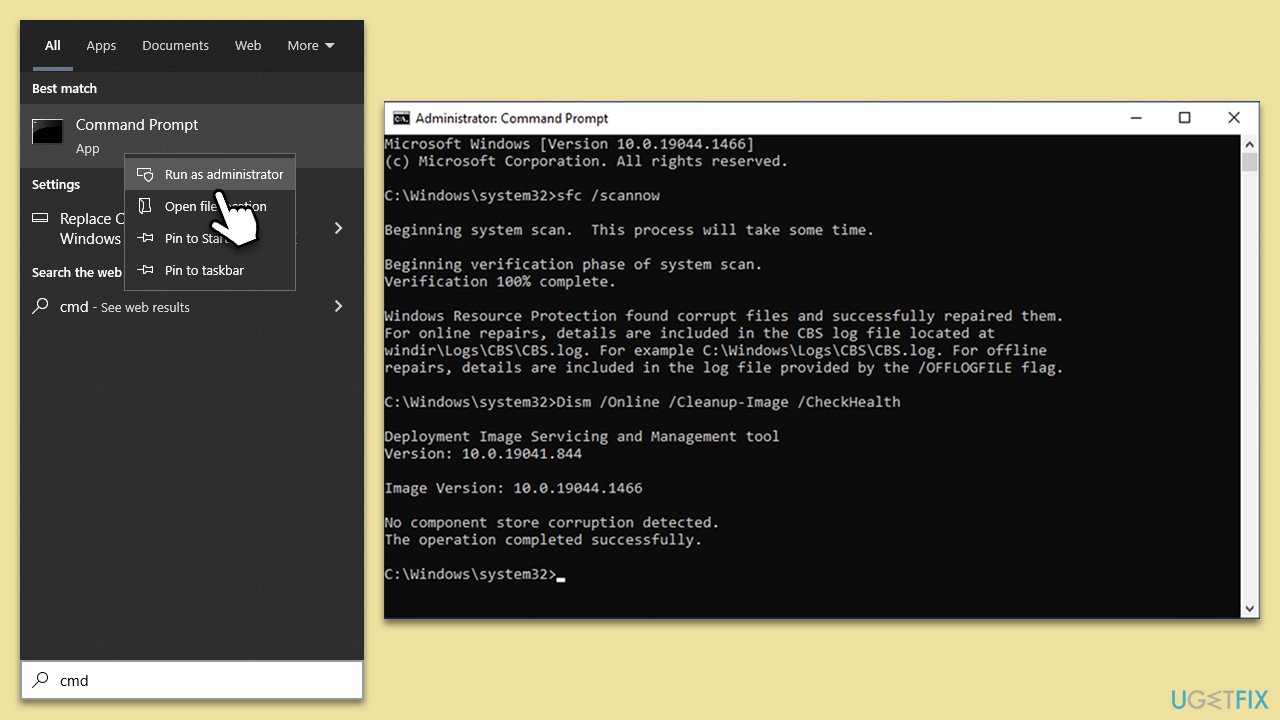
SFC (System File Checker) and DISM (Deployment Image Service and Management Tool) scans are essential utilities for identifying and repairing corrupted system files that may be causing the error 0x8007045b in System Restore.
- Type in cmd in Windows search.
- Right-click the Command Prompt result and pick Run as administrator.
- User Account Control will ask whether you want to allow changes - click Yes.
- Type this command and press Enter:
sfc /scannow - Wait for the scan to finish.
- Then, use the following commands, pressing Enter after each:
Dism /Online /Cleanup-Image /CheckHealth
Dism /Online /Cleanup-Image /ScanHealth
Dism /Online /Cleanup-Image /RestoreHealth - Restart your PC.
Fix 2. Restart or set VSS service to automatic startup
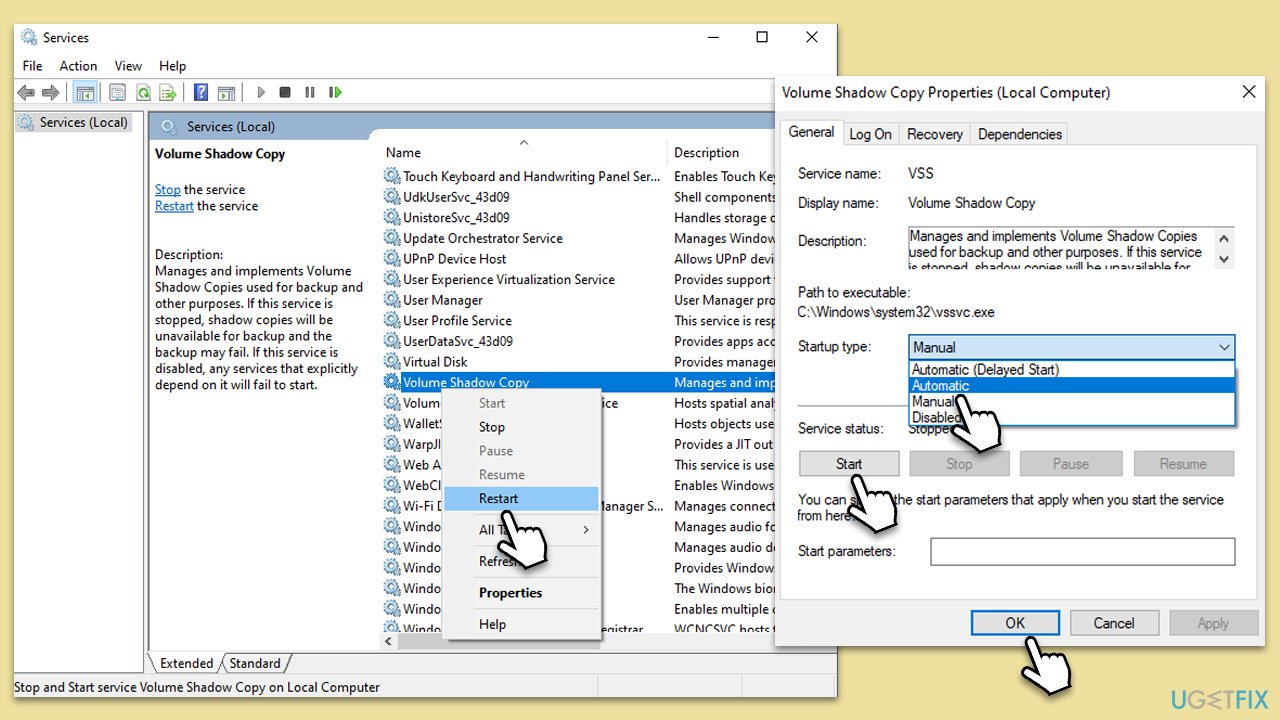
If VSS encounters issues, it can lead to errors. Restarting or configuring the VSS service to start automatically can resolve this problem.
To restart the VSS service:
- Type Services in Windows search and press Enter to open the Services window.
- Scroll down and locate the Volume Shadow Copy service.
- Right-click on it and select Restart.
To set the VSS service to automatic startup:
- In the Services window, find the Volume Shadow Copy service again.
- Right-click on it and select Properties.
- In the Startup type dropdown menu, choose Automatic.
- Click Apply and then OK to save the changes.
Fix 3. Use a different restore point
If a specific restore point is corrupted and triggering the error, switching to an alternative restore point can be a viable solution. Here's how:
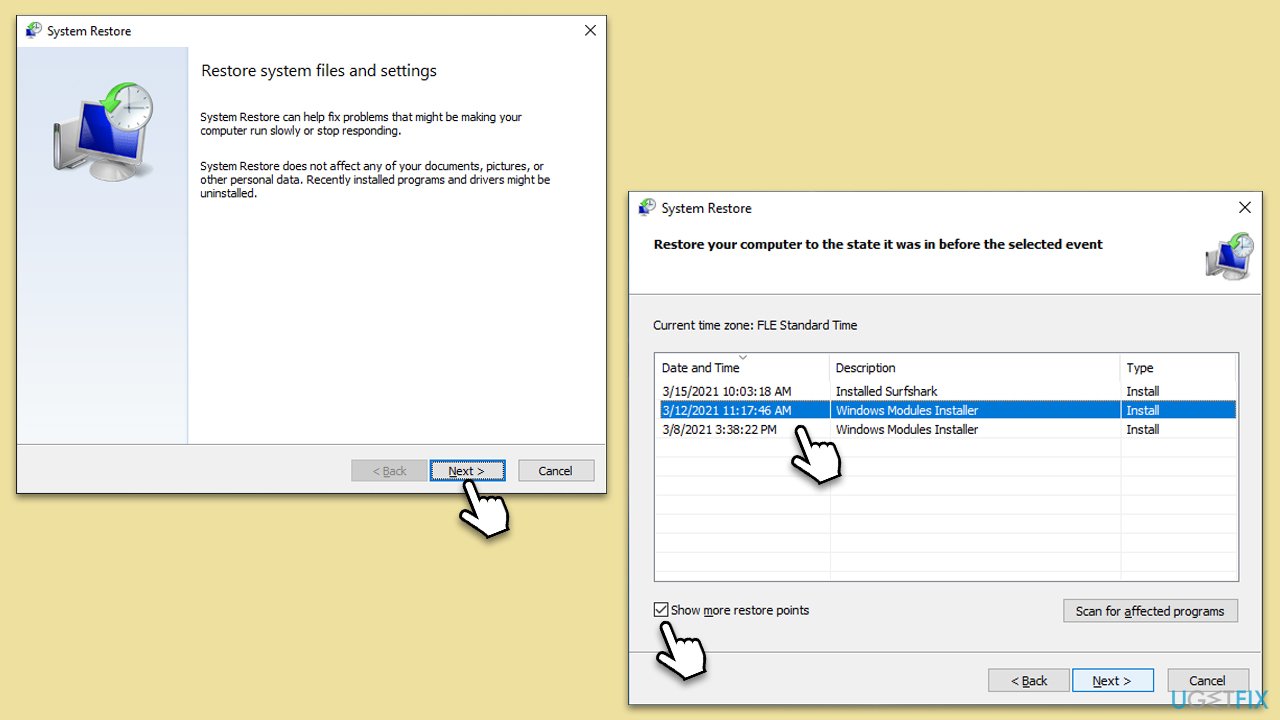
- Type in Create a Restore point in Windows search and hit Enter.
- Go to the System Protection tab and pick System Restore.
- Click Next.
- Click Show more restore points.
- Pick a different restore point you tried last time and click Next.
- Follow the prompts to finish the process.
Fix 4. Use Windows Recovery Environment
- Open Command Prompt as administrator again.
- Type in the following command and press Enter:
reagentc /boottore - If this command returns an error, use reagentc /enable first and then repeat the process.
- Restart your system.
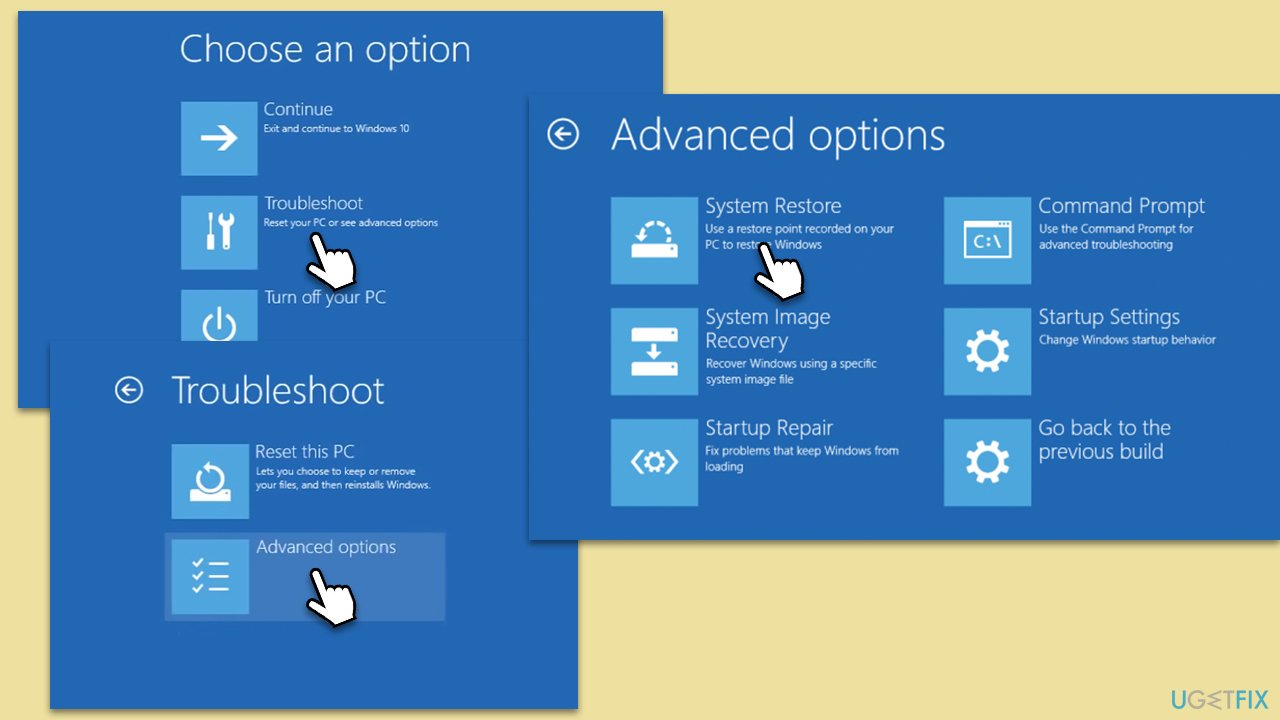
- After a restart, select Troubleshoot and then pick Advanced Options.
- Select System Restore from here and proceed with on-screen instructions.
Fix 5. Re-register VSS components
- Open Command Prompt as an administrator.
- Type the following commands one by one, pressing Enter after each:
- net stop vss
- net stop swprv
- cd %windir%\system32
- regsvr32 ole32.dll
- regsvr32 oleaut32.dll
- regsvr32 vss_ps.dll
- vssvc /register
- regsvr32 /i swprv.dll
- regsvr32 /i eventcls.dll
- regsvr32 es.dll
- regsvr32 stdprov.dll
- regsvr32 vssui.dll
- regsvr32 msxml.dll
- regsvr32 msxml3.dll
- regsvr32 msxml4.dll
- After executing these commands, restart your computer.
Fix 6. Reset Windows
Performing a Windows reset can be an effective way to resolve complex system issues. This process reinstalls Windows while preserving your files and applications.
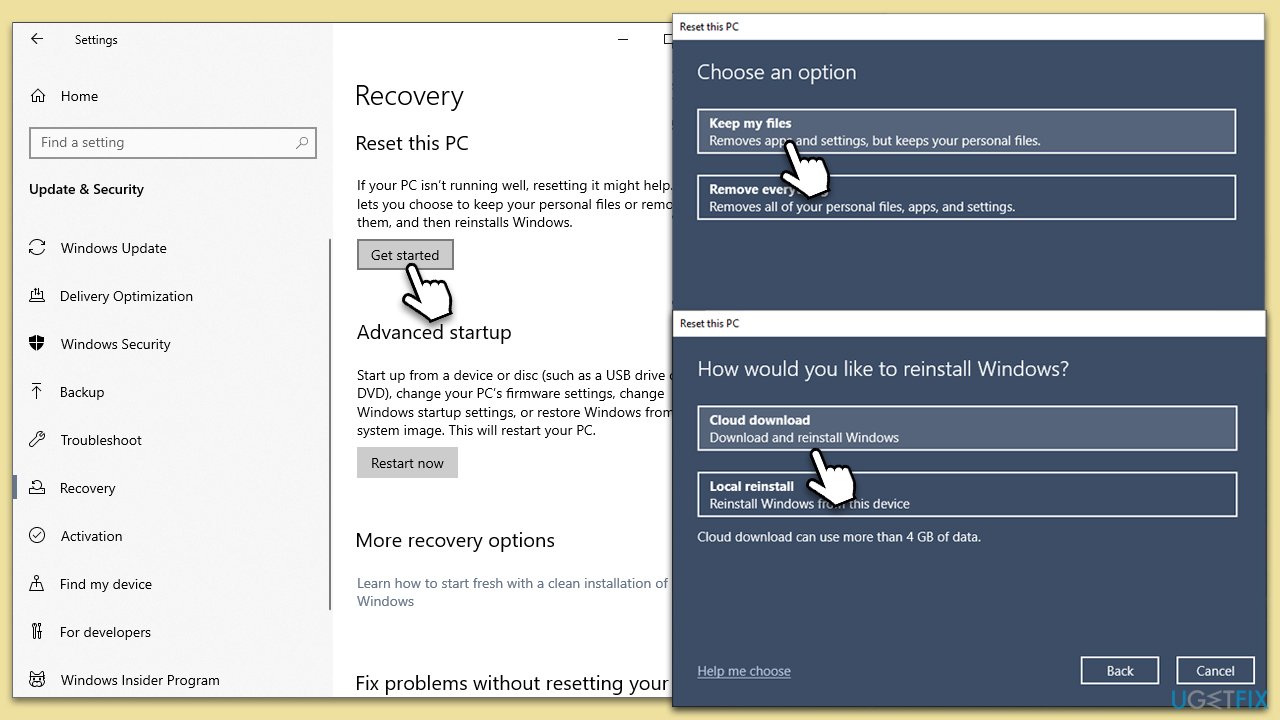
- Right-click on Start and then select Settings.
- Go to Update & Security and pick Recovery on the left side of the window.
- Find Reset this PC section and click Get Started.
- Select Keep my files and Cloud download.
- Next, pick whether you want to reinstall the apps.
- Click Reset.
- Your system will restart, and the process of Windows reset will begin.
Bottom line
To fix the System Restore error 0x8007045b, ensure your system files are intact using utilities designed to check and fix them. Additionally, evaluate the configuration of the VSS service and consider selecting an earlier restore point if the current one is corrupted. If none of these solutions work, further troubleshooting may be necessary.
Frequently asked questions
The error 0x8007045b typically indicates that the System Restore process is unable to access necessary files or services, often due to corrupted system files or issues with the Volume Shadow Copy service in Windows 10.
To fix this error in Windows 11, you can try running the System File Checker and the DISM tool to repair corrupted system files, followed by restarting the Volume Shadow Copy service.
Yes, you can open Command Prompt as an administrator and run 'sfc /scannow' and 'DISM /Online /Cleanup-Image /RestoreHealth' to address the issue related to error 0x8007045b on Windows.




Report an issue
What's wrong with this guide? We review every report and update or remove content.
Report received — thank you. We'll review and fix it.
You need a free account to submit a report.
Be the first to comment