How to fix
AMDRSServ.exe – System Error
on Windows
Resolve the AMDRSServ.exe system error on Windows 10 and 11 quickly with our expert-tested solutions. Fix it in minutes and boost system performance!

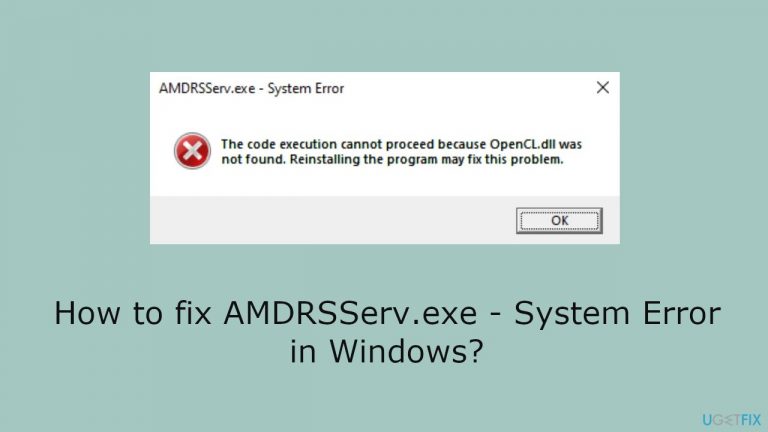
What causes How to fix AMDRSServ.exe – System Error in Windows?
- Corrupted AMD drivers
- Harmed Windows system files
- Incomplete installs
- Conflicts with already-installed software
- Malware infections
Repairs Windows system files, removes malware, and restores a clean OS state — without reinstalling.
Hello. When I try to launch a game on my Windows PC, I get the "AMDRSServ.exe - System Error" message. Is there a way to fix this issue?
When AMDRSServ.exe - System Error appears on a Windows system, it frequently suggests that AMD drivers may be corrupted or that Windows system files may be harmed. This error message warns users of a serious problem that has to be fixed since it might negatively impact the system's functionality and stability.
A few things, including incomplete installs, conflicts with already-installed software, and malware infections, can cause corruption in AMD drivers. Similar to this, unplanned system shutdowns, hardware malfunctions, or other system-related problems may cause harm to Windows system files.
Users may experience severe effects, such as decreased graphics performance, unstable systems, and even program crashes. Users could have hiccups in their work or gaming sessions, and the system's general usefulness might be jeopardized.
Resolving this issue requires careful diagnosis and appropriate action. Users might need to update or reinstall AMD drivers, ensuring compatibility with the hardware and other software components. Additionally, repairing or replacing damaged Windows system files is crucial to restoring the overall health of the operating system.
Although there may be ways to resolve the AMDRSServ.exe - System Error, users must proceed cautiously when applying these remedies and adhere to suggested guidelines. The 6 steps in this article should help you resolve the AMDRSServ.exe - System Error on Windows.
You can also run a maintenance tool like [d1] that can fix most system errors, BSODs, corrupted files, and registry issues. Otherwise, follow the step-by-step instructions below.

Method 1. Fix Corrupted System Files
Use Command Prompt commands to repair system file corruption:
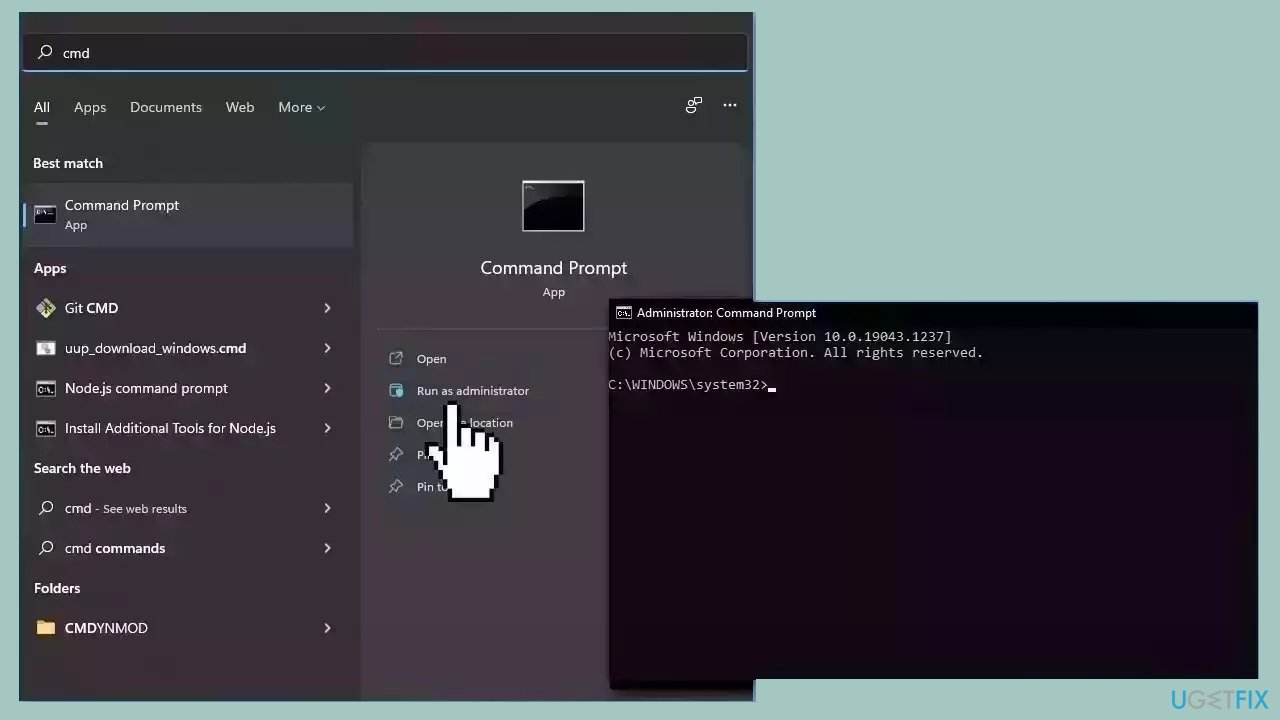
- Open Command Prompt as administrator
- Use the following command and press Enter:
sfc /scannow
- Reboot your system
- If SFC returned an error, then use the following command lines, pressing Enter after each:
DISM /Online /Cleanup-Image /CheckHealth
DISM /Online /Cleanup-Image /ScanHealth
DISM /Online /Cleanup-Image /RestoreHealth
Method 2. Install Windows Updates
- Press the Windows key + R to open the Run box.
- Type ms-settings:windowsupdate in the text box and press Enter.
- Click the Check for updates button.
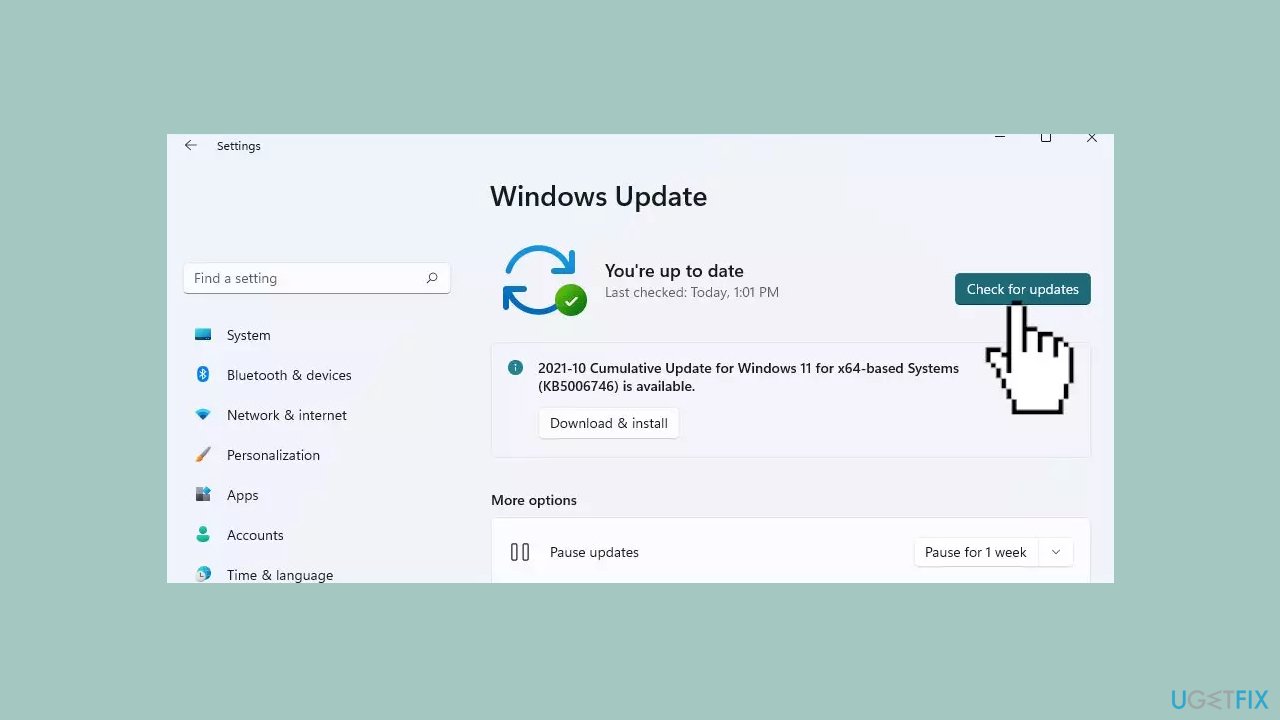
- If a new update is available, click the Download & Install all button.
- Restart your computer after the process is finished and check to see if the problem is fixed.
Method 3. Rename the File that Displays the Error
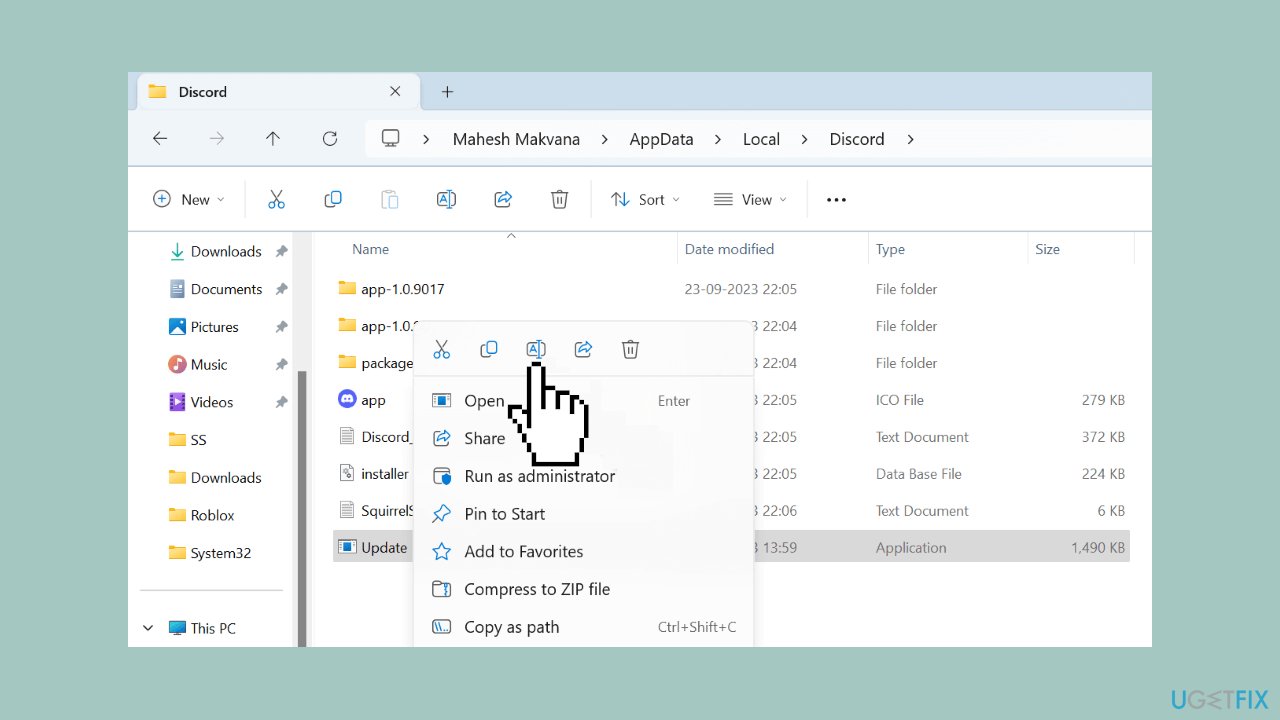
- Right-click on the .exe file of your app or game that is showing the error.
- From the context menu, select Rename.
- Type a new name for your file and press Enter. Be cautious not to alter the file extension to avoid rendering it unusable.
- Open the newly renamed file to launch your app or game.
Method 4. Remove Current AMD Drivers
- Boot your Windows PC in safe mode with networking.
- Download the AMD Cleanup Utility and execute it. This utility assists in the removal of all AMD drivers from your computer.
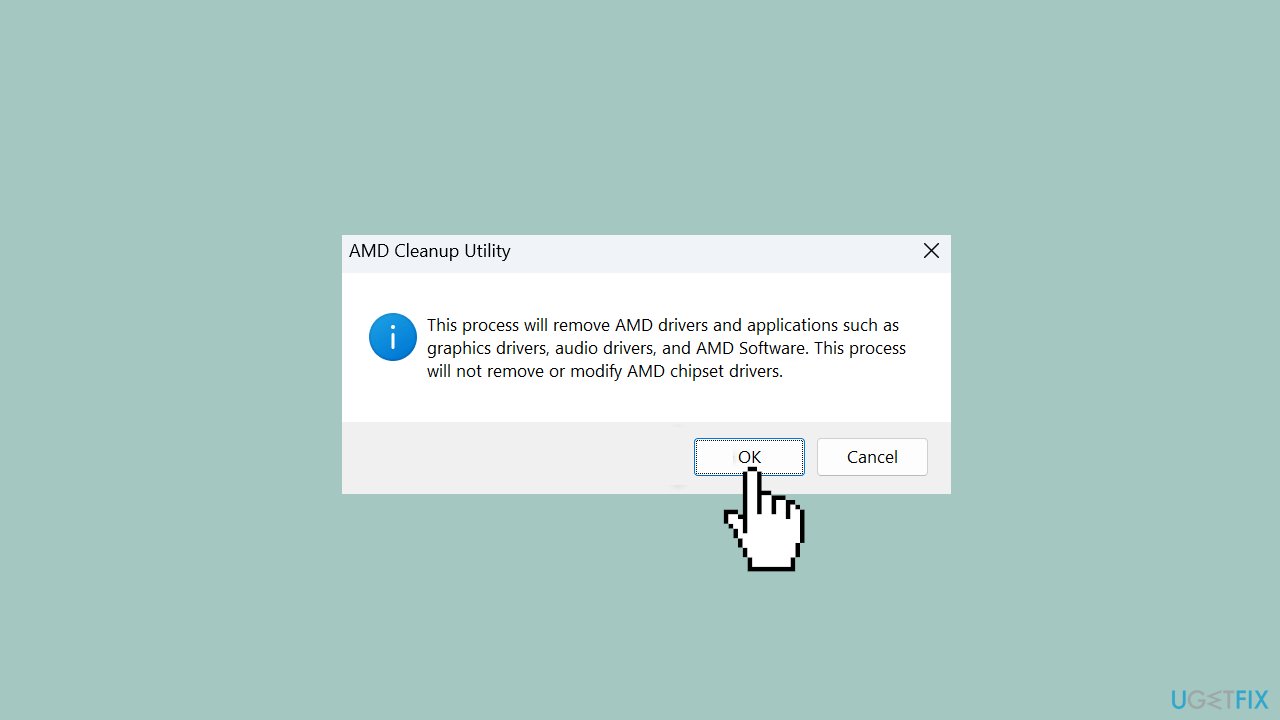
- Respond affirmatively to the prompt in the tool to initiate the removal of installed drivers. Allow the tool some time to complete this process.
- Once the tool has finished deleting the drivers, click on Finish.
- Restart your PC in safe mode.
Method 5. Reinstall AMD Drivers
- Open a web browser on your PC and go to the AMD Drivers and Support site.
- On the site, choose Download Windows Drivers.
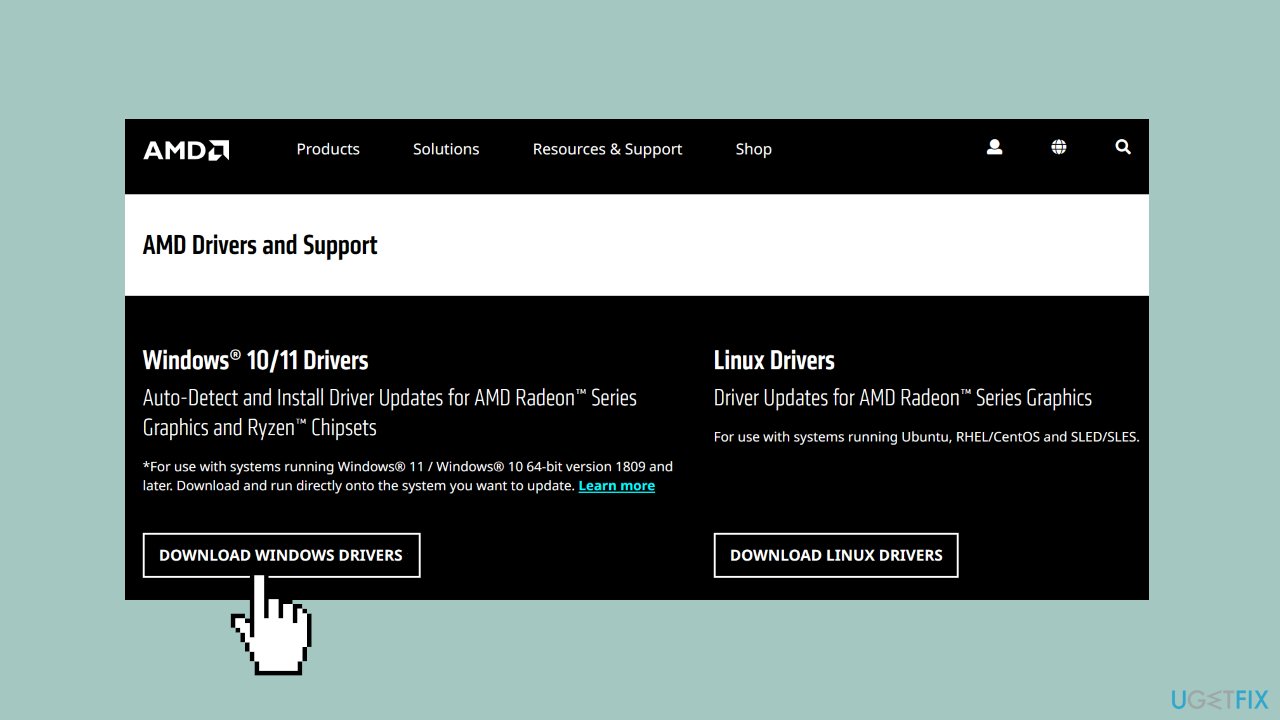
- Launch the downloaded file and proceed to install the available drivers.
- After completing the installation, restart your PC to apply the changes.
Method 6. Repair Install Windows
- Visit the official Microsoft website to download Windows 11 or Windows 10 Installation Media
- Run the Media Creation Tool and select Create Installation Media for another PC.
- Select your USB drive.
- Let the Process complete of writing the Installation files to the USB drive.
- Click Finish.
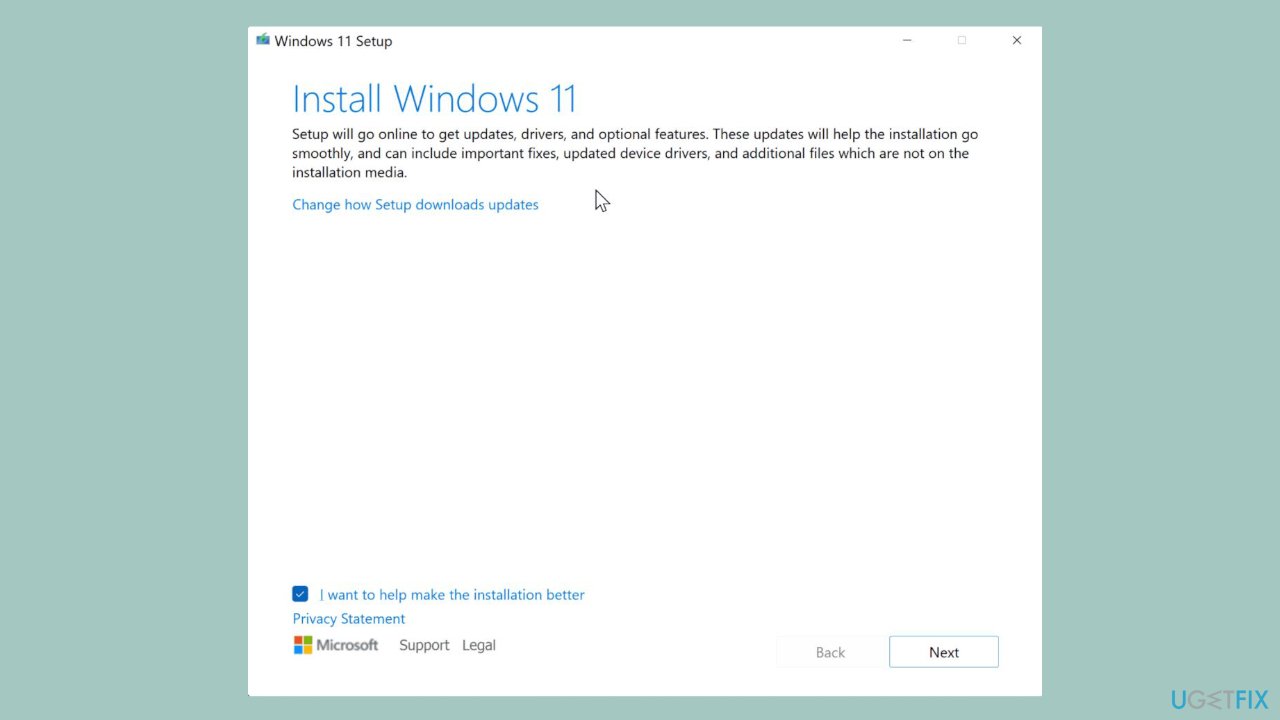
- On the PC you wish to upgrade, Press Windows + E to open the File Explorer.
- Open the Removable drive and click Setup.exe.
- Accept the license terms on the next screen.
- Confirm the Upgrade options – Files, apps and Settings are kept.
- Click Install, and the upgrade should start.
Bottom line
To fix the AMDRSServ.exe - System Error, users should repair corrupted system files using Command Prompt, install Windows updates, and ensure AMD drivers are updated or reinstalled. If these steps do not resolve the issue, consider using a maintenance tool or seeking further technical assistance.
Frequently asked questions
The AMDRSServ.exe - System Error is often caused by corrupted files or issues with the AMD Radeon Software. It can also be triggered by outdated drivers or conflicts with other software.
You can fix the AMDRSServ.exe error by updating your AMD drivers through Device Manager or the AMD website, or by reinstalling the AMD Radeon Software completely.
Disabling AMDRSServ.exe may temporarily stop the error message, but it can also affect the performance of your AMD graphics card features; it's better to fix the underlying issue.




Report an issue
What's wrong with this guide? We review every report and update or remove content.
Report received — thank you. We'll review and fix it.
You need a free account to submit a report.
Be the first to comment