How to fix
“Unable to save” Photos app error
on Windows
Resolve the "Unable to save" error in the Photos app on Windows 10 or 11 effortlessly. Follow our expert-tested tips for quick fixes!

What causes How to fix “Unable to save” Photos app error in Windows?
- Faults in the program
- Corrupted files
- Unsupported file format
- Insufficient user permissions
- Incompatibilities with other software
Repairs Windows system files, removes malware, and restores a clean OS state — without reinstalling.
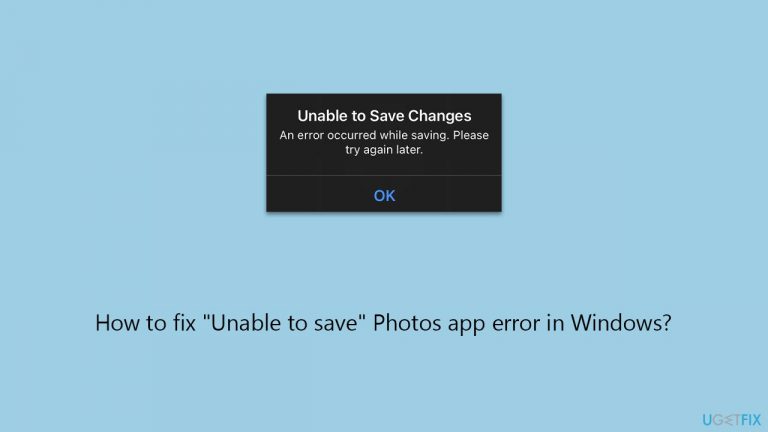
I was trying to crop an image with Photos and received an error "Unable to save. There was an error while saving. Please try again later" when I was trying to save it. How do I resolve this?
Users may use the Windows Photos app to do more than just browse images and videos - it has evolved greatly over time, adding a variety of editing features. Originally, Photos was primarily a viewer with limited capabilities.
It now supports sophisticated image alterations such as cropping, resizing, filtering, marking, and retouching. It also enables rudimentary video editing, making it useful for a wide range of multimedia jobs.
Despite its achievements, some users receive the "Unable to save" error while attempting to save changes to their photographs or movies. This issue can disrupt workflow and reduce the app's overall value.
There are various reasons why you may receive the "Unable to save" error in the Photos app. One typical cause is faults in the program, which might interfere with its ability to process and preserve changes. Another option is that the files you're working on are corrupted or in an unsupported format, which prevents effective saving. Furthermore, insufficient user permissions or incompatibilities with other software on your system may contribute to this problem.
You have several options for dealing with the "Unable to save" issue. The built-in Windows troubleshooter may assist in discovering and repairing system-related issues impacting the Photos app. Changing the place where you save your files might also be useful, especially if the present location has restricted permissions or is otherwise unreachable.
Escalating your user privileges may help you overcome permissions issues, allowing the Photos app to alter and save files. These strategies, among others, are probable options for getting around the problem and restoring app functionality.
If you're having recurring problems with the Windows Photos app, such as the "Unable to save" error, a PC repair utility like [d1] may have a solution. Such tools are intended to automatically find and solve underlying problems in the Windows operating system, potentially fixing app-related faults with minimal user input.

Fix 1. Run Windows Store apps troubleshooter
Using this troubleshooter can help resolve the Unable to save error by identifying and correcting problems related to app functionality.
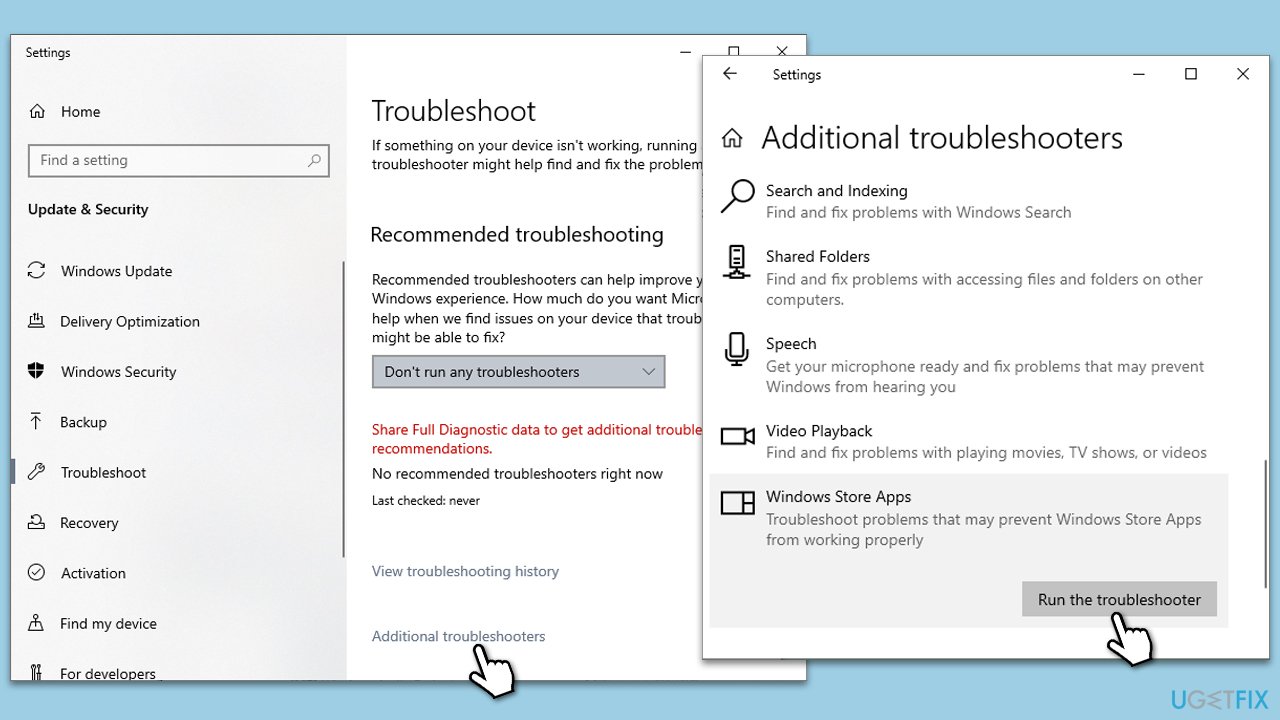
- Type Troubleshoot in Windows search and hit Enter.
- Click Additional troubleshooters/Other troubleshooters.
- Scroll down to find the Windows Store Apps troubleshooter.
- Select it and click Run the troubleshooter/Run.
- Wait till the scan finishes and apply the suggested fixes, then reboot your PC.
Fix 2. Enable administrator account
Running the Photos app as an administrator can help resolve issues related to insufficient permissions. When an app is run with administrator privileges, it has more access to system files and settings, which can be necessary for saving changes in the app.
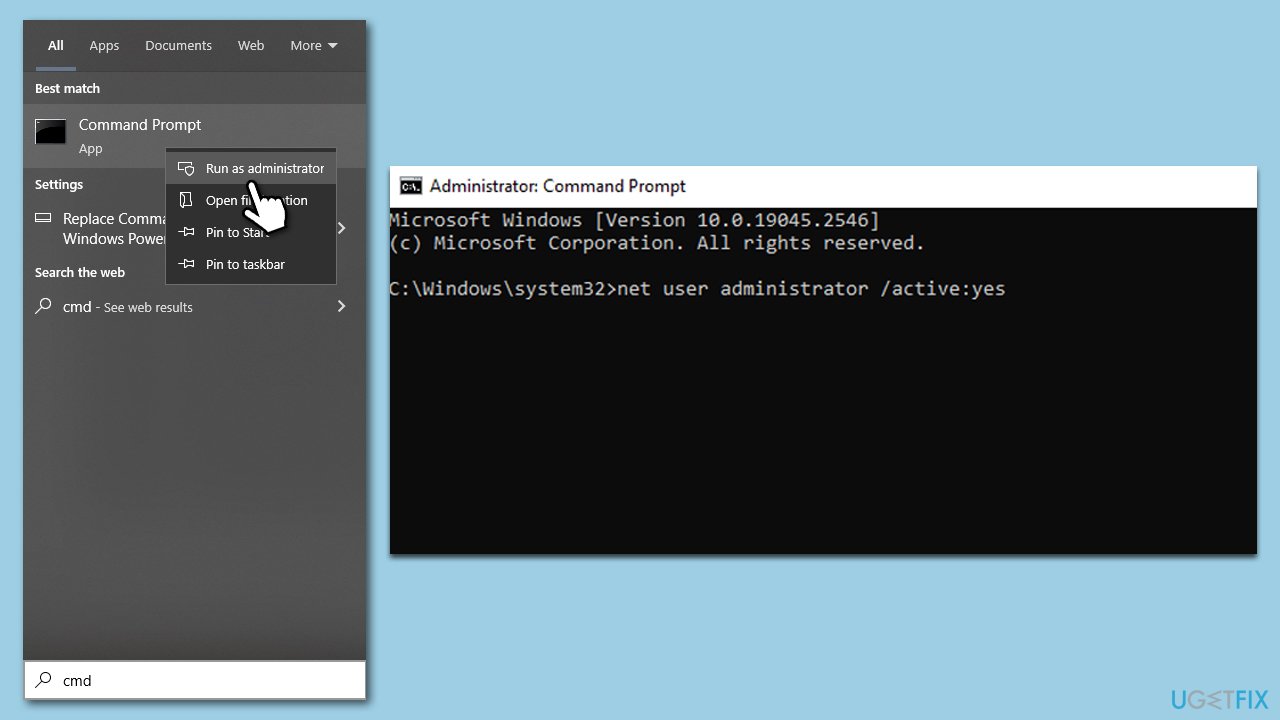
- Type cmd in Windows search.
- Right-click on Command Prompt and pick Run as administrator.
- Type in the following command and press Enter:
net user administrator /active:yes - You should see a message confirming that the command was executed successfully.
- Log out of your current user account and you will now see an Administrator account available for login on the login screen.
Fix 3. Change the destination location when saving
Changing the file save location can resolve issues related to permissions or access restrictions in the current location. Saving files to a different location can bypass these restrictions, allowing the Photos app to save changes successfully.
- Open the Photos app and make your edits.
- Click on Save or Save as.
- Choose a different location to save the file, such as a different folder or drive.
- Complete the save process and check if the issue is resolved.
Fix 4. Change graphics performance preference in Windows settings
Adjusting the graphics performance preference for the Photos app can enhance its functionality, especially if the error is related to graphics processing or resource allocation.
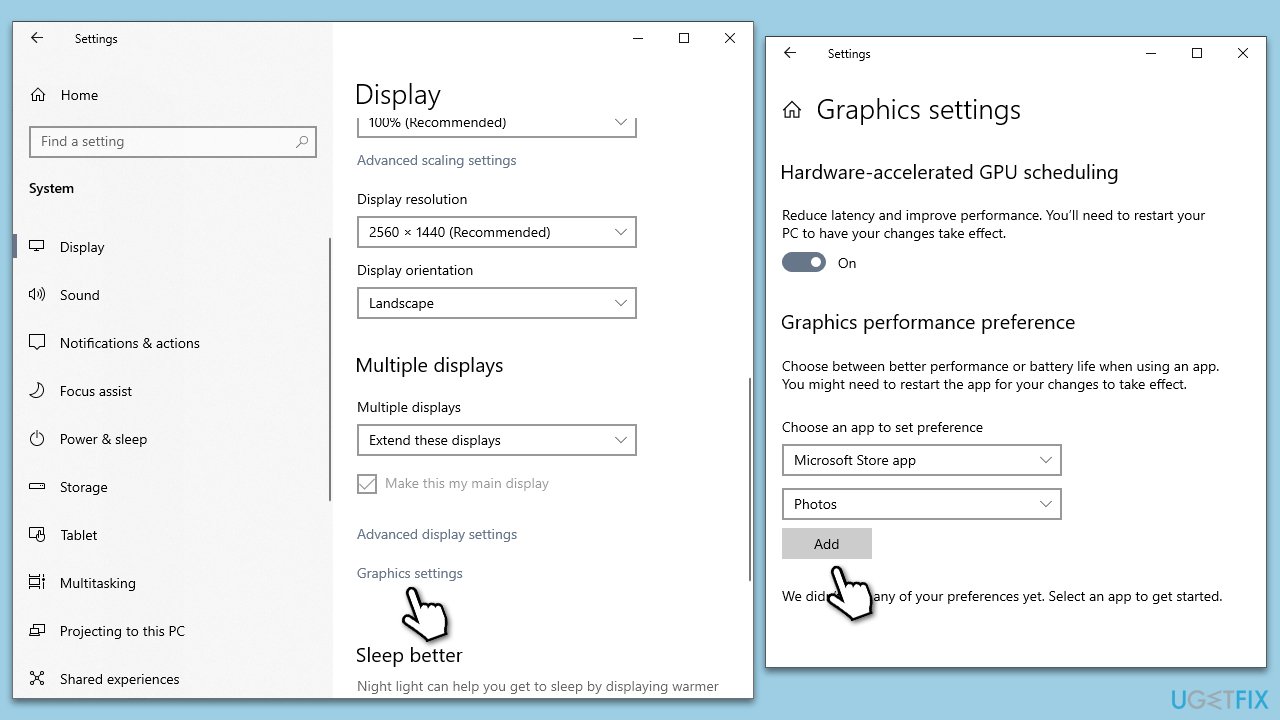
- Right-click on the Start menu and select Settings.
- Go to System and then to Display.
- Scroll down and click on Graphics settings.
- Under Choose an app to set preference, select Microsoft Store app and choose Photos from the list.
- Select Add.
- Click Options and choose High performance.
- Do the same with Films & TV (if applicable).
- Save the changes.
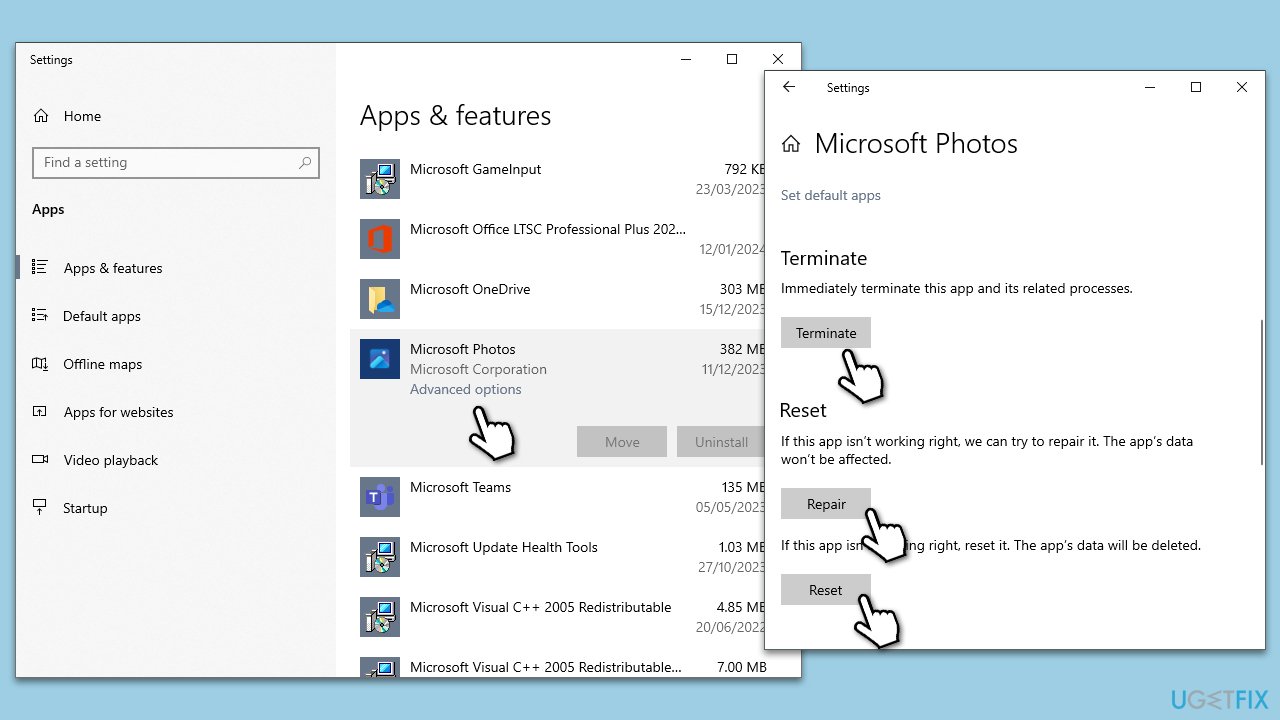
Fix 5. Repair or Reset Photos app
Repairing the app fixes files without affecting your data while resetting it reinstalls the app to its default state.
- Right-click on Start and pick Apps and Features.
- Scroll down to Microsoft Photos and click on it.
- Click Advanced options.
- Click Terminate.
- To repair, click on the Repair button.
- If the issue persists, return to this menu and click on the Reset button.
- Restart your device.
Fix 6. Re-register Microsoft Photos app
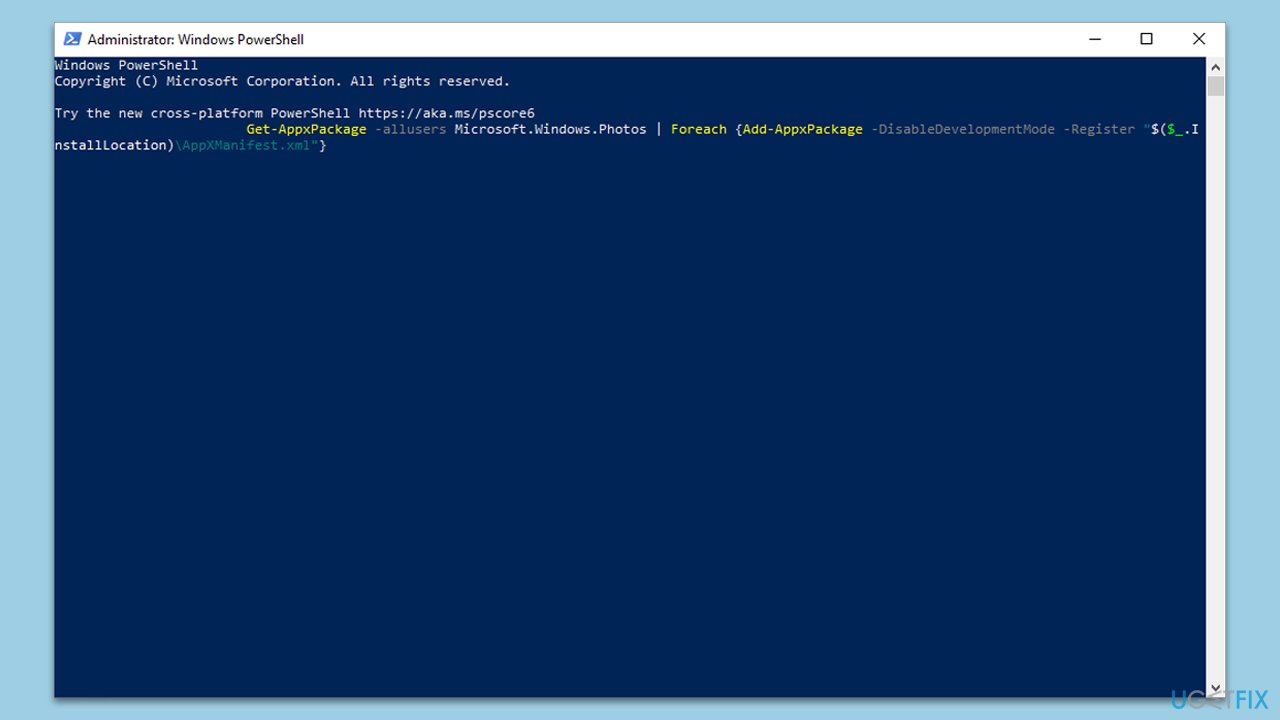
Re-registering the Microsoft Photos app reinstalls the app and restores its default settings, which can fix issues caused by corrupted app data or installation errors.
- Type Powershell in Windows search.
- Right-click on the result and select Run as administrator.
- A pop-up (UAC) will show up and ask whether you want to allow changes - click Yes.
- In the new window paste the following command and press Enter:
Get-AppxPackage -allusers Microsoft.Windows.Photos | Foreach {Add-AppxPackage -DisableDevelopmentMode -Register "$($_.InstallLocation)\AppXManifest.xml"} - Restart your system.
Bottom line
To resolve the 'Unable to save' error in the Photos app, you can use the built-in Windows troubleshooter, change the save location of your files, or escalate your user privileges. If these solutions do not work, consider using a PC repair utility to automatically find and fix underlying issues.
Frequently asked questions
Try resetting the Photos app by going to Settings > Apps > Apps & features, selecting Photos, and clicking on 'Advanced options' to find the reset option.
You can fix this by checking for updates in the Microsoft Store, ensuring the Photos app is up to date, or running the Windows Store Apps troubleshooter.
Yes, ensure that the Photos app has access to your OneDrive by checking the app permissions in Settings > Privacy & security > Photos.




Report an issue
What's wrong with this guide? We review every report and update or remove content.
Report received — thank you. We'll review and fix it.
You need a free account to submit a report.
Be the first to comment