How to fix
“Steam must be running to play this game” error
on Windows
Resolve the "Steam must be running to play this game" error on Windows 10 and 11 quickly and easily. Expert-tested solutions included.

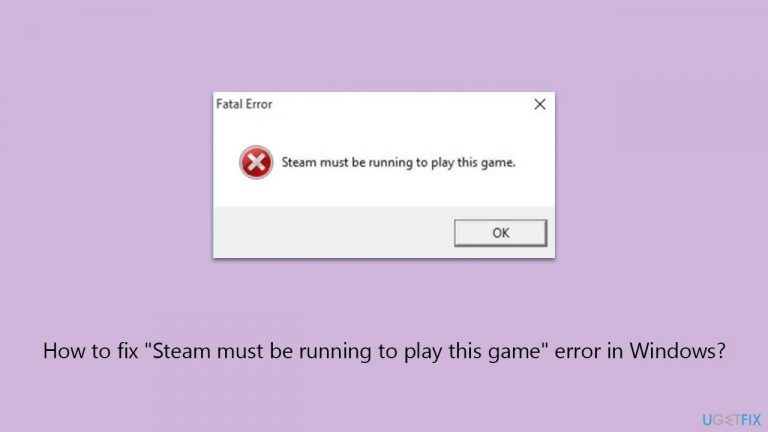
What causes How to fix “Steam must be running to play this game” error in Windows?
- Corrupted Steam files
- Corrupted game files
- Steam not installed
- Restricted access issues
- Cache files causing conflicts
Repairs Windows system files, removes malware, and restores a clean OS state — without reinstalling.
Hello. I keep getting "Steam must be running to play this game" whenever I attempt to launch a game. All the other games work fine so I am baffled as to what am I supposed to do to fix this. I am running Windows 10 version 22H2 and have a high-end PC setup (RTX 3070 Ti, 16GB RAM, Intel i5-13600KF).
Steam is a popular gaming platform enjoyed by millions of users worldwide, as it stores a massive library of games and includes additional features like friend lists, forums, community sections, achievements, streaming, and more. Unfortunately, the platform users might sometimes run into issues that prevent them from playing games.
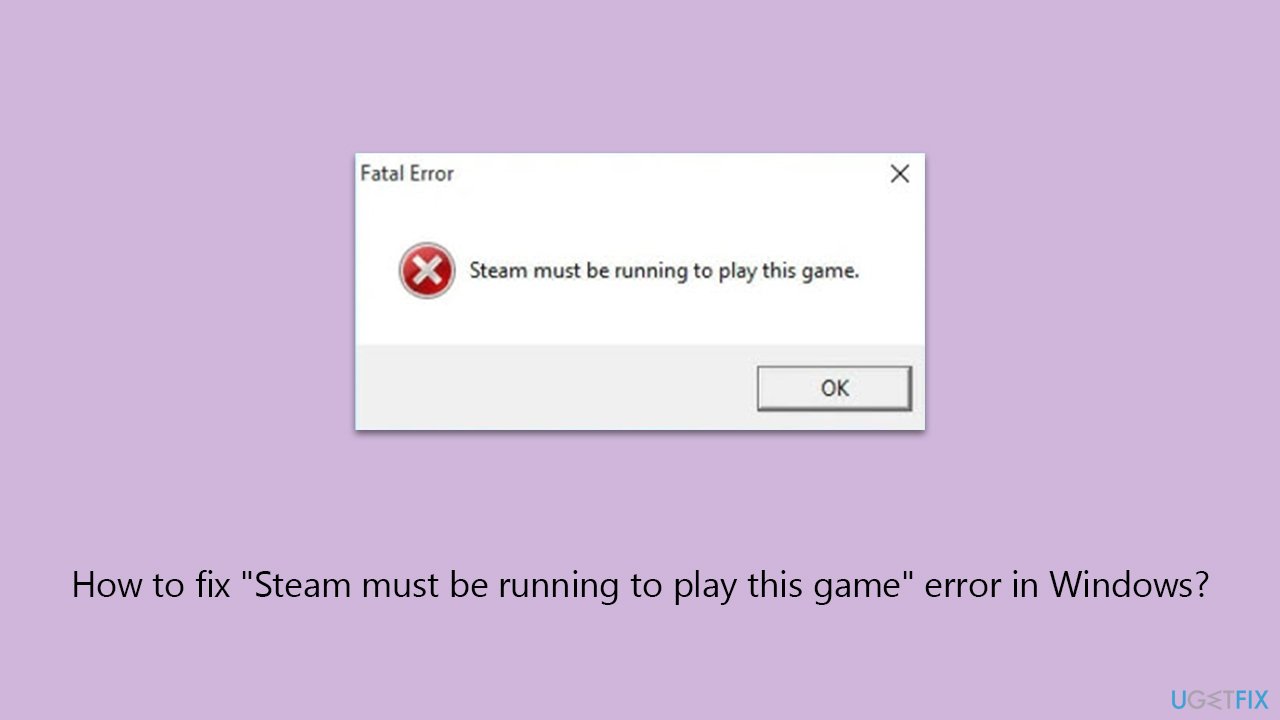
The "Steam must be running to play this game" error is one of the issues Steam players might face. It occurs whenever users attempt to launch the game or even the app itself and also affects either some or all games. This mainly happens because of corrupted Steam or game files, or if the platform is not installed on your system in the first place.
To fix the "Steam must be running to play this game" error, you can undertake several troubleshooting steps, such as ensuring the platform is installed, verifying problematic game files, clearing Steam cache files, running the app as administrator, and more.
Below you will find all the instructions for these and other solutions for the "Steam must be running to play this game" error. We do recommend running a scan with [d1] before that, as it can easily find and repair corrupted Windows files and clear the system from caches and other junk files.
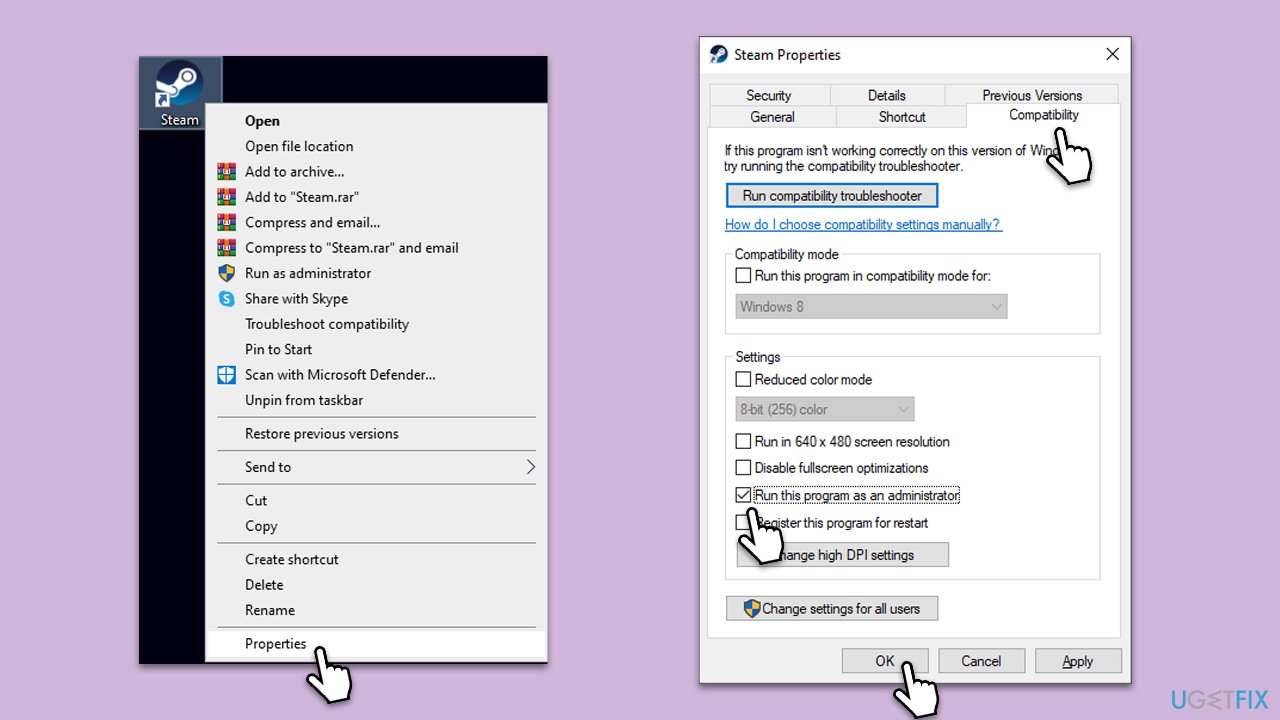
Fix 1. Run Steam as administrator
Running Steam as an administrator grants the application additional permissions that it might need to access certain files and settings on your computer. This can be particularly effective if the error is due to restricted access issues.
- Right-click on the Steam shortcut on your desktop.
- Select Properties from the context menu.
- Go to the Compatibility tab.
- Check the box next to Run this program as an administrator.
- Click Apply and then OK.
- Double-click on the Steam shortcut to run it as an administrator.
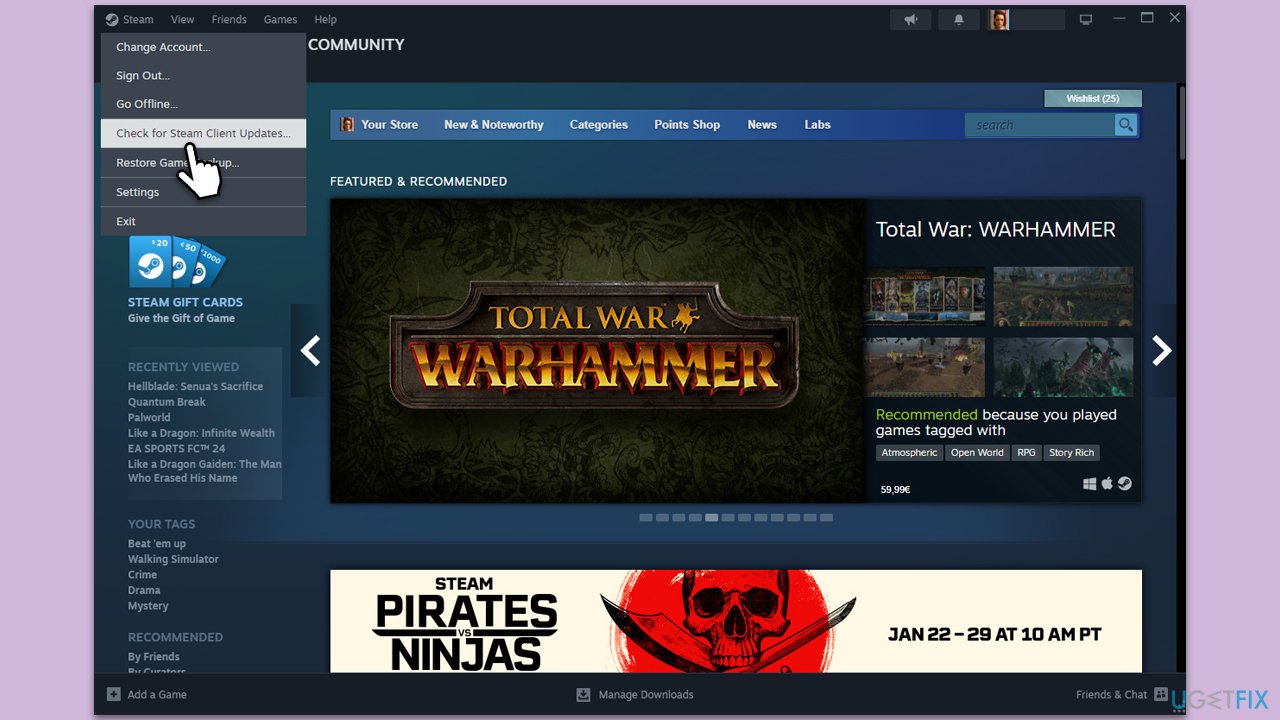
Fix 2. Update Steam
Ensuring that Steam is updated to the latest version is crucial for its smooth functioning. Updates often include bug fixes and improvements that can resolve existing issues, including the "Steam must be running to play this game" error.
- Open the Steam client.
- Click on Steam in the upper left corner of the window.
- Select Check for Steam Client Updates.
- If an update is available, follow the prompts to install it.
- Restart Steam after the update is complete.
Fix 3. Verify integrity of game files
This process checks for corrupted or missing game files and replaces them. It is an effective way to fix game-related issues without reinstalling the entire game.
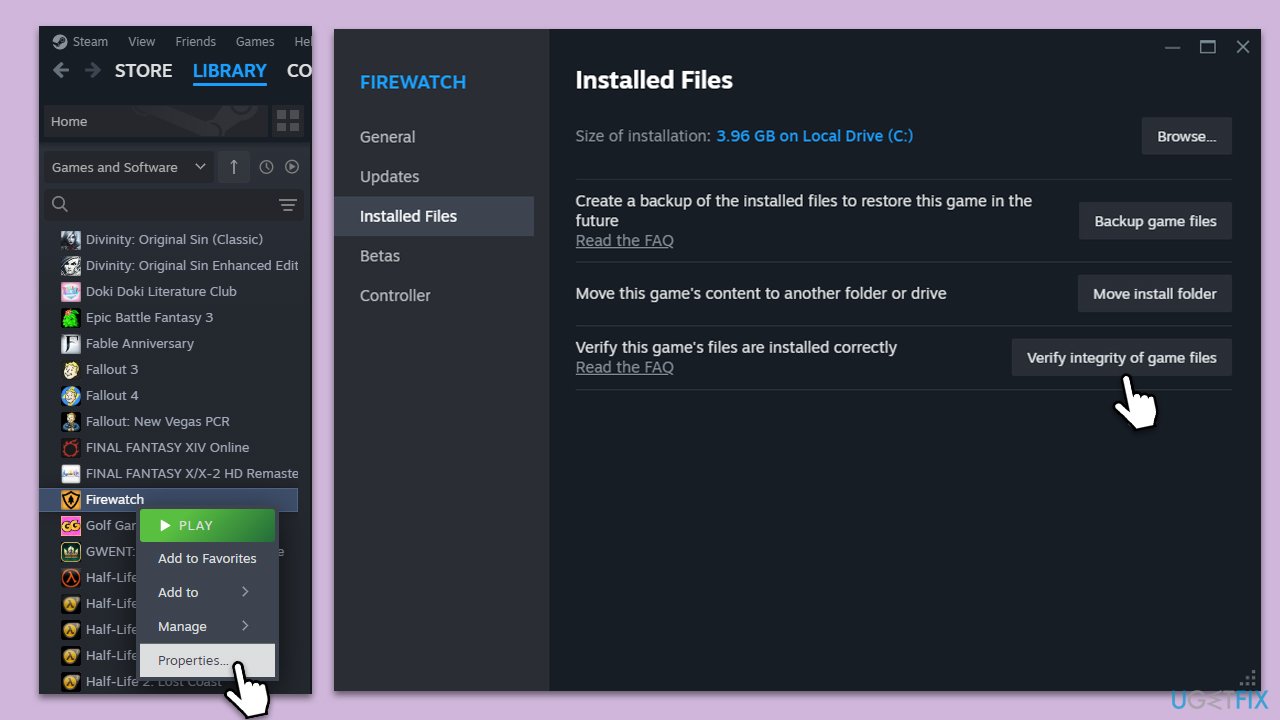
- Open Steam and go to your Library.
- Right-click on the problematic game and select Properties.
- Go to the Installed Files section.
- Click Verify integrity of game files and wait till the process is complete.
- Launch the game as normal.
Fix 4. Reinstall the problematic game
Sometimes, the best solution is to completely remove and then reinstall the game. This ensures that any corrupt files are removed and replaced with fresh, working copies.
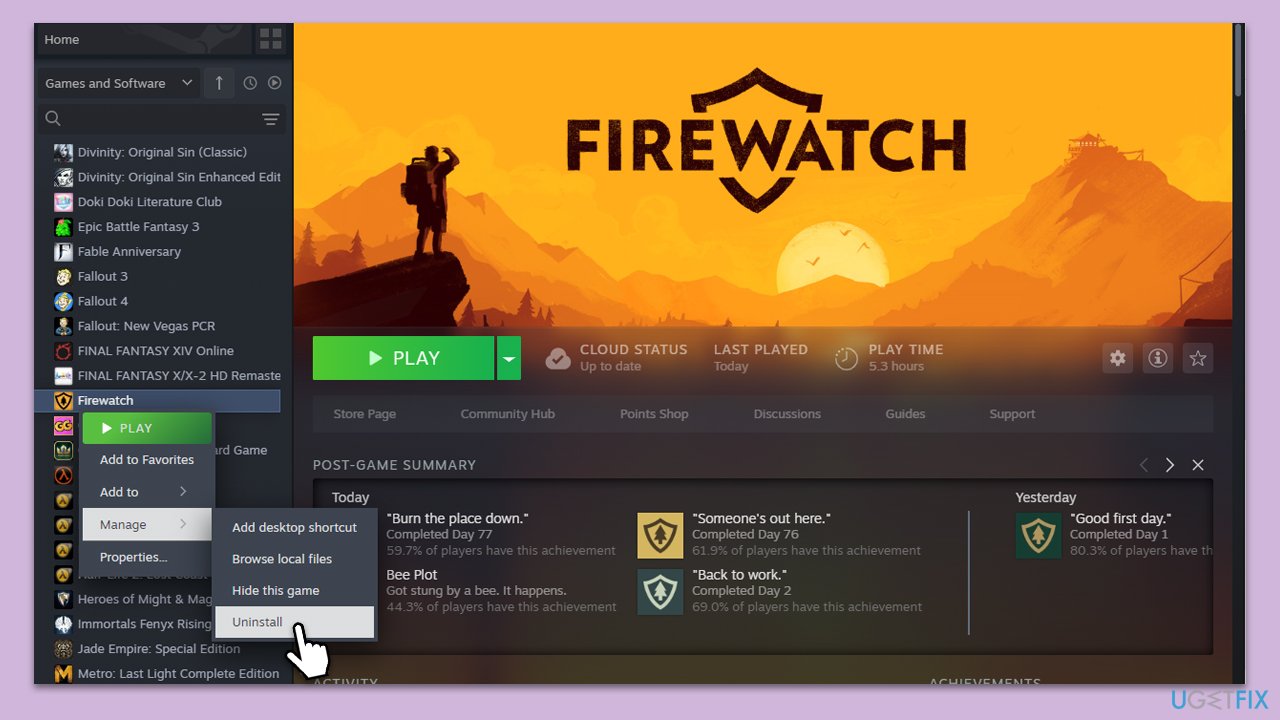
- Open Steam and go to the Library.
- Right-click on the game you want to reinstall and select Uninstall.
- Confirm the action.
- Once uninstalled, restart your computer.
- Reopen Steam, go back to the Library, and find the game.
- Click Install and follow the prompts to reinstall the game.
Fix 5. Leave Steam Beta
Participating in Steam's Beta programs can sometimes lead to stability issues. Leaving the Beta might resolve the error if it's related to an unstable Beta update.
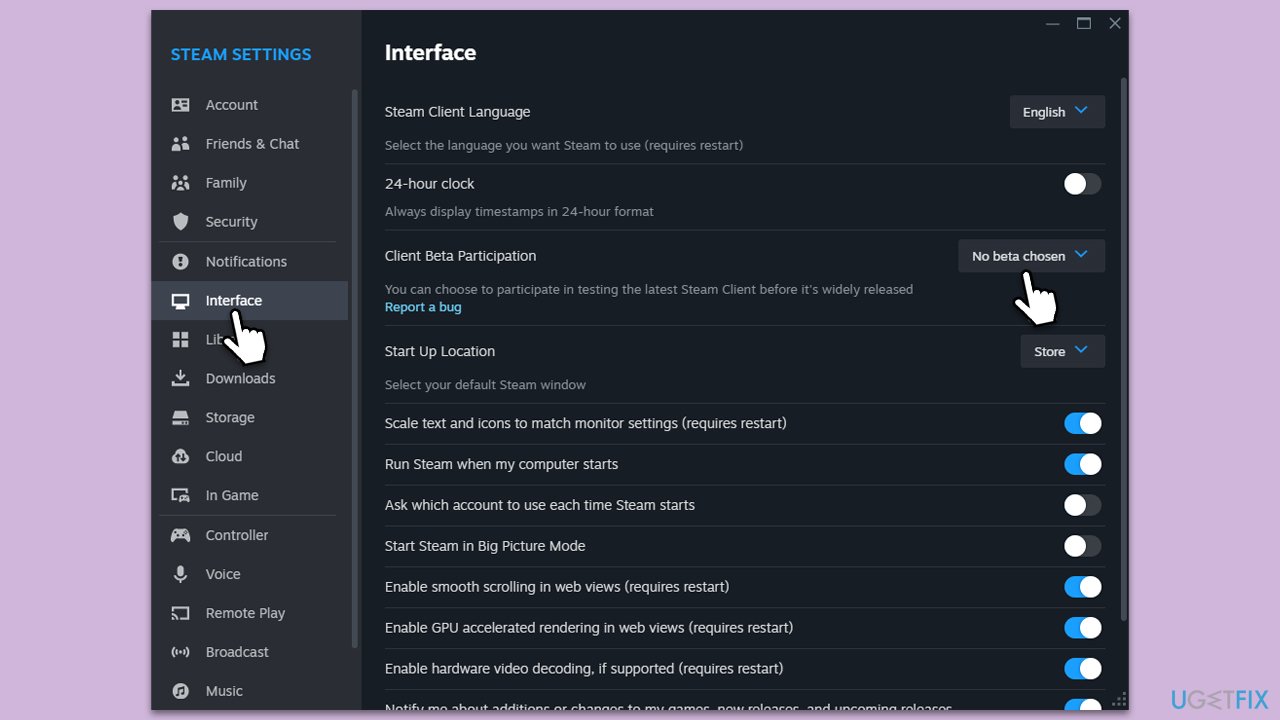
- Open Steam and go to Steam > Settings.
- Select Interface on the left side.
- In the right pane, look for the Client Beta participation section.
- Click on the drop-down menu and select No Beta chosen.
- Restart the client.
Fix 6. Reinstall Steam
Reinstalling Steam can help fix issues caused by corrupted or outdated Steam files. This should be a last resort as it might require you to reinstall your games.
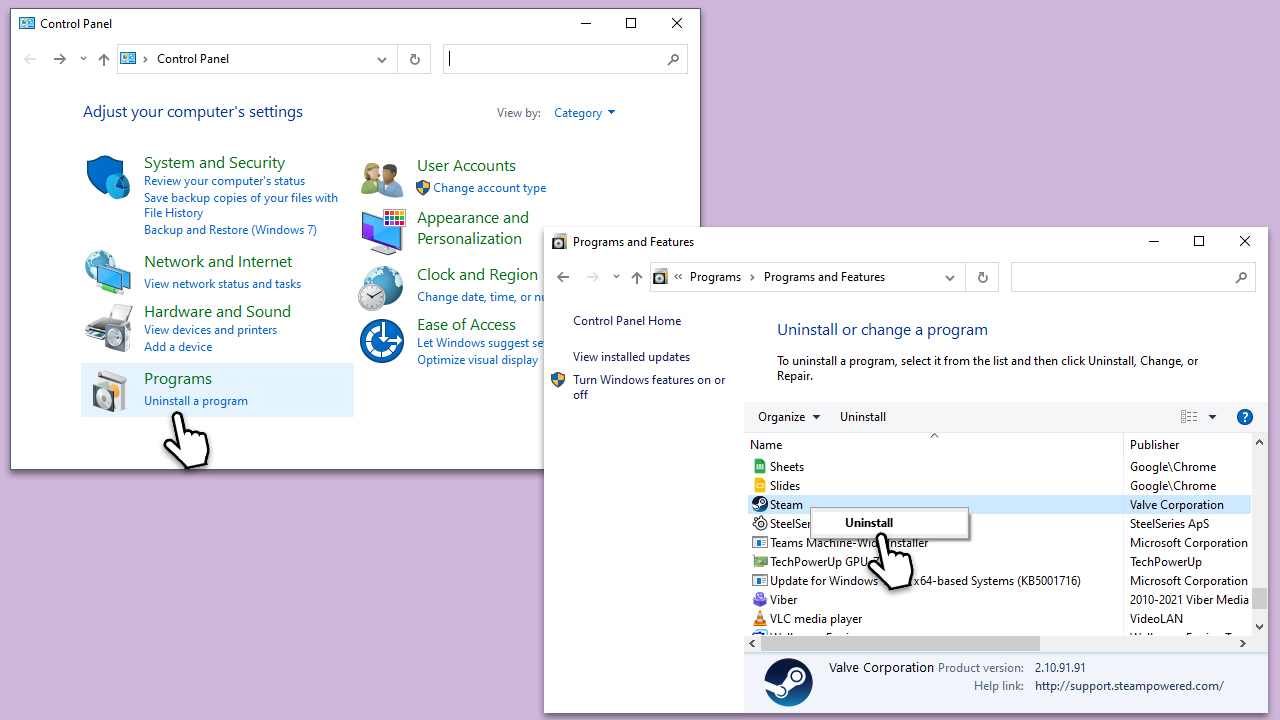
- Go to the Control Panel.
- Select Programs > Uninstall a program.
- Find Steam in the list and select Uninstall.
- Follow the prompts to remove Steam from your system.
- After uninstallation, restart your computer.
- Download the latest version of Steam from the official website.
- Run the installer and follow the instructions to install Steam.
Bottom line
To fix the 'Steam must be running to play this game' error, you can try running Steam as an administrator, verifying game files, clearing Steam cache, and ensuring that Steam is properly installed. If none of these solutions work, consider running a system scan to repair corrupted Windows files.
Frequently asked questions
Try restarting both Steam and your computer, then ensure that the game is added to your Steam library. If the issue persists, verify the integrity of the game files through Steam's properties.
Ensure that Windows 11 is fully updated and check if the Steam client is up to date. You can also try running the game as an administrator to see if that resolves the issue.
After reinstalling Steam, make sure to install the latest version of Windows 10 or Windows 11, and check your firewall settings to ensure Steam is allowed to run.




Report an issue
What's wrong with this guide? We review every report and update or remove content.
Report received — thank you. We'll review and fix it.
You need a free account to submit a report.
Be the first to comment