How to fix
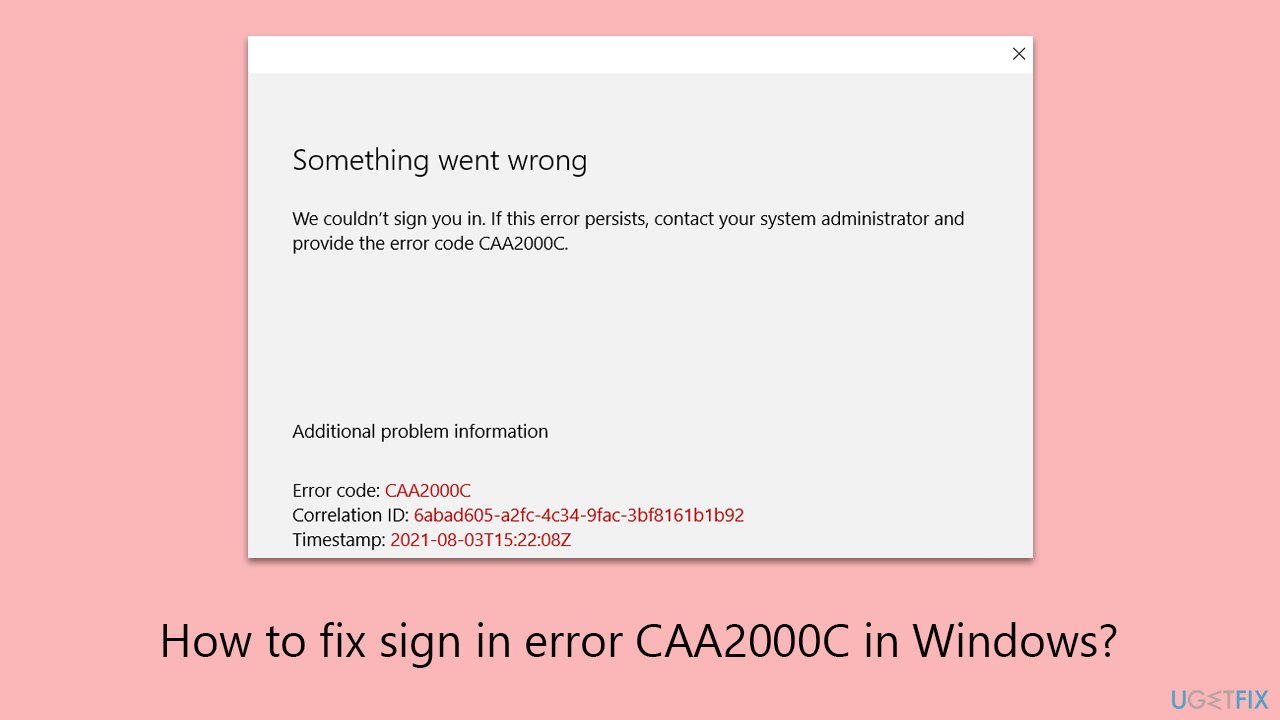
Sign in error CAA2000C
on Windows
Resolve the CAA2000C sign-in error on Windows 10 and 11 effortlessly. Quick fixes and expert tips ensure a smooth experience. Fixed in minutes!


What causes How to fix sign in error CAA2000C in Windows?
- Problems with internet connectivity
- Corrupted cache of the sign-in program
- Troublesome update in the Windows operating system
- Issues with specific applications like Microsoft Teams
Repairs Windows system files, removes malware, and restores a clean OS state — without reinstalling.
Hello. Whenever I attempt to log in to my Work or School account, I keep receiving a CAA2000C error. Any clue why? I have no idea what changed because this started happening out of a sudden. I'm using Windows 10 Version 22H2.
On Windows operating systems, users usually demand a smooth sign-in process when interacting with various accounts. This procedure is usually simple and is necessary to access a variety of services and applications. Nevertheless, individuals frequently run into difficulties when doing this, and the CAA2000C sign-in issue is one among them. The main cause of this problem is trying to log into certain accounts, including Microsoft Teams, School, or Work accounts.
There are a number of reasons why error CAA2000C happens. Problems with internet connectivity could be one of the causes. The sign-in procedure depends on a strong, consistent internet connection, and any disturbances may result in this error.
Furthermore, the program that was used to sign in may have a corrupted cache. Though intended to expedite operations, caches may occasionally hold onto erroneous or obsolete data, resulting in problems when attempting to log in.
A troublesome update in the Windows operating system or a particular program, such as Microsoft Teams, could be another possible reason. Although updates are designed to improve security and functionality, sometimes they cause new problems or make old ones worse.
You may want to make sure your internet connection is strong and steady in order to fix the CAA2000C issue. Another option is to empty the cache of the program, which may fix problems caused by out-of-date or faulty data.
It's also a good idea to update your Windows software and operating system because doing so can resolve known issues and enhance functionality. Reverting a recent update may be required in certain situations if it is determined to be the cause of the issue. Note that not all fixes might be applicable to you because it all depends on the app that's failing.
Furthermore, using a PC repair application such as [d1] might be a useful method to automatically fix any Windows operating system problems that may be causing the CAA2000C error.
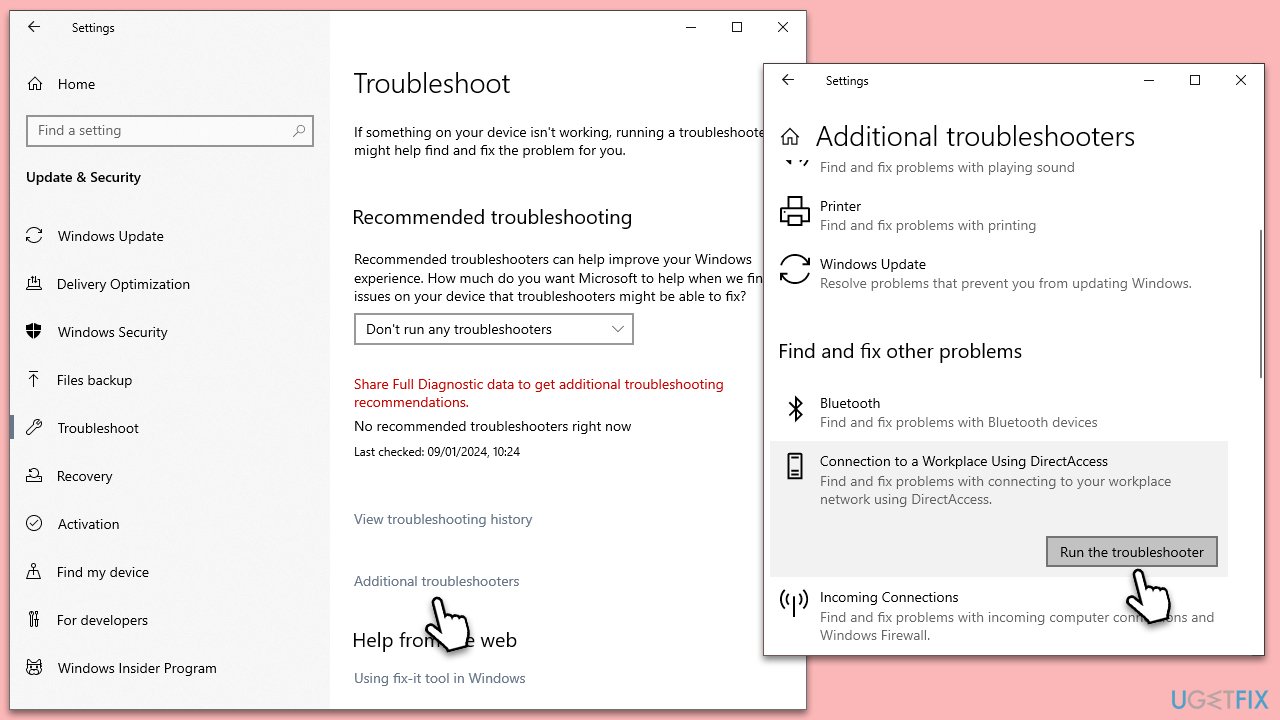
Fix 1. Run Connection to Workplace Using DirectAccess troubleshooter
The DirectAccess troubleshooter is a built-in Windows tool designed to diagnose and resolve issues related to network connectivity, especially in workplace environments. This troubleshooter can automatically detect and fix problems that might be causing the CAA2000C error during the sign-in process.
- Type troubleshoot in Windows search and press Enter.
- Select Troubleshoot settings from the search results.
- Scroll down and click on Additional troubleshooters/Other troubleshooters.
- Locate and select Connection to Workplace Using DirectAccess.
- Click on Run the troubleshooter/Run and follow the on-screen instructions.
- Restart the PC when finished.
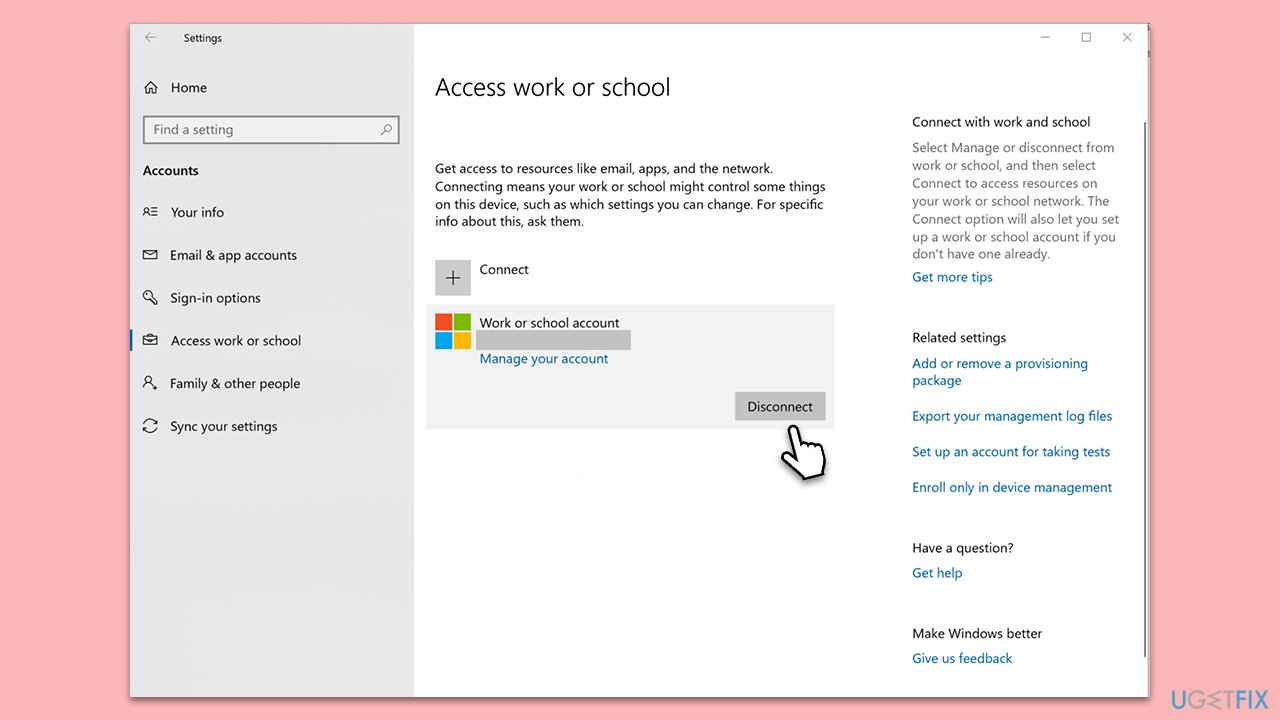
Fix 2. Reconnect your Work or School account
This process involves removing the account and then adding it back to Windows.
- Open Settings (Win + I).
- Click on Accounts.
- Select Access work or school.
- Click on your account and then Disconnect.
- Navigate to C:\users\USERNAME\AppData\Local\Packages (replace USERNAME with your actual username).
- Delete the contents of the folder.
- Restart your computer.
- Return to Access work or school and connect your account again.
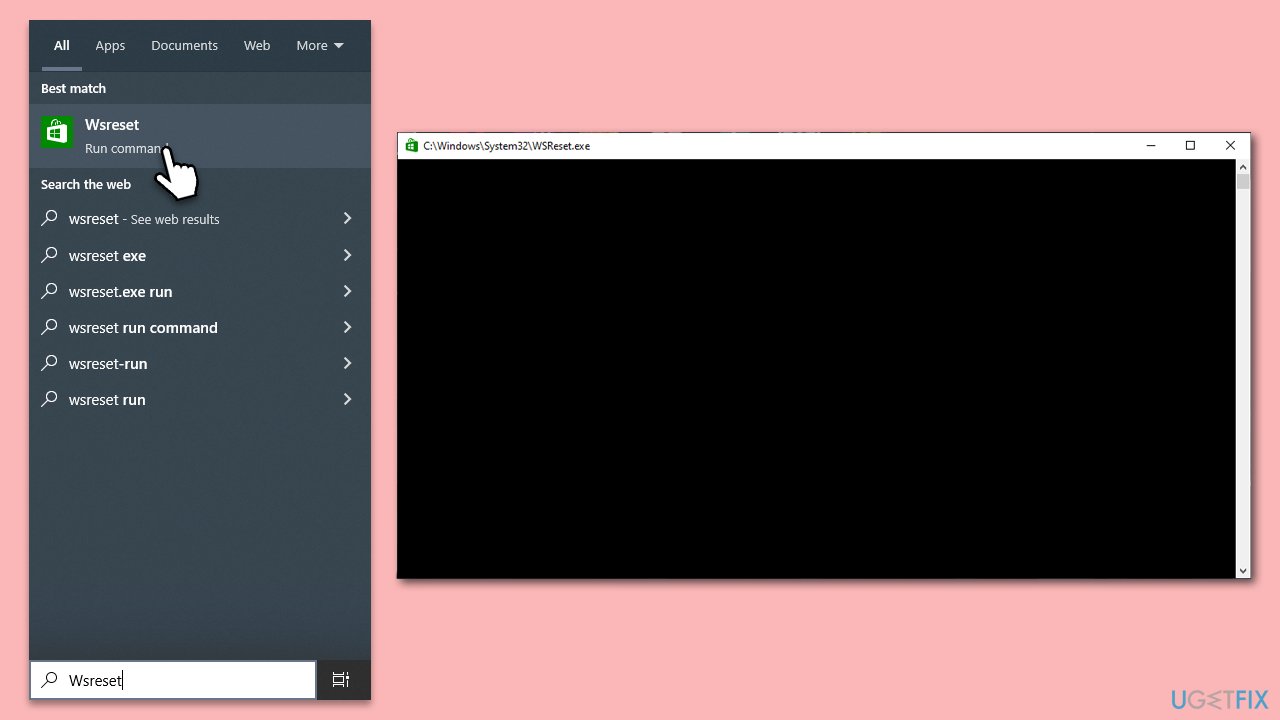
Fix 3. Reset Microsoft Store cache
This process clears out stored data that might have become corrupt or outdated, potentially causing the CAA2000C error.
- In Windows search, type wsreset and press Enter.
- Wait till a black window shows up - do not close it.
- As soon as it closes, the store should be reset and will reopen.
- Try signing in again.
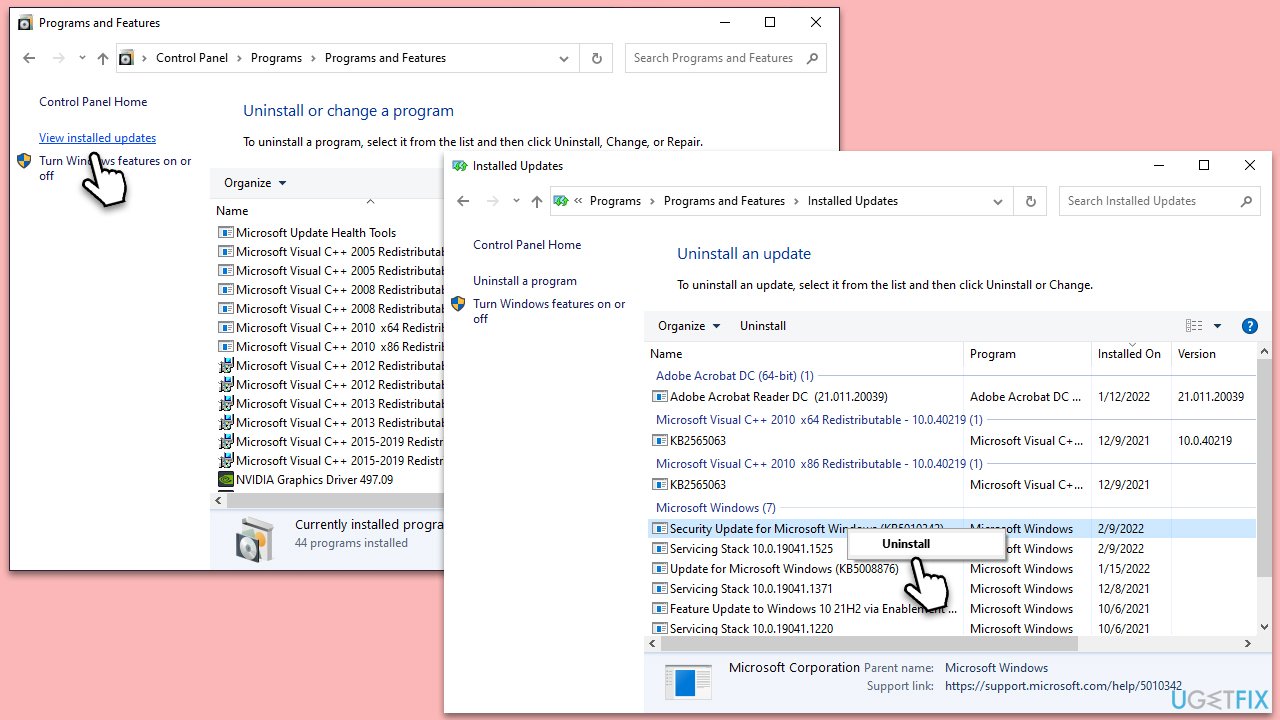
Fix 4. Uninstall the most recent Windows update [if applicable]
If the error started occurring after a recent Windows update, uninstalling that update can reverse any changes that might be causing the issue.
- Type Control Panel in Windows search and press Enter.
- Select Programs > Uninstall a program.
- Click on View installed updates on the left side of the window.
- Sort all the updates by date.
- Right-click on the most recent update and select Uninstall.
- Proceed with on-screen instructions.
- Then, type Updates in Windows search and press Enter.
- Click Pause the updates for 7 days or pick a different time frame.
- Restart your PC.
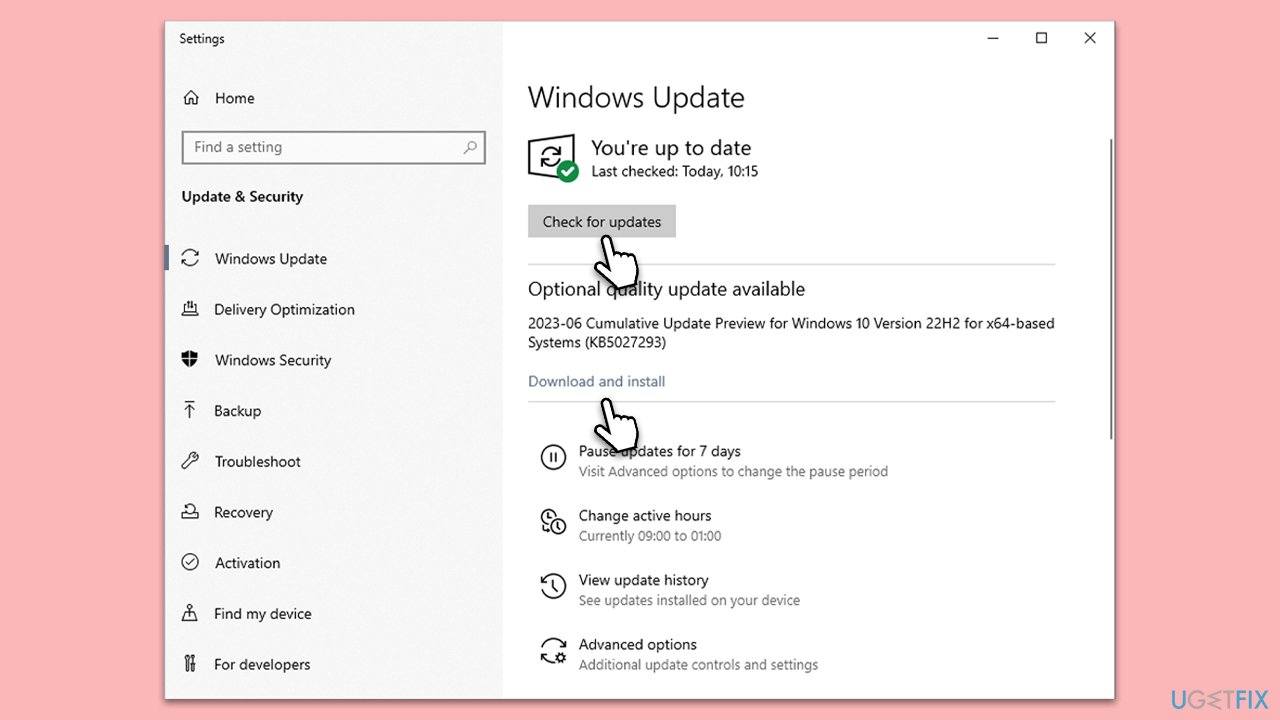
Fix 5. Install the most recent Windows update [if applicable]
Installing the latest Windows updates can fix known bugs and vulnerabilities, potentially resolving the CAA2000C error.
- Type Updates in Windows search and press Enter.
- Here, click Check for updates.
- Wait till Windows downloads and installs all the files.
- If optional updates are available, install them as well.
- Reboot your system.
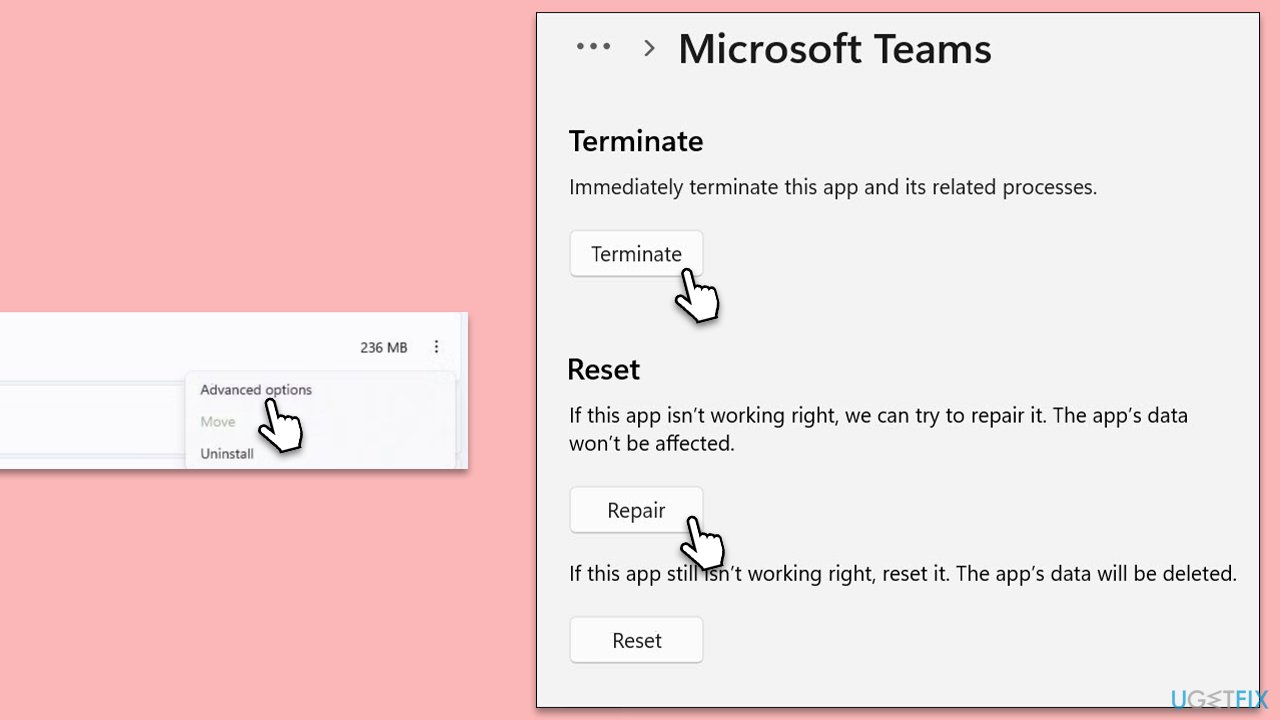
Fix 6. Repair or reset the affected app
If the error is specific to an app like Microsoft Teams, repairing or resetting it can resolve issues related to corrupted files or settings.
- Right-click on the Start menu and select Apps and Features.
- Find the app experiencing the issue in the list and select it (for example, Teams).
- Click on Advanced options.
- First, try clicking on Repair and check if the issue is resolved.
- If not, return to Advanced options and click on Reset.
- Follow the prompts to complete the reset process.
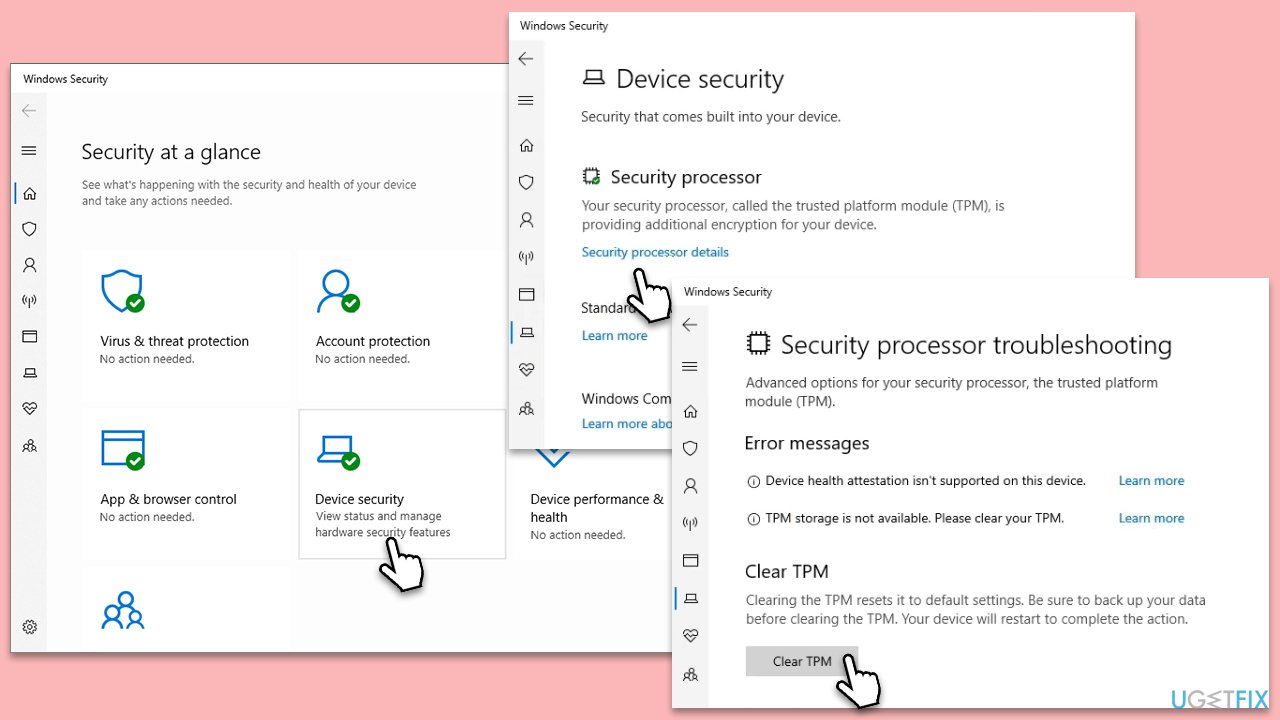
Fix 7. Clear TPM keys
Clearing the Trusted Platform Module (TPM) keys can resolve issues related to security and encryption, which might be causing the CAA2000C error.
- Open the Windows Security app.
- Navigate to Device Security.
- In the Security processor section, click on Security processor details.
- Click on Security processor troubleshooting, then click on Clear TPM.
- Confirm the action and follow the prompts to clear the TPM.
Bottom line
To fix the CAA2000C error, ensure your internet connection is strong and steady, clear the cache of the program, and update your Windows software. If the issue persists, consider reverting a recent update or using a PC repair application. If none of these solutions work, further investigation may be necessary.
Frequently asked questions
The CAA2000C error is often caused by issues with network connectivity, incorrect account settings, or problems with the Microsoft account server. Ensuring a stable internet connection and checking account settings can help resolve this issue.
To troubleshoot the CAA2000C error on Windows 11, try resetting your network settings and clearing the cache of the Microsoft Store app. Additionally, signing out and back into your Microsoft account may also help.
Yes, a quick fix for the CAA2000C error on Windows 10 includes running the Windows Store Apps troubleshooter, which can automatically detect and resolve issues with app sign-ins. You can access this tool through the Settings menu under Update & Security.




Report an issue
What's wrong with this guide? We review every report and update or remove content.
Report received — thank you. We'll review and fix it.
You need a free account to submit a report.
Be the first to comment