How to fix
Can’t download files from OneDrive
on Windows
Resolve file download issues from OneDrive on Windows 10 and 11 easily. Get reliable solutions, expert-tested fixes, and enjoy hassle-free access!

![[Fix] Can’t download files from OneDrive in Windows](https://ugetfix.com/wp-content/uploads/articles/askit/fix-cant-download-files-fromonedrive-in-windows_en-768x432.jpg)
What causes [Fix] Can’t download files from OneDrive in Windows?
- Download process fails to start
- Download process stops at a certain point
- Network problems causing inconsistent connectivity
- Specific Windows operating system installations or settings affecting downloads
- Bugs in OneDrive impairing regular operation
Repairs Windows system files, removes malware, and restores a clean OS state — without reinstalling.
I am at the moment trying to download a file that is shared with me on OneDrive. I am not sure how to resolve this and would appreciate any tips available. Thanks.
Microsoft's cloud storage service OneDrive is an essential tool for users who need to access and manage their data across several devices. It works by syncing data between the user's PC and the cloud, making them accessible from any internet-connected location. OneDrive's operation depends on this synchronization procedure since it makes sure that any modifications made to files on one device are mirrored on all other devices that are connected to the account.
On the other hand, some customers report that Windows won't let them download files from OneDrive. There are a few instances this issue shows up: either the download process fails to start at all, or it stops at a certain point.
This issue makes it more difficult for users to access their own files when needed, in addition to interfering with the smooth experience that users have come to expect from OneDrive. When trying to download shared folders from OneDrive, the problem gets considerably worse because these are frequently essential for group projects and information exchange.
OneDrive is not immune to bugs that might occasionally impair regular operation, just like any other software. Network problems could be another cause. The process of downloading files can be severely hampered by inconsistent or variable internet connectivity, which might result in unsuccessful or partial downloads. OneDrive's capacity to download data may also be hampered by particular Windows operating system installations or settings.
A PC repair tool [d1] could be able to help those who are having trouble with their machines and are unable to have them fixed. These programs are made to automatically find and address systemic problems with the Windows operating system. If you can't download files from OneDrive and would like to resolve it yourself, follow the manual instructions below.
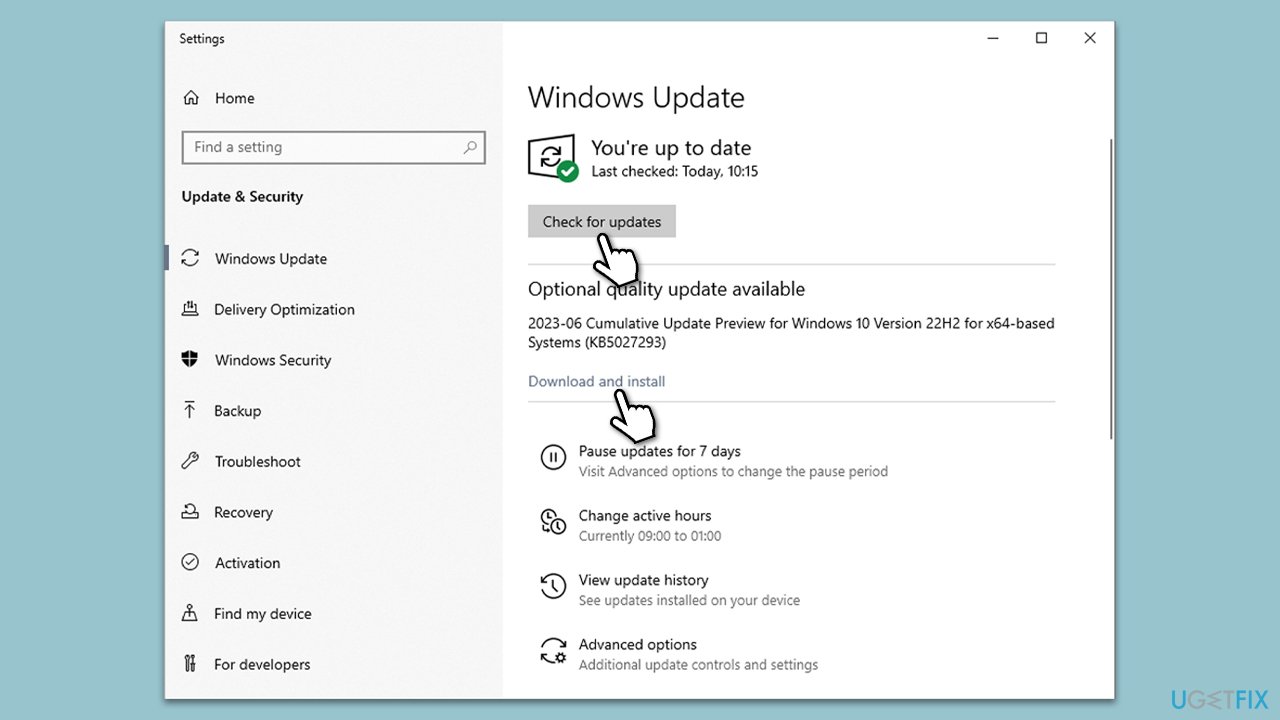
Fix 1. Install Windows updates
Windows updates often contain fixes for common bugs that could be affecting OneDrive's performance. To install Windows updates:
- Type Updates in Windows search and press Enter.
- In this window, click Check for updates.
- If optional updates are available, install them too.
- When everything is installed, restart your system.
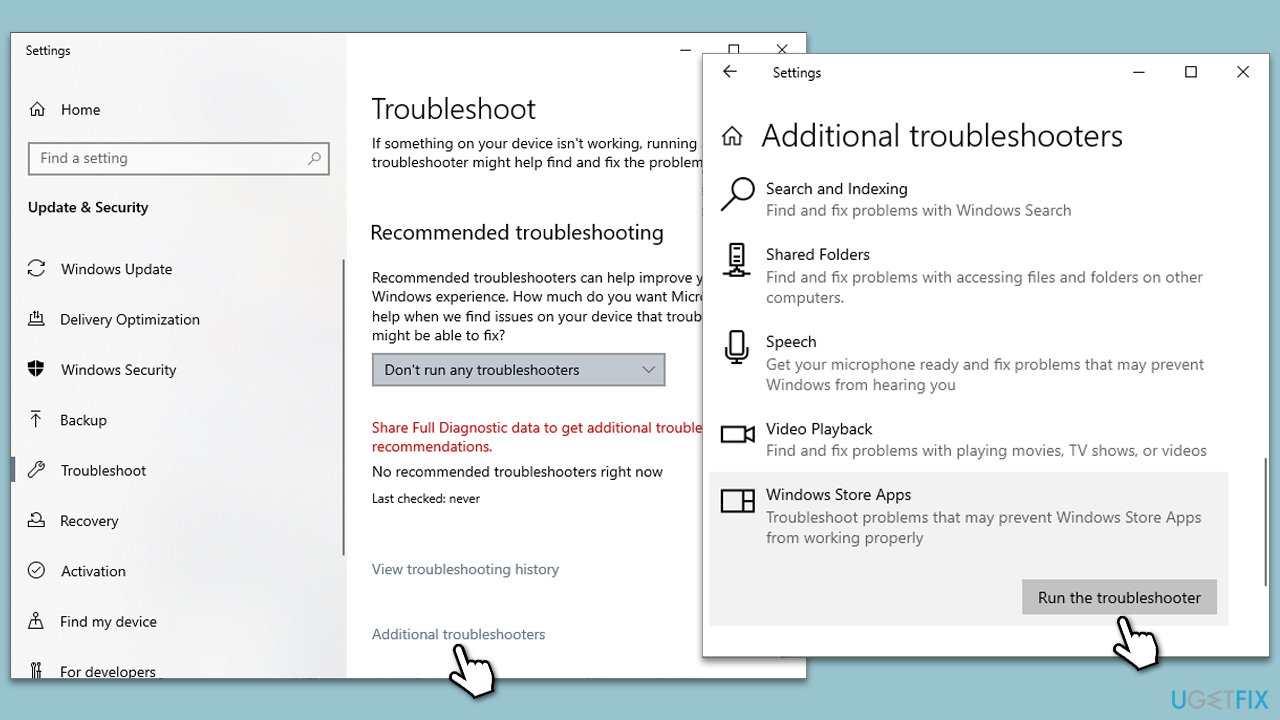
Fix 2. Run Windows Store apps troubleshooter
Windows Store apps troubleshooter can automatically detect and fix issues with Windows Store apps, including OneDrive. Running this troubleshooter is a straightforward process:
- Type troubleshoot in the Windows search box and press Enter.
- Select Additional troubleshooters/Other troubleshooters.
- Scroll down to find the Windows Store Apps entry.
- Select it and click Run the troubleshooter/Run.
- Wait until the scan finishes, apply the suggested fixes, and reboot your PC.
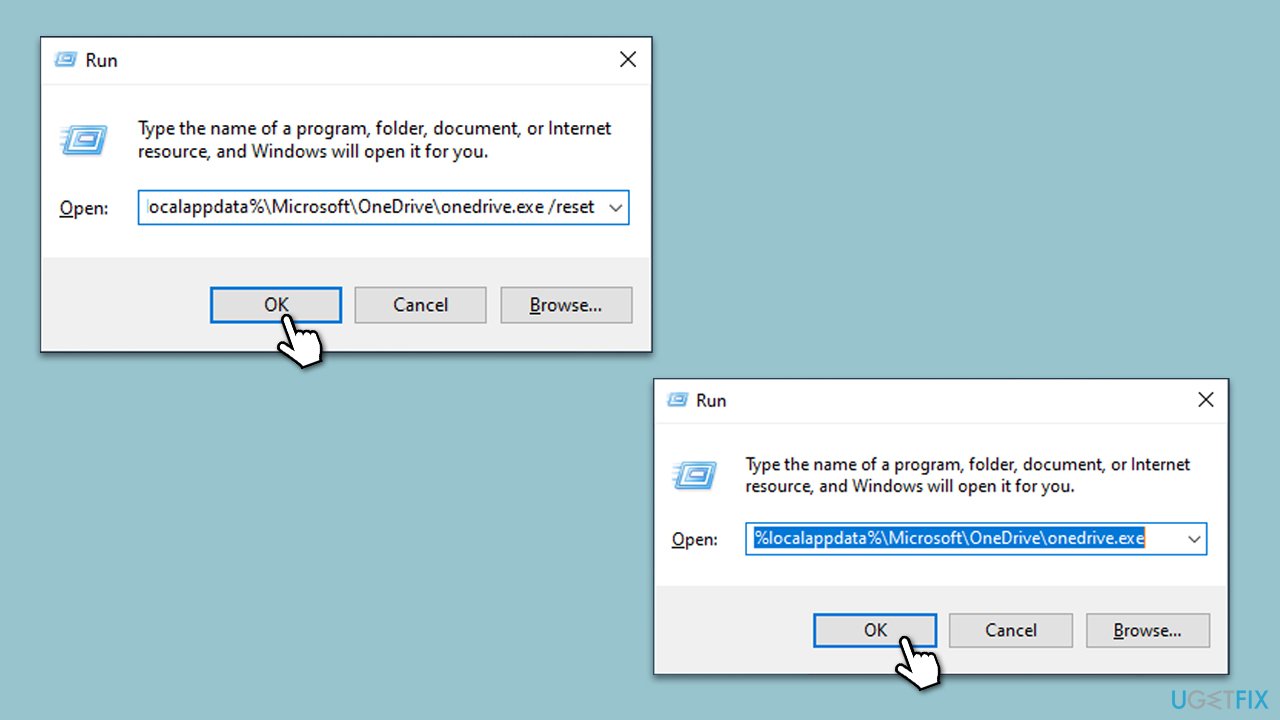
Fix 3. Reset OneDrive
Resetting OneDrive can often resolve syncing and downloading issues by refreshing the app’s settings and data, without affecting the files stored on OneDrive:
- Press Win + R on your keyboard.
- When the Run window opens, copy and paste the following text into it:
%localappdata%\Microsoft\OneDrive\onedrive.exe /reset
(Note: you might get an error here. In that case, use %programfiles(x86)%\Microsoft OneDrive\onedrive.exe /reset or C:\Program Files (x86)\Microsoft OneDrive\onedrive.exe /reset instead) - Press Enter or click OK.
- After this command is executed, the app should be reset, and OneDrive should open.
- If it doesn't, wait a few minutes, then open the Run window again and use the following command:
%localappdata%\Microsoft\OneDrive\onedrive.exe - Press Enter.
Fix 4. Try using OneDrive in the browser
OneDrive issues with the desktop app can occasionally be resolved by using the web browser version of the app. In the OneDrive web interface, the Download button is only shown when files or folders are selected, so keep that in mind.
- Open your preferred web browser.
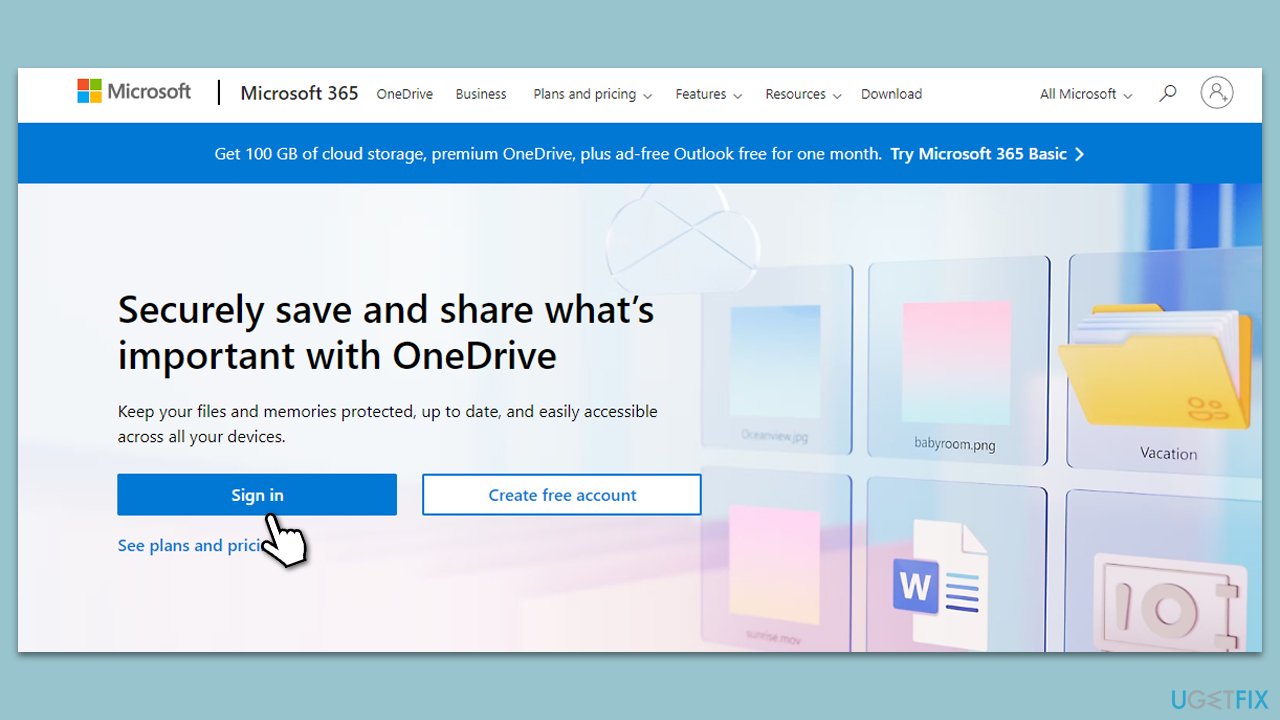
- Go to the OneDrive website and log in with your Microsoft account.
- Select the files or folders you wish to download.
- Click on the Download button.
- If the Download button disappears, navigate up one level in the folder directory and return, or close the tab and reopen the folder.
Fix 5. Scan for corrupted system files
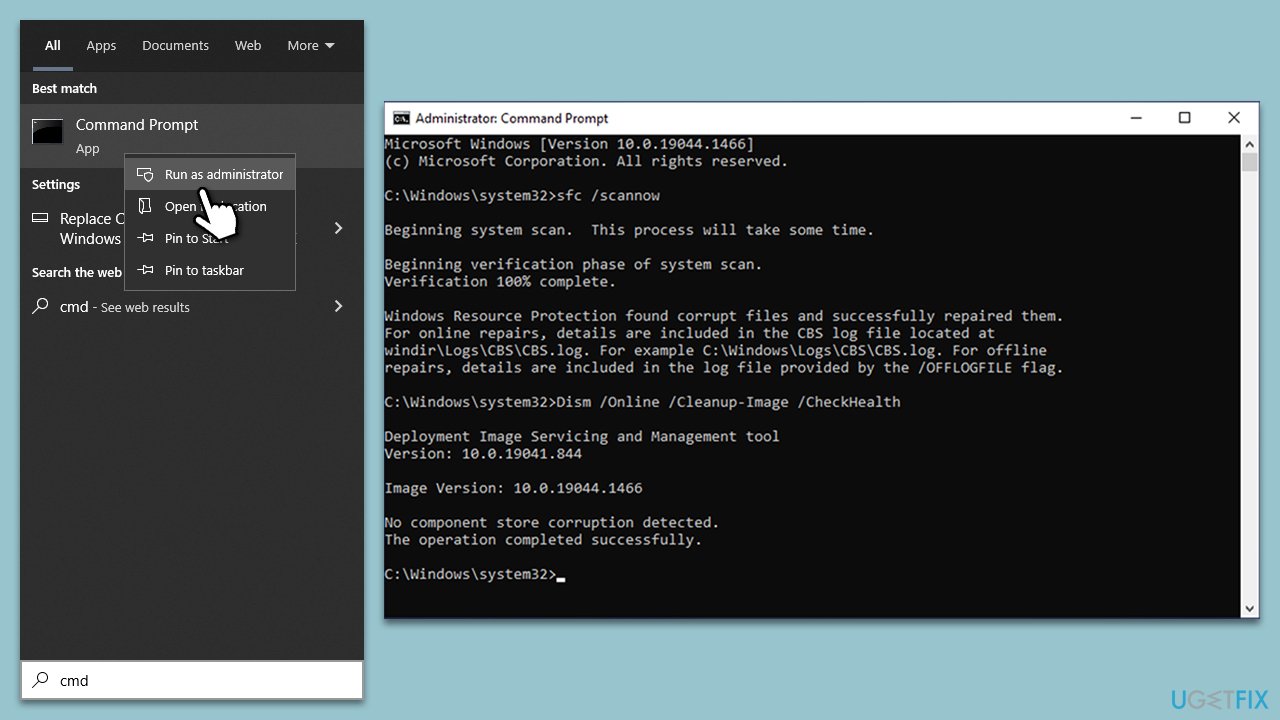
SFC and DISM scans can repair Windows system files and fix its image. Running these tools can address underlying system issues affecting OneDrive:
- Type cmd in Widnows search.
- Right-click on Command Prompt and pick Run as administrator.
- Type in the following command and press Enter:
sfc /scannow - When done, run the following commands as well:
dism /online /cleanup-image /scanhealth
dism /online /cleanup-image /checkhealth
dism /online /cleanup-image /restorehealth
(Note: if you get an error executing this last command, add /Source:C:\RepairSource\Windows /LimitAccess to it and try again). - Restart your computer.
Fix 6. Reinstall OneDrive
Reinstalling OneDrive can resolve persistent issues by removing the existing installation and replacing it with a fresh copy:
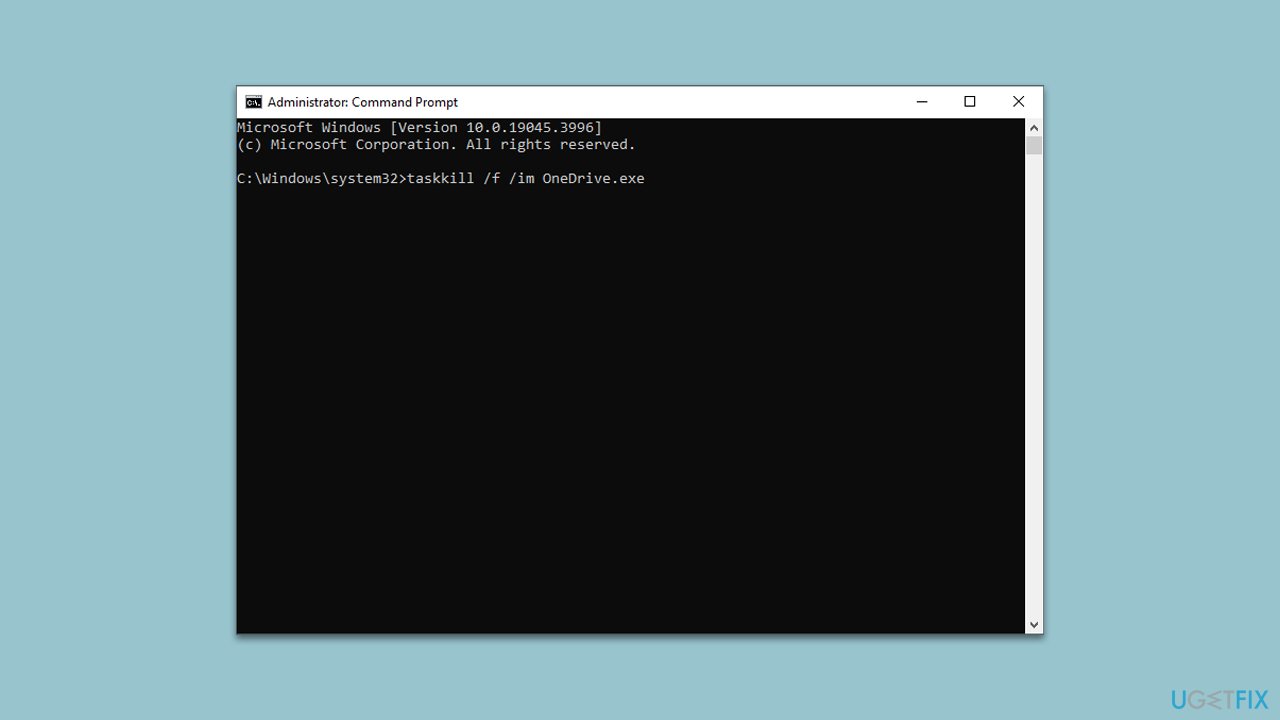
- Open Command Prompt as administrator.
- In the new window, copy and paste the following command and press Enter:
taskkill /f /im OneDrive.exe - Next, copy and paste the following command, pressing Enter again:
%SystemRoot%\SysWOW64\OneDriveSetup.exe /uninstall - Close down Command Prompt.
- Press Win + E to open File Explorer.
- At the top, click the View tab and make sure the Hidden Files checkbox is ticked.
- Navigate to the following location:
C:\Windows\SysWOW64 - Scroll all the way till you find OneDriveSetup.exe.
- Double-click the file and follow the on-screen instructions to install OneDrive.
Bottom line
To resolve the issue of not being able to download files from OneDrive, you can try installing Windows updates, which often contain fixes for common bugs. If the problem persists after trying these solutions, consider using a PC repair tool to automatically find and address systemic issues.
Frequently asked questions
First, check your internet connection and ensure that OneDrive is properly synced. If the issue persists, try resetting the OneDrive app by running 'onedrive.exe /reset' in the Run dialog.
Make sure that your Windows 11 is up to date and that you have enough storage space on your device. If these checks are fine, try unlinking and relinking your OneDrive account.
Error messages may indicate permission issues or a corrupted OneDrive installation; ensure you have the correct permissions and consider reinstalling OneDrive if necessary.




Report an issue
What's wrong with this guide? We review every report and update or remove content.
Report received — thank you. We'll review and fix it.
You need a free account to submit a report.
Be the first to comment