How to fix
“The previous system shutdown was unexpected” event
on Windows
Resolve the "The previous system shutdown was unexpected" error on Windows 10 and 11 quickly and effectively. Expert-tested solutions await!

What causes How to fix “The previous system shutdown was unexpected” event on Windows?
- Power problems
- Power outages
- Fluctuations in power supply
- Overheating due to dust buildup
- Hardware issues
Repairs Windows system files, removes malware, and restores a clean OS state — without reinstalling.
Hello, I need some urgent help. My Windows 11 laptop just keeps randomly restarting several times a day. I checked the Event Log and the only thing I can see at the time of these crashes are messages "The previous system shutdown was unexpected." Any tips on how to address this?
Unexpected Windows crashes severely impair user experience, frequently resulting in lost data, reduced output, and frustration. These disruptions can happen as Windows runs into a problem that causes it to shut down abruptly, logging the event and displaying the notice "The previous system shutdown was unexpected" in the Event Log. This alert functions as a crucial checkpoint, indicating an unexpected and sudden stop to the user-initiated process.
There are a number of reasons why the "The previous system shutdown was unexpected" event occurs, but power problems are one of the main ones. Windows may abruptly shut down in response to power outages or fluctuations in order to safeguard the system and its parts from possible harm.
Sudden system shutdowns can also result from hardware issues like overheating, which are frequently made worse by collected dust within the internal components of the system. The reason overheating problems are especially dangerous is that they can set off the system's safeguards, which will force a sudden shutdown to avoid damaging the hardware.
Determine the underlying reason for the unexpected shutdown before attempting to fix the "The previous system shutdown was unexpected" error. Make sure there is a steady and continuous supply of electricity in case the issue is related to it.
However, if overheating is detected, cleaning the internal parts of the system to get rid of dust buildup and enhance airflow might be a useful countermeasure. The complexity of Windows operating systems means that underlying problems may not always be immediately evident or readily rectified, even while these procedures can prevent some of the typical causes leading to sudden shutdowns.
Using a professional PC diagnostics and repair program [d1] becomes invaluable when the cause of the shutdown is difficult to identify or when the issue still exists after trying various troubleshooting techniques.

Fix 1. Clear the dust near the power supply
A collection of dust close to the power source may cause the system to overheat and, as a result, shut down without warning. Dust accumulation over time can clog the airways and cooling fans, making it more difficult for the system to keep the temperature at its ideal level. The risk of overheating can be decreased by greatly increasing airflow and cooling efficiency by dust removal.
- Turn off your computer and unplug it from the power source.
- Open the computer case using a screwdriver if necessary.
- Use a can of compressed air to gently blow away the dust from the power supply unit, fans, and air vents. Be careful not to damage any components.
- Use a soft brush to dislodge any stubborn dust particles.
- Once the dust is cleared, reassemble the case and reconnect the power.
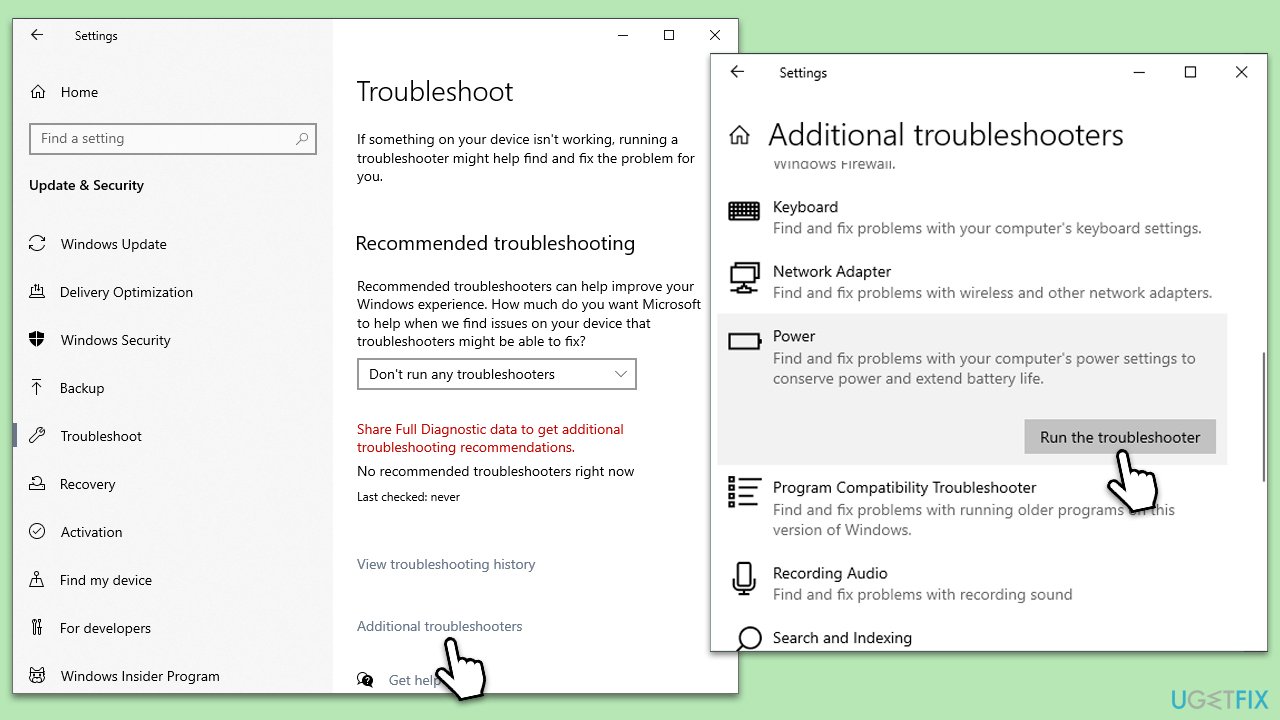
Fix 2. Run Power troubleshooter
Windows includes a built-in troubleshooter that can automatically detect and fix issues with your power settings, which might be causing the system to shut down unexpectedly.
- Type Troubleshoot in Windows search and press Enter.
- Select Additional troubleshooters (or Other trouble-shooters in Windows 11).
- Find the Power section and click Run the troubleshooter/Run.
- Wait till the scan is finished, apply the suggested fixes, and restart your device.
Fix 3. Restore the power setting to default
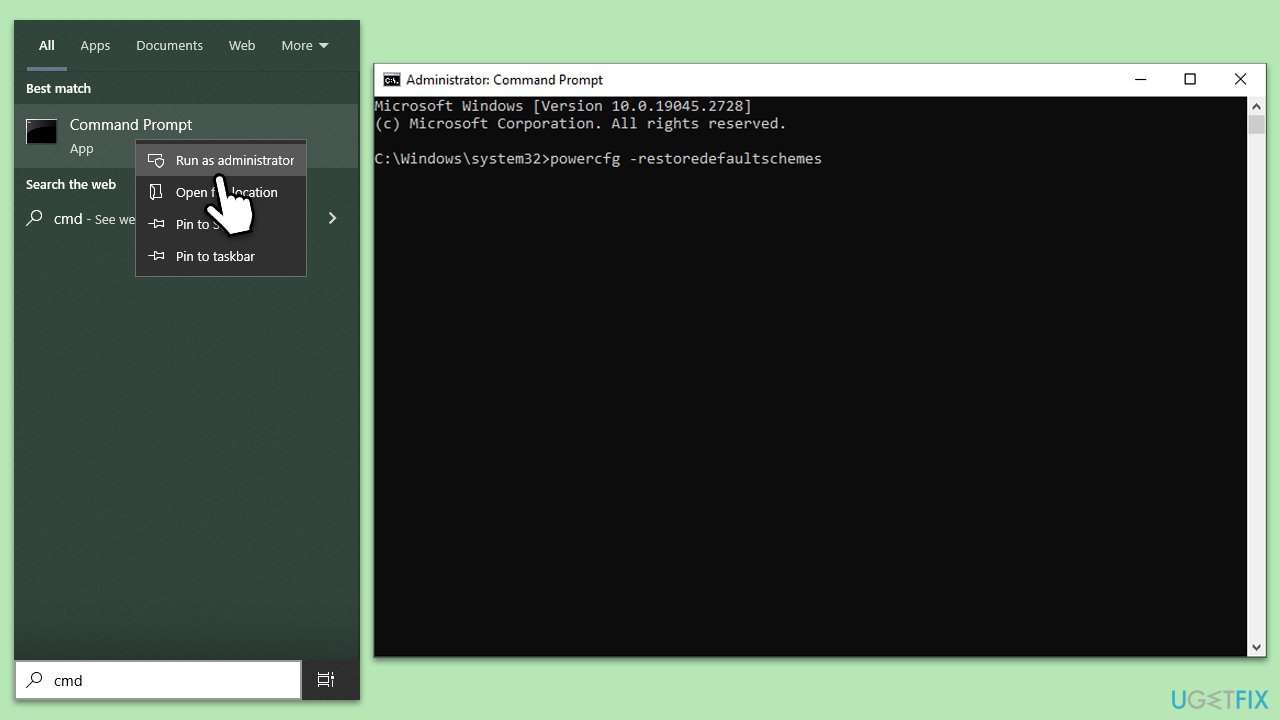
- Run Command Prompt as administrator.
- In the Command Prompt window, copy and paste the following:
powercfg -restoredefaultschemes - Close down everything and restart your computer.
Fix 4. Create a new power plan
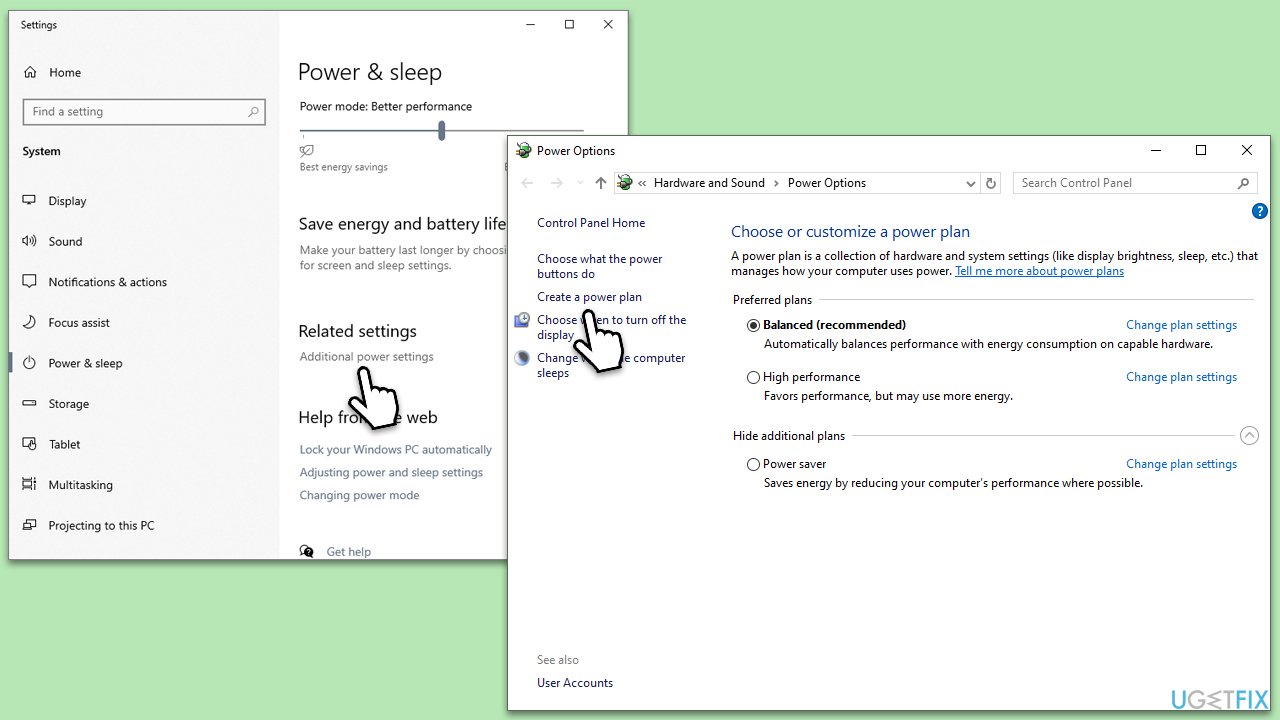
Creating a new power plan can help if your current plan is corrupted or not suited to your system's needs, potentially causing unexpected shutdowns.
- Right-click on the Start button and select Power Options.
- Click on Additional power settings.
- Select Create a power plan from the menu on the left.
- Choose a plan that best fits your use case, give it a name, and click Next.
- Adjust the settings according to your preference and click Create.
Fix 5. Repair corrupted files
System File Checker and Deployment Image Servicing and Management are tools that can repair Windows system files and restore system health, potentially resolving issues that cause unexpected shutdowns.
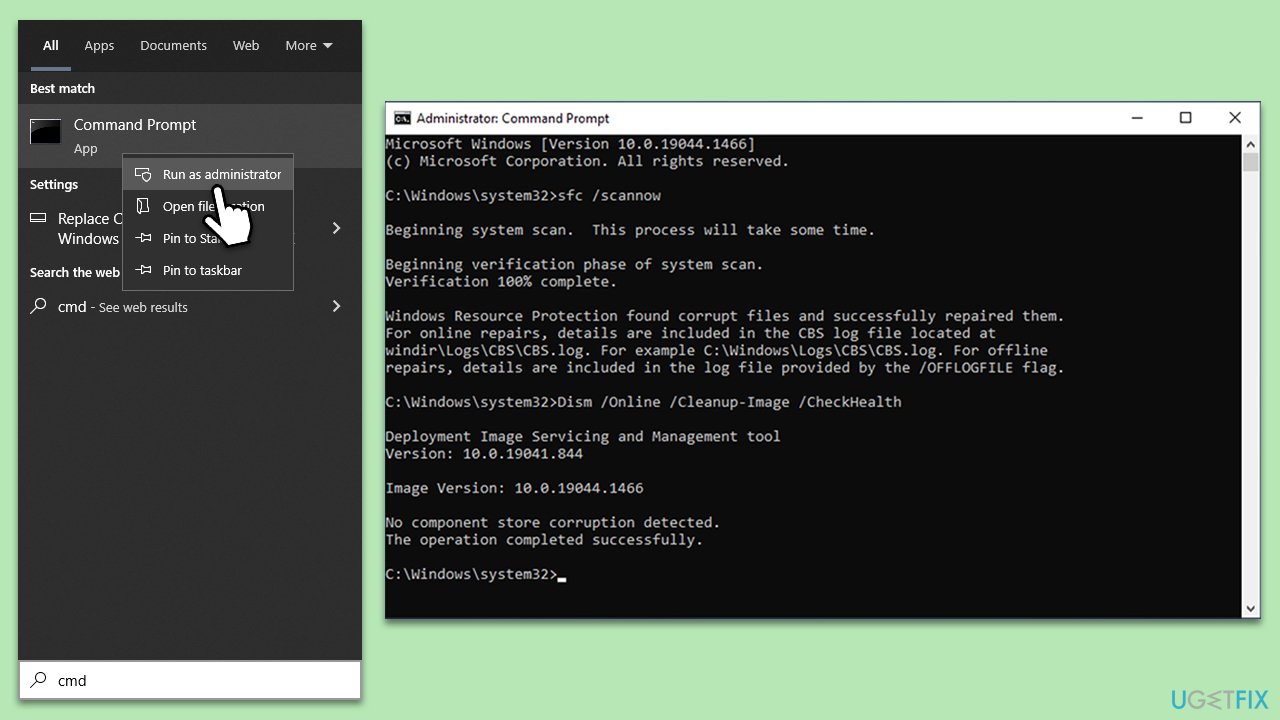
- Type in cmd in Windows search.
- Right-click on Command Prompt and select Run as administrator.
- When User Account Control (UAC) shows up, click Yes
- In the Command Prompt window, paste the following command and hit Enter:
sfc /scannow - Once the scan is complete, you should also run the following commands to repair Windows image files if needed:
Dism /Online /Cleanup-Image /CheckHealth
Dism /Online /Cleanup-Image /ScanHealth
Dism /Online /Cleanup-Image /RestoreHealth
(Note: if you get an error executing this last command, add /Source:C:\RepairSource\Windows /LimitAccess to it and try again). - Restart your PC.
Fix 6. Check your battery [laptops only]
For laptops, a failing battery can cause unexpected shutdowns. Running your laptop on a power cord can help determine if the battery is the issue.
- Shut down your laptop and disconnect the battery if possible.
- Plug the power cord into your laptop and turn it on.
- Use the laptop for a while to see if the unexpected shutdowns continue. If they stop, the battery may need to be replaced.
Fix 7. Reinstall GPU drivers
Outdated or corrupted graphics card drivers can cause system instability, including unexpected shutdowns. Reinstalling these drivers can help ensure that your system runs smoothly.
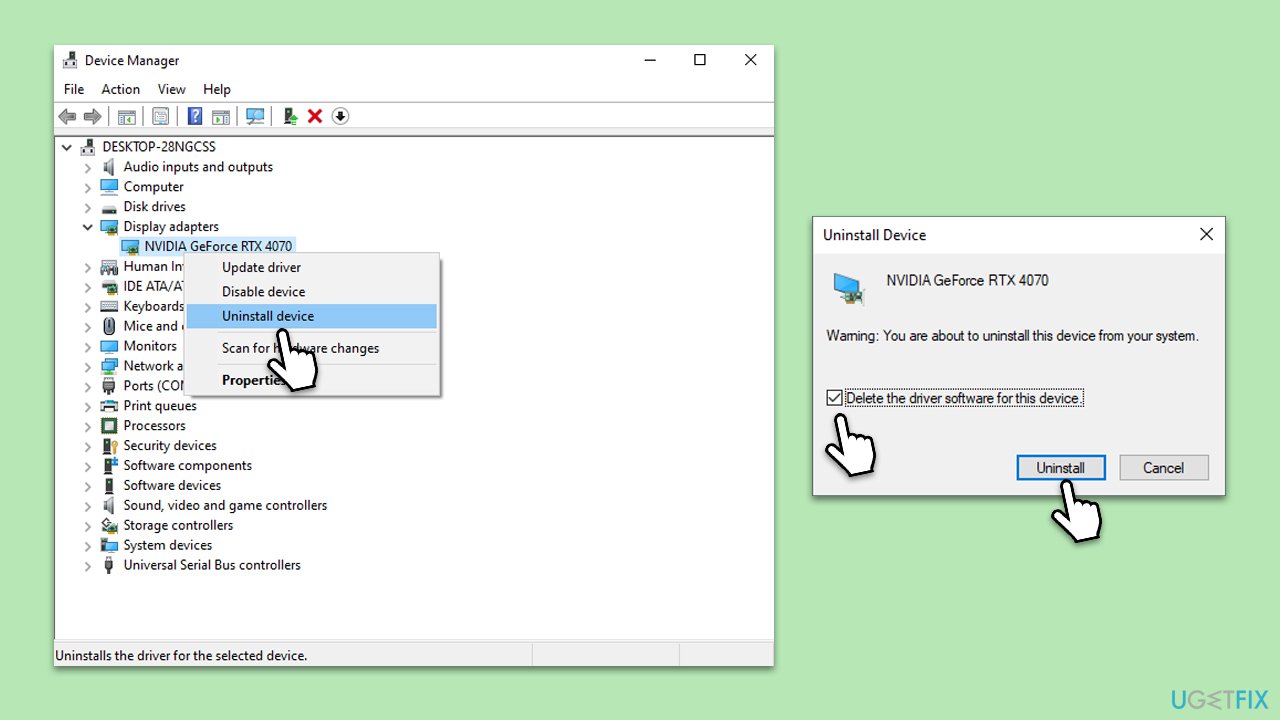
- Right-click on Start and pick Device Manager.
- Expand Display adapters.
- Right-click on your GPU and select Uninstall device.
- Mark the Delete the driver software for this device tickbox.
- Click Uninstall and follow the instructions to finish the process.
- Restart your device.
- After that, visit your device manufacturer's official website and download the newest drivers manually or employ an automatic updater such as [rev id="DriverFix"].
Bottom line
To address the unexpected shutdown issue, ensure a steady power supply and clean the internal components to improve airflow. If the problem persists after these steps, consider using a professional PC diagnostics and repair program to identify the underlying cause.
Frequently asked questions
This error can be caused by hardware failures, power outages, or issues with system files. It's important to check your hardware components and perform a system file check to identify the root cause.
To prevent this message, ensure your system drivers are up to date and that your power settings are configured correctly. Additionally, regularly running maintenance tasks like disk cleanup and checking for system updates can help.
Yes, you can troubleshoot this error by checking the Event Viewer for specific error codes, running a system file checker scan, and testing your hardware components for failures. These steps can help identify and resolve the underlying issues.




Report an issue
What's wrong with this guide? We review every report and update or remove content.
Report received — thank you. We'll review and fix it.
You need a free account to submit a report.
Be the first to comment