How to fix
“This application requires Windows App Runtime” error
on Windows
Resolve the "This application requires Windows App Runtime" error on Windows 10 and 11 effortlessly. Expert-tested solutions await you!


What causes How to fix “This application requires Windows App Runtime” error in Windows?
- Missing Windows App SDK components
- Missing Windows App Runtime components
- Corrupted system files
- Issues with Windows update components
- Deregistered or malfunctioning Microsoft applications
Repairs Windows system files, removes malware, and restores a clean OS state — without reinstalling.
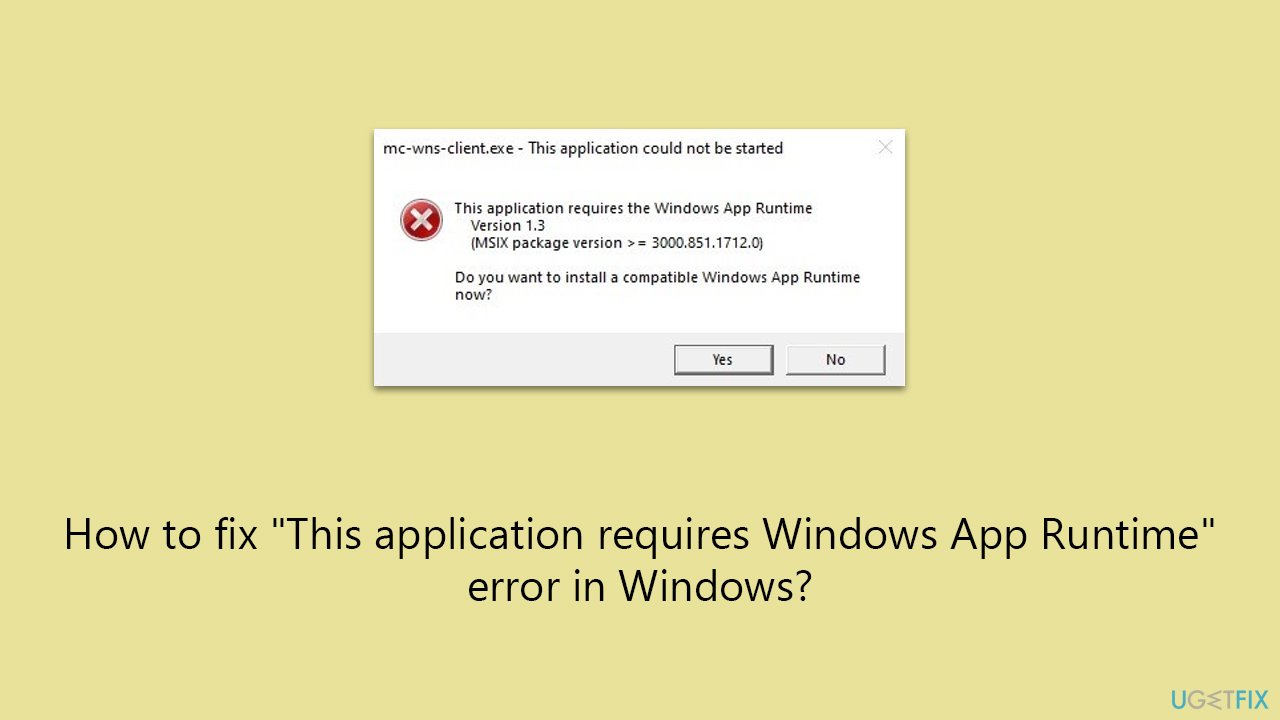
Every time I start my PC, I receive the "This application requires Windows App Runtime Version 1.3" error. Any tips?
The Windows Runtime, sometimes known as WinRT, is a crucial component of current Windows apps. Developers can utilize its extensive set of APIs to create programs that work on PCs, tablets, and smartphones as well as other Windows devices. With the help of this technology, programs can have a contemporary appearance and feel, integrate with Windows features seamlessly, and function well on a variety of hardware setups.
Some users may get an error while using Windows that says, "This application requires Windows App Runtime," which includes the missing version, such as 1.3. This problem usually shows up while Windows is starting up or when you try to run specific programs. The lack of essential Windows App SDK or Windows App Runtime components, which are required to execute contemporary Windows programs, is frequently the underlying cause of this problem.
The first thing you should do when faced with the "This application requires Windows App Runtime" error is to make sure that your computer has all of the necessary Windows App Runtime components installed.
This is because the error notice usually indicates that these components are necessary for the application you are trying to open to work properly. If they are missing, the application will not function as intended. It's crucial to remember, though, that some users have stated that their problems were not fixed by adding the required parts. In some cases, more steps to address the underlying issue could be required.
These steps include restoring corrupted system files, which can be the source of many problems; resetting Windows update components to address update-related issues that may be impacting the App Runtime components; and reregistering all Microsoft applications to guarantee that any deregistered or malfunctioning apps are once again properly recognized by the system. In the section that follows, comprehensive instructions for these procedures will be given.
Alternatively, using PC repair software [d1] could be a useful strategy for individuals looking for a simpler way to fix any underlying Windows problems that might be causing the "This application requires Windows App Runtime" error.
Fix 1. Try to install the missing Runtime SDK component
This solution addresses the core issue directly by ensuring that the necessary Windows App Runtime components, which are crucial for the operation of modern applications, are present on your system. If these components are missing or not installed correctly, you may encounter the error in question. Installing or updating the Windows App SDK provides the required libraries and runtime components for the applications to run smoothly.
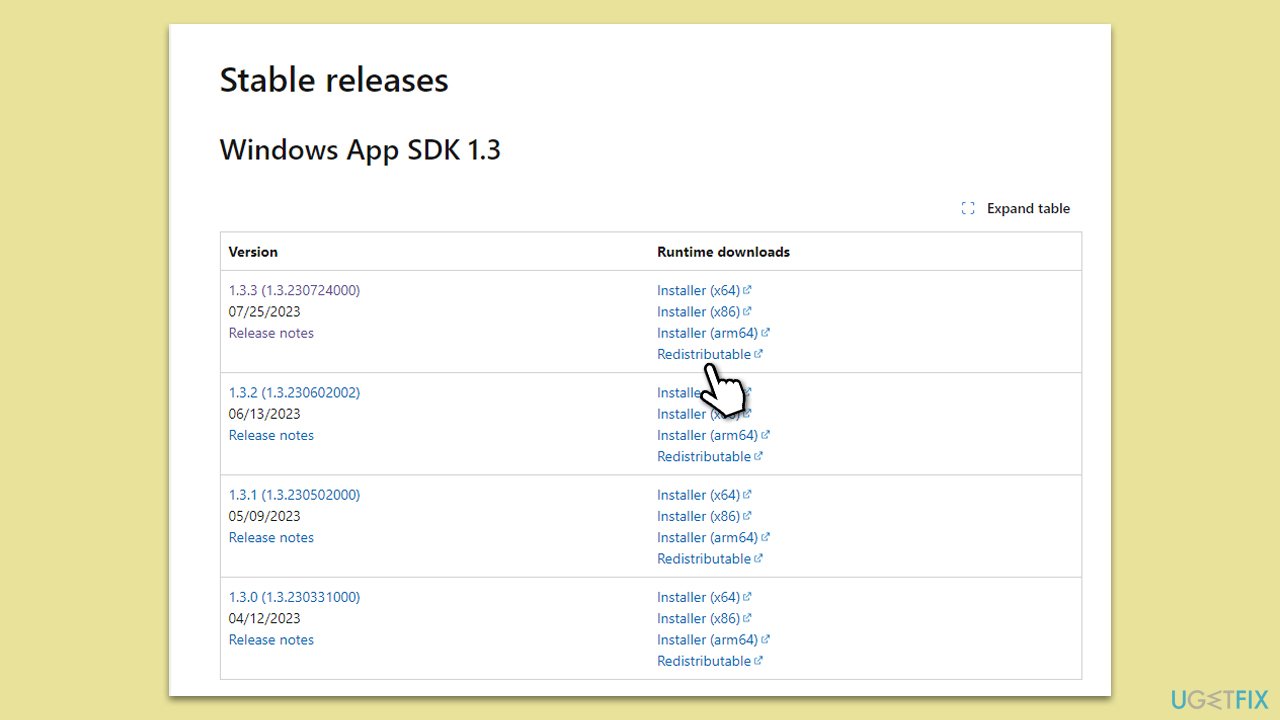
- Visit the official Microsoft website and navigate to the Windows App SDK page.
- Download the latest version of the Windows App SDK (use the Redistributable version), which is 1.3.3 at the time of the writing. Extract and launch the installer.
- Follow the installation instructions to install the SDK on your system.
- Restart your computer after the installation is complete to ensure that all changes take effect.
Fix 2. Install all Windows updates
Keeping your Windows system up to date is crucial for both security and functionality. Sometimes, the error can be resolved by installing the latest Windows updates, which may include critical fixes and the latest versions of system components required by the application.
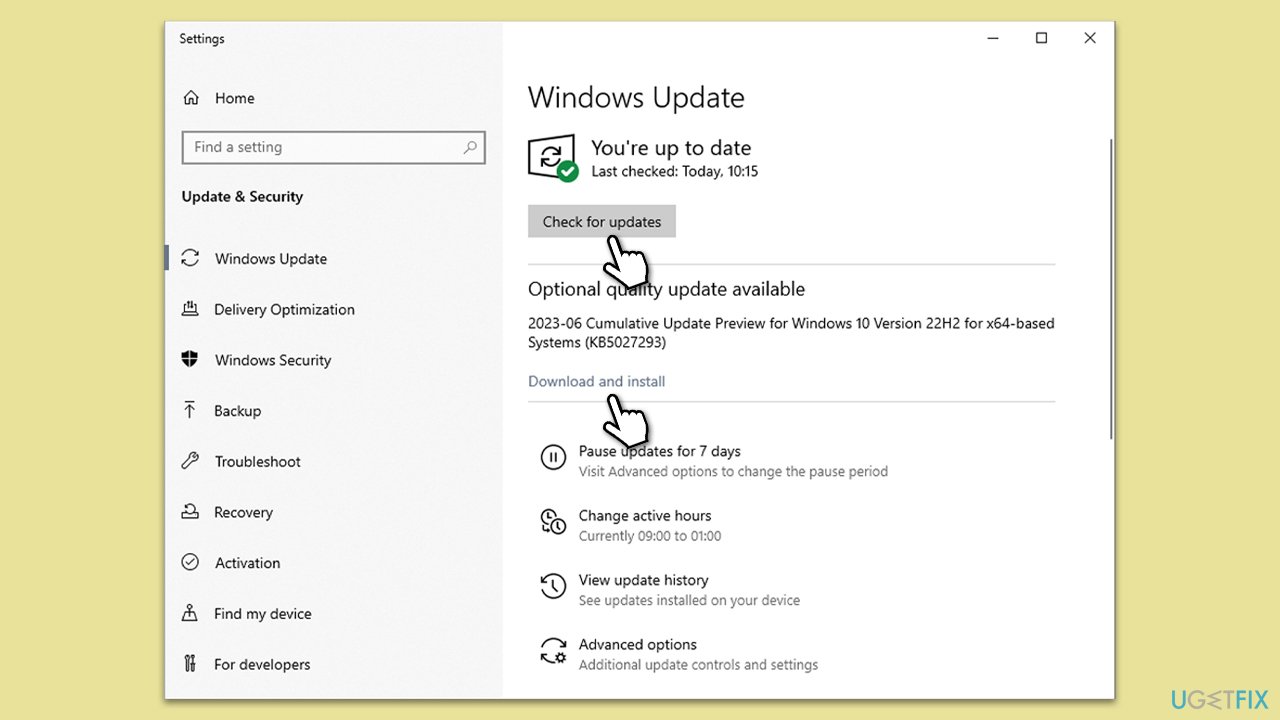
- Type Updates in Windows search and hit Enter.
- Click Check for updates and wait.
- If there are any optional updates, install them too.
- Wait till the process is finished and restart your computer.
Fix 3. Perform SFC and DISM scans
Running SFC and DISM scans can fix corrupted files that might be causing the error.
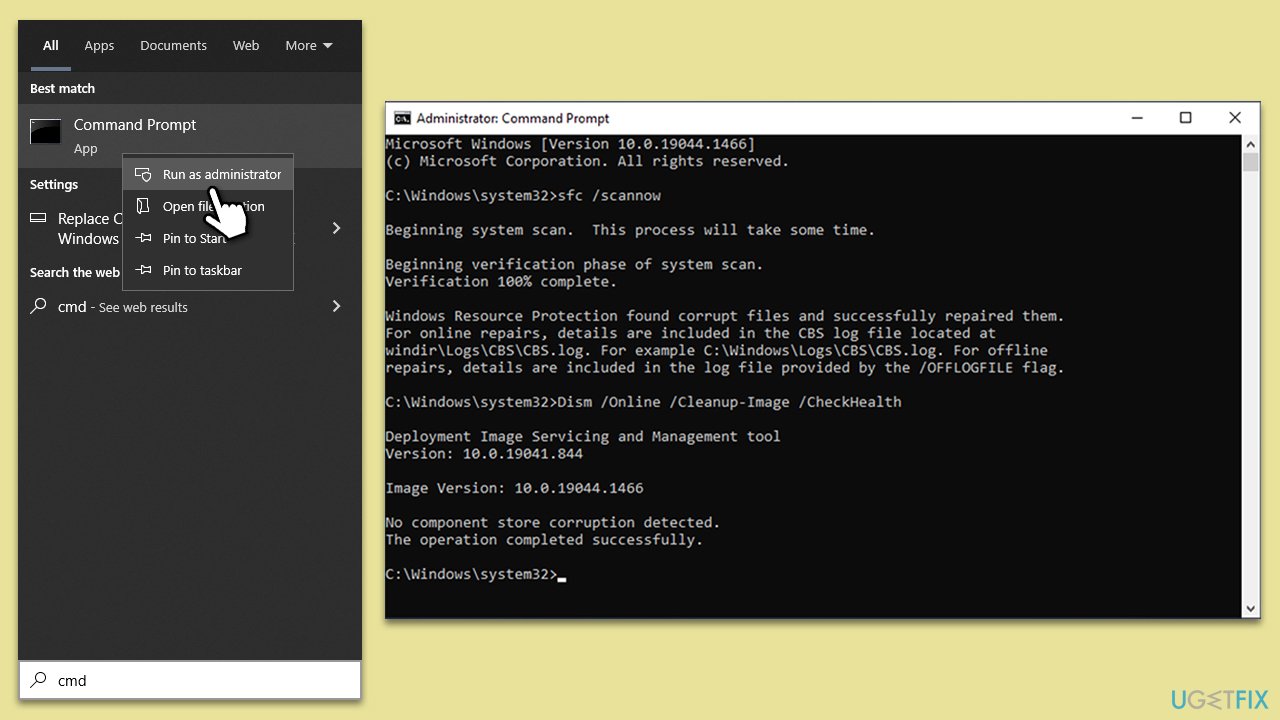
- Type cmd in Windows search.
- Right-click on the Command Prompt result and select Run as administrator.
- The User Account Control (UAC) window will ask whether you want to allow changes to your computer - click Yes.
- Next, copy and paste the following commands, pressing Enter after each:
sfc /scannow
DISM /Online /Cleanup-Image /CheckHealth
DISM /Online /Cleanup-Image /ScanHealth
DISM /Online /Cleanup-Image /RestoreHealth
(Note: if you get an error executing the last command, add /Source:C:\RepairSource\Windows /LimitAccess to it and try again.) - Restart your system.
Fix 4. Reset Windows Update components
If the issue is related to Windows Update, resetting its components can help resolve the problem by clearing any corruption in the update cache and restarting the update services.
- Open Command Prompt as administrator.
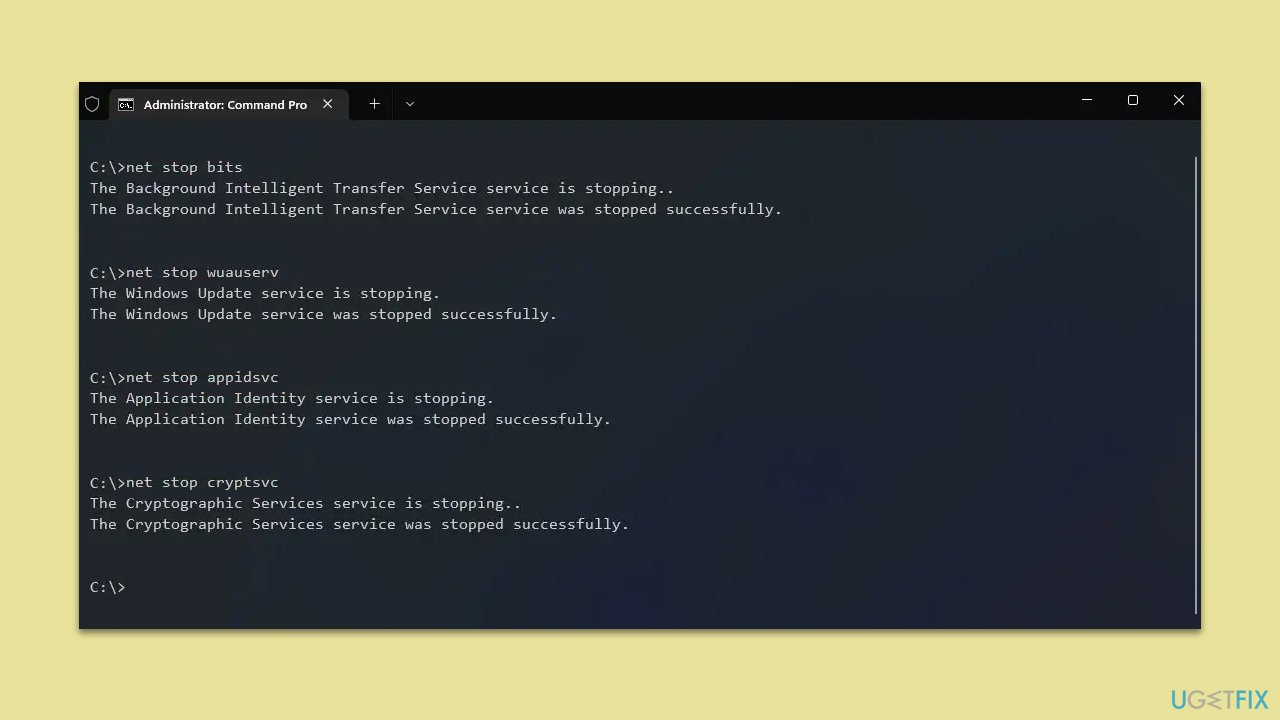
- In the new window, use the following commands, pressing Enter after each:
net stop bits
net stop wuauserv
net stop appidsvc
net stop cryptsvc
Del “%ALLUSERSPROFILE%\Application Data\Microsoft\Network\Downloader\*.*”
rmdir %systemroot%\SoftwareDistribution /S /Q
rmdir %systemroot%\system32\catroot2 /S /Q
regsvr32.exe /s atl.dll
regsvr32.exe /s urlmon.dll
regsvr32.exe /s mshtml.dll
netsh winsock reset
netsh winsock reset proxy
net start bits
net start wuauserv
net start appidsvc
net start cryptsvc - Restart your system.
Fix 5. Reregister all Windows apps
Reregistering all Windows apps can solve the problem if it is caused by corrupted or improperly registered applications, especially those that depend on the Windows App Runtime.
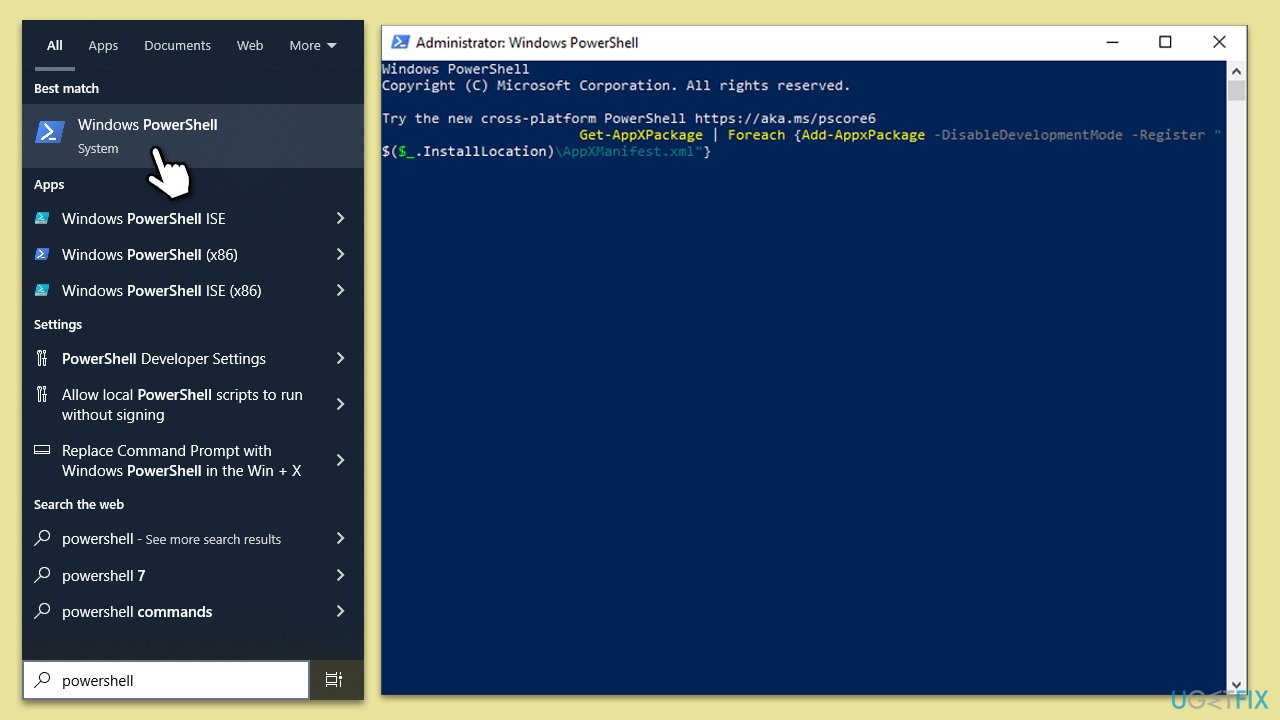
- Type PowerShell in Windows search, right-click, and select Run as administrator.
- When UAC shows up, click Yes.
- Copy and paste the following command, pressing Enter after each:
Get-AppXPackage | Foreach {Add-AppxPackage -DisableDevelopmentMode -Register "$($_.InstallLocation)\AppXManifest.xml"} - Close down PowerShell and restart your system.
Fix 6. Update or reinstall McAfee security software
If you are using McAfee security software, it is possible that an outdated or corrupted installation is interfering with Windows operations or applications. Updating or reinstalling the McAfee software can resolve conflicts and restore functionality.
- Open the McAfee software and check for any available updates. Follow the prompts to install them if available.
- If updating does not resolve the issue, visit the McAfee official website to download the latest version of the software.
- Uninstall the current version of McAfee from your system via the Control Panel > Programs and Features.
- Install the downloaded version of McAfee by following the installation instructions provided on the website.
- Restart your computer after installation to ensure the new software is properly integrated.
Bottom line
To fix the "This application requires Windows App Runtime" error, ensure that all necessary Windows App Runtime components are installed. If the issue persists, consider restoring corrupted system files, resetting Windows update components, or reregistering Microsoft applications. If none of these solutions work, using PC repair software may help resolve underlying Windows problems.
Frequently asked questions
You should first ensure that the Windows App Runtime is installed and up to date by checking the Microsoft Store for updates. If the problem persists, try reinstalling the application that triggered the error.
Yes, resetting the app can often resolve the error; go to Settings > Apps > Apps & features, select the app, and click on 'Advanced options' to find the reset option.
Yes, you can manually download and install the Windows App Runtime from the official Microsoft website to ensure it is properly set up on your Windows 10 or Windows 11 system.




Report an issue
What's wrong with this guide? We review every report and update or remove content.
Report received — thank you. We'll review and fix it.
You need a free account to submit a report.
Be the first to comment