How to fix
“Can’t play” error 0xC00D36FA
on Windows
Resolve the "Can't play" error 0xC00D36FA on Windows 10 and 11 effortlessly. Quick fixes and expert-tested solutions await you! Fixed in minutes.

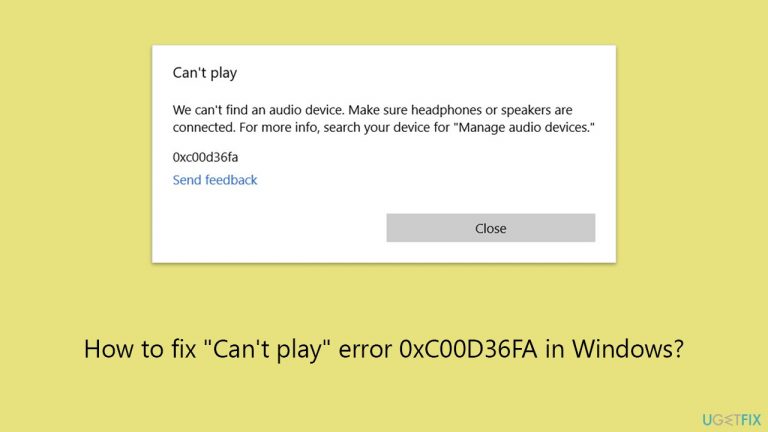
What causes How to fix “Can’t play” error 0xC00D36FA in Windows?
- Driver conflicts
- Corrupted system files
- Malfunctioning Windows services
- Improper driver installations
- Insufficient software updates
Repairs Windows system files, removes malware, and restores a clean OS state — without reinstalling.
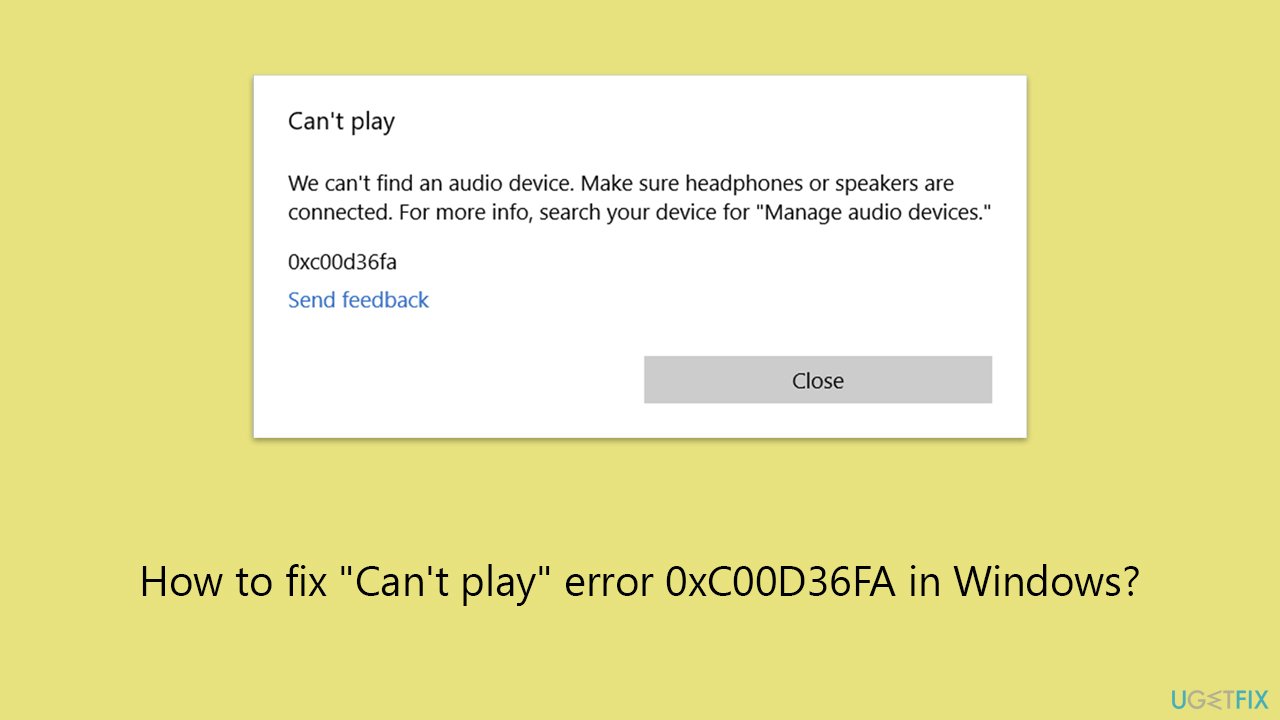
I get a 0xC00D36FA error with the message "Can't play," and it for sure does not play any audio. This usually happens after sleep or hibernation, although can happen at any time as well. Any tips on how to fix this would be great.
Sound and audio capabilities are essential components of the Windows operating system, enhancing user experience through music, video playback, and multimedia applications.
That being said, when trying to play music or movies on their Windows device, some users could get the "Can't play" error 0xC00D36FA. This problem could also cause a major disruption in the audio experience if you are unable to hear anything with speakers or headphones.
The error code 0xC00D36FA generally occurs as a result of multiple system-wide problems. Audio drivers are essential for enabling communication between the hardware devices and the Windows operating system, hence issues with them are frequently the cause of problems. Furthermore, the system's ability to handle audio correctly may be impacted by corrupted system files or malfunctioning Windows services that control audio playing.
Although the 0xC00D36FA error can be annoying, it's crucial to remember that it typically signals more problems with the system, like driver conflicts, interrupted services, or corrupted files. Numerous factors, including as improper driver installations, insufficient software updates, or even malware that has corrupted system files, can result in these issues.
Using a PC repair tool [d1] offers an easy way to solve these problems in a less technical and more direct manner. By automatically searching for and resolving common Windows problems, such as the "Can't play" error 0xC00D36FA, this kind of software streamlines the procedure.
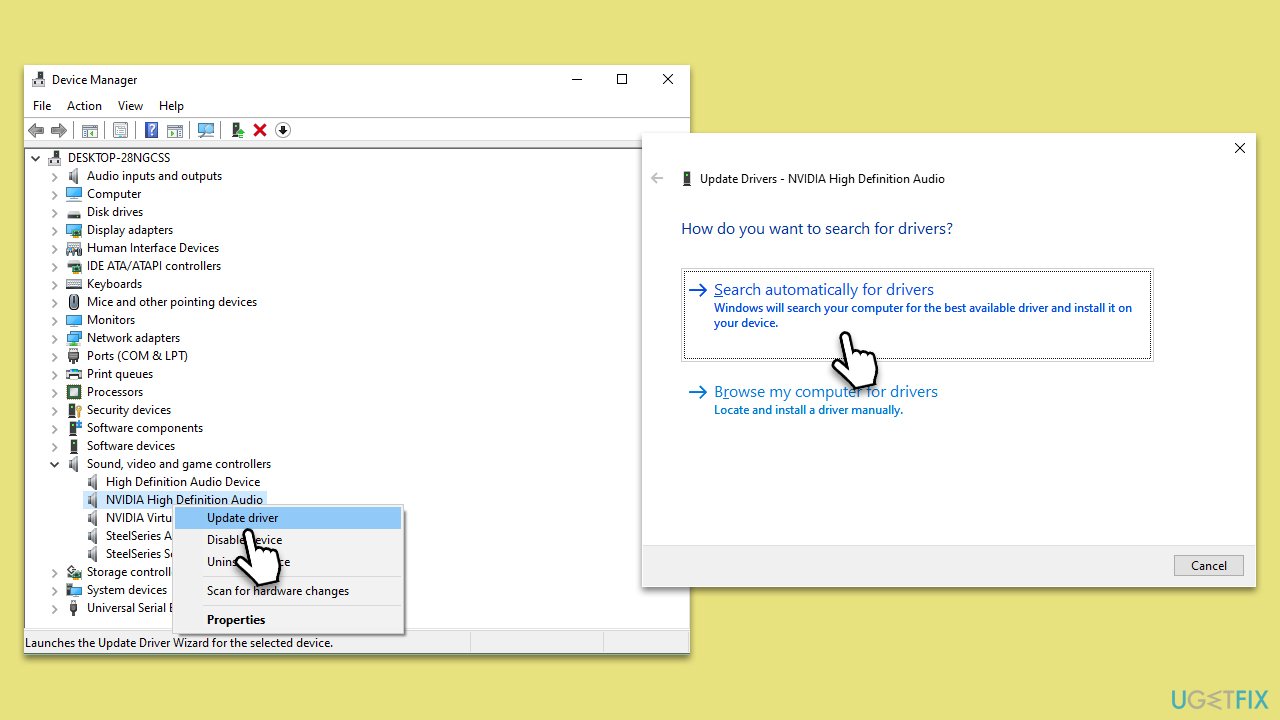
Fix 1. Update audio drivers
Outdated or corrupt audio drivers can cause the 0xC00D36FA error by hindering communication between your Windows OS and the sound hardware.
- Right-click on Start and select Device Manager.
- In Device Manager, find and expand the Audio inputs and outputs section.
- Right-click on the listed audio device, then select Update driver from the dropdown.
- A window will pop up, guiding you through the driver update process.
- Follow the instructions and restart your system.
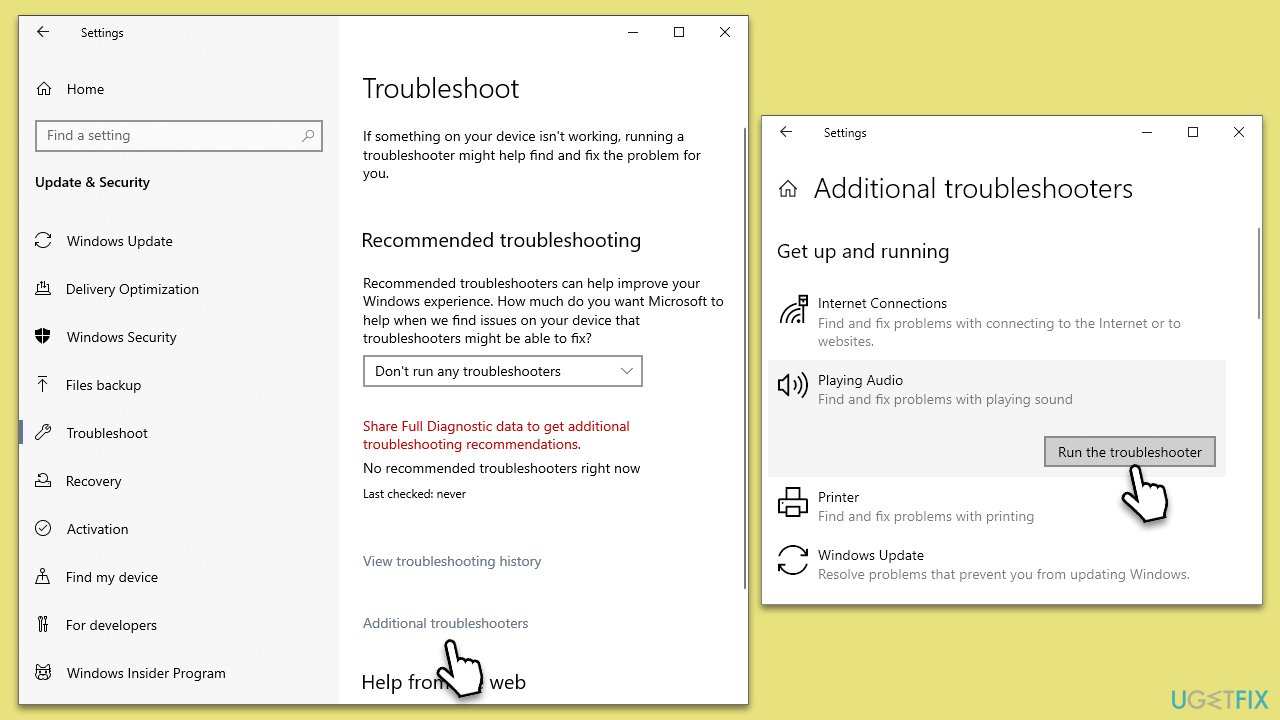
Fix 2. Run the audio troubleshooter
Windows includes a built-in troubleshooter that can automatically detect and fix common audio playback issues. Running this tool can help resolve the error without needing manual intervention.
- Type in Troubleshoot in Windows search and hit Enter.
- Pick Additional Troubleshooters/Other troubleshooters option.
- Scroll down to find Windows Store Apps section.
- Click Run the troubleshooter/Run and wait for the troubleshooter to finish scanning the system.
- Follow the on-screen instructions to fix any issues that the troubleshooter has found.
Fix 3. Restart audio services
Sometimes, the audio services in Windows may stop or malfunction. Restarting these services can reset the audio system and fix related errors.
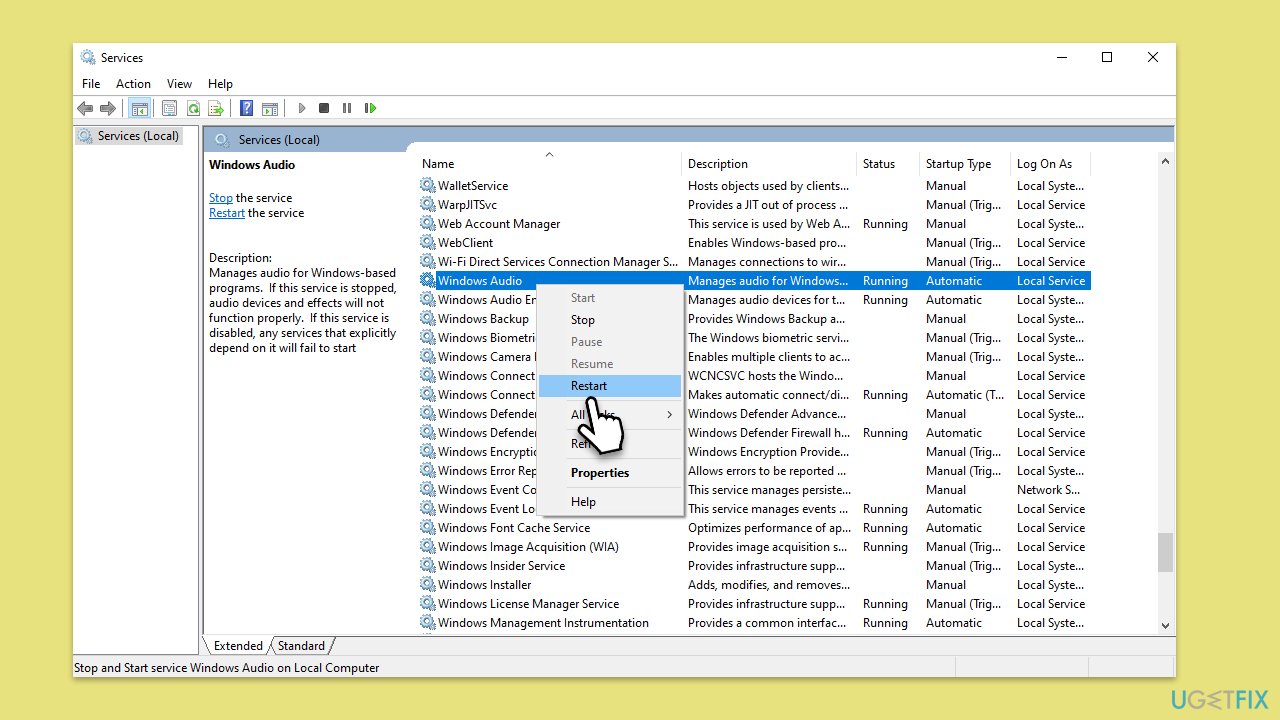
- Press the Win + R to open the Run dialog.
- Type services.msc and press Enter.
- Scroll down and find Windows Audio and Windows Audio Endpoint Builder services.
- Right-click on each service and select Restart. If the service is not running, right-click and pick Start.
- Close the Services window and check if the issue is resolved.
Fix 4. Check audio settings
Incorrect audio settings can also lead to the 0xC00D36FA error. Ensuring the correct playback device is selected and not muted is crucial.
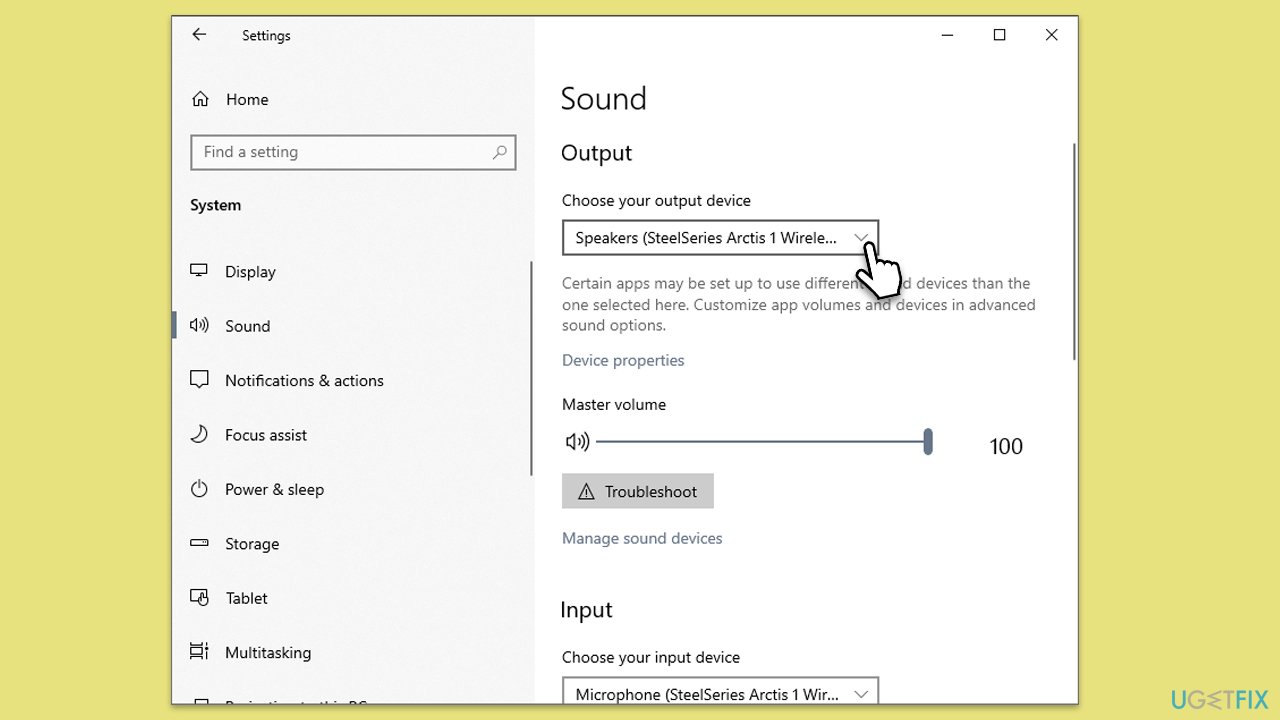
- Right-click the sound icon in the taskbar and select Open Sound settings.
- Under Output, ensure the correct playback device is selected.
- Click Device properties and test your device to ensure it is not muted and the volume is set appropriately.
- Adjust the settings if necessary and test the audio again.
Fix 5. Update Windows
Running an outdated version of Windows can cause compatibility issues with audio playback. Updating Windows can introduce fixes for these issues.
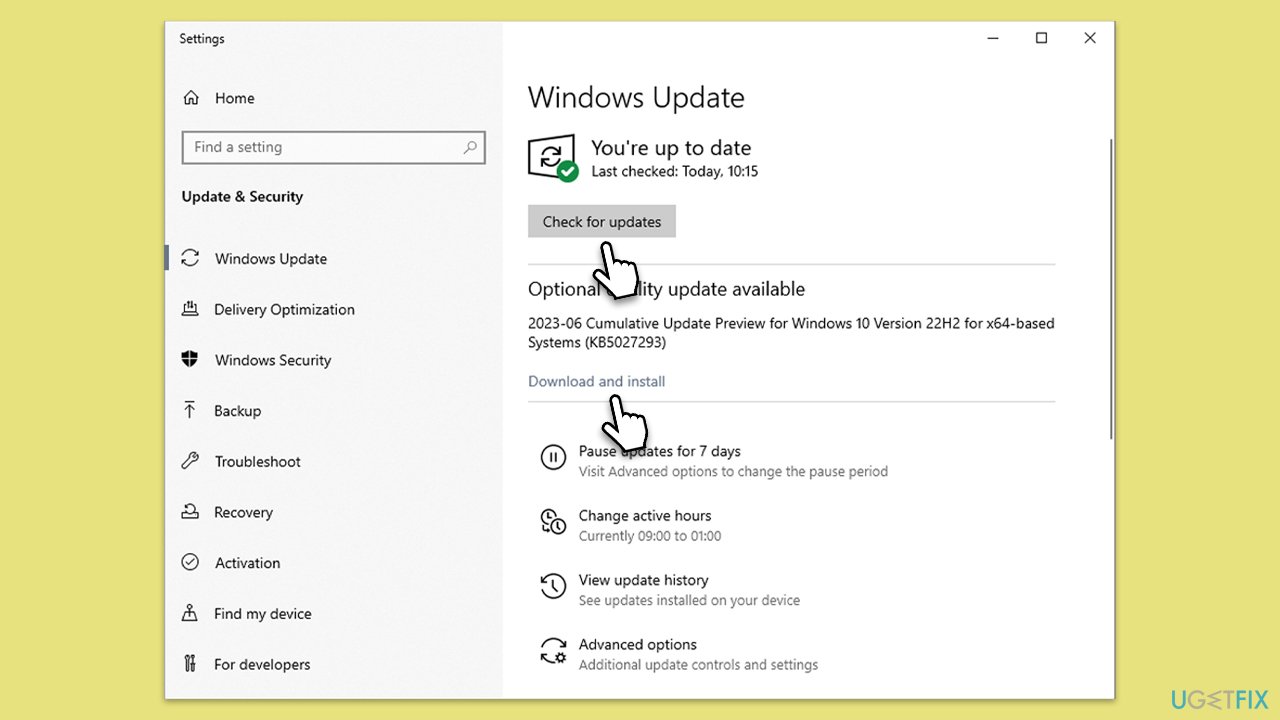
- Type Updates in Windows search and press Enter.
- In this window, click Check for updates.
- If optional updates are available, install them too.
- When everything is installed, restart your system.
Fix 6. Disable audio enhancements
Audio enhancements can sometimes interfere with the system's audio playback, causing errors. Disabling them may resolve the issue.
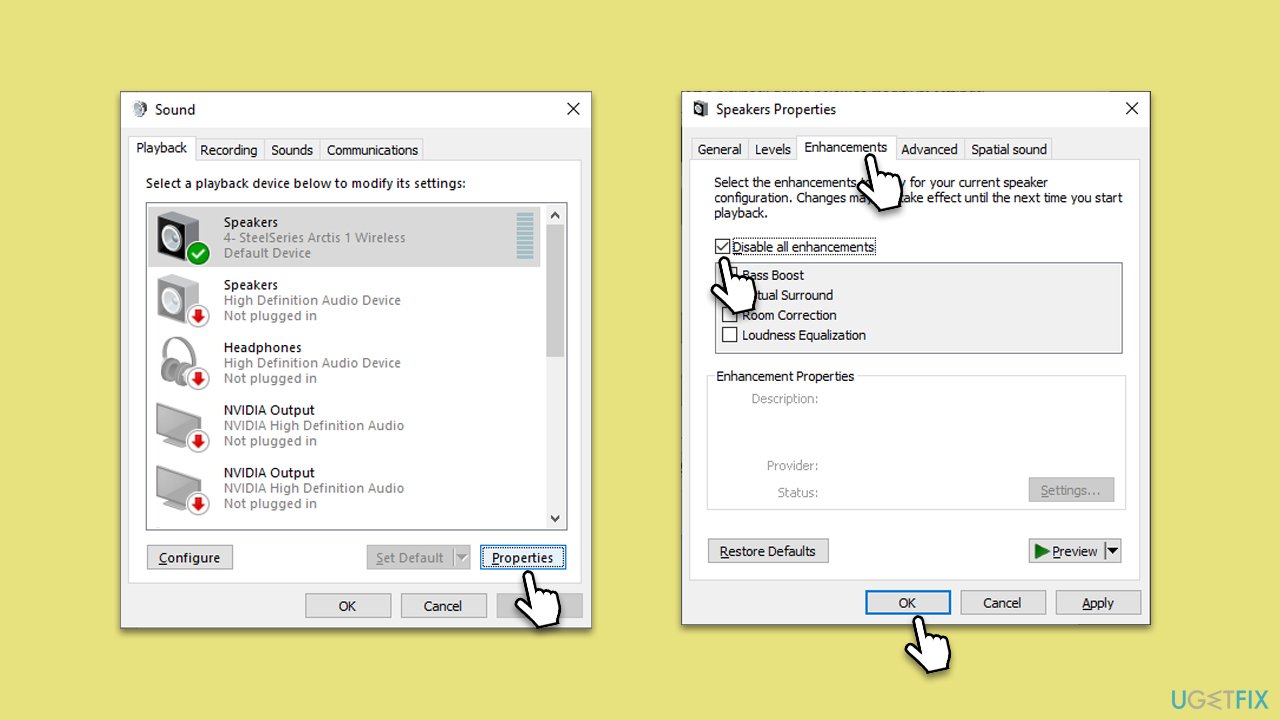
- Right-click on the speaker icon on your taskbar and select Sounds.
- Go to the Playback tab.
- Right-click your default playback device (like Speakers) and choose Properties.
- Navigate to the Enhancements tab.
- Check Disable all enhancements or Disable all sound effects.
- Click Apply, then OK.
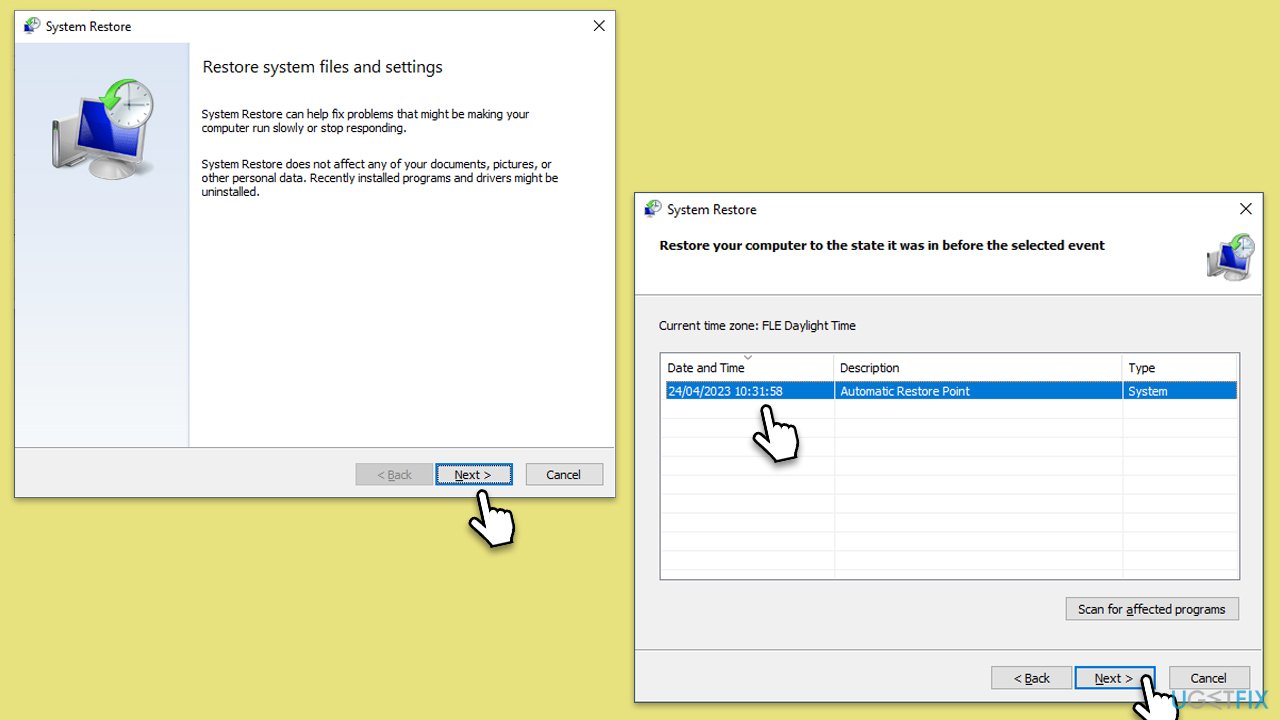
Fix 7. Restore the system to a previous point
If the error started appearing after a recent change in your system, restoring Windows to a previous state can help undo any conflicting changes.
- Type in Create a Restore point in Windows search and hit Enter.
- Go to the System Protection tab and pick System restore.
- Click Next.
- Click Show more restore points (if available).
- Pick the time before the problem occurred and click Next.
- Follow the prompts to finish the process.
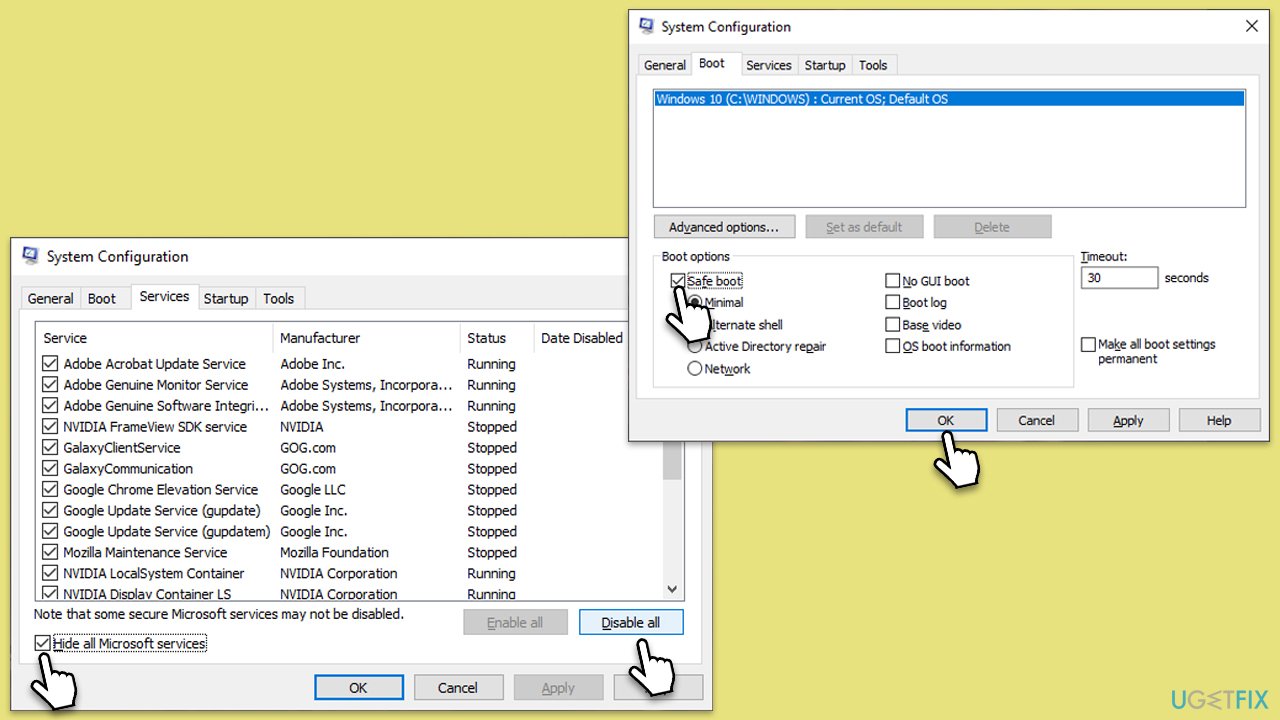
Fix 8. Perform a Clean Boot
A clean boot starts Windows with a minimal set of drivers and startup programs, which can help identify if background programs are causing audio issues.
- Type msconfig in Windows search and press Enter.
- Go to the Services tab.
- Mark Hide all Microsoft services and select Disable all.
- Go to the Startup tab and click Open Task Manager.
- In the Task Manager, right-click on each of the items and select Disable, then close the Task Manager.
- Go to the Boot tab, tick Safe Boot, then click Apply and OK.
- If the problem is gone, re-enable services and startup items one by one to identify the problematic software.
- You can then update or uninstall the software causing the issue.
Bottom line
To fix the 'Can't play' error 0xC00D36FA, you can update your audio drivers through Device Manager. If the issue persists, consider using a PC repair tool to automatically resolve common Windows problems. If none of these solutions work, further investigation into system settings or hardware may be necessary.
Frequently asked questions
This error often occurs due to missing codecs, corrupted media files, or issues with the Windows Media Player settings. Ensuring that your media files are compatible and updating your codecs can help resolve the issue.
Try resetting Windows Media Player by going to the Control Panel, selecting 'Programs and Features', then 'Turn Windows features on or off' and unchecking 'Media Features'. Restart your computer and check if the error persists.
You can use third-party media players like VLC that support a wider range of codecs, or check for system updates in Windows 11 that might fix compatibility issues. Additionally, running the built-in Troubleshooter for Windows Store Apps may also help.




Report an issue
What's wrong with this guide? We review every report and update or remove content.
Report received — thank you. We'll review and fix it.
You need a free account to submit a report.
Be the first to comment