How to fix
“A connection to the Windows Metadata and Internet Services (WMIS) could not be established” in Event Viewer
on Windows
Resolve the "A connection to the Windows Metadata and Internet Services (WMIS) could not be established" error on Windows 10/11 effortlessly. Expert-tes…


What causes How to fix “A connection to the Windows Metadata and Internet Services (WMIS) could not be established” in Event Viewer?
- Outdated drivers
- Corrupted system files
- Misconfigured network services
- Problems with the network connection
Repairs Windows system files, removes malware, and restores a clean OS state — without reinstalling.
Hi. In my Event Viewer, I keep getting messages related to Windows Metadata and Internet Services. They look like this: "Warning: A connection to the Windows Metadata and Internet Services (WMIS) could not be established" and "Error: Metadata staging failed, result=0x80072EFE for container {D4CC0444-8D50-11ED-A2D1-D8BBC1447EFE}." Any idea what's going on?
Seeing error messages in the Event Viewer when administering Windows operating systems is an occasional occurrence that needs to be attended to. One possible encounter is an error message "A connection to the Windows Metadata and Internet Services (WMIS) could not be established."
This message indicates that a machine is unable to establish a connection to the Windows Management Information System (WMIS), a crucial service that updates metadata and other data inside the Windows framework. This issue indicates that your machine is having trouble creating the connections required for Internet services and metadata, which is why Event Viewer is reporting metadata staging failures.
Several problems, including outdated drivers, corrupted system files, misconfigured network services, or problems with the network connection, might cause the "A connection to the Windows Metadata and Internet Services (WMIS) could not be established" error message to appear. These components are essential to maintaining a reliable connection to the WMIS, and their failure can cause reliability and system operations to be disrupted.
Addressing these underlying issues is crucial for restoring the functionality of the WMIS and ensuring the smooth operation of your Windows system. Below we provide several troubleshooting steps that should guide you through the process.
For those seeking a comprehensive solution to underlying Windows issues that might be contributing to this error, utilizing a PC repair tool like [d1] can offer an automated approach to identifying and fixing system problems, streamlining the process of restoring your computer's optimal performance.
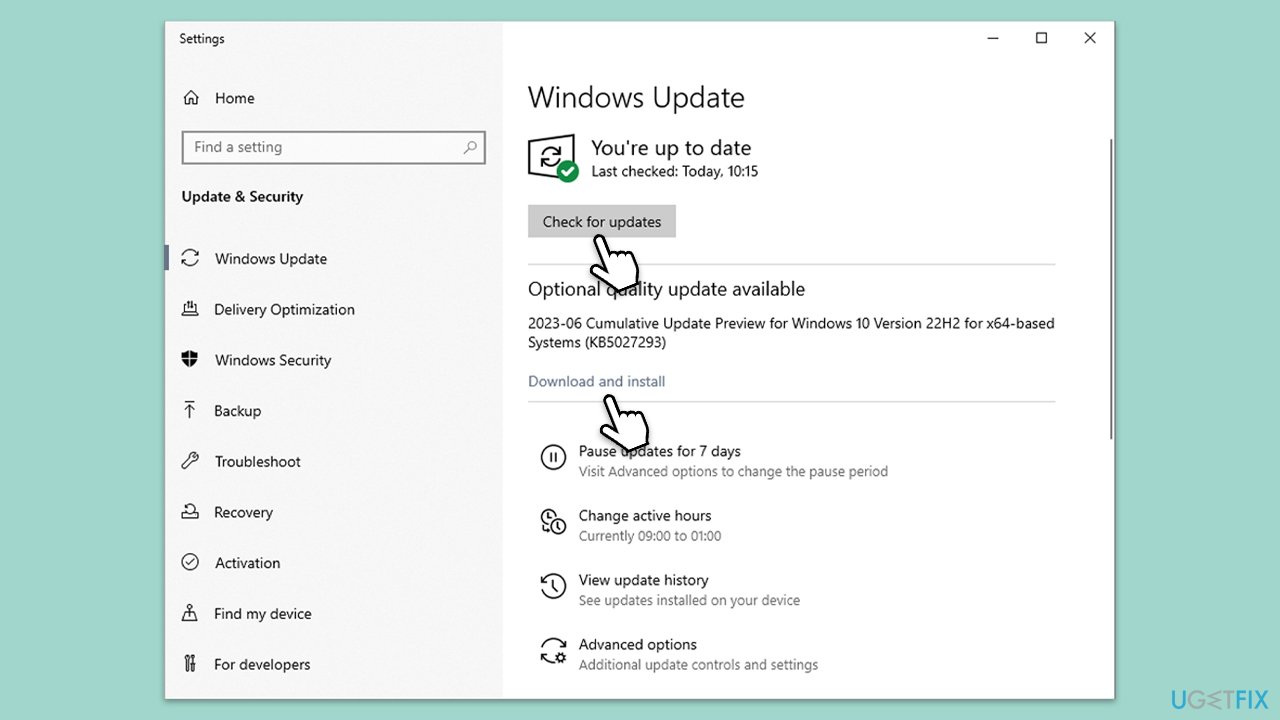
Fix 1. Install all Windows updates
By installing all Windows updates, you can make sure your computer is running the newest drivers, security patches, and features available, which can help with compatibility problems and increase system stability. Windows updates may address difficulties that are inhibiting a connection to the Windows Metadata and Internet Services, in addition to frequently including remedies for common problems.
- Type Updates in Windows search and press Enter.
- Here, click Check for updates.
- Wait till Windows downloads and installs all the files.
- If optional updates are available, install them as well.
- Reboot your device.
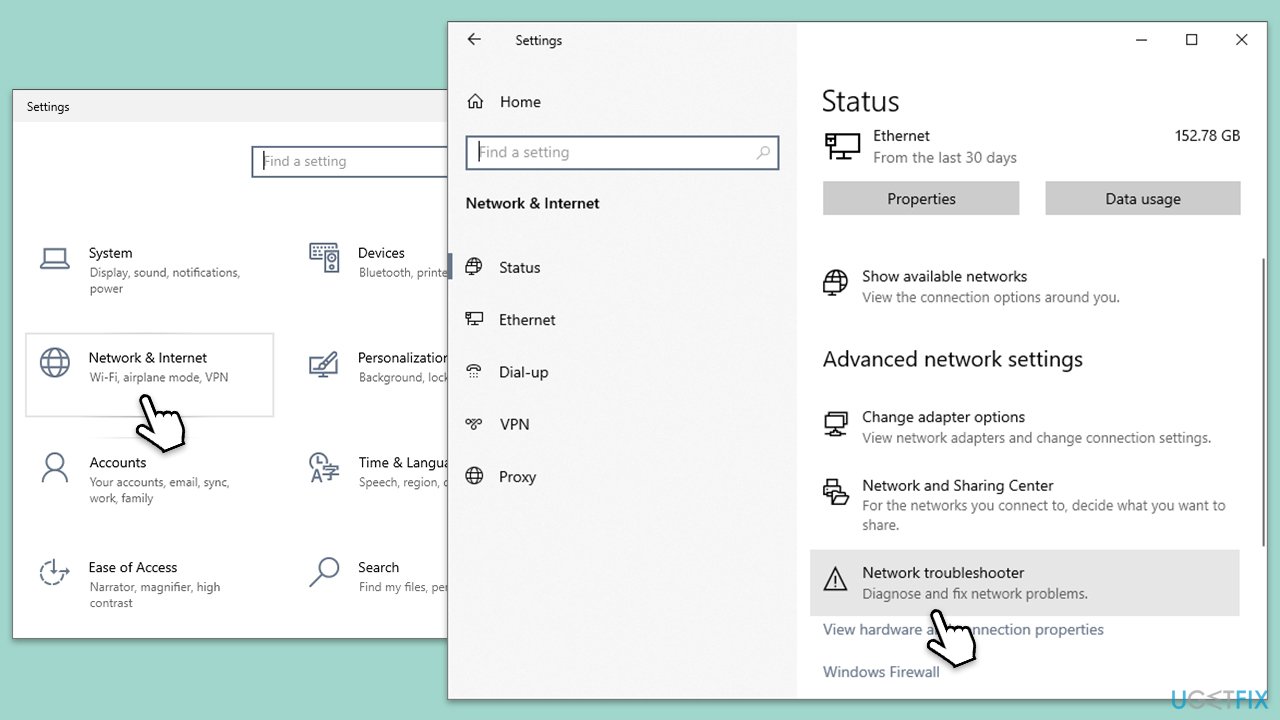
Fix 2. Run Network troubleshooter
The network troubleshooter can automatically identify and fix issues with your internet connection or network settings that might be preventing a connection to the WMIS.
- Right-click on Start and pick Settings.
- Go to the Network & Internet section.
- On the right side, find the Advanced network settings section.
- Click Network troubleshooter and wait.
- The fixes will be automatically applied.
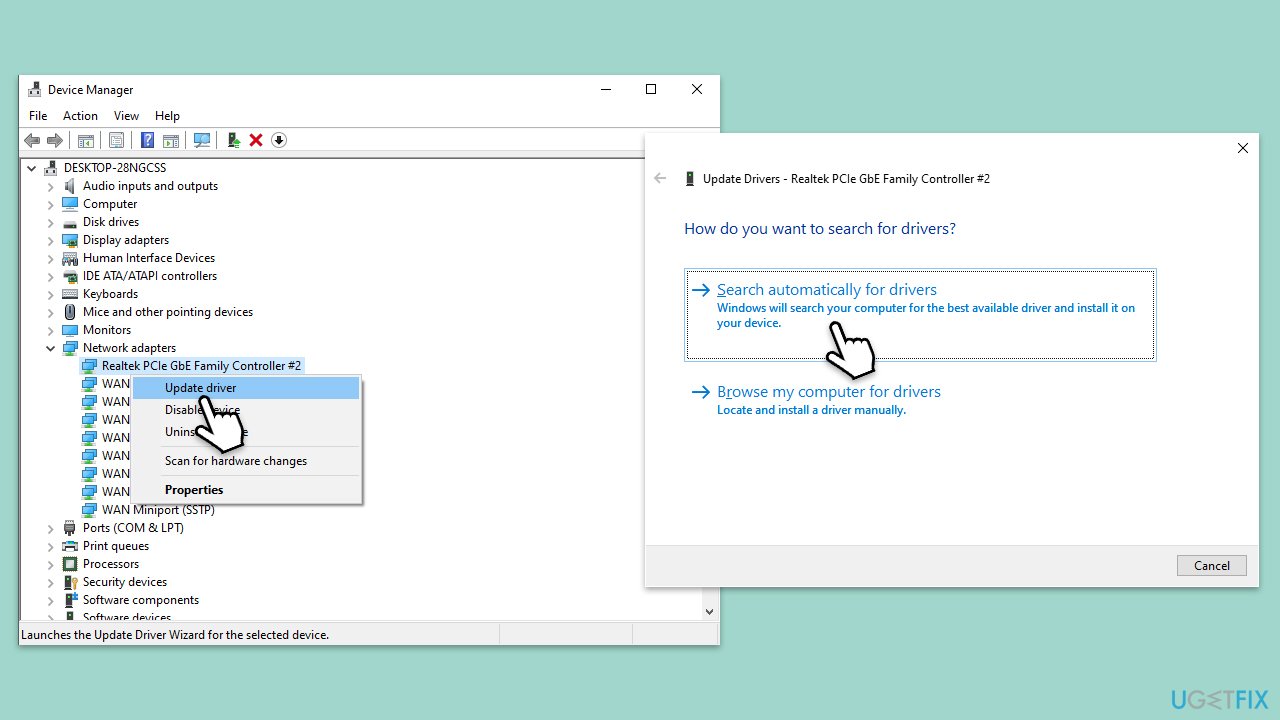
Fix 3. Update network drivers
Network driver updates can fix performance and connection problems. Drivers are necessary for hardware to interact with the operating system efficiently.
- Right-click on the Start button and select Device Manager from the menu.
- Expand the Network adapters section.
- Right-click on your device and select Update driver.
- Pick Search automatically for drivers.
- If updates are found, allow them to install.
- Restart your computer after updating all necessary drivers.
To update all drivers more efficiently, we recommend using [rev id="DriverFix"].
Fix 4. Reinstall network drivers
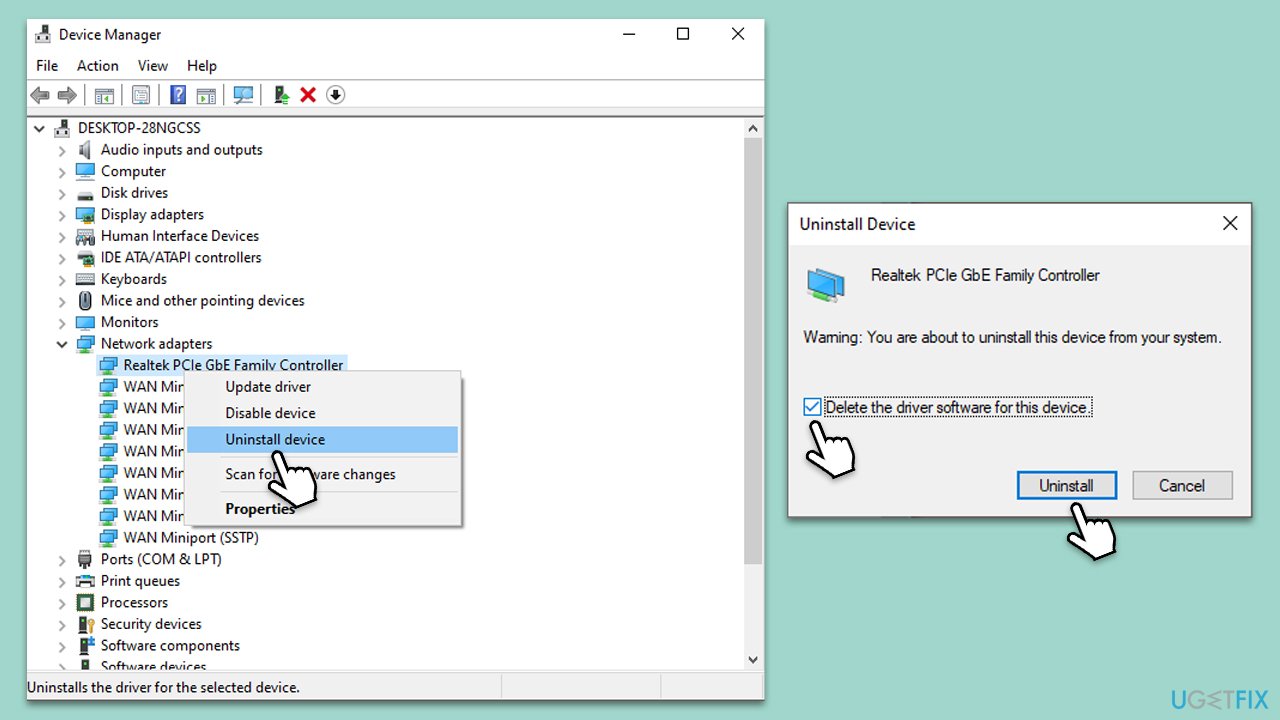
Reinstalling network drivers can fix corrupt or outdated drivers that are causing network issues. This process removes the current driver and installs a fresh version.
- Open Device Manager.
- Expand the Network adapters section.
- Right-click your network device and select Uninstall device.
- Confirm any prompts to uninstall the driver.
- Restart your computer. Windows will attempt to reinstall the driver upon reboot.
Fix 5. Perform SFC and DISM scans
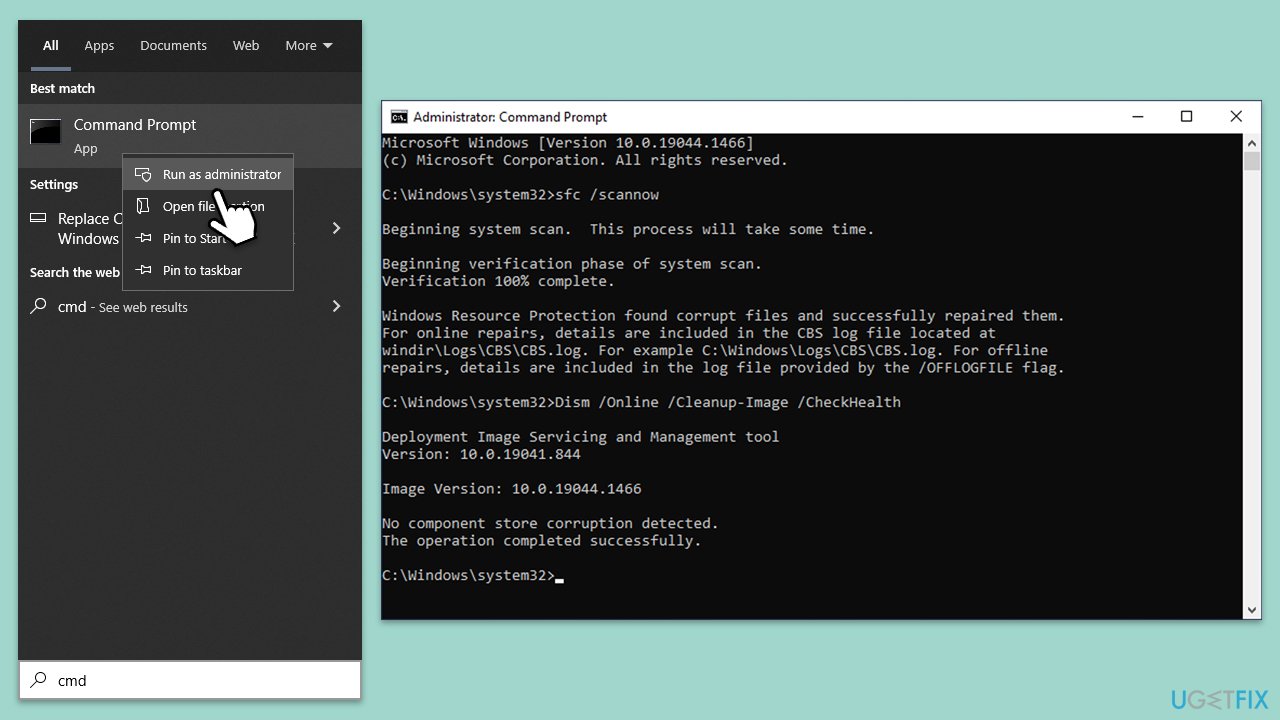
System File Checker and Deployment Image Servicing and Management scans can repair Windows system files and restore system health, potentially fixing issues preventing connections to WMIS.
- Type cmd in Windows search.
- Right-click on the Command Prompt result and select Run as administrator.
- The User Account Control (UAC) window will ask whether you want to allow changes to your computer - click Yes.
- Next, copy and paste the following commands, pressing Enter after each:
sfc /scannow
DISM /Online /Cleanup-Image /CheckHealth
DISM /Online /Cleanup-Image /ScanHealth
DISM /Online /Cleanup-Image /RestoreHealth
(Note: if you get an error executing the last command, add /Source:C:\RepairSource\Windows /LimitAccess to it and try again.) - Restart your system.
Fix 6. (Re)Start Network Connections service
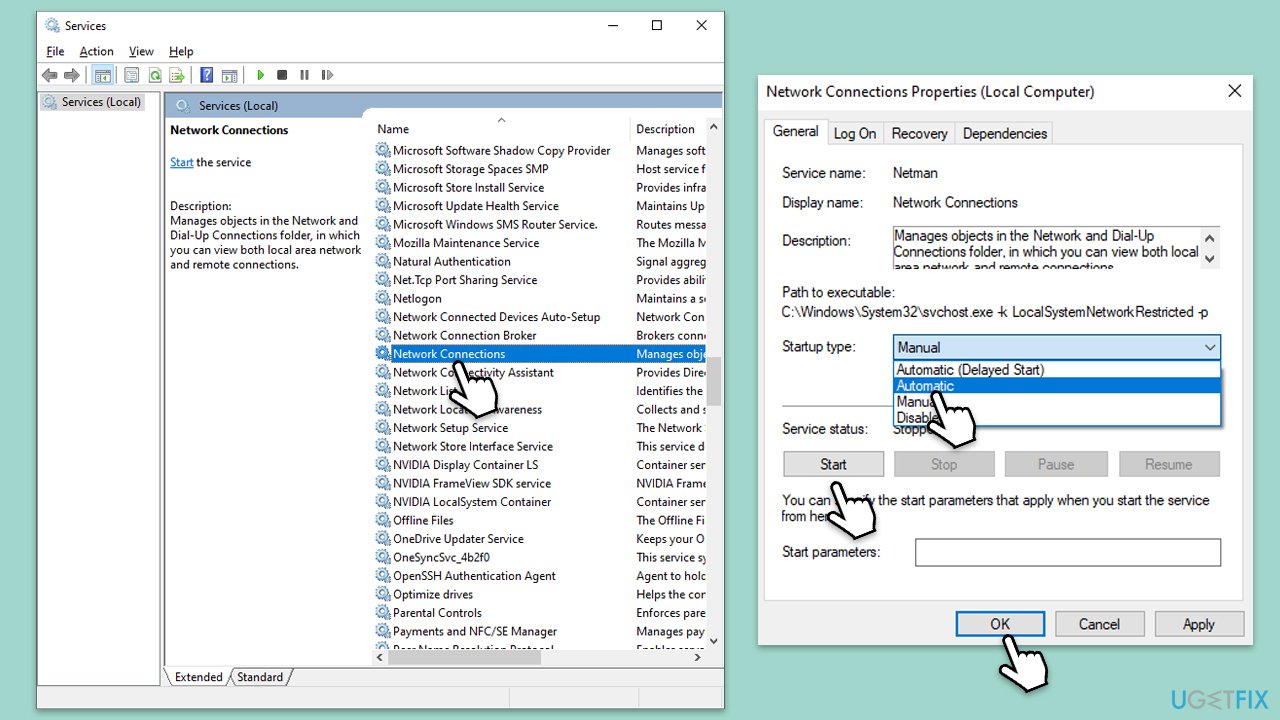
The Network Connections service is crucial for managing network connections. Restarting or starting this service can resolve issues with network connectivity.
- Type in Services in Windows search and press Enter.
- Find Network Connections service.
- If it is already running, right-click and pick Restart.
- If the service is not running, double-click it, and select Automatic under the Startup type from the drop-down menu.
- Click Start, Apply, and OK.
Fix 7. Reset your internet connection
You can also try resetting your internet connection as follows:
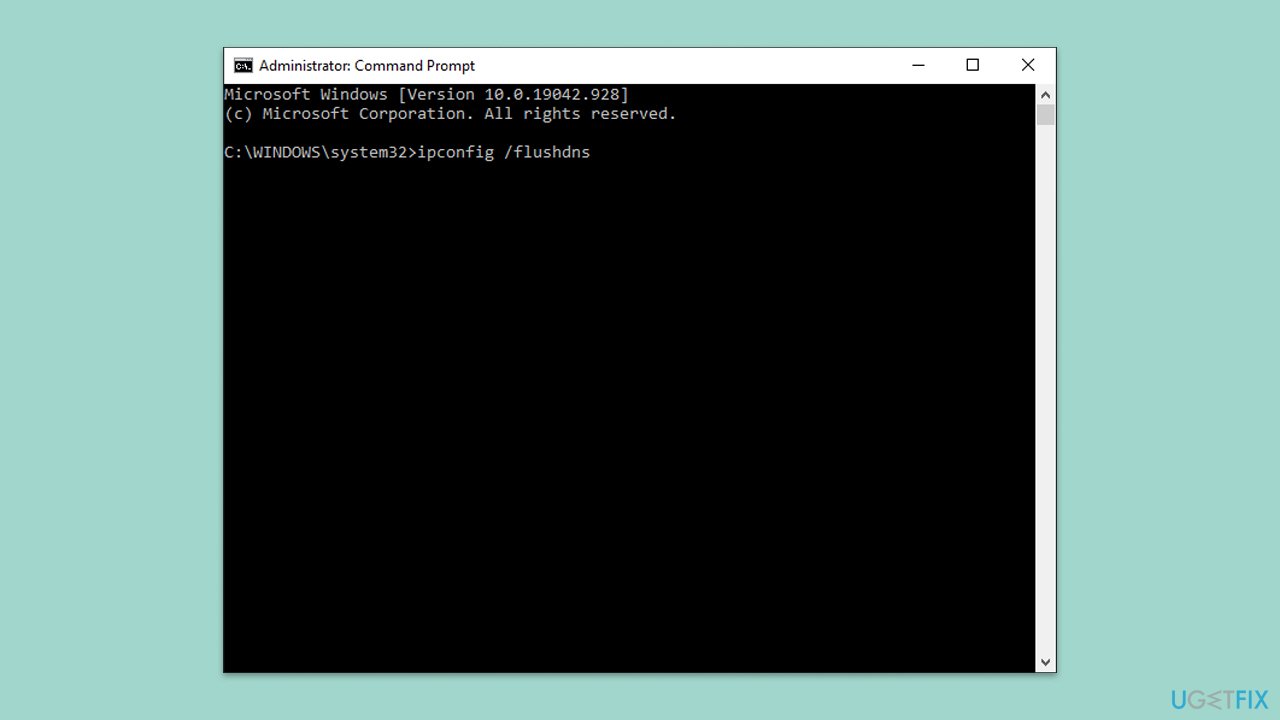
- Open Command Prompt as administrator.
- When the new window opens, copy and paste the following commands, pressing Enter after each:
ipconfig /flushdns
ipconfig /registerdns
ipconfig /release
ipconfig /renew
netsh winsock reset - Close down the Command Prompt and check if the problem is resolved.
Bottom line
To fix the error, you should install all Windows updates to ensure your computer has the latest drivers and security patches. If the issue persists after applying these updates, consider using a PC repair tool to identify and resolve underlying system problems.
Frequently asked questions
This error typically occurs due to network connectivity issues or problems with the Windows services that support metadata and internet services.
You can fix this error by ensuring that your network is stable, resetting your network settings, and checking that the related Windows services are running.
Yes, make sure that the 'Windows Update' and 'Windows Management Instrumentation' services are running, as they are crucial for WMIS functionality.




Report an issue
What's wrong with this guide? We review every report and update or remove content.
Report received — thank you. We'll review and fix it.
You need a free account to submit a report.
Be the first to comment