How to fix
Microsoft Store error 0x80073D21
on Windows
Resolve the Microsoft Store error 0x80073D21 in Windows 10 and 11 quickly with our expert-tested solutions. Get your apps working seamlessly again!

What causes How to fix Microsoft Store error 0x80073D21 in Windows?
- Error related to the Xbox app
- Default installation location not set to system drive
- Corrupted system files
- Issues with Windows Store cache
- Problems with Windows Update components
Repairs Windows system files, removes malware, and restores a clean OS state — without reinstalling.
Hey, I have been trying to install a few apps from the Microsoft Store, but I keep getting the error code 0x80073D21 with the message "Change where you install apps." Why is this happening? I have no clue what to do.
It can be very annoying not to be able to update or install new apps through the Microsoft Store. Not only do users lose out on new features for games and apps, but software vulnerabilities increase the risk of cyberattacks on their computers. You've come to the correct spot if you've been seeing the 0x80073D21 error when attempting to update or download programs; in this article, we'll assist you in solving the issue.
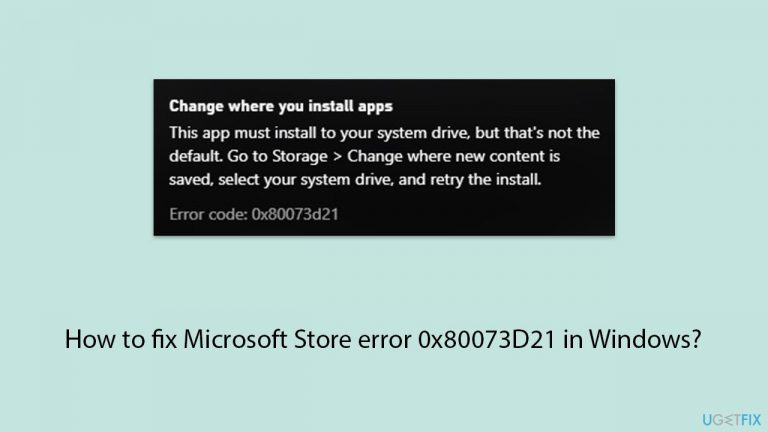
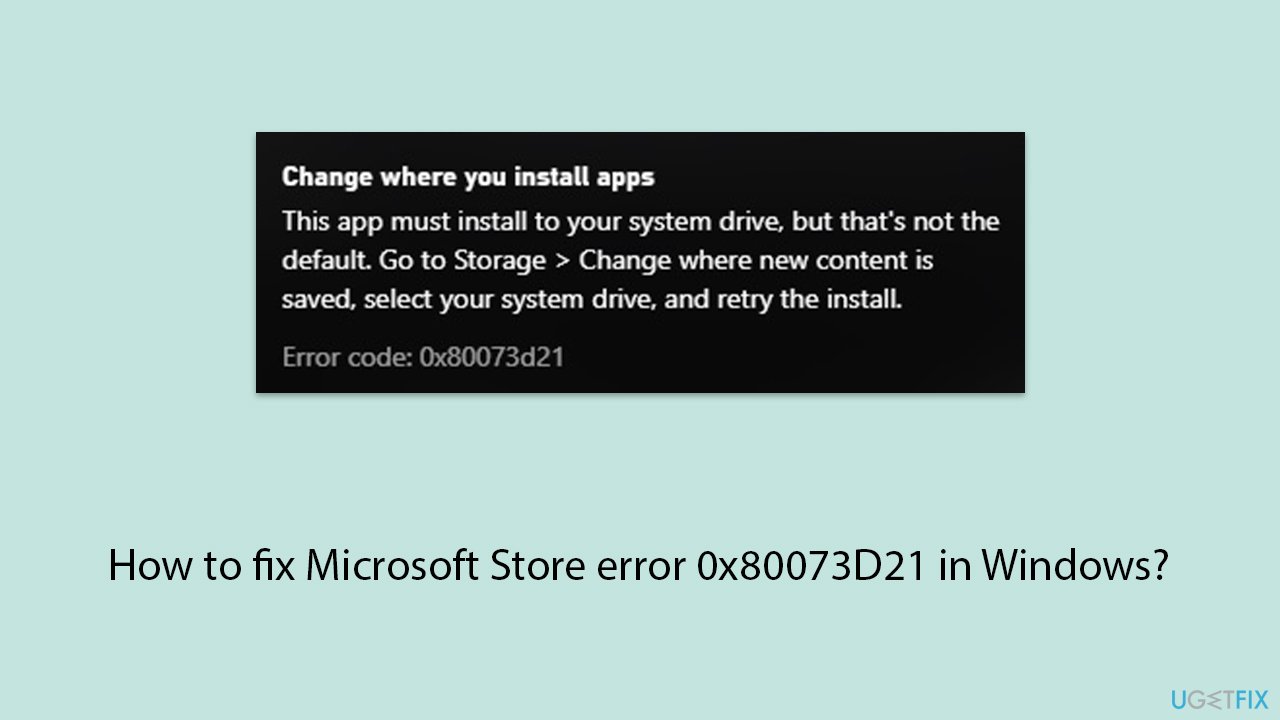
0x80073D21 error is typically related to the Xbox app and usually occurs when users try to download new games. The error message says the following:
Change where you install apps
This app must install on your system drive, but that's not the default. Go to Storage > Change where new content is saved, select your system drive, and retry the install.
Code: 0x80073D21
While this prompt kind of hints at what needs to be done in order to fix the error, numerous users said they were unable to do so even after following up on the tip. This can happen because the contents of this message do not indicate the precise cause of the real problem.
To fix the 0x80073D21 error, you might have to try several troubleshooting steps, including clearing the Windows Store cache, running a troubleshooter, and resetting or reinstalling Store and Xbox apps. You will find all these and other solutions listed in our comprehensive guide below.
We would like to recommend that you run a scan using the [d1] PC repair and maintenance utility application before moving forward with the solutions. Corrupted system files are frequently the source of problems with Windows Store, Windows Update, and other OS components, and SFC or DISM scans may not always resolve them.
Fix 1. Change the default location
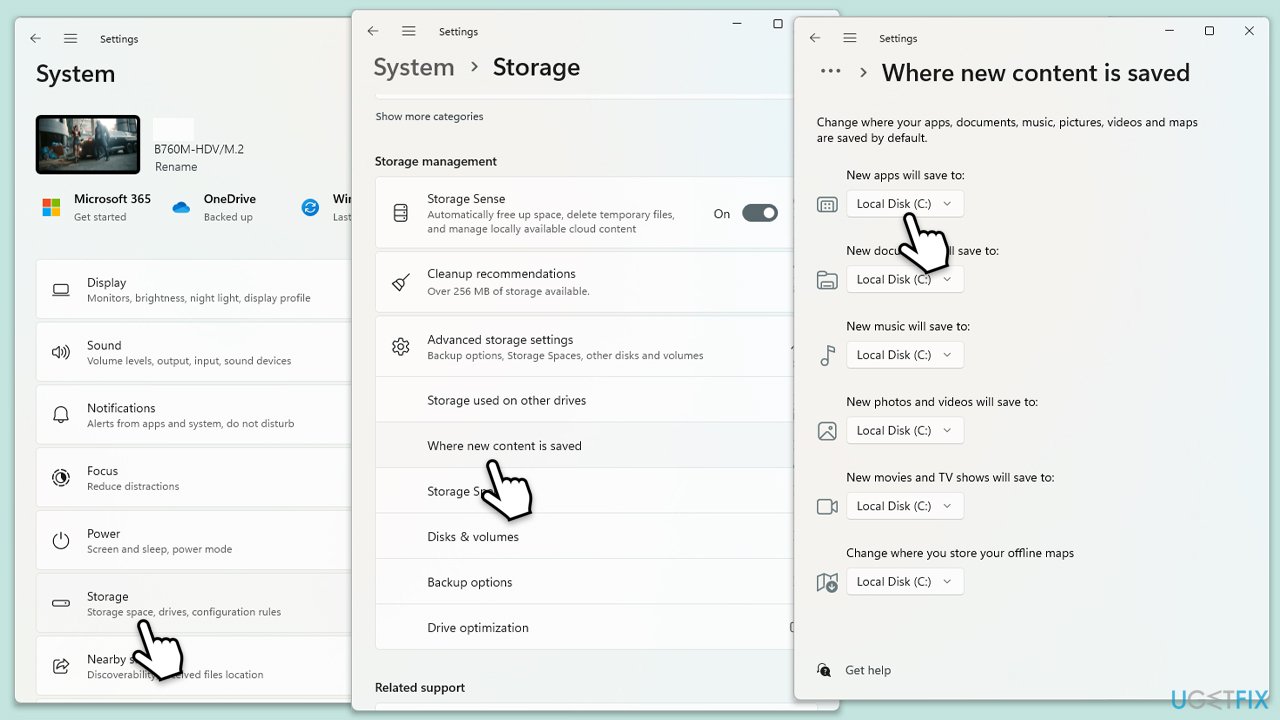
Changing the default location where the apps are installed might resolve the error 0x80073D21. Sometimes, if there is an issue with the current installation location, switching it might fix the problem.
- Click on the Windows button and select Settings.
- Click on System.
- Navigate to the Storage section.
- Scroll down and under More storage settings/Advanced storage settings, click on Change where new content is saved.
- Change the default location for apps to the drive where your Windows is installed (C: by default).
Fix 2. Run Windows Store apps troubleshooter
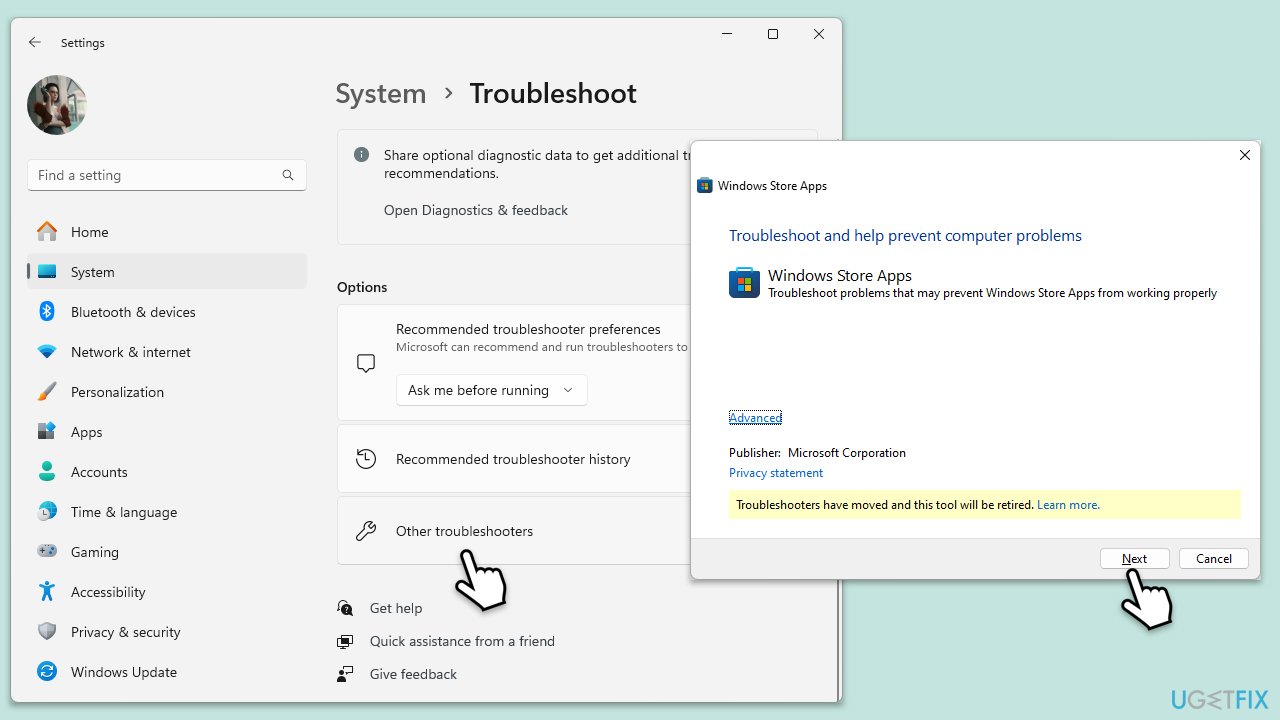
Troubleshooter is a great place to start when trying to fix Windows Store errors.
- Type troubleshoot in Windows search and hit Enter.
- Click Additional troubleshooters/Other troubleshooters.
- Find Windows Store Apps.
- Click on it, and select Run the troubleshooter/Run.
- Wait for the scan to be completed and apply the suggested fixes.
- You can also try running the Windows update troubleshooter.
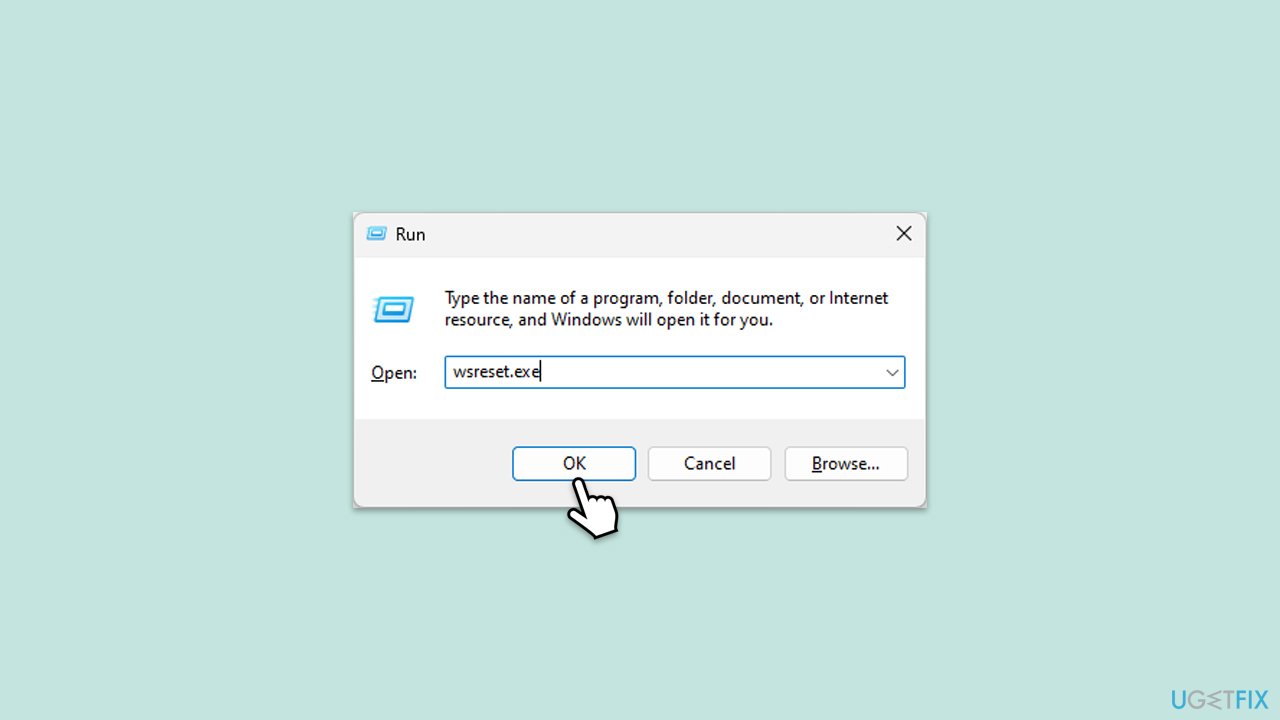
Fix 3. Reset Windows Store cache
Resetting the Windows Store cache can help fix various issues, including error 0x80073D21, by clearing out temporary files and data that might be causing the problem.
- Press the Win + R to open the Run dialog box.
- Type wsreset.exe and press Enter.
- Wait for the process to complete, which might take a few moments.
- Once done, restart your computer and check if the error persists.
Fix 4. Run SFC and DISM
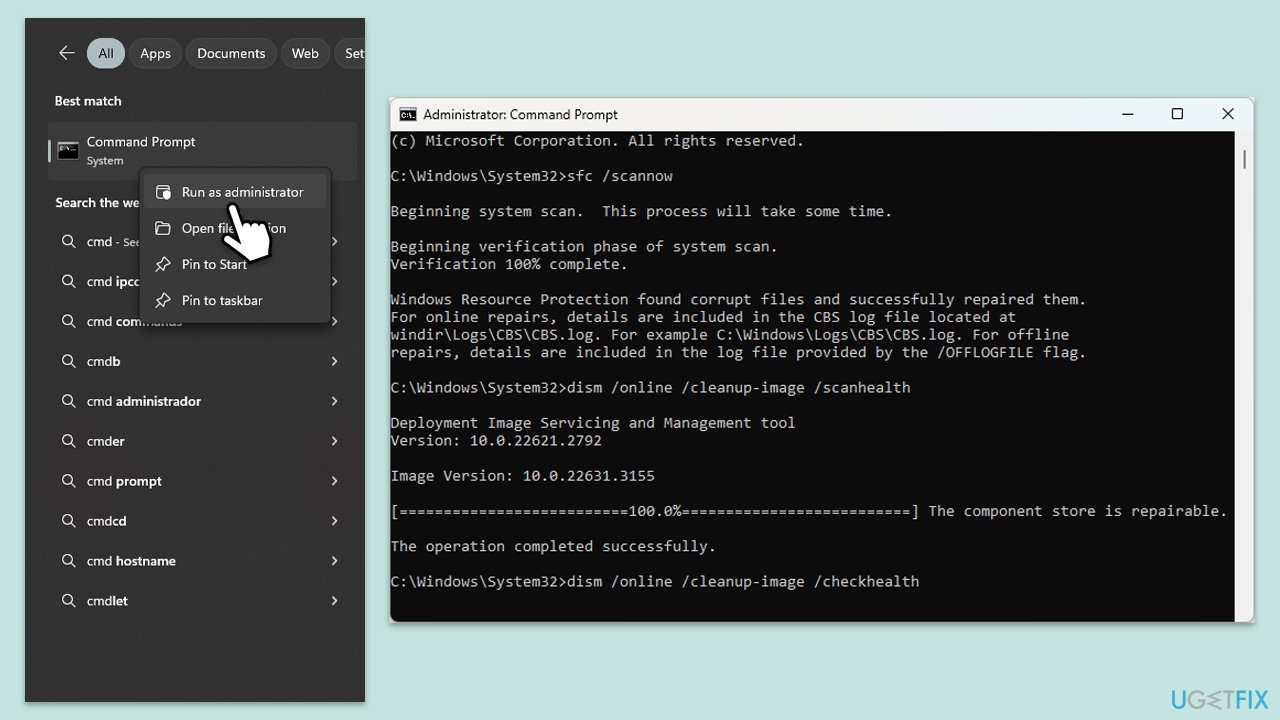
Repair corrupted system files as follows:
- Type cmd in Windows search.
- Right-click on Command Prompt and pick Run as administrator.
- The User Account Control window will ask whether you want to allow changes - click Yes.
- In the Command Prompt window, paste the following command and hit Enter:
sfc /scannow - Once the scan is complete, use the following commands and press Enter after each:
Dism /Online /Cleanup-Image /CheckHealth
Dism /Online /Cleanup-Image /ScanHealth
Dism /Online /Cleanup-Image /RestoreHealth - (Note: if you get an error executing this last command, add /Source:C:\RepairSource\Windows /LimitAccess to it and try again).
- Restart your device.
Fix 5. Reset or repair the Microsoft Store/Xbox app
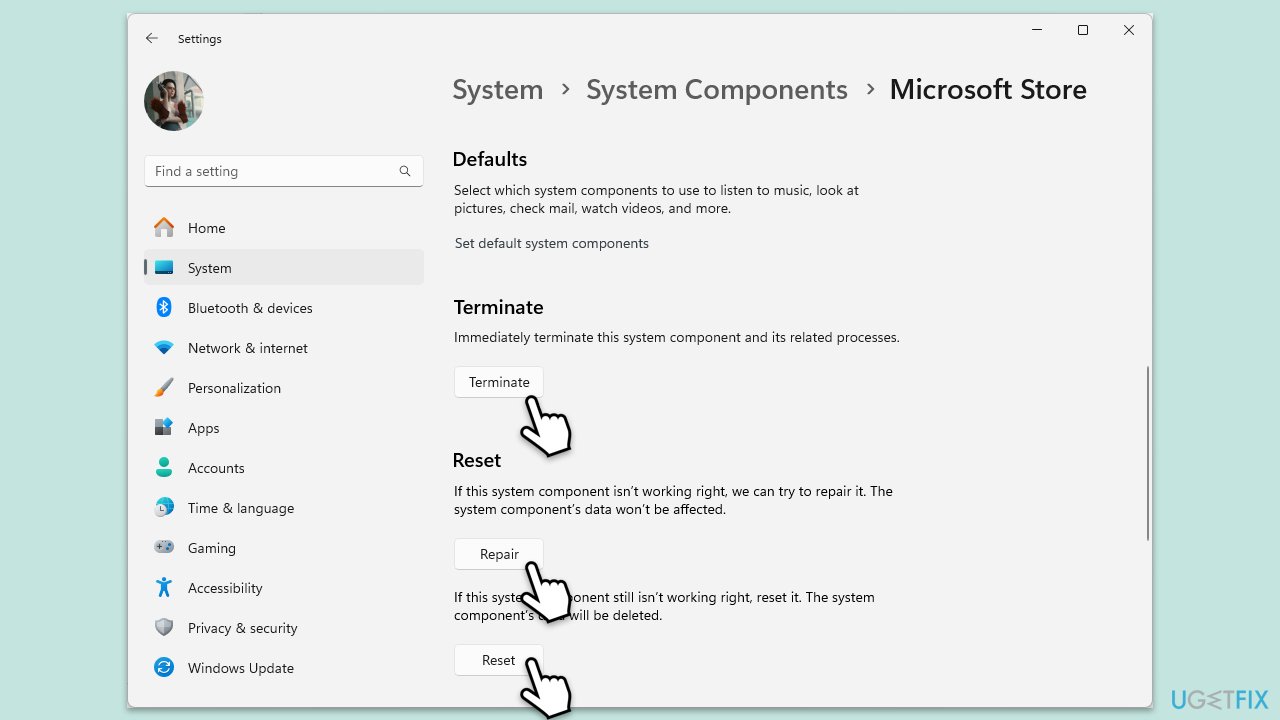
Resetting or repairing the Microsoft Store/Xbox app can help fix any issues with the app itself that might be causing the error.
- Right-click on Start and select Apps & Features/Installed apps.
- Scroll down to find Microsoft Store and click Advanced options.
- Scroll down again and click Terminate and Repair.
- If that does not work, try using Reset.
- Repeat this process with the Xbox app if necessary.
Fix 6. Perform in-place upgrade
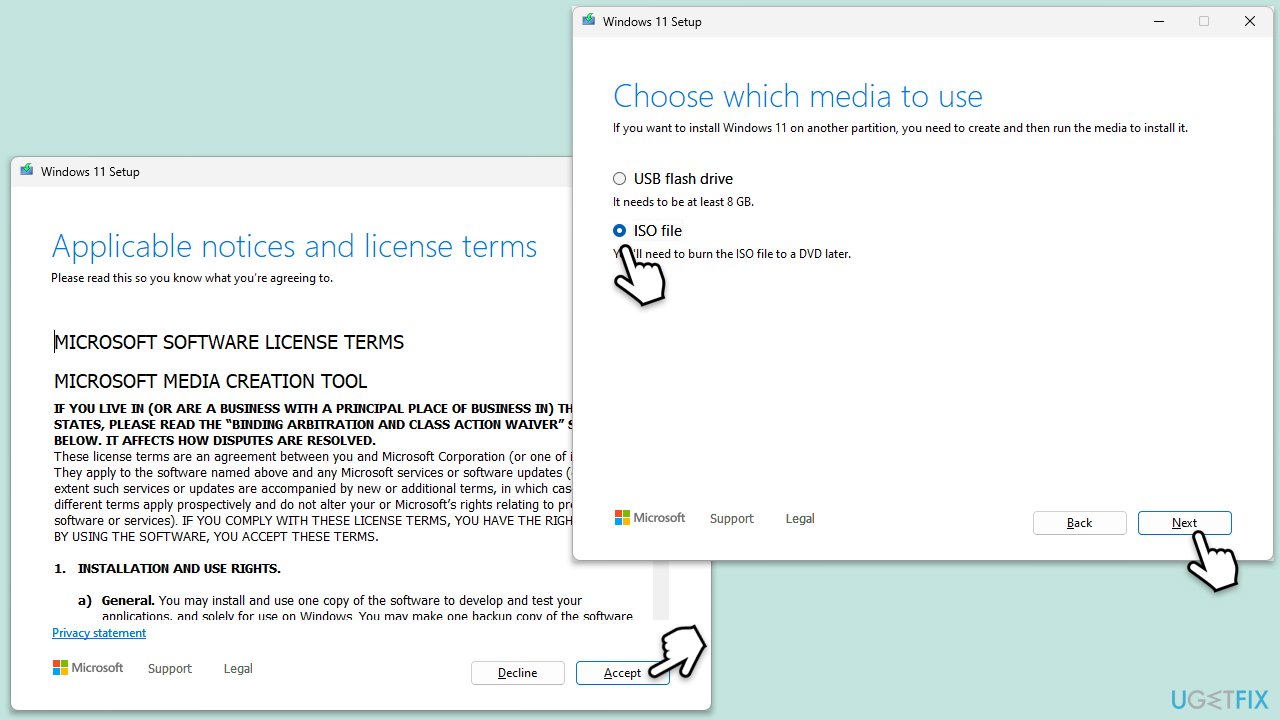
Performing an in-place upgrade of Windows can help repair any corrupted system files or settings that might be causing the Microsoft Store error 0x80073D21 without losing your personal files and installed apps.
- Visit the official Microsoft website and download Windows 10 installation media (Windows 11 version).
- Double-click the installer, select Yes when UAC shows up, and agree to the terms.
- Select the ISO file and click Next, then follow the instructions to finish the process.
- Right-click on ISO and click Mount.
- Open the location of the ISO, right-click on it, and select Mount.
- Launch the installer.
- Select Upgrade this PC now and click Next.
- Windows will start downloading the needed files.
- Agree to the terms once again and click Next.
- Before installing, ensure you are happy with your choices (otherwise, you can click the Change what to keep option).
- Finally, click Install to begin the upgrade process.
Bottom line
To fix the 0x80073D21 error, you can try changing the default installation location, clearing the Windows Store cache, running a troubleshooter, and resetting or reinstalling the Store and Xbox apps. If these solutions do not resolve the issue, consider running a scan with a PC repair utility.
Frequently asked questions
The error 0x80073D21 typically indicates that there is a problem with the app installation process, often due to corrupted files or a failed update in the Microsoft Store.
You can try resetting the Microsoft Store cache by running the command 'wsreset.exe' in the Run dialog, or reinstalling the problematic app from the Microsoft Store.
Yes, using the Windows Troubleshooter for apps can help identify and fix issues related to the Microsoft Store, which may resolve the 0x80073D21 error.




Report an issue
What's wrong with this guide? We review every report and update or remove content.
Report received — thank you. We'll review and fix it.
You need a free account to submit a report.
Be the first to comment