How to fix
Windows update error 0x80073D02
on Windows
Resolve Windows update error 0x80073D02 quickly and effectively with our expert-tested solutions. Get back on track in minutes, with zero traces left.


What causes How to fix Windows update error 0x80073D02?
- Problem with the Microsoft Store
- Bug in the system
- Problem with internet connectivity
- Faulty system files
- Store cache issues
Repairs Windows system files, removes malware, and restores a clean OS state — without reinstalling.
Hi. I keep getting this Windows update install error: 0x80073D02. This happens several times a month. Any tips?
Updating Windows is necessary to keep your operating system stable, efficient, and secure. Patches for the main Windows operating system as well as updates for other Windows programs and components, like Microsoft Store, WebExperience, YourPhone, and others, are frequently included in these updates.
Unfortunately, you may run across the error code 0x80073D02 when installing them. This error specifically occurs when there is an issue with installing updates for these components, which could be due to problems within the Microsoft Store or the app that is being updated.
There are a number of possible causes for error 0x80073D02. This could occur in the event that there is a problem with the Microsoft Store itself, a bug in the system, or a problem with internet connectivity. Moreover, this problem could be caused by faulty system files or store cache, which would cause the update process to abruptly stop.
In order to fix error 0x80073D02, it is necessary to do numerous troubleshooting steps. Functionality issues with the Windows Store can frequently be fixed by clearing the cache. Another useful step is to use the Windows Store Apps troubleshooter, which can automatically identify and resolve problems with Windows apps.
For updates to install without a hitch, make sure all necessary services - like the Windows Update service - are up and functioning. Resetting the problematic app or all of the apps via the Settings menu may help fix the issue in certain situations by returning all of the apps to their original settings.
Lastly, using a PC repair tool [d1] could be helpful if these steps seem difficult or if you want a more comprehensive solution. This app can automatically remedy any underlying problems with your Windows system that can be found and fixed, potentially eliminating the need for manual troubleshooting and fixing the 0x80073D02 error.
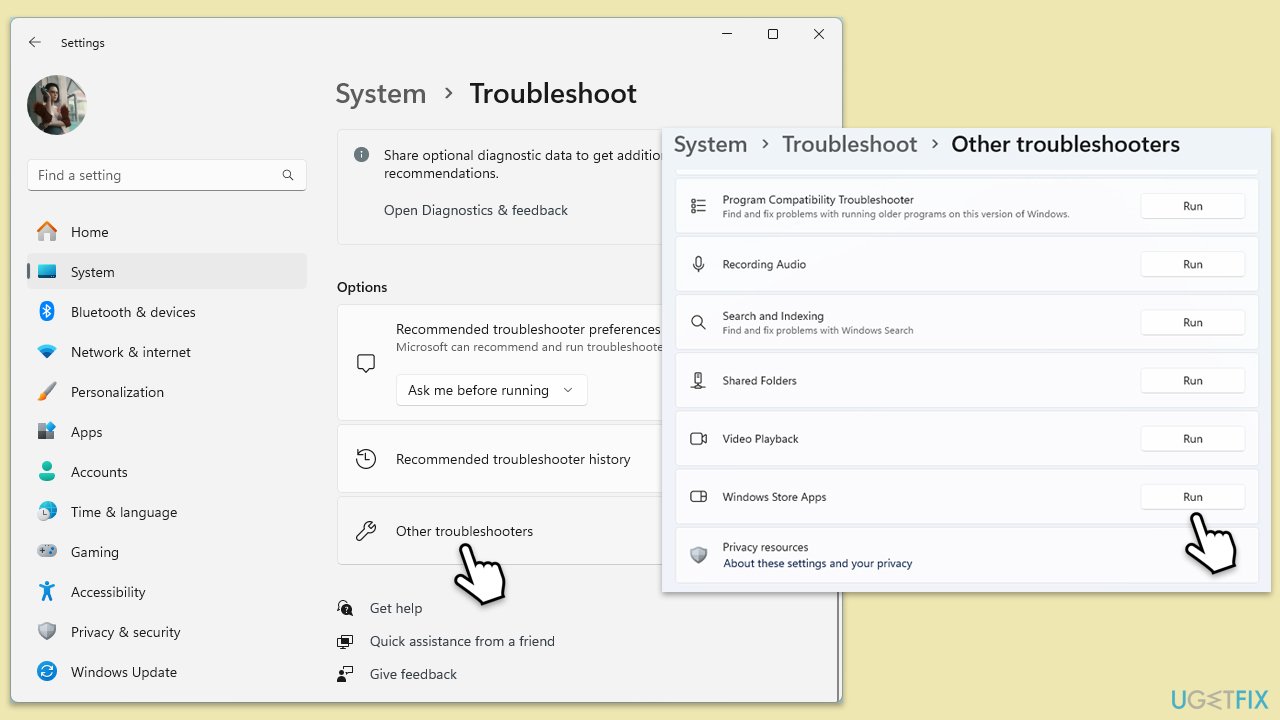
Fix 1. Run Windows Store and Windows Update troubleshooters
Let's start with the basics: Windows incorporates several troubleshooters that can be useful in this situation.
- In Windows search, type in troubleshoot and press Enter (you can also go to Start > Settings > System > Troubleshoot).
- Pick Additional troubleshooters/Other troubleshooters.
- Select the Windows update option and click Run/Run the troubleshooter.
- Wait till the troubleshooter scans for issues and suggests what to do next.
- Repeat the process for Windows Store Apps troubleshooter.
- Apply the offered fixes and restart your device.
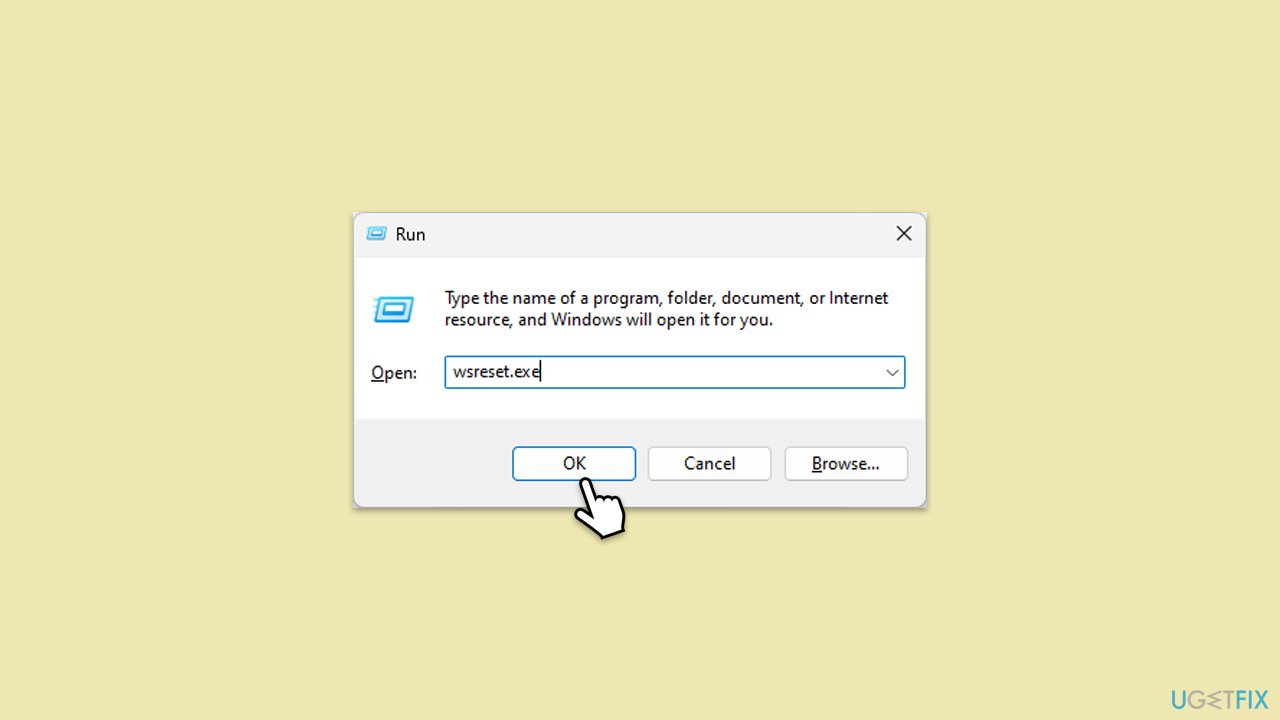
Fix 2. Reset Windows Store cache
- Type wsreset.exe in Windows search and press Enter.
- Wait until a pop-up window shows up - do not close it.
- As soon as it closes automatically, the store cache should be reset and will reopen.
- Try updating or downloading apps again.
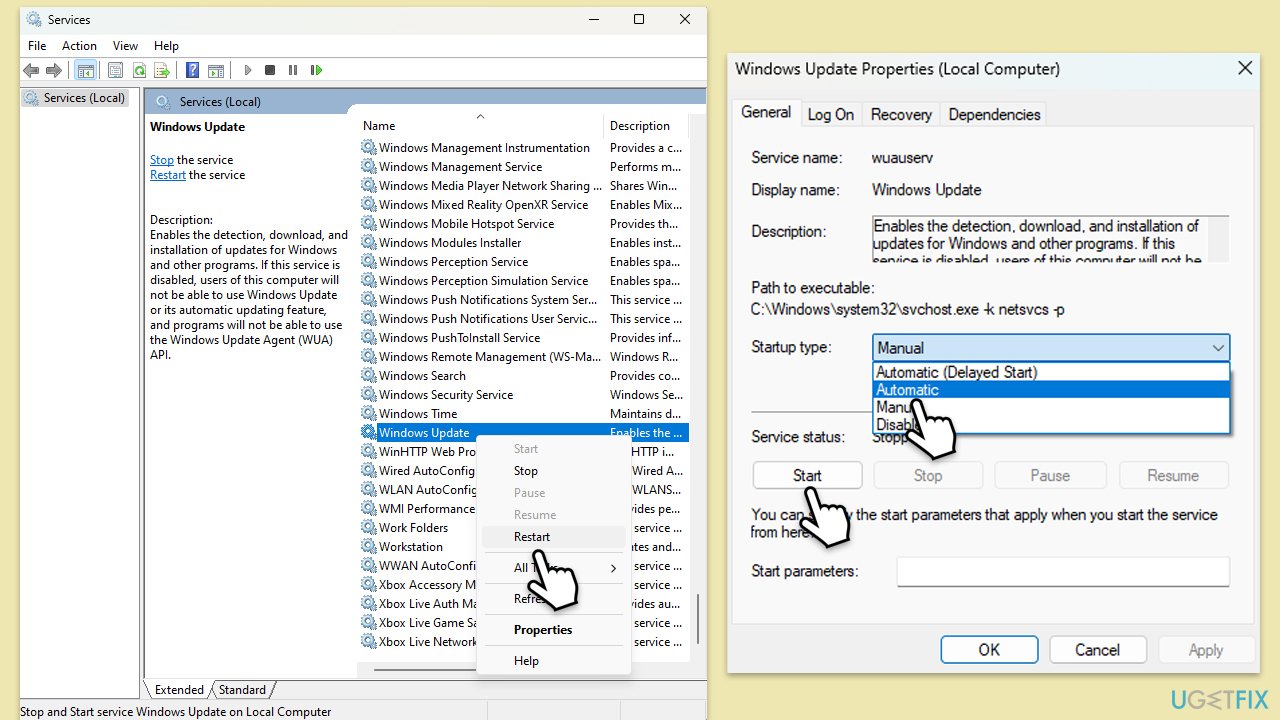
Fix 3. Check services
You should ensure that the services responsible for the update are running. If they are already, try restarting them.
- Type in Services in Windows search and hit Enter.
- Locate Background Intelligent Transfer Service (BITS).
- If this service is already running, right-click and select Restart.
- If it is not running, double-click it, select Automatic under the Startup type from the drop-down menu.
- Click Start, Apply, and OK.
- Repeat the process with the Windows Update, Cryptographic, and Windows Installer services.
Fix 4. Try Clean Boot
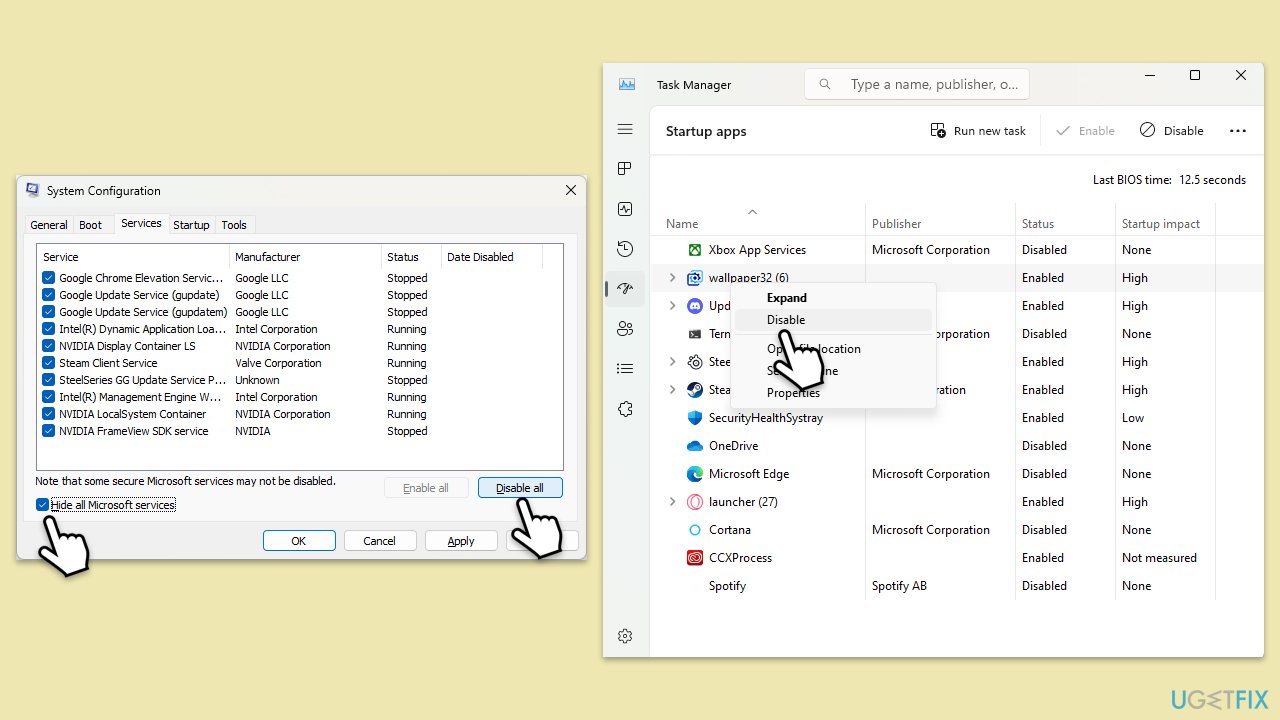
Try installing the update in Clean Boot mode. To access it, follow these instructions:
- Type msconfig in the Windows search bar and open System Configuration.
- Go to the Services tab and tick the Hide all Microsoft services checkbox.
- Select Disable all.
- Go to the Startup tab and click Open Task Manager.
- Here, right-click on each of the non-Windows entries and select Disable.
- Close down the Task Manager.
- Go to the Boot tab and tick the Safe boot option.
- Restart your computer.
Fix 5. Repair or reset the app
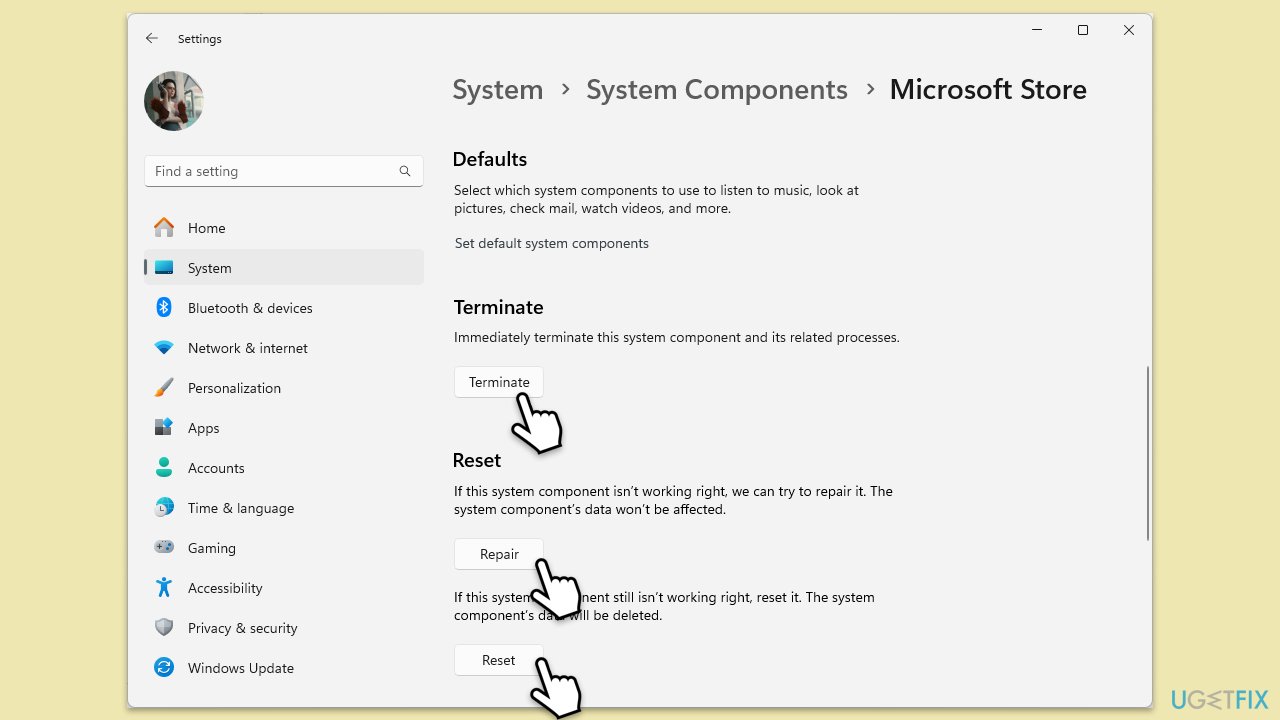
- Right-click on Start and select Apps & Features/Installed apps.
- Scroll down to find the app that is being updated and select Advanced options.
- Scroll down again and click Terminate and Repair.
- If that did not work, try using Reset.
- Reboot your system and see if it worked.
Fix 6. Reregister all Windows apps
If repairing the app that's failing to be updated did not help, you can try re-registering Microsoft Store and all the apps as follows:
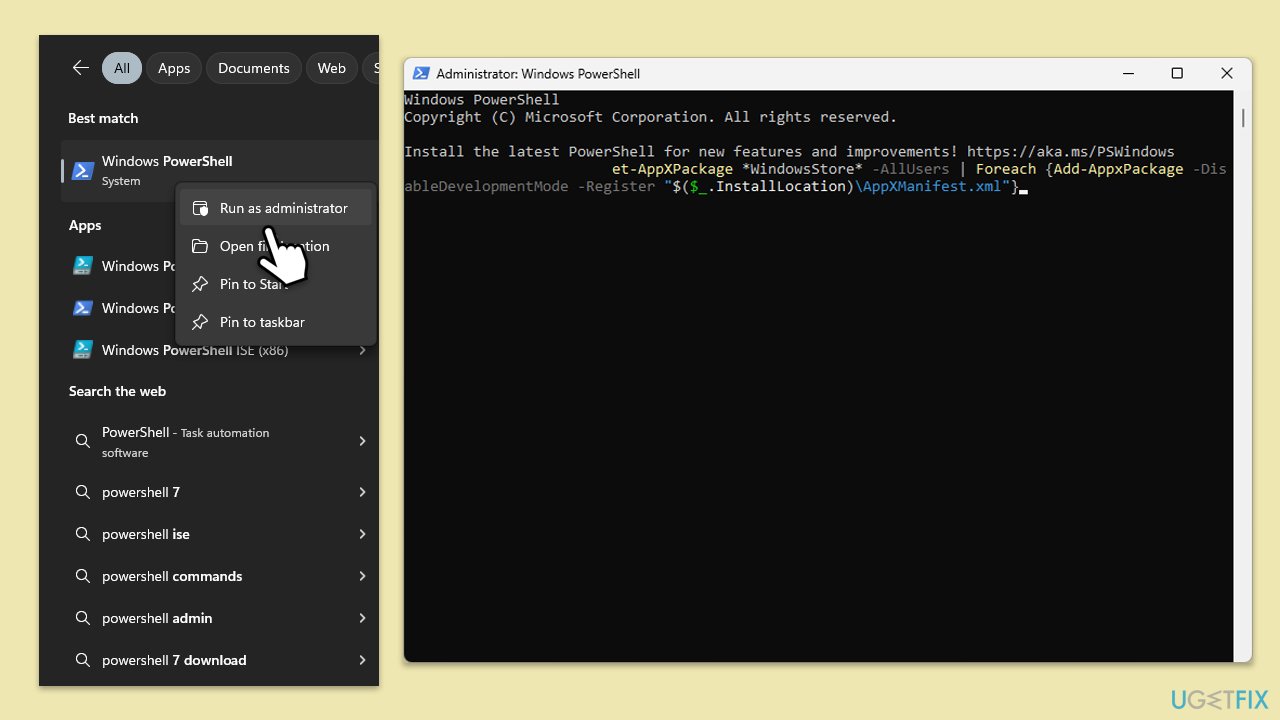
- Type PowerShell in Windows search.
- Right-click on the result and select Run as administrator.
- When UAC shows up, click Yes.
- Use the following command and press Enter:
Get-AppXPackage *WindowsStore* -AllUsers | Foreach {Add-AppxPackage -DisableDevelopmentMode -Register "$($_.InstallLocation)\AppXManifest.xml"} - When done, restart your PC.
Bottom line
To fix error 0x80073D02, you can run the Windows Store and Windows Update troubleshooters, clear the cache, and ensure all necessary services are functioning. Resetting the problematic app or using a PC repair tool may also help. If these steps do not resolve the issue, consider seeking further assistance.
Frequently asked questions
The error 0x80073D02 typically occurs when there is an issue with the Windows Store or if the update files are corrupted in Windows 10 or Windows 11.
You can reset the Windows Store by opening the Run dialog with Win + R, typing 'wsreset.exe', and pressing Enter, which clears the cache and can resolve the error.
Yes, you can use the built-in Windows Troubleshooter for Windows Update in Windows 10 or Windows 11, which can help identify and fix issues related to updates.




Report an issue
What's wrong with this guide? We review every report and update or remove content.
Report received — thank you. We'll review and fix it.
You need a free account to submit a report.
Be the first to comment