How to fix
Office installation error 0-1011
on Windows
Resolve the Office installation error 0-1011 in Windows 10 or 11 effortlessly with our expert-tested solutions. Fix it in minutes for seamless productiv…

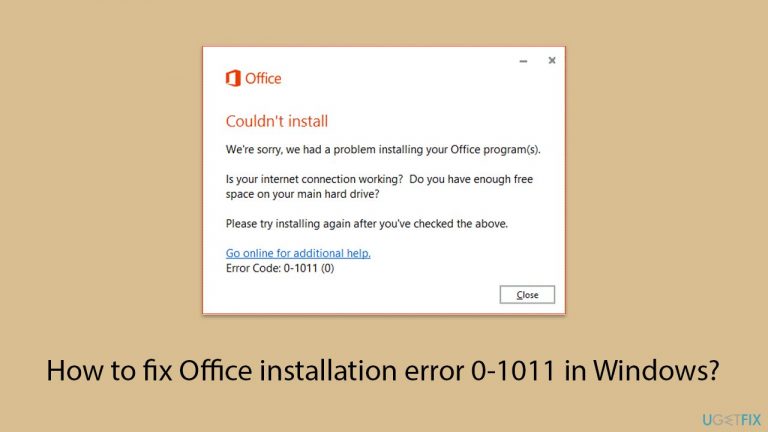
What causes How to fix Office installation error 0-1011 in Windows?
- Network connectivity problems
- Program conflicts
- Corrupted system files
- Inaccurate configuration settings
Repairs Windows system files, removes malware, and restores a clean OS state — without reinstalling.
Hello, I had issues with my PC so I had to reinstall it completely. Now I'm trying to install Microsoft Office again and I can't because of the error 0-1011. Please help me to fix it.
The installation of Microsoft Office on Windows platforms is generally a simple process that is intended to be as straightforward as possible for users worldwide. However, like with any complicated piece of software, the installation process is not immune to potential snags and blockages.
One such issue that customers may encounter is error code 0-1011. This problem can disrupt the installation process, posing a considerable challenge for anyone trying to install Microsoft Office on their Windows PC.
The error 0-1011 is often caused by a variety of underlying factors, including network connectivity problems, program conflicts, corrupted system files, and inaccurate configuration settings. It is a catch-all for a variety of issues that prevent Office installation files from being correctly downloaded, processed, or applied.
This can be especially unpleasant for those who rely on Microsoft Office for everyday activities and productivity because it halts the setup process, preventing them from accessing critical office products like Word, Excel, PowerPoint, and Outlook.
MS Office issue 0-1011 can be resolved in a variety of ways, including validating network connections, temporarily deactivating firewall and antivirus software during installation, confirming that no conflicting earlier versions of Office are installed, freeing drive space, repairing system file corruption, and more. Detailed instructions on how to deal with the issue are provided below.
In the larger context of troubleshooting and system maintenance, using a comprehensive Windows repair tool [d1] can be extremely valuable. While not a direct repair for the 0-1011 error, such an app is capable of automatically diagnosing and correcting a wide range of Windows-related issues, potentially circumventing the conditions that caused the error in the first place.

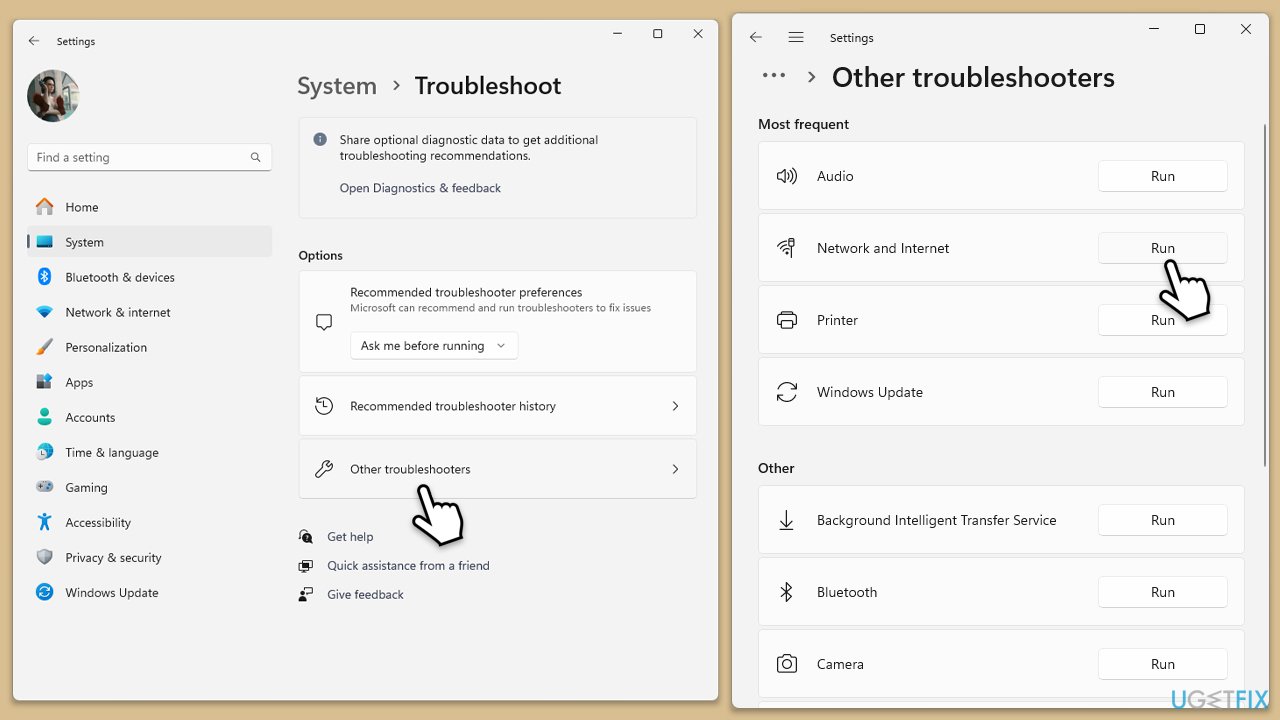
Fix 1. Run Network troubleshooter
Running the Network troubleshooter scans for issues like incorrect IP settings, network gateway availability, and problems with network adapters.
- Click on Start and pick Settings.
- Go to the System section and select Troubleshoot.
- Pick Other troubleshooters.
- Find Network & Internet and click Run.
- Apply all the recommended actions.
On Windows 10, follow these steps:
- Right-click on Start and pick Settings.
- Go to the Network & Internet section.
- On the right side, find the Advanced network settings section.
- Click Network troubleshooter and wait.
- The fixes will be automatically applied.
Fix 2. Uninstall the previous version with PowerShell
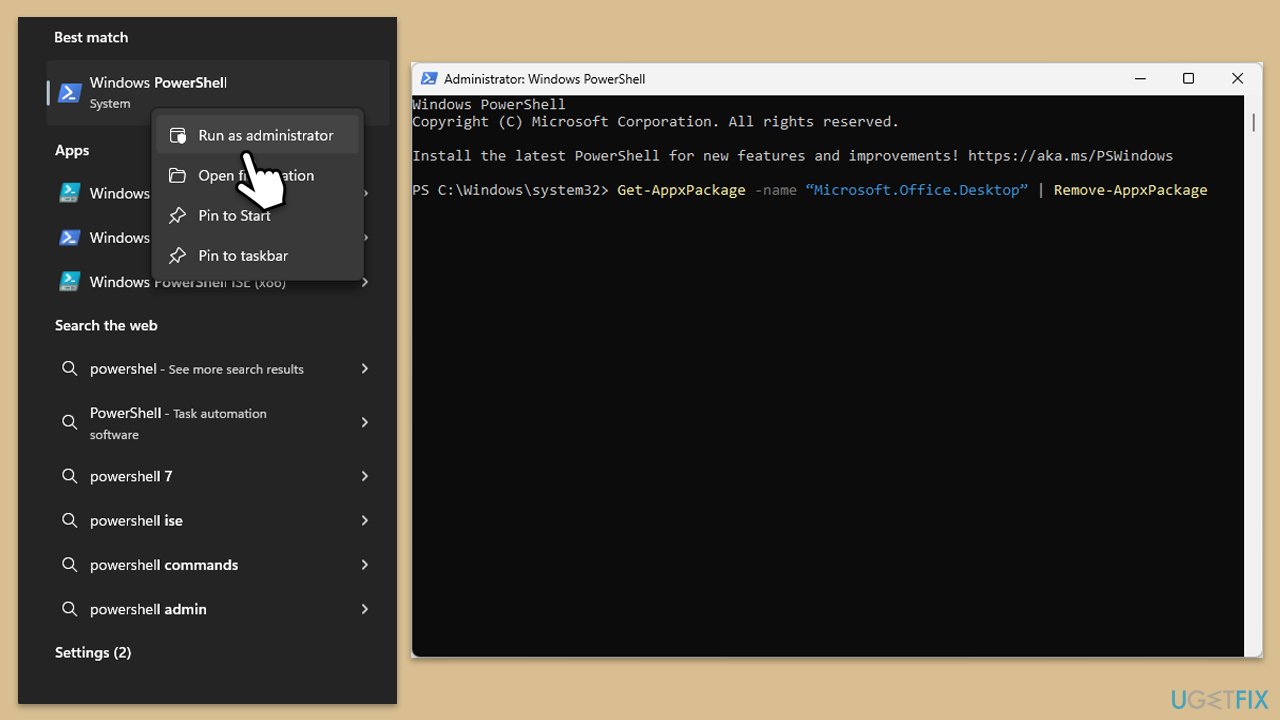
Uninstalling an old version of Microsoft Office via PowerShell can be an efficient way to ensure that your system is ready for a new installation without the conflicts that can arise from leftover files or registry entries.
- Type PowerShell in Windows search.
- Right-click on the result and pick Run as administrator.
- When UAC shows up, click Yes.
- In the new window copy and paste the following command, pressing Enter after:
Get-AppxPackage -name “Microsoft.Office.Desktop” | Remove-AppxPackage - Restart your system.
- Go to Microsoft Store and download the newest version of MS Office.
Fix 3. Perform Disk Cleanup
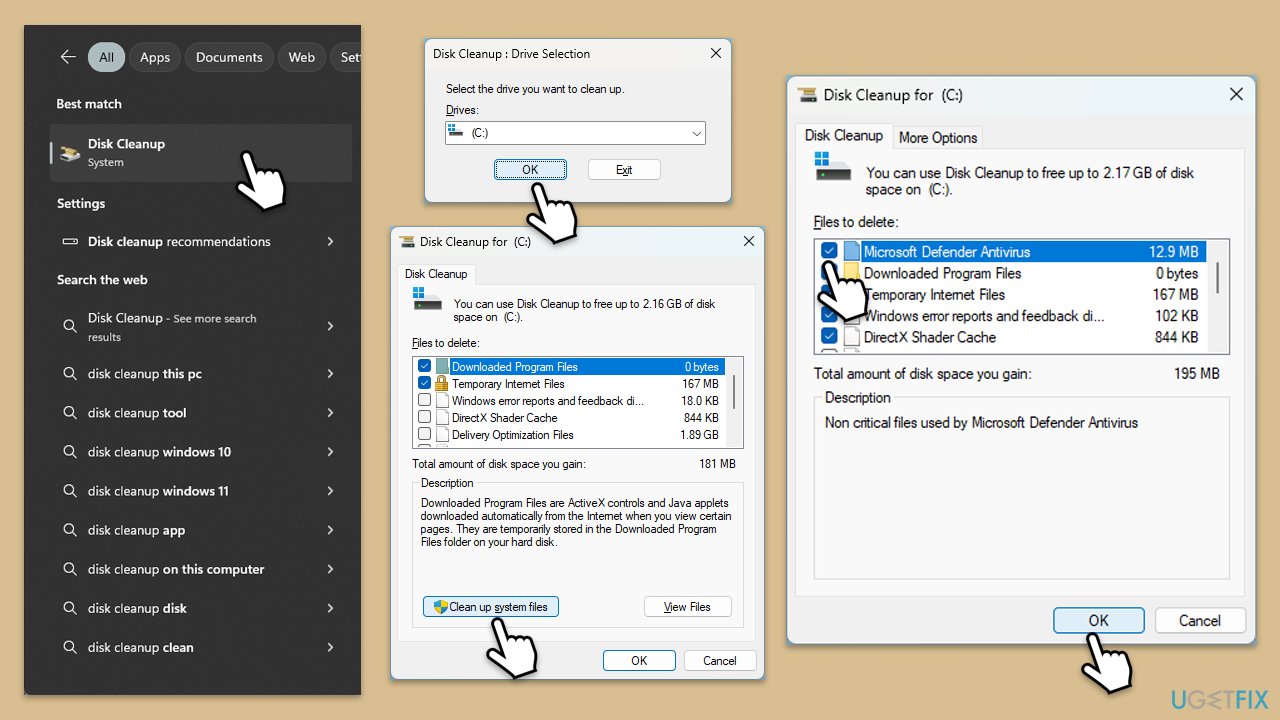
A lack of available space or cluttered temporary files can sometimes interfere with the installation process.
- Type Disk Cleanup in Windows search and hit Enter.
- If your Windows is installed on drive C, pick it from the list (it should be by default) and press OK.
- Click Clean up system files.
- Select your main disk again and click OK.
- Here, select the largest portions of the data used - these typically include Temporary Internet Files, Windows Update, Temporary Files, Recycle Bin, Delivery Optimization Files, and others.
- Click OK - the process should be finished shortly.
Fix 4. Temporarily disable third-party antivirus/firewall/VPN
Third-party security software can sometimes interfere with the installation of new programs by blocking downloads or access to certain websites. Temporarily disabling these applications can help determine if they are the cause of the installation issues with Microsoft Office.
- Open your antivirus or firewall application.
- Look for an option to disable protection.
- If you're using a VPN, disconnect it for the duration of the Office installation.
- Once disabled, try to install Microsoft Office again.
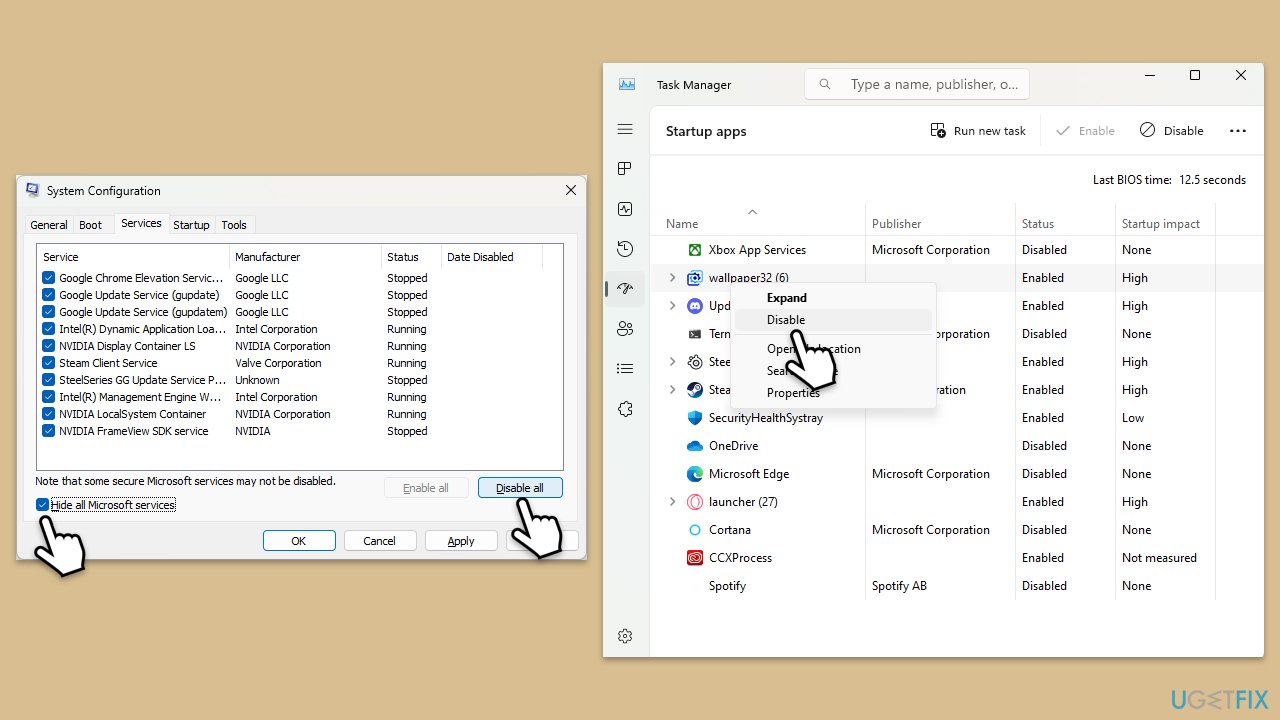
Fix 5. Perform Clean Boot
Performing a clean boot starts Windows with a minimal set of drivers and startup programs, helping eliminate software conflicts that occur when installing or running a program.
- Type msconfig in the Windows search box and press Enter.
- Pick the Services tab.
- Mark Hide all Microsoft services and select Disable all.
- Select the Startup tab and click Open Task Manager.
- In the Task Manager, right-click on each of the items and select Disable, then close the Task Manager.
- Go to the Boot tab, mark the Safe Boot option, then click Apply and OK.
- On the System Configuration window, click OK.
- Restart your computer and attempt to install Office.
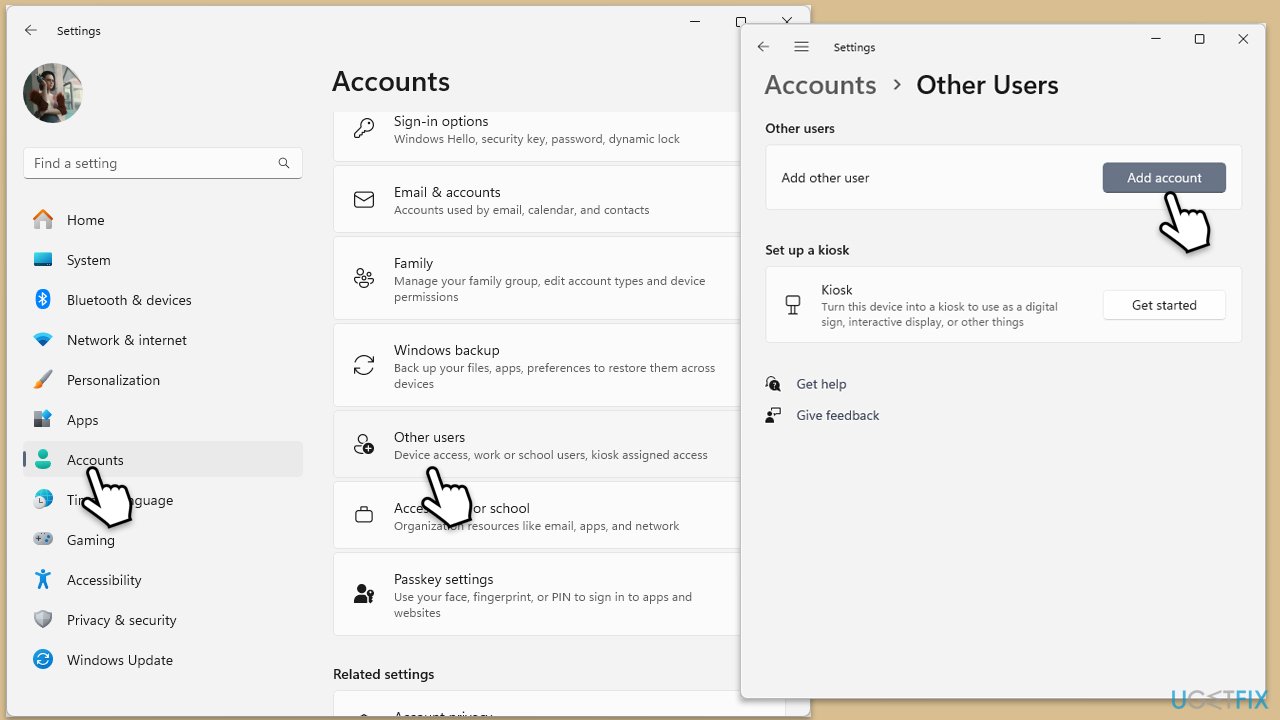
Fix 6. Create a new user profile
Corruption within your Windows user profile can cause various issues, including problems with installing software. Creating a new user profile can provide a fresh environment free of the issues present in the old profile.
- Open Windows Settings.
- Go to Accounts then Family/Family & other users.
- Under Other users, click Add account/Add someone else to this PC.
- Follow the prompts to create a new user account. If you don't have Microsoft account details, you can choose I don't have this person's sign-in information followed by Add a user without a Microsoft account.
- Assign a username and password for the new account and complete the setup.
- Log out of your current account and log into the new account.
- Try installing Microsoft Office again using the new user profile.
Bottom line
To resolve the Office installation error 0-1011, you can run the Network troubleshooter, temporarily deactivate firewall and antivirus software, ensure no conflicting versions of Office are installed, and repair any system file corruption. If these solutions do not work, consider using a comprehensive Windows repair tool to diagnose and fix a wider range of issues.
Frequently asked questions
To fix Office installation error 0-1011 in Windows 10, try running the Office Repair tool from the Settings app or uninstalling and reinstalling Office completely.
Yes, ensuring that your Windows 11 is up to date can help fix compatibility issues that may lead to Office installation error 0-1011.
Yes, you can use the Command Prompt to execute specific commands aimed at repairing the Office installation, which may resolve error 0-1011 on both Windows 10 and Windows 11.




Report an issue
What's wrong with this guide? We review every report and update or remove content.
Report received — thank you. We'll review and fix it.
You need a free account to submit a report.
Be the first to comment