How to fix
“Unidentified network – no network access” error
on Windows
Resolve the “Unidentified network - no network access” error on Windows 10 and 11 quickly and easily. Expert-tested solutions await, fixed in minutes!

What causes How to fix “Unidentified network – no network access” error on Windows?
- Corrupted drivers
- Outdated drivers
- Airplane mode enabled
- Fresh installation of Windows 10
- Upgrade to Windows 10 Creators Update
Repairs Windows system files, removes malware, and restores a clean OS state — without reinstalling.
“Unidentified network” error when trying to connect to the Internet. This happened right after Windows 10 Creators Update install. Is there a proper solution or should I revert back the changes to re-gain access to the Internet?
Network connectivity issues plagued and are still plaguing thousands of Windows 10 users. While some people noticed a decreased Internet speed after an upgrade to Windows 10 from earlier versions, mostly Windows 7, 8, and 8.1, no Wi-Fi, the others were completely shut out from the Internet access. In this post, we’re going to provide the instructions on how to fix the “Unidentified network“ error.
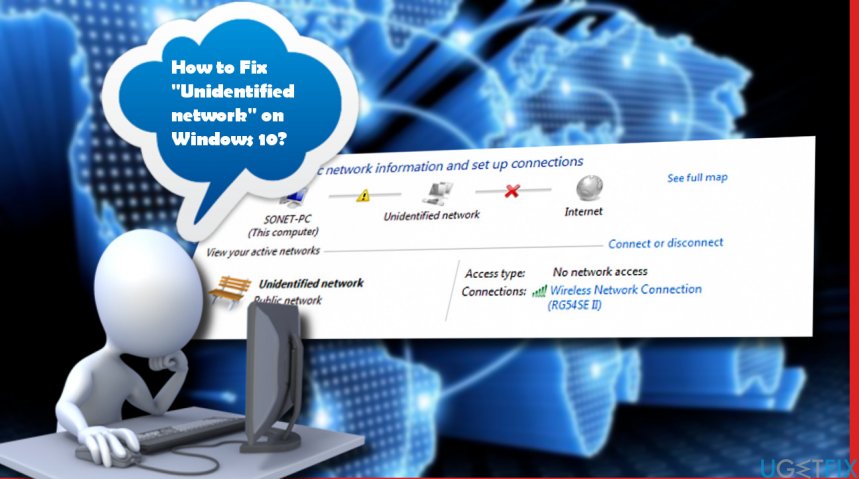
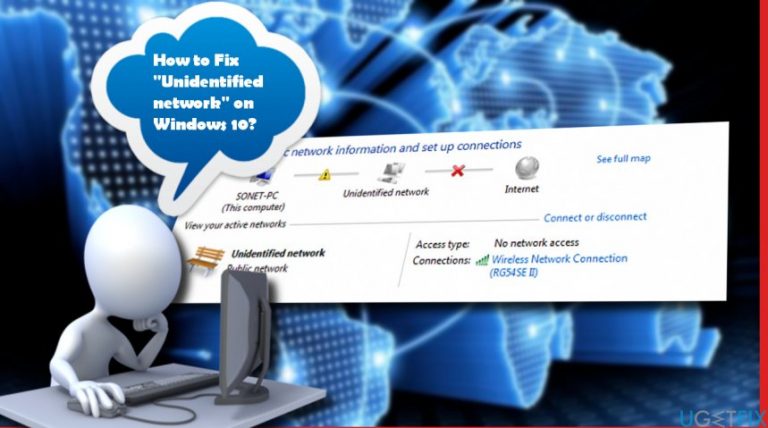
Typically, the “Unidentified network“ bug occurs on freshly installed Windows 10 OS or its upgrade to Anniversary or Creators Update. What happens? All users who experienced the network connectivity issue first of all noticed a yellow exclamation mark on the notification area. When clicked, the exclamation revealed the error “Unidentified network- no network access.” Accordingly, all web browsers opened show No Internet Connection window and do not allow performing any actions. The Network Connections settings should also show a red cross next to the Ethernet or the Wireless Network Connection icon. Sadly, but neither official instructions on how to fix Unidentified network error or its patch have been released, but don’t lose fate. We’ll provide a couple of useful tips that may help you to solve this problem.
Fixing Unidentified Network Error on Windows
If you are encountering any problems related to Internet connection, first of all, power-cycle the router/modem and reboot the system. If that did not help, try these methods:
Disable Airplane mode
Airplane mode is set to overtake control over the wireless signal receiving. Therefore, it may influence the network connection and trigger “Unidentified Network” Error. Therefore, try to turn it off:
- Click the Network Connections icon placed on the taskbar at the bottom right corner of the desktop.
- At the bottom of it, click the Airplane Mode and set it to Off.
Update Network Card Drivers
In most of the cases, “Unidentified network- no network access” error is triggered by corrupted or outdated drivers. Such scenario mostly occurs after the installation of Creators Update. To check if driver update helps, please follow these steps:
- Right-click Windows key and select Device Manager.
- Expand the Network adapters section and check if any of the adapters is marked with a yellow exclamation mark.
- Click on the marked driver and select Update Driver Software. Even if none of the adapters is marked as corrupted, we would recommend updating all of them.
- Once done, reboot the system.
Turn off or remove network-related software
Programs like Wi-Fi manager or VPN software may negatively affect network connection. Thus, you should try to disable such software or uninstall it completely. Conflicting software can be disabled via Network Connections:
- Right-click on the network icon and select Open Network and Sharing Center.
- Select Change Adapter Settings and right-click on the Ethernet or Local Area Connection.
- Select Properties and open Network tab.
- Locate and remove the conflicting items placed on the list.
Run Windows Network Troubleshooter
- Open Windows search and type Troubleshooting.
- Select Troubleshooting and click Network and Internet.
- Now the system should run a scan. Wait until it finishes and see if it detected any problems.
- Follow the on-screen instructions. The system should fix the existing issues automatically.
Add IP Address Manually
- Open Network and Sharing Center and right-click on the Ethernet or Wireless Network Connection.
- Select Properties and mark the Internet Protocol Version 4 (TCP/IPv4).
- Select Properties and click Use the following DNS server address.
- Type 8.8.8.8 into the Preferred DNS server and the 8.8.4.4 to the Alternate DNS server.
- Now right-click on Windows key and select Command Prompt (Admin).
- Copy and paste the ipconfig /release command and press Enter.
- After that, copy and paste the ipconfig /renew and press Enter.
Hopefully, after performing all these steps you have managed to fix “Unidentified Network” error successfully. If all fixes end up with a failure, please let us know or contact Microsoft-certified technicians.
Bottom line
To fix the 'Unidentified network - no network access' error, you can power-cycle the router/modem, disable Airplane mode, and update your network card drivers. If these solutions do not resolve the issue, consider reverting back to a previous version of Windows or seeking further technical assistance.
Frequently asked questions
You can try resetting your network settings by going to Settings > Network & Internet > Status, and then selecting 'Network reset'. Additionally, updating your network adapter drivers through Device Manager may help.
Go to Settings > Network & Internet > Status, then click on 'Hardware properties' to check the status of your network adapter. If it's disabled, enable it or try reinstalling the driver.
Yes, you can use the built-in Network Troubleshooter by going to Settings > Update & Security > Troubleshoot > Additional troubleshooters, and selecting 'Network Adapter' to diagnose and fix issues.




Report an issue
What's wrong with this guide? We review every report and update or remove content.
Report received — thank you. We'll review and fix it.
You need a free account to submit a report.
Be the first to comment