How to fix
UDFS_FILE_SYSTEM BSOD
on Windows
Resolve UDFS_FILE_SYSTEM BSOD issues on Windows 10 and 11 with our expert-tested solutions. Get your system running smoothly in minutes!

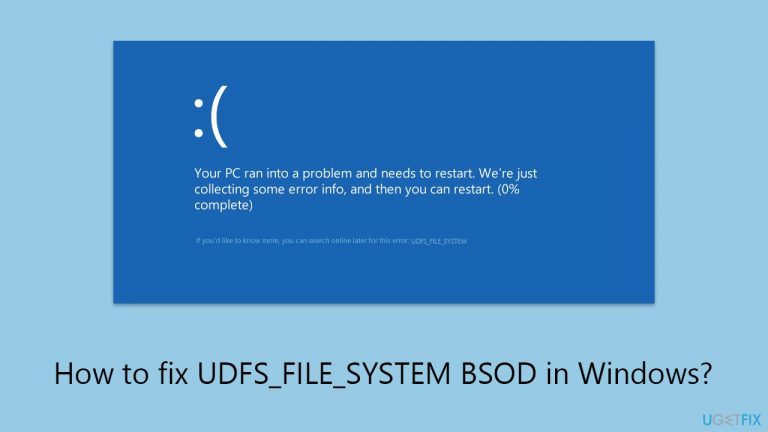
What causes How to fix UDFS_FILE_SYSTEM BSOD in Windows?
- Malfunctioning or incompatible optical drive
- Obsolete or corrupt drivers
- Corrupted system files
- Underlying hardware issues
Repairs Windows system files, removes malware, and restores a clean OS state — without reinstalling.
How do I fix crashes related to UDFS_FILE_SYSTEM BSOD? It's been happening for several weeks now and unfortunately, it's not going away by itself. Any tips would be appreciated.
UDFS_FILE_SYSTEM The Blue Screen of Death (BSOD) error is a serious problem that Windows users may encounter, particularly when the system is having trouble with the Universal Disk Format (UDF) file system. This format is commonly used in optical media, including DVDs and Blu-ray discs.
The error indicates that Windows is unable to read or write to media in this format, which could be due to a variety of underlying issues. These include faults with the optical drive, obsolete or corrupt drivers, corrupted system data, and even more serious hardware issues. Addressing this mistake is critical for keeping the system stable and avoiding data loss.
One common reason for the UDFS_FILE_SYSTEM error is a malfunctioning or incompatible optical drive. If the drive fails to properly interface with UDF-formatted disks, the system may crash. In such instances, it is critical that the optical drive is compatible with your Windows version and functions properly. Sometimes merely cleaning the drive or looking for physical faults will cure the problem.
Another possible culprit is obsolete or corrupt drivers. Drivers provide communication between the operating system and hardware components. When they are obsolete or corrupted, the system may crash due to a communication mismatch. Regularly checking for and installing driver updates is a proactive step towards avoiding this problem.
Corrupted system files can also lead to the UDFS_FILE_SYSTEM Blue Screen error. These corruptions might arise as a result of faulty software installation, sudden shutdowns, or malware infections. Running system file integrity checks, such as a System File Checker (SFC) scan, can detect and fix corrupted files, potentially resolving the problem.
Lastly, underlying hardware issues, such as a failing hard drive or hardware conflicts, can trigger BSOD errors. In some cases, using built-in Windows diagnostic tools or speaking with an expert can assist in identifying and resolving hardware issues. If you would like to simplify the process and fix UDFS_FILE_SYSTEM automatically, try using [d1] repair.

Fix 1. Update optical drive drivers
Updating the drivers for your optical drive can resolve compatibility issues with the UDF file system, ensuring smooth communication between the hardware and your Windows operating system.
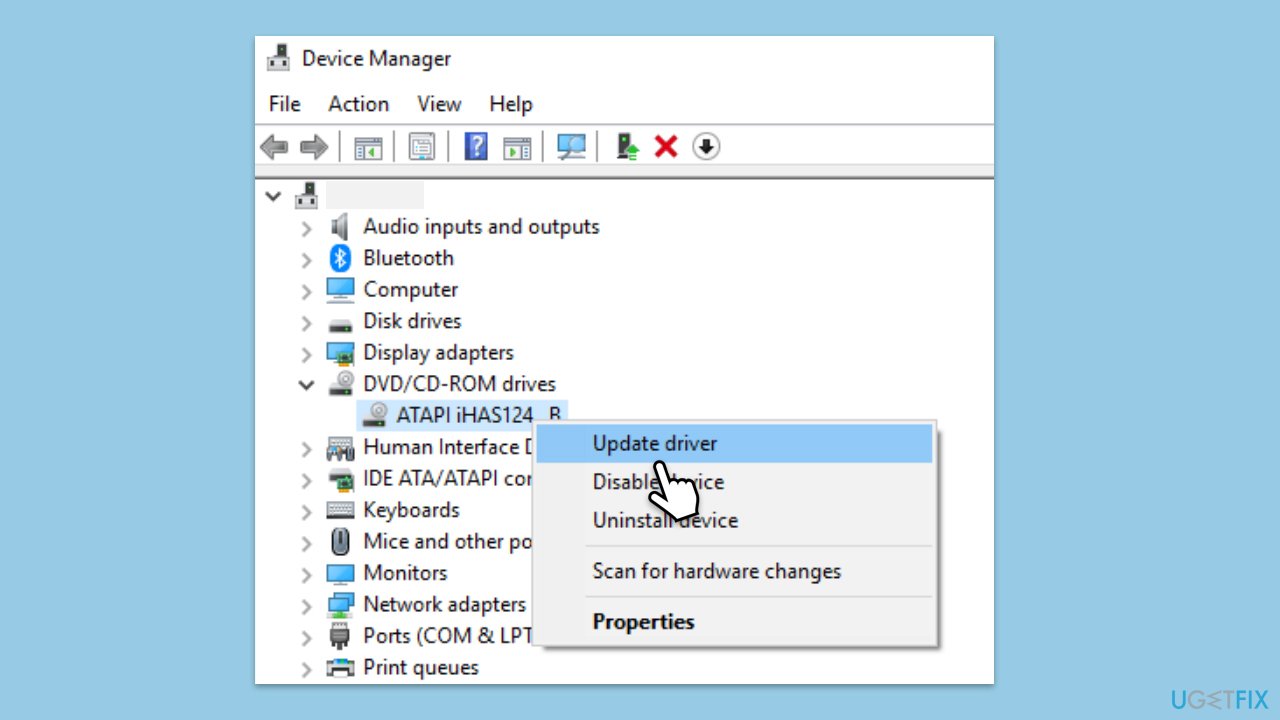
- Open Device Manager by pressing Win + X and selecting Device Manager.
- Expand the DVD/CD-ROM drives section.
- Right-click on your optical drive and choose Update driver.
- Select Search automatically for drivers and follow the on-screen instructions.
- Restart your computer after the update is complete.
- If you are not sure about this process, we recommend using [rev id="DriverFix"].
Fix 2. Run the Hardware and Devices troubleshooter
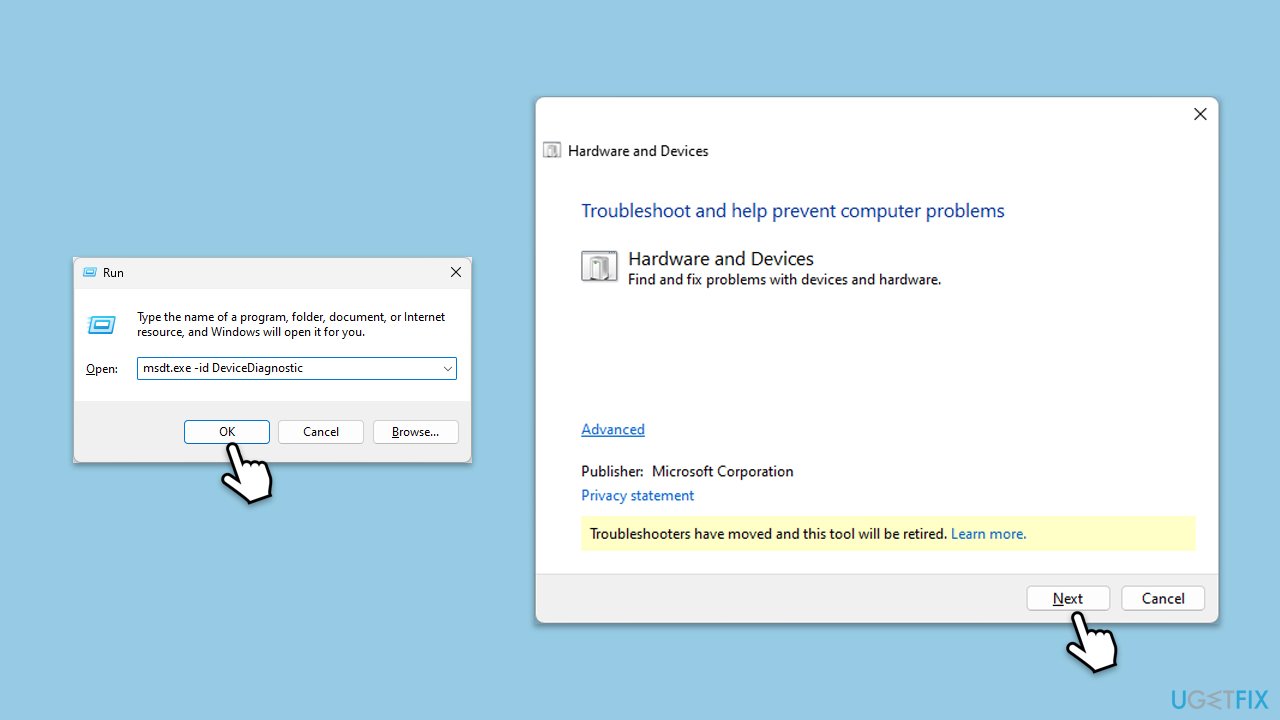
Windows includes various troubleshooters designed to automatically diagnose and resolve hardware and system issues. Running the Hardware and Devices troubleshooter can identify issues with your optical drive or other related hardware.
- Press Win + R to open the Windows Run dialog.
- Type msdt.exe -id DeviceDiagnostic and press Enter to open Hardware and Devices troubleshooter.
- Click Next to run Hardware and Devices troubleshooter. It will automatically detect problems with your computer hardware and devices. You can decide to fix the problems or not by yourself.
Fix 3. Perform an SFC and DISM scans
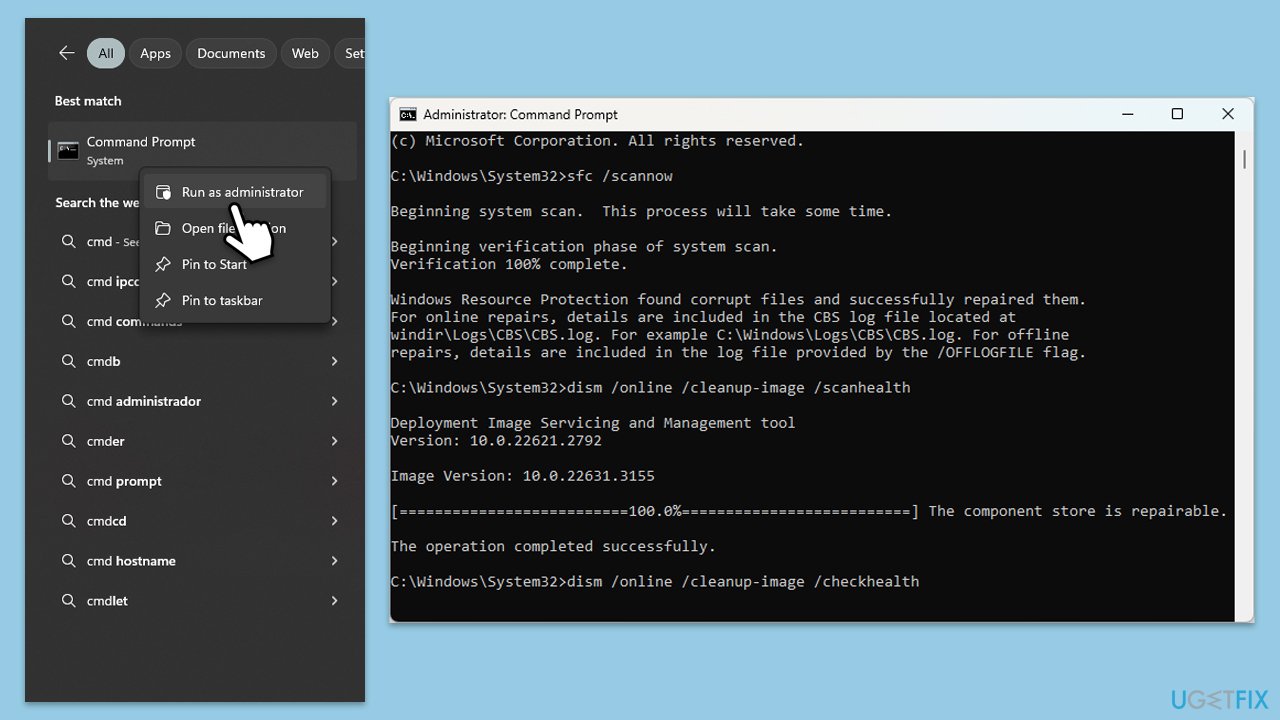
The System File Checker tool scans for and repairs corrupted system files, which might be causing the BSODs.
- Type cmd in Windows search.
- Right-click on Command Prompt and pick Run as administrator.
- When UAC asks you whether you want to make changes, agree by pressing Yes.
- Next, copy and paste the following commands, pressing Enter each time:
sfc /scannow
DISM /Online /Cleanup-Image /CheckHealth
DISM /Online /Cleanup-Image /ScanHealth
DISM /Online /Cleanup-Image /RestoreHealth
(Note: if you get an error executing the last command, add /Source:C:\RepairSource\Windows /LimitAccess to it and try again.) - Restart your computer.
Fix 4. Check your disk for errors
Checking your disk for errors can identify and fix problems with the file system or bad sectors.
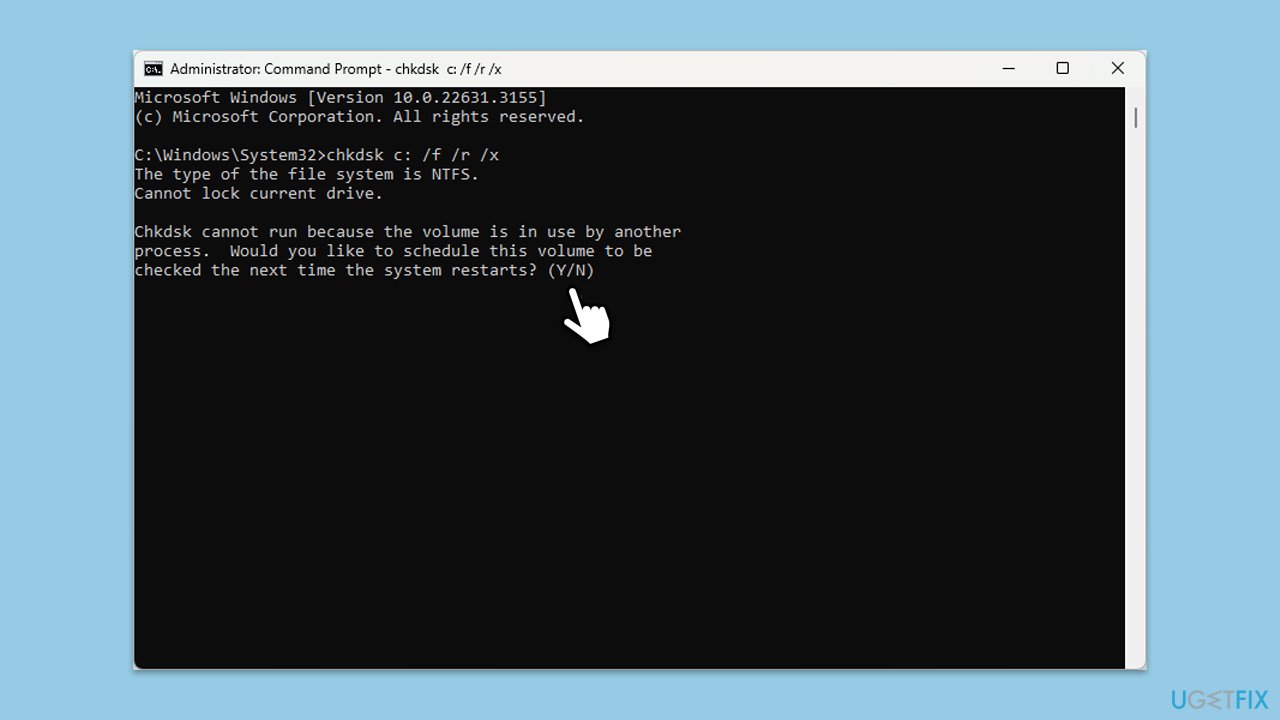
- Open Command Prompt as administrator.
- Type in the following command and press Enter after:
chkdsk c: /f
(Note: use chkdsk c: /f /r /x command if you use SSD as your primary partition). - If you receive an error, type in Y, close down Command Prompt, and restart your computer.
- After a restart, Windows will begin to scan your disk. After your system boots back up, you can find the results in the Event Viewer.
Fix 5. Update Windows
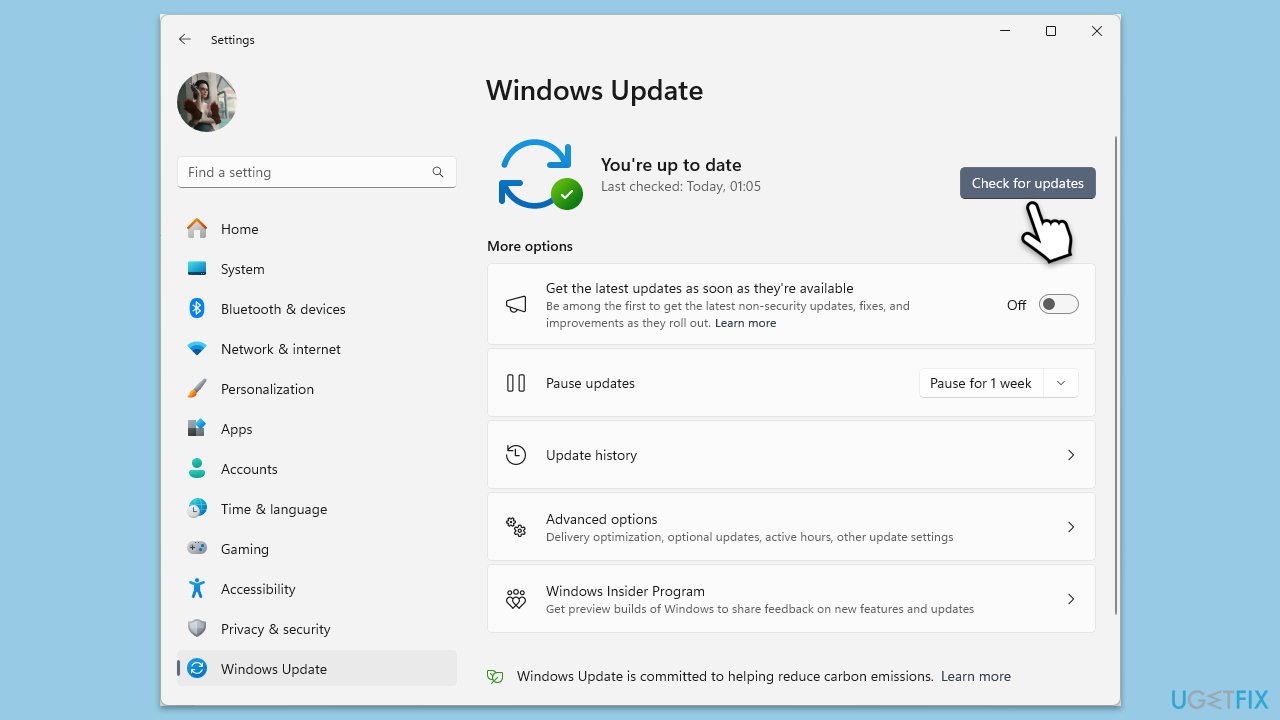
Ensuring your Windows is up to date can resolve known issues and compatibility problems that might be contributing to BSOD.
- Type Updates in Windows search and hit Enter.
- Here, click Check for updates and wait till all the files are downloaded and installed.
- If optional updates are available, install them too.
- When all is done, reboot your system to apply all updates.
Fix 6. Disable the UDF file system driver
Disabling the UDF file system driver can be a temporary workaround if the error is directly related to handling UDF formats, especially if you currently do not need to use UDF-formatted discs.
- Open Device Manager.
- Navigate to View > Show hidden devices.
- Expand Non-Plug and Play Drivers.
- Right-click on Udfs.sys and select Disable.
- Restart your computer.
Fix 7. Restore your system
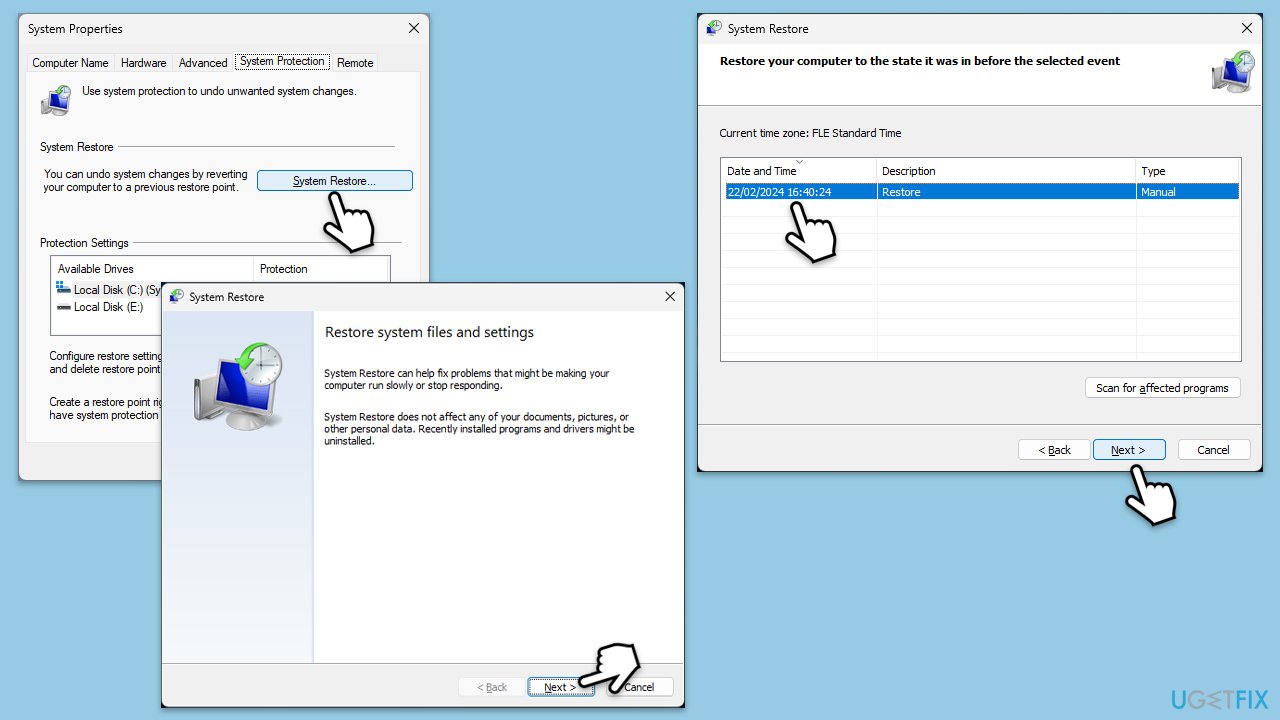
Using System Restore to revert your computer's system files and settings to an earlier point can fix issues caused by recent changes without affecting your personal files.
- Type Create a restore point in the Windows search bar and open it.
- Click on System Restore.
- In the new window, click Next or Choose a different restore point.
- If available, mark the More restore points checkbox.
- Select the point in time when the issue did not exist and click Next.
- Finally, click Finish.
Fix 8. Reset Windows
If the error started occurring after installing new software, it might be causing a conflict. Uninstalling this software can resolve the issue. If you are not sure, you can always use Clean Boot to determine which app is causing the issue.
- Open Windows Settings.
- Go to Windows Update/Update & Security.
- Select Advanced options.
- Under Additional options, select Recovery.
- Under Recovery options, click Reset PC.
- Select the option to Keep your files and then press Cloud download.
- Follow on-screen instructions to finish the process.
Bottom line
To fix the UDFS_FILE_SYSTEM BSOD, you can clean the optical drive, update drivers, run a System File Checker scan, and use Windows diagnostic tools to identify hardware issues. If these solutions do not resolve the problem, consider seeking expert assistance.
Frequently asked questions
The UDFS_FILE_SYSTEM BSOD is typically caused by issues with the file system driver or corrupted system files. It can also occur due to faulty hardware or incompatible software.
To troubleshoot the UDFS_FILE_SYSTEM BSOD on Windows 11, you can start by running the System File Checker tool and performing a disk check to repair file system errors. Additionally, updating your drivers and performing a clean boot may help resolve the issue.
To prevent the UDFS_FILE_SYSTEM BSOD in Windows 10, ensure that your system drivers are always updated and regularly check for Windows updates. Avoid installing unverified third-party software that may conflict with the system files.




Report an issue
What's wrong with this guide? We review every report and update or remove content.
Report received — thank you. We'll review and fix it.
You need a free account to submit a report.
Be the first to comment