How to fix
Windows update error 0x80240022
on Windows
Resolve Windows update error 0x80240022 efficiently with proven methods. Get your system running smoothly again—expert-tested and fixed in minutes.

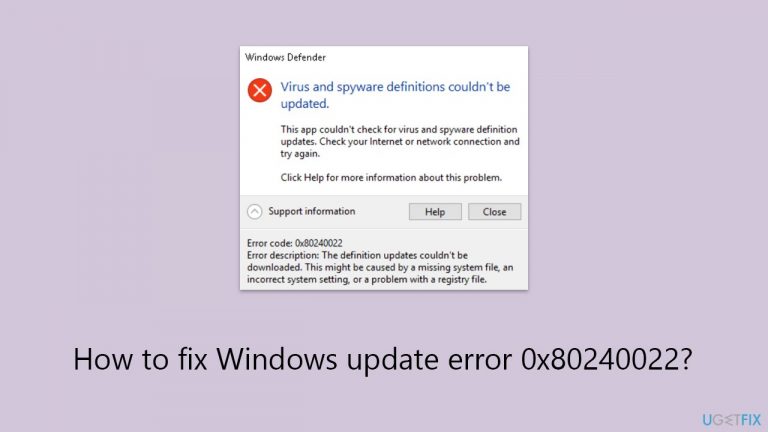
What causes How to fix Windows update error 0x80240022?
- Internet connectivity problems
- Corrupted system files
- Configurations blocking the update process
- Issues connecting to Microsoft servers
Repairs Windows system files, removes malware, and restores a clean OS state — without reinstalling.
Hi, I'm using Windows 11. I recently encountered the error code 0x80240022 while attempting to download and install the latest Windows updates. This has prevented me from keeping my system up-to-date. What are the potential causes of this, and how can I successfully resolve it?
Windows updates are critical for maintaining and optimizing Windows operating systems. These updates not only include new features and enhancements, but they also contain vital security patches that protect users from vulnerabilities and threats. Regularly upgrading Windows keeps your machine running smoothly, efficiently, and securely. Microsoft publishes these updates on a regular basis to improve the overall user experience while also addressing any known issues or bugs.
For many users, the process of updating Windows is straightforward and completed with a few clicks. But certain users -including those running Windows 10 and Windows 11 - might run into trouble with the update error 0x80240022. This error number shows up when trying to download and install updates, stopping the process and leaving the system without the newest features and fixes and vulnerable to security flaws.
Error 0x80240022 typically indicates a problem that prevents Windows Update from connecting to the Microsoft servers or completing the update process successfully. Several factors can contribute to this, ranging from internet connectivity problems to corrupted system files or configurations that block the update process.
Fortunately, several strategies can tackle the Windows Update error 0x80240022, ensuring that one method's failure doesn't leave you without alternatives. The solutions vary in complexity, from simple troubleshooting steps, such as checking your internet connection and running Windows Update troubleshooter, to more advanced methods like resetting the Windows Update components manually or using the Media Creation Tool to bring the system to the latest version.
In the following sections, we will delve into specific instructions to help you fix the 0x80240022 error. Before proceeding, we highly recommend trying a powerful PC repair application known as [d1]. It is excellent for those that have no time or necessary IT knowledge to resolve Windows issues manually.

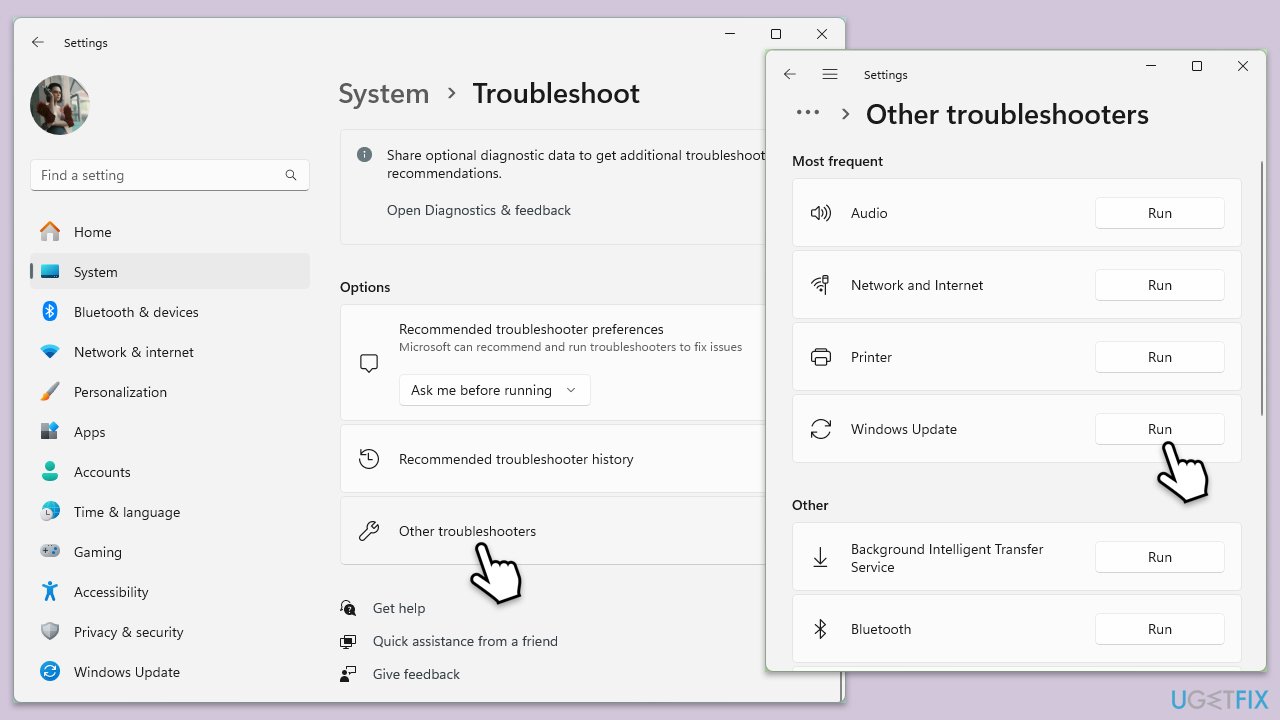
Fix 1. Run Windows Update Troubleshooter
Windows includes a built-in troubleshooter that can automatically find and fix problems with Windows Update, including the error 0x80240022. This tool can save time by diagnosing and resolving issues without manual intervention.
- Type Troubleshoot into the Windows search bar and press Enter.
- Next, on the right side of the window, select Additional troubleshooters/Other troubleshooters.
- Scroll down to locate the Windows update option and click on it.
- Click on Run the troubleshooter/Run and allow the process to complete.
- Once it is finished, implement any recommended fixes and restart Windows.
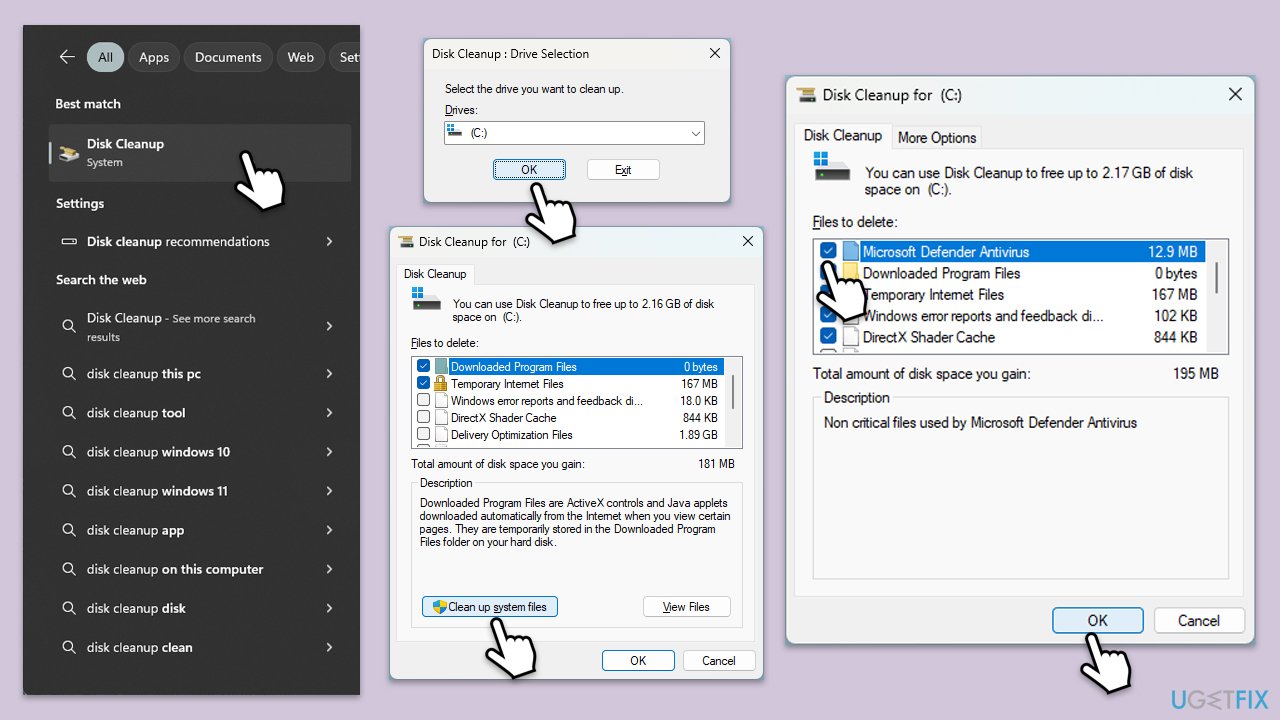
Fix 2. Perform Disk Cleanup
Over time, your system accumulates temporary files and other unnecessary data that can interfere with Windows Update. Running Disk Cleanup can help free up disk space and potentially resolve update errors.
- Open the Windows search bar and type Disk Cleanup. Press Enter to open the Disk Cleanup utility.
- In the Disk Cleanup window, click Clean up system files.
- Select the drive (C: by default) again and click OK.
- In the list of files that can be cleaned up, select the largest portions of data, such as Windows Update, Temporary Internet Files, Temporary Files, and others.
- Click OK to begin the cleanup process.
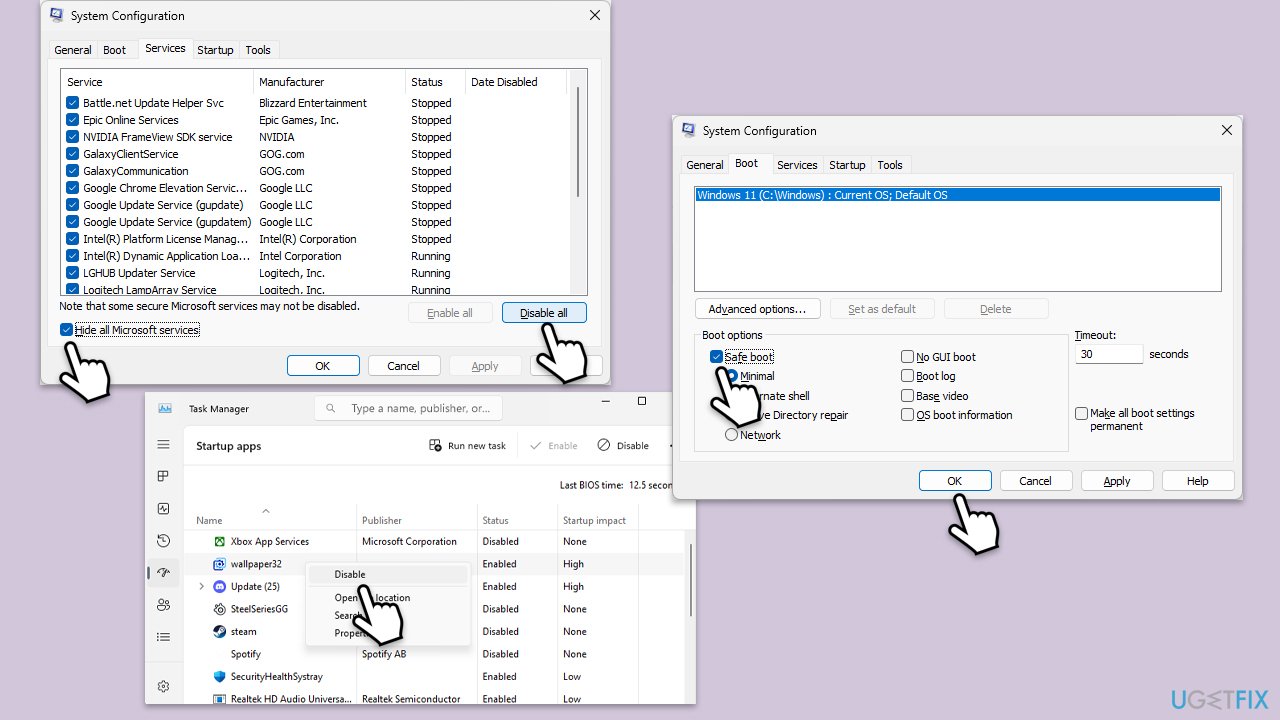
Fix 3. Try Clean Boot
Performing a clean boot starts Windows with a minimal set of drivers and startup programs. This can help identify if third-party software conflicts with Windows Update.
- Press Win + R, type msconfig, then press Enter.
- Select the Services tab and tick the Hide all Microsoft services checkbox.
- Pick Disable all.
- Go to the Startup tab and click Open Task Manager.
- Here, right-click on each of the non-Windows entries and select Disable.
- Close down the Task Manager.
- Go to the Boot tab and tick the Safe boot option
- Reboot your system.
- Try updating your system.
Fix 4. Run SFC and DISM
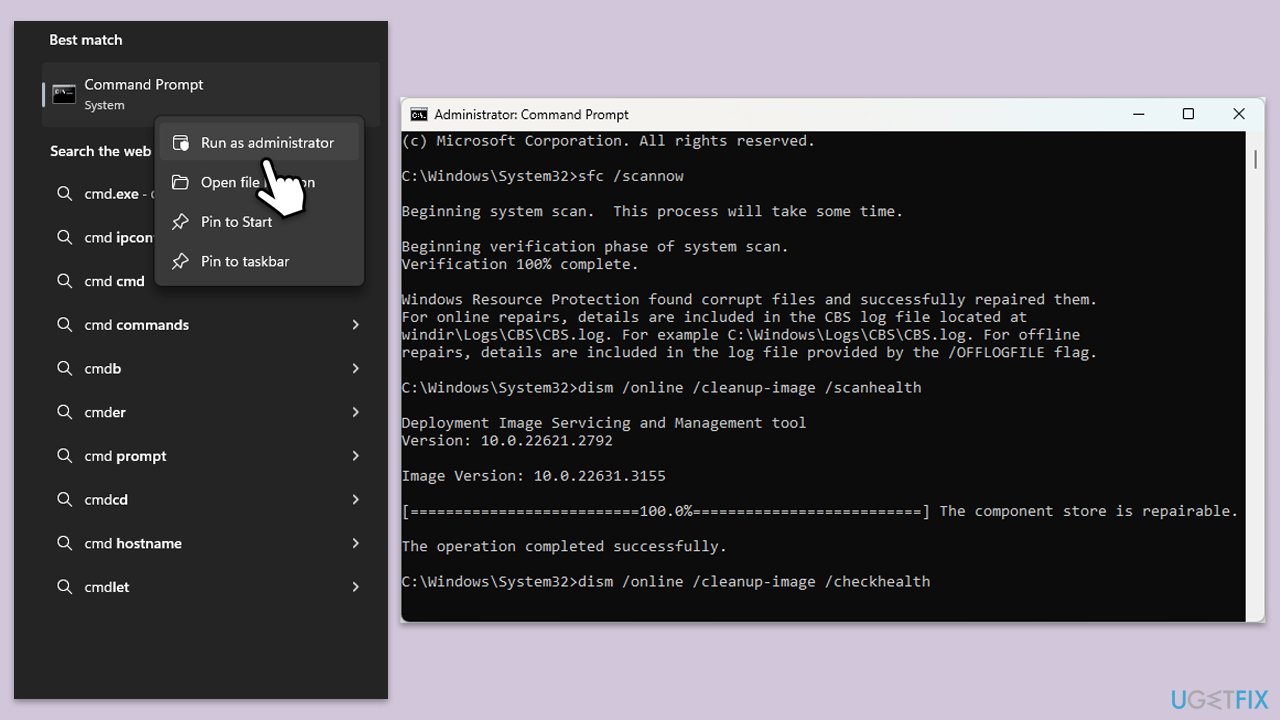
You can deploy scans via an elevated Command Prompt to repair corrupted files in Windows.
- Type cmd in Windows search, right-click on Command Prompt, and select Run as administrator.
- When UAC shows up, click Yes.
- Copy and paste the following command, pressing Enter after:
sfc /scannow - Wait till the scan is finished. If Windows finds system file integrity violations, it will attempt to fix them. After this, use the set of the following commands, pressing Enter each time:
DISM /Online /Cleanup-Image /CheckHealth
DISM /Online /Cleanup-Image /ScanHealth
DISM /Online /Cleanup-Image /RestoreHealth - Close down the Command Prompt and restart your system.
Fix 5. Install the update manually
If automatic updates fail, you can install the latest updates manually. You can either use the Microsoft Update Catalog (to check which update fails, go to Windows Settings > Windows updates/Update & Security and select Update history - you need to copy the failed KB number) or, if it is a Windows Defender update, follow these instructions:
- Open Command Prompt as administrator.
- Run the following commands, pressing Enter after each:
cd %ProgramFiles%\Windows Defender
MpCmdRun.exe -removedefinitions -dynamicsignatures
MpCmdRun.exe -SignatureUpdate - Restart your system.
Fix 6. Reset Windows Update components
Resetting Windows Update components can resolve issues by clearing the update cache and restarting related services.
- Type in cmd in Windows search.
- Right-click on Command Prompt and select Run as administrator.
- In the User Account Control window, click Yes.
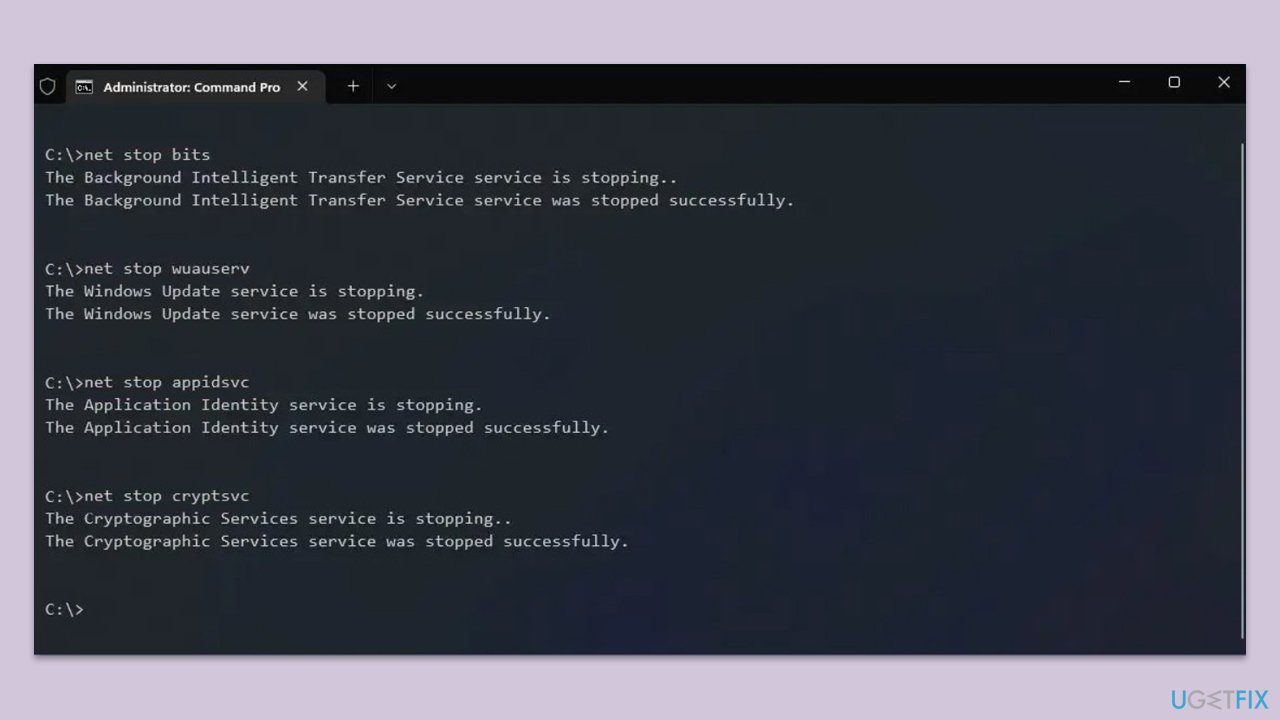
- Stop the Windows Update and related services by running these commands one by one:
- net stop wuauserv
- net stop cryptSvc
- net stop bits
- net stop msiserver
- Rename the SoftwareDistribution and Catroot2 folders with these commands:
- ren C:\Windows\SoftwareDistribution SoftwareDistribution.old
- ren C:\Windows\System32\catroot2 Catroot2.old
- Restart the stopped services:
- net start wuauserv
- net start cryptSvc
- net start bits
- net start msiserver
- Try running Windows Update again.
Fix 7. Use Media Creation Tool to upgrade Windows
The Media Creation Tool can help perform an in-place upgrade or reinstall of Windows, fixing underlying issues causing the update error.
Create Windows ISO
- Download Windows 11 Installation media from the official Microsoft website. [Windows 10 version]
- Double-click the MediaCreationTool.exe file to launch it.
- When UAC shows up, click Yes.
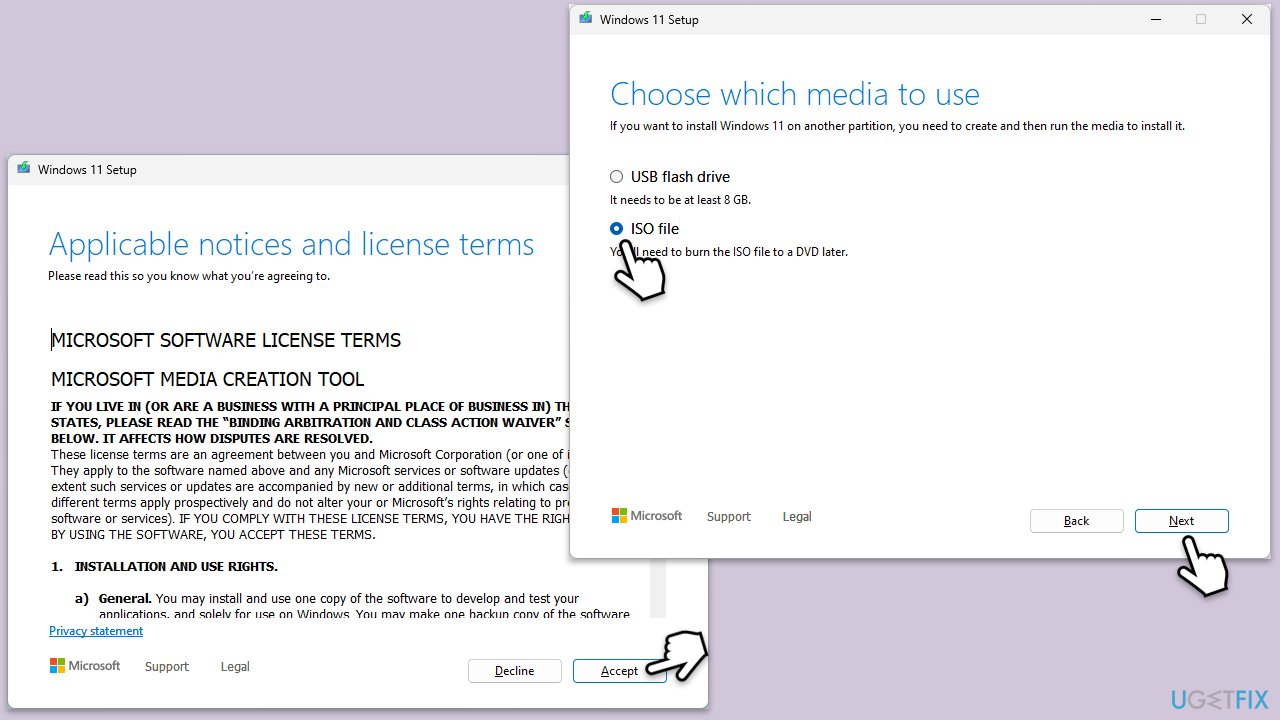
- Accept license terms.
- Select Language and Edition (make sure it matches the one you have currently installed) or simply mark the Use the recommended options for this PC and click Next).
- Select the ISO file and click Next.
- Pick the location for your ISO file and wait till all the needed files are downloaded, then click Finish.
Repair-install Windows
- Go to the location of your ISO file, right-click, and select Mount.
- Run the setup.exe file.
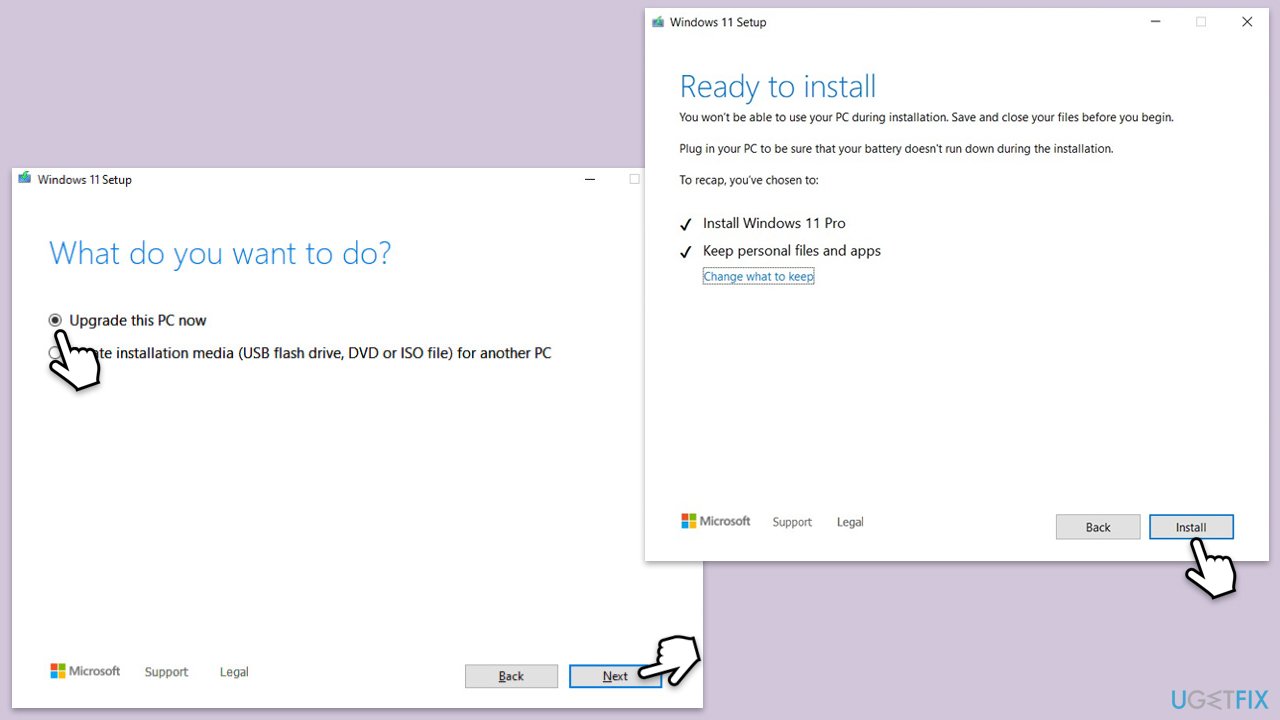
- You will be asked whether you want to update Windows to the latest version - pick Not right now and click Next.
- Accept Terms and Windows will make several checks to ensure everything is fine.
- Click Change what to keep.
- Here, you have several options: Keep your files and apps, Keep files only, or Keep nothing - choose what suits you the best. Click Next.
- Finally, click Install to begin the installation process.
Bottom line
To resolve the Windows update error 0x80240022, you can try running the Windows Update troubleshooter, checking your internet connection, or resetting the Windows Update components manually. If these methods do not work, consider using the Media Creation Tool to update your system or trying a powerful PC repair application.
Frequently asked questions
The error 0x80240022 typically occurs due to issues with the Windows Update service or when the Update components are corrupted. It may also be triggered by a lack of necessary permissions or a misconfigured network setting.
To manually reset the Windows Update components, open Command Prompt as an administrator and run a series of commands to stop the Windows Update services, delete the SoftwareDistribution and Catroot2 folders, and then restart the services. This process can help resolve the error on both Windows 10 and Windows 11.
Yes, you can use the Windows Update Troubleshooter, which is built into Windows 10 and 11, to automatically detect and fix issues related to Windows Update, including error 0x80240022. Access it through Settings > Update & Security > Troubleshoot.




Report an issue
What's wrong with this guide? We review every report and update or remove content.
Report received — thank you. We'll review and fix it.
You need a free account to submit a report.
Be the first to comment