How to fix
Microsoft Office error code 147-0
on Windows
Resolve Microsoft Office error code 147-0 on Windows 10 or 11 effortlessly. Expert-tested solutions ensure quick fixes with zero traces left.

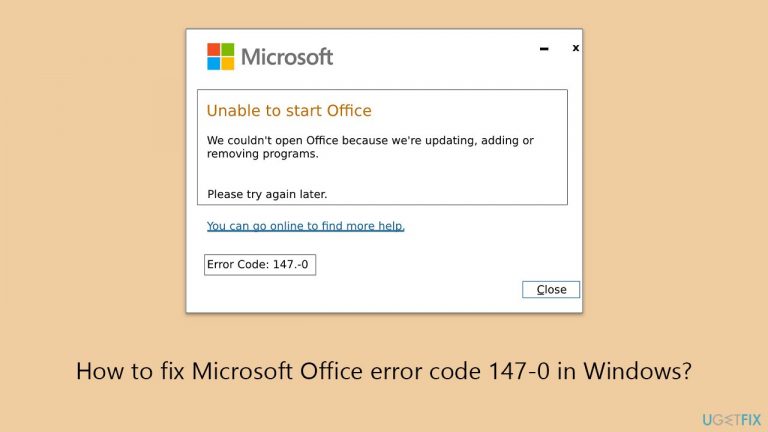
What causes How to fix Microsoft Office error code 147-0 in Windows?
- Insufficient user permissions
- Interference from security software
- Corrupted installation files
- Conflict with system configuration
Repairs Windows system files, removes malware, and restores a clean OS state — without reinstalling.
Every time I open any Office program - be it Word, Excel, or Access - I always receive an error code 147-0. What is this about and why is it preventing me from using Office? Can it be fixed?
Microsoft Office is an essential package of applications for personal and professional usage, including Word, Excel, and PowerPoint. Despite its popularity and dependability, users occasionally face issues that impede its performance.
One such error is code 147-0, which appears mostly during the updating phases of the Office suite. This article attempts to provide a complete guide for understanding and resolving error code 147-0, ensuring a smooth and uninterrupted experience with Microsoft Office apps.
Error code 147-0 is a system-specific issue that points to a failure in executing operations required for Microsoft Office's installation or update process. The error is often related to insufficient permissions or conflicts with the current system configuration. It prevents the software from being installed or updated correctly, leading to partial installation or, in some cases, software malfunction.
There could be numerous reasons for the MS Office Error code 147-0 to occur, some of which include the following:
- Insufficient user permissions. If the user account does not have administrative privileges, it may lack the necessary permissions to execute installation or update processes.
- Interference from security software. Antivirus or firewall settings may mistakenly identify the installation process as a security threat, blocking the operation.
- Corrupted installation files. Partially downloaded or corrupted installation files can trigger errors during the setup process.
- Conflict with System Configuration. Incompatibilities between the Office suite and the current system setup can lead to this error.
To fix Error code 147-0, you might perform several troubleshooting steps, such as updating the operating system, repairing or reinstalling Office, etc. All the instructions for these processes can be found below, but please check out a [d1] PC repair before proceeding with manual solutions to make the process easier for you.
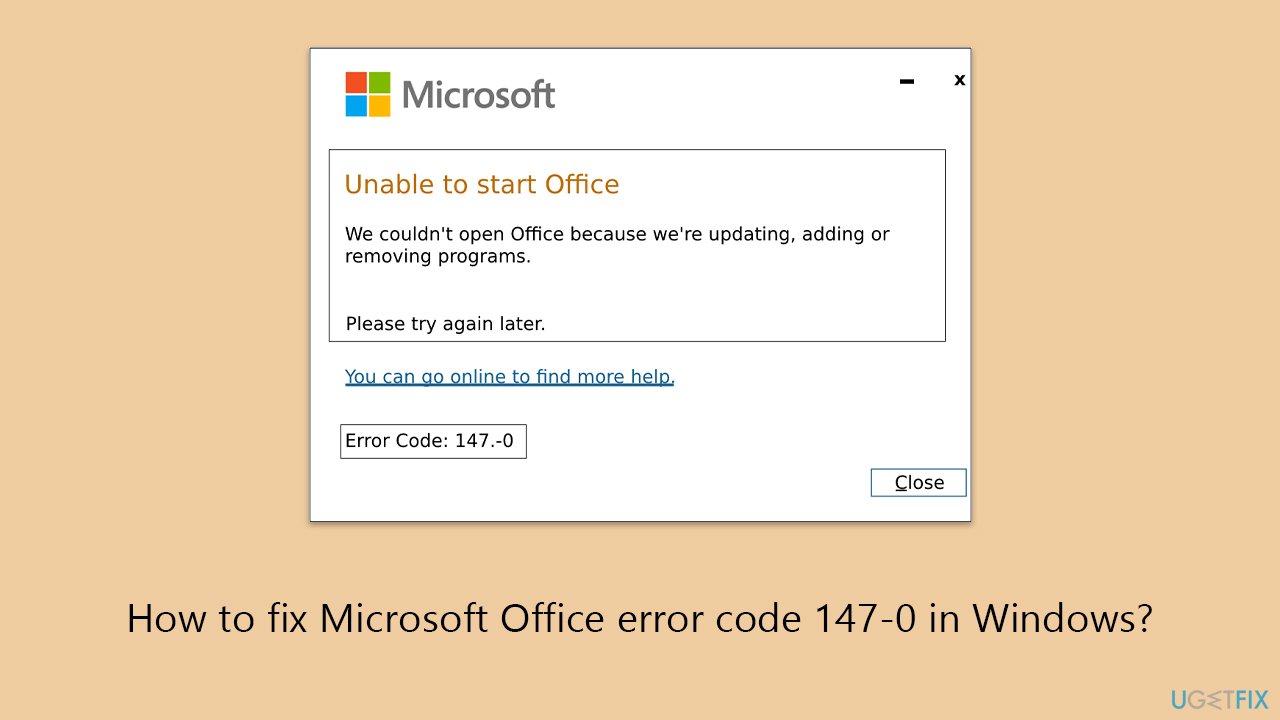
Fix 1. Run the app as administrator
Running an application as an administrator grants it higher privileges, allowing it to perform actions that are restricted under normal user accounts. This can resolve issues related to permissions that might be causing the error code 147-0 during the installation or updating of Microsoft Office.
- Right-click on the Microsoft Office app or the application's shortcut.
- Select Run as administrator.
- When the User Account Control prompt shows up, click Yes.
- See if the issue has been resolved.
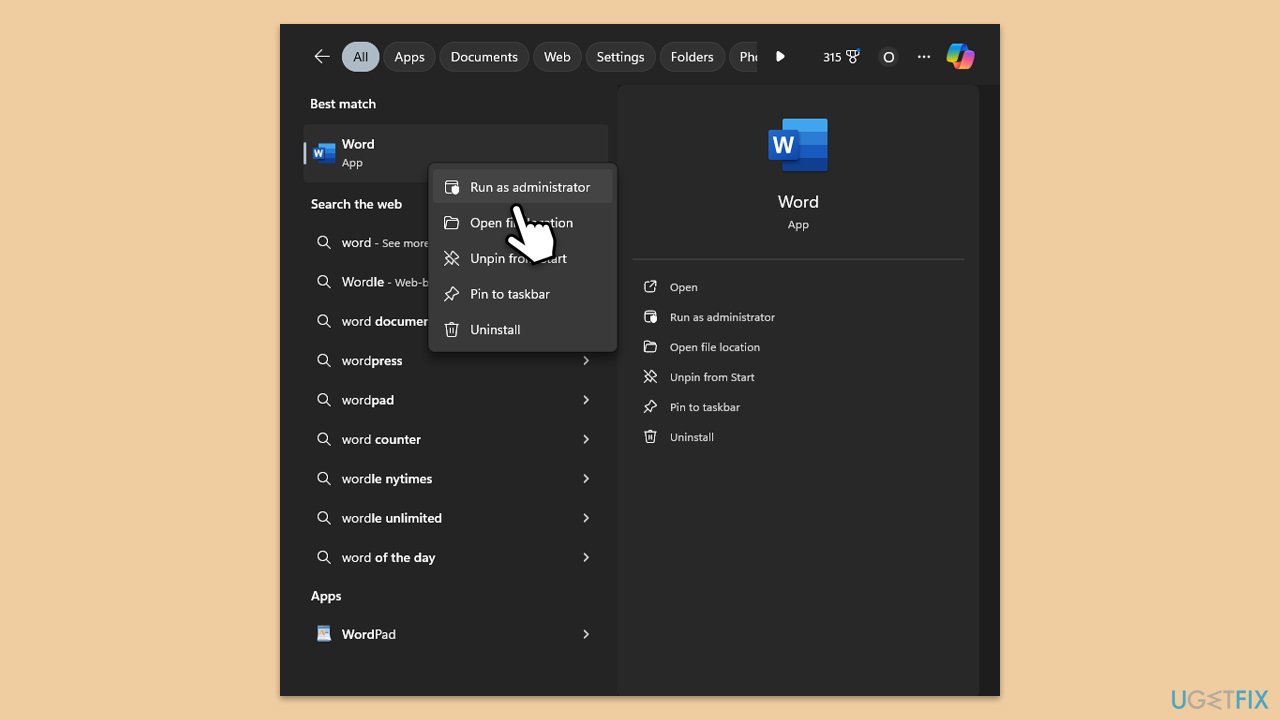
Fix 2. Run Windows Store apps troubleshooter
The Windows Store apps troubleshooter can automatically detect and fix some common problems with apps downloaded from the Microsoft Store, including Office apps.
- Type troubleshoot into the Windows search bar, then press Enter.
- In the options that appear, select Additional troubleshooters or Other troubleshooters (depending on your Windows version).
- Scroll through the list until you locate Windows Store Apps, then click on Run the troubleshooter/Run.
- Wait as the process runs to completion, then apply any recommended changes to resolve the issue.
Fix 3. Repair Office installation
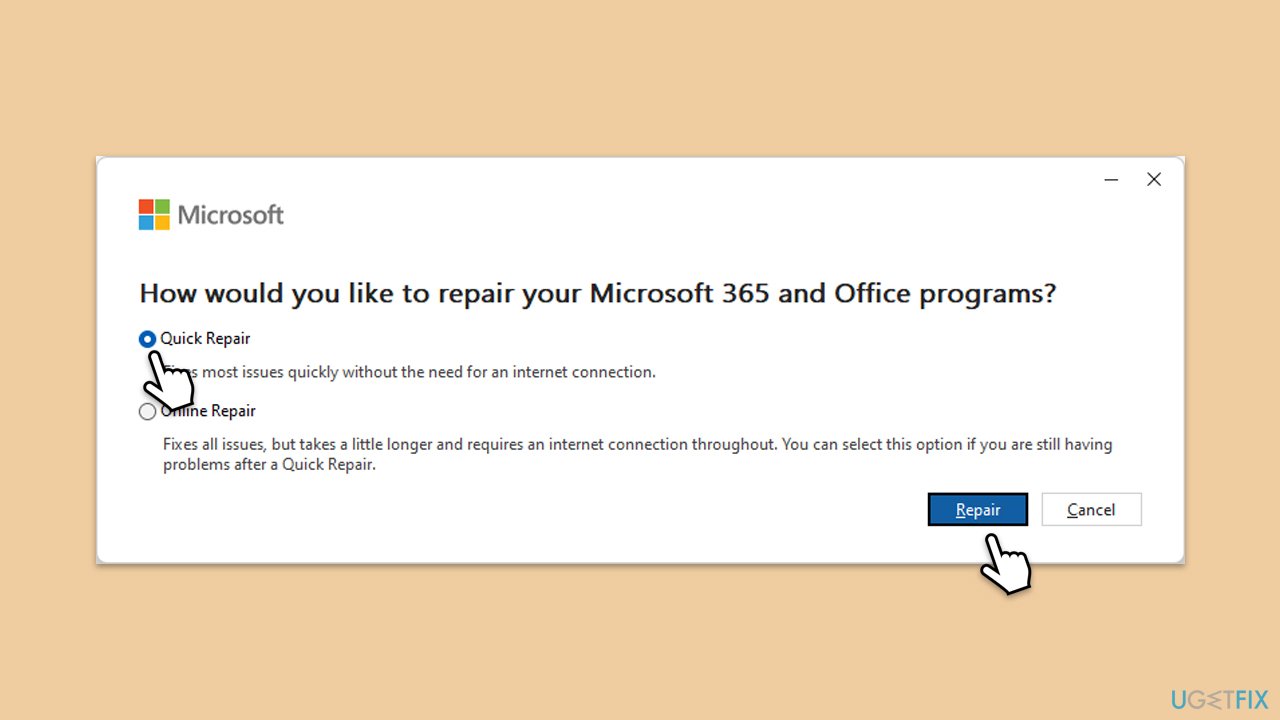
Repairing the Office installation can fix issues by replacing corrupted files, resetting configurations, and restoring the application to its default state.
- Type Control Panel in Windows search and press Enter.
- Select Programs > Programs and Features.
- Select Microsoft Office and click on Change.
- Choose the option for Online Repair and click Repair.
- Follow the prompts to finish the process.
Fix 4. Update Windows
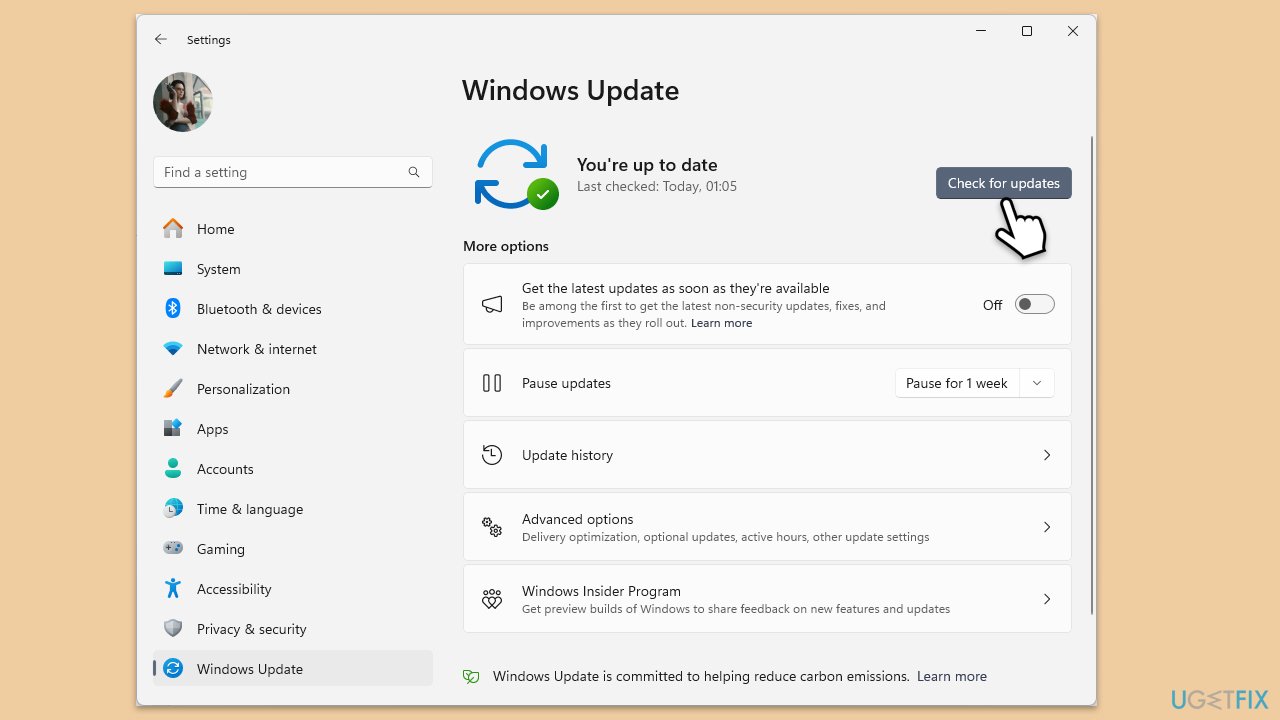
Keeping Windows up to date is crucial for the smooth operation of applications, including Microsoft Office. Updates can provide fixes to compatibility issues and bugs that might be causing the error.
- Type Updates in Windows search and press Enter.
- Here, click Check for updates.
- Wait till Windows downloads and installs all the files.
- If optional updates are available, install them as well.
- Reboot your system.
Fix 5. Temporarily disable antivirus software
Disabling security software can help fix issues with Microsoft Office apps not opening due to potential conflicts. Antivirus and firewall programs, designed to protect against threats, may incorrectly flag Office apps as risks, blocking their functions. This false positive can prevent Office apps from opening properly. Users have found that disabling programs like Avast or AVG, or updating them, adding Office apps to the exclusion lists, or seeking support from the antivirus vendor, can resolve these issues.
Fix 6. Reinstall Office
If all else fails, uninstalling and then reinstalling Microsoft Office can remove corrupted files and restore the application to a working state.
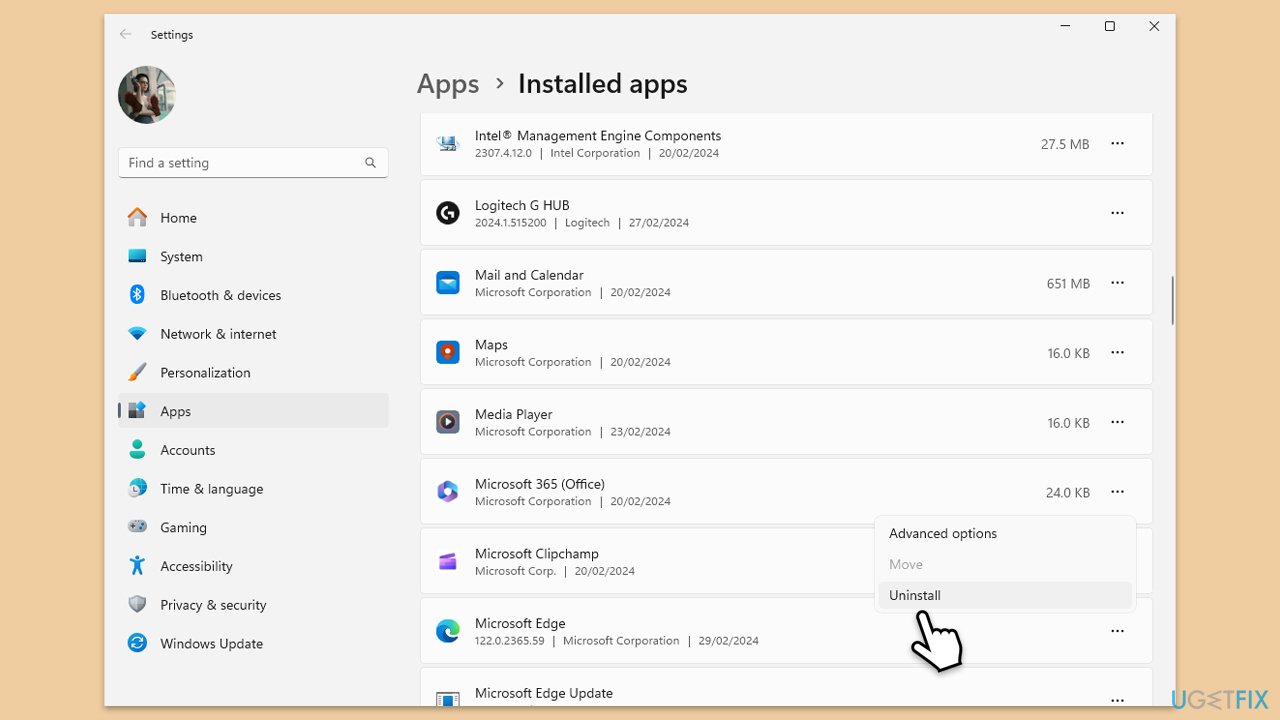
- Right-click on Start and pick Apps and Features/Installed apps.
- Scroll down to find the MS Office installation.
- Click Uninstall and confirm with Uninstall.
- Follow on-screen instructions to remove the app completely.
- Press Win + E to open File Explorer.
- Navigate to the following location and delete its contents:
C:\Program Files\Microsoft Office - Next, type regedit in Windows search and press Enter.
- Go to the following locations in the Registry Editor and delete these items:
Computer\HKEY_LOCAL_MACHINE\SOFTWARE\Microsoft\AppVISV
Computer\HKEY_LOCAL_MACHINE\SOFTWARE\Microsoft\Office\ClickToRun
Computer\HKEY_CURRENT_USER\Software\Microsoft\Office - Reboot the PC and then reinstall Microsoft Office.
Bottom line
To fix error code 147-0, you can try running the app as an administrator, updating the operating system, or repairing or reinstalling Office. If these solutions do not resolve the issue, consider checking a PC repair service for further assistance.
Frequently asked questions
Error code 147-0 typically occurs due to issues with the Office installation or corrupted files. It can also be triggered by conflicts with antivirus software or insufficient permissions.
You can repair Microsoft Office by going to Settings > Apps, selecting Microsoft Office, and clicking on 'Modify' to choose the repair option. This process can fix corrupted files and restore functionality.
Windows 11 users should ensure that their system is fully updated and consider running the Microsoft Support and Recovery Assistant, which can help diagnose and fix Office-related issues.




Report an issue
What's wrong with this guide? We review every report and update or remove content.
Report received — thank you. We'll review and fix it.
You need a free account to submit a report.
Be the first to comment