How to remove
Uninstall Valorant and Vanguard
from Windows
Easily uninstall Valorant and Vanguard from Windows 10 or 11. Follow our expert-tested guide to remove them completely and hassle-free, fixed in minutes.

How does How to uninstall Valorant and Vanguard from Windows end up on your PC?
- Need to fix technical problems with the application
- Decision to quit the game
- Vanguard's kernel-level operations complicate uninstallation
- Potential for serious problems like Blue Screen of Death (BSOD) errors
- Risk of system instability from improper removal
Repairs Windows system files, removes malware, and restores a clean OS state — without reinstalling.
How do I uninstall Valorant from Windows? I constantly see some leftover files.
Riot Games' first-person shooter, Valorant, has become rather popular and well-liked in the gaming world. A sizable player base has been drawn to it by its competitive setting and captivating gameplay. On the other hand, there are situations in which you might need to remove Valorant. The necessity could exist for several reasons, like the need to fix technical problems with the application or the decision to quit the game. Valorant is not easy to uninstall, though, as one might think.
Vanguard, an anti-cheat engine meant to prevent cheating and ensure gameplay integrity, is an essential component of the Valorant installation. Vanguard runs at the kernel level of your operating system, giving it full access to your system's resources. This strong connection is critical to its functionality, but it also complicates the uninstalling process.
Kernel-level operations can cause serious problems, such as Blue Screen of Death (BSOD) errors or random game crashes, which can also have an impact on the overall system stability. Furthermore, due to their level of integration, removing Valorant and Vanguard from your system requires more effort than most apps' uninstallation processes.
If you are having difficulty or are unsure how to correctly uninstall Valorant and Vanguard, proceed with caution. Attempting to manually remove or edit system-level files without a thorough understanding can result in system instability or other unforeseen repercussions.
As a result, following a detailed tutorial designed specifically for Valorant and Vanguard removal is needed. Such a procedure assures that the game and its anti-cheat engine are uninstalled from your system, reducing the danger of system instability and performance. For overall system health and issues related to corrupted system files, we recommend employing an automatic PC repair application [d1].
Step 1. Quit Valorant and Vanguard
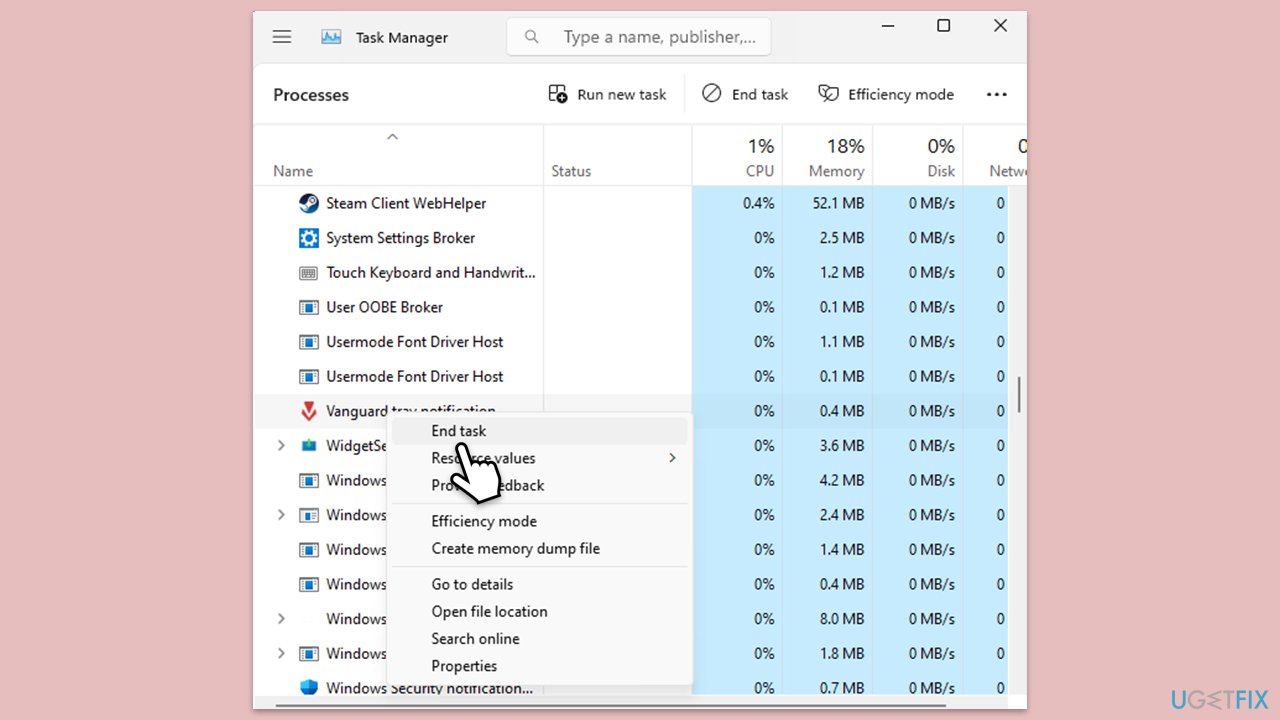
Before beginning the uninstallation process, it's crucial to ensure that both Valorant and its anti-cheat software, Vanguard, are not running. This step is necessary because attempting to uninstall a program while it is active can cause errors or incomplete uninstallation. Closing these programs ensures that all their components can be properly and fully removed from your system.
- Press Ctrl + Shift + Esc to open the Task Manager.
- Look for any processes related to Valorant and Vanguard in the Processes tab.
- Right-click each of the processes and click End task to close them.
Step 2. Uninstall Valorant via Settings
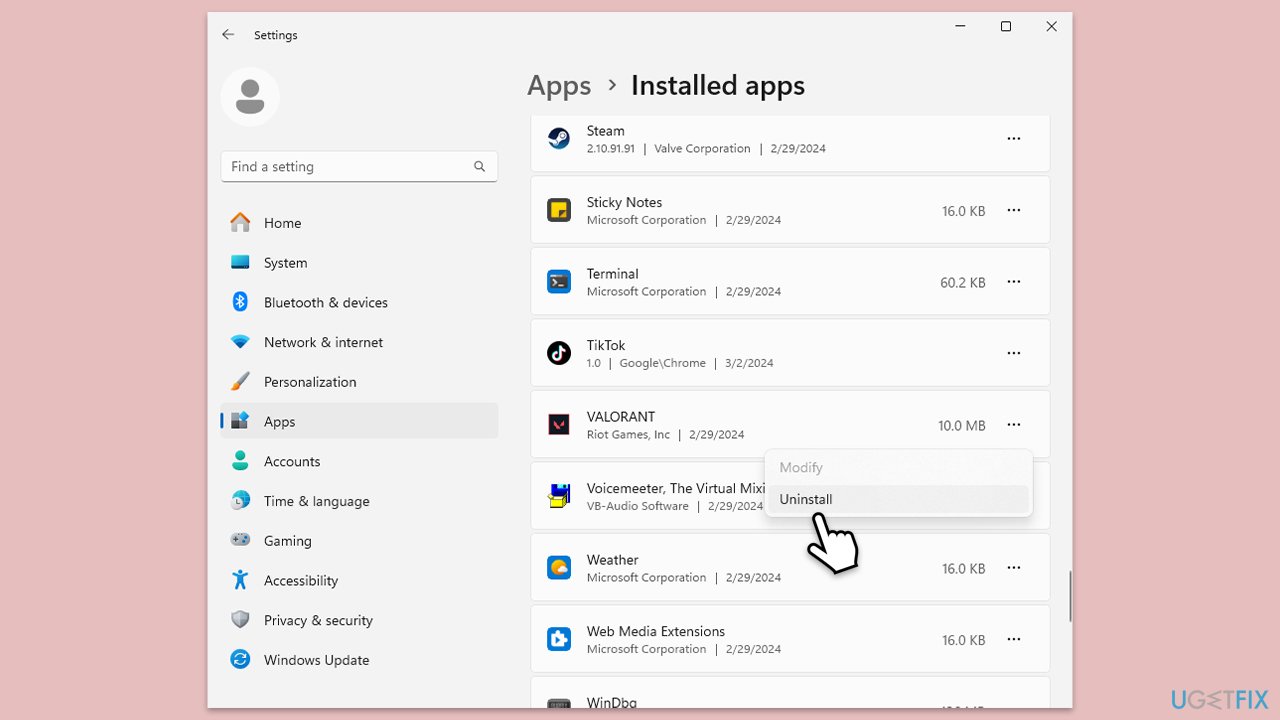
Windows Settings offers a straightforward method for uninstalling applications. This approach is recommended for those who prefer using the graphical interface of Windows to remove programs. It works by accessing the built-in feature of Windows designed to manage installed applications, ensuring a clean uninstallation process.
- Press the Win + I to open Settings.
- Navigate to Apps or Apps & features.
- Scroll down or use the search bar to find Valorant.
- Click on Valorant (or click on three vertical dots) and select Uninstall.
- Follow the on-screen instructions to complete the uninstallation.
Step 2.1 Uninstall Valorant via elevated Command Prompt
For users who encounter issues with the standard uninstallation process or prefer a more direct method, the Command Prompt offers a solution. Using an elevated Command Prompt allows you to execute commands with administrative privileges, which is sometimes necessary for removing certain applications.
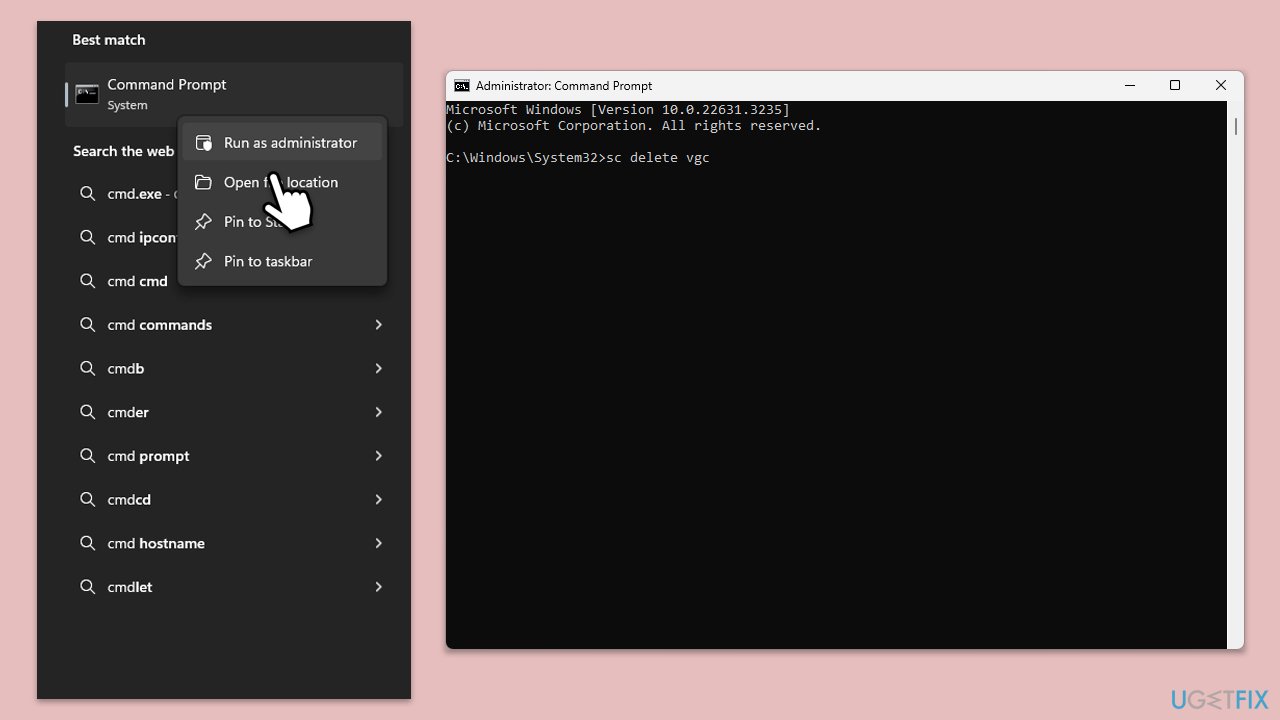
- Type cmd in Windows search.
- Right-click on Command Prompt and select Run as administrator.
- Click Yes when the User Account Control prompt asks whether you want to allow changes.
- In the Command Prompt, type the uninstall command for Valorant as follows:
sc delete vgc - Press Enter to execute the command and follow any prompts to complete the uninstallation.
Step 3. Uninstall Vanguard
Since Vanguard operates at a kernel level, its uninstallation is a critical step. This process typically requires a different approach than uninstalling standard applications due to its deep integration with the system. Ensuring Vanguard is fully uninstalled is essential for avoiding potential system stability issues.
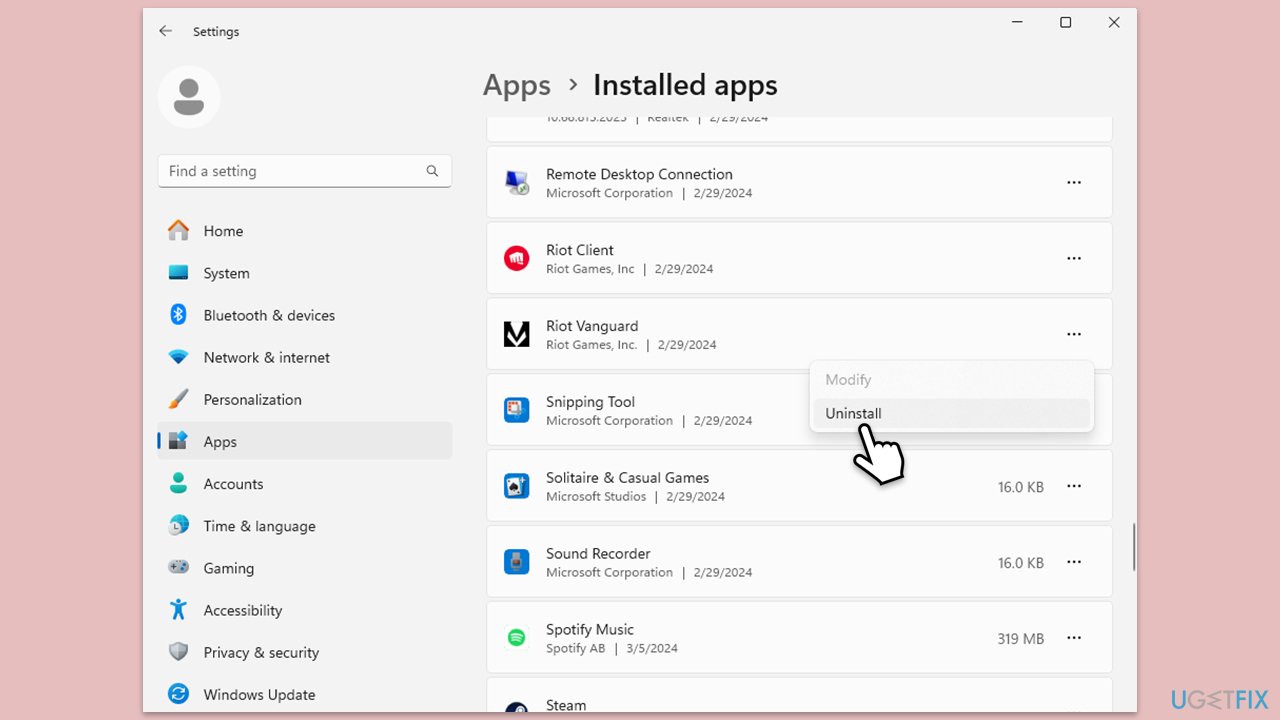
- Press the Win + I to open Settings.
- Navigate to Apps or Apps & features.
- Scroll down or use the search bar to find Riot Vanguard.
- Select it (or click on three vertical dots) and pick Uninstall.
- Follow the on-screen instructions and restart your system.
3.1 Uninstall Vanguard via Command Prompt
- Open Command Prompt as administrator again.
- Use the following command and press Enter:
sc delete vgk - Restart your computer.
Step 4. Delete the Riot Vanguard folder in Program Files
After uninstalling Vanguard through the Control Panel or Command Prompt, residual files may remain on your system. Manually deleting the Riot Vanguard folder ensures that all components of the anti-cheat software are completely removed, preventing any potential conflicts or issues with system performance.
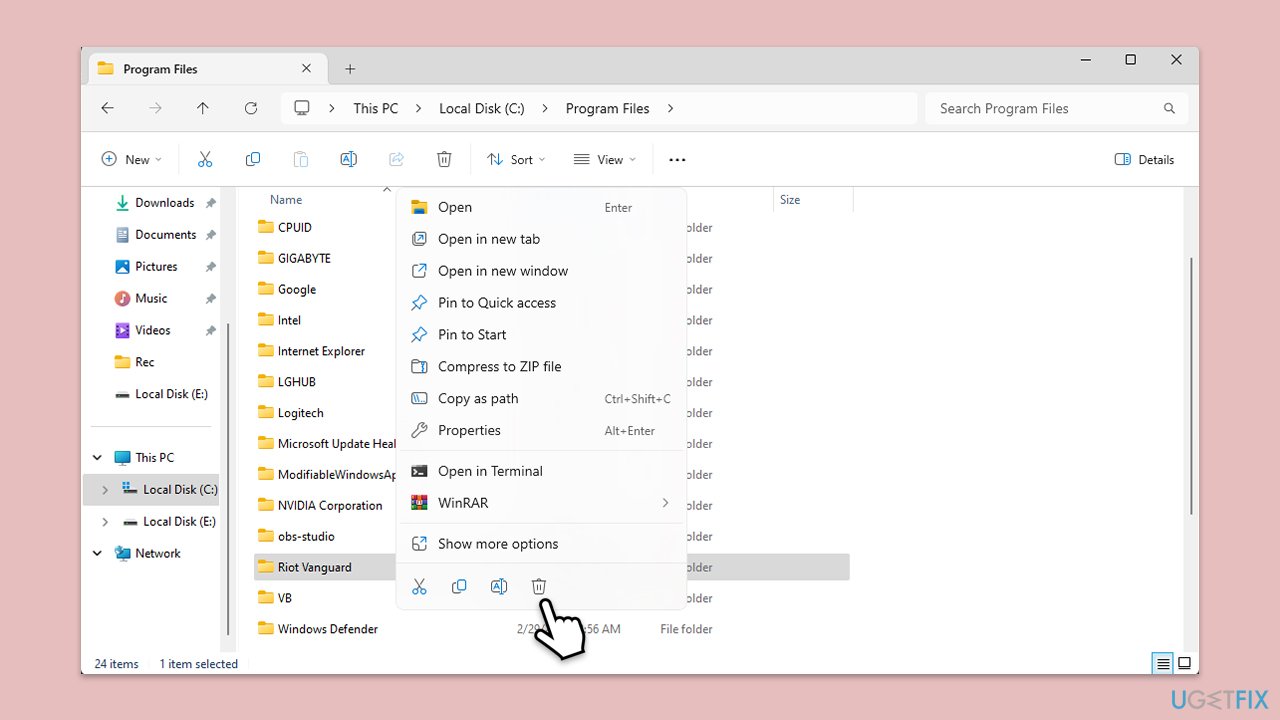
- Open File Explorer (Win +E) and navigate to your Program Files folder (usually located in C:\Program Files).
- Find the Riot Vanguard folder.
- Right-click on the folder and select Delete.
- If prompted, confirm the deletion to remove the folder and its contents.
- Clear out your Recycle Bin after.
By following these detailed steps, you can ensure that Valorant and its associated Vanguard anti-cheat software are completely uninstalled from your Windows system.
Bottom line
To uninstall Valorant and Vanguard, ensure both programs are not running before proceeding with the uninstallation process. Following a detailed tutorial is essential to avoid system instability. If issues persist, consider using an automatic PC repair application.
Frequently asked questions
To uninstall Valorant, go to 'Settings' > 'Apps' > 'Apps & features', find Valorant in the list, click on it, and select 'Uninstall'.
To remove Vanguard, navigate to 'Settings' > 'Apps' > 'Apps & features', locate Vanguard, click it, and choose 'Uninstall'.
Yes, it's recommended to uninstall Vanguard first since it is a prerequisite for Valorant and may prevent a successful uninstallation.




Report an issue
What's wrong with this guide? We review every report and update or remove content.
Report received — thank you. We'll review and fix it.
You need a free account to submit a report.
Be the first to comment