How to fix
Wer.dll OneDrive error
on Windows
Resolve the wer.dll OneDrive error on Windows 10 and 11 effortlessly with expert solutions. Get back to seamless file syncing—fixed in minutes!

What causes How to fix wer.dll OneDrive error in Windows?
- wer.dll file is missing
- wer.dll file is corrupted
- wer.dll file is not compatible with the user's version of Windows
- Windows system components are outdated
- OneDrive application files are corrupted
Repairs Windows system files, removes malware, and restores a clean OS state — without reinstalling.
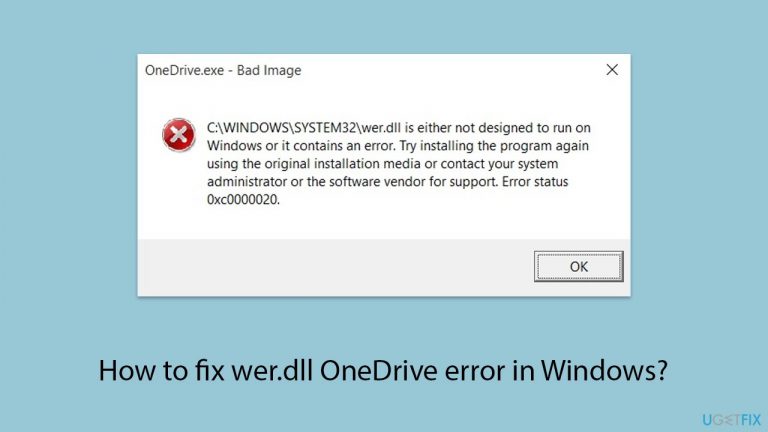
So I had problems with my PC and I managed to deal with them mostly, apart from one thing - OneDrive.exe Bad Image error. It references wer.dll which is "not designed to run on Windows or it contains an error." Any ideas?
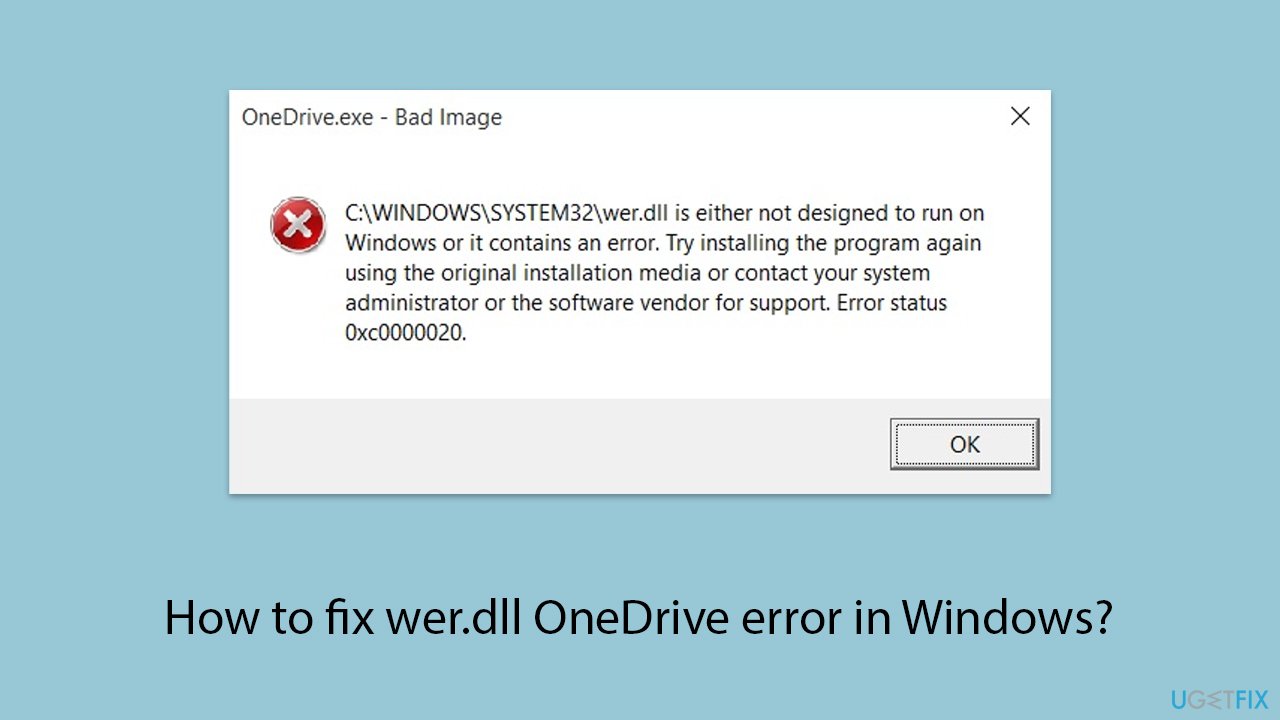
The wer.dll OneDrive error in Windows, often encountered when opening OneDrive or during Windows startup, presents with the message: "OneDrive - Bad Image C:\WINDOWS\SYSTEM32\wer.dll is either not designed to run on Windows or it contains an error." This indicates a problem with the wer.dll file, which plays a crucial role in Windows Error Reporting, suggesting that the file may be missing, corrupted, or not compatible with the user's version of Windows.
If you want to get the functionality of your OneDrive back and stop the pop-ups, you should fix the wer.dll error. The primary step involves updating Windows to the latest version, ensuring that all system components are up-to-date and potentially fixing compatibility issues. Running a System File Checker (SFC) scan is another effective strategy, as it scans for and repairs corrupted or missing Windows system files, including wer.dll.
If the problem persists, reinstalling OneDrive could address the issue by replacing any corrupted files associated with the application. Besides these solutions, there are several more that might work for you.
If you want to fix the wer.dll error in OneDrive, you should follow the detailed instructions below - we prepared a step-by-step guide precisely for that. If you want to speed up the troubleshooting process or you are not that proficient in the IT field, we recommend employing an automatic Windows repair tool [d1].
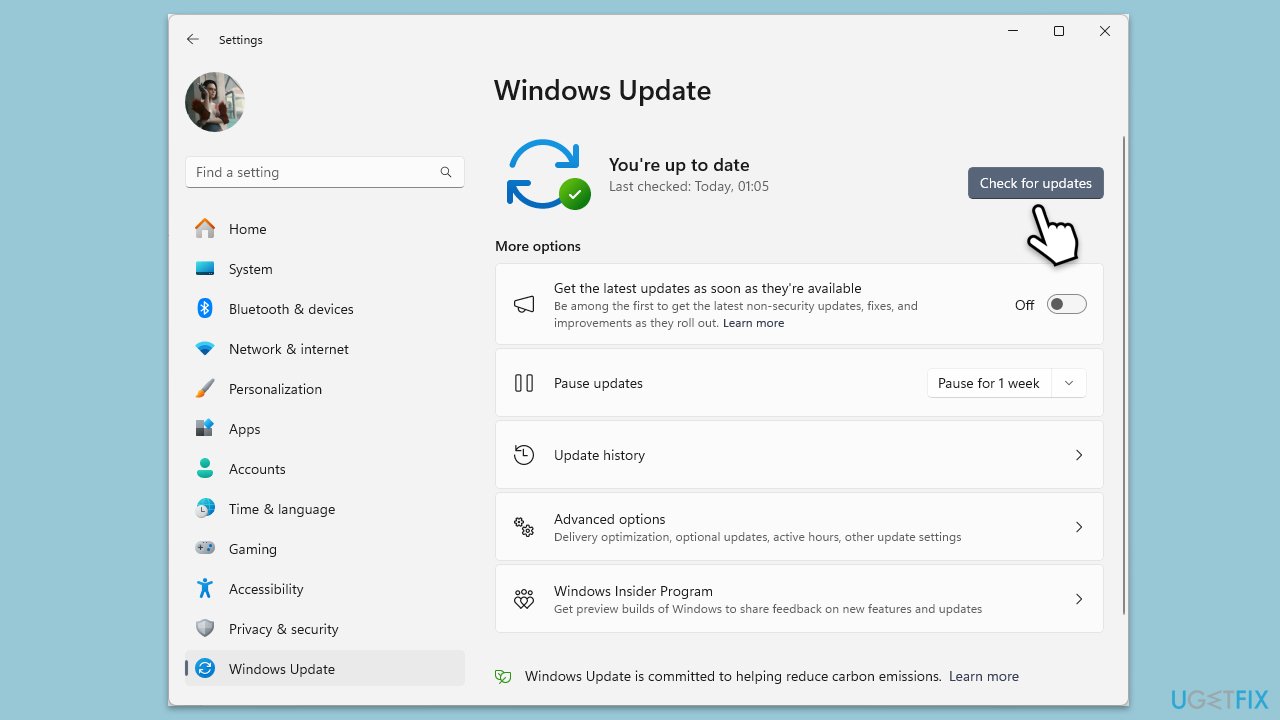
Fix 1. Install all Windows updates
- Type Updates in Windows search and hit Enter.
- In the new window, click the Check for updates button.
- Now all the necessary files will be downloaded and installed.
- If optional updates are available, install them as well.
- Reboot your device when done.
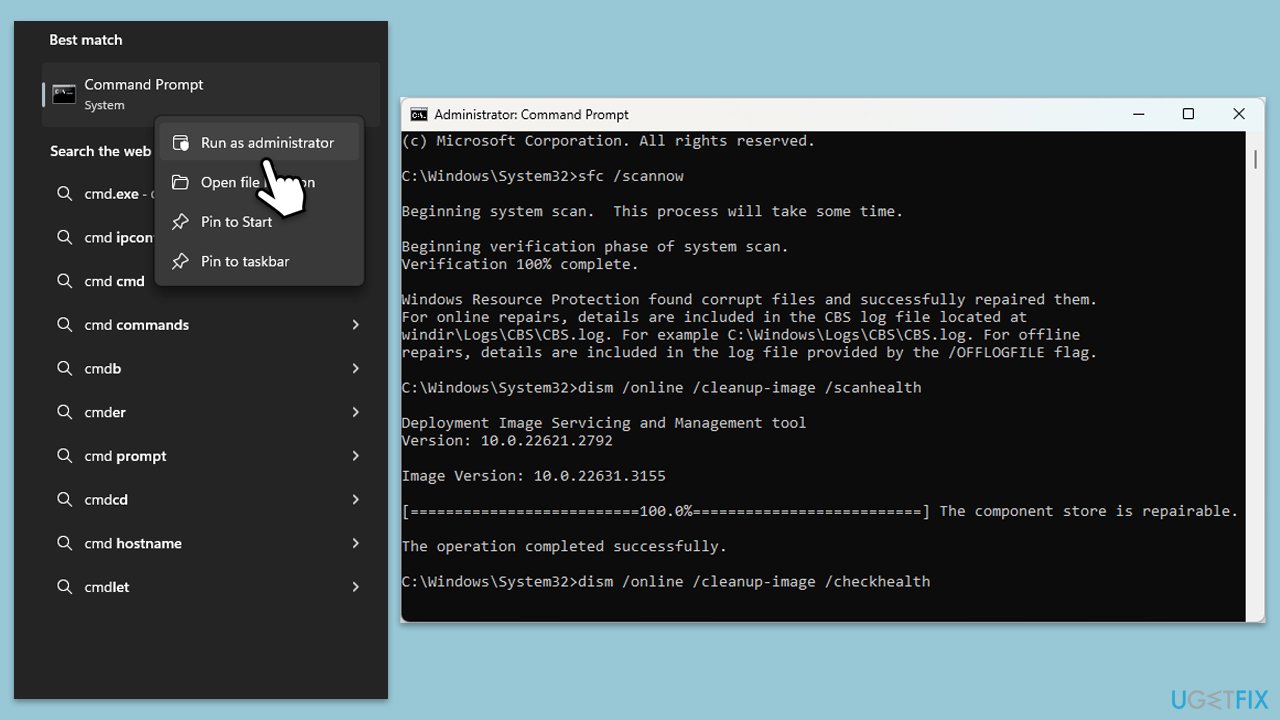
Fix 2. Run SFC and DISM scans
- Type cmd in Windows search.
- Right-click on Command Prompt and pick Run as administrator.
- When User Account Control shows up, click Yes.
- Use the following command lines, pressing Enter after each:
sfc /scannow - The System File Checker will now scan your system for any corrupted or missing files and try to repair them.
- After the scan is done, copy the following commands and press Enter:
DISM /Online /Cleanup-Image /CheckHealth
DISM /Online /Cleanup-Image /ScanHealth
DISM /Online /Cleanup-Image /RestoreHealth
(Note: if you get an error executing this last command, add /Source:C:\RepairSource\Windows /LimitAccess to it and try again). - Once the process completes, restart your system.
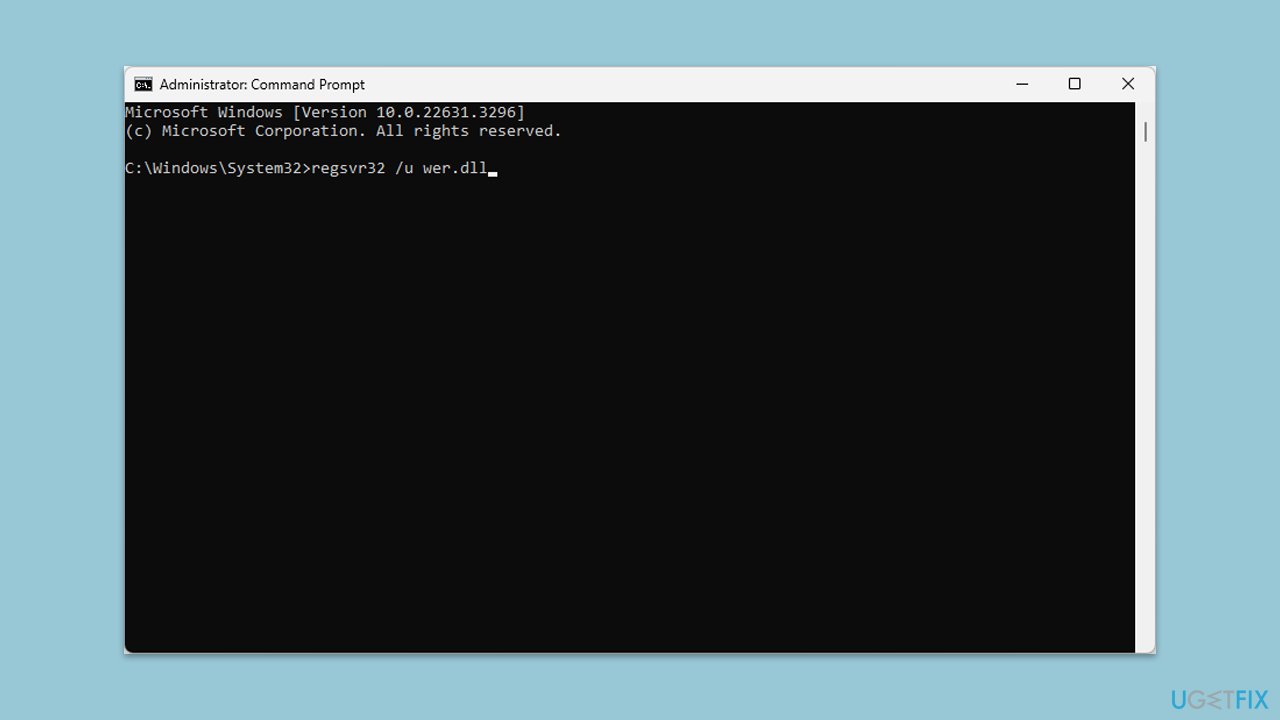
Fix 3. Re-register the DLL file
- Open Command Prompt as administrator.
- In the prompt, type in the following command and press Enter:
regsvr32 /u wer.dll - After that, type the next command and hit Enter:
regsvr32 /i wer.dll - Restart your computer to apply the changes.
Fix 4. Reset OneDrive
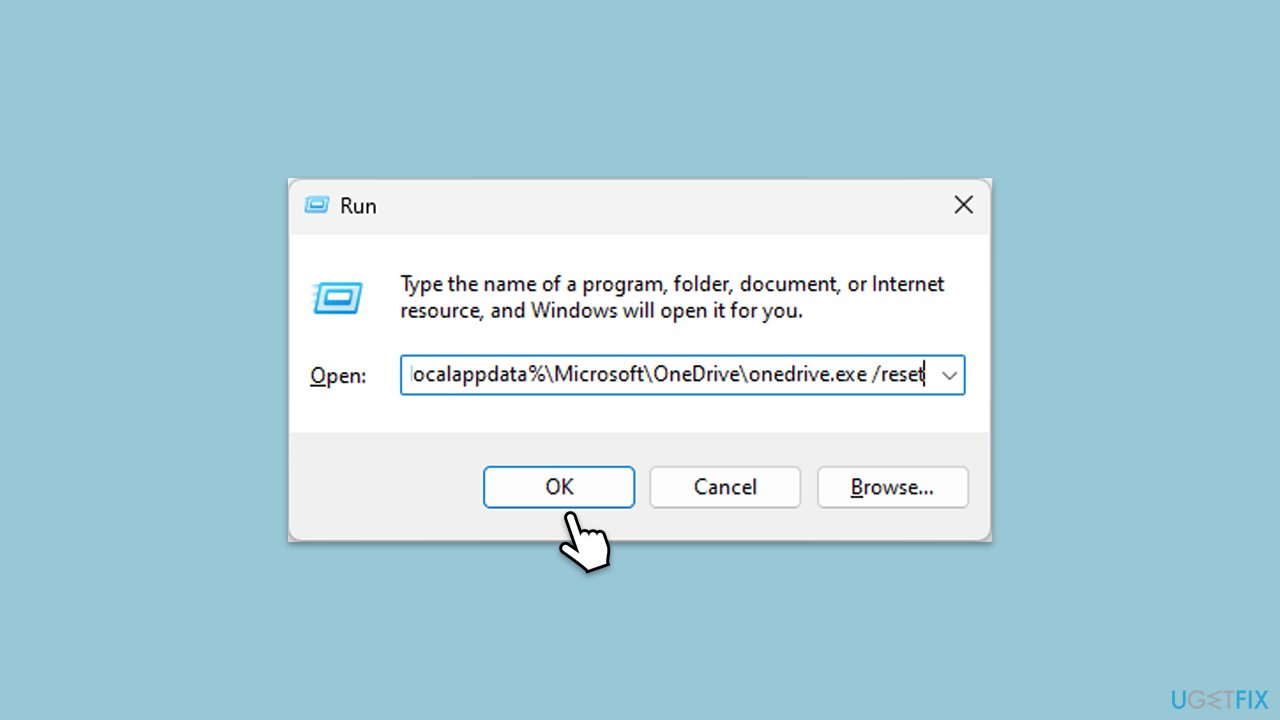
- Press Win + R on your keyboard.
- When the Run window opens, copy and paste the following text into it:
%localappdata%\Microsoft\OneDrive\onedrive.exe /reset
(Note: you might get an error here. In that case, use %programfiles(x86)%\Microsoft OneDrive\onedrive.exe /reset or C:\Program Files (x86)\Microsoft OneDrive\onedrive.exe /reset instead) - Press Enter or click OK.
- After this command is executed, the app should be reset, and OneDrive should open.
- If it doesn't, wait a few minutes, then open the Run window again and use the following command:
%localappdata%\Microsoft\OneDrive\onedrive.exe - Press Enter.
Fix 5. Try Clean Boot
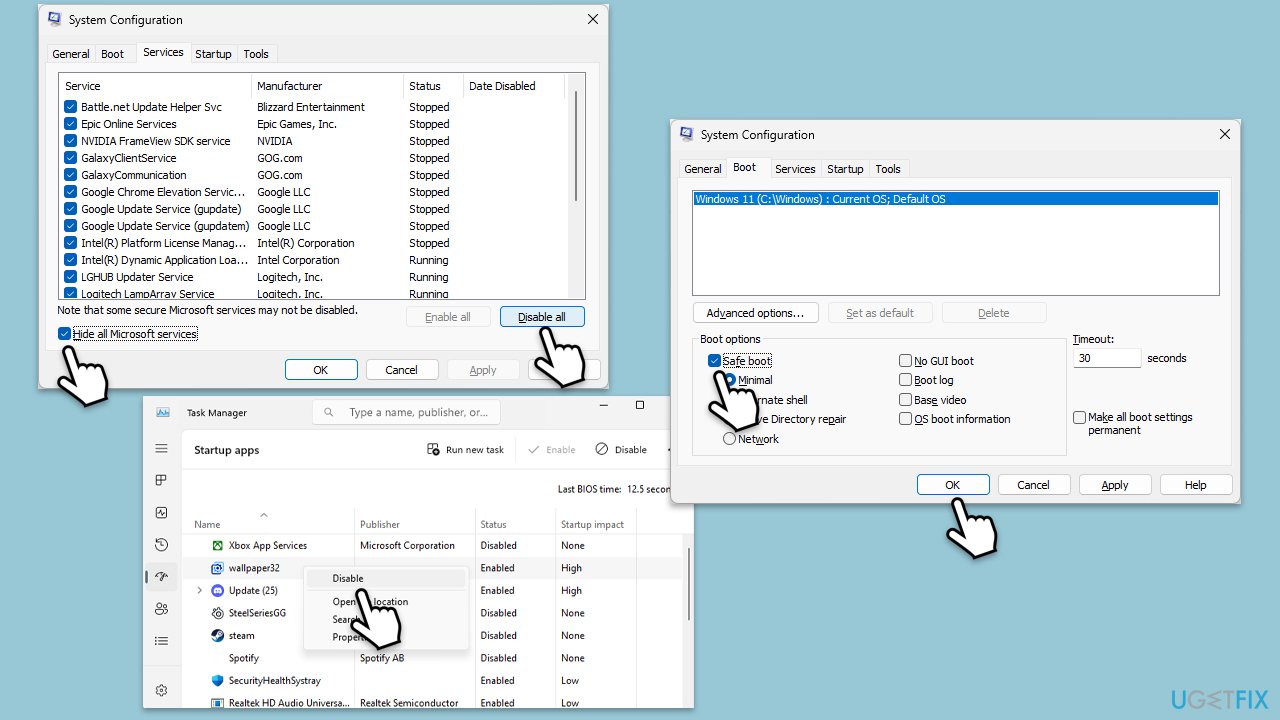
- In Windows search, type msconfig then press Enter.
- Select the Services tab and tick the Hide all Microsoft services checkbox.
- Pick Disable all.
- Go to the Startup tab and click Open Task Manager.
- Here, right-click on each of the non-Windows entries and select Disable.
- Close down the Task Manager.
- Go to the Boot tab and tick the Safe boot option.
- Once the computer is restarted, try the action that was causing the error.
- If resolved, you can start enabling services and startup items one by one (or in groups) to identify the offending program.
Fix 6. Use System Restore
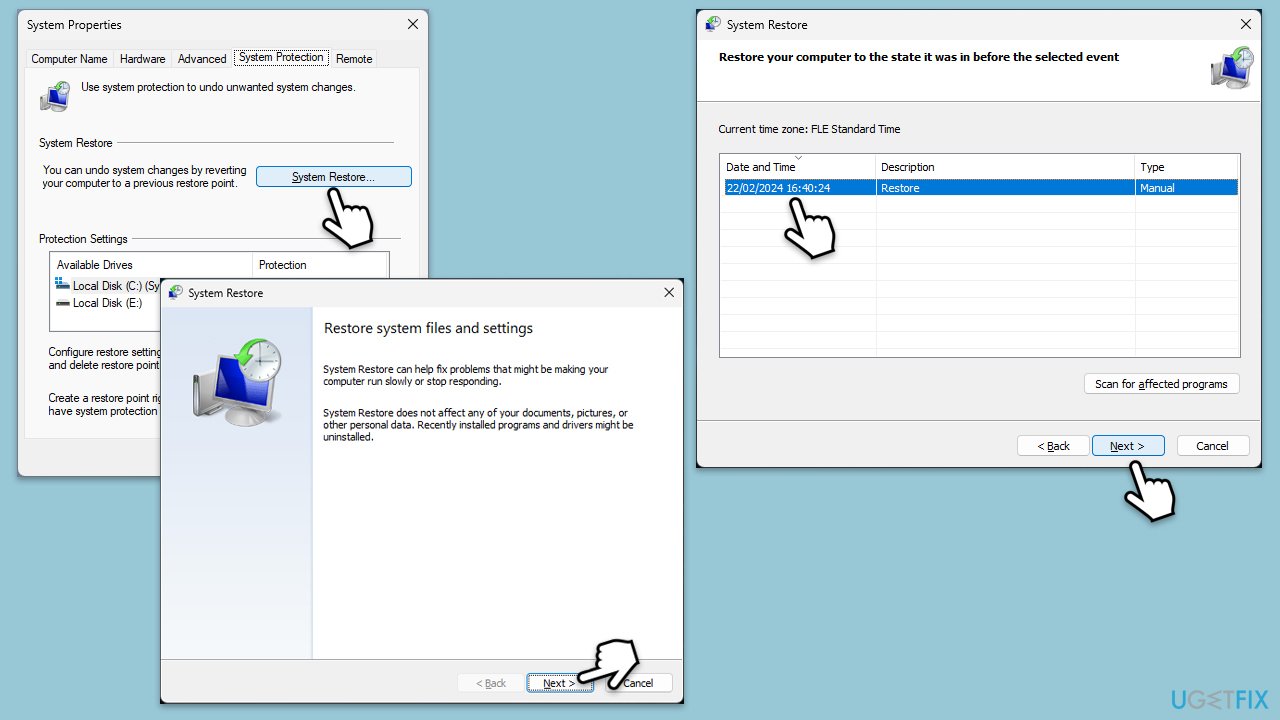
- Type in Create a Restore point in Windows search and hit Enter.
- Go to the System Protection tab and pick System Restore.
- Click Next.
- Click Show more restore points (if available).
- Pick the time before the problem occurred and click Next.
- Follow the prompts to finish the process.
Fix 7. Reset Windows
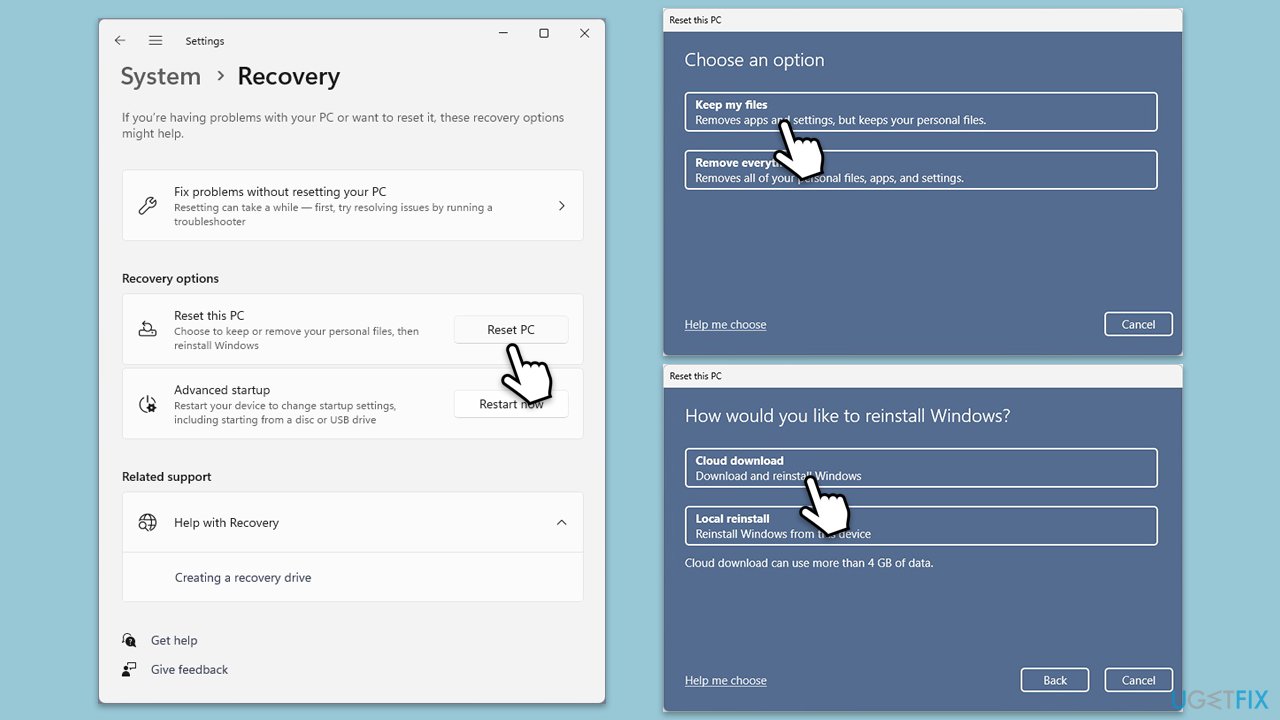
- Click on Start and pick Settings.
- Go to Windows Update/Update & Security.
- Select Advanced options.
- Under Additional options, select Recovery.
- Under Recovery options, click Reset PC.
- Select the option to Keep your files and then press Cloud download.
- Follow on-screen instructions to finish the process.
Fix 8. Repair-install Windows
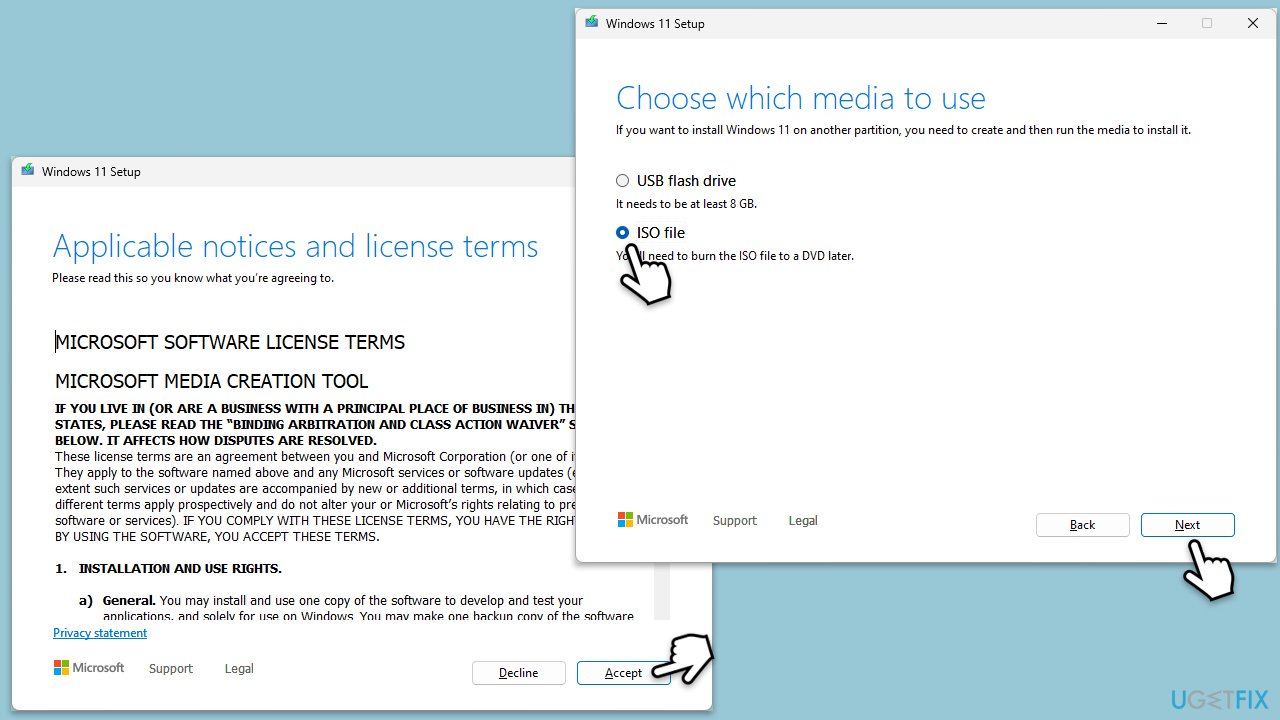
- Download Windows 11 Installation media from the official Microsoft website. [Windows 10 version]
- Double-click the MediaCreationTool.exe file to launch it.
- When UAC shows up, click Yes.
- Accept license terms.
- Select Language and Edition (make sure it matches the one you have currently installed) or simply mark the Use the recommended options for this PC and click Next).
- Select the ISO file and click Next.
- Pick the location for your ISO file and wait till all the needed files are downloaded, then click Finish.
Repair-install Windows
- Go to the location of your ISO file, right-click, and select Mount.
- Run the setup.exe file.
- You will be asked whether you want to update Windows to the latest version - pick Not right now and click Next.
- Accept Terms and Windows will make several checks to ensure everything is fine.
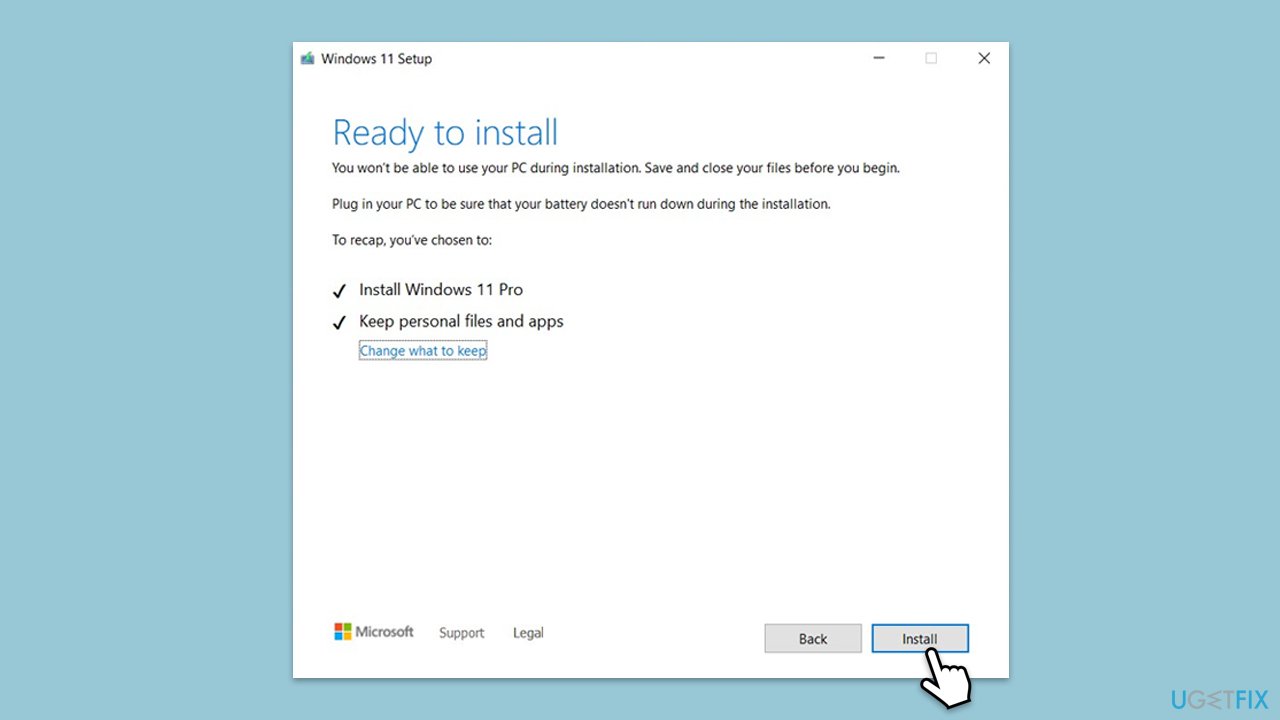
- Click Change what to keep.
- Here, you have several options: Keep your files and apps, Keep files only, or Keep nothing - choose what suits you the best. Click Next.
- Finally, click Install to begin the installation process.
Bottom line
To fix the wer.dll OneDrive error, you should update Windows to the latest version, run SFC and DISM scans, and consider reinstalling OneDrive. If these solutions do not resolve the issue, using an automatic Windows repair tool may be beneficial.
Frequently asked questions
The wer.dll OneDrive error is typically caused by corrupted system files, issues with the OneDrive application, or conflicts with other software. It can also occur if Windows updates have not been installed properly.
You can repair the wer.dll file by running the System File Checker tool in Windows 10 or Windows 11. Open Command Prompt as an administrator and type 'sfc /scannow', then press Enter.
Yes, reinstalling OneDrive can help resolve the wer.dll error if the application is corrupted. Simply uninstall OneDrive through Settings and then download the latest version from the Microsoft website to reinstall it.




Report an issue
What's wrong with this guide? We review every report and update or remove content.
Report received — thank you. We'll review and fix it.
You need a free account to submit a report.
Be the first to comment