How to fix
“Friend request failed” error in Discord
on Windows
Resolve the "Friend request failed" error on Discord effortlessly with our expert-tested solutions for Windows 10 and Windows 11. Fixed in minutes!


What causes How to fix “Friend request failed” error in Discord?
- The person you are trying to add has blocked you
- Spelling mistakes in the username or discriminator
- Incorrect privacy settings on the recipient's end
- General bugs in the Discord program
- Transient server troubles on Discord's end
Repairs Windows system files, removes malware, and restores a clean OS state — without reinstalling.
I was recently chatting to a person on Discord and then they left the conversation at some point. I had hew other questions so I sent a friend request but I got a "Friend request failed" error when I did so. Why is that?
"Friend request failed" error on Discord might be a big barrier when attempting to connect with new friends or coworkers. This error message appears for a variety of reasons each needing a unique strategy for resolution. While the immediate reaction may be annoyance, knowing the underlying causes might help you get over this obstacle much quicker.
One common cause for encountering the "Friend request failed" error is simple: the person you're seeking to add has blocked you. In such circumstances, Discord respects user privacy and prevents further communication efforts via friend requests.
Another more benign reason could involve simple human error, such as spelling mistakes in the username or discriminator (the four-digit number following the username). Discord usernames are case-sensitive and must be entered exactly as they appear, including the discriminator.
Incorrect privacy settings on either end can potentially be the cause. Users can choose who can send them friend requests: everyone, friends of friends, or no one at all. If the person you're trying to add has restricted their settings, you won't be able to send them a friend request unless you're on the same server or have a mutual friend.
General bugs in the Discord program or transient server troubles on Discord's end can also cause this error. These issues are usually handled with a little patience or by contacting Discord support for further assistance.
When you face a "Friend request failed" error, it's a gentle reminder to double-check the details you've entered and to consider the various privacy settings that might be in play. Below you will find a detailed guide that should provide you with instructions on how to perform several steps to resolve the issue. Before proceeding, we recommend employing [d1] repair app to ensure that no underlying Windows issues are causing this error.
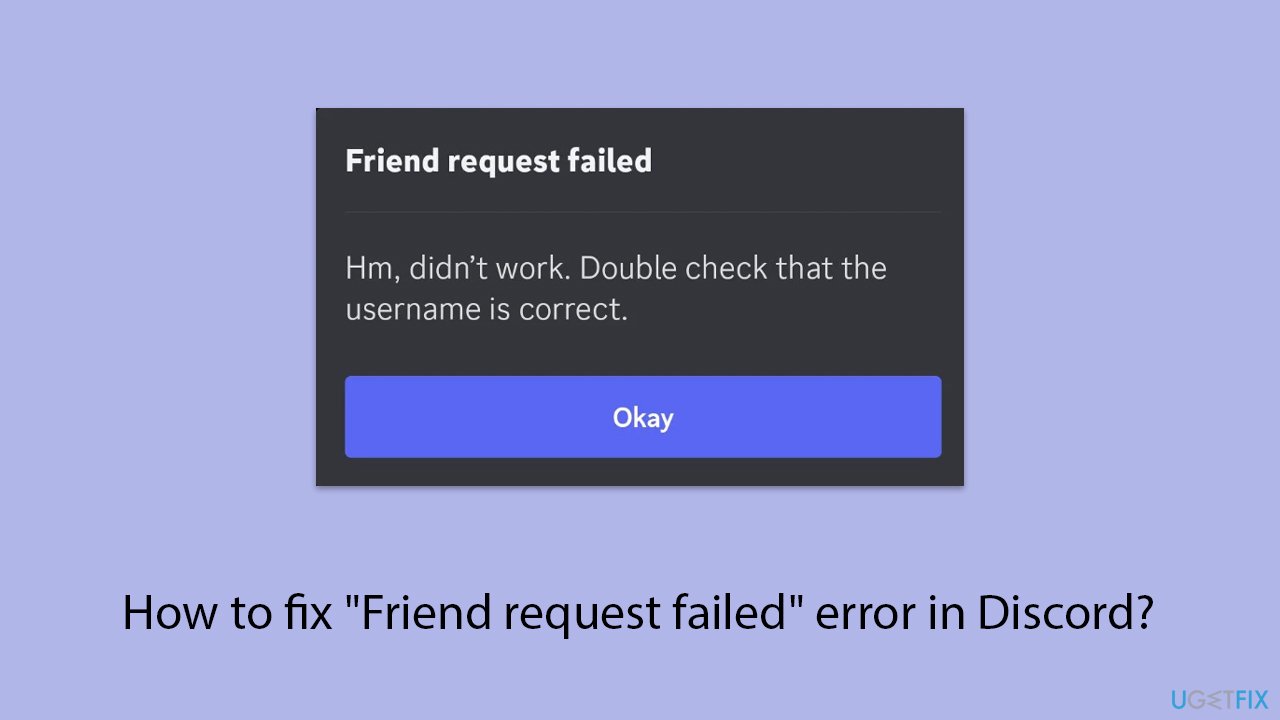
Fix 1. Restart Discord
A simple restart of the Discord app can sometimes resolve unexpected glitches, including issues with sending friend requests.
- Close the Discord app completely. On the desktop, ensure it's not running in the system tray. If so, Right-click on the icon and select Quit Discord. Also, press Ctrl + Shift + Esc, find any Discord-related processes, and shut them all down.
- On mobile, remove it from your recent apps list to ensure it's fully closed.
- Reopen Discord and try sending the friend request again.
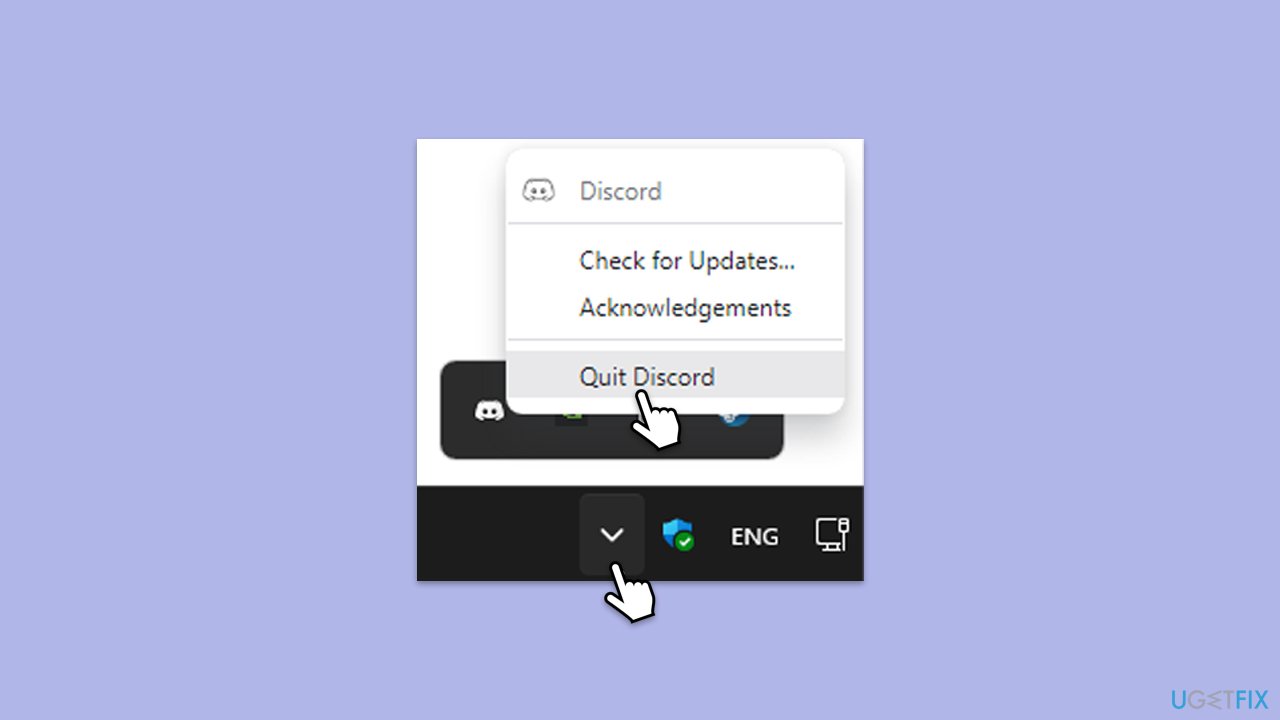
Fix 2. Check Discord server status
Sometimes, the issue may stem from Discord's end, particularly if their servers are experiencing downtime or technical issues.
- Visit Discord's official status website to check for any ongoing server issues.
- If there are reported problems, wait until Discord has resolved the issue.
- Try sending the friend request again once Discord reports that everything is operational.
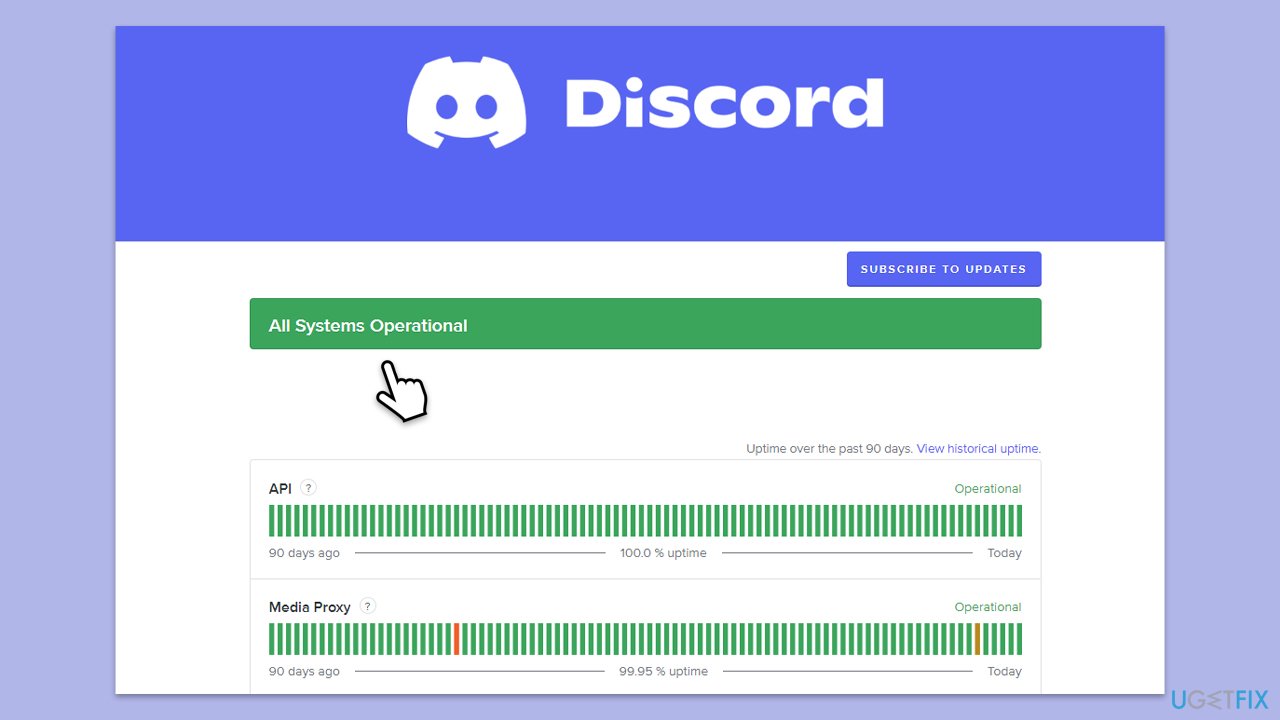
Fix 3. Verify the username and discriminator
The most common reason for a "Friend request failed" error in Discord is an incorrect username entry. Each Discord user has a unique username followed by a four-digit discriminator (e.g., Username#1234). Ensuring accuracy in both can resolve the issue.
- Open Discord.
- Confirm the exact username and discriminator of the person you wish to add. This can often be found in their profile or provided by them directly.
- Double-check that you've entered the username and discriminator correctly, paying attention to case sensitivity and the correct numbers.
- Attempt to send the friend request again.
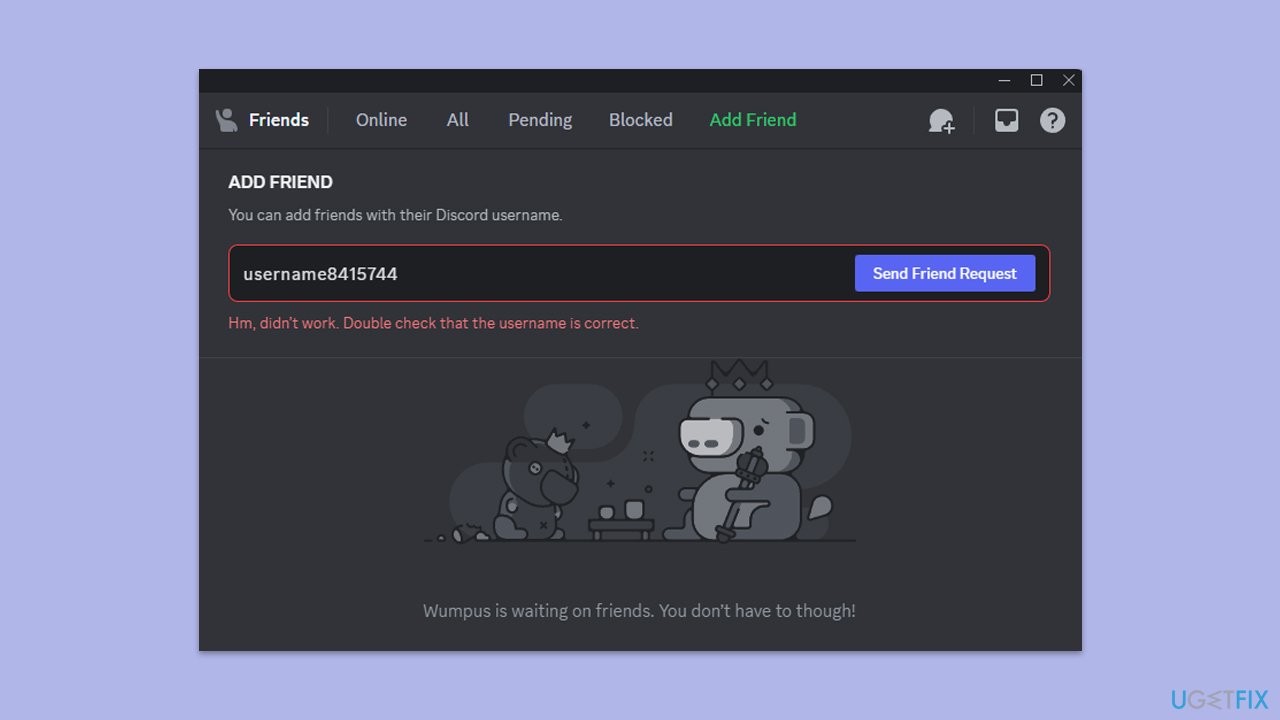
Fix 4. Check your internet connection
A poor or unstable internet connection can cause issues with sending friend requests on Discord.
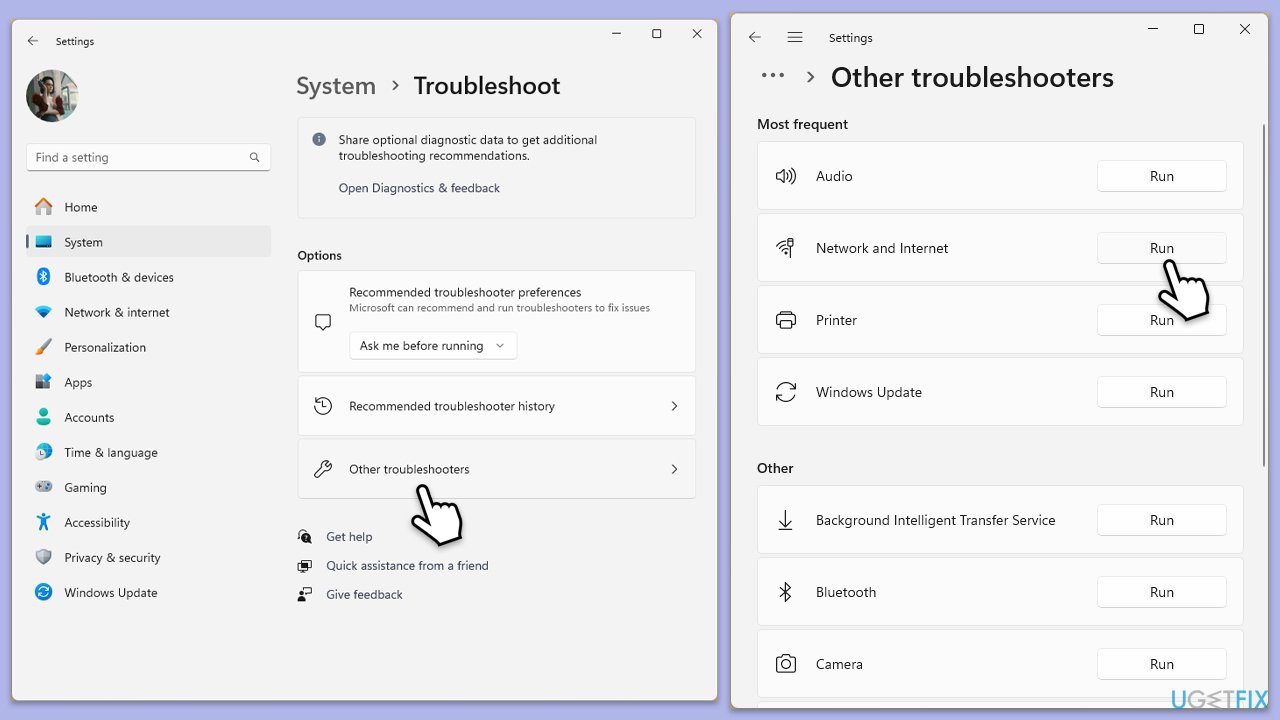
Windows 11
- Type Troubleshoot in Windows search and press Enter.
- Select Other troubleshooters.
- Find Network & Internet troubleshooter from the list and select Run.
- Wait till the process is finished and apply the offered fixes.
- Restart your device.
Windows 10
- Right-click on Start and pick Settings.
- Go to the Network & Internet section.
- On the right side, find the Advanced network settings section.
- Click Network troubleshooter and wait.
- The fixes will be automatically applied.
Fix 5. Adjust your privacy settings
Discord allows users to customize who can send them friend requests. Ensuring your settings are not too restrictive can help.
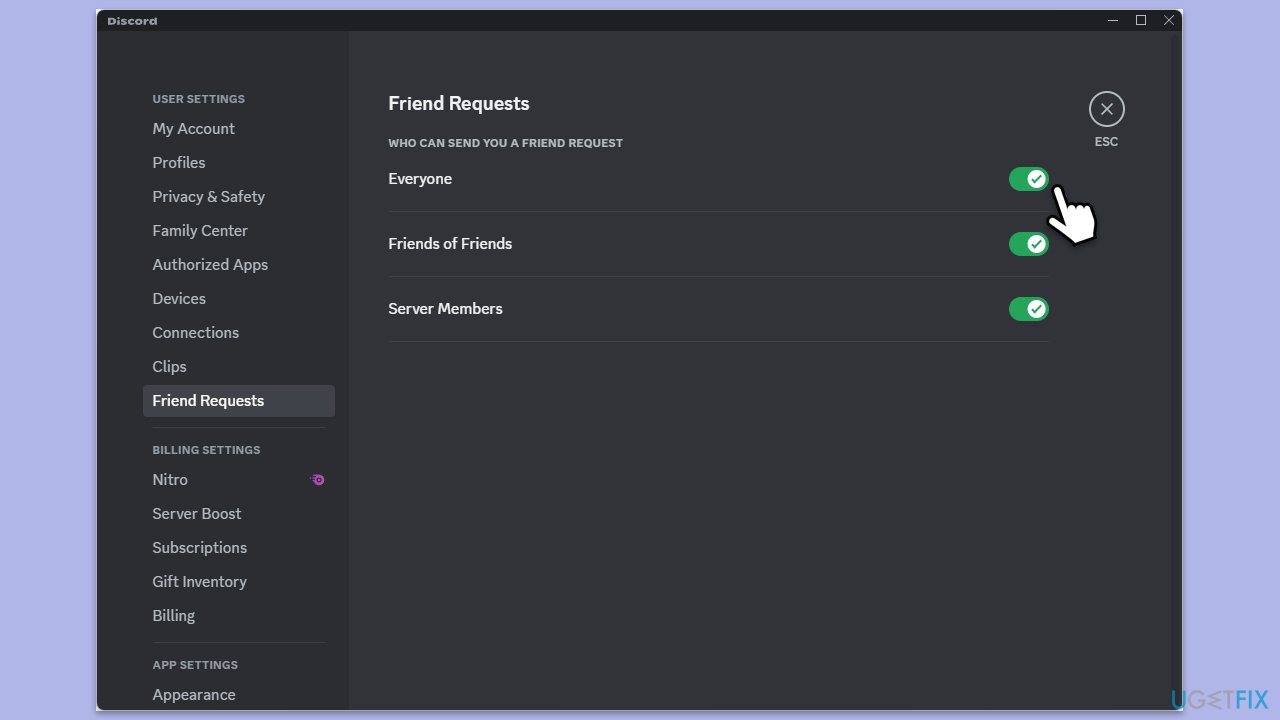
- Open Discord and go to Settings.
- On the left side, find the Frend Request section and select it.
- Make sure that all the options here are enabled.
- This also applies to the person you are trying to send a friend request, so you should notify them about this.
Fix 6. Reinstall Discord
Reinstalling Discord can help fix deeper issues by replacing possibly corrupted files and ensuring the latest version.
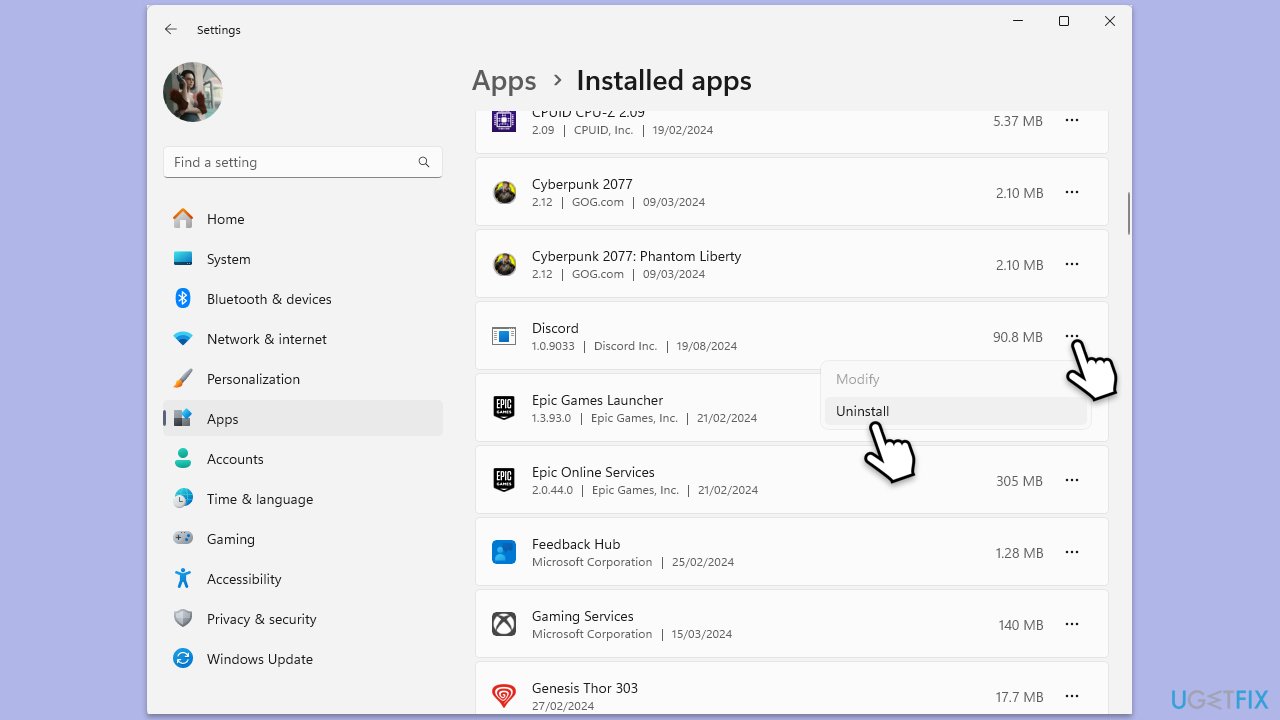
- Right-click on Start and pick Apps and Features/Installed apps.
- Scroll down to find Discord.
- Click (three dots > ) Uninstall and follow up with Uninstall again.
- Follow on-screen instructions to remove the app.
- Download it from the official website and install it anew.
- Install Discord and log in to your account.
Fix 7. You have been blocked
If none of the above solutions work, it is highly likely that the person you are trying to invite as a friend does not wish to contact you and has blocked you. In this case, there is nothing you can do to bypass this block - and it would be intrusive to do so in this situation.

Bottom line
To resolve the 'Friend request failed' error, double-check the username and discriminator for accuracy, review the privacy settings, and be patient with potential server issues. If these steps do not work, consider contacting Discord support for further assistance.
Frequently asked questions
First, check your internet connection and restart Discord. If the problem persists, try clearing the app data by going to Settings > Apps > Discord and selecting 'Reset'.
Yes, using a VPN can interfere with Discord's connection, leading to errors like 'Friend request failed.' Try disabling the VPN and see if that resolves the issue.
Open Discord, click on the gear icon for User Settings, and then scroll down to 'About' to check for updates, ensuring your app is running the latest version on Windows.




Report an issue
What's wrong with this guide? We review every report and update or remove content.
Report received — thank you. We'll review and fix it.
You need a free account to submit a report.
Be the first to comment