How to fix
Microsoft Store error 0x8A150049
on Windows
Resolve Microsoft Store error 0x8A150049 on Windows 10 and 11 easily with proven methods. Fix it in minutes, expert-tested solutions included.


What causes How to fix Microsoft Store error 0x8A150049?
- Update program bug
- Cache issue
- Unstable network connection
- Incorrect network configuration
- Improper TLS and SSL settings
Repairs Windows system files, removes malware, and restores a clean OS state — without reinstalling.
I can't install any apps from the Microsoft Store as of recently. I am not sure what happened - it started randomly. I am running Windows 11 version 23H2 and my computer is relatively new, as I bought it last year.
Microsoft Store is an essential part of the Windows operating system, serving as the official marketplace for downloading programs, games, and other digital content. It provides a fast, secure method for users to locate and install the applications they require or desire.
However, like any other piece of software, it is not immune to problems. One error users may face is error 0x8A150049, which occurs while attempting to update existing apps or install new ones. This issue can be especially aggravating because it prevents the completion of these operations, preventing access to the most recent features, security upgrades, or totally new applications.
The 0x8A150049 error may arise due to a number of reasons, including problems with the Microsoft Store itself, such as an update program bug or a cache issue. This error can also be caused by network issues, such as unstable connections or particular network configurations that prevent access to the Microsoft Store servers.
Incorrect TLS (Transport Layer Security) and SSL (Secure Sockets Layer) configurations are one less widespread reason. Error 0x8A150049 can occur when certain protocols essential for safe online communication aren't set up properly on your PC. This can prevent the Microsoft Store from securely connecting to its servers.
Resolving the 0x8A150049 issue usually entails assessing several possible causes such as cleaning the store's cache, verifying the network configuration, and making sure SSL and TLS settings are configured correctly.
A robust computer repair software [d1] can be a useful substitute for consumers who are not tech-savvy or who are searching for a simpler fix. Many Windows issues, including those of the Microsoft Store, can be instantly diagnosed and fixed by these apps.
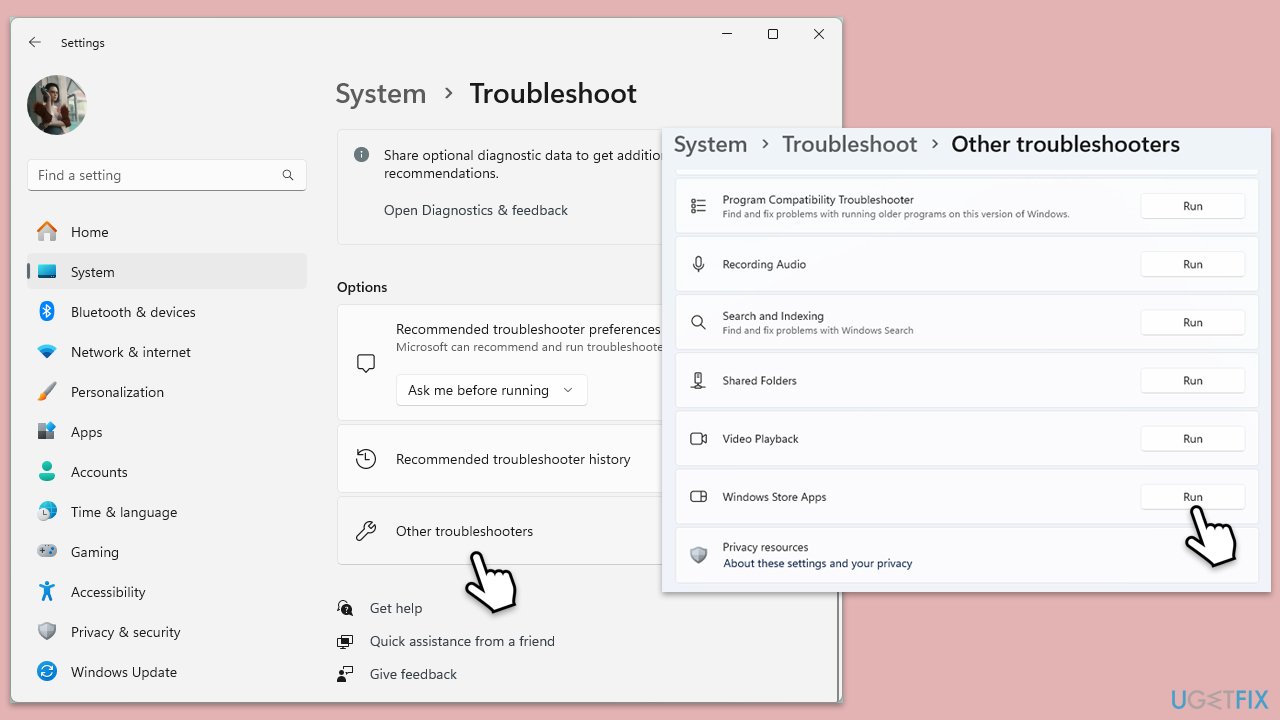
Fix 1. Run Windows Store Apps troubleshooter
- Type Troubleshoot in Windows search and press Enter.
- On the right side of the window, click Additional troubleshooters/Other troubleshooters.
- Scroll down and select Windows update.
- Click Run the troubleshooter/Run.
- Wait for the troubleshooter to finish.
- Restart your system once done.
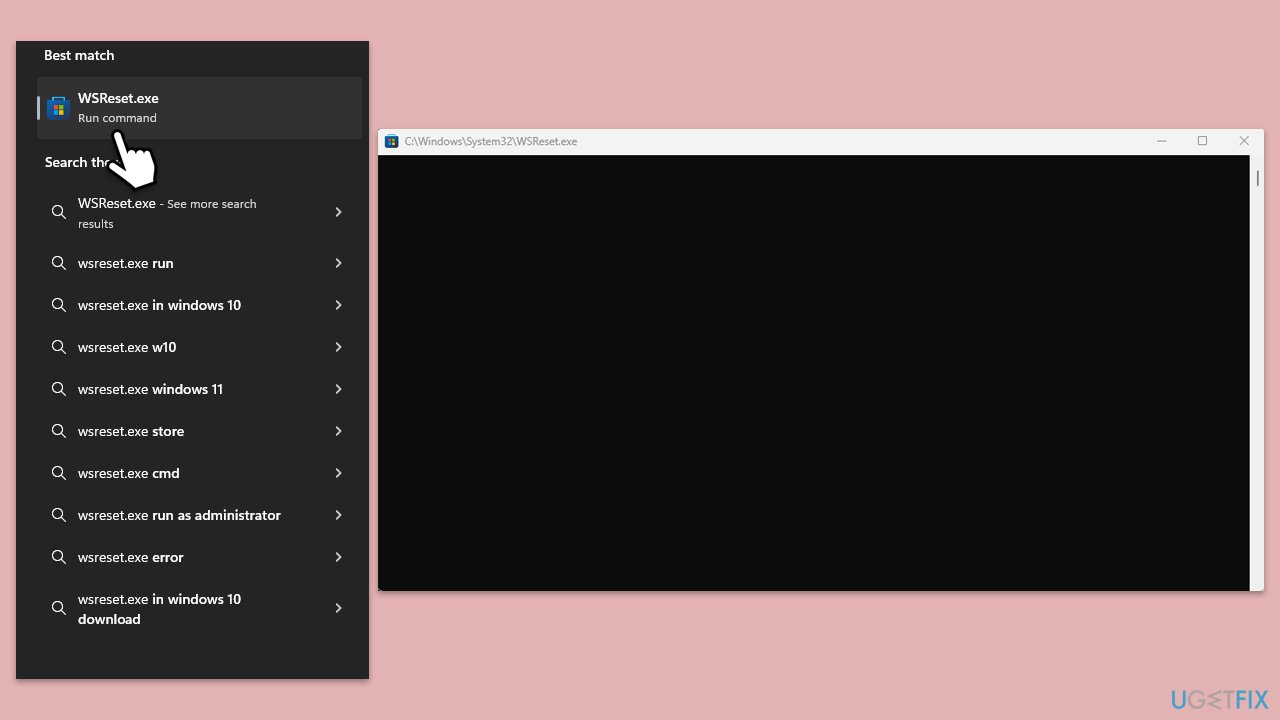
Fix 2. Reset Store cache
- Type WSReset.exe in the Windows search bar and press Enter.
- Wait till a black pop-up window shows up – do not close it.
- The pop-up window will close soon, and the Windows Store should reopen.
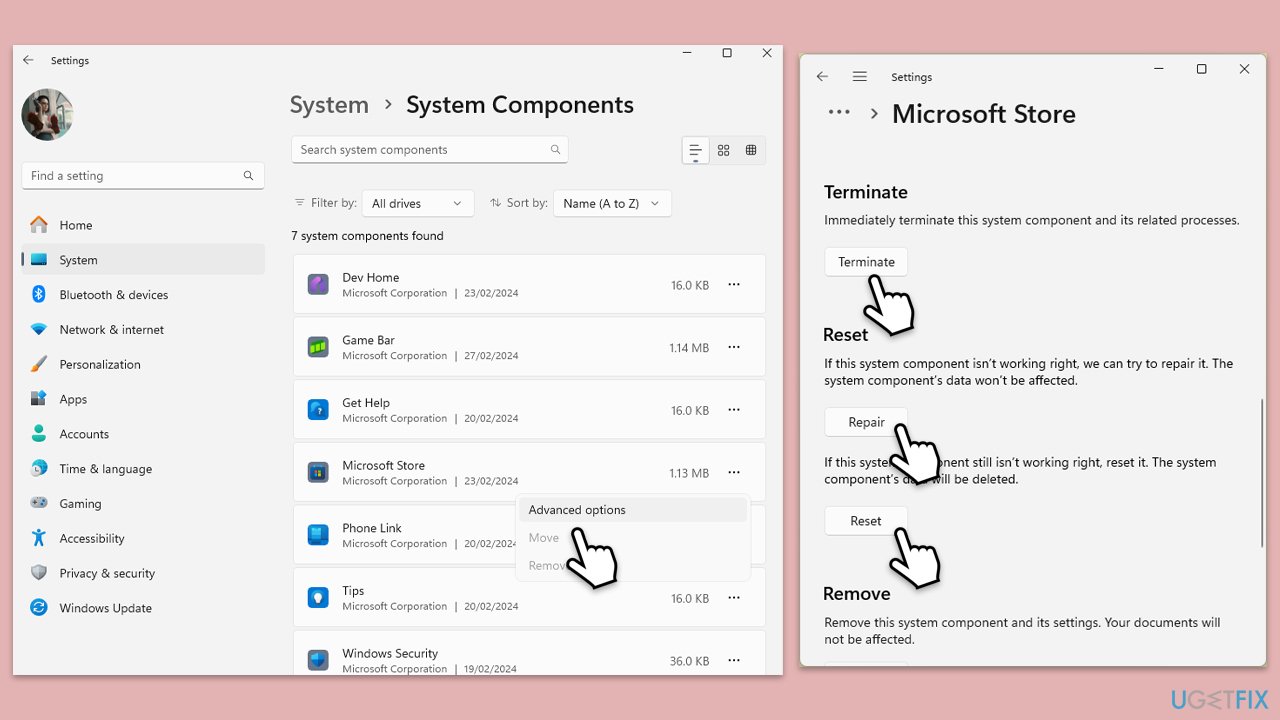
Fix 3. Repair or reset the Microsoft Store
- Right-click on Start and pick Apps & Features/Installed apps.
- Scroll down to locate the Microsoft Store and select Advanced options.
- Click Terminate and then hit Repair.
- If that does not resolve the situation, try the Reset option instead.
Fix 4. Re-register all Windows apps
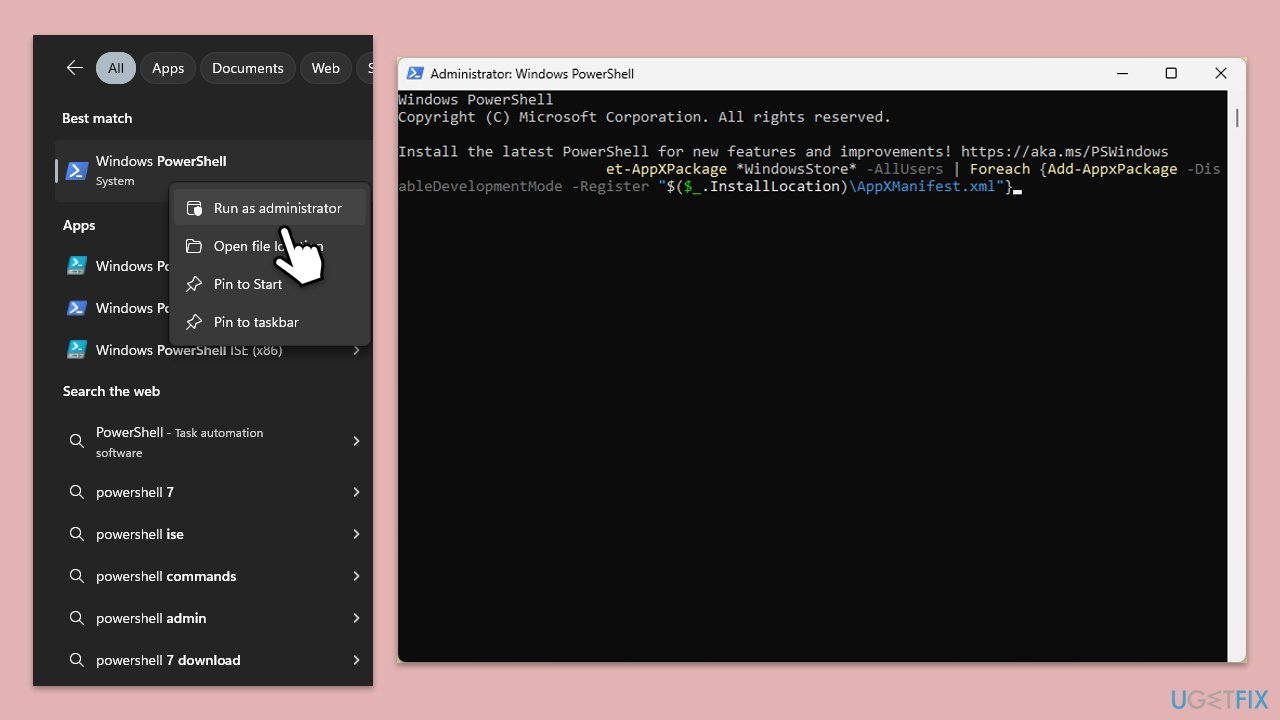
- Type PowerShell in Windows search.
- Right-click on the result and select Run as administrator.
- When UAC shows up, click Yes.
- Copy and paste the following command and press Enter:
Get-AppXPackage | Foreach {Add-AppxPackage -DisableDevelopmentMode -Register "$($_.InstallLocation)\AppXManifest.xml"} - Close down PowerShell and restart your system.
Fix 5. Reset Windows update components
- Type cmd in Windows search.
- Right-click on Command Prompt and pick Run as administrator.
- When User Account Control asks you whether you want to allow changes, click Yes.
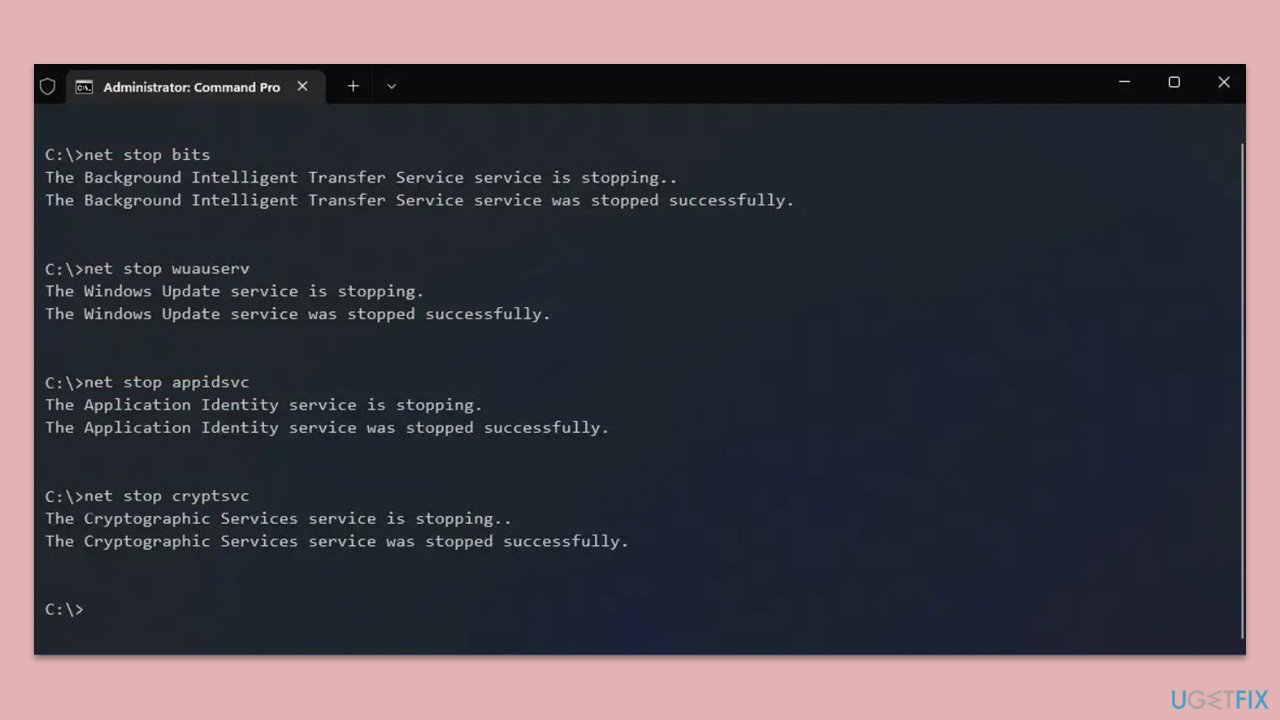
- In the new window, use the following commands, pressing Enter after each:
net stop bits
net stop wuauserv
net stop appidsvc
net stop cryptsvc
Del “%ALLUSERSPROFILE%\Application Data\Microsoft\Network\Downloader\*.*”
rmdir %systemroot%\SoftwareDistribution /S /Q
rmdir %systemroot%\system32\catroot2 /S /Q
regsvr32.exe /s atl.dll
regsvr32.exe /s urlmon.dll
regsvr32.exe /s mshtml.dll
netsh winsock reset
netsh winsock reset proxy
net start bits
net start wuauserv
net start appidsvc
net start cryptsvc - Restart your device.
Fix 6. Correct your SSL and TLS security settings
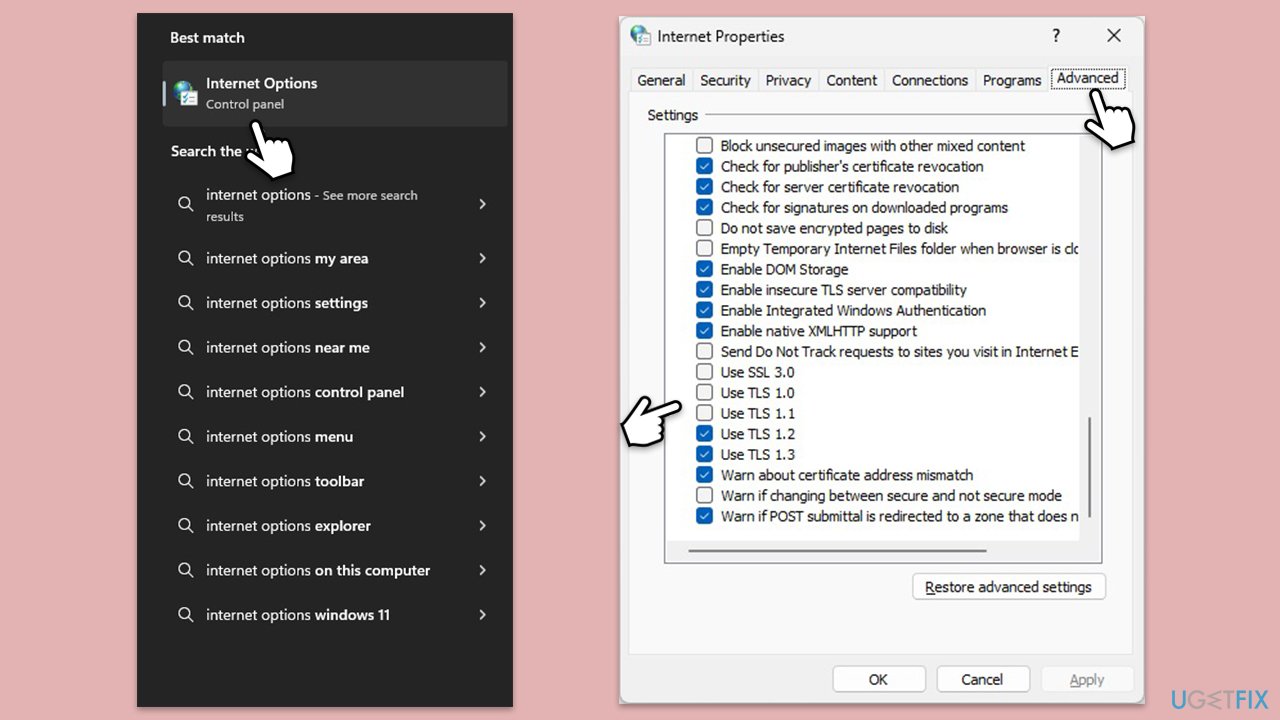
- Type Internet Options in Windows search and press Enter.
- Go to the Advanced tab.
- Scroll down to the Security section.
- Ensure the following settings are applied:
- SSL 3.1, TLS 1.0, and TLS 1.1 are disabled.
- TLS 1.2 and TLS 1.3 are enabled.
- Click Apply and then OK.
- Restart your PC and try using the Microsoft Store again.
Fix 7. Reinstall Microsoft Store
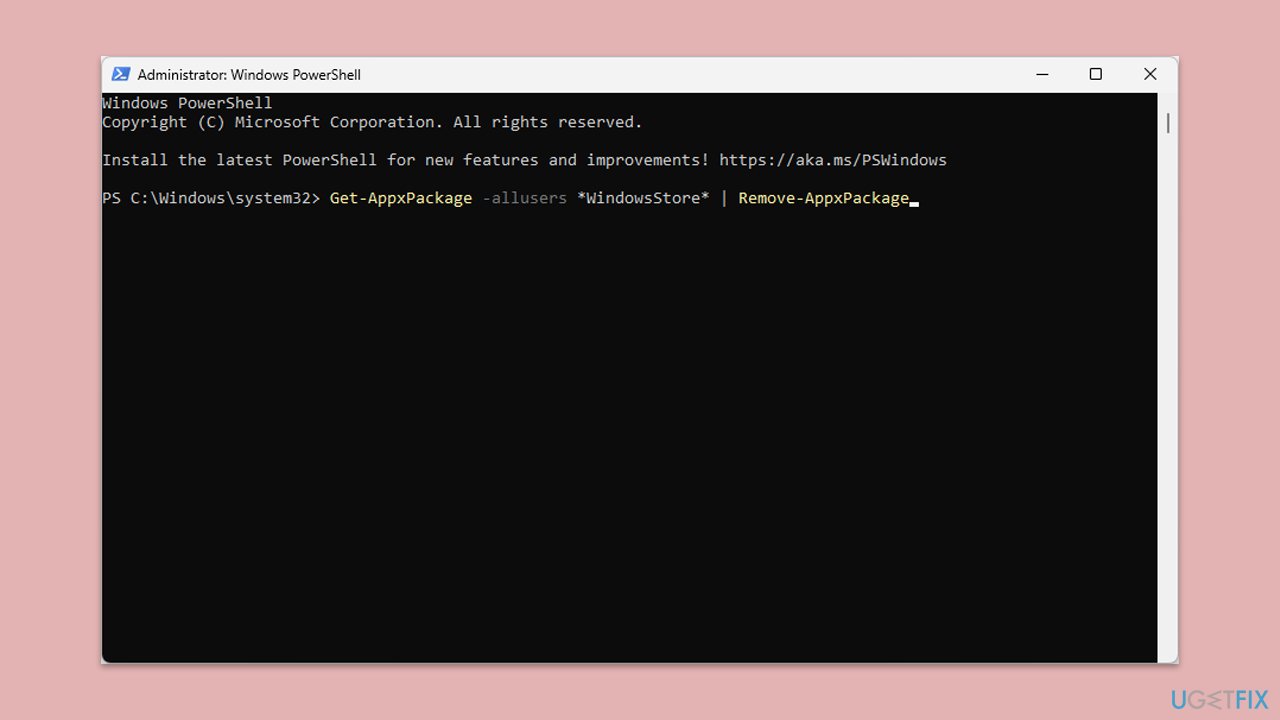
- Open PowerShell as administrator.
- Similarly, like before, confirm the UAC prompt.
- Copy and paste the following command, pressing Enter after:
Get-AppxPackage -allusers *WindowsStore* | Remove-AppxPackage - Next, reinstall the store with the following command:
Get-AppxPackage -allusers *WindowsStore* | Foreach {Add-AppxPackage -DisableDevelopmentMode -Register “$($_.InstallLocation)\AppXManifest.xml”} - Restart your computer.
Fix 8. Troubleshoot connection issues
- Make sure that your app updates aren't being blocked by third-party security software - disable it and try again.
- Ensure your computer is connected to the internet.
- Make sure that the time and date settings are correct.
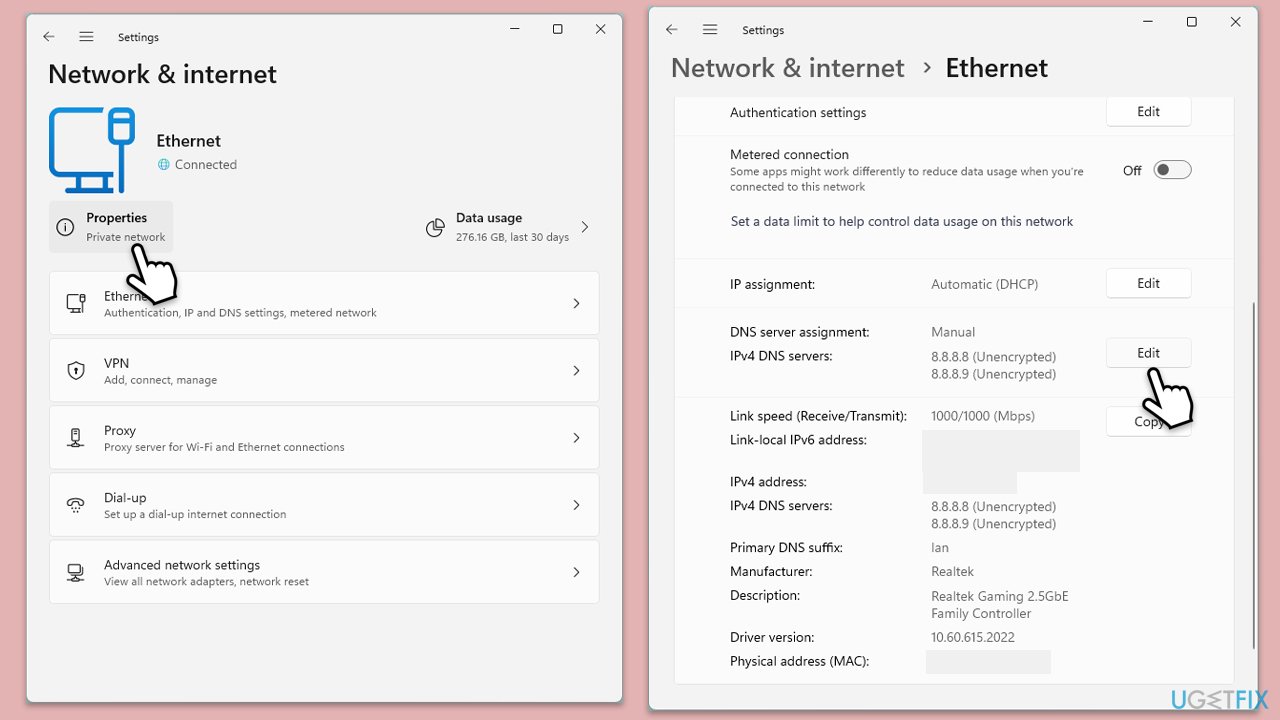
- Change your DNS server to Google's:
- Right-click on Start and select Network connections.
- Under your connection, click Properties.
- Find the DNS server assignment section and click Edit.
- Set your DNS to Google's:
Preferred DNS: 8.8.8.8
Alternate DNS: 8.8.4.4 - Click Save.
- Run Network troubleshooter:
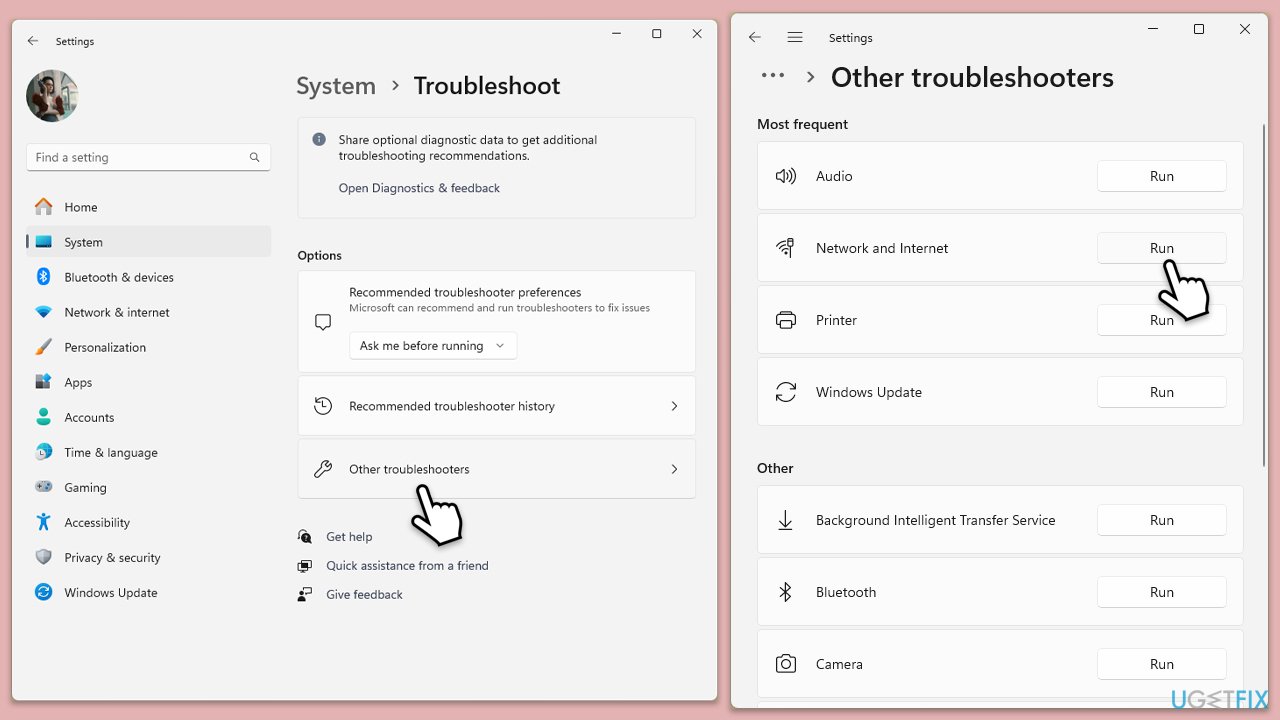
- Type Troubleshoot in Windows search and hit Enter.
- Pick Other troubleshooters.
- Find Network & Internet troubleshooter from the list and select Run.
- Wait till the process is finished and apply the commended solutions.
- Restart your computer.
Bottom line
To fix the Microsoft Store error 0x8A150049, you can run the Windows Store Apps troubleshooter, clean the store's cache, verify your network configuration, and ensure that SSL and TLS settings are correctly configured. If these solutions do not resolve the issue, consider using robust computer repair software for further assistance.
Frequently asked questions
The error code 0x8A150049 typically indicates a problem with your Microsoft Store account or connectivity issues affecting app downloads and updates.
To resolve error 0x8A150049 on Windows 11, try resetting the Microsoft Store app by going to Settings > Apps > Apps & features, selecting Microsoft Store, and clicking on 'Advanced options' to reset.
Yes, clearing the cache can help; you can do this by running the command 'wsreset' in the Run dialog to refresh the Microsoft Store's cache.




Report an issue
What's wrong with this guide? We review every report and update or remove content.
Report received — thank you. We'll review and fix it.
You need a free account to submit a report.
Be the first to comment