How to fix
Windows stuck on “Let’s connect you to a network” issue
on Windows
Resolve the "Let's connect you to a network" issue on Windows 10 and 11 effortlessly. Quick fixes and expert-tested methods for smooth connectivity.


What causes How to fix Windows stuck on “Let’s connect you to a network” issue?
- Attempting to connect to WiFi without necessary drivers installed
- No operating system already installed on the device
- Lack of access to a physical network connection
- Hardware limitations preventing Ethernet connection
- Installation process requiring an internet connection for updates and account setup
Repairs Windows system files, removes malware, and restores a clean OS state — without reinstalling.
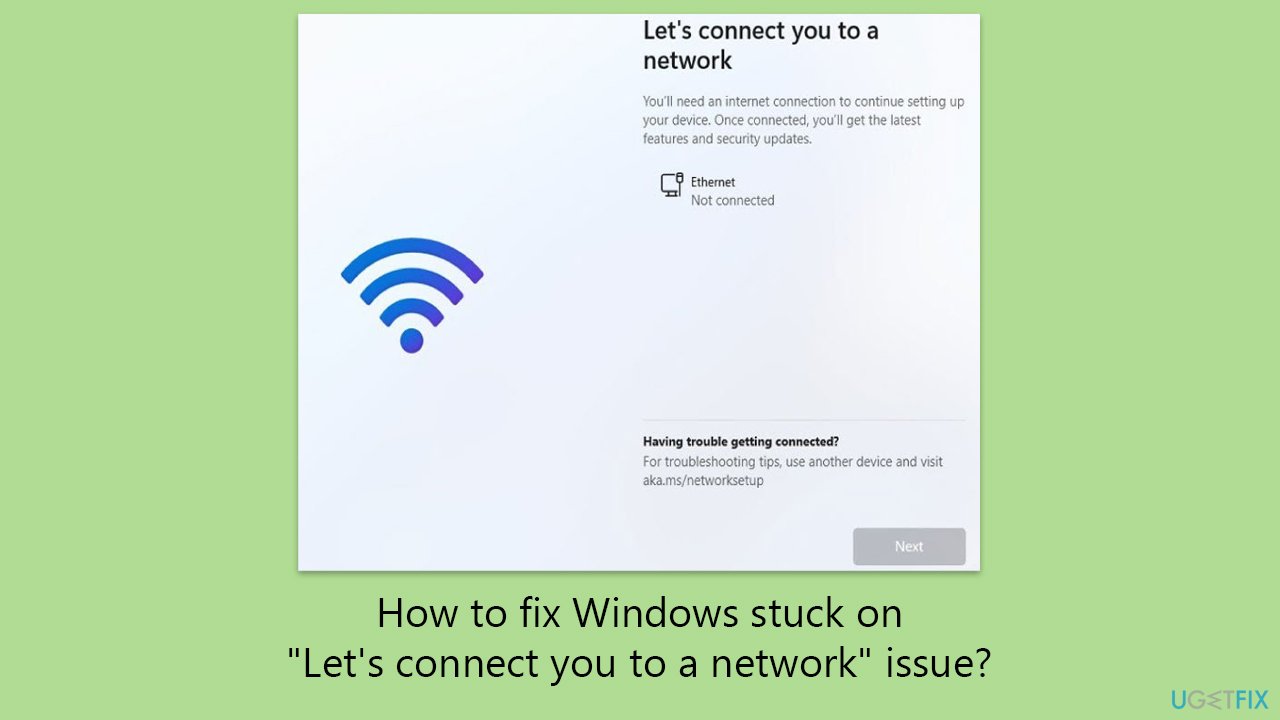
Hello, I was installing Windows 11 on my new PC and everything went fine until I reached the "Let's connect you to a network" step - it got stuck and is not moving at all for hours. There's nothing to click on even. What do I do now?
When installing Windows 11, users encounter a critical step requiring an internet connection to proceed with downloading necessary updates, connecting to a Microsoft account, and other initial setup tasks. However, a common stumbling block arises at the "Let's connect you to a network" stage, where the installation process can become stuck, leaving users unable to move forward. This issue is particularly problematic for those who do not have an operating system already installed on their device, as it limits their ability to bypass the problem through conventional means.
The root cause of this predicament often lies in the attempt to connect to WiFi without the necessary drivers installed. Without these drivers, Windows is unable to establish a network connection, causing the installation to halt indefinitely at the network connection step. While the simplest solution might seem to be connecting via an Ethernet cable, not all users have this option available, either due to hardware limitations or lack of access to a physical network connection.
Several alternative methods exist to navigate around this issue, including using a DVD provided for your network card, downloading the network drivers onto another device and installing them during the setup process, or employing other less conventional methods such as using a mobile hotspot, adjusting BIOS settings, or utilizing specific commands in the Command Prompt to bypass the network setup step. Each of these solutions offers a different approach to fixing the "Let's connect you to a network" problem - you will find detailed instructions below.
For problems you might be having with the PC, we recommend using the powerful [d1] maintenance and repair utility - it can sort out many Windows issues automatically for you.
Fix 1. Connect via Ethernet cable
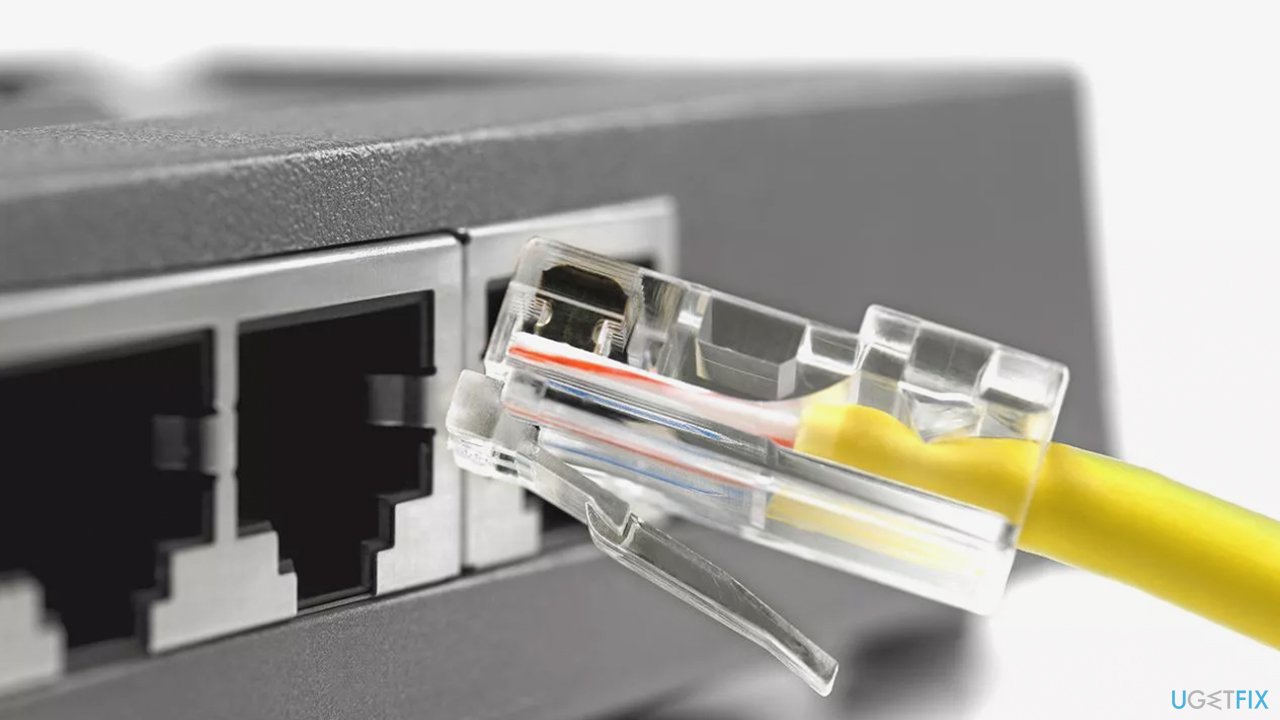
If your PC has an Ethernet port, directly connecting to your router or modem can bypass the need for Wi-Fi during the Windows 11 installation. This method requires an Ethernet cable.
- Locate the Ethernet port on your computer and your router (if there isn't any, you can buy an adapter).
- Connect one end of the Ethernet cable to the router and the other end to your computer.
- Restart the installation process for Windows 11. The system should detect the internet connection automatically, allowing you to proceed.
Fix 2. Install drivers using the network card's DVD
Network cards often come with a CD or DVD containing drivers. Use this disc to install the necessary drivers before starting the Windows installation. If you do not have a CD/DVD drive (which is likely), simply move on to the next solution.
- Before beginning the Windows installation, insert the CD or DVD that came with your network card into your computer.
- During the installation process, the setup wizard should appear. Follow the on-screen instructions to install the network drivers.
- Once the drivers are installed, start the Windows 11 installation process again.
Fix 3. Download and install network drivers from another device
If your computer cannot connect to the internet due to driver issues, use another computer to download the needed drivers and transfer them via a USB flash drive.
- On a separate computer with internet access, visit the website of your network card manufacturer. Download the latest drivers for your model.
- Save the driver file to a USB flash drive.
- Insert the USB flash drive into the computer where you're installing Windows 11.
- When the installation process asks for a partition selection, look for an option to load drivers. Select this option and navigate to your USB drive to find and install the driver.
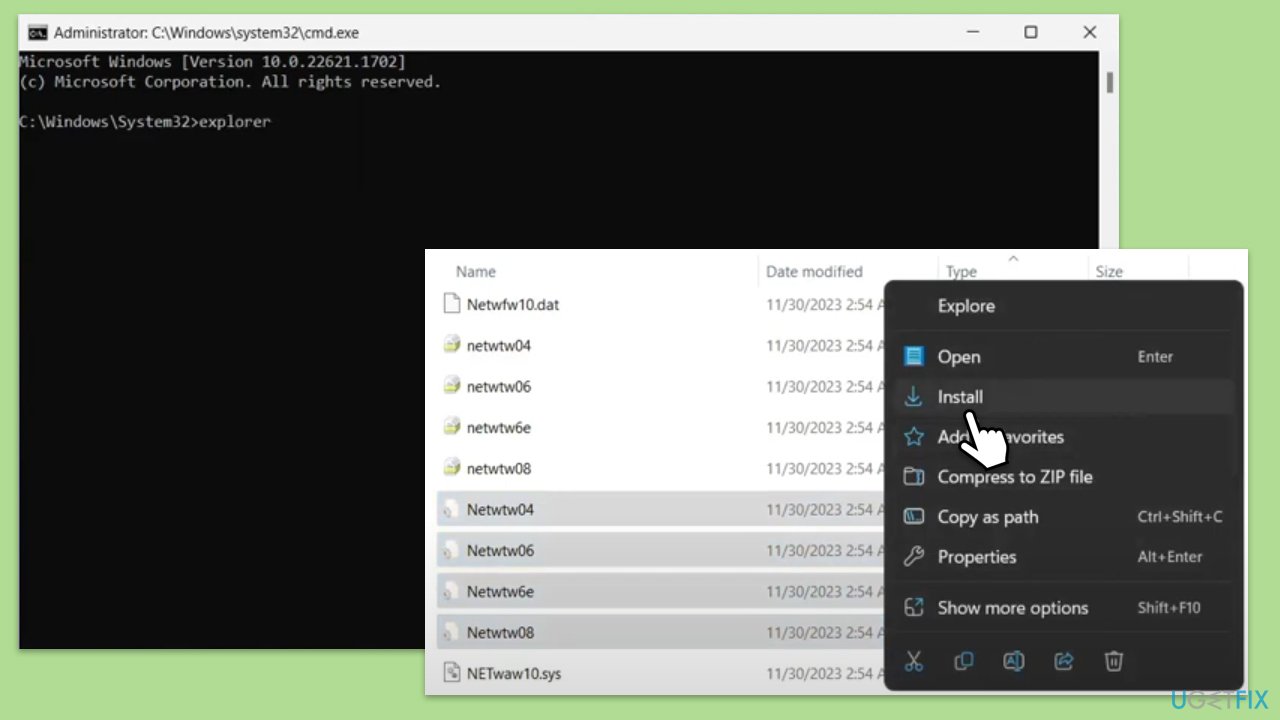
- If you can't find this, you can press Shift + F10 to open Command Prompt, type in explorer and press Enter. In File Explorer, navigate to your connected USB flash and install the required drivers.
- Proceed with Windows installation as normal.
Fix 4. Create and connect to a mobile hotspot
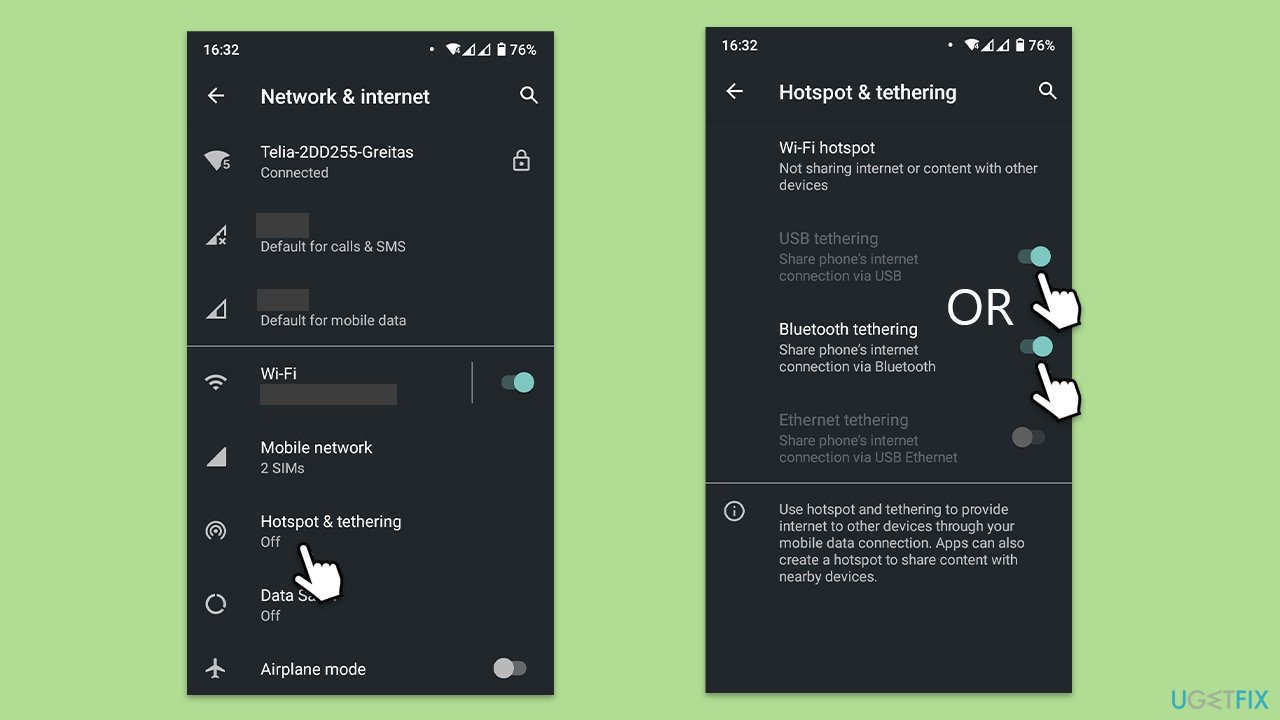
If you have a smartphone with a data plan, you can use it to create a mobile hotspot. This can provide an alternative internet connection for your PC during the installation.
- On your smartphone, navigate to the settings and find the mobile hotspot option. Activate it.
- With the hotspot active, go back to your PC and refresh the list of available networks during the Windows 11 installation network setup step.
- Connect to your phone's hotspot using the password provided on your phone’s hotspot settings screen.
- Proceed with Windows installation as normal.
Fix 5. Disable network boot in BIOS
Disabling the network boot feature in your computer's BIOS can sometimes help bypass the network setup stage of the Windows 11 installation.
- Reboot your computer and enter the BIOS setup - press F2, F10, Delete, Esc, or another key as the computer starts up (depending on your motherboard/laptop manufacturer).
- In the BIOS menu, navigate to the Boot or Network options. Look for settings related to network boot, PXE boot, or similar and disable them.
- Save your changes and exit the BIOS setup. Attempt to install Windows 11 again.
Fix 6. Bypass network setup
Bypassing the network setup during the Windows installation can sometimes be achieved through the Out-of-Box Experience (OOBE) process.
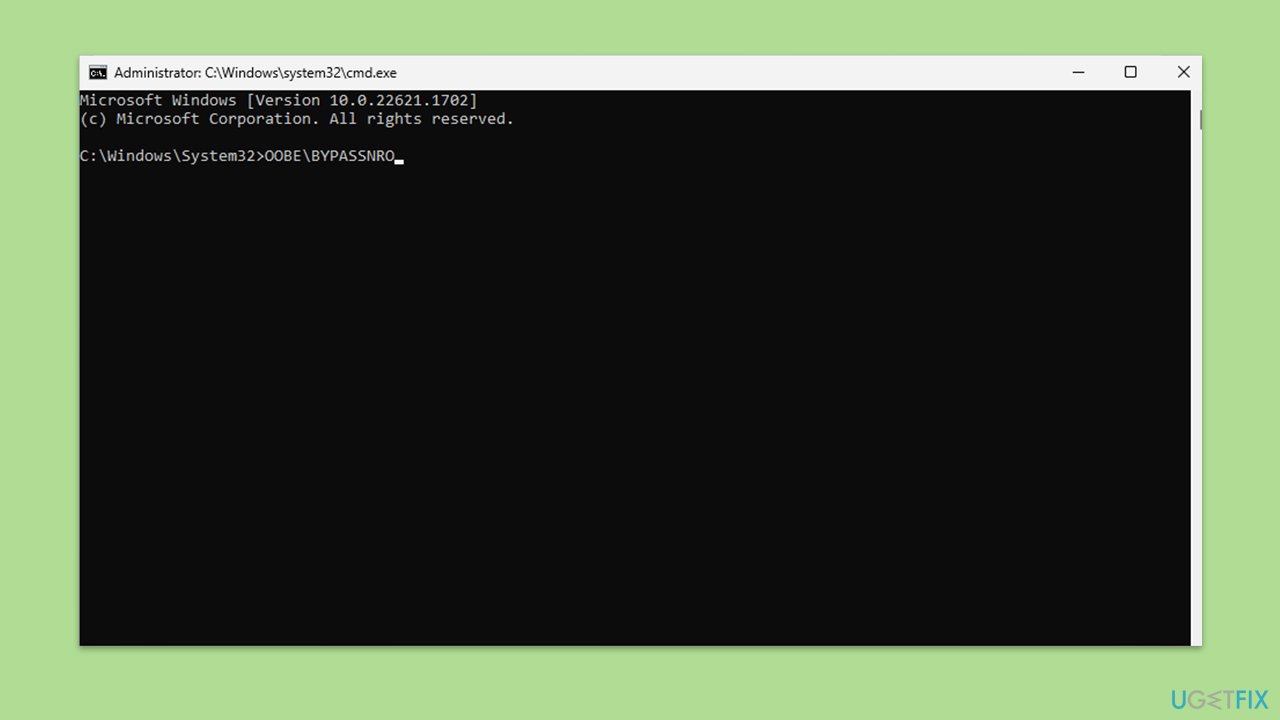
- When you reach the "Let's connect you to a network" screen, activate the Command Prompt by pressing Shift + F10.
- Type in the following command and press Enter:
OOBE\BYPASSNRO - Once the command is executed, you should reboot your PC and proceed with the installation of Windows 11.
Bottom line
To fix the issue of Windows being stuck on 'Let's connect you to a network', you can try connecting via an Ethernet cable, using a DVD for your network card, or downloading network drivers on another device. If these solutions do not work, consider using a mobile hotspot or adjusting BIOS settings.
Frequently asked questions
Try restarting your computer and ensure that your internet connection is stable. If the issue persists, you can bypass the network setup by selecting the option to continue without connecting to the internet.
You can resolve this by checking your network settings and ensuring that your Wi-Fi is enabled and connected. Alternatively, you can use the Shift + F10 keys to open the command prompt and restart the Network Setup.
Yes, you can try resetting your network settings by going to Settings > Network & Internet > Status, then selecting 'Network reset.' This can help if the issue is related to misconfigured network settings.




Report an issue
What's wrong with this guide? We review every report and update or remove content.
Report received — thank you. We'll review and fix it.
You need a free account to submit a report.
Be the first to comment