How to fix
Outlook error “Cannot send this item”
on Windows
Resolve the "Cannot send this item" error in Outlook on Windows 10 or 11 smoothly. Expert-tested solutions ensure efficiency and reliability, fixed in m…

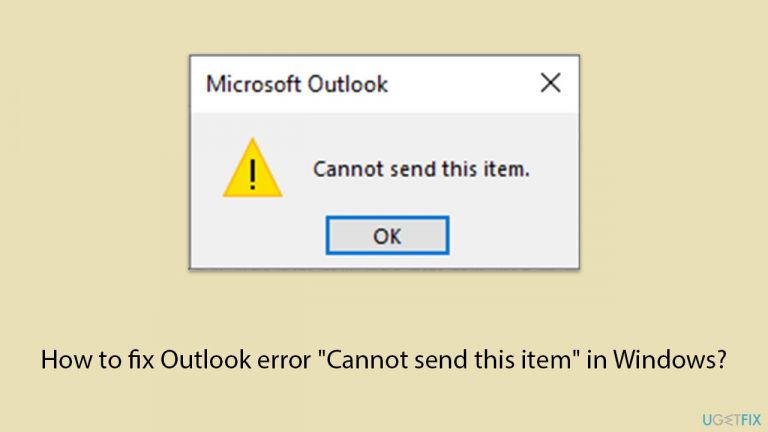
What causes How to fix Outlook error “Cannot send this item” in Windows?
- Problems with the email's content or format
- Inclusion of specific attachments incompatible with the recipient's server
- Incorrect email address in the 'To' field
- Network connectivity issues
- Outdated settings in Outlook
Repairs Windows system files, removes malware, and restores a clean OS state — without reinstalling.
I can't send emails in Outlook because I keep getting the "Cannot send this item" error whenever I try. This started happening suddenly, and I am not sure why. Any tips?
Microsoft Outlook email client is a staple for personal and professional communication across the globe. Integrated into the Windows operating system, Outlook provides a robust platform for managing emails, calendars, and contacts. However, users sometimes encounter an error message stating "Cannot send this item" when attempting to dispatch an email. This error can be particularly frustrating as it often appears after composing a lengthy email.
The "Cannot send this item" error typically occurs due to problems with the email's content or format. For instance, the inclusion of specific attachments or the formatting of the email itself might be incompatible with the recipient's email server or the sender’s outgoing server settings. Additionally, network issues or outdated settings in Outlook itself might prevent the email from being sent.
If you face this error, it is crucial to consider the email's content. Emails that are unusually large, either due to text volume or attached files, can exceed size limits imposed by email servers. Similarly, using certain types of embedded images or complex HTML elements in the body of the email might lead to sending issues. Another factor could be an incorrect email address in the "To" field, which often goes unnoticed until the error appears.
Resolving this issue involves scrutinizing the email content and settings. Verifying the recipient's email address for accuracy is a good starting point. Simplifying the email's formatting or reducing the size and number of attachments might also be necessary. Additionally, checking for network connectivity issues or updates needed for Outlook could address underlying problems causing the error.
For those unable to resolve the issue through content modification or software updates, using a different email client temporarily can circumvent the problem, allowing urgent emails to be sent without delay. Likewise, we recommend running a powerful PC repair application [d1], capable of finding and reconstructing damaged Windows files automatically.
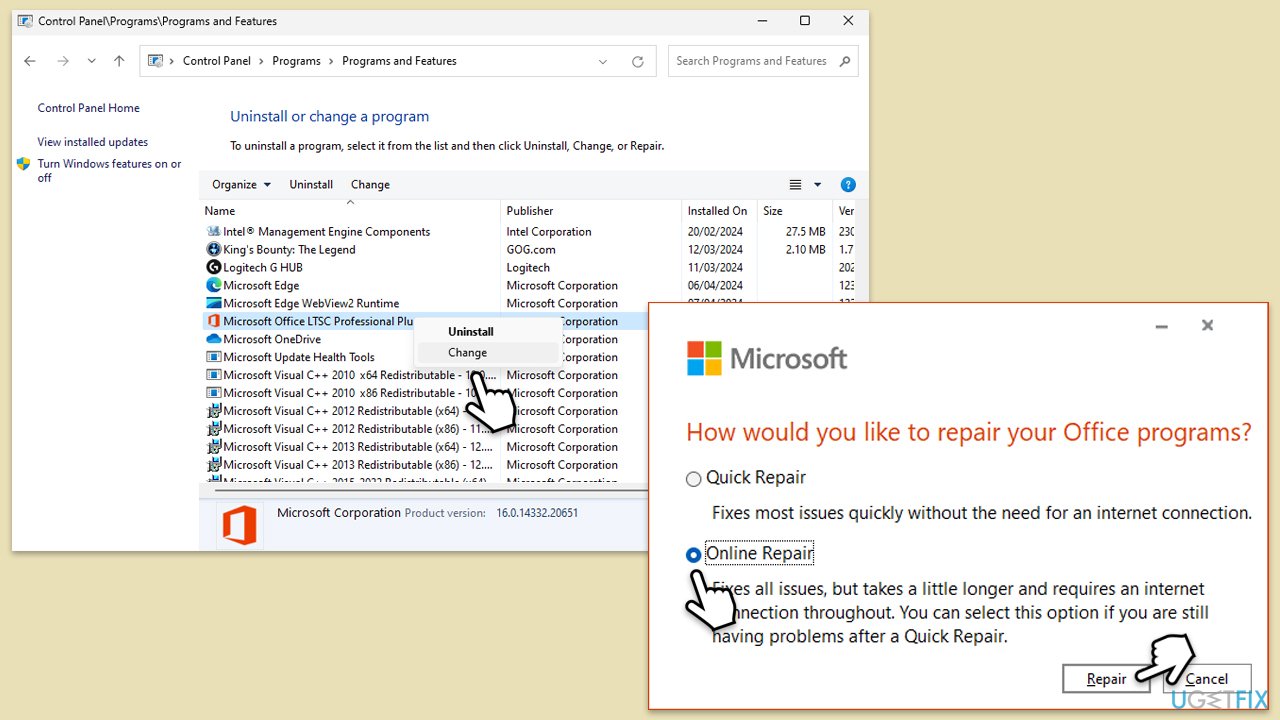
Fix 1. Repair Office apps
Corrupted Office installation files can cause Outlook to malfunction, including issues with sending emails. Repairing the Office suite can resolve these problems by restoring the original system files.
- Type Control Panel in Windows search and press Enter.
- Select Programs > Programs and Features.
- Select Microsoft Office and click on Change.
- Choose the option for Online Repair and click Repair.
- Follow the prompts to finish the process.
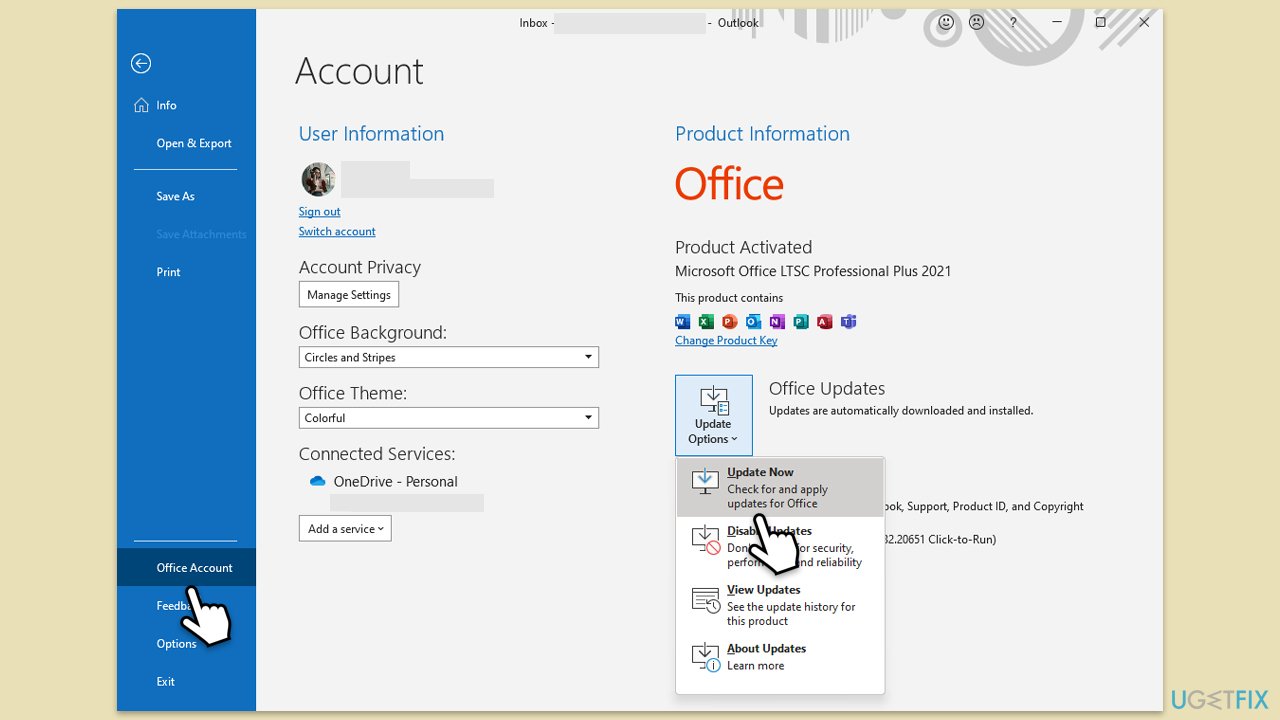
Fix 2. Update Outlook
Outdated versions of Outlook may contain bugs that disrupt email functionality. Updating to the latest version ensures you have the newest features and bug fixes.
- Open Outlook and click on the File menu.
- Choose Office Account or Account (the option may vary depending on your version of Outlook).
- Under the Product Information section, you will find an Update Options button. Click it and select Update Now.
- Outlook will check for and install any available updates.
- Once the update is complete, restart Outlook for the changes to take effect.
Fix 3. Switch to the web app
If Outlook desktop client is not sending emails, using the Outlook Web App (OWA) can be a reliable alternative while troubleshooting the desktop issues.
- Open your web browser.
- Go to the Outlook Web App login page.
- Enter your credentials to log in.
- Try composing and sending the same email from the web app to check if the issue persists.
Fix 4. Use Rich text in the email
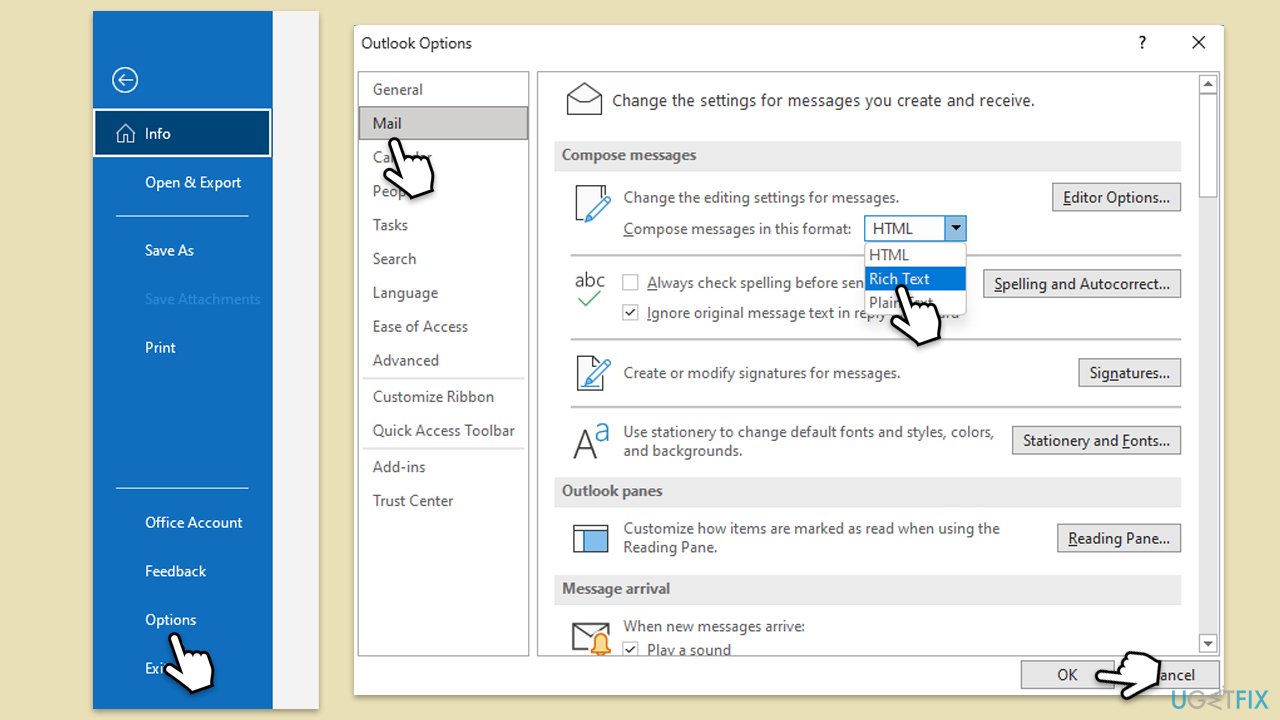
Switching to Rich Text format can solve issues related to HTML or plain text formatting that might prevent emails from being sent.
- Open Outlook.
- Click on File and then select Options.
- Go to the Mail tab.
- Under Compose Messages, pick Rich text from the drop-down menu and click OK.
- Create your email and attempt to send it again.
Fix 5. Check the recipient's email address
Incorrect or mistyped email addresses are a common cause of email-sending failures.
- Double-check the recipient's email address for any typos or errors.
- Ensure there are no extra spaces, characters, or incomplete domain names.
- Try sending the email again after verifying the accuracy of the email address.
Fix 6. Reduce the size of attachments
Large attachments can exceed email server limits, which can prevent the email from being sent.
- Check the total size of the email and attachments.
- Reduce the number of attachments or use a file compression tool to decrease their size.
- Alternatively, consider using cloud services to share large files and include a link in the email instead.
Fix 7. Disable add-ins
Sometimes add-ins can interfere with Outlook’s functionality. Disabling them can help determine if they are the cause of the issue.
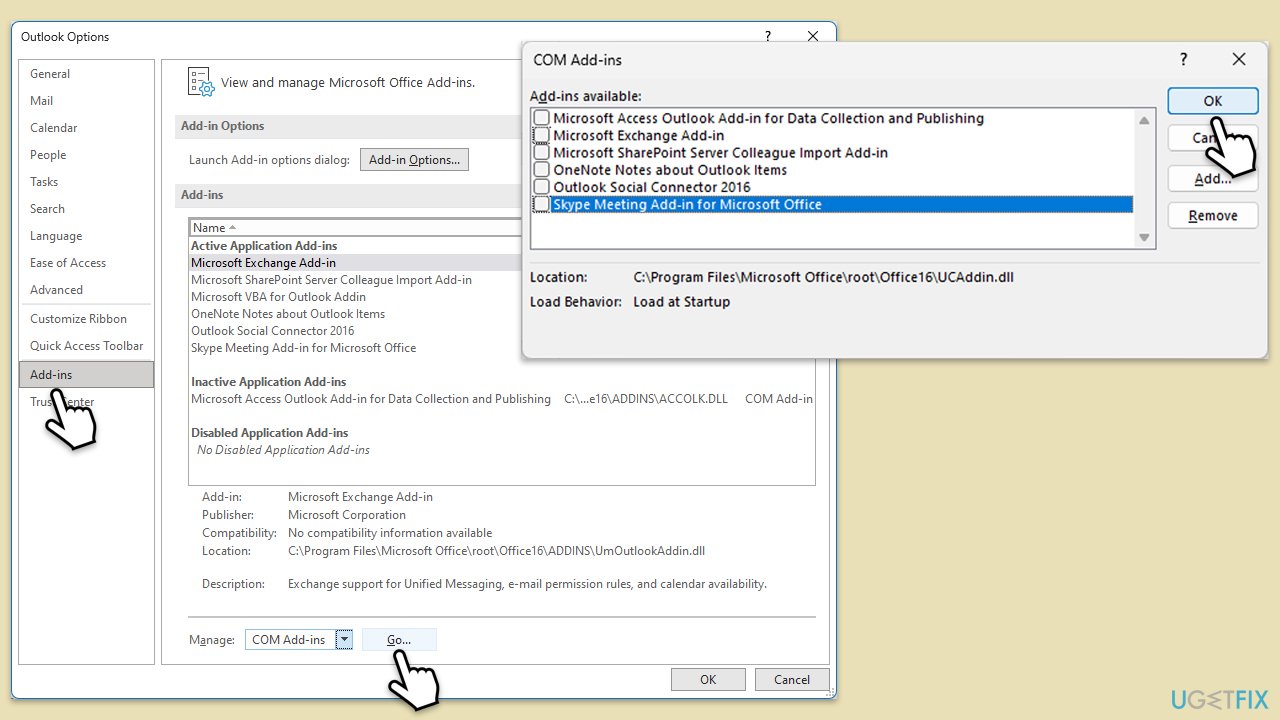
- Press Win + R to launch the Run dialog.
- Type outlook /safe and hit Enter.
- If Outlook sends the emails normally, add-ins may be causing the issue.
- Deactivate them by navigating to File > Options > Add-ins, selecting COM Add-ins, and clicking Go. Disable all add-ins and restart Outlook normally to see if the problem is resolved.
Fix 8. Check for network issues
A faulty or unstable network connection can prevent emails from being sent.
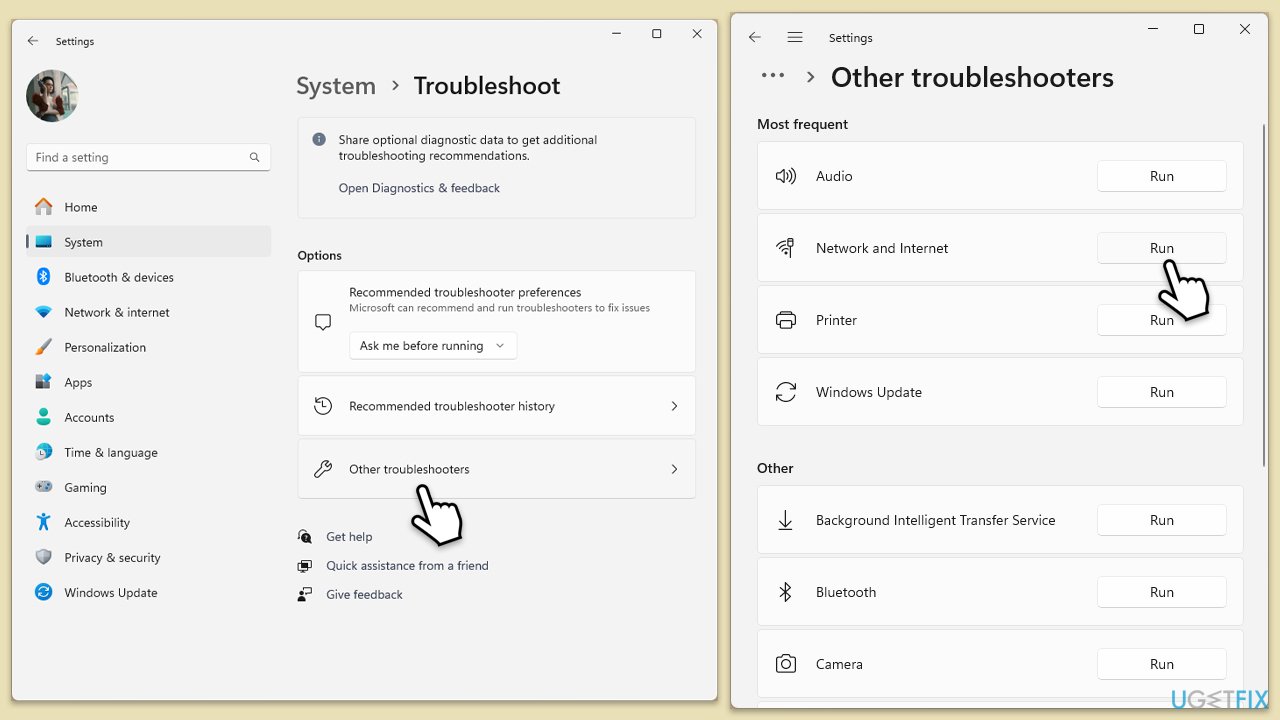
Windows 11
- Type Troubleshoot in Windows search and press Enter.
- Select Other troubleshooters.
- Find Network & Internet troubleshooter from the list and select Run.
- Wait till the process is finished and apply the offered fixes.
- Restart your device.
Windows 10
- Right-click on Start and pick Settings.
- Go to Network & Internet section.
- On the right side, find the Advanced network settings section.
- Click Network troubleshooter, specify the problem, and wait till the scan is finished.
- When done, apply all the recommendations.
Bottom line
To resolve the 'Cannot send this item' error, verify the recipient's email address, simplify the email's formatting, and reduce the size and number of attachments. Additionally, check for network issues and ensure Outlook is updated. If none of these solutions work, consider using a different email client temporarily.
Frequently asked questions
The error can occur due to issues like corrupted Outlook profiles, large attachments, or problems with your email server settings.
You can repair your Outlook profile by going to Control Panel, selecting Mail, and then choosing 'Repair' under your email account settings.
Yes, disabling unnecessary add-ins can help, as they may interfere with Outlook's ability to send emails on both Windows 10 and Windows 11.




Report an issue
What's wrong with this guide? We review every report and update or remove content.
Report received — thank you. We'll review and fix it.
You need a free account to submit a report.
Be the first to comment